
تنسيق مخططات العرض في بايثون
نظرة عامة
تشرح هذه المقالة كيفية تنسيق المخططات في عروض PowerPoint باستخدام Aspose.Slides. توضح كيفية تخصيص العناصر الرئيسية للمخطط مثل المحاور، خطوط الشبكة، العناوين، وسيلة الإيضاح، منطقة الرسم، وتعبئة الجدران لتحسين مظهر وقراءة بيانات المخطط.
كما توضح كيفية تعيين خصائص الخط للنص داخل المخطط، وتطبيق تنسيقات رقمية مسبقة الإعداد على بيانات المخطط، وتفعيل الزوايا المستديرة لمنطقة المخطط. معًا، تُظهر هذه الأمثلة كيفية التحكم في كل من النمط البصري وعرض البيانات للمخططات في العرض التقديمي.
تنسيق كيانات المخطط
استخدم مخطط لتنسيق عناوين المخطط، والمحاور، وخطوط الشبكة، وسيلة الإيضاح، ومنطقة الرسم. يُنشئ هذا المثال مخططًا خطيًا مع علامات وبيانات افتراضية، ثم يطبق أنماط نص وخط منفصلة على محوري القيم والفئات. تُحدد أحجام الخطوط وعروض الخطوط بالنقاط؛ تُدوَّر تسميات الفئات بزاوية 45 درجة.
يستخدم محور القيم الدالة setNumberFormat بصورة مستقلة عن خلايا المصدر. يمتد مقياسه من -2 إلى 15، مع فواصل رئيسية تبلغ 2 وفواصل فرعية 0.5. يجمع المثال أيضًا التنسيق النسيبي مع الدالة setDisplayUnit المضبوطة على الآلاف، لذا عليك تعديل هذه الإعدادات لتتناسب مع معنى وحجم بياناتك. تظل وسيلة الإيضاح خارج منطقة الرسم لأن دالة setOverlay تُستدعى مع False. تُضبط تعبئات الجدار الخلفي والأرضية عبر getBackWall وgetFloor، لكن هذه الأسطح تُظهر فقط في المخططات ثلاثية الأبعاد.
import jpype
import asposeslides

if not jpype.isJVMStarted():
    jpype.startJVM()

from asposeslides.api import ChartType, DisplayUnitType, FillType, FontData, LineDashStyle, NullableBool, Presentation, PresetColor, SaveFormat, TickLabelPositionType

Color = jpype.JClass("java.awt.Color")

presentation = Presentation()
try:
    slide = presentation.getSlides().get_Item(0)

    chart = slide.getShapes().addChart(ChartType.LineWithMarkers, 50, 50, 500, 400)

    chart.setTitle(True)
    chart.getChartTitle().addTextFrameForOverriding("")
    chart_title = chart.getChartTitle().getTextFrameForOverriding().getParagraphs().get_Item(0).getPortions().get_Item(0)
    chart_title.setText("Sample Chart")
    chart_title.getPortionFormat().getFillFormat().setFillType(FillType.Solid)
    chart_title.getPortionFormat().getFillFormat().getSolidFillColor().setColor(Color.GRAY)
    chart_title.getPortionFormat().setFontHeight(20)
    chart_title.getPortionFormat().setFontBold(NullableBool.True_)
    chart_title.getPortionFormat().setFontItalic(NullableBool.True_)

    chart.getAxes().getVerticalAxis().getMajorGridLinesFormat().getLine().getFillFormat().setFillType(FillType.Solid)
    chart.getAxes().getVerticalAxis().getMajorGridLinesFormat().getLine().getFillFormat().getSolidFillColor().setColor(Color.BLUE)
    chart.getAxes().getVerticalAxis().getMajorGridLinesFormat().getLine().setWidth(5)
    chart.getAxes().getVerticalAxis().getMajorGridLinesFormat().getLine().setDashStyle(LineDashStyle.DashDot)

    chart.getAxes().getVerticalAxis().getMinorGridLinesFormat().getLine().getFillFormat().setFillType(FillType.Solid)
    chart.getAxes().getVerticalAxis().getMinorGridLinesFormat().getLine().getFillFormat().getSolidFillColor().setColor(Color.RED)
    chart.getAxes().getVerticalAxis().getMinorGridLinesFormat().getLine().setWidth(3)

    chart.getAxes().getVerticalAxis().setNumberFormatLinkedToSource(False)
    chart.getAxes().getVerticalAxis().setDisplayUnit(DisplayUnitType.Thousands)
    chart.getAxes().getVerticalAxis().setNumberFormat("0.0%")

    chart.getAxes().getVerticalAxis().setAutomaticMajorUnit(False)
    chart.getAxes().getVerticalAxis().setAutomaticMaxValue(False)
    chart.getAxes().getVerticalAxis().setAutomaticMinorUnit(False)
    chart.getAxes().getVerticalAxis().setAutomaticMinValue(False)

    chart.getAxes().getVerticalAxis().setMaxValue(15)
    chart.getAxes().getVerticalAxis().setMinValue(-2)
    chart.getAxes().getVerticalAxis().setMinorUnit(0.5)
    chart.getAxes().getVerticalAxis().setMajorUnit(2.0)

    value_axis_text = chart.getAxes().getVerticalAxis().getTextFormat().getPortionFormat()
    value_axis_text.setFontBold(NullableBool.True_)
    value_axis_text.setFontHeight(16)
    value_axis_text.setFontItalic(NullableBool.True_)
    value_axis_text.getFillFormat().setFillType(FillType.Solid)
    value_axis_text.getFillFormat().getSolidFillColor().setPresetColor(PresetColor.DarkGreen)
    value_axis_font = FontData("Times New Roman")
    value_axis_text.setLatinFont(value_axis_font)

    chart.getAxes().getVerticalAxis().setTitle(True)
    chart.getAxes().getVerticalAxis().getTitle().addTextFrameForOverriding("")
    value_axis_title = chart.getAxes().getVerticalAxis().getTitle().getTextFrameForOverriding().getParagraphs().get_Item(0).getPortions().get_Item(0)
    value_axis_title.setText("Primary Axis")
    value_axis_title.getPortionFormat().getFillFormat().setFillType(FillType.Solid)
    value_axis_title.getPortionFormat().getFillFormat().getSolidFillColor().setColor(Color.GRAY)
    value_axis_title.getPortionFormat().setFontHeight(20)
    value_axis_title.getPortionFormat().setFontBold(NullableBool.True_)
    value_axis_title.getPortionFormat().setFontItalic(NullableBool.True_)

    chart.getAxes().getHorizontalAxis().getMajorGridLinesFormat().getLine().getFillFormat().setFillType(FillType.Solid)
    category_grid_color = Color(0, 128, 0)
    chart.getAxes().getHorizontalAxis().getMajorGridLinesFormat().getLine().getFillFormat().getSolidFillColor().setColor(category_grid_color)
    chart.getAxes().getHorizontalAxis().getMajorGridLinesFormat().getLine().setWidth(5)

    chart.getAxes().getHorizontalAxis().getMinorGridLinesFormat().getLine().getFillFormat().setFillType(FillType.Solid)
    chart.getAxes().getHorizontalAxis().getMinorGridLinesFormat().getLine().getFillFormat().getSolidFillColor().setColor(Color.YELLOW)
    chart.getAxes().getHorizontalAxis().getMinorGridLinesFormat().getLine().setWidth(3)

    category_axis_text = chart.getAxes().getHorizontalAxis().getTextFormat().getPortionFormat()
    category_axis_text.setFontBold(NullableBool.True_)
    category_axis_text.setFontHeight(16)
    category_axis_text.setFontItalic(NullableBool.True_)
    category_axis_text.getFillFormat().setFillType(FillType.Solid)
    category_axis_text.getFillFormat().getSolidFillColor().setColor(Color.BLUE)
    category_axis_font = FontData("Arial")
    category_axis_text.setLatinFont(category_axis_font)

    chart.getAxes().getHorizontalAxis().setTitle(True)
    chart.getAxes().getHorizontalAxis().getTitle().addTextFrameForOverriding("")

    category_axis_title = chart.getAxes().getHorizontalAxis().getTitle().getTextFrameForOverriding().getParagraphs().get_Item(0).getPortions().get_Item(0)
    category_axis_title.setText("Sample Category")
    category_axis_title.getPortionFormat().getFillFormat().setFillType(FillType.Solid)
    category_axis_title.getPortionFormat().getFillFormat().getSolidFillColor().setColor(Color.GRAY)
    category_axis_title.getPortionFormat().setFontHeight(20)
    category_axis_title.getPortionFormat().setFontBold(NullableBool.True_)
    category_axis_title.getPortionFormat().setFontItalic(NullableBool.True_)

    chart.getAxes().getHorizontalAxis().setTickLabelPosition(TickLabelPositionType.Low)
    chart.getAxes().getHorizontalAxis().setTickLabelRotationAngle(45)

    legend_text = chart.getLegend().getTextFormat().getPortionFormat()
    legend_text.setFontBold(NullableBool.True_)
    legend_text.setFontHeight(16)
    legend_text.setFontItalic(NullableBool.True_)
    legend_text.getFillFormat().setFillType(FillType.Solid)
    legend_text.getFillFormat().getSolidFillColor().setPresetColor(PresetColor.DarkRed)

    chart.getLegend().setOverlay(False)

    chart.getBackWall().setThickness(1)
    chart.getBackWall().getFormat().getFill().setFillType(FillType.Solid)
    back_wall_color = Color(255, 165, 0)
    chart.getBackWall().getFormat().getFill().getSolidFillColor().setColor(back_wall_color)

    chart.getFloor().getFormat().getFill().setFillType(FillType.Solid)
    chart.getFloor().getFormat().getFill().getSolidFillColor().setColor(Color.RED)

    chart.getPlotArea().getFormat().getFill().setFillType(FillType.Solid)
    chart.getPlotArea().getFormat().getFill().getSolidFillColor().setPresetColor(PresetColor.LightCyan)

    presentation.save("FormattedChart_out.pptx", SaveFormat.Pptx)
finally:
    presentation.dispose()
تعيين خصائص الخط لمخطط
حدد حجم الخط الافتراضي لنص المخطط عبر Chart.getTextFormat. يُنشئ المثال مخطط أعمدة متجمع بخط 20 نقطة ويفعل تسميات القيم للسلسلة الأولى عبر setShowValue. يمكن لعناصر النص التي تمتلك إعدادات خط صريحة أن تتجاوز الإعداد الافتراضي للمخطط.
import jpype
import asposeslides

if not jpype.isJVMStarted():
    jpype.startJVM()

from asposeslides.api import ChartType, Presentation, SaveFormat

presentation = Presentation()
try:
    slide = presentation.getSlides().get_Item(0)

    chart = slide.getShapes().addChart(ChartType.ClusteredColumn, 100, 100, 500, 400)
    chart.getTextFormat().getPortionFormat().setFontHeight(20)
    chart.getChartData().getSeries().get_Item(0).getLabels().getDefaultDataLabelFormat().setShowValue(True)

    presentation.save("FontPropertiesForChart.pptx", SaveFormat.Pptx)
finally:
    presentation.dispose()
تعيين التنسيق الرقمي
استخدم ChartDataCell.setPresetNumberFormat لتطبيق تنسيق رقمي مدمج على خلايا دفتر عمل المخطط. يُنشئ هذا المثال مخطط أعمدة متجمع ببيانات افتراضية مدعومة بالخلايا ويطبّق الفهرس 10 (0.00%) على خلية قيمة كل سلسلة. يغيّر هذا طريقة عرض القيم في دفتر العمل دون تعديل الأرقام الأساسية؛ على سبيل المثال، يتم عرض 0.25 كـ 25.00٪. يمكن تكوين تنسيقات المحاور وتسميات البيانات بشكل منفصل.
import jpype
import asposeslides

if not jpype.isJVMStarted():
    jpype.startJVM()

from asposeslides.api import ChartType, Presentation, SaveFormat

presentation = Presentation()
try:
    slide = presentation.getSlides().get_Item(0)

    chart = slide.getShapes().addChart(ChartType.ClusteredColumn, 50, 50, 500, 400)
    chart_series_collection = chart.getChartData().getSeries()

    for chart_series in chart_series_collection:
        for data_point in chart_series.getDataPoints():
            data_point.getValue().getAsCell().setPresetNumberFormat(jpype.JByte(10))  # 0.00%

    presentation.save("PresetNumberFormat_out.pptx", SaveFormat.Pptx)
finally:
    presentation.dispose()
الجدول التالي يدرج مؤشرات تنسيقات الأرقام المدمجة مع صيغ Excel التمثيلية للغة الإنجليزية (الولايات المتحدة). قد تختلف سلاسل التنسيق وعرضها بحسب التطبيق واللغة، خصوصًا للعملات والتواريخ. بعض صيغ Excel تختلف أيضًا عن القيم الافتراضية في معيار OOXML، كما هو موضح في Microsoft’s number format implementation notes.
| الفهرس | التنسيق |
|---|---|
| 0 | General |
| 1 | 0 |
| 2 | 0.00 |
| 3 | #,##0 |
| 4 | #,##0.00 |
| 5 | "$"#,##0_);("$"#,##0) |
| 6 | "$"#,##0_);[Red]("$"#,##0) |
| 7 | "$"#,##0.00_);("$"#,##0.00) |
| 8 | "$"#,##0.00_);[Red]("$"#,##0.00) |
| 9 | 0% |
| 10 | 0.00% |
| 11 | 0.00E+00 |
| 12 | # ?/? |
| 13 | # ??/?? |
| 14 | m/d/yyyy |
| 15 | d-mmm-yy |
| 16 | d-mmm |
| 17 | mmm-yy |
| 18 | h:mm AM/PM |
| 19 | h:mm:ss AM/PM |
| 20 | h:mm |
| 21 | h:mm:ss |
| 22 | m/d/yyyy h:mm |
| 37 | #,##0_);(#,##0) |
| 38 | #,##0_);[Red](#,##0) |
| 39 | #,##0.00_);(#,##0.00) |
| 40 | #,##0.00_);[Red](#,##0.00) |
| 41 | _(* #,##0_);_(* (#,##0);_(* "-"_);_(@_) |
| 42 | _("$"* #,##0_);_("$"* (#,##0);_("$"* "-"_);_(@_) |
| 43 | _(* #,##0.00_);_(* (#,##0.00);_(* "-"??_);_(@_) |
| 44 | _("$"* #,##0.00_);_("$"* (#,##0.00);_("$"* "-"??_);_(@_) |
| 45 | mm:ss |
| 46 | [h]:mm:ss |
| 47 | mm:ss.0 |
| 48 | ##0.0E+0 |
| 49 | @ |
تعيين حدود مستديرة لمنطقة المخطط
استدعِ Chart.setRoundedCorners مع True لتقويس زوايا منطقة المخطط. يُنشئ المثال مخطط أعمدة متجمع ويستخدم getLineFormat لإعطاء حدوده لونًا رماديًا صلبًا ونمط خط واحد قبل حفظ العرض التقديمي.
import jpype
import asposeslides

if not jpype.isJVMStarted():
    jpype.startJVM()

from asposeslides.api import ChartType, FillType, LineStyle, Presentation, SaveFormat

Color = jpype.JClass("java.awt.Color")

presentation = Presentation()
try:
    slide = presentation.getSlides().get_Item(0)

    chart = slide.getShapes().addChart(ChartType.ClusteredColumn, 20, 100, 600, 400)
    chart.getLineFormat().getFillFormat().setFillType(FillType.Solid)
    chart.getLineFormat().getFillFormat().getSolidFillColor().setColor(Color.GRAY)
    chart.getLineFormat().setStyle(LineStyle.Single)
    chart.setRoundedCorners(True)

    presentation.save("out.pptx", SaveFormat.Pptx)
finally:
    presentation.dispose()
تحرير تعليقات المخطط الموجودة
يمكن للمخطط أن يحتوي على أشكال مخصصة، مثل تعليقات نصية توضح حالة تقرير ما. يمكن الوصول إلى هذه الأشكال عبر Chart.getUserShapes. المجموعة التي تُرجعها الدالة getShapes تحتوي على الأشكال المملوكة للمخطط.
مربع النص العادي الموضوع فوق المخطط ينتمي إلى الشريحة، حتى وإن بدا كجزء من المخطط. يؤدي التكرار عبر Slide.getShapes إلى العثور على المخطط وأشكال الشريحة العادية، لكنه لا يسرد الأشكال الفردية داخل المخطط. عناوين المخطط وتسميات البيانات هي عناصر مخطط منفصلة، وليست تعليقات مخصصة في هذه المجموعة.
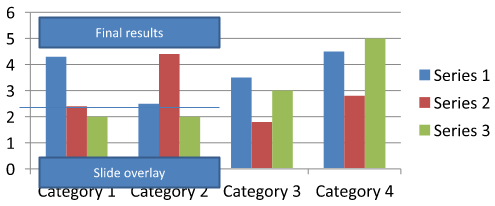
نزِّل chart-annotations.pptx وضعه في دليل عمل التطبيق. تحتوي الشريحة الأولى على مخطط به تعليق غير مجموع يُظهر النص “Preliminary results”، وخط مملوك للمخطط، ومربع نص عادي على الشريحة يُظهر النص “Slide overlay”. يحدد المثال أول مخطط في تلك الشريحة ويغيّر التعليق إلى “Final results” عندما يكون التقرير جاهزًا للنشر. يتحقق من أن المجموعة غير فارغة ويُعدِّل فقط AutoShape الذي يحتوي على إطار نص ليس None يُرجعه getTextFrame والنص المتوقع.
import jpype
import asposeslides

if not jpype.isJVMStarted():
    jpype.startJVM()

from asposeslides.api import AutoShape, Chart, Presentation, SaveFormat

presentation = Presentation("chart-annotations.pptx")
try:
    slide = presentation.getSlides().get_Item(0)

    chart = None
    for shape in slide.getShapes():
        if isinstance(shape, Chart):
            chart = shape
            break

    if chart is None or chart.getUserShapes().getShapes().size() == 0:
        print("No chart or chart-owned shapes found.")
    else:
        updated = False
        for shape in chart.getUserShapes().getShapes():
            if isinstance(shape, AutoShape):
                text_frame = shape.getTextFrame()
                if text_frame is not None and text_frame.getText() == "Preliminary results":
                    text_frame.setText("Final results")
                    updated = True
                    break

        if updated:
            presentation.save("chart-annotations-updated.pptx", SaveFormat.Pptx)
        else:
            print("No matching text annotation found.")
finally:
    presentation.dispose()
يبقى الخط ومربع النص على الشريحة دون تعديل. تُظهر الصور التالية الإدخال والنتيجة المحفوظة والتي أُعيد فتحها:
| قبل التعديل | بعد التعديل |
|---|---|
 |
 |
Note
يفحص المثال فقط الأشكال المملوكة للمخطط على المستوى الأعلى. إذا كان التعليق داخل GroupShape، فافحص مجموعة getShapes لذلك التجميع أيضًا. كرّر ذلك بشكل متكرر للمجموعات المتداخلة، مع تطبيق نفس فحوصات النص على الأشكال الفرعية. المجموعة نفسها هي حاوية؛ لا تُعاملها كمربع نص.الأسئلة الشائعة
هل يمكنني تعيين تعبئات شبه شفافة للأعمدة/المناطق مع الحفاظ على الحدود غير شفافة؟
نعم. يتم تكوين شفافية التعبئة والحدود بشكل منفصل. هذا مفيد لتحسين قابلية قراءة الشبكة والبيانات في التصورات الكثيفة.
كيف يمكنني التعامل مع تسميات البيانات عندما تتداخل؟
قلل حجم الخط، عطل مكونات التسمية غير الضرورية (مثل الفئات)، اضبط موضع التسمية، اعرض التسميات فقط للنقاط المحددة إذا لزم الأمر، أو غيّر التنسيق إلى “القيمة + وسيلة الإيضاح”.
هل يمكنني تطبيق تعبئات تدرجية أو نمطية على السلاسل؟
نعم. تدعم السلاسل تعبئات صلبة، وتدرجية، ونمطية. في الواقع، استخدم التدرجات بحذر وتجنب التركيبات التي تقلل من التباين مع الشبكة والنص.