
إضافة معادلات رياضية إلى عروض PowerPoint التقديمية في Python
نظرة عامة
يخزن PowerPoint المعادلات بصيغة Office Math Markup Language (OMML). باستخدام Aspose.Slides للـ Python عبر Java، يمكنك إنشاء نفس نوع محتوى الرياضيات برمجيًا: الكسور، الجذور، الدوال، الحدود، عوامل N-ary، المصفوفات، المصفوفات المتعددة، وكتل الرياضيات المنسقة.
في PowerPoint، يضيف المستخدمون عادة المعادلات عبر Insert > Equation:
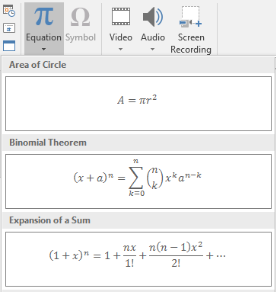
النتيجة هي نص رياضي قابل للتحرير على الشريحة:

يبني Aspose.Slides ذلك النص الرياضي من خلال ثلاثة كائنات رئيسية:
- شكل رياضي، يتم إنشاؤه باستخدام addMathShape، وهو الشكل الذي يحتوي على المعادلة.
- MathPortion يخزن محتوى الرياضيات داخل إطار النص الخاص بالشكل.
- MathParagraph يحتوي على واحد أو أكثر من كائنات MathBlock.
تستخدم معظم الأمثلة أدناه MathematicalText والطرق السلسة من MathElementBase للحفاظ على الشيفرة مختصرة وقابلة للقراءة.
للحالات المتعلقة بتصدير MathML، راجع Export Math Equations from Presentations in Python.
إنشاء معادلة
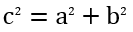
هذا المثال ينشئ شكلًا رياضيًا ويضيف مبرهنة فيثاغورس:
import jpype
import asposeslides

if not jpype.isJVMStarted():
    jpype.startJVM()

from asposeslides.api import MathematicalText, Presentation, SaveFormat

presentation = Presentation()
try:
    slide = presentation.getSlides().get_Item(0)

    math_shape = slide.getShapes().addMathShape(20, 20, 700, 120)
    math_paragraph = math_shape.getTextFrame().getParagraphs().get_Item(0).getPortions().get_Item(0).getMathParagraph()

    a_squared = MathematicalText("a").setSuperscript("2")
    b_squared = MathematicalText("b").setSuperscript("2")
    equation = MathematicalText("c").setSuperscript("2").join("=").join(a_squared).join("+").join(b_squared)

    math_paragraph.add(equation)

    presentation.save("pythagorean-theorem.pptx", SaveFormat.Pptx)
finally:
    presentation.dispose()
Note
addMathShape ينشئ شكلًا يحتوي مسبقًا على فقرة رياضية. احصل على أول MathPortion، ثم استخرج MathParagraph الخاص به، وأضف كتلًا رياضية أو عناصر رياضية إليه.إضافة الكسور
استخدم divide لإنشاء كسر. يمكنك اختيار نمط الكسر عبر MathFractionTypes.

import jpype
import asposeslides

if not jpype.isJVMStarted():
    jpype.startJVM()

from asposeslides.api import MathBlock, MathFractionTypes, MathematicalText, Presentation, SaveFormat

presentation = Presentation()
try:
    slide = presentation.getSlides().get_Item(0)

    math_shape = slide.getShapes().addMathShape(20, 20, 700, 100)
    math_paragraph = math_shape.getTextFrame().getParagraphs().get_Item(0).getPortions().get_Item(0).getMathParagraph()

    fraction = MathematicalText("1").divide("x", MathFractionTypes.Skewed)

    math_block = MathBlock(fraction)
    math_paragraph.add(math_block)

    presentation.save("fraction.pptx", SaveFormat.Pptx)
finally:
    presentation.dispose()
لإنشاء كسر مكدس، استخدم MathFractionTypes.Bar:
import jpype
import asposeslides

if not jpype.isJVMStarted():
    jpype.startJVM()

from asposeslides.api import MathFractionTypes, MathematicalText

stacked_fraction = MathematicalText("x + 1").divide("y - 1", MathFractionTypes.Bar)
إضافة الجذور
استخدم radical لإنشاء جذر تربيعي أو مكعب أو أي جذر آخر. يصبح العنصر الحالي هو الأس، وتصبح الوسيطة هي الدرجة.

import jpype
import asposeslides

if not jpype.isJVMStarted():
    jpype.startJVM()

from asposeslides.api import MathBlock, MathematicalText, Presentation, SaveFormat

presentation = Presentation()
try:
    slide = presentation.getSlides().get_Item(0)

    math_shape = slide.getShapes().addMathShape(20, 20, 700, 100)
    math_paragraph = math_shape.getTextFrame().getParagraphs().get_Item(0).getPortions().get_Item(0).getMathParagraph()

    radical = MathematicalText("x").radical("n")

    math_block = MathBlock(radical)
    math_paragraph.add(math_block)

    presentation.save("radical.pptx", SaveFormat.Pptx)
finally:
    presentation.dispose()
إضافة الدوال والحدود
استخدم asArgumentOfFunction أو function للدوال مثل sin(x)، log(x) أو أسماء دوال مخصصة. للحدود، ضع lim داخل MathLimit أو استخدم setLowerLimit.

import jpype
import asposeslides

if not jpype.isJVMStarted():
    jpype.startJVM()

from asposeslides.api import MathBlock, MathematicalText, Presentation, SaveFormat

presentation = Presentation()
try:
    slide = presentation.getSlides().get_Item(0)

    math_shape = slide.getShapes().addMathShape(20, 20, 700, 100)
    math_paragraph = math_shape.getTextFrame().getParagraphs().get_Item(0).getPortions().get_Item(0).getMathParagraph()

    limit = MathematicalText("lim").setLowerLimit("x\u2192\u221E").function("x")

    math_block = MathBlock(limit)
    math_paragraph.add(math_block)

    presentation.save("functions-and-limits.pptx", SaveFormat.Pptx)
finally:
    presentation.dispose()
لإعطاء اسم دالة مخصص، اجعل اسم الدالة هو العنصر الحالي:
import jpype
import asposeslides

if not jpype.isJVMStarted():
    jpype.startJVM()

from asposeslides.api import MathematicalText

custom_function = MathematicalText("f").function("x + 1")
إضافة عوامل N-ary والتكاملات
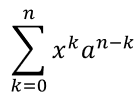
استخدم nary للجامعات، الاتحادات، التقاطعات وغيرها من العوامل الكبيرة. استخدم integral للتكاملات. تسمح الطريقتان بتحديد الحدود السفلية والعلوية.
import jpype
import asposeslides

if not jpype.isJVMStarted():
    jpype.startJVM()

from asposeslides.api import MathBlock, MathNaryOperatorTypes, MathematicalText, Presentation, SaveFormat

presentation = Presentation()
try:
    slide = presentation.getSlides().get_Item(0)

    math_shape = slide.getShapes().addMathShape(20, 20, 700, 120)
    math_paragraph = math_shape.getTextFrame().getParagraphs().get_Item(0).getPortions().get_Item(0).getMathParagraph()

    a_power = MathematicalText("a").setSuperscript("n-k")
    summation_base = MathematicalText("x").setSuperscript("k").join(a_power)

    summation = summation_base.nary(MathNaryOperatorTypes.Summation, "k=0", "n")

    math_block = MathBlock(summation)
    math_paragraph.add(math_block)

    presentation.save("nary-operators.pptx", SaveFormat.Pptx)
finally:
    presentation.dispose()
عوامل N-ary مخصصة للعوامل الكبيرة ذات حدود اختيارية. غالبًا ما تُضاف العوامل البسيطة مثل +، -، و= كـ MathematicalText وتُدمج في التعبير.
للتكامل، استخدم integral:
import jpype
import asposeslides

if not jpype.isJVMStarted():
    jpype.startJVM()

from asposeslides.api import MathIntegralTypes, MathematicalText

differential = MathematicalText("dx").toBox()
integral_base = MathematicalText("x").join(differential)
integral = integral_base.integral(MathIntegralTypes.Simple, "0", "1")
إضافة المصفوفات
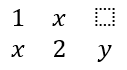
استخدم MathMatrix للصفوف والأعمدة. لا تتضمن المصفوفات الأقواس بشكل افتراضي، لذا احيط المصفوفة عندما تحتاج إلى أقواس أو أقواس مربعة أو أقواس معقوفة.
import jpype
import asposeslides

if not jpype.isJVMStarted():
    jpype.startJVM()

from asposeslides.api import MathBlock, MathMatrix, MathematicalText, Presentation, SaveFormat

presentation = Presentation()
try:
    slide = presentation.getSlides().get_Item(0)

    math_shape = slide.getShapes().addMathShape(20, 20, 700, 120)
    math_paragraph = math_shape.getTextFrame().getParagraphs().get_Item(0).getPortions().get_Item(0).getMathParagraph()

    matrix = MathMatrix(2, 3)
    cell_0_0 = MathematicalText("1")
    matrix.set_Item(0, 0, cell_0_0)
    cell_0_1 = MathematicalText("x")
    matrix.set_Item(0, 1, cell_0_1)
    cell_1_0 = MathematicalText("x")
    matrix.set_Item(1, 0, cell_1_0)
    cell_1_1 = MathematicalText("2")
    matrix.set_Item(1, 1, cell_1_1)
    cell_1_2 = MathematicalText("y")
    matrix.set_Item(1, 2, cell_1_2)

    math_block = MathBlock(matrix)
    math_paragraph.add(math_block)

    presentation.save("matrix.pptx", SaveFormat.Pptx)
finally:
    presentation.dispose()
إضافة مصفوفات معادلات
استخدم toMathArray عندما تحتاج إلى معادلات محاذية أو مجموعة رأسية من التعبيرات.

import jpype
import asposeslides

if not jpype.isJVMStarted():
    jpapi.startJVM()

from asposeslides.api import MathBlock, MathematicalText, Presentation, SaveFormat

presentation = Presentation()
try:
    slide = presentation.getSlides().get_Item(0)

    math_shape = slide.getShapes().addMathShape(20, 20, 700, 140)
    math_paragraph = math_shape.getTextFrame().getParagraphs().get_Item(0).getPortions().get_Item(0).getMathParagraph()

    equation_array = MathematicalText("x").join("y").toMathArray()

    math_block = MathBlock(equation_array)
    math_paragraph.add(math_block)

    presentation.save("equation-array.pptx", SaveFormat.Pptx)
finally:
    presentation.dispose()
إضافة الدوال المثلثية
استخدم asArgumentOfFunction عندما يكون المتغير هو العنصر الحالي ويُعرف اسم الدالة.

import jpype
import asposeslides

if not jpype.isJVMStarted():
    jpype.startJVM()

from asposeslides.api import MathBlock, MathFunctionsOfOneArgument, MathematicalText, Presentation, SaveFormat

presentation = Presentation()
try:
    slide = presentation.getSlides().get_Item(0)

    math_shape = slide.getShapes().addMathShape(20, 20, 700, 100)
    math_paragraph = math_shape.getTextFrame().getParagraphs().get_Item(0).getPortions().get_Item(0).getMathParagraph()

    cosine = MathematicalText("2x").asArgumentOfFunction(MathFunctionsOfOneArgument.Cos)

    math_block = MathBlock(cosine)
    math_paragraph.add(math_block)

    presentation.save("trigonometric-function.pptx", SaveFormat.Pptx)
finally:
    presentation.dispose()
إضافة المؤشرات والرفع فوقي
استخدام المساعدين للمنخفض (subscript) والعلوي (superscript) للفهارس والكسور. عندما يجب أن تظهر الفهارس على الجانب الأيسر للأساس، استخدم setSubSuperscriptOnTheLeft.

import jpype
import asposeslides

if not jpype.isJVMStarted():
    jpype.startJVM()

from asposeslides.api import MathBlock, MathematicalText, Presentation, SaveFormat

presentation = Presentation()
try:
    slide = presentation.getSlides().get_Item(0)

    math_shape = slide.getShapes().addMathShape(20, 20, 700, 100)
    math_paragraph = math_shape.getTextFrame().getParagraphs().get_Item(0).getPortions().get_Item(0).getMathParagraph()

    scripts = MathematicalText("Y").setSubSuperscriptOnTheLeft("1", "n")

    math_block = MathBlock(scripts)
    math_paragraph.add(math_block)

    presentation.save("subscript-superscript.pptx", SaveFormat.Pptx)
finally:
    presentation.dispose()
إضافة الفواصل
استخدم enclose لوضع تعبير داخل فواصل. يمكنك أيضًا تعيين حرف فاصل لتعبيرات الفواصل التي تحتوي على عدة عناصر.

import jpype
import asposeslides

if not jpype.isJVMStarted():
    jpype.startJVM()

from asposeslides.api import MathBlock, MathematicalText, Presentation, SaveFormat

presentation = Presentation()
try:
    slide = presentation.getSlides().get_Item(0)

    math_shape = slide.getShapes().addMathShape(20, 20, 700, 100)
    math_paragraph = math_shape.getTextFrame().getParagraphs().get_Item(0).getPortions().get_Item(0).getMathParagraph()

    delimiter = MathematicalText("x").join("y").join("z").enclose('<', '>')
    delimiter.setSeparatorCharacter('|')

    math_block = MathBlock(delimiter)
    math_paragraph.add(math_block)

    presentation.save("delimiters.pptx", SaveFormat.Pptx)
finally:
    presentation.dispose()
إضافة صندوق حدود
استخدم toBorderBox عندما يجب أن تُحيط المعادلة بإطار.
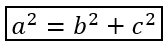
import jpype
import asposeslides

if not jpype.isJVMStarted():
    jpype.startJVM()

from asposeslides.api import MathBlock, MathematicalText, Presentation, SaveFormat

presentation = Presentation()
try:
    slide = presentation.getSlides().get_Item(0)

    math_shape = slide.getShapes().addMathShape(20, 20, 700, 100)
    math_paragraph = math_shape.getTextFrame().getParagraphs().get_Item(0).getPortions().get_Item(0).getMathParagraph()

    b_squared = MathematicalText("b").setSuperscript("2")
    c_squared = MathematicalText("c").setSuperscript("2")
    boxed_equation = MathematicalText("a").setSuperscript("2").join("=").join(b_squared).join("+").join(c_squared).toBorderBox()

    math_block = MathBlock(boxed_equation)
    math_paragraph.add(math_block)

    presentation.save("border-box.pptx", SaveFormat.Pptx)
finally:
    presentation.dispose()
تجميع المصطلحات
استخدم group لوضع رمز تجميع أعلى أو أسفل التعبير. أضف حدًا لتسمية المصطلحات المجمعة.

import jpype
import asposeslides

if not jpype.isJVMStarted():
    jpype.startJVM()

from asposeslides.api import MathBlock, MathTopBotPositions, MathematicalText, Presentation, SaveFormat

presentation = Presentation()
try:
    slide = presentation.getSlides().get_Item(0)

    math_shape = slide.getShapes().addMathShape(20, 20, 700, 120)
    math_paragraph = math_shape.getTextFrame().getParagraphs().get_Item(0).getPortions().get_Item(0).getMathParagraph()

    grouped = MathematicalText("x + y").group('\u23DF', MathTopBotPositions.Bottom, MathTopBotPositions.Top).setLowerLimit("any text")

    math_block = MathBlock(grouped)
    math_paragraph.add(math_block)

    presentation.save("grouped-terms.pptx", SaveFormat.Pptx)
finally:
    presentation.dispose()
تنسيق عناصر الرياضيات
استخدم المساعدات التنسيقية فقط حيث تُوضح الصيغة. على سبيل المثال، overbar يضع شريطًا فوق عنصر رياضي.

import jpype
import asposeslides

if not jpype.isJVMStarted():
    jpapi.startJVM()

from asposeslides.api import MathBlock, MathematicalText, Presentation, SaveFormat

presentation = Presentation()
try:
    slide = presentation.getSlides().get_Item(0)

    math_shape = slide.getShapes().addMathShape(20, 20, 700, 100)
    math_paragraph = math_shape.getTextFrame().getParagraphs().get_Item(0).getPortions().get_Item(0).getMathParagraph()

    overbar = MathematicalText("ABC").overbar()

    math_block = MathBlock(overbar)
    math_paragraph.add(math_block)

    presentation.save("overbar.pptx", SaveFormat.Pptx)
finally:
    presentation.dispose()
مرجع سريع
| المهمة | API الرئيسي |
|---|---|
| إنشاء نص رياضي | MathematicalText |
| دمج العناصر | MathElementBase.join |
| إنشاء الكسور | MathElementBase.divide |
| إضافة مرتفع أو منخفض | setSuperscript, setSubscript |
| إضافة الدوال | function, asArgumentOfFunction |
| إضافة الجذور | MathElementBase.radical |
| إضافة الحدود | setLowerLimit, setUpperLimit |
| إضافة مؤشرات على الجانب الأيسر | setSubSuperscriptOnTheLeft |
| إضافة الجمع والتكامل | nary, integral |
| إضافة المصفوفات | MathMatrix |
| إضافة مصفوفات معادلات | toMathArray |
| إضافة الفواصل | enclose |
| إضافة الشرطات والإطارات | overbar, toBorderBox |
| تجميع المصطلحات | group |
الأسئلة المتكررة
هل يمكن تعديل معادلة PowerPoint موجودة؟
نعم. افتح العرض، ابحث عن الشكل الذي يحتوي على MathPortion، احصل على MathParagraph الخاص به، وحدث كتل الرياضيات في تلك الفقرة.
هل تُحفظ المعادلات كرياضيات PowerPoint قابلة للتحرير؟
نعم. عند حفظ الملف بصيغة PPTX، يكتب Aspose.Slides المعادلة كمحتوى Office Math قابل للتحرير.
هل يمكن تصدير المعادلات إلى LaTeX؟
نعم. احصل على MathParagraph الخاص بالمعادلة من MathPortion، ثم استدعِ MathParagraph.toLatex لتصديره مباشرة. للحصول على مثال كامل، راجع Export Math Equations from Presentations in Python.