
مدیریت جعبههای متن در ارائهها بر روی Android
مقدمه
در Aspose.Slides برای Android از طریق Java، متن اسلاید در چارچوبهای متنی که متعلق به اشکال هستند ذخیره میشود. رابط IAutoShape نمایانگر رایجترین شکل حاوی متن است و متن آن را از طریق روش IAutoShape.getTextFrame در دسترس میگذارد.
Note
هر شکل خودکار پیادهسازیکنندهٔ IShape است، اما هر شکل خودکار نیست و یا از چارچوب متن پشتیبانی نمیکند. هنگام پردازش یک ارائهٔ موجود، قبل از دسترسی به متن، اطمینان حاصل کنید که شکل پیادهسازیکنندهٔ IAutoShape است.ایجاد یک جعبه متن در اسلاید
برای ایجاد یک جعبه متن، یک شکل خودکار را به اسلاید اضافه کنید، متن را به چارچوب متن آن اضافه کنید و ارائه را ذخیره کنید. مثال زیر یک جعبه متن مستطیلی ایجاد میکند:
import com.aspose.slides.*;

Presentation presentation = new Presentation();
try {
    ISlide slide = presentation.getSlides().get_Item(0);
    IAutoShape textBox = slide.getShapes().addAutoShape(ShapeType.Rectangle, 150, 75, 300, 50);
    textBox.addTextFrame("Aspose TextBox");

    presentation.save("TextBox.pptx", SaveFormat.Pptx);
} finally {
    presentation.dispose();
}
مختصات و ابعادی که به روش IShapeCollection.addAutoShape منتقل میشوند، به واحد نقطه (points) سنجش میشوند. روش IAutoShape.addTextFrame چارچوب متن را با متنی که ارائه میشود مقداردهی اولیه میکند.
بررسی شکل جعبه متن
از روش IAutoShape.isTextBox برای تعیین این که آیا یک شکل خودکار به عنوان جعبه متن در نظر گرفته میشود استفاده کنید. این هنگامیکه ارائه شامل هر دو شکل خودکار حاوی متن و شکلهای صرفاً گرافیکی باشد، مفید است.
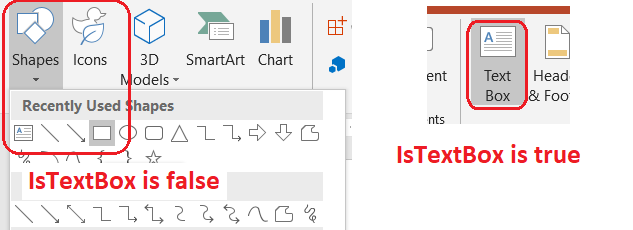
مثال زیر هر شکل خودکار موجود در یک ارائه را بررسی میکند:
import com.aspose.slides.*;

Presentation presentation = new Presentation();
try {
    ISlide slide = presentation.getSlides().get_Item(0);
    IAutoShape textBox = slide.getShapes().addAutoShape(ShapeType.Rectangle, 10, 10, 120, 40);
    textBox.addTextFrame("Text box");
    slide.getShapes().addAutoShape(ShapeType.Ellipse, 150, 10, 40, 40);

    for (ISlide currentSlide : presentation.getSlides()) {
        for (IShape shape : currentSlide.getShapes()) {
            if (shape instanceof IAutoShape) {
                IAutoShape autoShape = (IAutoShape) shape;
                System.out.println(autoShape.isTextBox() ? "The shape is a text box." : "The shape is not a text box.");
            }
        }
    }
} finally {
    presentation.dispose();
}
یک شکل خودکار که تازه اضافه شده تا زمانی که متن غیر خالی داشته باشد، بهعنوان جعبه متن در نظر گرفته نمیشود. میتوانید آن متن را از طریق IAutoShape.addTextFrame یا ITextFrame.setText فراهم کنید. افزودن یا تخصیص یک رشتهٔ خالی، باعث میشود که روش IAutoShape.isTextBox مقدار false برگرداند:
import com.aspose.slides.*;

Presentation presentation = new Presentation();
try {
    ISlide slide = presentation.getSlides().get_Item(0);

    IAutoShape shape1 = slide.getShapes().addAutoShape(ShapeType.Rectangle, 10, 10, 100, 40);
    shape1.addTextFrame("Shape 1");
    System.out.println(shape1.isTextBox());

    IAutoShape shape2 = slide.getShapes().addAutoShape(ShapeType.Rectangle, 10, 70, 100, 40);
    shape2.getTextFrame().setText("Shape 2");
    System.out.println(shape2.isTextBox());

    IAutoShape shape3 = slide.getShapes().addAutoShape(ShapeType.Rectangle, 10, 130, 100, 40);
    shape3.addTextFrame("");
    System.out.println(shape3.isTextBox());

    IAutoShape shape4 = slide.getShapes().addAutoShape(ShapeType.Rectangle, 10, 190, 100, 40);
    shape4.getTextFrame().setText("");
    System.out.println(shape4.isTextBox());
} finally {
    presentation.dispose();
}
دو فراخوانی اول true چاپ میکنند؛ دو فراخوانی آخر false چاپ میکنند.
یافتن شکلی که چارچوب متن را در اختیار دارد
کدهای عمومی پردازش متن ممکن است یک ITextFrame دریافت کنند بدون اینکه بدانند کدام شی ارائه آن را شامل میشود. برای بازگشت به شکل مالک از روش فقط‑خواندنی ITextFrame.getParentShape استفاده کنید.
برای چارچوب متنی که متعلق به یک شکل خودکار یا شکل دیگری حاوی متن است، ITextFrame.getParentShape مالک را برمیگرداند و ITextFrame.getParentCell مقدار null میدهد. قبل از دسترسی مقدار برگرداندهشده را بررسی کنید. برای شناسایی هر دو مالک شکل و سلول جدول، از جمله اشکالی که به گرههای SmartArt مرتبط هستند، به بخش Search and Replace Text مراجعه کنید.
افزودن ستونها به جعبه متن
روش ITextFrameFormat.setColumnCount چارچوب متن را به ستونها تقسیم میکند، در حالی که ITextFrameFormat.setColumnSpacing فاصلهٔ بین ستونها را برحسب نقطه تنظیم میکند. هر دو تنظیم متعلق به ITextFrameFormat هستند و میتوان آنها را از طریق چارچوب متن یک جعبه متن موجود تغییر داد. متن بین ستونهای داخل یک شکل مجدداً جریان مییابد؛ اما به شکل دیگری ادامه نمییابد.
مثال زیر یک جعبه متن سهستونی با ۱۰ نقطه فاصله بین ستونها ایجاد میکند، ارائه را ذخیره میکند و تنظیمات ذخیرهشده را از فایل خروجی میخواند:
import com.aspose.slides.*;

Presentation presentation = new Presentation();
try {
    ISlide slide = presentation.getSlides().get_Item(0);
    IAutoShape textBox = slide.getShapes().addAutoShape(ShapeType.Rectangle, 100, 100, 300, 200);
    textBox.addTextFrame("This text is distributed automatically across all columns in the text box.");

    ITextFrameFormat textFrameFormat = textBox.getTextFrame().getTextFrameFormat();
    textFrameFormat.setColumnCount(3);
    textFrameFormat.setColumnSpacing(10);

    presentation.save("TextBoxColumns.pptx", SaveFormat.Pptx);

    Presentation savedPresentation = new Presentation("TextBoxColumns.pptx");
    try {
        IAutoShape savedTextBox = (IAutoShape) savedPresentation.getSlides().get_Item(0).getShapes().get_Item(0);
        ITextFrameFormat savedFormat = savedTextBox.getTextFrame().getTextFrameFormat();
        System.out.println("Columns: " + savedFormat.getColumnCount() + "; spacing: " + savedFormat.getColumnSpacing() + " points");
    } finally {
        savedPresentation.dispose();
    }
} finally {
    presentation.dispose();
}
استخراج متن از ستونهای جداگانه
از ITextFrame.splitTextByColumns برای دریافت متنی که به هر ستون بصری در یک چارچوب متن موجود اختصاص یافته است، استفاده کنید. این روش برای هر ستون یک رشته برمیگرداند، به ترتیب خواندن مبتنی بر ستون. یک چارچوب متن تکستونی آرایهای با یک عنصر تولید میکند و یک ستون خالی با رشتهٔ خالی نمایان میشود. رشتهها فقط شامل متن ساده هستند؛ قالببندی در سطح بخش حفظ نمیشود.
این موارد مفید هستند زمانی که نیاز دارید:
- استخراج متن در حالی که ترتیب خواندن بر اساس ستون حفظ میشود.
- ایندکس یا مقایسهٔ محتوای اسلایدهای چندستونی.
- صادر کردن هر ستون به یک فایل جداگانه، فیلد پایگاه داده یا مقصد دیگری.
- بررسی نحوهٔ توزیع دوبارهٔ متن پس از تغییر تعداد ستونها با ITextFrameFormat.setColumnCount، فاصله با ITextFrameFormat.setColumnSpacing، فونت یا اندازهٔ چارچوب متن.
این روش متن توزیعشده در داخل [ITextFrame] جاری را گزارش میدهد؛ بهصورت خودکار متن را بین شکلها یا جعبههای متن جداگانه جابجا نمیکند. توزیع ستون میتواند به فونتهای در دسترس و سایر تنظیمات طرحبندی متن وابسته باشد، بنابراین هنگامیکه نتایج سازگار اهمیت دارند، اطمینان حاصل کنید که فونتهای مورد نیاز موجود باشند.
مثال زیر یک ارائه را بارگذاری میکند، اولین شکل خودکار چندستونی دارای چارچوب متن را پیدا میکند، تعداد ستون پیکربندیشده را میخواند و متن هر ستون را به یک فایل جداگانه مینویسد. شکلهایی که چارچوب متنی ندارند، نادیده گرفته میشوند.
import com.aspose.slides.*;
import java.io.FileOutputStream;
import java.io.IOException;
import java.nio.charset.StandardCharsets;

Presentation presentation = new Presentation("MultiColumnText.pptx");
try {
    IAutoShape textBox = null;
    for (IShape shape : presentation.getSlides().get_Item(0).getShapes()) {
        if (shape instanceof IAutoShape) {
            IAutoShape autoShape = (IAutoShape) shape;
            if (autoShape.getTextFrame() != null) {
                int columnCount = autoShape.getTextFrame().getTextFrameFormat().getColumnCount();
                if (columnCount > 1) {
                    textBox = autoShape;
                    break;
                }
            }
        }
    }

    if (textBox == null) {
        System.out.println("No multi-column text frame was found.");
    } else {
        ITextFrame textFrame = textBox.getTextFrame();
        int configuredColumnCount = textFrame.getTextFrameFormat().getColumnCount();
        String[] columnTexts = textFrame.splitTextByColumns();

        System.out.println("Configured columns: " + configuredColumnCount);

        for (int columnIndex = 0; columnIndex < columnTexts.length; columnIndex++) {
            int columnNumber = columnIndex + 1;
            String columnText = columnTexts[columnIndex];
            System.out.println("Column " + columnNumber + ": " + columnText);
            String outputPath = "Column-" + columnNumber + ".txt";
            byte[] textBytes = columnText.getBytes(StandardCharsets.UTF_8);
            try (FileOutputStream outputStream = new FileOutputStream(outputPath)) {
                outputStream.write(textBytes);
            } catch (IOException exception) {
                System.out.println("Could not write column " + columnNumber + ": " + exception.getMessage());
            }
        }
    }
} finally {
    presentation.dispose();
}
بهروزرسانی متن
برای بهروزرسانی متن در سراسر یک ارائه، اسلایدها و اشکال را مرور کنید، شکلهای خودکار را انتخاب کنید و سپس بخشهای متنی آنها را ویرایش کنید. کار در سطح بخش به شما امکان میدهد هم متن و هم قالببندی نویسهای را تغییر دهید.
مثال زیر هر رخداد years را با months در متن شکل خودکار جایگزین میکند و هر بخش تحت تأثیر را بولد میسازد:
import com.aspose.slides.*;

Presentation presentation = new Presentation("Text.pptx");
try {
    for (ISlide slide : presentation.getSlides()) {
        for (IShape shape : slide.getShapes()) {
            if (!(shape instanceof IAutoShape)) {
                continue;
            }

            IAutoShape autoShape = (IAutoShape) shape;
            ITextFrame textFrame = autoShape.getTextFrame();
            if (textFrame == null) {
                continue;
            }

            for (IParagraph paragraph : textFrame.getParagraphs()) {
                for (IPortion portion : paragraph.getPortions()) {
                    String text = portion.getText();
                    if (text != null && text.contains("years")) {
                        portion.setText(text.replace("years", "months"));
                        portion.getPortionFormat().setFontBold(NullableBool.True);
                    }
                }
            }
        }
    }

    presentation.save("TextChanged.pptx", SaveFormat.Pptx);
} finally {
    presentation.dispose();
}
این پیمایش فقط متن را در شکلهای خودکار بهروز میکند. متنی که در جدولها، نمودارها، SmartArt یا اشکال گروهبندیشده ذخیره شدهاند، نیاز به مرور مجموعهٔ خود آن اشیاء دارد.
افزودن جعبه متن با پیوند
یک پیوند میتواند به بخش متنی خاصی اختصاص یابد، بهطوری که فقط همان متن بهصورت لینک قابل کلیک عمل کند. از IHyperlinkManager.setExternalHyperlinkClick برای مرتبطسازی بخش با یک URL خارجی استفاده کنید.
مثال زیر متن لینکدار ایجاد میکند و آن را در یک ارائه ذخیره مینماید:
import com.aspose.slides.*;

Presentation presentation = new Presentation();
try {
    ISlide slide = presentation.getSlides().get_Item(0);
    IAutoShape textBox = slide.getShapes().addAutoShape(ShapeType.Rectangle, 150, 150, 200, 50);
    textBox.addTextFrame("Aspose.Slides");

    IPortion textPortion = textBox.getTextFrame().getParagraphs().get_Item(0).getPortions().get_Item(0);
    textPortion.getPortionFormat().getHyperlinkManager().setExternalHyperlinkClick("https://www.aspose.com/");

    presentation.save("Hyperlink.pptx", SaveFormat.Pptx);
} finally {
    presentation.dispose();
}
پرسشهای متداول
تفاوت جعبه متن و محلدار متن در اسلاید مستر یا طرحبندی چیست؟
یک placeholder میتواند موقعیت و قالببندی خود را از یک master slide یا layout slide به ارث ببرد. یک جعبه متن عادی شکل مستقلی روی اسلایدی است که در آن ساخته شده و هنگام تغییر طرحبندی رفتار placeholder را بهدست نمیآورد.
چگونه میتوان متن را جایگزین کرد بدون اینکه متن در نمودارها، جدولها یا SmartArt تغییر کند؟
پیمایش را به اشکالی که پیادهسازیکنندهٔ IAutoShape هستند محدود کنید، همانطور که در مثال بهروزرسانی متن نشان داده شده است. نمودارها، جدولها و SmartArt متن خود را در مدلهای شیء خود ذخیره میکنند، بنابراین آن حلقه آنها را تغییر نمیدهد.