
Quản lý Hộp Văn Bản trong Bản Trình Chiếu trên Android
Giới thiệu
Trong Aspose.Slides for Android qua Java, văn bản trên slide được lưu trong các khung văn bản thuộc về các hình dạng. Giao diện IAutoShape đại diện cho hình dạng chứa văn bản phổ biến nhất và cung cấp văn bản của nó thông qua phương thức IAutoShape.getTextFrame.
Lưu ý
Mỗi auto shape đều thực thi IShape, nhưng không phải mọi hình dạng đều là auto shape hoặc hỗ trợ khung văn bản. Khi xử lý một bản trình chiếu hiện có, hãy kiểm tra xem hình dạng có thực thi IAutoShape trước khi truy cập văn bản của nó.Tạo một Hộp Văn Bản trên Slide
Để tạo một hộp văn bản, thêm một auto shape vào slide, thêm văn bản vào khung văn bản của nó và lưu bản trình chiếu. Ví dụ sau tạo một hộp văn bản hình chữ nhật:
import com.aspose.slides.*;

Presentation presentation = new Presentation();
try {
    ISlide slide = presentation.getSlides().get_Item(0);
    IAutoShape textBox = slide.getShapes().addAutoShape(ShapeType.Rectangle, 150, 75, 300, 50);
    textBox.addTextFrame("Aspose TextBox");

    presentation.save("TextBox.pptx", SaveFormat.Pptx);
} finally {
    presentation.dispose();
}
Các tọa độ và kích thước truyền cho phương thức IShapeCollection.addAutoShape được đo bằng điểm. Phương thức IAutoShape.addTextFrame khởi tạo khung văn bản với văn bản đã cung cấp.
Kiểm tra Hình dạng Hộp Văn Bản
Sử dụng phương thức IAutoShape.isTextBox để xác định xem một auto shape có được coi là hộp văn bản hay không. Điều này hữu ích khi một bản trình chiếu chứa cả các auto shape có văn bản và các auto shape chỉ là đồ họa.
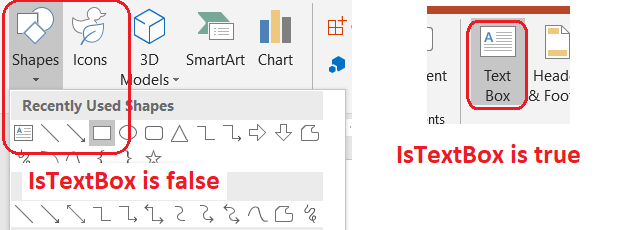
Ví dụ sau kiểm tra mọi auto shape trong một bản trình chiếu:
import com.aspose.slides.*;

Presentation presentation = new Presentation();
try {
    ISlide slide = presentation.getSlides().get_Item(0);
    IAutoShape textBox = slide.getShapes().addAutoShape(ShapeType.Rectangle, 10, 10, 120, 40);
    textBox.addTextFrame("Text box");
    slide.getShapes().addAutoShape(ShapeType.Ellipse, 150, 10, 40, 40);

    for (ISlide currentSlide : presentation.getSlides()) {
        for (IShape shape : currentSlide.getShapes()) {
            if (shape instanceof IAutoShape) {
                IAutoShape autoShape = (IAutoShape) shape;
                System.out.println(autoShape.isTextBox() ? "The shape is a text box." : "The shape is not a text box.");
            }
        }
    }
} finally {
    presentation.dispose();
}
Một auto shape mới được thêm vào sẽ không được xem là hộp văn bản cho đến khi nó chứa văn bản không rỗng. Bạn có thể cung cấp văn bản đó qua IAutoShape.addTextFrame hoặc ITextFrame.setText. Việc thêm hoặc gán một chuỗi rỗng sẽ khiến IAutoShape.isTextBox trả về false:
import com.aspose.slides.*;

Presentation presentation = new Presentation();
try {
    ISlide slide = presentation.getSlides().get_Item(0);

    IAutoShape shape1 = slide.getShapes().addAutoShape(ShapeType.Rectangle, 10, 10, 100, 40);
    shape1.addTextFrame("Shape 1");
    System.out.println(shape1.isTextBox());

    IAutoShape shape2 = slide.getShapes().addAutoShape(ShapeType.Rectangle, 10, 70, 100, 40);
    shape2.getTextFrame().setText("Shape 2");
    System.out.println(shape2.isTextBox());

    IAutoShape shape3 = slide.getShapes().addAutoShape(ShapeType.Rectangle, 10, 130, 100, 40);
    shape3.addTextFrame("");
    System.out.println(shape3.isTextBox());

    IAutoShape shape4 = slide.getShapes().addAutoShape(ShapeType.Rectangle, 10, 190, 100, 40);
    shape4.getTextFrame().setText("");
    System.out.println(shape4.isTextBox());
} finally {
    presentation.dispose();
}
Hai lời gọi đầu tiên in ra true; hai lời gọi cuối cùng in ra false.
Tìm Hình dạng Sở hữu Khung Văn Bản
Mã xử lý văn bản chung có thể nhận được một ITextFrame mà không biết đối tượng trình chiếu nào chứa nó. Sử dụng phương thức chỉ đọc ITextFrame.getParentShape để quay trở lại IShape sở hữu.
Đối với một khung văn bản thuộc về một auto shape hoặc một hình dạng khác chứa văn bản, ITextFrame.getParentShape trả về chủ sở hữu và ITextFrame.getParentCell trả về null. Hãy kiểm tra giá trị trả về trước khi truy cập. Để xác định cả chủ sở hữu hình dạng và ô bảng, bao gồm các hình dạng liên kết với nút SmartArt, xem Search and Replace Text.
Thêm Cột vào Hộp Văn Bản
Phương thức ITextFrameFormat.setColumnCount chia khung văn bản thành các cột, trong khi ITextFrameFormat.setColumnSpacing đặt khoảng cách giữa các cột tính bằng điểm. Cả hai thiết lập đều thuộc về ITextFrameFormat và có thể được thay đổi thông qua khung văn bản của một hộp văn bản hiện có. Văn bản sẽ được sắp xếp lại giữa các cột trong cùng một hình dạng; nó sẽ không tiếp tục sang một hình dạng khác.
Ví dụ sau tạo một hộp văn bản ba cột với khoảng cách 10 điểm giữa các cột, lưu bản trình chiếu và đọc lại các thiết lập từ tệp đầu ra:
import com.aspose.slides.*;

Presentation presentation = new Presentation();
try {
    ISlide slide = presentation.getSlides().get_Item(0);
    IAutoShape textBox = slide.getShapes().addAutoShape(ShapeType.Rectangle, 100, 100, 300, 200);
    textBox.addTextFrame("This text is distributed automatically across all columns in the text box.");

    ITextFrameFormat textFrameFormat = textBox.getTextFrame().getTextFrameFormat();
    textFrameFormat.setColumnCount(3);
    textFrameFormat.setColumnSpacing(10);

    presentation.save("TextBoxColumns.pptx", SaveFormat.Pptx);

    Presentation savedPresentation = new Presentation("TextBoxColumns.pptx");
    try {
        IAutoShape savedTextBox = (IAutoShape) savedPresentation.getSlides().get_Item(0).getShapes().get_Item(0);
        ITextFrameFormat savedFormat = savedTextBox.getTextFrame().getTextFrameFormat();
        System.out.println("Columns: " + savedFormat.getColumnCount() + "; spacing: " + savedFormat.getColumnSpacing() + " points");
    } finally {
        savedPresentation.dispose();
    }
} finally {
    presentation.dispose();
}
Trích xuất Văn Bản từ Các Cột Riêng lẻ
Sử dụng ITextFrame.splitTextByColumns để lấy văn bản được gán cho mỗi cột hiển thị trong một khung văn bản hiện có. Phương thức trả về một chuỗi cho mỗi cột, theo thứ tự đọc dựa trên cột. Một khung văn bản một cột sẽ tạo một mảng có một phần tử, và một cột rỗng được biểu thị bằng một chuỗi trống. Các chuỗi chỉ chứa văn bản thuần; định dạng cấp phần không được giữ lại.
Điều này hữu ích khi bạn cần:
- Trích xuất văn bản đồng thời giữ nguyên thứ tự đọc dựa trên cột.
- Lập chỉ mục hoặc so sánh nội dung của các slide đa cột.
- Xuất mỗi cột ra một tệp riêng, trường cơ sở dữ liệu hoặc đích khác.
- Kiểm tra cách văn bản được phân phối lại sau khi thay đổi số cột bằng ITextFrameFormat.setColumnCount, khoảng cách bằng ITextFrameFormat.setColumnSpacing, phông chữ hoặc kích thước khung văn bản.
Phương thức báo cáo văn bản được phân phối trong ITextFrame hiện tại; nó không tự động đẩy văn bản giữa các hình dạng hoặc hộp văn bản riêng biệt. Phân phối cột có thể phụ thuộc vào phông chữ có sẵn và các thiết lập bố cục văn bản khác, vì vậy hãy đảm bảo các phông chữ cần thiết đã có khi kết quả nhất quán là quan trọng.
Ví dụ sau tải một bản trình chiếu, tìm auto shape đa cột đầu tiên có khung văn bản, đọc số cột đã cấu hình, và ghi văn bản từ mỗi cột ra một tệp riêng. Các hình dạng không cung cấp khung văn bản sẽ bị bỏ qua.
import com.aspose.slides.*;
import java.io.FileOutputStream;
import java.io.IOException;
import java.nio.charset.StandardCharsets;

Presentation presentation = new Presentation("MultiColumnText.pptx");
try {
    IAutoShape textBox = null;
    for (IShape shape : presentation.getSlides().get_Item(0).getShapes()) {
        if (shape instanceof IAutoShape) {
            IAutoShape autoShape = (IAutoShape) shape;
            if (autoShape.getTextFrame() != null) {
                int columnCount = autoShape.getTextFrame().getTextFrameFormat().getColumnCount();
                if (columnCount > 1) {
                    textBox = autoShape;
                    break;
                }
            }
        }
    }

    if (textBox == null) {
        System.out.println("No multi-column text frame was found.");
    } else {
        ITextFrame textFrame = textBox.getTextFrame();
        int configuredColumnCount = textFrame.getTextFrameFormat().getColumnCount();
        String[] columnTexts = textFrame.splitTextByColumns();

        System.out.println("Configured columns: " + configuredColumnCount);

        for (int columnIndex = 0; columnIndex < columnTexts.length; columnIndex++) {
            int columnNumber = columnIndex + 1;
            String columnText = columnTexts[columnIndex];
            System.out.println("Column " + columnNumber + ": " + columnText);
            String outputPath = "Column-" + columnNumber + ".txt";
            byte[] textBytes = columnText.getBytes(StandardCharsets.UTF_8);
            try (FileOutputStream outputStream = new FileOutputStream(outputPath)) {
                outputStream.write(textBytes);
            } catch (IOException exception) {
                System.out.println("Could not write column " + columnNumber + ": " + exception.getMessage());
            }
        }
    }
} finally {
    presentation.dispose();
}
Cập nhật Văn Bản
Để cập nhật văn bản trên toàn bộ bản trình chiếu, lặp qua các slide và các hình dạng, chọn auto shape và sau đó chỉnh sửa các phần văn bản của chúng. Làm việc ở cấp phần cho phép bạn thay đổi cả văn bản và định dạng ký tự.
Ví dụ sau thay thế mọi xuất hiện của years bằng months trong văn bản của auto shape và làm cho mỗi phần bị ảnh hưởng trở nên in đậm:
import com.aspose.slides.*;

Presentation presentation = new Presentation("Text.pptx");
try {
    for (ISlide slide : presentation.getSlides()) {
        for (IShape shape : slide.getShapes()) {
            if (!(shape instanceof IAutoShape)) {
                continue;
            }

            IAutoShape autoShape = (IAutoShape) shape;
            ITextFrame textFrame = autoShape.getTextFrame();
            if (textFrame == null) {
                continue;
            }

            for (IParagraph paragraph : textFrame.getParagraphs()) {
                for (IPortion portion : paragraph.getPortions()) {
                    String text = portion.getText();
                    if (text != null && text.contains("years")) {
                        portion.setText(text.replace("years", "months"));
                        portion.getPortionFormat().setFontBold(NullableBool.True);
                    }
                }
            }
        }
    }

    presentation.save("TextChanged.pptx", SaveFormat.Pptx);
} finally {
    presentation.dispose();
}
Quá trình duyệt này chỉ cập nhật văn bản trong auto shape. Văn bản lưu trong bảng, biểu đồ, SmartArt hoặc các hình dạng đã nhóm cần được duyệt qua các bộ sưu tập riêng của chúng.
Thêm Hộp Văn Bản với Siêu liên kết
Một siêu liên kết có thể được gán cho một phần văn bản cụ thể, vì vậy chỉ phần văn bản đó hoạt động như liên kết có thể nhấp. Sử dụng IHyperlinkManager.setExternalHyperlinkClick để liên kết phần đó với một URL bên ngoài.
Ví dụ sau tạo văn bản có liên kết và lưu nó vào một bản trình chiếu:
import com.aspose.slides.*;

Presentation presentation = new Presentation();
try {
    ISlide slide = presentation.getSlides().get_Item(0);
    IAutoShape textBox = slide.getShapes().addAutoShape(ShapeType.Rectangle, 150, 150, 200, 50);
    textBox.addTextFrame("Aspose.Slides");

    IPortion textPortion = textBox.getTextFrame().getParagraphs().get_Item(0).getPortions().get_Item(0);
    textPortion.getPortionFormat().getHyperlinkManager().setExternalHyperlinkClick("https://www.aspose.com/");

    presentation.save("Hyperlink.pptx", SaveFormat.Pptx);
} finally {
    presentation.dispose();
}
Câu hỏi thường gặp
Sự khác nhau giữa hộp văn bản và trình giữ chỗ văn bản trên slide master hoặc layout là gì?
Một trình giữ chỗ có thể kế thừa vị trí và định dạng từ một master slide hoặc layout slide. Một hộp văn bản thông thường là một hình dạng độc lập trên slide nơi nó được tạo và không nhận hành vi của trình giữ chỗ khi bố cục thay đổi.
Làm sao tôi có thể thay thế văn bản mà không làm thay đổi văn bản trong biểu đồ, bảng hoặc SmartArt?
Hạn chế việc duyệt chỉ các hình dạng thực thi IAutoShape, như trong ví dụ Cập nhật Văn Bản. Biểu đồ, bảng và SmartArt lưu văn bản trong mô hình đối tượng riêng của chúng, vì vậy chúng sẽ không bị thay đổi bởi vòng lặp đó.