
بهبود ارائههای شما با AutoFit در C++
مقدمه
به طور پیشفرض، وقتی یک جعبه متن اضافه میکنید، Microsoft PowerPoint از تنظیم Resize shape to fix text برای جعبه متن استفاده میکند—بهصورت خودکار اندازه جعبه متن را تغییر میدهد تا مطمئن شود متن آن همیشه داخل آن جا میگیرد.
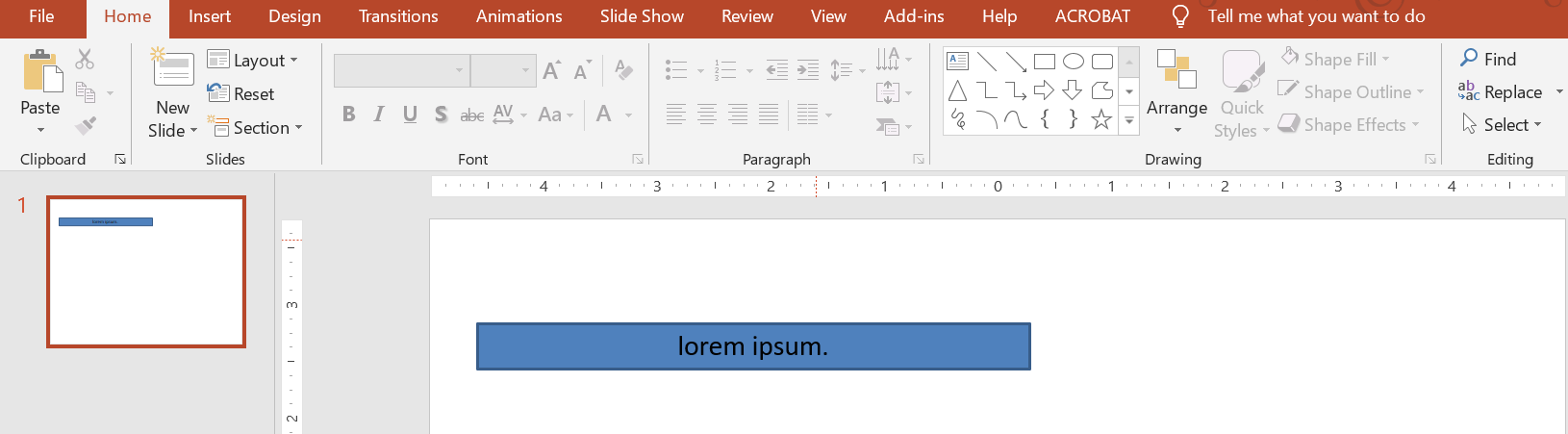
- وقتی متن داخل جعبه متن طولانیتر یا بزرگتر میشود، PowerPoint بهصورت خودکار جعبه متن را بزرگ میکند—ارتفاع آن را افزایش میدهد—تا فضای بیشتری برای متن داشته باشد.
- وقتی متن داخل جعبه متن کوتاهتر یا کوچکتر میشود، PowerPoint بهصورت خودکار جعبه متن را کوچک میکند—ارتفاع آن را کاهش میدهد—تا فضای اضافه را حذف کند.
در PowerPoint، اینها چهار پارامتر یا گزینه مهم هستند که رفتار autofit برای جعبه متن را کنترل میکنند:
- Do not Autofit
- Shrink text on overflow
- Resize shape to fit text
- Wrap text in shape.
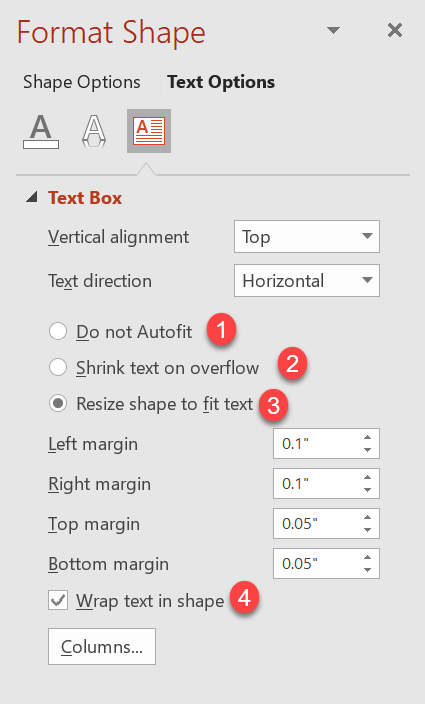
Aspose.Slides for C++ گزینههای مشابهی را فراهم میکند—برخی متدها در کلاس TextFrameFormat که به شما امکان میدهند رفتار autofit برای جعبههای متن در ارائهها را کنترل کنید.
تغییر اندازه شکل برای متناسب شدن با متن
اگر میخواهید متن داخل یک جعبه همیشه پس از تغییرات داخل متن، در همان جعبه جا بگیرد، باید از گزینه Resize shape to fix text استفاده کنید. برای تعیین این تنظیم، ویژگی AutofitType (از کلاس TextFrameFormat) را روی Shape تنظیم کنید.
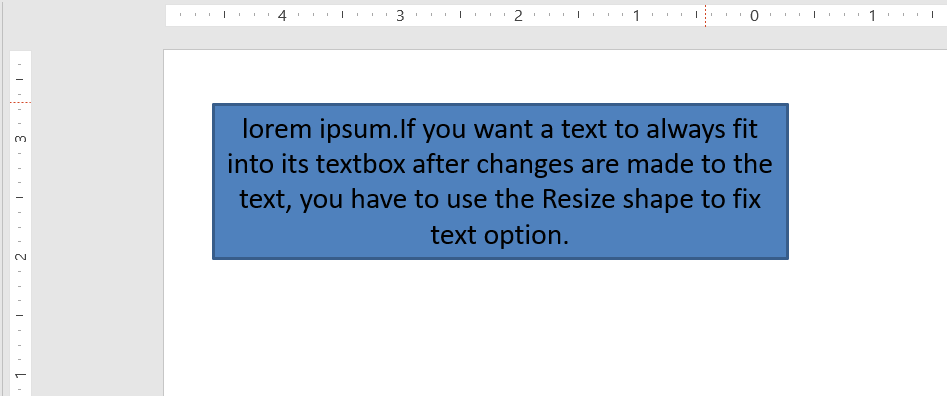
This C++ code shows you how to specify that a text must always fit into its box in a PowerPoint presentation:
auto pres = System::MakeObject<Presentation>();
auto slide = pres->get_Slides()->idx_get(0);
auto autoShape = slide->get_Shapes()->AddAutoShape(ShapeType::Rectangle, 30.0f, 30.0f, 350.0f, 100.0f);
auto textFrame = autoShape->get_TextFrame();

auto portion = System::MakeObject<Portion>(u"lorem ipsum...");
auto fillFormat = portion->get_PortionFormat()->get_FillFormat();
fillFormat->get_SolidFillColor()->set_Color(Color::get_Black());
fillFormat->set_FillType(FillType::Solid);
textFrame->get_Paragraphs()->idx_get(0)->get_Portions()->Add(portion);

auto textFrameFormat = textFrame->get_TextFrameFormat();
textFrameFormat->set_AutofitType(TextAutofitType::Shape);

pres->Save(u"Output-presentation.pptx", SaveFormat::Pptx);
اگر متن طولانیتر یا بزرگتر شود، جعبه متن بهصورت خودکار تغییر اندازه میدهد (ارتفاعش افزایش مییابد) تا تمام متن در آن جا بگیرد. اگر متن کوتاهتر شود، برعکس اتفاق میافتد.
Do Not Autofit
اگر میخواهید یک جعبه متن یا شکل ابعاد خود را بدون توجه به تغییرات متن داخل آن حفظ کند، باید از گزینه Do not Autofit استفاده کنید. برای تعیین این تنظیم، ویژگی AutofitType (از کلاس TextFrameFormat) را روی None تنظیم کنید.
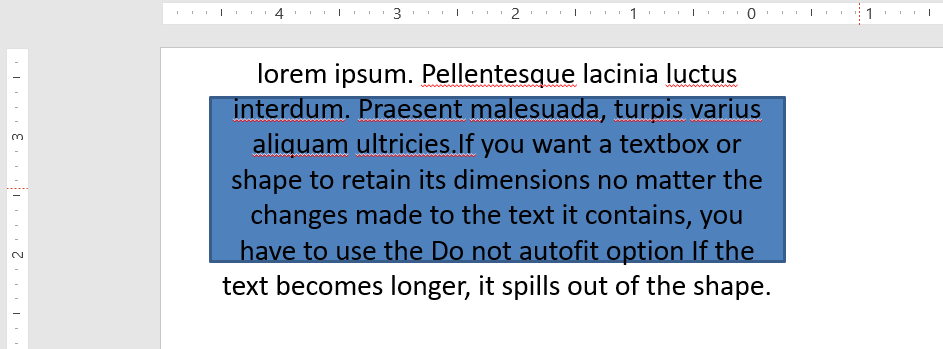
This C++ code shows you how to specify that a textbox must always retain its dimensions in a PowerPoint presentation:
auto pres = System::MakeObject<Presentation>();
auto slide = pres->get_Slides()->idx_get(0);
auto autoShape = slide->get_Shapes()->AddAutoShape(ShapeType::Rectangle, 30.0f, 30.0f, 350.0f, 100.0f);
auto textFrame = autoShape->get_TextFrame();

auto portion = System::MakeObject<Portion>(u"lorem ipsum...");
auto fillFormat = portion->get_PortionFormat()->get_FillFormat();
fillFormat->get_SolidFillColor()->set_Color(Color::get_Black());
fillFormat->set_FillType(FillType::Solid);
textFrame->get_Paragraphs()->idx_get(0)->get_Portions()->Add(portion);

auto textFrameFormat = textFrame->get_TextFrameFormat();
textFrameFormat->set_AutofitType(TextAutofitType::None);

pres->Save(u"Output-presentation.pptx", SaveFormat::Pptx);
وقتی متن برای جعبهاش بیش از حد طولانی شود، بیرون میریزد.
Shrink Text on Overflow
اگر متنی برای جعبهاش بیش از حد طولانی شود، با استفاده از گزینه Shrink text on overflow میتوانید تعیین کنید که اندازه و فاصلههای متن کاهش یابد تا در جعبه جا بگیرد. برای تعیین این تنظیم، ویژگی AutofitType (از کلاس TextFrameFormat) را روی Normal تنظیم کنید.
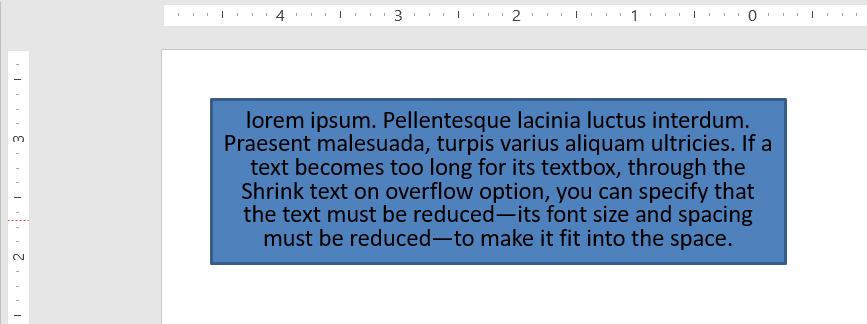
This C++ code shows you how to specify that a text must be shrunk on overflow in a PowerPoint presentation:
auto pres = System::MakeObject<Presentation>();
auto slide = pres->get_Slides()->idx_get(0);
auto autoShape = slide->get_Shapes()->AddAutoShape(ShapeType::Rectangle, 30.0f, 30.0f, 350.0f, 100.0f);
auto textFrame = autoShape->get_TextFrame();

auto portion = System::MakeObject<Portion>(u"lorem ipsum...");
auto fillFormat = portion->get_PortionFormat()->get_FillFormat();
fillFormat->get_SolidFillColor()->set_Color(Color::get_Black());
fillFormat->set_FillType(FillType::Solid);
textFrame->get_Paragraphs()->idx_get(0)->get_Portions()->Add(portion);

auto textFrameFormat = textFrame->get_TextFrameFormat();
textFrameFormat->set_AutofitType(TextAutofitType::Normal);

pres->Save(u"Output-presentation.pptx", SaveFormat::Pptx);
Info
وقتی گزینه Shrink text on overflow استفاده میشود، این تنظیم فقط زمانی اعمال میگردد که متن برای جعبهاش بیش از حد طولانی شود.Wrap Text
اگر میخواهید متن داخل یک شکل زمانی که از مرز (فقط عرض) شکل عبور کرد، درون همان شکل بهصورت بستهبندی شود، باید از پارامتر Wrap text in shape استفاده کنید. برای تعیین این تنظیم، باید ویژگی WrapText (از کلاس TextFrameFormat) را به true تنظیم کنید.
This C++ code shows you how to use the Wrap Text setting in a PowerPoint presentation:
auto pres = System::MakeObject<Presentation>();
auto slide = pres->get_Slides()->idx_get(0);
auto autoShape = slide->get_Shapes()->AddAutoShape(ShapeType::Rectangle, 30.0f, 30.0f, 350.0f, 100.0f);
auto textFrame = autoShape->get_TextFrame();

auto portion = System::MakeObject<Portion>(u"lorem ipsum...");
auto fillFormat = portion->get_PortionFormat()->get_FillFormat();
fillFormat->get_SolidFillColor()->set_Color(Color::get_Black());
fillFormat->set_FillType(FillType::Solid);
textFrame->get_Paragraphs()->idx_get(0)->get_Portions()->Add(portion);

auto textFrameFormat = textFrame->get_TextFrameFormat();
textFrameFormat->set_WrapText(NullableBool::True);

pres->Save(u"Output-presentation.pptx", SaveFormat::Pptx);
Note
اگر ویژگیWrapText را برای یک شکل به False تنظیم کنید، وقتی متن داخل شکل طولانیتر از عرض شکل شود، متن بهصورت یک خط واحد از مرزهای شکل عبور میکند.
FAQ
آیا حاشیههای داخلی قاب متن بر AutoFit تاثیر میگذارند؟
بله. Padding (حاشیههای داخلی) ناحیه قابل استفاده برای متن را کاهش میدهد، بنابراین AutoFit زودتر فعال میشود—فونت را کوچک میکند یا شکل را زودتر تغییر اندازه میدهد. قبل از تنظیم AutoFit حاشیهها را بررسی و تنظیم کنید.
AutoFit چگونه با شکستهای خط دستی و نرم تعامل دارد؟
شکستهای خط اجباری در مکان خود باقی میمانند و AutoFit اندازه فونت و فواصل را دور آنها تنظیم میکند. حذف شکستهای غیرضروری غالباً نیاز AutoFit به کوچکسازی متن را کاهش میدهد.
آیا تغییر فونت تم یا اعمال جایگزینی فونت بر نتایج AutoFit تاثیر دارد؟
بله. جایگزینی به فونتی با متریکهای گلیف متفاوت عرض/ارتفاع متن را تغییر میدهد، که میتواند اندازه نهایی فونت و پیچش خطوط را تحت تأثیر قرار دهد. پس از هر تغییر یا جایگزینی فونت، اسلایدها را مجدداً بررسی کنید.