
เพิ่มประสิทธิภาพการนำเสนอของคุณด้วย AutoFit ใน C++
บทนำ
โดยค่าเริ่มต้น เมื่อคุณเพิ่มกล่องข้อความ Microsoft PowerPoint จะใช้การตั้งค่า Resize shape to fix text สำหรับกล่องข้อความ – มันจะปรับขนาดกล่องข้อความโดยอัตโนมัติเพื่อให้ข้อความของมันพอดีเสมอ
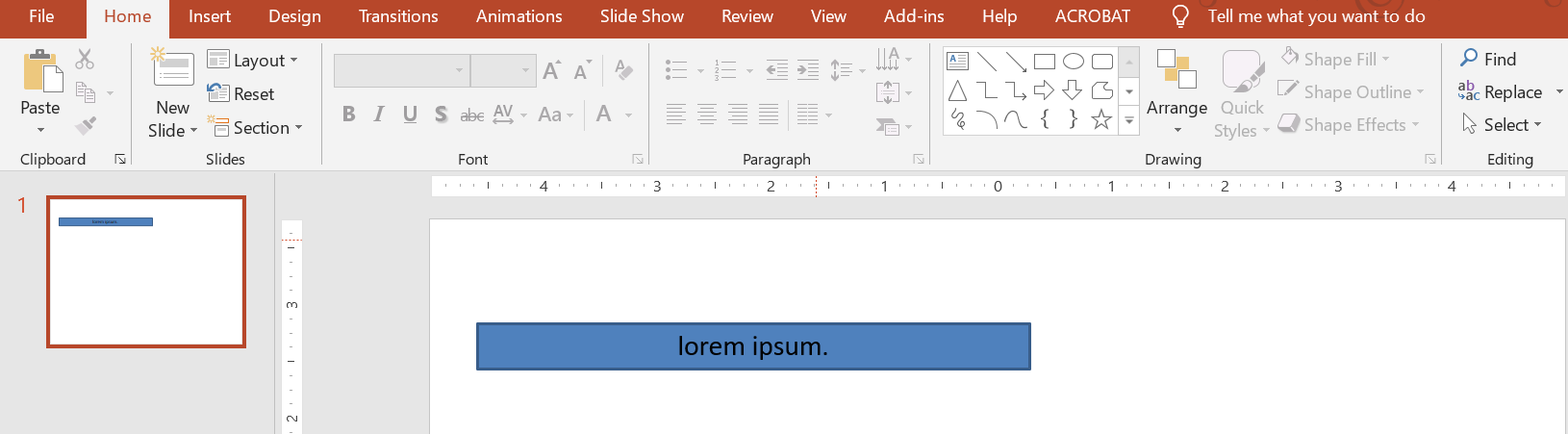
- เมื่อข้อความในกล่องข้อความยาวหรือใหญ่ขึ้น PowerPoint จะขยายกล่องข้อความโดยอัตโนมัติ – เพิ่มความสูง – เพื่อให้สามารถบรรจุข้อความได้มากขึ้น
- เมื่อข้อความในกล่องข้อความสั้นหรือเล็กลง PowerPoint จะทำให้กล่องข้อความเล็กลงโดยอัตโนมัติ – ลดความสูง – เพื่อกำจัดพื้นที่ว่างเกิน
ใน PowerPoint มี 4 พารามิเตอร์หรือทางเลือกสำคัญที่ควบคุมพฤติกรรม autofit สำหรับกล่องข้อความ:
- Do not Autofit
- Shrink text on overflow
- Resize shape to fit text
- Wrap text in shape.
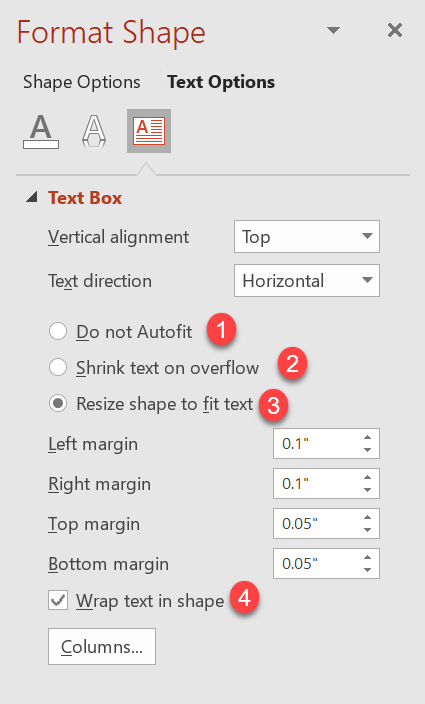
Aspose.Slides for C++ ให้ตัวเลือกคล้ายกัน – บางเมธอดภายใต้คลาส TextFrameFormat – ที่ช่วยให้คุณควบคุมพฤติกรรม autofit สำหรับกล่องข้อความในงานนำเสนอ
Resize a Shape to Fit Text
หากคุณต้องการให้ข้อความในกล่องพอดีเสมอหลังจากมีการเปลี่ยนแปลงข้อความ คุณต้องใช้ตัวเลือก Resize shape to fix text เพื่อระบุการตั้งค้านี้ ให้ตั้งค่าคุณสมบัติ AutofitType (จากคลาส TextFrameFormat) เป็น Shape
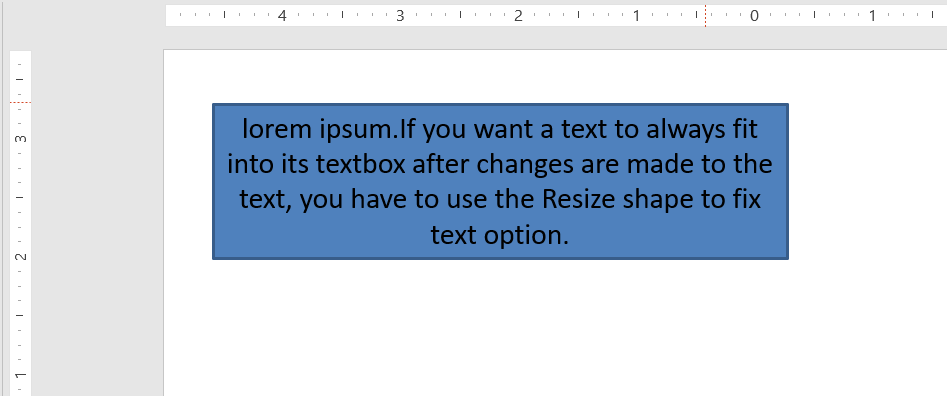
โค้ด C++ นี้แสดงวิธีกำหนดให้ข้อความต้องพอดีเสมอในกล่องของงานนำเสนอ PowerPoint:
auto pres = System::MakeObject<Presentation>();
auto slide = pres->get_Slides()->idx_get(0);
auto autoShape = slide->get_Shapes()->AddAutoShape(ShapeType::Rectangle, 30.0f, 30.0f, 350.0f, 100.0f);
auto textFrame = autoShape->get_TextFrame();

auto portion = System::MakeObject<Portion>(u"lorem ipsum...");
auto fillFormat = portion->get_PortionFormat()->get_FillFormat();
fillFormat->get_SolidFillColor()->set_Color(Color::get_Black());
fillFormat->set_FillType(FillType::Solid);
textFrame->get_Paragraphs()->idx_get(0)->get_Portions()->Add(portion);

auto textFrameFormat = textFrame->get_TextFrameFormat();
textFrameFormat->set_AutofitType(TextAutofitType::Shape);

pres->Save(u"Output-presentation.pptx", SaveFormat::Pptx);
หากข้อความยาวหรือใหญ่ขึ้น กล่องข้อความจะถูกปรับขนาดอัตโนมัติ (เพิ่มความสูง) เพื่อให้ข้อความทั้งหมดพอดี หากข้อความสั้นลง จะทำในทางตรงกันข้าม
Do Not Autofit
หากคุณต้องการให้กล่องข้อความหรือรูปร่างคงขนาดเดิมโดยไม่คำนึงถึงการเปลี่ยนแปลงข้อความที่อยู่ภายใน คุณต้องใช้ตัวเลือก Do not Autofit เพื่อระบุการตั้งค้านี้ ให้ตั้งค่าคุณสมบัติ AutofitType (จากคลาส TextFrameFormat) เป็น None

โค้ด C++ นี้แสดงวิธีกำหนดให้กล่องข้อความคงขนาดเดิมในงานนำเสนอ PowerPoint:
auto pres = System::MakeObject<Presentation>();
auto slide = pres->get_Slides()->idx_get(0);
auto autoShape = slide->get_Shapes()->AddAutoShape(ShapeType::Rectangle, 30.0f, 30.0f, 350.0f, 100.0f);
auto textFrame = autoShape->get_TextFrame();

auto portion = System::MakeObject<Portion>(u"lorem ipsum...");
auto fillFormat = portion->get_PortionFormat()->get_FillFormat();
fillFormat->get_SolidFillColor()->set_Color(Color::get_Black());
fillFormat->set_FillType(FillType::Solid);
textFrame->get_Paragraphs()->idx_get(0)->get_Portions()->Add(portion);

auto textFrameFormat = textFrame->get_TextFrameFormat();
textFrameFormat->set_AutofitType(TextAutofitType::None);

pres->Save(u"Output-presentation.pptx", SaveFormat::Pptx);
เมื่อข้อความยาวเกินกว่ากล่อง มันจะล้นออกมานอกกล่อง
Shrink Text on Overflow
หากข้อความยาวเกินกว่ากล่อง คุณสามารถใช้ตัวเลือก Shrink text on overflow เพื่อกำหนดให้ขนาดและระยะห่างของข้อความถูกลดลงเพื่อให้พอดีในกล่องได้ การตั้งค้านี้ทำได้โดยตั้งค่าคุณสมบัติ AutofitType (จากคลาส TextFrameFormat) เป็น Normal
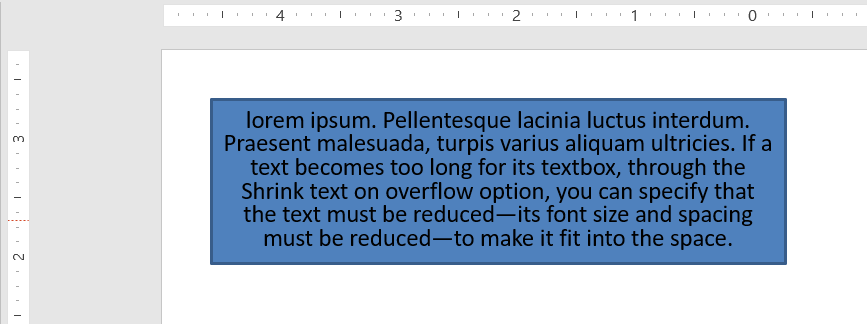
โค้ด C++ นี้แสดงวิธีกำหนดให้ข้อความถูกย่อเมื่อเกิด overflow ในงานนำเสนอ PowerPoint:
auto pres = System::MakeObject<Presentation>();
auto slide = pres->get_Slides()->idx_get(0);
auto autoShape = slide->get_Shapes()->AddAutoShape(ShapeType::Rectangle, 30.0f, 30.0f, 350.0f, 100.0f);
auto textFrame = autoShape->get_TextFrame();

auto portion = System::MakeObject<Portion>(u"lorem ipsum...");
auto fillFormat = portion->get_PortionFormat()->get_FillFormat();
fillFormat->get_SolidFillColor()->set_Color(Color::get_Black());
fillFormat->set_FillType(FillType::Solid);
textFrame->get_Paragraphs()->idx_get(0)->get_Portions()->Add(portion);

auto textFrameFormat = textFrame->get_TextFrameFormat();
textFrameFormat->set_AutofitType(TextAutofitType::Normal);

pres->Save(u"Output-presentation.pptx", SaveFormat::Pptx);
Info
เมื่อใช้ตัวเลือก Shrink text on overflow การตั้งค่าจะถูกนำไปใช้เฉพาะเมื่อข้อความยาวเกินกว่ากล่องWrap Text
หากคุณต้องการให้ข้อความในรูปร่างถูกตัดบรรทัดภายในรูปร่างเมื่อข้อความเกินขอบความกว้างของรูปร่าง (เฉพาะความกว้าง) คุณต้องใช้พารามิเตอร์ Wrap text in shape เพื่อระบุการตั้งค้านี้ ให้ตั้งค่าคุณสมบัติ WrapText (จากคลาส TextFrameFormat) เป็น true
โค้ด C++ นี้แสดงวิธีใช้การตั้งค่า Wrap Text ในงานนำเสนอ PowerPoint:
auto pres = System::MakeObject<Presentation>();
auto slide = pres->get_Slides()->idx_get(0);
auto autoShape = slide->get_Shapes()->AddAutoShape(ShapeType::Rectangle, 30.0f, 30.0f, 350.0f, 100.0f);
auto textFrame = autoShape->get_TextFrame();

auto portion = System::MakeObject<Portion>(u"lorem ipsum...");
auto fillFormat = portion->get_PortionFormat()->get_FillFormat();
fillFormat->get_SolidFillColor()->set_Color(Color::get_Black());
fillFormat->set_FillType(FillType::Solid);
textFrame->get_Paragraphs()->idx_get(0)->get_Portions()->Add(portion);

auto textFrameFormat = textFrame->get_TextFrameFormat();
textFrameFormat->set_WrapText(NullableBool::True);

pres->Save(u"Output-presentation.pptx", SaveFormat::Pptx);
Note
หากคุณตั้งค่าคุณสมบัติWrapText เป็น False สำหรับรูปร่าง เมื่อข้อความภายในรูปร่างยาวเกินความกว้างของรูปร่าง ข้อความจะยืดออกไปนอกขอบของรูปร่างในบรรทัดเดียว
FAQ
Do the text frame’s internal margins affect AutoFit?
ใช่ การเพิ่ม Padding (ระยะขอบภายใน) จะลดพื้นที่ใช้ได้สำหรับข้อความ ทำให้ AutoFit ทำงานเร็วขึ้น – ลดขนาดฟอนต์หรือปรับขนาดรูปร่างเร็วขึ้น ตรวจสอบและปรับระยะขอบก่อนที่จะปรับ AutoFit
How does AutoFit interact with manual and soft line breaks?
การเว้นบรรทัดด้วยตนเองจะคงอยู่ AutoFit จะปรับขนาดฟอนต์และระยะห่างรอบบรรทัดเหล่านั้น การลบการเว้นบรรทัดที่ไม่จำเป็นมักช่วยลดความเข้มข้นของการย่อข้อความโดย AutoFit
Does changing the theme font or triggering font substitution affect AutoFit results?
ใช่ การแทนที่ฟอนต์ด้วยฟอนต์ที่มีเมตริกต่างกันจะเปลี่ยนความกว้าง/ความสูงของข้อความ ซึ่งอาจทำให้ขนาดฟอนต์สุดท้ายและการตัดบรรทัดเปลี่ยนแปลง หลังจากเปลี่ยนฟอนต์หรือทำการแทนที่ อย่าลืมตรวจสอบสไลด์อีกครั้ง