
سفارشیسازی نمودارهای پای در ارائهها با استفاده از Java
Overview
این مقاله توضیح میدهد چگونه با نمودارهای پای در Aspose.Slides کار کنید. نشان میدهد چگونه گزینههای نمودار ثانویه برای نمودارهای Pie of Pie و Bar of Pie را پیکربندی کنید و چگونه رنگآمیزی خودکار برشها برای یک نمودار پای استاندارد را فعال کنید.
مثالها بر روی وظایف سفارشیسازی نمودار متمرکز هستند مانند افزودن نمودار به اسلاید، تنظیم سریها و برچسبها، جایگزینی دادههای پیشفرض نمودار با دستهها و مقادیر سفارشی، و ذخیره ارائه بهروزشده.
Second Plot Options for Pie of Pie and Bar of Pie Charts
Aspose.Slides for Java از گزینههای نمودار ثانویه برای نمودارهای Pie of Pie و Bar of Pie پشتیبانی میکند. این گزینهها اندازه نمودار ثانویه و نحوه تقسیم نقاط دادهای بین دو نمودار را کنترل میکنند.
مثال زیر یک نمودار Pie of Pie در یک ارائه جدید ایجاد میکند و مقادیر نقاط داده را به عنوان برچسب نمایش میدهد. متد setSecondPieSize اندازه نمودار ثانویه را به 149٪ از نمودار اصلی تنظیم میکند. setPieSplitBy تقسیم بر پایه درصد را انتخاب میکند، و setPieSplitPosition آستانه را به 53٪ تنظیم میکند.
import com.aspose.slides.*;

Presentation presentation = new Presentation();
try {
    ISlide slide = presentation.getSlides().get_Item(0);

    IChart chart = slide.getShapes().addChart(ChartType.PieOfPie, 50, 50, 500, 400);
    IChartSeries series = chart.getChartData().getSeries().get_Item(0);

    // نمایش مقادیر و پیکربندی نمودار ثانویه.
    series.getLabels().getDefaultDataLabelFormat().setShowValue(true);
    IChartSeriesGroup seriesGroup = series.getParentSeriesGroup();
    seriesGroup.setSecondPieSize(149);
    seriesGroup.setPieSplitBy(PieSplitType.ByPercentage);
    seriesGroup.setPieSplitPosition(53);

    presentation.save("pie_of_pie.pptx", SaveFormat.Pptx);
} finally {
    presentation.dispose();
}
Select Categories for the Secondary Plot
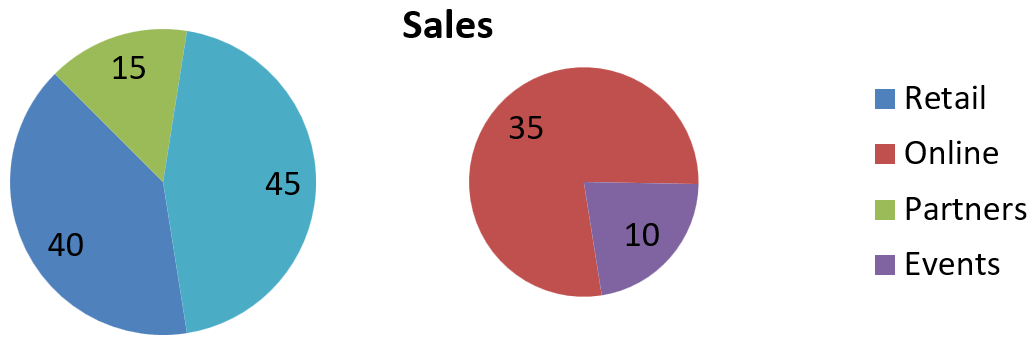
Use custom splitting when you want to group specific categories in the secondary plot regardless of their percentage values. For example, a sales report might show Online and Events together so readers can compare these two channels, even though they account for 35% and 10% of total sales.
Call setPieSplitBy with PieSplitType.Custom and select the points through getPieSplitCustomPoints. The collection’s add method accepts a zero-based index in the series; use addItem to add a data point object. In this example, index 1 selects Online, and the point at index 3 selects Events. Partners is also added temporarily, then excluded using removeItem.
import com.aspose.slides.*;
Presentation presentation = new Presentation();
try {
ISlide slide = presentation.getSlides().get_Item(0);
IChart chart = slide.getShapes().addChart(ChartType.PieOfPie, 50, 50, 600, 200);
// جایگزینی دادههای پیشفرض با فروش بر حسب کانال.
IChartDataWorkbook workbook = chart.getChartData().getChartDataWorkbook();
chart.getChartData().getSeries().clear();
chart.getChartData().getCategories().clear();
String[] categoryNames = { "Retail", "Online", "Partners", "Events" };
int[] values = { 40, 35, 15, 10 };
IChartDataCell seriesNameCell = workbook.getCell(0, 0, 1, "Sales");
IChartSeries series = chart.getChartData().getSeries().add(seriesNameCell, chart.getType());
for (int i = 0; i < categoryNames.length; i++) {
IChartDataCell categoryCell = workbook.getCell(0, i + 1, 0, categoryNames[i]);
chart.getChartData().getCategories().add(categoryCell);
IChartDataCell valueCell = workbook.getCell(0, i + 1, 1, values[i]);
series.getDataPoints().addDataPointForPieSeries(valueCell);
}
series.getLabels().getDefaultDataLabelFormat().setShowValue(true);
IChartSeriesGroup seriesGroup = series.getParentSeriesGroup();
seriesGroup.setPieSplitBy(PieSplitType.Custom);
seriesGroup.setColorVaried(true);
// انتخاب Online با اندیس صفر-پایه و Events با شیء نقطه داده.
seriesGroup.getPieSplitCustomPoints().add(1);
seriesGroup.getPieSplitCustomPoints().addItem(series.getDataPoints().get_Item(3));
// حذف Partners از انتخاب بدون حذف داده منبع آن.
seriesGroup.getPieSplitCustomPoints().add(2);
seriesGroup.getPieSplitCustomPoints().removeItem(series.getDataPoints().get_Item(2));
presentation.save("pie_of_pie_custom.pptx", SaveFormat.Pptx);
} finally {
presentation.dispose();
}
Online (35) and Events (10) appear as separate slices in the secondary plot. In the primary plot, they are represented by one combined slice with a value of 45, alongside Retail (40) and Partners (15). Removing Partners from the custom selection keeps it in the primary plot; it does not remove the category or its value from the chart’s source data.
Set Automatic Pie Chart Slice Colors
Aspose.Slides for Java can automatically assign different colors to pie chart slices. The following example creates a pie chart with a centered title and replaces the default data with three quarterly categories and their values. The setShowValue method displays the values 20, 50, and 30 as labels, while setColorVaried enables a distinct color for each slice.
import com.aspose.slides.*;
Presentation presentation = new Presentation();
try {
ISlide slide = presentation.getSlides().get_Item(0);
IChart chart = slide.getShapes().addChart(ChartType.Pie, 100, 100, 400, 400);
// افزودن عنوان نمودار در مرکز.
chart.getChartTitle().addTextFrameForOverriding("Sample Title");
chart.getChartTitle().getTextFrameForOverriding().getTextFrameFormat().setCenterText(NullableBool.True);
chart.getChartTitle().setHeight(20);
chart.setTitle(true);
// جایگزینی دادههای پیشفرض با استفاده از اولین برگه کاری.
IChartDataWorkbook workbook = chart.getChartData().getChartDataWorkbook();
int worksheetIndex = 0;
chart.getChartData().getSeries().clear();
chart.getChartData().getCategories().clear();
String[] categoryNames = { "First Qtr", "2nd Qtr", "3rd Qtr" };
int[] values = { 20, 50, 30 };
IChartDataCell seriesNameCell = workbook.getCell(worksheetIndex, 0, 1, "Series 1");
IChartSeries series = chart.getChartData().getSeries().add(seriesNameCell, chart.getType());
for (int i = 0; i < categoryNames.length; i++) {
IChartDataCell categoryCell = workbook.getCell(worksheetIndex, i + 1, 0, categoryNames[i]);
chart.getChartData().getCategories().add(categoryCell);
IChartDataCell valueCell = workbook.getCell(worksheetIndex, i + 1, 1, values[i]);
series.getDataPoints().addDataPointForPieSeries(valueCell);
}
// نمایش مقادیر و اختصاص رنگهای متفاوت به برشها.
series.getLabels().getDefaultDataLabelFormat().setShowValue(true);
series.getParentSeriesGroup().setColorVaried(true);
presentation.save("pie.pptx", SaveFormat.Pptx);
} finally {
presentation.dispose();
}
FAQ
آیا انواع Pie of Pie و Bar of Pie پشتیبانی میشوند؟
بله، کتابخانه پشتیبانی میکند یک نمودار ثانویه برای نمودارهای پای، از جمله انواع Pie of Pie و Bar of Pie را پشتیبانی میکند.
آیا میتوانم فقط نمودار را بهعنوان تصویر (مثلاً PNG) صادر کنم؟
بله، میتوانید صادر کردن نمودار بهصورت تصویر (مانند PNG) را بدون صادر کردن کل ارائه انجام دهید.