
Java を使用してプレゼンテーションの円グラフをカスタマイズする
概要
この記事では、Aspose.Slides の円グラフの使用方法について説明します。Pie of Pie および Bar of Pie グラフの二次プロットオプションの設定方法と、標準の円グラフに自動スライス着色を有効にする方法を示します。
例では、スライドへのグラフ追加、系列やラベル設定の調整、デフォルトのグラフデータをカスタムのカテゴリと値に置き換えること、そして更新されたプレゼンテーションの保存といったグラフカスタマイズタスクに焦点を当てています。
Pie of Pie および Bar of Pie グラフの二次プロットオプション
Aspose.Slides for Java は、Pie of Pie および Bar of Pie グラフの二次プロットオプションをサポートしています。このオプションは二次プロットのサイズと、データポイントが二つのプロット間でどのように分割されるかを制御します。
次の例は、新しいプレゼンテーションに Pie of Pie グラフを作成し、データポイントの値をラベルとして表示します。setSecondPieSize メソッドは二次プロットのサイズをメインプロットの 149% に設定します。setPieSplitBy はパーセンテージベースの分割を選択し、setPieSplitPosition はしきい値を 53% に設定します。
import com.aspose.slides.*;

Presentation presentation = new Presentation();
try {
    ISlide slide = presentation.getSlides().get_Item(0);

    IChart chart = slide.getShapes().addChart(ChartType.PieOfPie, 50, 50, 500, 400);
    IChartSeries series = chart.getChartData().getSeries().get_Item(0);

    // 値を表示し、二次プロットを構成します。
    series.getLabels().getDefaultDataLabelFormat().setShowValue(true);
    IChartSeriesGroup seriesGroup = series.getParentSeriesGroup();
    seriesGroup.setSecondPieSize(149);
    seriesGroup.setPieSplitBy(PieSplitType.ByPercentage);
    seriesGroup.setPieSplitPosition(53);

    presentation.save("pie_of_pie.pptx", SaveFormat.Pptx);
} finally {
    presentation.dispose();
}
二次プロット用カテゴリの選択
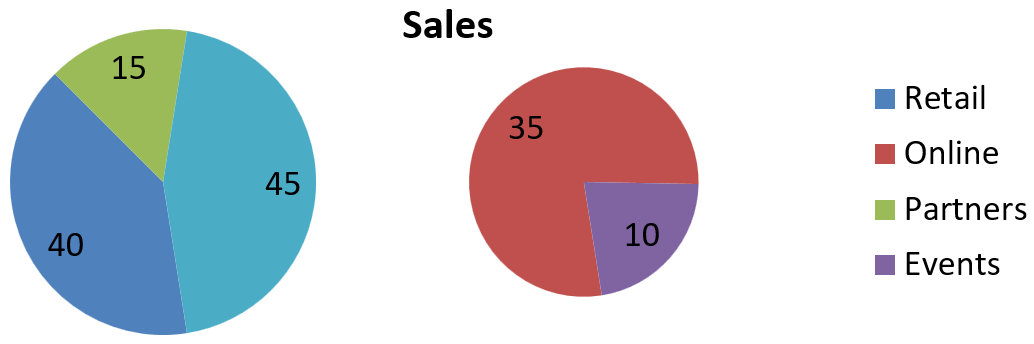
二次プロットで特定のカテゴリをパーセンテージに関係なくグループ化したい場合は、カスタム分割を使用します。例えば、売上レポートで Online と Events をまとめて表示すれば、読者はこの二つのチャネルを比較でき、合計売上の 35% と 10% を占めていても問題ありません。
setPieSplitBy に PieSplitType.Custom を指定して呼び出し、getPieSplitCustomPoints でポイントを選択します。コレクションの add メソッドは系列内のゼロベースインデックスを受け取り、データポイントオブジェクトを追加するには addItem を使用します。この例ではインデックス 1 が Online を選択し、インデックス 3 のポイントが Events を選択します。Partners も一時的に追加され、removeItem で除外されます。
import com.aspose.slides.*;

Presentation presentation = new Presentation();
try {
    ISlide slide = presentation.getSlides().get_Item(0);

    IChart chart = slide.getShapes().addChart(ChartType.PieOfPie, 50, 50, 600, 200);

    // デフォルトのデータをチャネル別の売上に置き換えます。
    IChartDataWorkbook workbook = chart.getChartData().getChartDataWorkbook();
    chart.getChartData().getSeries().clear();
    chart.getChartData().getCategories().clear();
    String[] categoryNames = { "Retail", "Online", "Partners", "Events" };
    int[] values = { 40, 35, 15, 10 };
    IChartDataCell seriesNameCell = workbook.getCell(0, 0, 1, "Sales");
    IChartSeries series = chart.getChartData().getSeries().add(seriesNameCell, chart.getType());

    for (int i = 0; i < categoryNames.length; i++) {
        IChartDataCell categoryCell = workbook.getCell(0, i + 1, 0, categoryNames[i]);
        chart.getChartData().getCategories().add(categoryCell);

        IChartDataCell valueCell = workbook.getCell(0, i + 1, 1, values[i]);
        series.getDataPoints().addDataPointForPieSeries(valueCell);
    }

    series.getLabels().getDefaultDataLabelFormat().setShowValue(true);
    IChartSeriesGroup seriesGroup = series.getParentSeriesGroup();
    seriesGroup.setPieSplitBy(PieSplitType.Custom);
    seriesGroup.setColorVaried(true);

    // Online をゼロベースのインデックスで、Events をデータポイントオブジェクトで選択します。
    seriesGroup.getPieSplitCustomPoints().add(1);
    seriesGroup.getPieSplitCustomPoints().addItem(series.getDataPoints().get_Item(3));

    // Partners を選択から除外します(ソースデータは削除しません)。
    seriesGroup.getPieSplitCustomPoints().add(2);
    seriesGroup.getPieSplitCustomPoints().removeItem(series.getDataPoints().get_Item(2));

    presentation.save("pie_of_pie_custom.pptx", SaveFormat.Pptx);
} finally {
    presentation.dispose();
}
Online (35) と Events (10) は二次プロットで別々のスライスとして表示されます。一次プロットでは、Retail (40) と Partners (15) とともに、これらが 45 の値を持つ 1 つの結合スライスとして表されます。カスタム選択から Partners を除外しても、一次プロットには残り、カテゴリやその値がグラフの元データから削除されることはありません。
以下の画像は PowerPoint で保存されたプレゼンテーションを示しています。
自動円グラフスライス色の設定
Aspose.Slides for Java は、円グラフのスライスに自動的に異なる色を割り当てることができます。次の例は、タイトルを中央に配置した円グラフを作成し、デフォルトデータを 3 つの四半期カテゴリとその値に置き換えます。setShowValue メソッドは 20、50、30 の値をラベルとして表示し、setColorVaried は各スライスに異なる色を有効にします。
import com.aspose.slides.*;

Presentation presentation = new Presentation();
try {
    ISlide slide = presentation.getSlides().get_Item(0);

    IChart chart = slide.getShapes().addChart(ChartType.Pie, 100, 100, 400, 400);

    // 中央揃えのチャートタイトルを追加します。
    chart.getChartTitle().addTextFrameForOverriding("Sample Title");
    chart.getChartTitle().getTextFrameForOverriding().getTextFrameFormat().setCenterText(NullableBool.True);
    chart.getChartTitle().setHeight(20);
    chart.setTitle(true);

    // 最初のワークシートを使用してデフォルトデータを置き換えます。
    IChartDataWorkbook workbook = chart.getChartData().getChartDataWorkbook();
    int worksheetIndex = 0;
    chart.getChartData().getSeries().clear();
    chart.getChartData().getCategories().clear();
    String[] categoryNames = { "First Qtr", "2nd Qtr", "3rd Qtr" };
    int[] values = { 20, 50, 30 };
    IChartDataCell seriesNameCell = workbook.getCell(worksheetIndex, 0, 1, "Series 1");
    IChartSeries series = chart.getChartData().getSeries().add(seriesNameCell, chart.getType());

    for (int i = 0; i < categoryNames.length; i++) {
        IChartDataCell categoryCell = workbook.getCell(worksheetIndex, i + 1, 0, categoryNames[i]);
        chart.getChartData().getCategories().add(categoryCell);

        IChartDataCell valueCell = workbook.getCell(worksheetIndex, i + 1, 1, values[i]);
        series.getDataPoints().addDataPointForPieSeries(valueCell);
    }

    // 値を表示し、スライスに異なる色を割り当てます。
    series.getLabels().getDefaultDataLabelFormat().setShowValue(true);
    series.getParentSeriesGroup().setColorVaried(true);

    presentation.save("pie.pptx", SaveFormat.Pptx);
} finally {
    presentation.dispose();
}
FAQ
Pie of Pie および Bar of Pie のバリエーションはサポートされていますか?
はい、ライブラリは サポートしています ピーグラフの二次プロットを提供し、Pie of Pie と Bar of Pie のタイプを含みます。
チャートだけを画像(例: PNG)としてエクスポートできますか?
はい、チャート自体を画像としてエクスポート(PNG など)することができ、プレゼンテーション全体をエクスポートする必要はありません。