
在演示文稿中使用 Java 定制饼图
概述
本文说明如何在 Aspose.Slides 中使用饼图。它展示了如何为饼中饼和条形饼图配置次要绘图选项,以及如何为标准饼图启用自动切片着色。
示例侧重于图表自定义任务,如向幻灯片添加图表、调整系列和标签设置、使用自定义类别和值替换默认图表数据,以及保存更新后的演示文稿。
饼中饼和条形饼图的次要绘图选项
Aspose.Slides for Java 支持饼中饼和条形饼图的次要绘图选项。这些选项控制次要绘图的大小以及数据点在两个绘图之间的划分方式。
下面的示例在新演示文稿中创建一个饼中饼图,并将数据点值显示为标签。setSecondPieSize 方法将次要绘图的大小设置为主绘图的 149%。setPieSplitBy 选择基于百分比的划分方式,且 setPieSplitPosition 将阈值设为 53%。
import com.aspose.slides.*;

Presentation presentation = new Presentation();
try {
    ISlide slide = presentation.getSlides().get_Item(0);

    IChart chart = slide.getShapes().addChart(ChartType.PieOfPie, 50, 50, 500, 400);
    IChartSeries series = chart.getChartData().getSeries().get_Item(0);

    // 显示数值并配置次要绘图。
    series.getLabels().getDefaultDataLabelFormat().setShowValue(true);
    IChartSeriesGroup seriesGroup = series.getParentSeriesGroup();
    seriesGroup.setSecondPieSize(149);
    seriesGroup.setPieSplitBy(PieSplitType.ByPercentage);
    seriesGroup.setPieSplitPosition(53);

    presentation.save("pie_of_pie.pptx", SaveFormat.Pptx);
} finally {
    presentation.dispose();
}
选择次要绘图的类别
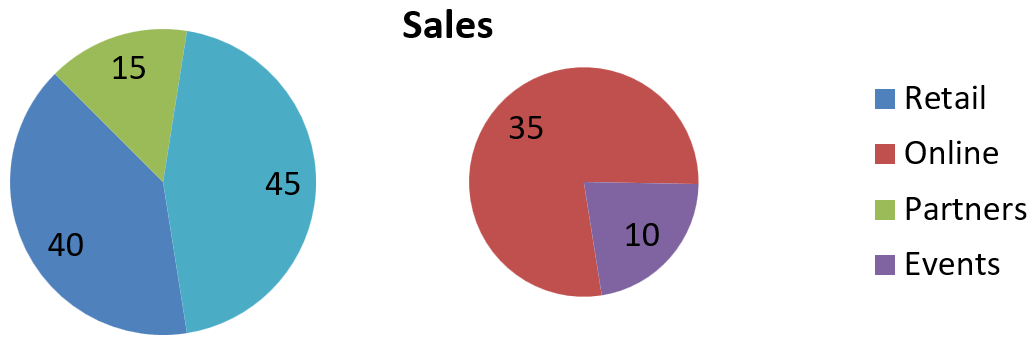
当您希望将特定类别在次要绘图中进行分组,而不考虑其百分比值时,可使用自定义划分。例如,销售报告可能会将 Online 和 Events 放在一起,以便读者比较这两个渠道,即使它们分别占总销售额的 35% 和 10%。
调用 setPieSplitBy 并传入 PieSplitType.Custom,通过 getPieSplitCustomPoints 选择点。集合的 add 方法接受系列中的零基索引;使用 addItem 添加数据点对象。在本例中,索引 1 选择 Online,索引 3 的点选择 Events。Partners 也被临时添加,然后使用 removeItem 将其排除。
import com.aspose.slides.*;

Presentation presentation = new Presentation();
try {
    ISlide slide = presentation.getSlides().get_Item(0);

    IChart chart = slide.getShapes().addChart(ChartType.PieOfPie, 50, 50, 600, 200);

    // 将默认数据替换为按渠道划分的销售数据。
    IChartDataWorkbook workbook = chart.getChartData().getChartDataWorkbook();
    chart.getChartData().getSeries().clear();
    chart.getChartData().getCategories().clear();
    String[] categoryNames = { "Retail", "Online", "Partners", "Events" };
    int[] values = { 40, 35, 15, 10 };
    IChartDataCell seriesNameCell = workbook.getCell(0, 0, 1, "Sales");
    IChartSeries series = chart.getChartData().getSeries().add(seriesNameCell, chart.getType());

    for (int i = 0; i < categoryNames.length; i++) {
        IChartDataCell categoryCell = workbook.getCell(0, i + 1, 0, categoryNames[i]);
        chart.getChartData().getCategories().add(categoryCell);

        IChartDataCell valueCell = workbook.getCell(0, i + 1, 1, values[i]);
        series.getDataPoints().addDataPointForPieSeries(valueCell);
    }

    series.getLabels().getDefaultDataLabelFormat().setShowValue(true);
    IChartSeriesGroup seriesGroup = series.getParentSeriesGroup();
    seriesGroup.setPieSplitBy(PieSplitType.Custom);
    seriesGroup.setColorVaried(true);

    // 通过其零基索引选择 Online,并通过数据点对象选择 Events。
    seriesGroup.getPieSplitCustomPoints().add(1);
    seriesGroup.getPieSplitCustomPoints().addItem(series.getDataPoints().get_Item(3));

    // 从选择中排除 Partners,但不删除其源数据。
    seriesGroup.getPieSplitCustomPoints().add(2);
    seriesGroup.getPieSplitCustomPoints().removeItem(series.getDataPoints().get_Item(2));

    presentation.save("pie_of_pie_custom.pptx", SaveFormat.Pptx);
} finally {
    presentation.dispose();
}
Online (35) 和 Events (10) 在次要绘图中显示为独立的切片。在主绘图中,它们以一个合并切片表示,值为 45,此外还有 Retail (40) 和 Partners (15)。从自定义选择中移除 Partners 仅使其保留在主绘图中;它并未从图表的源数据或类别中删除。
以下图像显示了在 PowerPoint 中保存的演示文稿:
设置自动饼图切片颜色
Aspose.Slides for Java 可以自动为饼图切片分配不同颜色。下面的示例创建一个带居中标题的饼图,并用三个季度类别及其数值替换默认数据。setShowValue 方法将数值 20、50、30 显示为标签,而 setColorVaried 则为每个切片启用不同颜色。
import com.aspose.slides.*;

Presentation presentation = new Presentation();
try {
    ISlide slide = presentation.getSlides().get_Item(0);

    IChart chart = slide.getShapes().addChart(ChartType.Pie, 100, 100, 400, 400);

    // 添加居中的图表标题。
    chart.getChartTitle().addTextFrameForOverriding("Sample Title");
    chart.getChartTitle().getTextFrameForOverriding().getTextFrameFormat().setCenterText(NullableBool.True);
    chart.getChartTitle().setHeight(20);
    chart.setTitle(true);

    // 使用第一个工作表替换默认数据。
    IChartDataWorkbook workbook = chart.getChartData().getChartDataWorkbook();
    int worksheetIndex = 0;
    chart.getChartData().getSeries().clear();
    chart.getChartData().getCategories().clear();
    String[] categoryNames = { "First Qtr", "2nd Qtr", "3rd Qtr" };
    int[] values = { 20, 50, 30 };
    IChartDataCell seriesNameCell = workbook.getCell(worksheetIndex, 0, 1, "Series 1");
    IChartSeries series = chart.getChartData().getSeries().add(seriesNameCell, chart.getType());

    for (int i = 0; i < categoryNames.length; i++) {
        IChartDataCell categoryCell = workbook.getCell(worksheetIndex, i + 1, 0, categoryNames[i]);
        chart.getChartData().getCategories().add(categoryCell);

        IChartDataCell valueCell = workbook.getCell(worksheetIndex, i + 1, 1, values[i]);
        series.getDataPoints().addDataPointForPieSeries(valueCell);
    }

    // 显示数值并为切片分配不同颜色。
    series.getLabels().getDefaultDataLabelFormat().setShowValue(true);
    series.getParentSeriesGroup().setColorVaried(true);

    presentation.save("pie.pptx", SaveFormat.Pptx);
} finally {
    presentation.dispose();
}
常见问题
是否支持饼中饼和条形饼的变体?
是的,库 supports 饼图的次要绘图,包括饼中饼和条形饼类型。
我可以仅将图表导出为图像(例如 PNG)吗?
是的,您可以 export the chart itself as an image(如 PNG),而无需导出整个演示文稿。