
प्रेजेंटेशन में Python के साथ आकार प्रभाव लागू करें
परिचय
जबकि PowerPoint में इफ़ेक्ट्स का उपयोग किसी आकार को उभारा हुआ बनाने के लिए किया जा सकता है, वे भरण या रेखांकनों से अलग होते हैं। PowerPoint इफ़ेक्ट्स का उपयोग करके आप आकार पर विश्वसनीय प्रतिबिंब बना सकते हैं, आकार की चमक फैला सकते हैं, आदि।
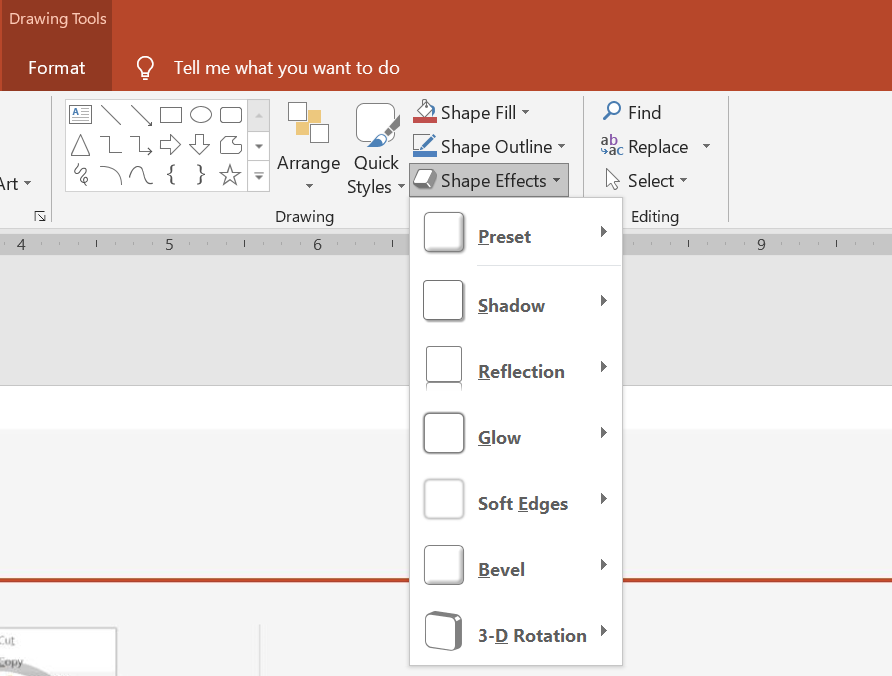
PowerPoint छह इफ़ेक्ट्स प्रदान करता है जिन्हें आकारों पर लागू किया जा सकता है। आप एक या अधिक इफ़ेक्ट्स किसी आकार पर लागू कर सकते हैं।
कुछ इफ़ेक्ट संयोजन दूसरों की तुलना में बेहतर दिखते हैं। इसी कारण से, PowerPoint में Preset के तहत विकल्प होते हैं। Preset विकल्प मूलतः दो या अधिक इफ़ेक्ट्स के एक ज्ञात आकर्षक संयोजन होते हैं। इस प्रकार, एक प्रीसेट चुनकर, आपको अलग-अलग इफ़ेक्ट्स का परीक्षण या संयोजन करने में समय बर्बाद नहीं करना पड़ेगा ताकि आप एक अच्छा संयोजन पा सकें।
Aspose.Slides EffectFormat क्लास के तहत गुण और विधियाँ प्रदान करता है जो आपको PowerPoint प्रस्तुतियों में आकारों पर समान इफ़ेक्ट्स लागू करने की अनुमति देती हैं।
छाया इफ़ेक्ट लागू करें
Aspose.Slides for Python via .NET आकारों के लिए बाहरी और आंतरिक छायाओं का समर्थन करता है। आप उनके रंग, दिशा, दूरी, और ब्लर त्रिज्या को अपनी प्रस्तुति के डिज़ाइन से मिलाने के लिए अनुकूलित कर सकते हैं।
बाहरी छाया लागू करें
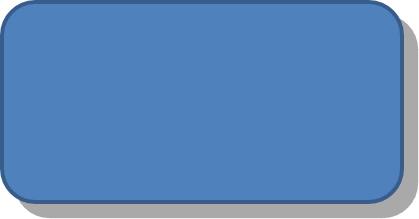
एक कार्ड या पैनल को स्लाइड बैकग्राउंड के खिलाफ उभारा हुआ बनाने के लिए बाहरी छाया का उपयोग करें। छाया आकार की किनारों से बाहर तक बढ़ती है, जिससे ऐसा दिखता है कि आकार स्लाइड के ऊपर उठाया गया है। अपने टेम्पलेट की प्रकाश और शैली से मेल खाने के लिए रंग, दिशा, दूरी, और ब्लर त्रिज्या को समायोजित करें।
यह Python कोड दिखाता है कि कैसे outer shadow effect को एक आयत पर लागू किया जाए:
import aspose.slides as slides
import aspose.pydrawing as draw

with slides.Presentation() as presentation:
    slide = presentation.slides[0]

    shape = slide.shapes.add_auto_shape(slides.ShapeType.ROUND_CORNER_RECTANGLE, 20, 20, 200, 100)
    shape.effect_format.enable_outer_shadow_effect()
    shape.effect_format.outer_shadow_effect.shadow_color.color = draw.Color.dark_gray
    shape.effect_format.outer_shadow_effect.distance = 10
    shape.effect_format.outer_shadow_effect.direction = 45

    presentation.save("shadow_effect.pptx", slides.export.SaveFormat.PPTX)
आंतरिक छाया लागू करें
जब टेम्पलेट की दृश्य शैली को पुन: निर्मित किया जा रहा हो, तो एक कार्ड या पैनल को नीचे धँसाने वाला रूप देने के लिए आंतरिक छाया का उपयोग करें। बाहरी छाया आकार के बाहर फ़ैलती है और उसे उठाया हुआ बनाती है, जबकि आंतरिक छाया किनारों के अंदर को शेड करती है।
enable_inner_shadow_effect को कॉल करें, फिर inner_shadow_effect को कॉन्फ़िगर करें। बड़ी ब्लर-त्रिज्या मान मुलायम किनारे उत्पन्न करते हैं।
यह Python उदाहरण हल्की नीली कार्ड को गहरे ग्रे आंतरिक छाया के साथ बनाता है और इसे PPTX फ़ाइल के रूप में सहेजता है:
import aspose.slides as slides
import aspose.pydrawing as draw

with slides.Presentation() as presentation:
    slide = presentation.slides[0]

    shape = slide.shapes.add_auto_shape(slides.ShapeType.RECTANGLE, 20, 20, 200, 100)
    shape.fill_format.fill_type = slides.FillType.SOLID
    shape.fill_format.solid_fill_color.color = draw.Color.light_blue
    shape.line_format.fill_format.fill_type = slides.FillType.NO_FILL

    shape.effect_format.enable_inner_shadow_effect()
    shadow = shape.effect_format.inner_shadow_effect
    shadow.shadow_color.color = draw.Color.dim_gray
    shadow.direction = 225
    shadow.distance = 7
    shadow.blur_radius = 6

    presentation.save("inner_shadow_effect.pptx", slides.export.SaveFormat.PPTX)

आंतरिक छाया को हटाने के लिए, आकार के इफ़ेक्ट फ़ॉर्मेट पर disable_inner_shadow_effect को कॉल करें।
परावर्तन इफ़ेक्ट लागू करें
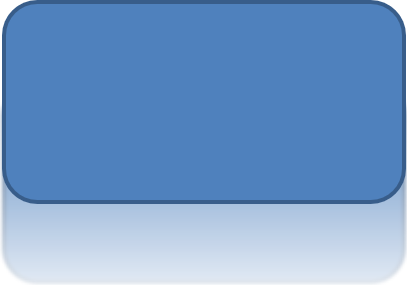
Aspose.Slides for Python via .NET में परावर्तन इफ़ेक्ट लागू करने के लिए आप आकारों पर एक दर्पण‑समान प्रतिबिंब जोड़ सकते हैं, दूरी, पारदर्शिता, और आकार जैसे पैरामीटर समायोजित कर सकते हैं। यह इफ़ेक्ट आपके प्रस्तुतियों की सौंदर्यशास्त्र को बढ़ाता है, आकारों को अधिक परिष्कृत और पेशेवर लुक देता है। इसे सरल कोड से आसानी से लागू किया जा सकता है, जिससे कई तत्वों पर निरंतर डिज़ाइन बनाए रखना तेज़ हो जाता है।
यह Python कोड दिखाता है कि कैसे reflection effect को एक आकार पर लागू किया जाए:
import aspose.slides as slides

with slides.Presentation() as presentation:
    slide = presentation.slides[0]

    shape = slide.shapes.add_auto_shape(slides.ShapeType.ROUND_CORNER_RECTANGLE, 20, 20, 200, 100)
    shape.effect_format.enable_reflection_effect()
    shape.effect_format.reflection_effect.rectangle_align = slides.RectangleAlignment.BOTTOM
    shape.effect_format.reflection_effect.direction = 90
    shape.effect_format.reflection_effect.distance = 40
    shape.effect_format.reflection_effect.blur_radius = 2

    presentation.save("reflection_effect.pptx", slides.export.SaveFormat.PPTX)
ग्लो इफ़ेक्ट लागू करें
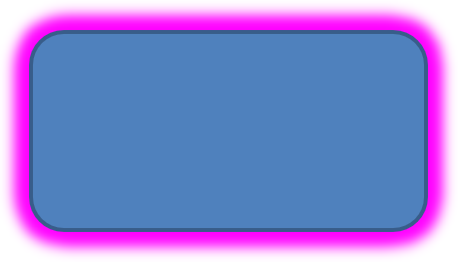
Aspose.Slides for Python via .NET में किसी आकार पर ग्लो इफ़ेक्ट लागू करने के लिए आप आकारों के चारों ओर एक नरम प्रकाशीय आभा जोड़ सकते हैं, रंग और आकार जैसी विशेषताओं को समायोजित कर सकते हैं। यह इफ़ेक्ट आकारों को उभारा बनाता है और आपके प्रस्तुति में एक आकर्षक, ध्यान खींचने वाला दृश्य तत्व जोड़ता है। इसे न्यूनतम कोड के साथ आसानी से लागू किया जा सकता है, जिससे स्लाइड्स की समग्र रूप‑रंग में सुधार होता है।
यह Python कोड दिखाता है कि कैसे glow effect को एक आकार पर लागू किया जाए:
import aspose.slides as slides
import aspose.pydrawing as draw

with slides.Presentation() as presentation:
    slide = presentation.slides[0]

    shape = slide.shapes.add_auto_shape(slides.ShapeType.ROUND_CORNER_RECTANGLE, 20, 20, 200, 100)
    shape.effect_format.enable_glow_effect()
    shape.effect_format.glow_effect.color.color = draw.Color.magenta
    shape.effect_format.glow_effect.radius = 15

    presentation.save("glow_effect.pptx", slides.export.SaveFormat.PPTX)
सॉफ्ट एज इफ़ेक्ट लागू करें
Aspose.Slides for Python via .NET में सॉफ्ट एज इफ़ेक्ट लागू करने के लिए आप आकार के किनारों के चारों ओर एक स्मूथ, धुंधला ट्रांज़िशन बना सकते हैं। यह इफ़ेक्ट अधिक सूक्ष्म और परिष्कृत लुक जोड़ता है, विशेष रूप से उन डिज़ाइनों के लिए जो कोमल, नरम दिखावट चाहते हैं। आप विभिन्न आकारों में वांछित प्रभाव प्राप्त करने के लिए रेडियस जैसे पैरामिटर को आसानी से समायोजित कर सकते हैं।
यह Python कोड दिखाता है कि कैसे soft edges को एक आकार पर लागू किया जाए:
import aspose.slides as slides

with slides.Presentation() as presentation:
    slide = presentation.slides[0]

    shape = slide.shapes.add_auto_shape(slides.ShapeType.ROUND_CORNER_RECTANGLE, 20, 20, 200, 150)
    shape.effect_format.enable_soft_edge_effect()
    shape.effect_format.soft_edge_effect.radius = 8

    presentation.save("soft_edges_effect.pptx", slides.export.SaveFormat.PPTX)

अक्सर पूछे जाने वाले प्रश्न
क्या मैं एक ही आकार पर कई इफ़ेक्ट्स लागू कर सकता हूँ?
हाँ, आप एक ही आकार पर विभिन्न इफ़ेक्ट्स, जैसे छाया, परावर्तन और ग्लो, को मिलाकर अधिक गतिशील दिखावट बना सकते हैं।
मैं किन आकारों पर इफ़ेक्ट्स लागू कर सकता हूँ?
आप विभिन्न आकारों पर इफ़ेक्ट्स लागू कर सकते हैं, जिनमें ऑटॉशेप्स, चार्ट, टेबल, चित्र, SmartArt ऑब्जेक्ट, OLE ऑब्जेक्ट और अधिक शामिल हैं।
क्या मैं समूहित आकारों पर इफ़ेक्ट्स लागू कर सकता हूँ?
हाँ, आप समूहित आकारों पर इफ़ेक्ट्स लागू कर सकते हैं। इफ़ेक्ट पूरी समूह पर लागू होगा।