
ใช้เอฟเฟกต์รูปทรงในงานนำเสนอด้วย Python
บทนำ
ขณะเดียวกันเอฟเฟกต์ใน PowerPoint สามารถใช้ทำให้รูปทรงโดดเด่นขึ้น แต่แตกต่างจาก การเติม หรือขอบเส้น การใช้เอฟเฟกต์ PowerPoint คุณสามารถสร้างการสะท้อนที่เชื่อถือได้บนรูปทรง, แพร่กระจายการส่องแสงของรูปทรง, ฯลฯ.
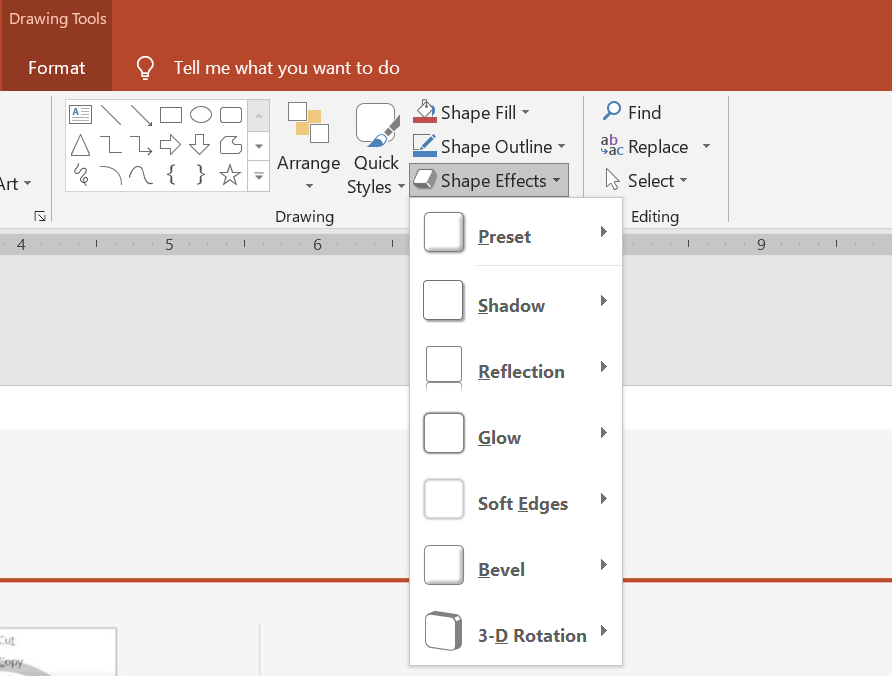
PowerPoint มีเอฟเฟกต์หกแบบที่สามารถนำไปใช้กับรูปทรงได้ คุณสามารถใช้หนึ่งหรือหลายเอฟเฟกต์กับรูปทรงหนึ่งรูปได้.
การผสมผสานเอฟเฟกต์บางแบบดูดีกว่าบางแบบ ด้วยเหตุนี้ PowerPoint มีตัวเลือกภายใต้ Preset ตัวเลือก Preset คือการผสมผสานที่ดูดีซึ่งเป็นที่รู้จักของสองหรือมากกว่าสองเอฟเฟกต์ วิธีนี้โดยการเลือก Preset คุณจะไม่ต้องเสียเวลาในการทดสอบหรือผสมเอฟเฟกต์ต่าง ๆ เพื่อค้นหาการผสมผสานที่ดี
Aspose.Slides มีคุณสมบัติและเมธอดภายใต้คลาส EffectFormat ที่ให้คุณนำเอฟเฟกต์เดียวกันไปใช้กับรูปทรงในงานนำเสนอ PowerPoint
ใช้เอฟเฟกต์เงา
Aspose.Slides สำหรับ Python via .NET รองรับเงานอกและเงาภายในสำหรับรูปทรง คุณสามารถปรับแต่งสี, ทิศทาง, ระยะห่างและรัศมีเบลอร์ให้ตรงกับการออกแบบงานนำเสนอของคุณ
ใช้เงานอก
ใช้เงานอกเพื่อทำให้การ์ดหรือแผงโดดเด่นจากพื้นหลังสไลด์ เงาจะขยายไปเกินขอบของรูปทรง สร้างความรู้สึกว่ารูปทรงถูกยกขึ้นเหนือสไลด์ ปรับสี, ทิศทาง, ระยะห่างและรัศมีเบลอร์ให้ตรงกับแสงและสไตล์ของเทมเพลตของคุณ
โค้ด Python นี้แสดงวิธีการใช้ เอฟเฟกต์เงานอก กับสี่เหลี่ยม:
import aspose.slides as slides
import aspose.pydrawing as draw

with slides.Presentation() as presentation:
    slide = presentation.slides[0]

    shape = slide.shapes.add_auto_shape(slides.ShapeType.ROUND_CORNER_RECTANGLE, 20, 20, 200, 100)
    shape.effect_format.enable_outer_shadow_effect()
    shape.effect_format.outer_shadow_effect.shadow_color.color = draw.Color.dark_gray
    shape.effect_format.outer_shadow_effect.distance = 10
    shape.effect_format.outer_shadow_effect.direction = 45

    presentation.save("shadow_effect.pptx", slides.export.SaveFormat.PPTX)

ใช้เงาภายใน
เมื่อต้องสร้างสไตล์ภาพของเทมเพลตใหม่ ให้ใช้เงาภายในเพื่อทำให้การ์ดหรือแผงดูเหมือนถูกฝังลงไป เงานอกจะขยายออกนอกรูปทรงและทำให้ดูเหมือนยกขึ้น ในขณะที่เงาภายในทำให้ด้านในของขอบมีเงา
เรียกใช้ enable_inner_shadow_effect, จากนั้นกำหนดค่า inner_shadow_effect. ค่ารัศมีเบลอร์ที่ใหญ่กว่าจะทำให้ขอบนุ่มลง
ตัวอย่าง Python นี้สร้างการ์ดสีน้ำเงินอ่อนพร้อมเงาภายในสีเทาเข้มและบันทึกเป็นไฟล์ PPTX:
import aspose.slides as slides
import aspose.pydrawing as draw

with slides.Presentation() as presentation:
    slide = presentation.slides[0]

    shape = slide.shapes.add_auto_shape(slides.ShapeType.RECTANGLE, 20, 20, 200, 100)
    shape.fill_format.fill_type = slides.FillType.SOLID
    shape.fill_format.solid_fill_color.color = draw.Color.light_blue
    shape.line_format.fill_format.fill_type = slides.FillType.NO_FILL

    shape.effect_format.enable_inner_shadow_effect()
    shadow = shape.effect_format.inner_shadow_effect
    shadow.shadow_color.color = draw.Color.dim_gray
    shadow.direction = 225
    shadow.distance = 7
    shadow.blur_radius = 6

    presentation.save("inner_shadow_effect.pptx", slides.export.SaveFormat.PPTX)

เมื่อต้องการลบเงาภายใน ให้เรียก disable_inner_shadow_effect บนรูปแบบเอฟเฟกต์ของรูปทรง
ใช้เอฟเฟกต์การสะท้อน
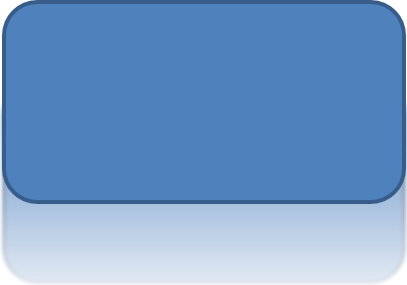
เพื่อใช้เอฟเฟกต์การสะท้อนใน Aspose.Slides สำหรับ Python via .NET คุณสามารถเพิ่มการสะท้อนแบบกระจกให้กับรูปทรงโดยปรับพารามิเตอร์เช่น ระยะ, ความโปร่งใส และขนาด เอฟเฟกต์นี้ช่วยเพิ่มความสวยงามของงานนำเสนอโดยทำให้รูปทรงดูเรียบหรูและเป็นมืออาชีพ ง่ายต่อการใช้งานด้วยโค้ดง่าย ๆ ทำให้สามารถใช้ได้อย่างรวดเร็วกับหลายองค์ประกอบเพื่อการออกแบบที่สม่ำเสมอ
โค้ด Python นี้แสดงวิธีการใช้ เอฟเฟกต์การสะท้อน กับรูปทรง:
import aspose.slides as slides

with slides.Presentation() as presentation:
    slide = presentation.slides[0]

    shape = slide.shapes.add_auto_shape(slides.ShapeType.ROUND_CORNER_RECTANGLE, 20, 20, 200, 100)
    shape.effect_format.enable_reflection_effect()
    shape.effect_format.reflection_effect.rectangle_align = slides.RectangleAlignment.BOTTOM
    shape.effect_format.reflection_effect.direction = 90
    shape.effect_format.reflection_effect.distance = 40
    shape.effect_format.reflection_effect.blur_radius = 2

    presentation.save("reflection_effect.pptx", slides.export.SaveFormat.PPTX)
ใช้เอฟเฟกต์การส่องแสง
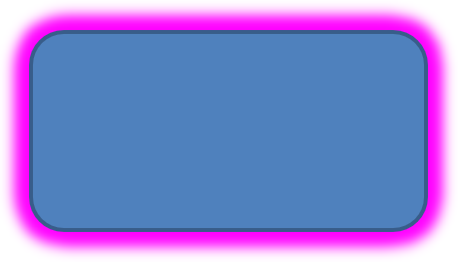
เพื่อใช้เอฟเฟกต์การส่องแสงกับรูปทรงใน Aspose.Slides สำหรับ Python via .NET คุณสามารถเพิ่มออร่านุ่มนวลและเปล่งแสงรอบรูปทรงโดยปรับคุณสมบัติเช่น สีและขนาด เอฟเฟกต์นี้ช่วยให้รูปทรงโดดเด่นและเพิ่มองค์ประกอบภาพที่ดึงดูดสายตาให้กับงานนำเสนอของคุณ ง่ายต่อการใช้งานด้วยโค้ดขั้นต่ำ ช่วยปรับปรุงลุคโดยรวมของสไลด์
โค้ด Python นี้แสดงวิธีการใช้ เอฟเฟกต์การส่องแสง กับรูปทรง:
import aspose.slides as slides
import aspose.pydrawing as draw

with slides.Presentation() as presentation:
    slide = presentation.slides[0]

    shape = slide.shapes.add_auto_shape(slides.ShapeType.ROUND_CORNER_RECTANGLE, 20, 20, 200, 100)
    shape.effect_format.enable_glow_effect()
    shape.effect_format.glow_effect.color.color = draw.Color.magenta
    shape.effect_format.glow_effect.radius = 15

    presentation.save("glow_effect.pptx", slides.export.SaveFormat.PPTX)
ใช้เอฟเฟกต์ขอบนุ่ม
เพื่อใช้เอฟเฟกต์ขอบนุ่มใน Aspose.Slides สำหรับ Python via .NET คุณสามารถสร้างการเปลี่ยนแปลงที่เรียบและเบลอรอบขอบของรูปทรง เอฟเฟกต์นี้เพิ่มลุคที่ละเอียดอ่อนและประณีต เหมาะสำหรับการออกแบบที่ต้องการลุคอ่อนนุ่ม คุณสามารถปรับพารามิเตอร์เช่น รัศมีได้ง่ายเพื่อให้ได้เอฟเฟกต์ที่ต้องการบนรูปทรงต่าง ๆ ในงานนำเสนอของคุณ
โค้ด Python นี้แสดงวิธีการใช้ ขอบนุ่ม กับรูปทรง:
import aspose.slides as slides

with slides.Presentation() as presentation:
    slide = presentation.slides[0]

    shape = slide.shapes.add_auto_shape(slides.ShapeType.ROUND_CORNER_RECTANGLE, 20, 20, 200, 150)
    shape.effect_format.enable_soft_edge_effect()
    shape.effect_format.soft_edge_effect.radius = 8

    presentation.save("soft_edges_effect.pptx", slides.export.SaveFormat.PPTX)

คำถามที่พบบ่อย
ฉันสามารถใช้หลายเอฟเฟกต์กับรูปทรงเดียวกันได้หรือไม่?
ได้ คุณสามารถผสมเอฟเฟกต์ต่าง ๆ เช่น เงา, การสะท้อน, และการส่องแสง บนรูปทรงเดียวเพื่อสร้างลุคที่ไดนามิกมากขึ้น
ฉันสามารถใช้เอฟเฟกต์กับรูปทรงใดได้บ้าง?
คุณสามารถใช้เอฟเฟ็กต์กับรูปทรงหลายประเภท รวมถึง autoshapes, ชาร์ต, ตาราง, รูปภาพ, วัตถุ SmartArt, วัตถุ OLE และอื่น ๆ
ฉันสามารถใช้เอฟเฟกต์กับกลุ่มรูปทรงได้หรือไม่?
ได้ คุณสามารถใช้เอฟเฟกต์กับกลุ่มรูปทรงได้ เอฟเฟกต์จะถูกนำไปใช้กับกลุ่มทั้งหมด