
Python में PowerPoint प्रस्तुतियों में गणितीय समीकरण जोड़ें
अवलोकन
PowerPoint समीकरणों को Office Math Markup Language (OMML) के रूप में संग्रहीत करता है। Aspose.Slides for Python via .NET के साथ, आप प्रोग्रामेटिक रूप से वही प्रकार की गणितीय सामग्री बना सकते हैं: भिन्न, मूल, फ़ंक्शन, सीमा, N-ary ऑपरेटर्स, मैट्रिक्स, एर्रे, और स्वरूपित गणित ब्लॉक्स।
PowerPoint में, उपयोगकर्ता सामान्यतः समीकरण Insert > Equation से जोड़ते हैं:

परिणाम स्लाइड पर संपादन योग्य गणितीय टेक्स्ट होता है:

Aspose.Slides तीन मुख्य ऑब्जेक्ट्स के माध्यम से वह गणितीय टेक्स्ट बनाता है:
- एक गणितीय आकार, जो add_math_shape से बनाया गया है, वह आकार है जो समीकरण रखता है।
- MathPortion आकार के टेक्स्ट फ्रेम के अंदर गणितीय सामग्री संग्रहीत करता है।
- MathParagraph एक या अधिक MathBlock ऑब्जेक्ट्स को सम्मिलित करता है।
नीचे के अधिकांश उदाहरण MathematicalText और IMathElement की फ्लुएंट मेथड्स का उपयोग करते हैं ताकि कोड छोटा और पठनीय रहे।
MathML निर्यात परिदृश्यों के लिए, देखें Python के माध्यम से .NET में प्रस्तुतियों से गणितीय समीकरण निर्यात करें।
समीकरण बनाएं
यह उदाहरण एक गणितीय आकार बनाता है और पिथागोरस सिद्धांत जोड़ता है:

import aspose.slides as slides
import aspose.slides.mathtext as math

with slides.Presentation() as presentation:
    slide = presentation.slides[0]

    math_shape = slide.shapes.add_math_shape(20, 20, 700, 120)
    math_paragraph = math_shape.text_frame.paragraphs[0].portions[0].math_paragraph

    equation = (
        math.MathematicalText("c")
        .set_superscript("2")
        .join("=")
        .join(math.MathematicalText("a").set_superscript("2"))
        .join("+")
        .join(math.MathematicalText("b").set_superscript("2"))
    )

    math_paragraph.add(equation)

    presentation.save("pythagorean-theorem.pptx", slides.export.SaveFormat.PPTX)
add_math_shape एक आकार बनाता है जिसमें पहले से ही एक गणितीय पैराग्राफ शामिल होता है। पहले MathPortion तक पहुँचें, उसका MathParagraph प्राप्त करें, और उसमें गणितीय ब्लॉक या गणितीय तत्व जोड़ें।
भिन्न जोड़ें
divide का उपयोग करके आप एक भिन्न बना सकते हैं। आप MathFractionTypes से एक भिन्न शैली चुन सकते हैं।

import aspose.slides as slides
import aspose.slides.mathtext as math

with slides.Presentation() as presentation:
    slide = presentation.slides[0]

    math_shape = slide.shapes.add_math_shape(20, 20, 700, 100)
    math_paragraph = math_shape.text_frame.paragraphs[0].portions[0].math_paragraph

    fraction = math.MathematicalText("1").divide("x", math.MathFractionTypes.SKEWED)

    math_paragraph.add(math.MathBlock(fraction))

    presentation.save("fraction.pptx", slides.export.SaveFormat.PPTX)
स्टैक्ड भिन्न के लिए, MathFractionTypes.BAR का उपयोग करें:
stacked_fraction = math.MathematicalText("x + 1").divide("y - 1", math.MathFractionTypes.BAR)
मूल जोड़ें
radical का उपयोग करके आप वर्गमूल, घनमूल या अन्य मूल बना सकते हैं। वर्तमान तत्व बेस बन जाता है, और तर्क डिग्री बन जाता है।

import aspose.slides as slides
import aspose.slides.mathtext as math

with slides.Presentation() as presentation:
    slide = presentation.slides[0]

    math_shape = slide.shapes.add_math_shape(20, 20, 700, 100)
    math_paragraph = math_shape.text_frame.paragraphs[0].portions[0].math_paragraph

    radical = math.MathematicalText("x").radical("n")

    math_paragraph.add(math.MathBlock(radical))

    presentation.save("radical.pptx", slides.export.SaveFormat.PPTX)
फ़ंक्शन और सीमाएँ जोड़ें
as_argument_of_function या function का उपयोग करके sin(x), log(x) जैसे फ़ंक्शन या कस्टम फ़ंक्शन नाम बना सकते हैं। सीमाओं के लिए, lim को एक MathLimit में रखें या set_lower_limit का उपयोग करें।

import aspose.slides as slides
import aspose.slides.mathtext as math

with slides.Presentation() as presentation:
    slide = presentation.slides[0]

    math_shape = slide.shapes.add_math_shape(20, 20, 700, 100)
    math_paragraph = math_shape.text_frame.paragraphs[0].portions[0].math_paragraph

    limit = (
        math.MathematicalText("lim")
        .set_lower_limit("x\u2192\u221E")
        .function("x")
    )

    math_paragraph.add(math.MathBlock(limit))

    presentation.save("functions-and-limits.pptx", slides.export.SaveFormat.PPTX)
कस्टम फ़ंक्शन नाम के लिए, फ़ंक्शन नाम को वर्तमान तत्व बनाएं:
custom_function = math.MathematicalText("f").function("x + 1")
N-ary ऑपरेटर्स और इंटीग्रल जोड़ें
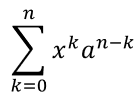
nary का उपयोग करके आप जमा, संघ, प्रतिच्छेद और अन्य बड़े ऑपरेटर्स बना सकते हैं। integral का उपयोग इंटीग्रल के लिए करें। दोनों मेथड्स आपको निचली और ऊपरी सीमाएँ सेट करने देते हैं।
import aspose.slides as slides
import aspose.slides.mathtext as math

with slides.Presentation() as presentation:
    slide = presentation.slides[0]

    math_shape = slide.shapes.add_math_shape(20, 20, 700, 120)
    math_paragraph = math_shape.text_frame.paragraphs[0].portions[0].math_paragraph

    summation_base = (
        math.MathematicalText("x")
        .set_superscript("k")
        .join(math.MathematicalText("a").set_superscript("n-k"))
    )

    summation = summation_base.nary(math.MathNaryOperatorTypes.SUMMATION, "k=0", "n")

    math_paragraph.add(math.MathBlock(summation))

    presentation.save("nary-operators.pptx", slides.export.SaveFormat.PPTX)
N-ary ऑपरेटर्स बड़े ऑपरेटर्स होते हैं जिनमें वैकल्पिक सीमाएँ हो सकती हैं। सरल ऑपरेटर्स जैसे +, -, और = आमतौर पर MathematicalText के रूप में जोड़े जाते हैं और अभिव्यक्ति में सम्मिलित होते हैं।
इंटीग्रल के लिए, integral का उपयोग करें:
integral_base = math.MathematicalText("x").join(math.MathematicalText("dx").to_box())
integral = integral_base.integral(math.MathIntegralTypes.SIMPLE, "0", "1")
मैट्रिक्स जोड़ें
पंक्तियों और स्तंभों के लिए MathMatrix का उपयोग करें। मैट्रिक्स डिफ़ॉल्ट रूप से कोष्ठक शामिल नहीं करता, इसलिए जब आपको कोष्ठक, ब्रेस या कर्ली ब्रेसेस चाहिए हों तो मैट्रिक्स को इनके भीतर घेरें।

import aspose.slides as slides
import aspose.slides.mathtext as math

with slides.Presentation() as presentation:
    slide = presentation.slides[0]

    math_shape = slide.shapes.add_math_shape(20, 20, 700, 120)
    math_paragraph = math_shape.text_frame.paragraphs[0].portions[0].math_paragraph

    matrix = math.MathMatrix(2, 3)
    matrix[0, 0] = math.MathematicalText("1")
    matrix[0, 1] = math.MathematicalText("x")
    matrix[1, 0] = math.MathematicalText("x")
    matrix[1, 1] = math.MathematicalText("2")
    matrix[1, 2] = math.MathematicalText("y")

    math_paragraph.add(math.MathBlock(matrix))

    presentation.save("matrix.pptx", slides.export.SaveFormat.PPTX)
समीकरण एर्रे जोड़ें
जब आपको संरेखित समीकरण या अभिव्यक्तियों की लंबवत श्रृंखला चाहिए, तो to_math_array का उपयोग करें।

import aspose.slides as slides
import aspose.slides.mathtext as math

with slides.Presentation() as presentation:
    slide = presentation.slides[0]

    math_shape = slide.shapes.add_math_shape(20, 20, 700, 140)
    math_paragraph = math_shape.text_frame.paragraphs[0].portions[0].math_paragraph

    equation_array = (
        math.MathematicalText("x")
        .join("y")
        .to_math_array()
    )

    math_paragraph.add(math.MathBlock(equation_array))

    presentation.save("equation-array.pptx", slides.export.SaveFormat.PPTX)
त्रिकोणमितीय फ़ंक्शन जोड़ें
जब तर्क वर्तमान तत्व है और फ़ंक्शन नाम ज्ञात है, तो as_argument_of_function का उपयोग करें।

import aspose.slides as slides
import aspose.slides.mathtext as math

with slides.Presentation() as presentation:
    slide = presentation.slides[0]

    math_shape = slide.shapes.add_math_shape(20, 20, 700, 100)
    math_paragraph = math_shape.text_frame.paragraphs[0].portions[0].math_paragraph

    cosine = math.MathematicalText("2x").as_argument_of_function(
        math.MathFunctionsOfOneArgument.COS
    )

    math_paragraph.add(math.MathBlock(cosine))

    presentation.save("trigonometric-function.pptx", slides.export.SaveFormat.PPTX)
सबस्क्रिप्ट और सुपरस्क्रिप्ट जोड़ें
इंडेक्स और पावर के लिए सबस्क्रिप्ट और सुपरस्क्रिप्ट सहायक फ़ंक्शन का उपयोग करें। जब इंडेक्स बेस के बाएँ पक्ष पर दिखाने हों, तो set_sub_superscript_on_the_left का उपयोग करें।

import aspose.slides as slides
import aspose.slides.mathtext as math

with slides.Presentation() as presentation:
    slide = presentation.slides[0]

    math_shape = slide.shapes.add_math_shape(20, 20, 700, 100)
    math_paragraph = math_shape.text_frame.paragraphs[0].portions[0].math_paragraph

    scripts = math.MathematicalText("Y").set_sub_superscript_on_the_left("1", "n")

    math_paragraph.add(math.MathBlock(scripts))

    presentation.save("subscript-superscript.pptx", slides.export.SaveFormat.PPTX)
डिलिमिटर जोड़ें
एक अभिव्यक्ति को डिलिमिटर्स के भीतर रखने के लिए enclose का उपयोग करें। आप कई तत्वों वाली डिलिमिटर अभिव्यक्तियों के लिए विभाजक अक्षर भी सेट कर सकते हैं।

import aspose.slides as slides
import aspose.slides.mathtext as math

with slides.Presentation() as presentation:
    slide = presentation.slides[0]

    math_shape = slide.shapes.add_math_shape(20, 20, 700, 100)
    math_paragraph = math_shape.text_frame.paragraphs[0].portions[0].math_paragraph

    delimiter = (
        math.MathematicalText("x")
        .join("y")
        .join("z")
        .enclose("<", ">")
    )
    delimiter.separator_character = "|"

    math_paragraph.add(math.MathBlock(delimiter))

    presentation.save("delimiters.pptx", slides.export.SaveFormat.PPTX)
बॉर्डर बॉक्स जोड़ें
जब समीकरण को ढाँचे में रखना हो, तो to_border_box का उपयोग करें।

import aspose.slides as slides
import aspose.slides.mathtext as math

with slides.Presentation() as presentation:
    slide = presentation.slides[0]

    math_shape = slide.shapes.add_math_shape(20, 20, 700, 100)
    math_paragraph = math_shape.text_frame.paragraphs[0].portions[0].math_paragraph

    boxed_equation = (
        math.MathematicalText("a")
        .set_superscript("2")
        .join("=")
        .join(math.MathematicalText("b").set_superscript("2"))
        .join("+")
        .join(math.MathematicalText("c").set_superscript("2"))
        .to_border_box()
    )

    math_paragraph.add(math.MathBlock(boxed_equation))

    presentation.save("border-box.pptx", slides.export.SaveFormat.PPTX)
टर्म समूहित करें
एक अभिव्यक्ति के ऊपर या नीचे समूहित करने वाला कैरेक्टर रखने के लिए group का उपयोग करें। समूहित टर्म को लेबल करने के लिए एक सीमा जोड़ें।

import aspose.slides as slides
import aspose.slides.mathtext as math

with slides.Presentation() as presentation:
    slide = presentation.slides[0]

    math_shape = slide.shapes.add_math_shape(20, 20, 700, 120)
    math_paragraph = math_shape.text_frame.paragraphs[0].portions[0].math_paragraph

    grouped = (
        math.MathematicalText("x + y")
        .group(chr(0x23DF), math.MathTopBotPositions.BOTTOM, math.MathTopBotPositions.TOP)
        .set_lower_limit("any text")
    )

    math_paragraph.add(math.MathBlock(grouped))

    presentation.save("grouped-terms.pptx", slides.export.SaveFormat.PPTX)
गणितीय तत्वों का स्वरूपित करें
फॉर्मेटिंग सहायक का उपयोग केवल तब करें जब वे सूत्र को स्पष्ट करें। उदाहरण के लिए, overbar एक गणितीय तत्व के ऊपर बार रखता है।

import aspose.slides as slides
import aspose.slides.mathtext as math

with slides.Presentation() as presentation:
    slide = presentation.slides[0]

    math_shape = slide.shapes.add_math_shape(20, 20, 700, 100)
    math_paragraph = math_shape.text_frame.paragraphs[0].portions[0].math_paragraph

    overbar = math.MathematicalText("ABC").overbar()

    math_paragraph.add(math.MathBlock(overbar))

    presentation.save("overbar.pptx", slides.export.SaveFormat.PPTX)
त्वरित संदर्भ
| कार्य | मुख्य API |
|---|---|
| गणितीय टेक्स्ट बनाएं | MathematicalText |
| तत्वों को मिलाएं | IMathElement.join |
| भिन्न बनाएं | IMathElement.divide |
| सुपरस्क्रिप्ट या सबस्क्रिप्ट जोड़ें | set_superscript, set_subscript |
| फ़ंक्शन जोड़ें | function, as_argument_of_function |
| मूल जोड़ें | radical |
| सीमा जोड़ें | set_lower_limit, set_upper_limit |
| बाएँ-साइड स्क्रिप्ट जोड़ें | set_sub_superscript_on_the_left |
| समेश और इंटीग्रल जोड़ें | nary, integral |
| मैट्रिक्स जोड़ें | MathMatrix |
| समीकरण एर्रे जोड़ें | to_math_array |
| डिलिमिटर जोड़ें | enclose |
| बार और बॉर्डर जोड़ें | overbar, to_border_box |
| टर्म समूहित करें | group |
अक्सर पूछे जाने वाले प्रश्न
क्या मैं मौजूदा PowerPoint समीकरण को संपादित कर सकता हूँ?
हां। प्रस्तुति खोलें, उस आकार को खोजें जिसमें MathPortion हो, उसका MathParagraph प्राप्त करें, और उस पैराग्राफ में गणितीय ब्लॉक को अपडेट करें।
क्या समीकरण संपादन योग्य PowerPoint गणित के रूप में सहेजे जाते हैं?
हां। जब आप PPTX के रूप में सहेजते हैं, Aspose.Slides समीकरण को संपादन योग्य Office गणित सामग्री के रूप में लिखता है।
क्या मैं समीकरणों को LaTeX में निर्यात कर सकता हूँ?
हां। समीकरण के MathParagraph को उसके MathPortion से प्राप्त करें, और सीधे निर्यात करने के लिए MathParagraph.to_latex को कॉल करें। एक पूर्ण उदाहरण के लिए, देखें Python के माध्यम से .NET में प्रस्तुतियों से गणितीय समीकरण निर्यात करें।