
プレゼンテーションチャートにトレンドラインを追加する(Java)
概要
この記事では、Aspose.Slides を使用してプレゼンテーションのチャートにトレンドラインを追加する方法を説明します。チャートの作成、チャート系列へのトレンドラインの追加、指数、線形、対数、移動平均、ポリノミアル、パワーなどの複数のトレンドラインタイプの操作方法を示します。
また、ラインシェイプを挿入してチャートにカスタムラインを追加する方法を説明し、前方および後方のトレンドライン投影値や、PDF や SVG へのエクスポート時、または画像としてチャートをレンダリングする際にトレンドラインが保持されるかどうかに関する簡単な FAQ も含まれています。
トレンドラインの追加
チャート系列にトレンドラインを追加するには、ITrendlineCollection.add を使用し、TrendlineType でそのタイプを選択します。この例では、デフォルトデータのクラスター化列チャートを作成し、3 つの系列それぞれに 2 本のトレンドラインを追加します。
指数トレンドラインは、setDisplayEquation と setDisplayRSquaredValue を使用して方程式と決定係数を非表示にし、線形トレンドラインは赤色です。対数トレンドラインはカスタムラベル用に addTextFrameForOverriding を使用します。移動平均は 3 データポイントの setPeriod とカスタム setTrendlineName を使用します。
ポリノミアルトレンドラインは setOrder を 3 に設定し、setForward により 1 カテゴリ前方に拡張します。パワートレンドラインは setBackward により 1 カテゴリ後方に拡張します。
import com.aspose.slides.*;
import java.awt.Color;

Presentation presentation = new Presentation();
try {
    ISlide slide = presentation.getSlides().get_Item(0);

    IChart chart = slide.getShapes().addChart(ChartType.ClusteredColumn, 20, 20, 500, 400);

    IChartSeries firstSeries = chart.getChartData().getSeries().get_Item(0);

    ITrendline exponentialTrendline = firstSeries.getTrendLines().add(TrendlineType.Exponential);
    exponentialTrendline.setDisplayEquation(false);
    exponentialTrendline.setDisplayRSquaredValue(false);

    ITrendline linearTrendline = firstSeries.getTrendLines().add(TrendlineType.Linear);
    linearTrendline.getFormat().getLine().getFillFormat().setFillType(FillType.Solid);
    linearTrendline.getFormat().getLine().getFillFormat().getSolidFillColor().setColor(Color.RED);

    IChartSeries secondSeries = chart.getChartData().getSeries().get_Item(1);

    ITrendline logarithmicTrendline = secondSeries.getTrendLines().add(TrendlineType.Logarithmic);
    logarithmicTrendline.addTextFrameForOverriding("New log trend line");

    ITrendline movingAverageTrendline = secondSeries.getTrendLines().add(TrendlineType.MovingAverage);
    movingAverageTrendline.setPeriod((byte) 3);
    movingAverageTrendline.setTrendlineName("New TrendLine Name");

    IChartSeries thirdSeries = chart.getChartData().getSeries().get_Item(2);

    ITrendline polynomialTrendline = thirdSeries.getTrendLines().add(TrendlineType.Polynomial);
    polynomialTrendline.setForward(1);
    polynomialTrendline.setOrder((byte) 3);

    ITrendline powerTrendline = thirdSeries.getTrendLines().add(TrendlineType.Power);
    powerTrendline.setBackward(1);

    presentation.save("ChartTrendLines.pptx", SaveFormat.Pptx);
} finally {
    presentation.dispose();
}
トレンドラインの切片を設定
setIntercept を使用して、X = 0 のときのトレンドラインの Y 値を固定します。この設定は線形、指数、ポリノミアルのトレンドラインでサポートされています。
例えば、生産コストモデルでは、非ゼロの生産量で測定した値が異なるベースラインを示唆していても、既知の固定コスト 100 から開始する必要がある場合があります。線形トレンドラインの場合、切片を固定すると方程式 y = ax + b が b = 100 に制約され、傾きはその制約の下でデータに合わせてフィットします。これは単に既にフィットした線を移動させるだけではありません。軸交差設定はチャート軸が交わる位置を制御し、フィットしたトレンドラインの係数を変更するものではありません。
以下の例では、1 から 4 の生産量とコスト 170、200、230、260 を持つ散布図 (XY) チャートを作成します。デフォルトの自動切片でチャートを保存し、切片を 100 に設定して 2 番目の PPTX を保存します。2 つのファイルは切片設定だけが異なります。トレンドラインは方程式を表示し、X = 0 まで遡って拡張されます。
import com.aspose.slides.*;

Presentation presentation = new Presentation();
try {
    ISlide slide = presentation.getSlides().get_Item(0);

    IChart chart = slide.getShapes().addChart(ChartType.ScatterWithMarkers, 20, 20, 480, 210);
    chart.setLegend(false);

    chart.getChartData().getSeries().clear();
    chart.getChartData().getCategories().clear();

    IChartDataWorkbook workbook = chart.getChartData().getChartDataWorkbook();
    workbook.clear(0);

    IChartDataCell nameCell = workbook.getCell(0, 0, 1, "Production cost");
    IChartSeries series = chart.getChartData().getSeries().add(nameCell, ChartType.ScatterWithMarkers);
    double[] costs = { 170, 200, 230, 260 };

    for (int i = 0; i < costs.length; i++) {
        IChartDataCell xCell = workbook.getCell(0, i + 1, 0, i + 1);
        IChartDataCell yCell = workbook.getCell(0, i + 1, 1, costs[i]);
        series.getDataPoints().addDataPointForScatterSeries(xCell, yCell);
    }

    ITrendline trendline = series.getTrendLines().add(TrendlineType.Linear);
    trendline.setDisplayEquation(true);
    trendline.setBackward(1);

    presentation.save("AutomaticIntercept.pptx", SaveFormat.Pptx);

    trendline.setIntercept(100);
    presentation.save("FixedIntercept.pptx", SaveFormat.Pptx);
} finally {
    presentation.dispose();
}
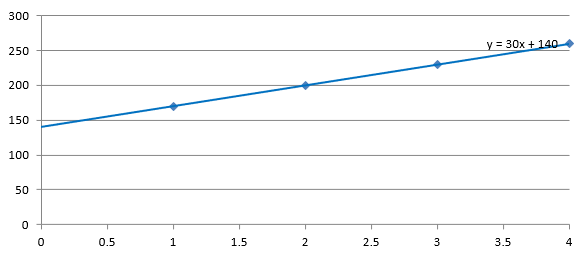
自動計算の場合、これらのデータは y = 30x + 140 を生成します。切片を 100 に設定すると、約 y = 43.33x + 100 となります。ゼロでのフィット値が既知のベースラインと一致し、線はすべてのデータポイントを通過しなくなります。
| 自動切片 | 固定切片 100 |
|---|---|
 |
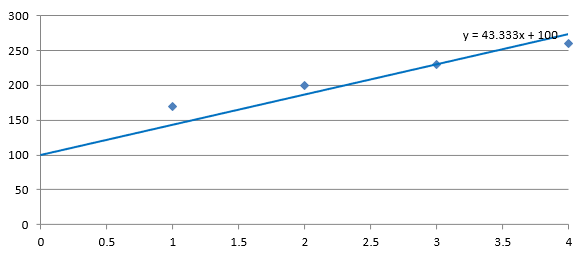 |
両方の画像は同じデータと軸スケールを使用しています。トレンドラインは切片を示すために X = 0 まで遡って拡張されています。
デフォルトでは、getIntercept は Double.NaN を返します。これはゼロではなく未指定の切片を表します。その後、切片はデータから自動的に計算されます。
カスタムラインの追加
カスタムラインは、系列データから計算されたトレンドラインではなく、チャート上に描画されるシェイプです。この例では、IShapeCollection.addAutoShape を使用して、チャート上のスライドに水平線を追加します。線の位置はポイント単位のスライド座標で指定され、チャートの左端から開始し、チャートの高さの半分の位置に配置されます。幅はチャートの幅と同じです。getLineFormat を使用して、線に単色の赤を設定します。
import com.aspose.slides.*;
import java.awt.Color;

Presentation presentation = new Presentation();
try {
    ISlide slide = presentation.getSlides().get_Item(0);

    IChart chart = slide.getShapes().addChart(ChartType.ClusteredColumn, 100, 100, 500, 400);

    IAutoShape line = slide.getShapes().addAutoShape(ShapeType.Line, chart.getX(), chart.getY() + chart.getHeight() / 2, chart.getWidth(), 0);
    line.getLineFormat().getFillFormat().setFillType(FillType.Solid);
    line.getLineFormat().getFillFormat().getSolidFillColor().setColor(Color.RED);

    presentation.save("AddCustomLines.pptx", SaveFormat.Pptx);
} finally {
    presentation.dispose();
}
FAQ
トレンドラインの「forward」と「backward」は何を意味しますか?
それらはトレンドラインを前方または後方に投影した長さを示します。散布図 (XY) の場合は軸単位、散布図でない場合はカテゴリ数で表されます。負の値は許可されません。
プレゼンテーションを PDF や SVG にエクスポートしたり、スライドを画像としてレンダリングしたりする際に、トレンドラインは保持されますか?
はい。Aspose.Slides はプレゼンテーションを PDF または SVG に変換し、チャートを画像としてレンダリングします。これらの操作中、チャートの一部であるトレンドラインは保持されます。また、チャート自体の画像を チャートの画像をエクスポート するメソッドも利用可能です。