
JavaでPowerPointプレゼンテーションに数式を追加する
概要
PowerPoint は数式を Office Math Markup Language (OMML) として保存します。Aspose.Slides for Java を使用すると、プログラムで同様の数式コンテンツを作成できます:分数、根号、関数、リミット、N 元演算子、行列、配列、そして書式設定された数式ブロック。
In PowerPoint、ユーザーは通常 挿入 > 数式 から数式を追加します:
![PowerPointの[挿入]タブで[数式]コマンドが選択されている状態](powerpoint-math-equations_1.png)
結果としてスライド上に編集可能な数式テキストが表示されます:

Aspose.Slides は次の3つの主要オブジェクトを使用してその数式テキストを構築します:
- 数式シェイプは、addMathShape で作成され、数式を含むシェイプです。
- MathPortion はシェイプのテキストフレーム内に数式コンテンツを格納します。
- MathParagraph は1つ以上の MathBlock オブジェクトを含みます。
以下のほとんどの例は、MathematicalText と IMathElement の Fluent メソッドを使用して、コードを短く読みやすくしています。
MathML エクスポートのシナリオについては、Export Math Equations from Presentations in Java を参照してください。
数式の作成
この例では、数式シェイプを作成し、ピタゴラスの定理を追加します:
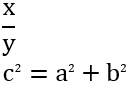
Presentation presentation = new Presentation();
try {
    ISlide slide = presentation.getSlides().get_Item(0);

    IAutoShape mathShape = slide.getShapes().addMathShape(20, 20, 700, 120);
    IMathParagraph mathParagraph = ((MathPortion) mathShape.getTextFrame().getParagraphs()
            .get_Item(0).getPortions().get_Item(0)).getMathParagraph();

    IMathBlock equation = new MathematicalText("c")
            .setSuperscript("2")
            .join("=")
            .join(new MathematicalText("a").setSuperscript("2"))
            .join("+")
            .join(new MathematicalText("b").setSuperscript("2"));

    mathParagraph.add(equation);

    presentation.save("pythagorean-theorem.pptx", SaveFormat.Pptx);
} finally {
    presentation.dispose();
}
addMathShape はすでに数式段落を含むシェイプを作成します。最初の MathPortion にアクセスし、その MathParagraph を取得して、数式ブロックまたは数式要素を追加します。
分数の追加
divide を使用して分数を作成します。MathFractionTypes で分数のスタイルを選択できます。

Presentation presentation = new Presentation();
try {
    ISlide slide = presentation.getSlides().get_Item(0);

    IAutoShape mathShape = slide.getShapes().addMathShape(20, 20, 700, 100);
    IMathParagraph mathParagraph = ((MathPortion) mathShape.getTextFrame().getParagraphs()
            .get_Item(0).getPortions().get_Item(0)).getMathParagraph();

    IMathFraction fraction = new MathematicalText("1")
            .divide("x", MathFractionTypes.Skewed);

    mathParagraph.add(new MathBlock(fraction));

    presentation.save("fraction.pptx", SaveFormat.Pptx);
} finally {
    presentation.dispose();
}
スタックされた分数を作成するには、MathFractionTypes.Bar を使用します:
IMathFraction stackedFraction = new MathematicalText("x + 1").divide("y - 1", MathFractionTypes.Bar);
根号の追加
radical を使用して平方根、立方根、その他の根号を作成します。現在の要素が基底となり、引数が次数になります。

Presentation presentation = new Presentation();
try {
    ISlide slide = presentation.getSlides().get_Item(0);

    IAutoShape mathShape = slide.getShapes().addMathShape(20, 20, 700, 100);
    IMathParagraph mathParagraph = ((MathPortion) mathShape.getTextFrame().getParagraphs()
            .get_Item(0).getPortions().get_Item(0)).getMathParagraph();

    IMathRadical radical = new MathematicalText("x")
            .radical("n");

    mathParagraph.add(new MathBlock(radical));

    presentation.save("radical.pptx", SaveFormat.Pptx);
} finally {
    presentation.dispose();
}
関数とリミットの追加
asArgumentOfFunction または function を使用して sin(x)、log(x) などの関数やカスタム関数名を作成します。リミットの場合は、MathLimit に lim を入れるか、setLowerLimit を使用します。

Presentation presentation = new Presentation();
try {
    ISlide slide = presentation.getSlides().get_Item(0);

    IAutoShape mathShape = slide.getShapes().addMathShape(20, 20, 700, 100);
    IMathParagraph mathParagraph = ((MathPortion) mathShape.getTextFrame().getParagraphs()
            .get_Item(0).getPortions().get_Item(0)).getMathParagraph();

    IMathFunction limit = new MathematicalText("lim")
            .setLowerLimit("x\u2192\u221E")
            .function("x");

    mathParagraph.add(new MathBlock(limit));

    presentation.save("functions-and-limits.pptx", SaveFormat.Pptx);
} finally {
    presentation.dispose();
}
カスタム関数名を使用する場合は、関数名を現在の要素にします:
IMathFunction customFunction = new MathematicalText("f").function("x + 1");
N元演算子と積分の追加
nary を使用して総和、合併、交差などの大きな演算子を作成します。integral を使用して積分を作成します。両方のメソッドで下限と上限を設定できます。
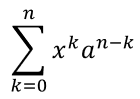
Presentation presentation = new Presentation();
try {
    ISlide slide = presentation.getSlides().get_Item(0);

    IAutoShape mathShape = slide.getShapes().addMathShape(20, 20, 700, 120);
    IMathParagraph mathParagraph = ((MathPortion) mathShape.getTextFrame().getParagraphs()
            .get_Item(0).getPortions().get_Item(0)).getMathParagraph();

    IMathBlock summationBase = new MathematicalText("x")
            .setSuperscript("k")
            .join(new MathematicalText("a").setSuperscript("n-k"));

    IMathNaryOperator summation = summationBase.nary(MathNaryOperatorTypes.Summation, "k=0", "n");

    mathParagraph.add(new MathBlock(summation));

    presentation.save("nary-operators.pptx", SaveFormat.Pptx);
} finally {
    presentation.dispose();
}
N元演算子はオプションでリミットを持つ大きな演算子です。+、-、= などの単純な演算子は通常 MathematicalText として追加し、式に結合します。
積分の場合は integral を使用します:
IMathBlock integralBase = new MathematicalText("x").join(new MathematicalText("dx").toBox());
IMathNaryOperator integral = integralBase.integral(MathIntegralTypes.Simple, "0", "1");
行列の追加
MathMatrix を使用して行と列を定義します。行列はデフォルトで括弧を含まないため、丸括弧、角括弧、波括弧が必要な場合は外側に囲んでください。
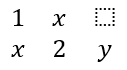
Presentation presentation = new Presentation();
try {
    ISlide slide = presentation.getSlides().get_Item(0);

    IAutoShape mathShape = slide.getShapes().addMathShape(20, 20, 700, 120);
    IMathParagraph mathParagraph = ((MathPortion) mathShape.getTextFrame().getParagraphs()
            .get_Item(0).getPortions().get_Item(0)).getMathParagraph();

    MathMatrix matrix = new MathMatrix(2, 3);
    matrix.set_Item(0, 0, new MathematicalText("1"));
    matrix.set_Item(0, 1, new MathematicalText("x"));
    matrix.set_Item(1, 0, new MathematicalText("x"));
    matrix.set_Item(1, 1, new MathematicalText("2"));
    matrix.set_Item(1, 2, new MathematicalText("y"));

    mathParagraph.add(new MathBlock(matrix));

    presentation.save("matrix.pptx", SaveFormat.Pptx);
} finally {
    presentation.dispose();
}
数式配列の追加
toMathArray を使用すると、式を整列させたり垂直にスタックしたりできます。

Presentation presentation = new Presentation();
try {
    ISlide slide = presentation.getSlides().get_Item(0);

    IAutoShape mathShape = slide.getShapes().addMathShape(20, 20, 700, 140);
    IMathParagraph mathParagraph = ((MathPortion) mathShape.getTextFrame().getParagraphs()
            .get_Item(0).getPortions().get_Item(0)).getMathParagraph();

    IMathArray equationArray = new MathematicalText("x")
            .join("y")
            .toMathArray();

    mathParagraph.add(new MathBlock(equationArray));

    presentation.save("equation-array.pptx", SaveFormat.Pptx);
} finally {
    presentation.dispose();
}
三角関数の追加
引数が現在の要素で関数名が既知の場合は asArgumentOfFunction を使用します。

Presentation presentation = new Presentation();
try {
    ISlide slide = presentation.getSlides().get_Item(0);

    IAutoShape mathShape = slide.getShapes().addMathShape(20, 20, 700, 100);
    IMathParagraph mathParagraph = ((MathPortion) mathShape.getTextFrame().getParagraphs()
            .get_Item(0).getPortions().get_Item(0)).getMathParagraph();

    IMathFunction cosine = new MathematicalText("2x")
            .asArgumentOfFunction(MathFunctionsOfOneArgument.Cos);

    mathParagraph.add(new MathBlock(cosine));

    presentation.save("trigonometric-function.pptx", SaveFormat.Pptx);
} finally {
    presentation.dispose();
}
下付き文字と上付き文字の追加
添字や冪指数には下付き・上付きヘルパーを使用します。添字が基底の左側に表示される必要がある場合は setSubSuperscriptOnTheLeft を使用します。

Presentation presentation = new Presentation();
try {
    ISlide slide = presentation.getSlides().get_Item(0);

    IAutoShape mathShape = slide.getShapes().addMathShape(20, 20, 700, 100);
    IMathParagraph mathParagraph = ((MathPortion) mathShape.getTextFrame().getParagraphs()
            .get_Item(0).getPortions().get_Item(0)).getMathParagraph();

    IMathLeftSubSuperscriptElement scripts = new MathematicalText("Y")
            .setSubSuperscriptOnTheLeft("1", "n");

    mathParagraph.add(new MathBlock(scripts));

    presentation.save("subscript-superscript.pptx", SaveFormat.Pptx);
} finally {
    presentation.dispose();
}
区切り記号の追加
enclose を使用して式を区切り記号で囲みます。複数要素を含む区切り式では、セパレータ文字を設定することもできます。

Presentation presentation = new Presentation();
try {
    ISlide slide = presentation.getSlides().get_Item(0);

    IAutoShape mathShape = slide.getShapes().addMathShape(20, 20, 700, 100);
    IMathParagraph mathParagraph = ((MathPortion) mathShape.getTextFrame().getParagraphs()
            .get_Item(0).getPortions().get_Item(0)).getMathParagraph();

    IMathDelimiter delimiter = new MathematicalText("x")
            .join("y")
            .join("z")
            .enclose('<', '>');
    delimiter.setSeparatorCharacter('|');

    mathParagraph.add(new MathBlock(delimiter));

    presentation.save("delimiters.pptx", SaveFormat.Pptx);
} finally {
    presentation.dispose();
}
枠付きボックスの追加
toBorderBox を使用すると、数式自体に枠を付けられます。
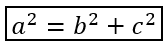
Presentation presentation = new Presentation();
try {
    ISlide slide = presentation.getSlides().get_Item(0);

    IAutoShape mathShape = slide.getShapes().addMathShape(20, 20, 700, 100);
    IMathParagraph mathParagraph = ((MathPortion) mathShape.getTextFrame().getParagraphs()
            .get_Item(0).getPortions().get_Item(0)).getMathParagraph();

    IMathBorderBox boxedEquation = new MathematicalText("a")
            .setSuperscript("2")
            .join("=")
            .join(new MathematicalText("b").setSuperscript("2"))
            .join("+")
            .join(new MathematicalText("c").setSuperscript("2"))
            .toBorderBox();

    mathParagraph.add(new MathBlock(boxedEquation));

    presentation.save("border-box.pptx", SaveFormat.Pptx);
} finally {
    presentation.dispose();
}
項のグループ化
group を使用して式の上または下にグループ文字を配置します。ラベルを付けるにはリミットを追加します。

Presentation presentation = new Presentation();
try {
    ISlide slide = presentation.getSlides().get_Item(0);

    IAutoShape mathShape = slide.getShapes().addMathShape(20, 20, 700, 120);
    IMathParagraph mathParagraph = ((MathPortion) mathShape.getTextFrame().getParagraphs()
            .get_Item(0).getPortions().get_Item(0)).getMathParagraph();

    IMathLimit grouped = new MathematicalText("x + y")
            .group('\u23DF', MathTopBotPositions.Bottom, MathTopBotPositions.Top)
            .setLowerLimit("any text");

    mathParagraph.add(new MathBlock(grouped));

    presentation.save("grouped-terms.pptx", SaveFormat.Pptx);
} finally {
    presentation.dispose();
}
数式要素の書式設定
書式設定ヘルパーは式の可読性が向上する場合にのみ使用します。例えば overbar は数式要素の上にバーを配置します。

Presentation presentation = new Presentation();
try {
    ISlide slide = presentation.getSlides().get_Item(0);

    IAutoShape mathShape = slide.getShapes().addMathShape(20, 20, 700, 100);
    IMathParagraph mathParagraph = ((MathPortion) mathShape.getTextFrame().getParagraphs()
            .get_Item(0).getPortions().get_Item(0)).getMathParagraph();

    IMathBar overbar = new MathematicalText("ABC").overbar();

    mathParagraph.add(new MathBlock(overbar));

    presentation.save("overbar.pptx", SaveFormat.Pptx);
} finally {
    presentation.dispose();
}
クイックリファレンス
| タスク | 主な API |
|---|---|
| 数式テキストの作成 | MathematicalText |
| 要素の結合 | IMathElement.join |
| 分数の作成 | IMathElement.divide |
| 上付きまたは下付き文字の追加 | setSuperscript, setSubscript |
| 関数の追加 | function, asArgumentOfFunction |
| 根号の追加 | IMathElement.radical |
| リミットの追加 | setLowerLimit, setUpperLimit |
| 左側スクリプトの追加 | setSubSuperscriptOnTheLeft |
| 総和と積分の追加 | nary, integral |
| 行列の追加 | MathMatrix |
| 数式配列の追加 | toMathArray |
| 区切り記号の追加 | enclose |
| バーと枠の追加 | overbar, toBorderBox |
| 項のグループ化 | group |
FAQ
既存の PowerPoint の数式を編集できますか?
はい。プレゼンテーションを開き、MathPortion を含むシェイプを見つけ、その MathParagraph を取得して、段落内の数式ブロックを更新します。
数式は編集可能な PowerPoint の数式として保存されますか?
はい。PPTX に保存すると、Aspose.Slides は数式を編集可能な Office 数式コンテンツとして書き込みます。
数式を LaTeX にエクスポートできますか?
はい。IMathPortion から IMathParagraph を取得し、IMathParagraph.toLatex を呼び出すことで直接エクスポートできます。完全な例については、Export Math Equations from Presentations in Java を参照してください。