
Python via Java でプレゼンテーションの背景を管理
はじめに
単色、グラデーション、画像はスライドの背景として一般的に使用されます。通常のスライド(単一スライド)またはマスタースライド(複数のスライドに同時に適用)に対して背景を設定できます。
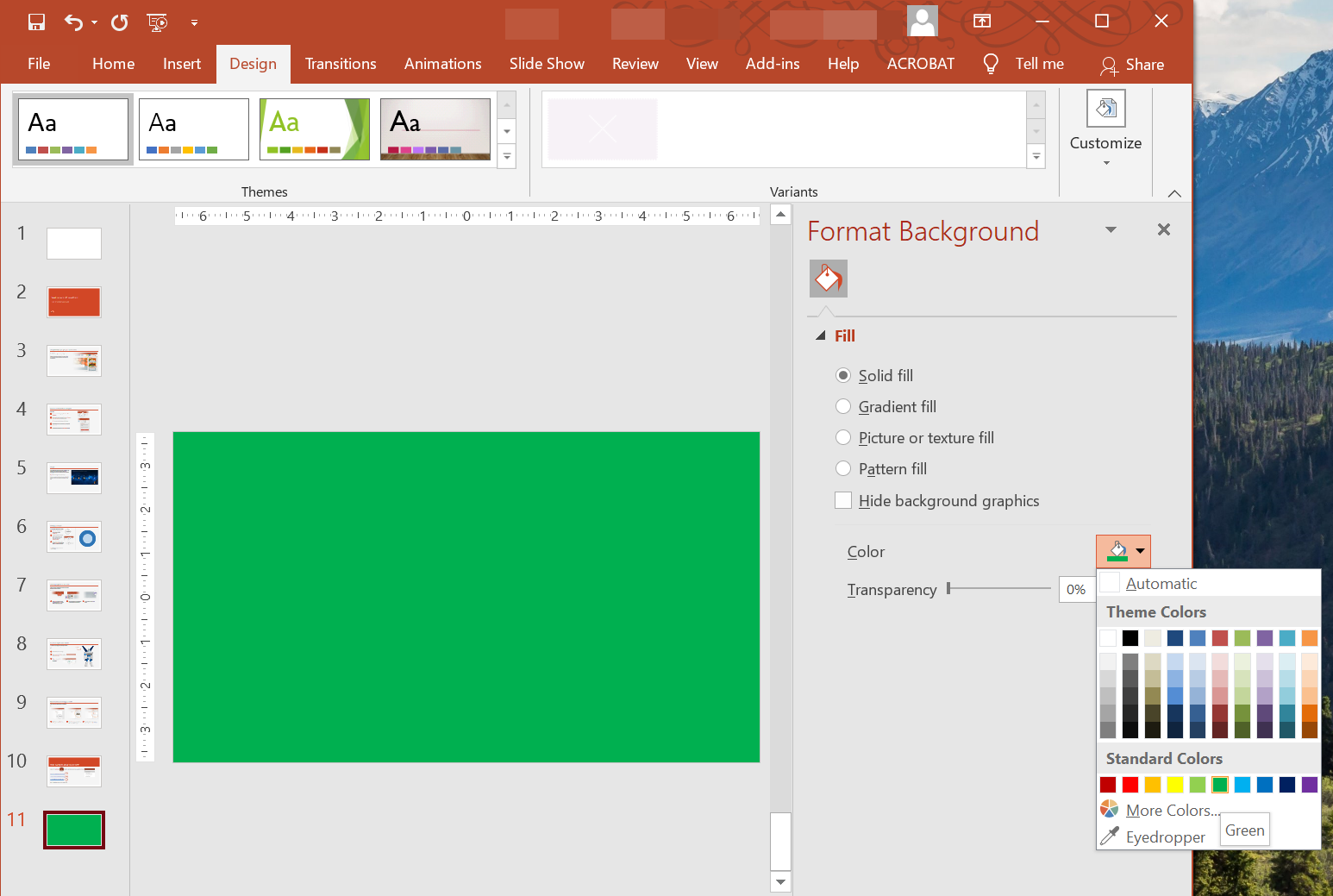
通常スライドに単色背景を設定する
Aspose.Slides を使用すると、プレゼンテーション内の特定のスライドに単色背景を設定できます(プレゼンテーションがマスタースライドを使用している場合でも)。この変更は選択したスライドのみに適用されます。
- Presentation クラスのインスタンスを作成します。
- スライドの BackgroundType を
OwnBackgroundに設定します。 - スライド背景の FillType を
Solidに設定します。 - FillFormat 上の getSolidFillColor メソッドを使用して単色背景の色を指定します。
- 変更後のプレゼンテーションを保存します。
次の Python の例は、通常スライドの背景に青色の単色を設定する方法を示しています。
import jpype
import asposeslides

if not jpype.isJVMStarted():
    jpype.startJVM()

from asposeslides.api import BackgroundType, FillType, Presentation, SaveFormat
from java.awt import Color

# Presentation クラスのインスタンスを作成します。
presentation = Presentation()
try:
    slide = presentation.getSlides().get_Item(0)

    # スライドの背景色を青に設定します。
    slide.getBackground().setType(BackgroundType.OwnBackground)
    slide.getBackground().getFillFormat().setFillType(FillType.Solid)
    slide.getBackground().getFillFormat().getSolidFillColor().setColor(Color.BLUE)

    # プレゼンテーションをディスクに保存します。
    presentation.save("SolidColorBackground.pptx", SaveFormat.Pptx)
finally:
    presentation.dispose()
マスタースライドに単色背景を設定する
Aspose.Slides を使用すると、プレゼンテーションのマスタースライドに単色背景を設定できます。マスタースライドはすべてのスライドの書式設定を制御するテンプレートなので、マスタースライドの背景に単色を選択すると、すべてのスライドに適用されます。
- Presentation クラスのインスタンスを作成します。
- マスタースライドの BackgroundType(getMasters 経由)を
OwnBackgroundに設定します。 - マスタースライド背景の FillType を
Solidに設定します。 - getSolidFillColor メソッドを使用して単色背景の色を指定します。
- 変更後のプレゼンテーションを保存します。
次の Python の例は、マスタースライドの背景に緑色の単色を設定する方法を示しています。
import jpype
import asposeslides

if not jpype.isJVMStarted():
    jpype.startJVM()

from asposeslides.api import BackgroundType, FillType, Presentation, SaveFormat
from java.awt import Color

# Presentation クラスのインスタンスを作成します。
presentation = Presentation()
try:
    master_slide = presentation.getMasters().get_Item(0)

    # マスタースライドの背景色を緑に設定します。
    master_slide.getBackground().setType(BackgroundType.OwnBackground)
    master_slide.getBackground().getFillFormat().setFillType(FillType.Solid)
    master_slide.getBackground().getFillFormat().getSolidFillColor().setColor(Color.GREEN)

    # プレゼンテーションをディスクに保存します。
    presentation.save("MasterSlideBackground.pptx", SaveFormat.Pptx)
finally:
    presentation.dispose()
スライドにグラデーション背景を設定する
グラデーションは、色が徐々に変化することで作られる視覚効果です。スライド背景として使用すると、プレゼンテーションがより芸術的かつプロフェッショナルに見えます。Aspose.Slides は、スライドの背景にグラデーションカラーを設定する機能を提供します。
- Presentation クラスのインスタンスを作成します。
- スライドの BackgroundType を
OwnBackgroundに設定します。 - スライド背景の FillType を
Gradientに設定します。 - FillFormat 上の getGradientFormat メソッドを使用して、希望するグラデーション設定を構成します。
- 変更後のプレゼンテーションを保存します。
次の Python の例は、スライドの背景にグラデーションカラーを設定する方法を示しています。
import jpype
import asposeslides

if not jpype.isJVMStarted():
    jpype.startJVM()

from asposeslides.api import BackgroundType, FillType, Presentation, SaveFormat, TileFlip
from java.awt import Color

# Presentation クラスのインスタンスを作成します。
presentation = Presentation()
try:
    slide = presentation.getSlides().get_Item(0)

    # 背景にグラデーション効果を適用します。
    slide.getBackground().setType(BackgroundType.OwnBackground)
    slide.getBackground().getFillFormat().setFillType(FillType.Gradient)

    gradient_format = slide.getBackground().getFillFormat().getGradientFormat()
    gradient_format.setTileFlip(TileFlip.FlipBoth)

    # グラデーションカラーを追加します。グラデーションストップがない場合、背景はデフォルトの黒から白へのランプにフォールバックします。
    gradient_format.getGradientStops().add(0.0, Color.CYAN)
    gradient_format.getGradientStops().add(1.0, Color.BLUE)

    # プレゼンテーションをディスクに保存します。
    presentation.save("GradientBackground.pptx", SaveFormat.Pptx)
finally:
    presentation.dispose()
画像をスライド背景に設定する
単色やグラデーションに加えて、Aspose.Slides は画像をスライド背景として使用することも可能です。
- Presentation クラスのインスタンスを作成します。
- スライドの BackgroundType を
OwnBackgroundに設定します。 - スライド背景の FillType を
Pictureに設定します。 - 背景に使用したい画像を読み込みます。
- 画像をプレゼンテーションの画像コレクションに追加します。
- FillFormat 上の getPictureFillFormat メソッドを使用して、画像を背景として割り当てます。
- 変更後のプレゼンテーションを保存します。
次の Python の例は、スライドの背景に画像を設定する方法を示しています。
import jpype
import asposeslides

if not jpype.isJVMStarted():
    jpype.startJVM()

from asposeslides.api import BackgroundType, FillType, Images, PictureFillMode, Presentation, SaveFormat

# Presentation クラスのインスタンスを作成します。
presentation = Presentation()
try:
    slide = presentation.getSlides().get_Item(0)

    # 背景画像のプロパティを設定します。
    slide.getBackground().setType(BackgroundType.OwnBackground)
    slide.getBackground().getFillFormat().setFillType(FillType.Picture)
    slide.getBackground().getFillFormat().getPictureFillFormat().setPictureFillMode(PictureFillMode.Stretch)

    # 画像を読み込みます。
    image = Images.fromFile("Tulips.jpg")
    # 画像をプレゼンテーションの画像コレクションに追加します。
    presentation_image = presentation.getImages().addImage(image)
    image.dispose()

    slide.getBackground().getFillFormat().getPictureFillFormat().getPicture().setImage(presentation_image)

    # プレゼンテーションをディスクに保存します。
    presentation.save("ImageAsBackground.pptx", SaveFormat.Pptx)
finally:
    presentation.dispose()
次のコードサンプルは、背景の塗りタイプをタイル状の画像に設定し、タイルのプロパティを変更する方法を示しています。
import jpype
import asposeslides

if not jpype.isJVMStarted():
    jpime.startJVM()

from asposeslides.api import BackgroundType, FillType, Images, PictureFillMode, Presentation, RectangleAlignment, SaveFormat, TileFlip

presentation = Presentation()
try:
    first_slide = presentation.getSlides().get_Item(0)

    background = first_slide.getBackground()

    background.setType(BackgroundType.OwnBackground)
    background.getFillFormat().setFillType(FillType.Picture)

    new_image = Images.fromFile("image.png")
    presentation_image = presentation.getImages().addImage(new_image)
    new_image.dispose()

    # 背景塗りに使用する画像を設定します。
    background_picture_fill_format = background.getFillFormat().getPictureFillFormat()
    background_picture_fill_format.getPicture().setImage(presentation_image)

    # ピクチャーフィルモードをタイルに設定し、タイルプロパティを調整します。
    background_picture_fill_format.setPictureFillMode(PictureFillMode.Tile)
    background_picture_fill_format.setTileOffsetX(15.0)
    background_picture_fill_format.setTileOffsetY(15.0)
    background_picture_fill_format.setTileScaleX(46.0)
    background_picture_fill_format.setTileScaleY(87.0)
    background_picture_fill_format.setTileAlignment(RectangleAlignment.Center)
    background_picture_fill_format.setTileFlip(TileFlip.FlipY)

    presentation.save("TileBackground.pptx", SaveFormat.Pptx)
finally:
    presentation.dispose()
Note
さらに詳しくは、Tile Picture as Texture をご覧ください。背景画像の透明度を変更する
スライドの背景画像の透明度を調整して、スライド内容を際立たせたい場合があります。次の Python コードは、スライド背景画像の透明度を変更する方法を示しています。
import jpype
import asposeslides

if not jpype.isJVMStarted():
    jpype.startJVM()

from asposeslides.api import AlphaModulateFixed, Presentation, SaveFormat

transparency_value = 30  # 例として。

presentation = Presentation("sample.pptx")
try:
    slide = presentation.getSlides().get_Item(0)

    # 画像変換操作のコレクションを取得します。
    image_transform = slide.getBackground().getFillFormat().getPictureFillFormat().getPicture().getImageTransform()

    # 既存の固定パーセンテージ透明度効果を探します。
    transparency_operation = None
    for operation in image_transform:
        if isinstance(operation, AlphaModulateFixed):
            transparency_operation = operation
            break

    # 新しい透明度の値を設定します。
    if transparency_operation is None:
        image_transform.addAlphaModulateFixedEffect(100 - transparency_value)
    else:
        transparency_operation.setAmount(100 - transparency_value)

    presentation.save("output.pptx", SaveFormat.Pptx)
finally:
    presentation.dispose()
スライド背景の値を取得する
Aspose.Slides は、Background の getEffective メソッドを使用して、スライドの実際の背景値を取得できます。返されるデータは実際の Fill と Effect の形式を示します。
BaseSlide クラスの getBackground メソッドを使用すれば、スライドの背景を取得できます。
次の Python の例は、スライドの実際の背景値を取得する方法を示しています。
import jpype
import asposeslides

if not jpype.isJVMStarted():
    jpype.startJVM()

from asposeslides.api import FillType, Presentation

# Presentation クラスのインスタンスを作成します。
presentation = Presentation("Sample.pptx")
try:
    slide = presentation.getSlides().get_Item(0)

    # マスター、レイアウト、テーマを考慮した実際の背景を取得します。
    effective_background = slide.getBackground().getEffective()

    if effective_background.getFillFormat().getFillType() == FillType.Solid:
        print("Fill color:", effective_background.getFillFormat().getSolidFillColor())
    else:
        print("Fill type:", effective_background.getFillFormat().getFillType())
finally:
    presentation.dispose()
FAQ
カスタム背景をリセットしてテーマ/レイアウトの背景に戻すことはできますか?
はい。スライドのカスタム塗りを削除すると、背景は対象のレイアウト/マスタースライド(すなわちテーマ背景)から再度継承されます。
後でプレゼンテーションのテーマを変更した場合、背景はどうなりますか?
スライドが独自の塗りを持っている場合、その塗りは変更されません。背景がレイアウト/マスターから継承されている場合は、新しいテーマに合わせて更新されます。