
Python을 통한 Java에서 프레젠테이션 배경 관리
소개
단색, 그라디언트 및 이미지는 슬라이드 배경에 일반적으로 사용됩니다. 배경을 일반 슬라이드(단일 슬라이드) 또는 마스터 슬라이드(한 번에 여러 슬라이드에 적용)로 설정할 수 있습니다.
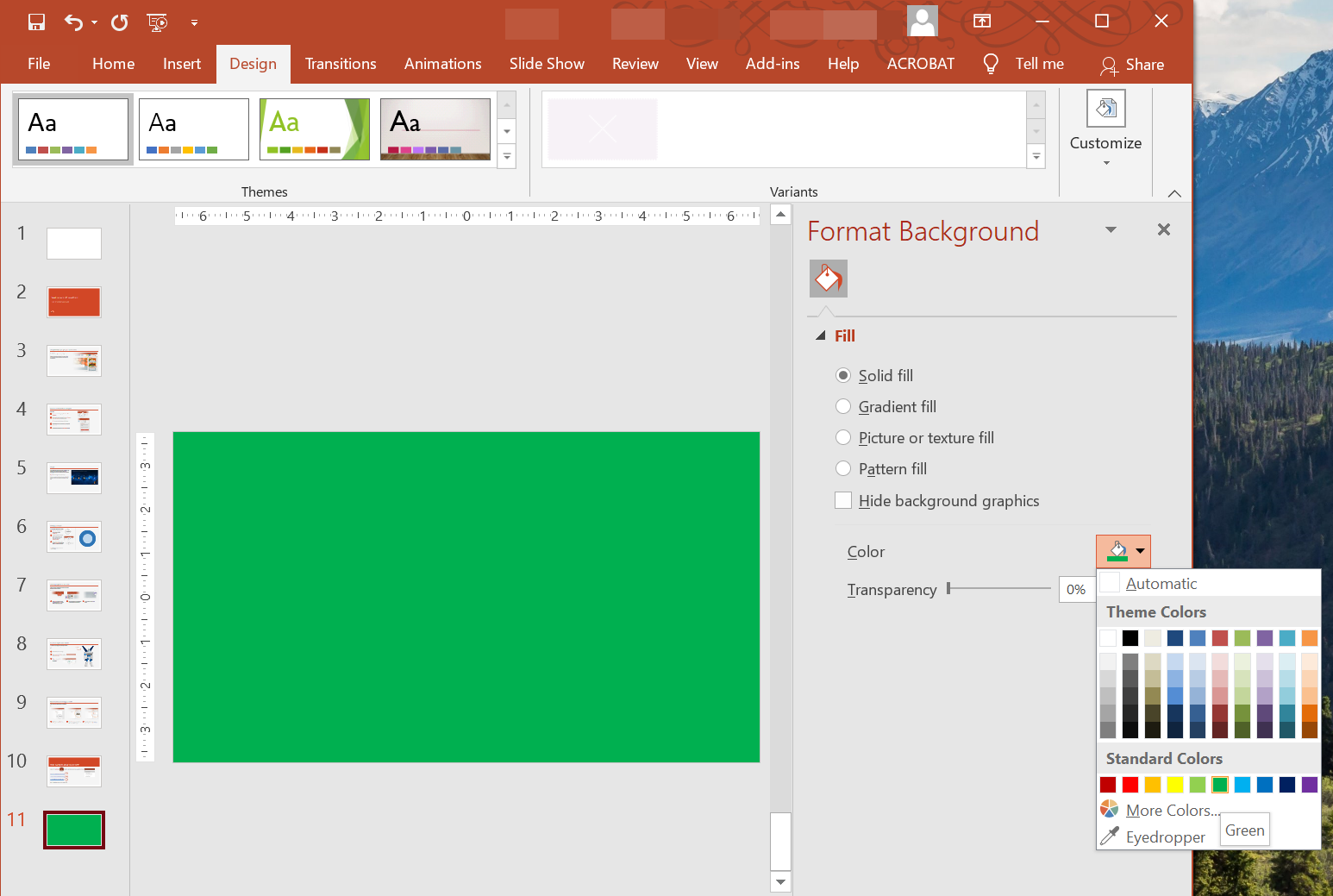
일반 슬라이드에 단색 배경 설정
Aspose.Slides를 사용하면 프레젠테이션에서 특정 슬라이드의 배경을 단색으로 설정할 수 있습니다(프레젠테이션에 마스터 슬라이드가 사용되더라도). 이 변경은 선택한 슬라이드에만 적용됩니다.
- Create an instance of the Presentation class.
- Set the slide’s BackgroundType to
OwnBackground. - Set the slide background FillType to
Solid. - Use the getSolidFillColor method on FillFormat to specify the solid background color.
- Save the modified presentation.
다음 Python 예제는 일반 슬라이드의 배경을 파란색 단색으로 설정하는 방법을 보여줍니다:
import jpype
import asposeslides

if not jpype.isJVMStarted():
    jpype.startJVM()

from asposeslides.api import BackgroundType, FillType, Presentation, SaveFormat
from java.awt import Color

# Presentation 클래스의 인스턴스를 생성합니다.
presentation = Presentation()
try:
    slide = presentation.getSlides().get_Item(0)

    # 슬라이드의 배경 색을 파란색으로 설정합니다.
    slide.getBackground().setType(BackgroundType.OwnBackground)
    slide.getBackground().getFillFormat().setFillType(FillType.Solid)
    slide.getBackground().getFillFormat().getSolidFillColor().setColor(Color.BLUE)

    # 프레젠테이션을 디스크에 저장합니다.
    presentation.save("SolidColorBackground.pptx", SaveFormat.Pptx)
finally:
    presentation.dispose()
마스터 슬라이드에 단색 배경 설정
Aspose.Slides를 사용하면 프레젠테이션의 마스터 슬라이드 배경을 단색으로 설정할 수 있습니다. 마스터 슬라이드는 모든 슬라이드의 서식을 제어하는 템플릿 역할을 하므로, 마스터 슬라이드 배경에 단색을 선택하면 모든 슬라이드에 적용됩니다.
- Create an instance of the Presentation class.
- Set the master slide’s BackgroundType (via getMasters) to
OwnBackground. - Set the master slide background FillType to
Solid. - Use the getSolidFillColor method to specify the solid background color.
- Save the modified presentation.
다음 Python 예제는 마스터 슬라이드의 배경을 초록색 단색으로 설정하는 방법을 보여줍니다:
import jpype
import asposeslides

if not jpype.isJVMStarted():
    jpype.startJVM()

from asposeslides.api import BackgroundType, FillType, Presentation, SaveFormat
from java.awt import Color

# Presentation 클래스의 인스턴스를 생성합니다.
presentation = Presentation()
try:
    master_slide = presentation.getMasters().get_Item(0)

    # 마스터 슬라이드의 배경 색을 녹색으로 설정합니다.
    master_slide.getBackground().setType(BackgroundType.OwnBackground)
    master_slide.getBackground().getFillFormat().setFillType(FillType.Solid)
    master_slide.getBackground().getFillFormat().getSolidFillColor().setColor(Color.GREEN)

    # 프레젠테이션을 디스크에 저장합니다.
    presentation.save("MasterSlideBackground.pptx", SaveFormat.Pptx)
finally:
    presentation.dispose()
슬라이드에 그라디언트 배경 설정
그라디언트는 색상의 점진적인 변화를 통해 만들어지는 그래픽 효과입니다. 슬라이드 배경으로 사용하면 프레젠테이션이 보다 예술적이고 전문적으로 보일 수 있습니다. Aspose.Slides를 사용하면 슬라이드 배경을 그라디언트 색으로 설정할 수 있습니다.
- Create an instance of the Presentation class.
- Set the slide’s BackgroundType to
OwnBackground. - Set the slide background FillType to
Gradient. - Use the getGradientFormat method on FillFormat to configure your preferred gradient settings.
- Save the modified presentation.
다음 Python 예제는 슬라이드 배경을 그라디언트 색으로 설정하는 방법을 보여줍니다:
import jpype
import asposeslides

if not jpype.isJVMStarted():
    jpype.startJVM()

from asposeslides.api import BackgroundType, FillType, Presentation, SaveFormat, TileFlip
from java.awt import Color

    # Presentation 클래스의 인스턴스를 생성합니다.
    presentation = Presentation()
    try:
        slide = presentation.getSlides().get_Item(0)

        # 배경에 그라디언트 효과를 적용합니다.
        slide.getBackground().setType(BackgroundType.OwnBackground)
        slide.getBackground().getFillFormat().setFillType(FillType.Gradient)

        gradient_format = slide.getBackground().getFillFormat().getGradientFormat()
        gradient_format.setTileFlip(TileFlip.FlipBoth)

        # 그라디언트 색상을 추가합니다. 그라디언트 스톱이 없으면 배경이 기본 검은색-흰색 램프로 대체됩니다.
        gradient_format.getGradientStops().add(0.0, Color.CYAN)
        gradient_format.getGradientStops().add(1.0, Color.BLUE)

        # 프레젠테이션을 디스크에 저장합니다.
        presentation.save("GradientBackground.pptx", SaveFormat.Pptx)
    finally:
        presentation.dispose()
슬라이드 배경에 이미지 설정
단색 및 그라디언트 채우기에 추가로, Aspose.Slides를 사용하면 이미지를 슬라이드 배경으로 사용할 수 있습니다.
- Create an instance of the Presentation class.
- Set the slide’s BackgroundType to
OwnBackground. - Set the slide background FillType to
Picture. - Load the image you want to use as the slide background.
- Add the image to the presentation’s image collection.
- Use the getPictureFillFormat method on FillFormat to assign the image as the background.
- Save the modified presentation.
다음 Python 예제는 슬라이드 배경을 이미지로 설정하는 방법을 보여줍니다:
import jpype
import asposeslides

if not jpype.isJVMStarted():
    jpype.startJVM()

from asposeslides.api import BackgroundType, FillType, Images, PictureFillMode, Presentation, SaveFormat

# Presentation 클래스의 인스턴스를 생성합니다.
presentation = Presentation()
try:
    slide = presentation.getSlides().get_Item(0)

    # 배경 이미지 속성을 설정합니다.
    slide.getBackground().setType(BackgroundType.OwnBackground)
    slide.getBackground().getFillFormat().setFillType(FillType.Picture)
    slide.getBackground().getFillFormat().getPictureFillFormat().setPictureFillMode(PictureFillMode.Stretch)

    # 이미지를 로드합니다.
    image = Images.fromFile("Tulips.jpg")
    # 이미지를 프레젠테이션의 이미지 컬렉션에 추가합니다.
    presentation_image = presentation.getImages().addImage(image)
    image.dispose()

    slide.getBackground().getFillFormat().getPictureFillFormat().getPicture().setImage(presentation_image)

    # 프레젠테이션을 디스크에 저장합니다.
    presentation.save("ImageAsBackground.pptx", SaveFormat.Pptx)
finally:
    presentation.dispose()
다음 코드 샘플은 배경 채우기 유형을 타일 이미지로 설정하고 타일 속성을 수정하는 방법을 보여줍니다:
import jpype
import asposeslides

if not jpype.isJVMStarted():
    jpype.startJVM()

from asposeslides.api import BackgroundType, FillType, Images, PictureFillMode, Presentation, RectangleAlignment, SaveFormat, TileFlip

presentation = Presentation()
try:
    first_slide = presentation.getSlides().get_Item(0)

    background = first_slide.getBackground()

    background.setType(BackgroundType.OwnBackground)
    background.getFillFormat().setFillType(FillType.Picture)

    new_image = Images.fromFile("image.png")
    presentation_image = presentation.getImages().addImage(new_image)
    new_image.dispose()

    # 배경 채우기에 사용될 이미지를 설정합니다.
    background_picture_fill_format = background.getFillFormat().getPictureFillFormat()
    background_picture_fill_format.getPicture().setImage(presentation_image)

    # 그림 채우기 모드를 Tile로 설정하고 타일 속성을 조정합니다.
    background_picture_fill_format.setPictureFillMode(PictureFillMode.Tile)
    background_picture_fill_format.setTileOffsetX(15.0)
    background_picture_fill_format.setTileOffsetY(15.0)
    background_picture_fill_format.setTileScaleX(46.0)
    background_picture_fill_format.setTileScaleY(87.0)
    background_picture_fill_format.setTileAlignment(RectangleAlignment.Center)
    background_picture_fill_format.setTileFlip(TileFlip.FlipY)

    presentation.save("TileBackground.pptx", SaveFormat.Pptx)
finally:
    presentation.dispose()
Note
더 읽기: Tile Picture as Texture.배경 이미지 투명도 변경
슬라이드 배경 이미지의 투명도를 조정하여 슬라이드 내용이 돋보이도록 할 수 있습니다. 다음 Python 코드는 슬라이드 배경 이미지의 투명도를 변경하는 방법을 보여줍니다:
import jpype
import asposeslides

if not jpype.isJVMStarted():
    jpype.startJVM()

from asposeslides.api import AlphaModulateFixed, Presentation, SaveFormat

transparency_value = 30  # 예시입니다.

presentation = Presentation("sample.pptx")
try:
    slide = presentation.getSlides().get_Item(0)

    # 그림 변환 작업 컬렉션을 가져옵니다.
    image_transform = slide.getBackground().getFillFormat().getPictureFillFormat().getPicture().getImageTransform()

    # 기존 고정 비율 투명도 효과를 찾습니다.
    transparency_operation = None
    for operation in image_transform:
        if isinstance(operation, AlphaModulateFixed):
            transparency_operation = operation
            break

    # 새로운 투명도 값을 설정합니다.
    if transparency_operation is None:
        image_transform.addAlphaModulateFixedEffect(100 - transparency_value)
    else:
        transparency_operation.setAmount(100 - transparency_value)

    presentation.save("output.pptx", SaveFormat.Pptx)
finally:
    presentation.dispose()
슬라이드 배경 값 가져오기
Aspose.Slides를 사용하면 Background의 getEffective 메서드를 통해 슬라이드의 실제 배경 값을 검색할 수 있습니다. 반환된 데이터는 실제 채우기 및 효과 형식을 노출합니다.
BaseSlide 클래스의 getBackground 메서드를 사용하면 슬라이드의 배경을 얻을 수 있습니다.
다음 Python 예제는 슬라이드의 실제 배경 값을 가져오는 방법을 보여줍니다:
import jpype
import asposeslides

if not jpype.isJVMStarted():
    jpype.startJVM()

from asposeslides.api import FillType, Presentation

# Presentation 클래스의 인스턴스를 생성합니다.
presentation = Presentation("Sample.pptx")
try:
    slide = presentation.getSlides().get_Item(0)

    # 마스터, 레이아웃 및 테마를 고려한 실제 배경을 가져옵니다.
    effective_background = slide.getBackground().getEffective()

    if effective_background.getFillFormat().getFillType() == FillType.Solid:
        print("Fill color:", effective_background.getFillFormat().getSolidFillColor())
    else:
        print("Fill type:", effective_background.getFillFormat().getFillType())
finally:
    presentation.dispose()
FAQ
맞춤 배경을 재설정하고 테마/레이아웃 배경을 복원할 수 있나요?
예. 슬라이드의 맞춤 채우기를 제거하면 배경이 해당 layout/master 슬라이드(즉, theme background)에서 다시 상속됩니다.
프레젠테이션 테마를 나중에 변경하면 배경은 어떻게 되나요?
슬라이드에 자체 채우기가 있으면 변경되지 않습니다. 배경이 layout/master에서 상속된 경우 새 테마에 맞게 업데이트됩니다.