
Manage PowerPoint Text Paragraphs in Java
Overview
Aspose.Slides for Java represents text as a hierarchy of text frames, paragraphs, and portions:
- ITextFrame represents the text container in a shape and provides access to its paragraph collection.
- IParagraph represents one paragraph in a text frame and provides access to its portions and paragraph-level formatting.
- IPortion represents a text run within a paragraph. Each portion can have its own text and character-level formatting.
A paragraph can therefore contain text with different fonts, colors, sizes, and other formatting by using multiple portions.
Create and Format Paragraphs
Create paragraphs in a shape’s text frame and use portions to format individual text runs. This section shows how to combine multiple portions within each paragraph and apply different colors, font sizes, and styles.
Create Paragraphs with Multiple Portions
The following Java example creates three paragraphs, each containing three text runs in the collection returned by IParagraph.getPortions collection. It reuses the default paragraph and its empty portion, then adds the remaining paragraphs and portions. Formatting is applied through IPortion.getPortionFormat: the first portion in each paragraph is red, bold, and 15 points; the second is blue, italic, and 18 points. The third portion retains its default formatting:
import com.aspose.slides.*;
import java.awt.Color;

Presentation presentation = new Presentation();
try {
    ISlide slide = presentation.getSlides().get_Item(0);

    IAutoShape shape = slide.getShapes().addAutoShape(ShapeType.Rectangle, 50, 150, 300, 150);
    ITextFrame textFrame = shape.getTextFrame();

    IParagraph firstParagraph = textFrame.getParagraphs().get_Item(0);
    firstParagraph.getPortions().add(new Portion());
    firstParagraph.getPortions().add(new Portion());

    IParagraph secondParagraph = new Paragraph();
    secondParagraph.getPortions().add(new Portion());
    secondParagraph.getPortions().add(new Portion());
    secondParagraph.getPortions().add(new Portion());
    textFrame.getParagraphs().add(secondParagraph);

    IParagraph thirdParagraph = new Paragraph();
    thirdParagraph.getPortions().add(new Portion());
    thirdParagraph.getPortions().add(new Portion());
    thirdParagraph.getPortions().add(new Portion());
    textFrame.getParagraphs().add(thirdParagraph);

    int paragraphCount = textFrame.getParagraphs().getCount();
    for (int paragraphIndex = 0; paragraphIndex < paragraphCount; paragraphIndex++) {
        IParagraph paragraph = textFrame.getParagraphs().get_Item(paragraphIndex);
        int portionCount = paragraph.getPortions().getCount();
        for (int portionIndex = 0; portionIndex < portionCount; portionIndex++) {
            IPortion portion = paragraph.getPortions().get_Item(portionIndex);
            portion.setText("Portion " + (paragraphIndex + 1) + "." + (portionIndex + 1));

            if (portionIndex == 0) {
                portion.getPortionFormat().getFillFormat().setFillType(FillType.Solid);
                portion.getPortionFormat().getFillFormat().getSolidFillColor().setColor(Color.RED);
                portion.getPortionFormat().setFontBold(NullableBool.True);
                portion.getPortionFormat().setFontHeight(15);
            } else if (portionIndex == 1) {
                portion.getPortionFormat().getFillFormat().setFillType(FillType.Solid);
                portion.getPortionFormat().getFillFormat().getSolidFillColor().setColor(Color.BLUE);
                portion.getPortionFormat().setFontItalic(NullableBool.True);
                portion.getPortionFormat().setFontHeight(18);
            }
        }
    }

    presentation.save("paragraphs_with_portions.pptx", SaveFormat.Pptx);
} finally {
    presentation.dispose();
}
Create Bulleted and Numbered Lists
Organize paragraph text into lists with symbols, numbers, or custom images. The examples in this section cover bullet formatting, multilevel lists, and custom starting numbers.
Create a Bulleted or Numbered List
Bullets and numbering make related items easier to scan. In Aspose.Slides, list settings are defined through IBulletFormat.
This Java example adds a symbol bullet and a numbered item to the same text frame. IBulletFormat.setType selects the bullet type, while IBulletFormat.setChar supplies the symbol and IBulletFormat.setNumberedBulletStyle selects the numbering style. Both items use black bullets with a height of 100 percent and a paragraph indent of 25 points:
import com.aspose.slides.*;
import java.awt.Color;

Presentation presentation = new Presentation();
try {
    ISlide slide = presentation.getSlides().get_Item(0);

    IAutoShape shape = slide.getShapes().addAutoShape(ShapeType.Rectangle, 200, 200, 400, 200);
    ITextFrame textFrame = shape.getTextFrame();
    textFrame.getParagraphs().clear();

    Paragraph symbolParagraph = new Paragraph();
    symbolParagraph.setText("Welcome to Aspose.Slides");
    symbolParagraph.getParagraphFormat().getBullet().setType(BulletType.Symbol);
    symbolParagraph.getParagraphFormat().getBullet().setChar((char) 0x2022);
    symbolParagraph.getParagraphFormat().setIndent(25);
    symbolParagraph.getParagraphFormat().getBullet().getColor().setColorType(ColorType.RGB);
    symbolParagraph.getParagraphFormat().getBullet().getColor().setColor(Color.BLACK);
    symbolParagraph.getParagraphFormat().getBullet().setBulletHardColor(NullableBool.True);
    symbolParagraph.getParagraphFormat().getBullet().setHeight(100);
    textFrame.getParagraphs().add(symbolParagraph);

    Paragraph numberedParagraph = new Paragraph();
    numberedParagraph.setText("This is a numbered item");
    numberedParagraph.getParagraphFormat().getBullet().setType(BulletType.Numbered);
    numberedParagraph.getParagraphFormat().getBullet().setNumberedBulletStyle(NumberedBulletStyle.BulletCircleNumWDBlackPlain);
    numberedParagraph.getParagraphFormat().setIndent(25);
    numberedParagraph.getParagraphFormat().getBullet().getColor().setColorType(ColorType.RGB);
    numberedParagraph.getParagraphFormat().getBullet().getColor().setColor(Color.BLACK);
    numberedParagraph.getParagraphFormat().getBullet().setBulletHardColor(NullableBool.True);
    numberedParagraph.getParagraphFormat().getBullet().setHeight(100);
    textFrame.getParagraphs().add(numberedParagraph);

    presentation.save("bulleted_and_numbered_list.pptx", SaveFormat.Pptx);
} finally {
    presentation.dispose();
}
Use Picture Bullets
Picture bullets let you use a custom image instead of a symbol or number.
This Java example adds an image to the presentation’s image collection as an IPPImage and uses it as a paragraph bullet. It calls IBulletFormat.setType to use a picture bullet and assigns the image through IBulletFormat.getPicture. IBulletFormat.setHeight is set to 100 percent to size the bullet relative to the paragraph text:
import com.aspose.slides.*;

Presentation presentation = new Presentation();
try {
    ISlide slide = presentation.getSlides().get_Item(0);

    IImage bulletImage = Images.fromFile("bullets.png");
    IPPImage presentationImage;
    try {
        presentationImage = presentation.getImages().addImage(bulletImage);
    } finally {
        bulletImage.dispose();
    }

    IAutoShape shape = slide.getShapes().addAutoShape(ShapeType.Rectangle, 200, 200, 400, 200);
    ITextFrame textFrame = shape.getTextFrame();
    textFrame.getParagraphs().clear();

    Paragraph paragraph = new Paragraph();
    paragraph.setText("Welcome to Aspose.Slides");
    paragraph.getParagraphFormat().getBullet().setType(BulletType.Picture);
    paragraph.getParagraphFormat().getBullet().getPicture().setImage(presentationImage);
    paragraph.getParagraphFormat().getBullet().setHeight(100);
    textFrame.getParagraphs().add(paragraph);

    presentation.save("picture_bullet.pptx", SaveFormat.Pptx);
    presentation.save("picture_bullet.ppt", SaveFormat.Ppt);
} finally {
    presentation.dispose();
}
Create a Multilevel List
Set IParagraphFormat.setDepth to place paragraphs at different levels of a list. The top level has a depth of 0.
This Java example assigns IParagraphFormat.setDepth values from 0 to 3 to four paragraphs, creating a hierarchy within one text frame. Each paragraph uses a symbol bullet, with IBulletFormat.setChar alternating between a round bullet and a hyphen to distinguish adjacent levels:
import com.aspose.slides.*;
import java.awt.Color;

Presentation presentation = new Presentation();
try {
    ISlide slide = presentation.getSlides().get_Item(0);

    IAutoShape shape = slide.getShapes().addAutoShape(ShapeType.Rectangle, 200, 200, 400, 200);
    ITextFrame textFrame = shape.getTextFrame();
    textFrame.getParagraphs().clear();

    IParagraph firstParagraph = new Paragraph();
    firstParagraph.setText("Content");
    firstParagraph.getParagraphFormat().getBullet().setType(BulletType.Symbol);
    firstParagraph.getParagraphFormat().getBullet().setChar((char) 0x2022);
    firstParagraph.getParagraphFormat().getDefaultPortionFormat().getFillFormat().setFillType(FillType.Solid);
    firstParagraph.getParagraphFormat().getDefaultPortionFormat().getFillFormat().getSolidFillColor().setColor(Color.BLACK);
    firstParagraph.getParagraphFormat().setDepth((short) 0);

    IParagraph secondParagraph = new Paragraph();
    secondParagraph.setText("Second level");
    secondParagraph.getParagraphFormat().getBullet().setType(BulletType.Symbol);
    secondParagraph.getParagraphFormat().getBullet().setChar('-');
    secondParagraph.getParagraphFormat().getDefaultPortionFormat().getFillFormat().setFillType(FillType.Solid);
    secondParagraph.getParagraphFormat().getDefaultPortionFormat().getFillFormat().getSolidFillColor().setColor(Color.BLACK);
    secondParagraph.getParagraphFormat().setDepth((short) 1);

    IParagraph thirdParagraph = new Paragraph();
    thirdParagraph.setText("Third level");
    thirdParagraph.getParagraphFormat().getBullet().setType(BulletType.Symbol);
    thirdParagraph.getParagraphFormat().getBullet().setChar((char) 0x2022);
    thirdParagraph.getParagraphFormat().getDefaultPortionFormat().getFillFormat().setFillType(FillType.Solid);
    thirdParagraph.getParagraphFormat().getDefaultPortionFormat().getFillFormat().getSolidFillColor().setColor(Color.BLACK);
    thirdParagraph.getParagraphFormat().setDepth((short) 2);

    IParagraph fourthParagraph = new Paragraph();
    fourthParagraph.setText("Fourth level");
    fourthParagraph.getParagraphFormat().getBullet().setType(BulletType.Symbol);
    fourthParagraph.getParagraphFormat().getBullet().setChar('-');
    fourthParagraph.getParagraphFormat().getDefaultPortionFormat().getFillFormat().setFillType(FillType.Solid);
    fourthParagraph.getParagraphFormat().getDefaultPortionFormat().getFillFormat().getSolidFillColor().setColor(Color.BLACK);
    fourthParagraph.getParagraphFormat().setDepth((short) 3);

    textFrame.getParagraphs().add(firstParagraph);
    textFrame.getParagraphs().add(secondParagraph);
    textFrame.getParagraphs().add(thirdParagraph);
    textFrame.getParagraphs().add(fourthParagraph);

    presentation.save("multilevel_list.pptx", SaveFormat.Pptx);
} finally {
    presentation.dispose();
}
Start Numbered List Items at Custom Values
Use IBulletFormat.setNumberedBulletStartWith to set the initial number displayed for a numbered paragraph.
This Java example sets IBulletFormat.setType to use numbering for three paragraphs and assigns IBulletFormat.setNumberedBulletStartWith values of 2, 3, and 7. The starting value is configured separately for each paragraph, allowing the displayed numbers to skip values:
import com.aspose.slides.*;

Presentation presentation = new Presentation();
try {
    ISlide slide = presentation.getSlides().get_Item(0);

    IAutoShape shape = slide.getShapes().addAutoShape(ShapeType.Rectangle, 200, 200, 400, 200);
    ITextFrame textFrame = shape.getTextFrame();
    textFrame.getParagraphs().clear();

    Paragraph firstParagraph = new Paragraph();
    firstParagraph.setText("Start at 2");
    firstParagraph.getParagraphFormat().getBullet().setType(BulletType.Numbered);
    firstParagraph.getParagraphFormat().getBullet().setNumberedBulletStartWith((short) 2);
    textFrame.getParagraphs().add(firstParagraph);

    Paragraph secondParagraph = new Paragraph();
    secondParagraph.setText("Start at 3");
    secondParagraph.getParagraphFormat().getBullet().setType(BulletType.Numbered);
    secondParagraph.getParagraphFormat().getBullet().setNumberedBulletStartWith((short) 3);
    textFrame.getParagraphs().add(secondParagraph);

    Paragraph thirdParagraph = new Paragraph();
    thirdParagraph.setText("Start at 7");
    thirdParagraph.getParagraphFormat().getBullet().setType(BulletType.Numbered);
    thirdParagraph.getParagraphFormat().getBullet().setNumberedBulletStartWith((short) 7);
    textFrame.getParagraphs().add(thirdParagraph);

    presentation.save("custom_numbered_list.pptx", SaveFormat.Pptx);
} finally {
    presentation.dispose();
}
Control Paragraph Layout and End Properties
Adjust paragraph margins and indents to control the position of the first line and wrapped lines. You can also format the paragraph end mark separately from the visible text portions.
Set a First-Line Indent
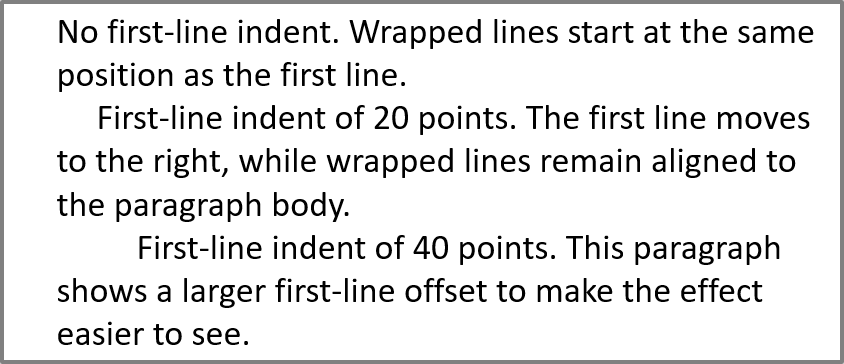
Use the IParagraphFormat.setIndent method to control the first-line indent of a paragraph. This setting moves only the first line relative to the paragraph’s left margin. A positive value shifts the first line to the right, while the remaining lines stay aligned to the paragraph body.
Use IParagraphFormat.setMarginLeft when you need to move the whole paragraph. Use IParagraphFormat.setIndent when you need to move only the first line.
The following example gives three paragraphs the same IParagraphFormat.setMarginLeft of 20 points and IParagraphFormat.setIndent values of 0, 20, and 40 points. The first lines start at progressively larger offsets, while wrapped lines retain the same left margin:
import com.aspose.slides.*;
import java.awt.Color;

Presentation presentation = new Presentation();
try {
    ISlide slide = presentation.getSlides().get_Item(0);

    IAutoShape shape = slide.getShapes().addAutoShape(ShapeType.Rectangle, 50, 50, 420, 220);
    shape.getFillFormat().setFillType(FillType.NoFill);
    shape.getLineFormat().getFillFormat().setFillType(FillType.Solid);
    shape.getLineFormat().getFillFormat().getSolidFillColor().setColor(Color.GRAY);

    ITextFrame textFrame = shape.getTextFrame();
    textFrame.getTextFrameFormat().setAutofitType(TextAutofitType.Shape);
    textFrame.getParagraphs().clear();

    Paragraph firstParagraph = new Paragraph();
    firstParagraph.setText("No first-line indent. Wrapped lines start at the same position as the first line.");
    firstParagraph.getParagraphFormat().getDefaultPortionFormat().getFillFormat().setFillType(FillType.Solid);
    firstParagraph.getParagraphFormat().getDefaultPortionFormat().getFillFormat().getSolidFillColor().setColor(Color.BLACK);
    firstParagraph.getParagraphFormat().setMarginLeft(20f);
    firstParagraph.getParagraphFormat().setIndent(0f);

    Paragraph secondParagraph = new Paragraph();
    secondParagraph.setText("First-line indent of 20 points. The first line moves to the right, while wrapped lines remain aligned to the paragraph body.");
    secondParagraph.getParagraphFormat().getDefaultPortionFormat().getFillFormat().setFillType(FillType.Solid);
    secondParagraph.getParagraphFormat().getDefaultPortionFormat().getFillFormat().getSolidFillColor().setColor(Color.BLACK);
    secondParagraph.getParagraphFormat().setMarginLeft(20f);
    secondParagraph.getParagraphFormat().setIndent(20f);

    Paragraph thirdParagraph = new Paragraph();
    thirdParagraph.setText("First-line indent of 40 points. This paragraph shows a larger first-line offset to make the effect easier to see.");
    thirdParagraph.getParagraphFormat().getDefaultPortionFormat().getFillFormat().setFillType(FillType.Solid);
    thirdParagraph.getParagraphFormat().getDefaultPortionFormat().getFillFormat().getSolidFillColor().setColor(Color.BLACK);
    thirdParagraph.getParagraphFormat().setMarginLeft(20f);
    thirdParagraph.getParagraphFormat().setIndent(40f);

    textFrame.getParagraphs().add(firstParagraph);
    textFrame.getParagraphs().add(secondParagraph);
    textFrame.getParagraphs().add(thirdParagraph);

    presentation.save("paragraph_indent.pptx", SaveFormat.Pptx);
} finally {
    presentation.dispose();
}
The result:
Set a Hanging Indent
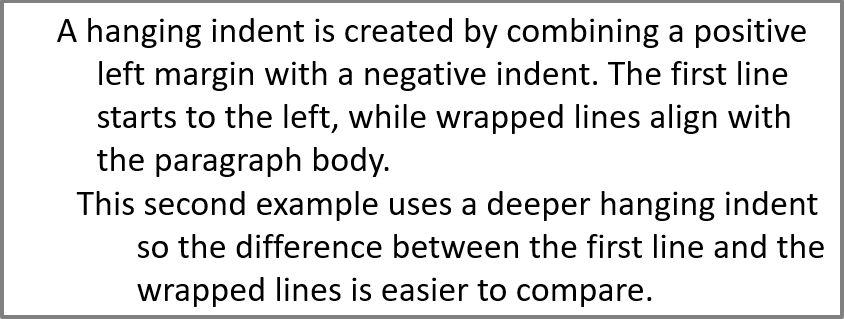
A hanging indent is a paragraph layout in which the first line starts to the left of the remaining lines. In Aspose.Slides, you create this effect with the IParagraphFormat.setIndent property. Set Indent to a negative value to move the first line to the left relative to the paragraph body.
In practice, IParagraphFormat.setMarginLeft defines the left position of the paragraph body, and IParagraphFormat.setIndent defines the position of the first line relative to that margin. To create a hanging indent, set a positive MarginLeft value and a negative Indent value.
This formatting is useful for bibliographies, references, glossary entries, and other paragraphs where wrapped lines must align under the paragraph body rather than under the first character of the first line.
The following Java example pairs IParagraphFormat.setMarginLeft values of 40 and 60 points with IParagraphFormat.setIndent values of -20 and -30 points. In each paragraph, the first line starts to the left of the wrapped lines; the second paragraph has a deeper hanging indent:
import com.aspose.slides.*;
import java.awt.Color;

Presentation presentation = new Presentation();
try {
    ISlide slide = presentation.getSlides().get_Item(0);

    IAutoShape shape = slide.getShapes().addAutoShape(ShapeType.Rectangle, 50, 50, 420, 220);
    shape.getFillFormat().setFillType(FillType.NoFill);
    shape.getLineFormat().getFillFormat().setFillType(FillType.Solid);
    shape.getLineFormat().getFillFormat().getSolidFillColor().setColor(Color.GRAY);

    ITextFrame textFrame = shape.getTextFrame();
    textFrame.getTextFrameFormat().setAutofitType(TextAutofitType.Shape);
    textFrame.getParagraphs().clear();

    Paragraph firstParagraph = new Paragraph();
    firstParagraph.setText("A hanging indent is created by combining a positive left margin with a negative indent. The first line starts to the left, while wrapped lines align with the paragraph body.");
    firstParagraph.getParagraphFormat().getDefaultPortionFormat().getFillFormat().setFillType(FillType.Solid);
    firstParagraph.getParagraphFormat().getDefaultPortionFormat().getFillFormat().getSolidFillColor().setColor(Color.BLACK);
    firstParagraph.getParagraphFormat().setMarginLeft(40f);
    firstParagraph.getParagraphFormat().setIndent(-20f);

    Paragraph secondParagraph = new Paragraph();
    secondParagraph.setText("This second example uses a deeper hanging indent so the difference between the first line and the wrapped lines is easier to compare.");
    secondParagraph.getParagraphFormat().getDefaultPortionFormat().getFillFormat().setFillType(FillType.Solid);
    secondParagraph.getParagraphFormat().getDefaultPortionFormat().getFillFormat().getSolidFillColor().setColor(Color.BLACK);
    secondParagraph.getParagraphFormat().setMarginLeft(60f);
    secondParagraph.getParagraphFormat().setIndent(-30f);

    textFrame.getParagraphs().add(firstParagraph);
    textFrame.getParagraphs().add(secondParagraph);

    presentation.save("hanging_indent.pptx", SaveFormat.Pptx);
} finally {
    presentation.dispose();
}
The result:
Set End Paragraph Run Properties
The IParagraph.setEndParagraphPortionFormat method controls the formatting of the paragraph end mark. The following example creates a PortionFormat with IBasePortionFormat.setFontHeight set to 48 points and IBasePortionFormat.setLatinFont set to Times New Roman. It assigns this format to the second paragraph’s end mark, leaving the visible text portions unchanged:
import com.aspose.slides.*;

Presentation presentation = new Presentation("Test.pptx");
try {
    ISlide slide = presentation.getSlides().get_Item(0);

    IAutoShape shape = slide.getShapes().addAutoShape(ShapeType.Rectangle, 10, 10, 200, 250);
    ITextFrame textFrame = shape.getTextFrame();
    textFrame.getParagraphs().clear();

    Paragraph firstParagraph = new Paragraph();
    firstParagraph.getPortions().add(new Portion("Sample text"));

    Paragraph secondParagraph = new Paragraph();
    secondParagraph.getPortions().add(new Portion("Sample text 2"));

    PortionFormat endParagraphFormat = new PortionFormat();
    endParagraphFormat.setFontHeight(48);
    endParagraphFormat.setLatinFont(new FontData("Times New Roman"));
    secondParagraph.setEndParagraphPortionFormat(endParagraphFormat);

    textFrame.getParagraphs().add(firstParagraph);
    textFrame.getParagraphs().add(secondParagraph);

    presentation.save("end_paragraph_format.pptx", SaveFormat.Pptx);
} finally {
    presentation.dispose();
}
Count Rendered Lines
For paragraph rules that affect automatic wrapping and punctuation at line endings, see Control Line Breaking and Control Hanging Punctuation.
Use IParagraph.getLinesCount to count the lines occupied by a paragraph after text layout, including automatic wrapping. This is useful when checking text length and layout in presentation templates.
A paragraph is one item in ITextFrame.getParagraphs, and it can occupy several rendered lines. An explicit line break within a paragraph forces a new line without creating another paragraph. Automatic wrapping creates lines based on the available width without inserting explicit line breaks into the text. Counting paragraphs or line-break characters therefore does not give the rendered line count.
The following example creates a text shape, counts its lines, narrows the shape, and then replaces the text with a shorter string. The example enables wrapping with ITextFrameFormat.setWrapText and disables autofit with ITextFrameFormat.setAutofitType so that the shape width controls wrapping without automatically shrinking the text or resizing the shape. Each measurement uses IParagraph.getLinesCount. Shape dimensions are in points. Finally, the example adds another paragraph and sums the line counts across the text frame.
import com.aspose.slides.*;

Presentation presentation = new Presentation();
try {
    ISlide slide = presentation.getSlides().get_Item(0);

    IAutoShape shape = slide.getShapes().addAutoShape(ShapeType.Rectangle, 50, 50, 400, 200);
    ITextFrame textFrame = shape.getTextFrame();
    textFrame.getTextFrameFormat().setWrapText(NullableBool.True);
    textFrame.getTextFrameFormat().setAutofitType(TextAutofitType.None);

    IParagraph paragraph = textFrame.getParagraphs().get_Item(0);
    paragraph.getParagraphFormat().getDefaultPortionFormat().setFontHeight(20);
    paragraph.setText("This text demonstrates how automatic wrapping changes the number of rendered lines.");
    System.out.println("Original width: " + paragraph.getLinesCount());

    shape.setWidth(150);
    System.out.println("Narrower shape: " + paragraph.getLinesCount());

    paragraph.setText("Short text.");
    System.out.println("Shorter text: " + paragraph.getLinesCount());

    Paragraph secondParagraph = new Paragraph();
    secondParagraph.setText("Another paragraph.");
    secondParagraph.getParagraphFormat().getDefaultPortionFormat().setFontHeight(20);
    textFrame.getParagraphs().add(secondParagraph);

    int totalLineCount = 0;
    for (IParagraph currentParagraph : textFrame.getParagraphs()) {
        totalLineCount += currentParagraph.getLinesCount();
    }
    System.out.println("Total lines in the text frame: " + totalLineCount);
} finally {
    presentation.dispose();
}
With this text and these dimensions, narrowing the shape increases the line count, while replacing the text with the short string reduces it. Exact counts can vary with font availability and substitution, font size, margins, indentation, wrapping, and autofit settings. Use the fonts and layout settings intended for the target environment when checking a template.
The line count alone does not determine whether text overflows its container. The available height, line heights, paragraph and line spacing, and autofit behavior also matter; even a single line can exceed the available width when wrapping is disabled.
Import and Export Paragraph Content
Use HTML to bring text into a presentation or export existing paragraphs for use outside it. This section also shows how to render individual paragraphs as images, including paragraphs in table cells.
Import HTML Text into Paragraphs
Use ParagraphCollection.addFromHtml to convert HTML markup into paragraphs and portions in a text frame.
This Java example reads HTML from a file and passes the markup to ParagraphCollection.addFromHtml. It clears the text frame’s default paragraph so that the frame contains only the imported content. The rectangular shape leaves a 10-point margin on each side of the slide:
import com.aspose.slides.*;
import java.io.IOException;
import java.nio.charset.StandardCharsets;
import java.nio.file.Files;
import java.nio.file.Paths;

Presentation presentation = new Presentation();
try {
    ISlide slide = presentation.getSlides().get_Item(0);

    float shapeWidth = (float) presentation.getSlideSize().getSize().getWidth() - 20;
    float shapeHeight = (float) presentation.getSlideSize().getSize().getHeight() - 20;
    IAutoShape shape = slide.getShapes().addAutoShape(ShapeType.Rectangle, 10, 10, shapeWidth, shapeHeight);
    shape.getFillFormat().setFillType(FillType.NoFill);
    shape.getTextFrame().getParagraphs().clear();

    try {
        byte[] htmlBytes = Files.readAllBytes(Paths.get("file.html"));
        String html = new String(htmlBytes, StandardCharsets.UTF_8);
        shape.getTextFrame().getParagraphs().addFromHtml(html);
        presentation.save("html_text.pptx", SaveFormat.Pptx);
    } catch (IOException exception) {
        System.out.println("The HTML file could not be read: " + exception.getMessage());
    }
} finally {
    presentation.dispose();
}
Export Paragraph Text to HTML
Use ParagraphCollection.exportToHtml to export a selected range of paragraphs as HTML. When reusing presentation text on a website, you may want to preserve local emphasis without carrying over the presentation’s font, size, or text box styles. Set TextToHtmlConversionOptions.setTextInheritanceLimit to control how far the exporter follows formatting inheritance.
Download the sample presentation and place it in the application’s working directory. Its first slide contains one text shape with the text “Inherited text; explicit red 18pt”. The input deliberately uses several formatting levels:
- The presentation’s default text style supplies Calibri and a size of 28 pt.
- The text frame’s first-level text style supplies blue text and italics.
- The paragraph explicitly sets bold text.
- The second portion, “explicit red 18pt”, explicitly sets red text and a size of 18 pt.
The following complete example exports the same paragraphs three times. It passes TextToHtmlConversionOptions to the export method and writes each result as a separate UTF-8 HTML file:
import com.aspose.slides.*;
import java.io.IOException;
import java.nio.charset.StandardCharsets;
import java.nio.file.Files;
import java.nio.file.Paths;

Presentation presentation = new Presentation("text-inheritance.pptx");
try {
    IShape shape = presentation.getSlides().get_Item(0).getShapes().get_Item(0);

    if (shape instanceof IAutoShape) {
        IAutoShape textShape = (IAutoShape) shape;
        ITextFrame textFrame = textShape.getTextFrame();
        if (textFrame != null) {
            IParagraphCollection paragraphs = textFrame.getParagraphs();

            int[] modes = { TextInheritanceLimit.All, TextInheritanceLimit.TextBox, TextInheritanceLimit.ParagraphOnly };
            String[] fileNames = { "All.html", "TextBox.html", "ParagraphOnly.html" };

            for (int i = 0; i < modes.length; i++) {
                TextToHtmlConversionOptions options = new TextToHtmlConversionOptions();
                options.setTextInheritanceLimit(modes[i]);

                String html = paragraphs.exportToHtml(0, paragraphs.getCount(), options);
                byte[] htmlBytes = html.getBytes(StandardCharsets.UTF_8);
                try {
                    Files.write(Paths.get(fileNames[i]), htmlBytes);
                } catch (IOException exception) {
                    System.out.println("The HTML file could not be written: " + exception.getMessage());
                }
            }
        } else {
            System.out.println("The first shape does not contain a text frame.");
        }
    } else {
        System.out.println("The first shape is not a text shape.");
    }
} finally {
    presentation.dispose();
}
The generated HTML contains the following CSS for the first portion, “Inherited text; “. The table lists the relevant declarations; other generated properties are omitted for clarity.
| Output | Relevant CSS for the first portion | Appearance |
|---|---|---|
All.html |
font-family:'Calibri'; font-size:28pt; color:#0000ff; font-style:italic; font-weight:bold |
Blue, bold, italic text at 28 pt in Calibri, if that font is available. |
TextBox.html |
color:#0000ff; font-style:italic; font-weight:bold |
Blue, bold, italic text; the surrounding page or browser supplies the font family and size. |
ParagraphOnly.html |
font-weight:bold |
Bold text; the surrounding page or browser supplies the font family, size, color, and italic style. |
The second portion retains color:#ff0000, font-size:18pt, and font-weight:bold in all three outputs. It also retains italics with All and TextBox, but not with ParagraphOnly. Restricting inheritance therefore does not remove formatting explicitly assigned to a paragraph or portion.
Open the files in the same browser to compare them. In the two restricted modes, omitted CSS properties are resolved by the destination page’s styles or browser defaults, so the resulting appearance depends on where the HTML is used.
Render a Paragraph as an Image
IParagraph.getImage renders an individual paragraph directly and returns an IImage. Save the result to a file or stream with IImage.save. You do not need to render the containing shape or crop a bitmap manually.
IParagraph.getImage can return null if the paragraph cannot be found in its parent collection, has no valid rendering bounds, or cannot be rendered. Check the result before saving it and dispose of the returned image after use.
Render a Paragraph at the Default Scale
The example uses a presentation with one slide whose first shape is a text box containing three paragraphs.
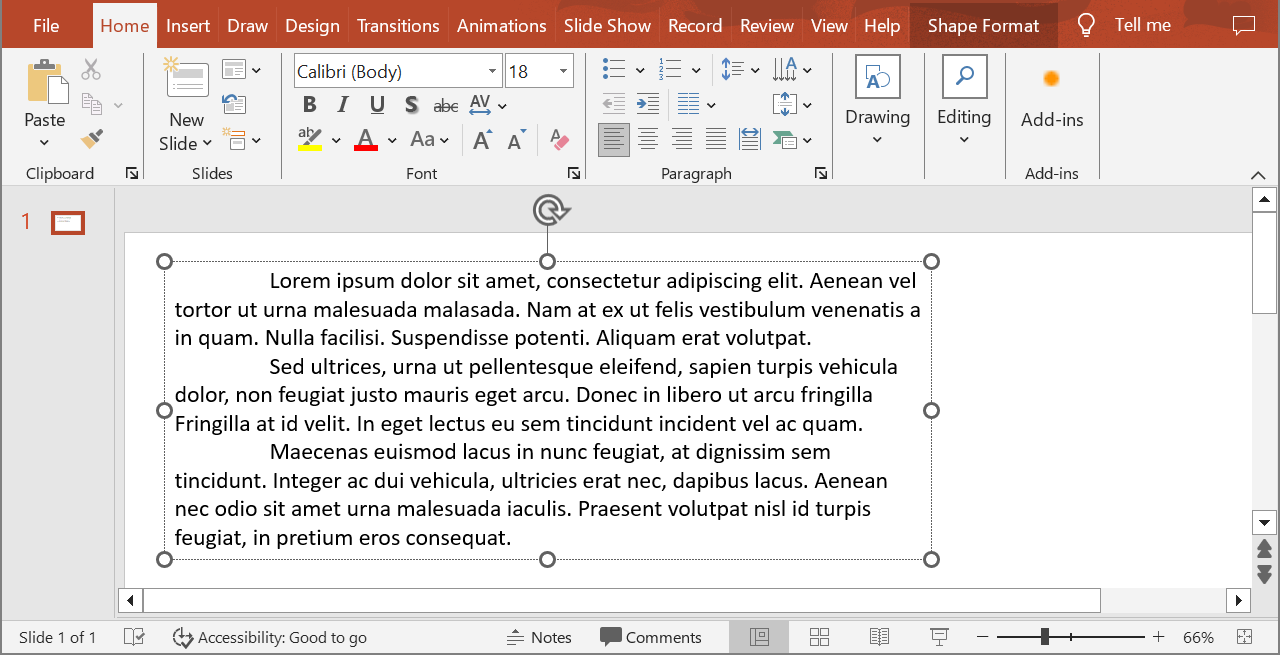
The following example selects the second paragraph at index 1 and calls IParagraph.getImage without scale parameters. It checks that the shape contains the required paragraph and that rendering returns an image before calling IImage.save to save it in PNG format. The finally block disposes of the image after use.
import com.aspose.slides.*;

Presentation presentation = new Presentation("sample.pptx");
try {
    IShape shape = presentation.getSlides().get_Item(0).getShapes().get_Item(0);

    if (shape instanceof IAutoShape) {
        IAutoShape textShape = (IAutoShape) shape;
        ITextFrame textFrame = textShape.getTextFrame();
        if (textFrame != null && textFrame.getParagraphs().getCount() > 1) {
            IParagraph paragraph = textFrame.getParagraphs().get_Item(1);
            IImage paragraphImage = paragraph.getImage();

            if (paragraphImage != null) {
                try {
                    paragraphImage.save("paragraph.png", ImageFormat.Png);
                } finally {
                    paragraphImage.dispose();
                }
            } else {
                System.out.println("The paragraph could not be rendered.");
            }
        } else {
            System.out.println("The expected paragraph was not found.");
        }
    } else {
        System.out.println("The first shape is not a text shape.");
    }
} finally {
    presentation.dispose();
}
The result:

Render a Paragraph in a Table Cell with Scaling
Use the IParagraph.getImage overload that accepts float scaleX and float scaleY parameters to set the horizontal and vertical scale factors. The following example creates a table, renders the paragraph in its first cell at twice its default width and height, and saves the result as a PNG image.
import com.aspose.slides.*;

float scaleX = 2f;
float scaleY = 2f;

Presentation presentation = new Presentation();
try {
    ISlide slide = presentation.getSlides().get_Item(0);

    ITable table = slide.getShapes().addTable(50, 50, new double[] { 300 }, new double[] { 80 });
    IParagraph paragraph = table.get_Item(0, 0).getTextFrame().getParagraphs().get_Item(0);
    paragraph.setText("Text in a table cell");

    IImage paragraphImage = paragraph.getImage(scaleX, scaleY);
    if (paragraphImage != null) {
        try {
            paragraphImage.save("table_paragraph.png", ImageFormat.Png);
        } finally {
            paragraphImage.dispose();
        }
    } else {
        System.out.println("The paragraph could not be rendered.");
    }
} finally {
    presentation.dispose();
}
A scale factor of 1 keeps that axis at its default pixel size. For example, 2 for both factors produces an image whose width and height are approximately twice the default dimensions, resulting in four times as many pixels. Larger factors generally produce sharper text for zooming or high-resolution output, but they also increase memory use and file size. Factors below 1 produce smaller images with less detail. Use equal factors to preserve the paragraph’s aspect ratio; different horizontal and vertical factors stretch the output independently.
Rendering a whole shape with IShape.getImage remains useful when the output must include the shape’s fill, border, or other visual context. For a paragraph-only image, use IParagraph.getImage.
FAQ
Can I completely disable line wrapping inside a text frame?
Yes. Set ITextFrameFormat.setWrapText to disable wrapping so lines do not break at the text frame’s edges.
How can I get the exact on-slide bounds of a specific paragraph?
Use IParagraph.getRect to retrieve the paragraph’s bounding rectangle. IPortion.getRect provides the bounds of an individual portion.
Where is paragraph alignment (left, right, center, or justify) controlled?
IParagraphFormat.setAlignment is a paragraph-level setting and applies to the whole paragraph regardless of individual portion formatting.
To vertically align portions of different font sizes within each line, see Align Fonts Within a Line.
Can I set the proofing language for part of a paragraph?
Yes. Set IBasePortionFormat.setLanguageId for individual portions, so one paragraph can contain text in multiple languages.