
Python via Java에서 PowerPoint 도형 서식 지정
소개
PowerPoint에서는 슬라이드에 도형을 추가할 수 있습니다. 도형은 선으로 구성되어 있으므로 외곽선을 수정하거나 효과를 적용하여 서식화할 수 있습니다. 또한 내부를 채우는 방식을 설정하여 도형을 서식화할 수 있습니다.
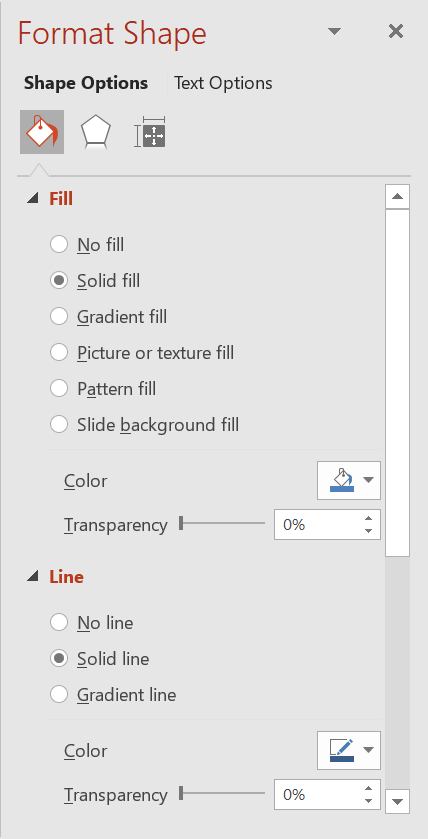
Aspose.Slides for Python via Java는 PowerPoint에서 사용할 수 있는 동일한 옵션을 사용해 도형을 서식화할 수 있는 클래스와 메서드를 제공합니다.
선 서식 지정
Aspose.Slides를 사용하면 도형에 사용자 지정 선 스타일을 지정할 수 있습니다. 절차는 다음과 같습니다:
- Presentation 클래스의 인스턴스를 생성합니다.
- 인덱스로 슬라이드에 대한 참조를 가져옵니다.
- 슬라이드에 AutoShape을 추가합니다.
- 도형의 line style을 설정합니다.
- 선 너비를 설정합니다.
- 선의 dash style을 설정합니다.
- 도형의 선 색상을 설정합니다.
- 수정된 프레젠테이션을 PPTX 파일로 저장합니다.
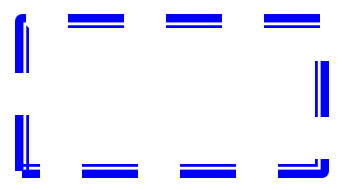
다음 코드는 사각형 AutoShape의 선을 서식 지정하는 방법을 보여줍니다:
import jpype
import asposeslides

if not jpype.isJVMStarted():
    jpype.startJVM()

from asposeslides.api import FillType, LineDashStyle, LineStyle, Presentation, SaveFormat, ShapeType
from java.awt import Color

# 프레젠테이션 파일을 나타내는 Presentation 클래스를 인스턴스화합니다.
presentation = Presentation()
try:
    # 첫 번째 슬라이드를 가져옵니다.
    slide = presentation.getSlides().get_Item(0)

    # Rectangle 유형의 자동 도형을 추가합니다.
    shape = slide.getShapes().addAutoShape(ShapeType.Rectangle, 50, 150, 150, 75)

    # 사각형 도형의 채우기 색상을 설정합니다.
    shape.getFillFormat().setFillType(FillType.NoFill)

    # 사각형 선에 서식을 적용합니다.
    shape.getLineFormat().setStyle(LineStyle.ThickThin)
    shape.getLineFormat().setWidth(7)
    shape.getLineFormat().setDashStyle(LineDashStyle.Dash)

    # 사각형 선의 색상을 설정합니다.
    shape.getLineFormat().getFillFormat().setFillType(FillType.Solid)
    shape.getLineFormat().getFillFormat().getSolidFillColor().setColor(Color.BLUE)

    # PPTX 파일을 디스크에 저장합니다.
    presentation.save("formatted_lines.pptx", SaveFormat.Pptx)
finally:
    presentation.dispose()
결과:
도형 선에 스케치 효과 적용
스케치 효과는 도형 선을 손으로 그린 것처럼 보이게 합니다. Shape.getLineFormat으로 선 설정에 접근하고, LineFormat.getSketchFormat으로 스케치 설정에 접근한 뒤, SketchFormat.setSketchType으로 LineSketchType 열거형의 값을 선택합니다.
다음 파이썬 코드는 LineSketchType.Curved 효과를 적용하고, 명시적으로 할당된 값을 읽으며, LineSketchType.None_으로 효과를 제거하는 방법을 보여줍니다:
import jpype
import asposeslides

if not jpype.isJVMStarted():
    jpype.startJVM()

from asposeslides.api import LineSketchType, Presentation, ShapeType

presentation = Presentation()
try:
    slide = presentation.getSlides().get_Item(0)
    shape = slide.getShapes().addAutoShape(ShapeType.Rectangle, 50, 50, 200, 100)

    # 도형의 선 서식과 스케치 서식에 접근합니다.
    sketch_format = shape.getLineFormat().getSketchFormat()

    # 스케치 효과를 적용합니다.
    sketch_format.setSketchType(LineSketchType.Curved)

    # 도형에 직접 할당된 스케치 효과를 읽습니다.
    explicit_sketch_type = sketch_format.getSketchType()
    print(f"Explicit sketch type: {explicit_sketch_type}")

    # 스케치 효과를 제거합니다.
    sketch_format.setSketchType(LineSketchType.None_)
finally:
    presentation.dispose()
SketchFormat.getSketchType에서 반환된 값은 도형에 직접 할당된 설정을 나타냅니다. 테마, 마스터 슬라이드 또는 레이아웃 슬라이드에서 선 서식이 상속될 수 있는 경우 LineFormat.getEffective으로 접근하고 LineFormatEffectiveData.getSketchFormat을 사용한 뒤 SketchFormatEffectiveData.getSketchType을 읽습니다. 효과적인 값은 상속이 해결된 후 실제 적용된 서식을 반영합니다:
import jpype
import asposeslides

if not jpype.isJVMStarted():
    jpype.startJVM()

from asposeslides.api import Presentation

presentation = Presentation("presentation.pptx")
try:
    shape = presentation.getSlides().get_Item(0).getShapes().get_Item(0)
    line_format = shape.getLineFormat()

    explicit_sketch_type = line_format.getSketchFormat().getSketchType()
    effective_line_format = line_format.getEffective()
    effective_sketch_type = effective_line_format.getSketchFormat().getSketchType()

    print(f"Explicit sketch type: {explicit_sketch_type}")
    print(f"Effective sketch type: {effective_sketch_type}")
finally:
    presentation.dispose()
조인 스타일 서식 지정
다음은 세 가지 조인 유형 옵션입니다:
- Round
- Miter
- Bevel
PowerPoint에서는 두 선이 각도에서 만날 때(예: 도형 모서리) 기본값으로 Round 설정을 사용합니다. 그러나 날카로운 각도를 가진 도형을 그릴 때는 Miter 옵션을 선호할 수 있습니다.
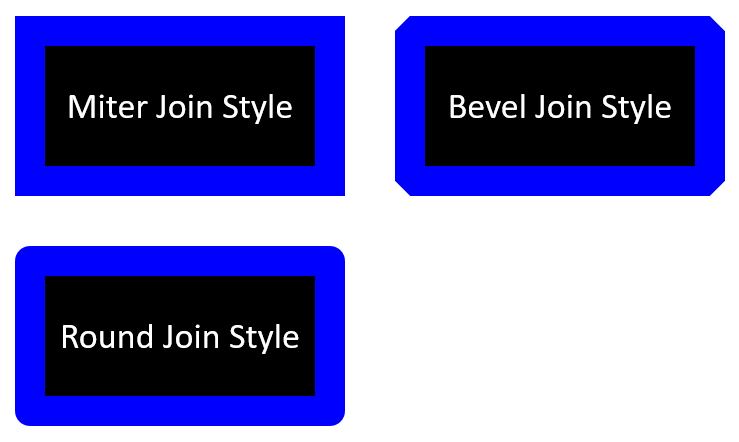
다음 파이썬 코드는 위 이미지와 같이 Miter, Bevel, Round 조인 유형 설정을 사용해 세 개의 사각형을 만든 예시를 보여줍니다:
import jpype
import asposeslides

if not jpype.isJVMStarted():
    jpype.startJVM()

from asposeslides.api import FillType, LineJoinStyle, Presentation, SaveFormat, ShapeType
from java.awt import Color

# 프레젠테이션 파일을 나타내는 Presentation 클래스를 인스턴스화합니다.
presentation = Presentation()
try:
    # 첫 번째 슬라이드를 가져옵니다.
    slide = presentation.getSlides().get_Item(0)

    # Rectangle 유형의 자동 도형 세 개를 추가합니다.
    miter_shape = slide.getShapes().addAutoShape(ShapeType.Rectangle, 20, 20, 150, 75)
    bevel_shape = slide.getShapes().addAutoShape(ShapeType.Rectangle, 210, 20, 150, 75)
    round_shape = slide.getShapes().addAutoShape(ShapeType.Rectangle, 20, 135, 150, 75)

    # 각 사각형 도형의 채우기 색상을 설정합니다.
    miter_shape.getFillFormat().setFillType(FillType.Solid)
    miter_shape.getFillFormat().getSolidFillColor().setColor(Color.BLACK)
    bevel_shape.getFillFormat().setFillType(FillType.Solid)
    bevel_shape.getFillFormat().getSolidFillColor().setColor(Color.BLACK)
    round_shape.getFillFormat().setFillType(FillType.Solid)
    round_shape.getFillFormat().getSolidFillColor().setColor(Color.BLACK)

    # 선 너비를 설정합니다.
    miter_shape.getLineFormat().setWidth(15)
    bevel_shape.getLineFormat().setWidth(15)
    round_shape.getLineFormat().setWidth(15)

    # 각 사각형 선의 색상을 설정합니다.
    miter_shape.getLineFormat().getFillFormat().setFillType(FillType.Solid)
    miter_shape.getLineFormat().getFillFormat().getSolidFillColor().setColor(Color.BLUE)
    bevel_shape.getLineFormat().getFillFormat().setFillType(FillType.Solid)
    bevel_shape.getLineFormat().getFillFormat().getSolidFillColor().setColor(Color.BLUE)
    round_shape.getLineFormat().getFillFormat().setFillType(FillType.Solid)
    round_shape.getLineFormat().getFillFormat().getSolidFillColor().setColor(Color.BLUE)

    # 조인 스타일을 설정합니다.
    miter_shape.getLineFormat().setJoinStyle(LineJoinStyle.Miter)
    bevel_shape.getLineFormat().setJoinStyle(LineJoinStyle.Bevel)
    round_shape.getLineFormat().setJoinStyle(LineJoinStyle.Round)

    # 각 사각형에 텍스트를 추가합니다.
    miter_shape.getTextFrame().setText("Miter Join Style")
    bevel_shape.getTextFrame().setText("Bevel Join Style")
    round_shape.getTextFrame().setText("Round Join Style")

    # PPTX 파일을 디스크에 저장합니다.
    presentation.save("join_styles.pptx", SaveFormat.Pptx)
finally:
    presentation.dispose()
그라디언트 채우기
PowerPoint에서 그라디언트 채우기는 도형에 연속적인 색상 혼합을 적용하는 서식 옵션입니다. 예를 들어 두 개 이상의 색상을 점진적으로 서로 섞이도록 적용할 수 있습니다.
Aspose.Slides를 사용해 도형에 그라디언트 채우기를 적용하는 방법:
- Presentation 클래스의 인스턴스를 생성합니다.
- 인덱스로 슬라이드에 대한 참조를 가져옵니다.
- 슬라이드에 AutoShape을 추가합니다.
- 도형의 FillType을
Gradient로 설정합니다. - GradientFormat 클래스가 노출하는 그라디언트 스톱 컬렉션의 addPresetColor 메서드를 사용해 정의된 위치와 함께 두 개의 색상을 추가합니다.
- 수정된 프레젠테이션을 PPTX 파일로 저장합니다.
다음 파이썬 코드는 타원에 그라디언트 채우기 효과를 적용하는 예시를 보여줍니다:
import jpype
import asposeslides

if not jpype.isJVMStarted():
    jpype.startJVM()

from asposeslides.api import FillType, GradientDirection, GradientShape, Presentation, PresetColor, SaveFormat, ShapeType
from java.awt import Color

# 프레젠테이션 파일을 나타내는 Presentation 클래스를 인스턴스화합니다.
presentation = Presentation()
try:
    # 첫 번째 슬라이드를 가져옵니다.
    slide = presentation.getSlides().get_Item(0)

    # Ellipse 유형의 자동 도형을 추가합니다.
    shape = slide.getShapes().addAutoShape(ShapeType.Ellipse, 50, 50, 150, 75)

    # 타원에 그라디언트 서식을 적용합니다.
    shape.getFillFormat().setFillType(FillType.Gradient)
    shape.getFillFormat().getGradientFormat().setGradientShape(GradientShape.Linear)

    # 그라디언트의 방향을 설정합니다.
    shape.getFillFormat().getGradientFormat().setGradientDirection(GradientDirection.FromCorner2)

    # 두 개의 그라디언트 스톱을 추가합니다.
    shape.getFillFormat().getGradientFormat().getGradientStops().addPresetColor(1.0, PresetColor.Purple)
    shape.getFillFormat().getGradientFormat().getGradientStops().addPresetColor(0.0, PresetColor.Red)

    # PPTX 파일을 디스크에 저장합니다.
    presentation.save("gradient_fill.pptx", SaveFormat.Pptx)
finally:
    presentation.dispose()
결과:
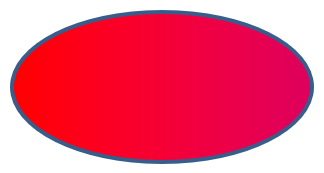
그라디언트가 PowerPoint에서와 다르게 이미지로 내보내질 경우, Choose a Gradient Rendering Style 를 참고하십시오. 프레젠테이션에 저장된 그라디언트 채우기를 변경하지 않고도 렌더링 스타일을 선택할 수 있습니다.
패턴 채우기
PowerPoint에서 패턴 채우기는 두 가지 색상의 디자인(점, 줄무늬, 교차선, 체크 등)을 도형에 적용하는 서식 옵션입니다. 패턴의 전경색과 배경색을 사용자 정의할 수 있습니다.
Aspose.Slides는 사전에 정의된 45가지 이상의 패턴 스타일을 제공하며, 이를 도형에 적용해 프레젠테이션의 시각적 매력을 높일 수 있습니다. 사전 정의된 패턴을 선택한 뒤에도 정확한 색상을 지정할 수 있습니다.
Aspose.Slides를 사용해 도형에 패턴 채우기를 적용하는 방법:
- Presentation 클래스의 인스턴스를 생성합니다.
- 인덱스로 슬라이드에 대한 참조를 가져옵니다.
- 슬라이드에 AutoShape을 추가합니다.
- 도형의 FillType을
Pattern으로 설정합니다. - 사전 정의된 옵션 중에서 패턴 스타일을 선택합니다.
- 패턴의 Background Color를 설정합니다.
- 패턴의 Foreground Color를 설정합니다.
- 수정된 프레젠테이션을 PPTX 파일로 저장합니다.
다음 파이썬 코드는 사각형에 패턴 채우기를 적용하는 예시를 보여줍니다:
import jpype
import asposeslides

if not jpype.isJVMStarted():
    jpype.startJVM()

from asposeslides.api import FillType, PatternStyle, Presentation, SaveFormat, ShapeType
from java.awt import Color

# 프레젠테이션 파일을 나타내는 Presentation 클래스를 인스턴스화합니다.
presentation = Presentation()
try:
    # 첫 번째 슬라이드를 가져옵니다.
    slide = presentation.getSlides().get_Item(0)

    # Rectangle 유형의 자동 도형을 추가합니다.
    shape = slide.getShapes().addAutoShape(ShapeType.Rectangle, 50, 50, 150, 75)

    # 채우기 유형을 Pattern으로 설정합니다.
    shape.getFillFormat().setFillType(FillType.Pattern)

    # 패턴 스타일을 설정합니다.
    shape.getFillFormat().getPatternFormat().setPatternStyle(PatternStyle.Trellis)

    # 패턴 배경색과 전경색을 설정합니다.
    shape.getFillFormat().getPatternFormat().getBackColor().setColor(Color.LIGHT_GRAY)
    shape.getFillFormat().getPatternFormat().getForeColor().setColor(Color.YELLOW)

    # PPTX 파일을 디스크에 저장합니다.
    presentation.save("pattern_fill.pptx", SaveFormat.Pptx)
finally:
    presentation.dispose()
결과:
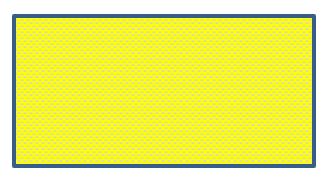
그림 채우기
PowerPoint에서 그림 채우기는 이미지를 도형 내부에 삽입하여 이미지 자체를 도형의 배경으로 사용하는 서식 옵션입니다.
Aspose.Slides를 사용해 도형에 그림 채우기를 적용하는 방법:
- Presentation 클래스의 인스턴스를 생성합니다.
- 인덱스로 슬라이드에 대한 참조를 가져옵니다.
- 슬라이드에 AutoShape을 추가합니다.
- 도형의 FillType을
Picture로 설정합니다. - 그림 채우기 모드를
Tile(또는 다른 원하는 모드)으로 설정합니다. - 사용하려는 이미지에서 PPImage 객체를 생성합니다.
- 해당 이미지를
SlidesPicture.setImage메서드에 전달합니다. - 수정된 프레젠테이션을 PPTX 파일로 저장합니다.
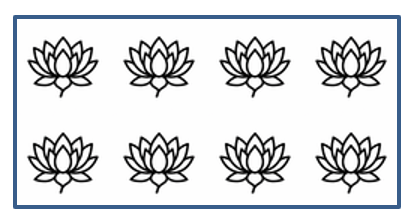
예를 들어, 다음과 같은 그림이 들어있는 “lotus.png” 파일이 있다고 가정합니다:

다음 파이썬 코드는 그림으로 도형을 채우는 방법을 보여줍니다:
import jpype
import asposeslides

if not jpype.isJVMStarted():
    jpype.startJVM()

from asposeslides.api import FillType, Images, PictureFillMode, Presentation, SaveFormat, ShapeType

# 프레젠테이션 파일을 나타내는 Presentation 클래스를 인스턴스화합니다.
presentation = Presentation()
try:
    # 첫 번째 슬라이드를 가져옵니다.
    slide = presentation.getSlides().get_Item(0)

    # Rectangle 유형의 자동 도형을 추가합니다.
    shape = slide.getShapes().addAutoShape(ShapeType.Rectangle, 50, 50, 255, 130)

    # 채우기 유형을 Picture로 설정합니다.
    shape.getFillFormat().setFillType(FillType.Picture)

    # 그림 채우기 모드를 설정합니다.
    shape.getFillFormat().getPictureFillFormat().setPictureFillMode(PictureFillMode.Tile)

    # 이미지를 로드하고 프레젠테이션 리소스에 추가합니다.
    image = Images.fromFile("lotus.png")
    picture = presentation.getImages().addImage(image)
    image.dispose()

    # 그림을 설정합니다.
    shape.getFillFormat().getPictureFillFormat().getPicture().setImage(picture)

    # PPTX 파일을 디스크에 저장합니다.
    presentation.save("picture_fill.pptx", SaveFormat.Pptx)
finally:
    presentation.dispose()
결과:
텍스처로 타일 그림
타일 형태의 그림을 텍스처로 설정하고 타일링 동작을 사용자 정의하려면 PictureFillFormat 클래스의 다음 메서드를 사용할 수 있습니다:
- setPictureFillMode: 그림 채우기 모드(
Tile또는Stretch)를 설정합니다. - setTileAlignment: 도형 내 타일 정렬을 지정합니다.
- setTileFlip: 타일을 수평, 수직 또는 둘 다 뒤집을지 제어합니다.
- setTileOffsetX: 도형 원점으로부터 타일의 수평 오프셋(포인트)을 설정합니다.
- setTileOffsetY: 도형 원점으로부터 타일의 수직 오프셋(포인트)을 설정합니다.
- setTileScaleX: 타일의 수평 배율을 백분율로 정의합니다.
- setTileScaleY: 타일의 수직 배율을 백분율로 정의합니다.
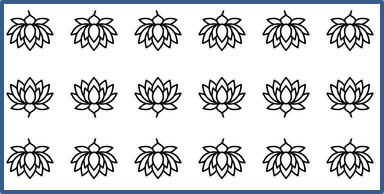
다음 코드 샘플은 타일 그림 채우기가 적용된 사각형 도형을 추가하고 타일 옵션을 구성하는 방법을 보여줍니다:
import jpype
import asposeslides

if not jpype.isJVMStarted():
    jpype.startJVM()

from asposeslides.api import FillType, Images, PictureFillMode, Presentation, RectangleAlignment, SaveFormat, ShapeType, TileFlip

# 프레젠테이션 파일을 나타내는 Presentation 클래스를 인스턴스화합니다.
presentation = Presentation()
try:
    # 첫 번째 슬라이드를 가져옵니다.
    first_slide = presentation.getSlides().get_Item(0)

    # 사각형 자동 도형을 추가합니다.
    shape = first_slide.getShapes().addAutoShape(ShapeType.Rectangle, 50, 50, 190, 95)

    # 도형의 채우기 유형을 Picture로 설정합니다.
    shape.getFillFormat().setFillType(FillType.Picture)

    # 이미지를 로드하고 프레젠테이션 리소스에 추가합니다.
    source_image = Images.fromFile("lotus.png")
    presentation_image = presentation.getImages().addImage(source_image)
    source_image.dispose()

    # 이미지를 도형에 할당합니다.
    picture_fill_format = shape.getFillFormat().getPictureFillFormat()
    picture_fill_format.getPicture().setImage(presentation_image)

    # 그림 채우기 모드와 타일 속성을 구성합니다.
    picture_fill_format.setPictureFillMode(PictureFillMode.Tile)
    picture_fill_format.setTileOffsetX(-32)
    picture_fill_format.setTileOffsetY(-32)
    picture_fill_format.setTileScaleX(50)
    picture_fill_format.setTileScaleY(50)
    picture_fill_format.setTileAlignment(RectangleAlignment.BottomRight)
    picture_fill_format.setTileFlip(TileFlip.FlipBoth)

    # PPTX 파일을 디스크에 저장합니다.
    presentation.save("tile.pptx", SaveFormat.Pptx)
finally:
    presentation.dispose()
결과:
단색 채우기
PowerPoint에서 단색 채우기는 도형을 하나의 균일한 색상으로 채우는 서식 옵션입니다. 이 배경 색상은 그라디언트, 텍스처 또는 패턴 없이 적용됩니다.
Aspose.Slides를 사용해 도형에 단색 채우기를 적용하려면 다음 단계를 따릅니다:
- Presentation 클래스의 인스턴스를 생성합니다.
- 인덱스로 슬라이드에 대한 참조를 가져옵니다.
- 슬라이드에 AutoShape을 추가합니다.
- 도형의 FillType을
Solid로 설정합니다. - 원하는 채우기 색상을 도형에 지정합니다.
- 수정된 프레젠테이션을 PPTX 파일로 저장합니다.
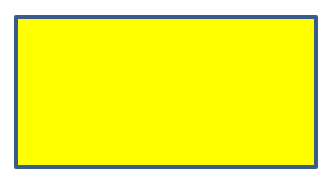
다음 파이썬 코드는 PowerPoint 슬라이드의 사각형에 단색 채우기를 적용하는 예시를 보여줍니다:
import jpype
import asposeslides

if not jpype.isJVMStarted():
    jpype.startJVM()

from asposeslides.api import FillType, Presentation, SaveFormat, ShapeType
from java.awt import Color

# 프레젠테이션 파일을 나타내는 Presentation 클래스를 인스턴스화합니다.
presentation = Presentation()
try:
    # 첫 번째 슬라이드를 가져옵니다.
    slide = presentation.getSlides().get_Item(0)

    # Rectangle 유형의 자동 도형을 추가합니다.
    shape = slide.getShapes().addAutoShape(ShapeType.Rectangle, 50, 50, 150, 75)

    # 채우기 유형을 Solid로 설정합니다.
    shape.getFillFormat().setFillType(FillType.Solid)

    # 채우기 색상을 설정합니다.
    shape.getFillFormat().getSolidFillColor().setColor(Color.YELLOW)

    # PPTX 파일을 디스크에 저장합니다.
    presentation.save("solid_color_fill.pptx", SaveFormat.Pptx)
finally:
    presentation.dispose()
결과:
투명도 설정
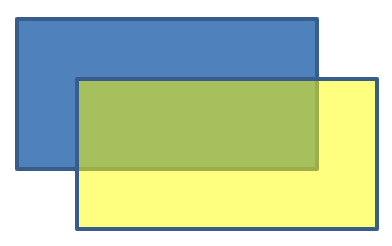
PowerPoint에서 도형에 단색, 그라디언트, 그림 또는 텍스처 채우기를 적용할 때 투명도 수준을 설정해 채우기의 불투명도를 제어할 수 있습니다. 투명도 값이 높을수록 도형이 더 투명해져 배경이나 아래 객체가 부분적으로 보이게 됩니다.
Aspose.Slides는 채우기에 사용되는 색상의 알파 값을 조정해 투명도 수준을 설정할 수 있게 해줍니다. 방법은 다음과 같습니다:
- Presentation 클래스의 인스턴스를 생성합니다.
- 인덱스로 슬라이드에 대한 참조를 가져옵니다.
- 슬라이드에 AutoShape을 추가합니다.
- FillType을
Solid로 설정합니다. - Color 클래스를 사용해 투명도가 포함된 색상을 정의합니다(
alpha구성 요소가 투명도를 제어합니다). - 프레젠테이션을 저장합니다.
다음 파이썬 코드는 사각형에 투명한 채우기 색상을 적용하는 예시를 보여줍니다:
import jpype
import asposeslides

if not jpype.isJVMStarted():
    jpype.startJVM()

from asposeslides.api import FillType, Presentation, SaveFormat, ShapeType
from java.awt import Color

# 프레젠테이션 파일을 나타내는 Presentation 클래스를 인스턴스화합니다.
presentation = Presentation()
try:
    # 첫 번째 슬라이드를 가져옵니다.
    slide = presentation.getSlides().get_Item(0)

    # 단색 사각형 자동 도형을 추가합니다.
    solid_shape = slide.getShapes().addAutoShape(ShapeType.Rectangle, 50, 50, 150, 75)

    # 단색 도형 위에 투명한 사각형 자동 도형을 추가합니다.
    transparent_shape = slide.getShapes().addAutoShape(ShapeType.Rectangle, 80, 80, 150, 75)
    transparent_shape.getFillFormat().setFillType(FillType.Solid)
    transparent_color = Color(255, 255, 0, 204)
    transparent_shape.getFillFormat().getSolidFillColor().setColor(transparent_color)

    # PPTX 파일을 디스크에 저장합니다.
    presentation.save("shape_transparency.pptx", SaveFormat.Pptx)
finally:
    presentation.dispose()
결과:
도형 회전
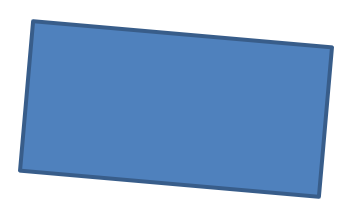
Aspose.Slides를 사용하면 PowerPoint 프레젠테이션에서 도형을 회전시킬 수 있습니다. 이는 특정 정렬이나 디자인 요구 사항에 따라 시각 요소를 배치할 때 유용합니다.
슬라이드에서 도형을 회전하려면 다음 절차를 따릅니다:
- Presentation 클래스의 인스턴스를 생성합니다.
- 인덱스로 슬라이드에 대한 참조를 가져옵니다.
- 슬라이드에 AutoShape을 추가합니다.
- 도형의 회전 속성을 원하는 각도로 설정합니다.
- 프레젠테이션을 저장합니다.
다음 파이썬 코드는 도형을 5도 회전시키는 예시를 보여줍니다:
import jpide
import asposeslides

if not jpype.isJVMStarted():
    jpype.startJVM()

from asposeslides.api import Presentation, SaveFormat, ShapeType

# 프레젠테이션 파일을 나타내는 Presentation 클래스를 인스턴스화합니다.
presentation = Presentation()
try:
    # 첫 번째 슬라이드를 가져옵니다.
    slide = presentation.getSlides().get_Item(0)

    # Rectangle 유형의 자동 도형을 추가합니다.
    shape = slide.getShapes().addAutoShape(ShapeType.Rectangle, 50, 50, 150, 75)

    # 도형을 5도 회전시킵니다.
    shape.setRotation(5)

    # PPTX 파일을 디스크에 저장합니다.
    presentation.save("shape_rotation.pptx", SaveFormat.Pptx)
finally:
    presentation.dispose()
결과:
3D 베벨 효과 추가
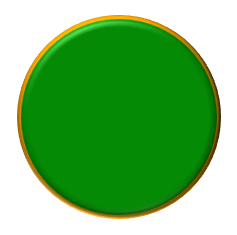
Aspose.Slides를 사용하면 도형의 ThreeDFormat 속성을 구성해 3D 베벨 효과를 적용할 수 있습니다.
도형에 3D 베벨 효과를 추가하려면 다음 절차를 따릅니다:
- Presentation 클래스를 인스턴스화합니다.
- 인덱스로 슬라이드에 대한 참조를 가져옵니다.
- 슬라이드에 AutoShape을 추가합니다.
- 도형의 ThreeDFormat을 구성해 베벨 설정을 정의합니다.
- 프레젠테이션을 저장합니다.
다음 파이썬 코드는 도형에 3D 베벨 효과를 적용하는 방법을 보여줍니다:
import jpype
import asposeslides

if not jpype.isJVMStarted():
    jpype.startJVM()

from asposeslides.api import BevelPresetType, CameraPresetType, FillType, LightRigPresetType, LightingDirection, Presentation, SaveFormat, ShapeType
from java.awt import Color

# Presentation 클래스를 인스턴스화합니다.
presentation = Presentation()
try:
    slide = presentation.getSlides().get_Item(0)

    # 슬라이드에 도형을 추가합니다.
    shape = slide.getShapes().addAutoShape(ShapeType.Ellipse, 50, 50, 100, 100)
    shape.getFillFormat().setFillType(FillType.Solid)
    shape.getFillFormat().getSolidFillColor().setColor(Color.GREEN)
    shape.getLineFormat().getFillFormat().setFillType(FillType.Solid)
    shape.getLineFormat().getFillFormat().getSolidFillColor().setColor(Color.ORANGE)
    shape.getLineFormat().setWidth(2.0)

    # 도형의 ThreeDFormat 속성을 설정합니다.
    shape.getThreeDFormat().setDepth(4)
    shape.getThreeDFormat().getBevelTop().setBevelType(BevelPresetType.Circle)
    shape.getThreeDFormat().getBevelTop().setHeight(6)
    shape.getThreeDFormat().getBevelTop().setWidth(6)
    shape.getThreeDFormat().getCamera().setCameraType(CameraPresetType.OrthographicFront)
    shape.getThreeDFormat().getLightRig().setLightType(LightRigPresetType.ThreePt)
    shape.getThreeDFormat().getLightRig().setDirection(LightingDirection.Top)

    # 프레젠테이션을 PPTX 파일로 저장합니다.
    presentation.save("3D_bevel_effect.pptx", SaveFormat.Pptx)
finally:
    presentation.dispose()
결과:
3D 회전 효과 추가
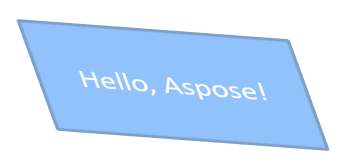
Aspose.Slides를 사용하면 도형의 ThreeDFormat 속성을 구성해 3D 회전 효과를 적용할 수 있습니다.
도형에 3D 회전을 적용하려면:
- Presentation 클래스의 인스턴스를 생성합니다.
- 인덱스로 슬라이드에 대한 참조를 가져옵니다.
- 슬라이드에 AutoShape을 추가합니다.
- setCameraType 및 setLightType 메서드를 사용해 3D 회전을 정의합니다.
- 프레젠테이션을 저장합니다.
다음 파이썬 코드는 도형에 3D 회전 효과를 적용하는 예시를 보여줍니다:
import jpype
import asposeslides

if not jpype.isJVMStarted():
    jpype.startJVM()

from asposeslides.api import CameraPresetType, LightRigPresetType, Presentation, SaveFormat, ShapeType

# Presentation 클래스의 인스턴스를 생성합니다.
presentation = Presentation()
try:
    slide = presentation.getSlides().get_Item(0)

    auto_shape = slide.getShapes().addAutoShape(ShapeType.Rectangle, 50, 50, 150, 75)
    auto_shape.getTextFrame().setText("Hello, Aspose!")

    auto_shape.getThreeDFormat().setDepth(6)
    auto_shape.getThreeDFormat().getCamera().setRotation(40, 35, 20)
    auto_shape.getThreeDFormat().getCamera().setCameraType(CameraPresetType.IsometricLeftUp)
    auto_shape.getThreeDFormat().getLightRig().setLightType(LightRigPresetType.Balanced)

    # 프레젠테이션을 PPTX 파일로 저장합니다.
    presentation.save("3D_rotation_effect.pptx", SaveFormat.Pptx)
finally:
    presentation.dispose()
결과:
도형의 흑백 렌더링 제어
Shape.setBlackWhiteMode 메서드는 프레젠테이션을 흑백 모드로 보거나 처리할 때 개별 도형이 어떻게 렌더링되는지를 지정합니다. 이 메서드 자체가 흑백 표시를 활성화하지는 않으며, 일반 색상 모드에서 도형의 채우기, 선 또는 기타 서식을 변경하지도 않습니다.
BlackWhiteMode 클래스의 값을 사용해 원하는 동작을 선택합니다. 예를 들어 Automatic은 렌더링 애플리케이션이 변환을 선택하도록 하고, Gray와 LightGray는 회색을 사용하며, BlackWhite는 검정과 흰색만 사용합니다. Black 및 White는 단일 색상을 강제하고, Color는 일반 색상을 유지하며, Hidden은 흑백 모드에서 도형을 생략합니다. NotDefined는 도형 수준 모드가 지정되지 않았음을 의미합니다.
다음 파이썬 코드는 색상이 있는 도형을 만들고 흑백 표시 모드에서 회색으로 보이게 합니다:
import jpype
import asposeslides

if not jpype.isJVMStarted():
    jpype.startJVM()

from asposeslides.api import BlackWhiteMode, FillType, Presentation, SaveFormat, ShapeType
from java.awt import Color

presentation = Presentation()
try:
    slide = presentation.getSlides().get_Item(0)

    shape = slide.getShapes().addAutoShape(ShapeType.Rectangle, 50, 50, 200, 100)
    shape.getFillFormat().setFillType(FillType.Solid)
    shape.getFillFormat().getSolidFillColor().setColor(Color.ORANGE)

    # 색상 모드에서는 주황색 채우기를 유지하고, 흑백 모드에서는 회색 색상으로 도형을 렌더링합니다.
    shape.setBlackWhiteMode(BlackWhiteMode.Gray)

    presentation.save("shape_black_white_mode.pptx", SaveFormat.Pptx)
finally:
    presentation.dispose()
일반 색상 모드에서는 사각형이 주황색 채우기를 유지합니다. 흑백 표시 워크플로에서는 Gray 모드가 설정되어 있기 때문에 회색으로 표시됩니다. 이를 통해 전체 색상 슬라이드를 유지하면서 인쇄, 미리보기 또는 기타 흑백 표시 설정을 따르는 워크플로에 대해 별도 표시 방식을 정의할 수 있습니다.
서식 초기화
다음 파이썬 코드는 슬라이드의 서식을 초기화하고 LayoutSlide에 있는 모든 자리 표시자 도형의 위치, 크기 및 서식을 기본값으로 되돌리는 방법을 보여줍니다:
import jpype
import asposeslides

if not jpype.isJVMStarted():
    jpype.startJVM()

from asposeslides.api import Presentation, SaveFormat

presentation = Presentation("sample.pptx")
try:
    for slide in presentation.getSlides():
        # 슬라이드에 레이아웃에 자리 표시자가 있는 각 도형을 초기화합니다.
        slide.reset()

    presentation.save("reset_formatting.pptx", SaveFormat.Pptx)
finally:
    presentation.dispose()
FAQ
도형 서식이 최종 프레젠테이션 파일 크기에 영향을 줍니까?
거의 영향을 주지 않습니다. 삽입된 이미지와 미디어가 파일 용량의 대부분을 차지하고, 색상, 효과, 그라디언트와 같은 도형 매개변수는 메타데이터로 저장되어 실질적인 추가 용량이 거의 없습니다.
같은 서식을 가진 도형을 찾아 그룹화하려면 어떻게 해야 합니까?
각 도형의 핵심 서식 속성(채우기, 선, 효과 설정)을 비교합니다. 모든 해당 값이 일치하면 스타일이 동일하다고 판단하고 논리적으로 그룹화하면 이후 스타일 관리가 간편해집니다.
맞춤 도형 스타일 집합을 별도 파일에 저장해 다른 프레젠테이션에서 재사용할 수 있나요?
가능합니다. 원하는 스타일이 적용된 샘플 도형을 템플릿 슬라이드 세트 또는 .POTX 템플릿 파일에 저장합니다. 새 프레젠테이션을 만들 때 템플릿을 열어 필요한 스타일의 도형을 복제하고 필요한 곳에 서식을 다시 적용하면 됩니다.