
Định dạng các hình dạng PowerPoint trong Python qua Java
Giới thiệu
Trong PowerPoint, bạn có thể thêm các hình dạng vào các slide. Vì các hình dạng được tạo thành từ các đường, bạn có thể định dạng chúng bằng cách sửa đổi hoặc áp dụng hiệu ứng cho viền của chúng. Ngoài ra, bạn có thể định dạng các hình dạng bằng cách chỉ định các cài đặt kiểm soát cách nội thất của chúng được tô.
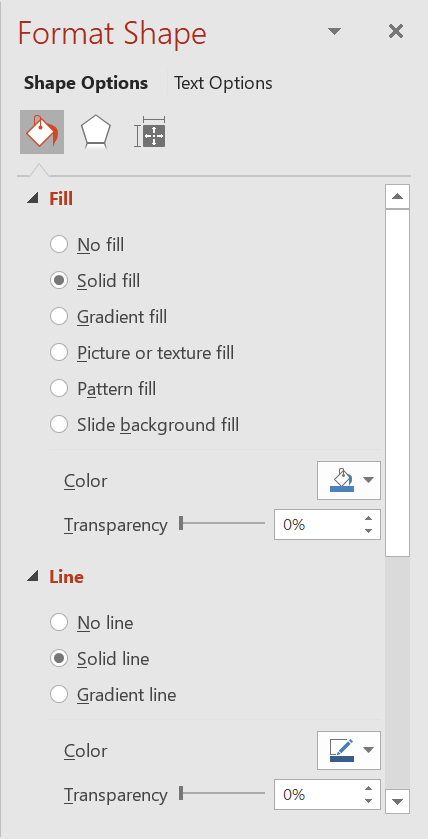
Aspose.Slides for Python via Java cung cấp các lớp và phương thức cho phép bạn định dạng hình dạng bằng các tùy chọn có sẵn trong PowerPoint.
Định dạng Đường
Sử dụng Aspose.Slides, bạn có thể chỉ định kiểu đường tùy chỉnh cho một hình dạng. Các bước sau mô tả quy trình:
- Tạo một thể hiện của lớp Presentation.
- Lấy một tham chiếu đến slide theo chỉ mục của nó.
- Thêm một AutoShape vào slide.
- Đặt kiểu đường cho hình dạng.
- Đặt độ rộng đường.
- Đặt kiểu gạch cho đường.
- Đặt màu đường cho hình dạng.
- Lưu bản trình bày đã sửa đổi dưới dạng tệp PPTX.
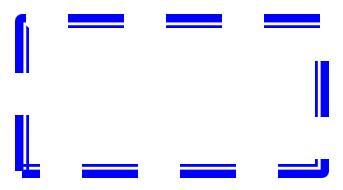
Mã sau minh họa cách định dạng một hình chữ nhật AutoShape:
import jpype
import asposeslides

if not jpype.isJVMStarted():
    jpype.startJVM()

from asposeslides.api import FillType, LineDashStyle, LineStyle, Presentation, SaveFormat, ShapeType
from java.awt import Color

# Khởi tạo lớp Presentation đại diện cho một tệp bản trình chiếu.
presentation = Presentation()
try:
    # Lấy slide đầu tiên.
    slide = presentation.getSlides().get_Item(0)

    # Thêm một auto shape loại Hình chữ nhật.
    shape = slide.getShapes().addAutoShape(ShapeType.Rectangle, 50, 150, 150, 75)

    # Đặt màu fill cho hình dạng hình chữ nhật.
    shape.getFillFormat().setFillType(FillType.NoFill)

    # Áp dụng định dạng cho các đường của hình chữ nhật.
    shape.getLineFormat().setStyle(LineStyle.ThickThin)
    shape.getLineFormat().setWidth(7)
    shape.getLineFormat().setDashStyle(LineDashStyle.Dash)

    # Đặt màu cho đường của hình chữ nhật.
    shape.getLineFormat().getFillFormat().setFillType(FillType.Solid)
    shape.getLineFormat().getFillFormat().getSolidFillColor().setColor(Color.BLUE)

    # Lưu tệp PPTX vào đĩa.
    presentation.save("formatted_lines.pptx", SaveFormat.Pptx)
finally:
    presentation.dispose()
Kết quả:
Áp dụng hiệu ứng phác thảo cho đường hình dạng
Hiệu ứng phác thảo làm cho đường của hình dạng trông như được vẽ tay. Sử dụng Shape.getLineFormat để truy cập các cài đặt đường, LineFormat.getSketchFormat để truy cập các cài đặt phác thảo, và SketchFormat.setSketchType để chọn một giá trị từ liệt kê LineSketchType.
Mã Python sau cho thấy cách áp dụng hiệu ứng LineSketchType.Curved, đọc giá trị đã được gán một cách rõ ràng, và loại bỏ hiệu ứng bằng LineSketchType.None_:
import jpype
import asposeslides

if not jpype.isJVMStarted():
    jpype.startJVM()

from asposeslides.api import LineSketchType, Presentation, ShapeType

presentation = Presentation()
try:
    slide = presentation.getSlides().get_Item(0)
    shape = slide.getShapes().addAutoShape(ShapeType.Rectangle, 50, 50, 200, 100)

    # Truy cập định dạng đường của hình dạng và định dạng phác thảo của nó.
    sketch_format = shape.getLineFormat().getSketchFormat()

    # Áp dụng hiệu ứng phác thảo.
    sketch_format.setSketchType(LineSketchType.Curved)

    # Đọc hiệu ứng phác thảo được gán trực tiếp cho hình dạng.
    explicit_sketch_type = sketch_format.getSketchType()
    print(f"Explicit sketch type: {explicit_sketch_type}")

    # Loại bỏ hiệu ứng phác thảo.
    sketch_format.setSketchType(LineSketchType.None_)
finally:
    presentation.dispose()
Giá trị trả về bởi SketchFormat.getSketchType đại diện cho cài đặt được gán trực tiếp cho hình dạng. Nếu định dạng đường có thể được thừa kế từ theme, master slide hoặc layout slide, hãy sử dụng LineFormat.getEffective, truy cập LineFormatEffectiveData.getSketchFormat, và đọc SketchFormatEffectiveData.getSketchType. Giá trị effective phản ánh định dạng thực tế được áp dụng sau khi kế thừa được giải quyết:
import jpype
import asposeslides

if not jpype.isJVMStarted():
    jpype.startJVM()

from asposeslides.api import Presentation

presentation = Presentation("presentation.pptx")
try:
    shape = presentation.getSlides().get_Item(0).getShapes().get_Item(0)
    line_format = shape.getLineFormat()

    explicit_sketch_type = line_format.getSketchFormat().getSketchType()
    effective_line_format = line_format.getEffective()
    effective_sketch_type = effective_line_format.getSketchFormat().getSketchType()

    print(f"Explicit sketch type: {explicit_sketch_type}")
    print(f"Effective sketch type: {effective_sketch_type}")
finally:
    presentation.dispose()
Định dạng Kiểu Nối
Dưới đây là ba tùy chọn kiểu nối:
- Tròn
- Vát
- Góc
Mặc định, khi PowerPoint nối hai đường ở một góc (chẳng hạn ở góc của hình dạng), nó sử dụng cài đặt Tròn. Tuy nhiên, nếu bạn đang vẽ một hình dạng với các góc sắc, bạn có thể ưu tiên tùy chọn Vát.
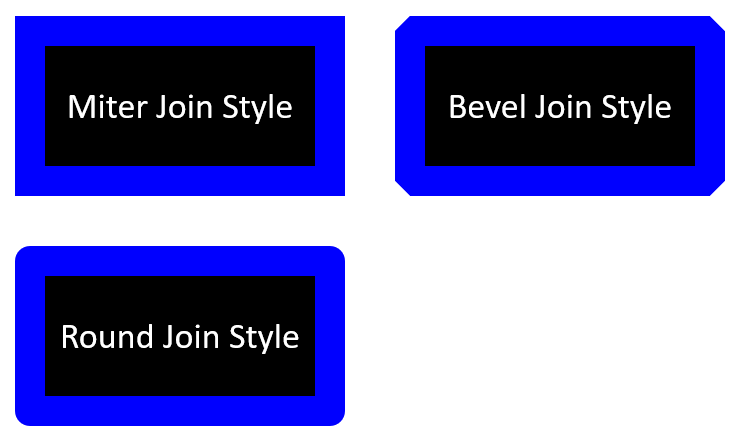
Mã Python sau minh họa cách ba hình chữ nhật (như trong hình trên) được tạo bằng các cài đặt kiểu nối Vát, Góc và Tròn:
import jpype
import asposeslides

if not jpype.isJVMStarted():
    jpype.startJVM()

from asposeslides.api import FillType, LineJoinStyle, Presentation, SaveFormat, ShapeType
from java.awt import Color

# Khởi tạo lớp Presentation đại diện cho một tệp bản trình chiếu.
presentation = Presentation()
try:
    # Lấy slide đầu tiên.
    slide = presentation.getSlides().get_Item(0)

    # Thêm ba auto shape loại Hình chữ nhật.
    miter_shape = slide.getShapes().addAutoShape(ShapeType.Rectangle, 20, 20, 150, 75)
    bevel_shape = slide.getShapes().addAutoShape(ShapeType.Rectangle, 210, 20, 150, 75)
    round_shape = slide.getShapes().addAutoShape(ShapeType.Rectangle, 20, 135, 150, 75)

    # Đặt màu fill cho mỗi hình chữ nhật.
    miter_shape.getFillFormat().setFillType(FillType.Solid)
    miter_shape.getFillFormat().getSolidFillColor().setColor(Color.BLACK)
    bevel_shape.getFillFormat().setFillType(FillType.Solid)
    bevel_shape.getFillFormat().getSolidFillColor().setColor(Color.BLACK)
    round_shape.getFillFormat().setFillType(FillType.Solid)
    round_shape.getFillFormat().getSolidFillColor().setColor(Color.BLACK)

    # Đặt độ rộng đường.
    miter_shape.getLineFormat().setWidth(15)
    bevel_shape.getLineFormat().setWidth(15)
    round_shape.getLineFormat().setWidth(15)

    # Đặt màu cho đường của mỗi hình chữ nhật.
    miter_shape.getLineFormat().getFillFormat().setFillType(FillType.Solid)
    miter_shape.getLineFormat().getFillFormat().getSolidFillColor().setColor(Color.BLUE)
    bevel_shape.getLineFormat().getFillFormat().setFillType(FillType.Solid)
    bevel_shape.getLineFormat().getFillFormat().getSolidFillColor().setColor(Color.BLUE)
    round_shape.getLineFormat().getFillFormat().setFillType(FillType.Solid)
    round_shape.getLineFormat().getFillFormat().getSolidFillColor().setColor(Color.BLUE)

    # Đặt kiểu nối.
    miter_shape.getLineFormat().setJoinStyle(LineJoinStyle.Miter)
    bevel_shape.getLineFormat().setJoinStyle(LineJoinStyle.Bevel)
    round_shape.getLineFormat().setJoinStyle(LineJoinStyle.Round)

    # Thêm văn bản vào mỗi hình chữ nhật.
    miter_shape.getTextFrame().setText("Miter Join Style")
    bevel_shape.getTextFrame().setText("Bevel Join Style")
    round_shape.getTextFrame().setText("Round Join Style")

    # Lưu tệp PPTX vào đĩa.
    presentation.save("join_styles.pptx", SaveFormat.Pptx)
finally:
    presentation.dispose()
Đổ màu Gradient
Trong PowerPoint, Đổ màu Gradient là một tùy chọn định dạng cho phép bạn áp dụng một pha trộn liên tục của các màu vào một hình dạng. Ví dụ, bạn có thể áp dụng hai màu trở lên sao cho một màu dần dần chuyển sang màu khác.
Dưới đây là cách áp dụng một gradient fill cho một hình dạng bằng Aspose.Slides:
- Tạo một thể hiện của lớp Presentation.
- Lấy một tham chiếu đến slide theo chỉ mục của nó.
- Thêm một AutoShape vào slide.
- Đặt FillType của hình dạng thành
Gradient. - Thêm hai màu bạn muốn với vị trí đã định nghĩa bằng phương thức addPresetColor của bộ sưu tập gradient stop được cung cấp bởi lớp GradientFormat.
- Lưu bản trình bày đã sửa đổi dưới dạng tệp PPTX.
Mã Python sau minh họa cách áp dụng hiệu ứng gradient fill cho một hình ellipse:
import jpype
import asposeslides

if not jpype.isJVMStarted():
    jpype.startJVM()

from asposeslides.api import FillType, GradientDirection, GradientShape, Presentation, PresetColor, SaveFormat, ShapeType
from java.awt import Color

# Khởi tạo lớp Presentation đại diện cho một tệp bản trình chiếu.
presentation = Presentation()
try:
    # Lấy slide đầu tiên.
    slide = presentation.getSlides().get_Item(0)

    # Thêm một auto shape loại Ellipse.
    shape = slide.getShapes().addAutoShape(ShapeType.Ellipse, 50, 50, 150, 75)

    # Áp dụng định dạng gradient cho ellipse.
    shape.getFillFormat().setFillType(FillType.Gradient)
    shape.getFillFormat().getGradientFormat().setGradientShape(GradientShape.Linear)

    # Đặt hướng của gradient.
    shape.getFillFormat().getGradientFormat().setGradientDirection(GradientDirection.FromCorner2)

    # Thêm hai điểm dừng gradient.
    shape.getFillFormat().getGradientFormat().getGradientStops().addPresetColor(1.0, PresetColor.Purple)
    shape.getFillFormat().getGradientFormat().getGradientStops().addPresetColor(0.0, PresetColor.Red)

    # Lưu tệp PPTX vào đĩa.
    presentation.save("gradient_fill.pptx", SaveFormat.Pptx)
finally:
    presentation.dispose()
Kết quả:
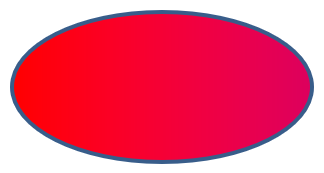
Nếu một gradient trông khác nhau trong hình ảnh xuất khẩu so với trong PowerPoint, xem Chọn Kiểu Kết Xuất Gradient. Bạn có thể chọn kiểu kết xuất mà không thay đổi gradient fill được lưu trong bản trình bày.
Đổ mẫu
Trong PowerPoint, Đổ mẫu là một tùy chọn định dạng cho phép bạn áp dụng một thiết kế hai màu—như chấm, sọc, chéo hoặc ô vuông—cho một hình dạng. Bạn có thể chọn màu tùy chỉnh cho màu nền trước và màu nền của mẫu.
Aspose.Slides cung cấp hơn 45 kiểu mẫu được định sẵn mà bạn có thể áp dụng cho các hình dạng để nâng cao tính thẩm mỹ của bài thuyết trình. Ngay cả sau khi chọn một mẫu đã định sẵn, bạn vẫn có thể chỉ định màu chính xác mà nó sẽ sử dụng.
Dưới đây là cách áp dụng một pattern fill cho một hình dạng bằng Aspose.Slides:
- Tạo một thể hiện của lớp Presentation.
- Lấy một tham chiếu đến slide theo chỉ mục của nó.
- Thêm một AutoShape vào slide.
- Đặt FillType của hình dạng thành
Pattern. - Chọn một kiểu mẫu từ các tùy chọn đã định sẵn.
- Đặt Màu Nền của mẫu.
- Đặt Màu Nền Trước của mẫu.
- Lưu bản trình bày đã sửa đổi dưới dạng tệp PPTX.
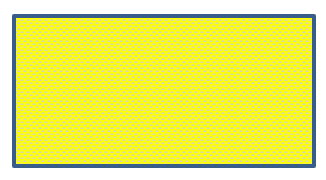
Mã Python sau minh họa cách áp dụng pattern fill cho một hình chữ nhật:
import jpype
import asposeslides

if not jpype.isJVMStarted():
    jpype.startJVM()

from asposeslides.api import FillType, PatternStyle, Presentation, SaveFormat, ShapeType
from java.awt import Color

# Khởi tạo lớp Presentation đại diện cho một tệp bản trình chiếu.
presentation = Presentation()
try:
    # Lấy slide đầu tiên.
    slide = presentation.getSlides().get_Item(0)

    # Thêm một auto shape loại Hình chữ nhật.
    shape = slide.getShapes().addAutoShape(ShapeType.Rectangle, 50, 50, 150, 75)

    # Đặt kiểu fill là Pattern.
    shape.getFillFormat().setFillType(FillType.Pattern)

    # Đặt kiểu mẫu.
    shape.getFillFormat().getPatternFormat().setPatternStyle(PatternStyle.Trellis)

    # Đặt màu nền và màu nền trước của mẫu.
    shape.getFillFormat().getPatternFormat().getBackColor().setColor(Color.LIGHT_GRAY)
    shape.getFillFormat().getPatternFormat().getForeColor().setColor(Color.YELLOW)

    # Lưu tệp PPTX vào đĩa.
    presentation.save("pattern_fill.pptx", SaveFormat.Pptx)
finally:
    presentation.dispose()
Kết quả:
Đổ ảnh
Trong PowerPoint, Đổ ảnh là một tùy chọn định dạng cho phép bạn chèn một hình ảnh bên trong một hình dạng—thực tế sử dụng hình ảnh làm nền cho hình dạng.
Dưới đây là cách sử dụng Aspose.Slides để áp dụng picture fill cho một hình dạng:
- Tạo một thể hiện của lớp Presentation.
- Lấy một tham chiếu đến slide theo chỉ mục của nó.
- Thêm một AutoShape vào slide.
- Đặt FillType của hình dạng thành
Picture. - Đặt chế độ picture fill thành
Tile(hoặc chế độ khác bạn muốn). - Tạo một đối tượng PPImage từ hình ảnh bạn muốn sử dụng.
- Truyền hình ảnh cho phương thức
SlidesPicture.setImage.
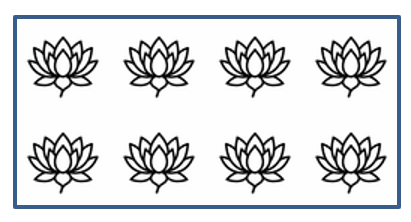
Giả sử chúng ta có tệp “lotus.png” với hình ảnh sau:

Mã Python sau minh họa cách lấp đầy một hình dạng bằng hình ảnh:
import jpype
import asposeslides

if not jpype.isJVMStarted():
    jpype.startJVM()

from asposeslides.api import FillType, Images, PictureFillMode, Presentation, SaveFormat, ShapeType

# Khởi tạo lớp Presentation đại diện cho một tệp bản trình chiếu.
presentation = Presentation()
try:
    # Lấy slide đầu tiên.
    slide = presentation.getSlides().get_Item(0)

    # Thêm một auto shape loại Hình chữ nhật.
    shape = slide.getShapes().addAutoShape(ShapeType.Rectangle, 50, 50, 255, 130)

    # Đặt kiểu fill là Picture.
    shape.getFillFormat().setFillType(FillType.Picture)

    # Đặt chế độ picture fill.
    shape.getFillFormat().getPictureFillFormat().setPictureFillMode(PictureFillMode.Tile)

    # Tải một hình ảnh và thêm nó vào tài nguyên của bản trình chiếu.
    image = Images.fromFile("lotus.png")
    picture = presentation.getImages().addImage(image)
    image.dispose()

    # Đặt hình ảnh.
    shape.getFillFormat().getPictureFillFormat().getPicture().setImage(picture)

    # Lưu tệp PPTX vào đĩa.
    presentation.save("picture_fill.pptx", SaveFormat.Pptx)
finally:
    presentation.dispose()
Kết quả:
Gạch ảnh làm Kết cấu
Nếu bạn muốn đặt một ảnh được lặp lại làm kết cấu và tùy chỉnh hành vi lặp, bạn có thể sử dụng các phương thức sau của lớp PictureFillFormat:
- setPictureFillMode: Đặt chế độ picture fill—
TilehoặcStretch. - setTileAlignment: Xác định việc căn chỉnh các ô trong hình dạng.
- setTileFlip: Kiểm soát việc lật ô theo chiều ngang, chiều dọc hoặc cả hai.
- setTileOffsetX: Đặt độ lệch ngang của ô (theo điểm) so với gốc của hình dạng.
- setTileOffsetY: Đặt độ lệch dọc của ô (theo điểm) so với gốc của hình dạng.
- setTileScaleX: Xác định tỉ lệ ngang của ô dưới dạng phần trăm.
- setTileScaleY: Xác định tỉ lệ dọc của ô dưới dạng phần trăm.
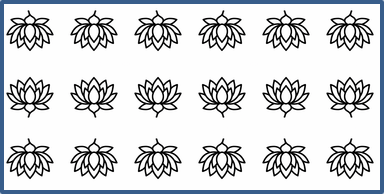
Mã mẫu sau cho thấy cách thêm một hình chữ nhật với picture fill dạng gạch và cấu hình các tùy chọn ô:
import jpype
import asposeslides

if not jpype.isJVMStarted():
    jpype.startJVM()

from asposeslides.api import FillType, Images, PictureFillMode, Presentation, RectangleAlignment, SaveFormat, ShapeType, TileFlip

# Khởi tạo lớp Presentation đại diện cho một tệp bản trình chiếu.
presentation = Presentation()
try:
    # Lấy slide đầu tiên.
    first_slide = presentation.getSlides().get_Item(0)

    # Thêm một auto shape hình chữ nhật.
    shape = first_slide.getShapes().addAutoShape(ShapeType.Rectangle, 50, 50, 190, 95)

    # Đặt kiểu fill của hình dạng thành Picture.
    shape.getFillFormat().setFillType(FillType.Picture)

    # Tải hình ảnh và thêm nó vào tài nguyên của bản trình chiếu.
    source_image = Images.fromFile("lotus.png")
    presentation_image = presentation.getImages().addImage(source_image)
    source_image.dispose()

    # Gán hình ảnh cho hình dạng.
    picture_fill_format = shape.getFillFormat().getPictureFillFormat()
    picture_fill_format.getPicture().setImage(presentation_image)

    # Cấu hình chế độ picture fill và các thuộc tính lặp.
    picture_fill_format.setPictureFillMode(PictureFillMode.Tile)
    picture_fill_format.setTileOffsetX(-32)
    picture_fill_format.setTileOffsetY(-32)
    picture_fill_format.setTileScaleX(50)
    picture_fill_format.setTileScaleY(50)
    picture_fill_format.setTileAlignment(RectangleAlignment.BottomRight)
    picture_fill_format.setTileFlip(TileFlip.FlipBoth)

    # Lưu tệp PPTX vào đĩa.
    presentation.save("tile.pptx", SaveFormat.Pptx)
finally:
    presentation.dispose()
Kết quả:
Đổ màu Đơn
Trong PowerPoint, Đổ màu Đơn là một tùy chọn định dạng làm đầy một hình dạng bằng một màu duy nhất, đồng nhất. Nền màu này được áp dụng mà không có gradient, texture hoặc pattern nào.
Để áp dụng đổ màu đơn cho một hình dạng bằng Aspose.Slides, thực hiện các bước sau:
- Tạo một thể hiện của lớp Presentation.
- Lấy một tham chiếu đến slide theo chỉ mục của nó.
- Thêm một AutoShape vào slide.
- Đặt FillType của hình dạng thành
Solid. - Gán màu fill bạn muốn cho hình dạng.
- Lưu bản trình bày đã sửa đổi dưới dạng tệp PPTX.
Mã Python sau minh họa cách áp dụng đổ màu đơn cho một hình chữ nhật trong slide PowerPoint:
import jpype
import asposeslides

if not jpype.isJVMStarted():
    jpype.startJVM()

from asposeslides.api import FillType, Presentation, SaveFormat, ShapeType
from java.awt import Color

# Khởi tạo lớp Presentation đại diện cho một tệp bản trình chiếu.
presentation = Presentation()
try:
    # Lấy slide đầu tiên.
    slide = presentation.getSlides().get_Item(0)

    # Thêm một auto shape loại Hình chữ nhật.
    shape = slide.getShapes().addAutoShape(ShapeType.Rectangle, 50, 50, 150, 75)

    # Đặt kiểu fill thành Solid.
    shape.getFillFormat().setFillType(FillType.Solid)

    # Đặt màu fill.
    shape.getFillFormat().getSolidFillColor().setColor(Color.YELLOW)

    # Lưu tệp PPTX vào đĩa.
    presentation.save("solid_color_fill.pptx", SaveFormat.Pptx)
finally:
    presentation.dispose()
Kết quả:
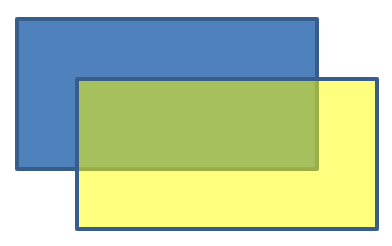
Đặt Độ trong suốt
Trong PowerPoint, khi bạn áp dụng màu đơn, gradient, picture hoặc texture fill cho các hình dạng, bạn cũng có thể đặt mức độ trong suốt để kiểm soát độ mờ của fill. Giá trị trong suốt cao hơn làm cho hình dạng trong suốt hơn, cho phép nền hoặc các đối tượng phía dưới hiển thị một phần.
Aspose.Slides cho phép bạn đặt mức độ trong suốt bằng cách điều chỉnh giá trị alpha trong màu được sử dụng cho fill. Cách thực hiện:
- Tạo một thể hiện của lớp Presentation.
- Lấy một tham chiếu đến slide theo chỉ mục của nó.
- Thêm một AutoShape vào slide.
- Đặt FillType thành
Solid. - Sử dụng Color để định nghĩa một màu có độ trong suốt (thành phần
alphakiểm soát độ trong suốt). - Lưu bản trình bày.
Mã Python sau minh họa cách áp dụng màu fill trong suốt cho một hình chữ nhật:
import jpype
import asposeslides

if not jpype.isJVMStarted():
    jpype.startJVM()

from asposeslides.api import FillType, Presentation, SaveFormat, ShapeType
from java.awt import Color

# Khởi tạo lớp Presentation đại diện cho một tệp bản trình chiếu.
presentation = Presentation()
try:
    # Lấy slide đầu tiên.
    slide = presentation.getSlides().get_Item(0)

    # Thêm một auto shape hình chữ nhật đặc.
    solid_shape = slide.getShapes().addAutoShape(ShapeType.Rectangle, 50, 50, 150, 75)

    # Thêm một auto shape hình chữ nhật trong suốt lên trên hình dạng đặc.
    transparent_shape = slide.getShapes().addAutoShape(ShapeType.Rectangle, 80, 80, 150, 75)
    transparent_shape.getFillFormat().setFillType(FillType.Solid)
    transparent_color = Color(255, 255, 0, 204)
    transparent_shape.getFillFormat().getSolidFillColor().setColor(transparent_color)

    # Lưu tệp PPTX vào đĩa.
    presentation.save("shape_transparency.pptx", SaveFormat.Pptx)
finally:
    presentation.dispose()
Kết quả:
Xoay Hình dạng
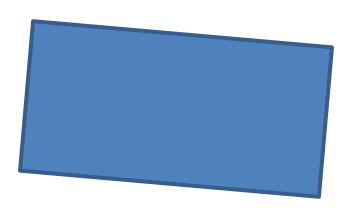
Aspose.Slides cho phép bạn xoay các hình dạng trong bản trình chiếu PowerPoint. Điều này hữu ích khi định vị các phần tử trực quan với yêu cầu căn chỉnh hoặc thiết kế cụ thể.
Để xoay một hình dạng trên slide, thực hiện các bước sau:
- Tạo một thể hiện của lớp Presentation.
- Lấy một tham chiếu đến slide theo chỉ mục của nó.
- Thêm một AutoShape vào slide.
- Đặt thuộc tính xoay của hình dạng thành góc mong muốn.
- Lưu bản trình bày.
Mã Python sau minh họa cách xoay một hình dạng 5 độ:
import jpype
import asposeslides

if not jpype.isJVMStarted():
    jpype.startJVM()

from asposeslides.api import Presentation, SaveFormat, ShapeType

# Khởi tạo lớp Presentation đại diện cho một tệp bản trình chiếu.
presentation = Presentation()
try:
    # Lấy slide đầu tiên.
    slide = presentation.getSlides().get_Item(0)

    # Thêm một auto shape loại Hình chữ nhật.
    shape = slide.getShapes().addAutoShape(ShapeType.Rectangle, 50, 50, 150, 75)

    # Xoay hình dạng 5 độ.
    shape.setRotation(5)

    # Lưu tệp PPTX vào đĩa.
    presentation.save("shape_rotation.pptx", SaveFormat.Pptx)
finally:
    presentation.dispose()
Kết quả:
Thêm hiệu ứng Bo tròn 3D
Aspose.Slides cho phép bạn áp dụng hiệu ứng Bo tròn 3D cho các hình dạng bằng cách cấu hình các thuộc tính ThreeDFormat.
Để thêm hiệu ứng Bo tròn 3D cho một hình dạng, thực hiện các bước sau:
- Khởi tạo lớp Presentation.
- Lấy một tham chiếu đến slide theo chỉ mục của nó.
- Thêm một AutoShape vào slide.
- Cấu hình ThreeDFormat của hình dạng để định nghĩa các cài đặt bevel.
- Lưu bản trình bày.
Mã Python sau cho thấy cách áp dụng hiệu ứng Bo tròn 3D cho một hình dạng:
import jpade
import asposeslides

if not jpype.isJVMStarted():
    jpype.startJVM()

from asposeslides.api import BevelPresetType, CameraPresetType, FillType, LightRigPresetType, LightingDirection, Presentation, SaveFormat, ShapeType
from java.awt import Color

# Tạo một thể hiện của lớp Presentation.
presentation = Presentation()
try:
    slide = presentation.getSlides().get_Item(0)

    # Thêm một hình dạng vào slide.
    shape = slide.getShapes().addAutoShape(ShapeType.Ellipse, 50, 50, 100, 100)
    shape.getFillFormat().setFillType(FillType.Solid)
    shape.getFillFormat().getSolidFillColor().setColor(Color.GREEN)
    shape.getLineFormat().getFillFormat().setFillType(FillType.Solid)
    shape.getLineFormat().getFillFormat().getSolidFillColor().setColor(Color.ORANGE)
    shape.getLineFormat().setWidth(2.0)

    # Đặt các thuộc tính ThreeDFormat của hình dạng.
    shape.getThreeDFormat().setDepth(4)
    shape.getThreeDFormat().getBevelTop().setBevelType(BevelPresetType.Circle)
    shape.getThreeDFormat().getBevelTop().setHeight(6)
    shape.getThreeDFormat().getBevelTop().setWidth(6)
    shape.getThreeDFormat().getCamera().setCameraType(CameraPresetType.OrthographicFront)
    shape.getThreeDFormat().getLightRig().setLightType(LightRigPresetType.ThreePt)
    shape.getThreeDFormat().getLightRig().setDirection(LightingDirection.Top)

    # Lưu bản trình chiếu dưới dạng tệp PPTX.
    presentation.save("3D_bevel_effect.pptx", SaveFormat.Pptx)
finally:
    presentation.dispose()
Kết quả:

Thêm hiệu ứng Xoay 3D
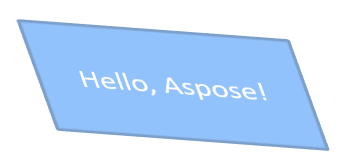
Aspose.Slides cho phép bạn áp dụng hiệu ứng Xoay 3D cho các hình dạng bằng cách cấu hình các thuộc tính ThreeDFormat.
Để áp dụng Xoay 3D cho một hình dạng:
- Tạo một thể hiện của lớp Presentation.
- Lấy một tham chiếu đến slide theo chỉ mục của nó.
- Thêm một AutoShape vào slide.
- Sử dụng các phương thức setCameraType và setLightType để định nghĩa Xoay 3D.
- Lưu bản trình bày.
Mã Python sau minh họa cách áp dụng hiệu ứng Xoay 3D cho một hình dạng:
import jpype
import asposeslides

if not jpype.isJVMStarted():
    jpype.startJVM()

from asposeslides.api import CameraPresetType, LightRigPresetType, Presentation, SaveFormat, ShapeType

# Tạo một thể hiện của lớp Presentation.
presentation = Presentation()
try:
    slide = presentation.getSlides().get_Item(0)

    auto_shape = slide.getShapes().addAutoShape(ShapeType.Rectangle, 50, 50, 150, 75)
    auto_shape.getTextFrame().setText("Hello, Aspose!")

    auto_shape.getThreeDFormat().setDepth(6)
    auto_shape.getThreeDFormat().getCamera().setRotation(40, 35, 20)
    auto_shape.getThreeDFormat().getCamera().setCameraType(CameraPresetType.IsometricLeftUp)
    auto_shape.getThreeDFormat().getLightRig().setLightType(LightRigPresetType.Balanced)

    # Lưu bản trình chiếu dưới dạng tệp PPTX.
    presentation.save("3D_rotation_effect.pptx", SaveFormat.Pptx)
finally:
    presentation.dispose()
Kết quả:
Kiểm soát việc hiển thị Đen-Trắng cho Hình dạng
Phương thức Shape.setBlackWhiteMode chỉ định cách một hình dạng riêng lẻ được hiển thị khi bản trình chiếu được xem hoặc xử lý ở chế độ đen-trắng. Nó không tự động bật chế độ hiển thị đen-trắng và không thay đổi fill, line hoặc các định dạng khác của hình dạng trong chế độ màu bình thường.
Sử dụng một giá trị từ lớp BlackWhiteMode để chọn hành vi mong muốn. Ví dụ, Automatic cho phép ứng dụng hiển thị chọn cách chuyển đổi, Gray và LightGray sử dụng màu xám, BlackWhite chỉ dùng đen và trắng, Black và White buộc một màu duy nhất, Color giữ nguyên màu bình thường, và Hidden ẩn hình dạng trong chế độ đen-trắng. NotDefined nghĩa là không có chế độ ở mức hình dạng được gán.
Mã Python sau tạo một hình dạng màu và làm cho nó hiển thị màu xám trong chế độ hiển thị đen-trắng:
import jpype
import asposeslides

if not jpype.isJVMStarted():
    jpype.startJVM()

from asposeslides.api import BlackWhiteMode, FillType, Presentation, SaveFormat, ShapeType
from java.awt import Color

presentation = Presentation()
try:
    slide = presentation.getSlides().get_Item(0)

    shape = slide.getShapes().addAutoShape(ShapeType.Rectangle, 50, 50, 200, 100)
    shape.getFillFormat().setFillType(FillType.Solid)
    shape.getFillFormat().getSolidFillColor().setColor(Color.ORANGE)

    # Giữ màu nền cam ở chế độ màu, nhưng hiển thị hình dạng với màu xám trong chế độ đen-trắng.
    shape.setBlackWhiteMode(BlackWhiteMode.Gray)

    presentation.save("shape_black_white_mode.pptx", SaveFormat.Pptx)
finally:
    presentation.dispose()
Trong chế độ màu bình thường, hình chữ nhật giữ nguyên màu nền cam. Trong quy trình làm việc hiển thị đen-trắng, nó sử dụng màu xám vì chế độ đã được đặt thành Gray. Điều này cho phép bạn giữ nguyên slide màu đầy đủ trong khi định nghĩa cách hiển thị riêng cho việc in ấn, xem trước hoặc các quy trình khác tôn trọng cài đặt hiển thị đen-trắng của bản trình chiếu.
Đặt lại Định dạng
Mã Python sau cho thấy cách đặt lại định dạng của một slide và khôi phục vị trí, kích thước và định dạng của tất cả các hình dạng có placeholder trên LayoutSlide về cài đặt mặc định:
import jpype
import asposeslides

if not jpype.isJVMStarted():
    jpype.startJVM()

from asposeslides.api import Presentation, SaveFormat

presentation = Presentation("sample.pptx")
try:
    for slide in presentation.getSlides():
        # Đặt lại mỗi hình dạng trên slide có placeholder trên layout.
        slide.reset()

    presentation.save("reset_formatting.pptx", SaveFormat.Pptx)
finally:
    presentation.dispose()
Câu hỏi thường gặp
Việc định dạng hình dạng có ảnh hưởng đến kích thước cuối cùng của tệp bản trình chiếu không?
Chỉ một mức độ tối thiểu. Các hình ảnh và phương tiện được nhúng chiếm phần lớn không gian tệp, trong khi các tham số hình dạng như màu, hiệu ứng và gradient được lưu dưới dạng siêu dữ liệu và gần như không thêm kích thước bổ sung.
Làm thế nào để tôi phát hiện các hình dạng trên một slide có cùng định dạng để có thể nhóm chúng lại?
So sánh các thuộc tính định dạng chính của mỗi hình dạng—các cài đặt fill, line và effect. Nếu tất cả các giá trị tương ứng khớp nhau, coi chúng là có cùng kiểu và nhóm chúng lại logic, giúp đơn giản hoá việc quản lý kiểu sau này.
Tôi có thể lưu một tập hợp các kiểu hình dạng tùy chỉnh vào một tệp riêng để tái sử dụng trong các bản trình chiếu khác không?
Có. Lưu các hình mẫu có kiểu mong muốn trong một slide mẫu hoặc tệp .POTX. Khi tạo bản trình chiếu mới, mở mẫu, sao chép các hình dạng đã định dạng mà bạn cần và áp dụng lại định dạng của chúng ở nơi cần thiết.