
Python via Java에서 프레젠테이션 슬라이드 마스터 관리
개요
슬라이드 마스터는 슬라이드 그룹에 대한 공유 디자인 설정을 정의합니다. 공통 도형, 로고, 배경, 텍스트 스타일, 테마 설정 및 바닥글 설정을 포함할 수 있습니다. PowerPoint에서 슬라이드 마스터를 편집하는 것이 동일한 서식을 모든 슬라이드에 반복하지 않고 프레젠테이션을 일관되게 유지하는 일반적인 방법입니다.
Aspose.Slides for Python via Java는 동일한 모델을 지원합니다. 프레젠테이션에는 하나 이상의 마스터 슬라이드가 포함될 수 있으며, 각 마스터 슬라이드에는 여러 레이아웃 슬라이드가 포함될 수 있습니다. 일반 슬라이드는 보통 마스터 슬라이드를 직접 참조하지 않습니다. 대신 일반 슬라이드는 레이아웃 슬라이드를 사용하고, 해당 레이아웃 슬라이드는 마스터 슬라이드에 속합니다.
계층 구조는 다음과 같습니다:
- 슬라이드 마스터 - 공유 디자인 및 테마를 정의합니다.
- 레이아웃 슬라이드 - 자리 표시자 및 레이아웃 수준 서식의 특정 배치를 정의합니다.
- 일반 슬라이드 - 실제 프레젠테이션 내용이 포함되며 하나의 레이아웃 슬라이드를 사용합니다.
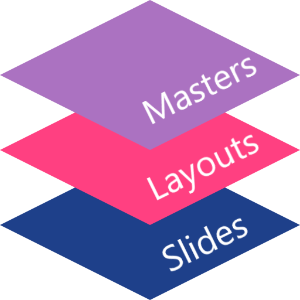
Aspose.Slides에서 슬라이드 마스터는 MasterSlide 클래스로 표현됩니다. 프레젠테이션의 모든 마스터 슬라이드는 Presentation.getMasters 컬렉션을 통해 접근할 수 있으며, 이는 MasterSlideCollection으로 표현됩니다.
Inheritance
여러 수준에서 동일한 속성이 정의된 경우, 더 구체적인 수준이 우선합니다. 예를 들어, 마스터 슬라이드와 레이아웃 슬라이드가 모두 배경을 정의한 경우 해당 레이아웃을 기반으로 하는 슬라이드는 레이아웃 배경을 사용합니다. 레이아웃 슬라이드에 대한 자세한 내용은 Apply or Change Slide Layouts를 참조하세요.슬라이드 마스터 액세스
PowerPoint에서는 보기 > 슬라이드 마스터에서 슬라이드 마스터 보기를 열 수 있습니다.
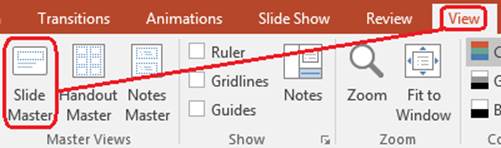
Aspose.Slides에서는 Presentation.getMasters 컬렉션을 사용하여 마스터 슬라이드에 접근합니다:
import jpype
import asposeslides

if not jpype.isJVMStarted():
    jpype.startJVM()

from asposeslides.api import Presentation

presentation = Presentation("presentation.pptx")
try:
    first_master_slide = presentation.getMasters().get_Item(0)
    master_slide_count = presentation.getMasters().size()
    first_master_layout_slide_count = first_master_slide.getLayoutSlides().size()

    print(f"Master slides: {master_slide_count}")
    print(f"Layouts in the first master: {first_master_layout_slide_count}")
finally:
    presentation.dispose()
또한 일반 슬라이드의 레이아웃을 통해 해당 슬라이드가 사용하는 마스터 슬라이드를 얻을 수 있습니다:
import jpype
import asposeslides

if not jpype.isJVMStarted():
    jpype.startJVM()

from asposeslides.api import Presentation

presentation = Presentation("presentation.pptx")
try:
    slide = presentation.getSlides().get_Item(0)
    layout_slide = slide.getLayoutSlide()
    master_slide = layout_slide.getMasterSlide()
    master_slide_name = master_slide.getName()

    print(master_slide_name)
finally:
    presentation.dispose()
슬라이드 마스터에 포함된 내용
마스터 슬라이드는 슬라이드와 유사한 객체입니다. BaseSlide에서 상속되므로 일반 및 레이아웃 슬라이드와 동일한 많은 슬라이드 속성을 노출합니다. 마스터 전용 멤버는 MasterSlide API 페이지에 나열되어 있습니다.
일반적으로 사용되는 마스터 슬라이드 멤버는 다음과 같습니다:
| 멤버 | 용도 |
|---|---|
| getBackground | 마스터 수준 슬라이드 배경을 설정합니다. |
| getShapes | 로고, 그림 프레임, 공유 텍스트 등 마스터에 배치된 도형을 저장합니다. |
| getLayoutSlides | 마스터에 속하는 레이아웃 슬라이드를 저장합니다. |
| getThemeManager | 마스터 테마 API에 대한 액세스를 제공합니다. |
| getHeaderFooterManager | 마스터 및 하위 레이아웃에 대한 머리글, 바닥글, 날짜 및 슬라이드 번호를 제어합니다. |
| getDependingSlides | 레이아웃을 통해 마스터에 의존하는 일반 슬라이드를 반환합니다. |
슬라이드 마스터에 이미지 추가
마스터 슬라이드에 이미지를 추가하면 해당 마스터의 레이아웃을 사용하는 슬라이드에 나타납니다. 이는 로고, 워터마크, 장식 밴드 및 기타 반복 시각 요소에 유용합니다.
다음 예제는 첫 번째 마스터 슬라이드에 로고를 추가합니다:
import jpype
import asposeslides

if not jpype.isJVMStarted():
    jpype.startJVM()

from asposeslides.api import Images, Presentation, SaveFormat, ShapeType

presentation = Presentation("presentation.pptx")
try:
    master_slide = presentation.getMasters().get_Item(0)
    logo = Images.fromFile("logo.png")
    try:
        logo_image = presentation.getImages().addImage(logo)
        master_slide.getShapes().addPictureFrame(ShapeType.Rectangle, 20, 20, 80, 80, logo_image)
    finally:
        logo.dispose()

    presentation.save("presentation-with-logo.pptx", SaveFormat.Pptx)
finally:
    presentation.dispose()
그림 프레임에 대한 자세한 내용은 Picture Frame를 참조하세요.
마스터 그래픽 가시성 제어
BaseSlide.setShowMasterShapes를 사용하여 로고나 장식 도형과 같은 상속된 마스터 그래픽을 삭제하지 않고 숨길 수 있습니다. 해당 그래픽을 제외해야 하는 슬라이드에서는 Slide.setShowMasterShapes에 False를 전달하고, 표시해야 하는 슬라이드에서는 True를 유지합니다.
다음 자체 포함 예제는 마스터에 파란색 장식 밴드를 만들고 동일한 빈 레이아웃을 사용하는 두 슬라이드를 생성합니다. 첫 번째 슬라이드에서는 밴드가 보이고 두 번째 슬라이드에서는 숨겨집니다. 입력 프레젠테이션이나 이미지가 필요하지 않습니다.
import jpype
import asposeslides

if not jpype.isJVMStarted():
    jpype.startJVM()

from asposeslides.api import FillType, Presentation, SaveFormat, ShapeType, SlideLayoutType

Color = jpype.JClass("java.awt.Color")

presentation = Presentation()
try:
    master_slide = presentation.getMasters().get_Item(0)
    layout_slide = master_slide.getLayoutSlides().getByType(SlideLayoutType.Blank)
    layout_slide.setShowMasterShapes(True)

    slide_height = jpype.JFloat(presentation.getSlideSize().getSize().getHeight())
    band = master_slide.getShapes().addAutoShape(ShapeType.Rectangle, 0, 0, 60, slide_height)
    band_color = Color(70, 130, 180)
    band.getFillFormat().setFillType(FillType.Solid)
    band.getFillFormat().getSolidFillColor().setColor(band_color)
    band.getLineFormat().getFillFormat().setFillType(FillType.NoFill)

    visible_slide = presentation.getSlides().get_Item(0)
    visible_slide.setLayoutSlide(layout_slide)
    visible_slide.getShapes().clear()

    hidden_slide = presentation.getSlides().addEmptySlide(layout_slide)

    visible_slide.setShowMasterShapes(True)
    hidden_slide.setShowMasterShapes(False)

    presentation.save("master-graphics.pptx", SaveFormat.Pptx)
finally:
    presentation.dispose()
예제는 새 프레젠테이션에 제공되는 Blank 레이아웃을 사용하고 초기 슬라이드의 자체 자리 표시자를 제거합니다.
설정 범위 선택
일반 슬라이드는 Slide.getLayoutSlide와 LayoutSlide.getMasterSlide를 통해 마스터에 연결됩니다. 개별 슬라이드에 속성을 설정하면 해당 슬라이드에만 영향을 미칩니다. False를 LayoutSlide.setShowMasterShapes에 전달하면 해당 공유 레이아웃을 사용하는 모든 슬라이드에서 마스터 그래픽이 숨겨집니다(자신의 설정이 True여도). 하나의 슬라이드에서만 그래픽을 숨기려면 슬라이드 속성을 변경하고 공유 레이아웃은 그대로 둡니다.
마스터 슬라이드 자체에서는 가시성 제어가 지원되지 않습니다. 마스터에서는 getShowMasterShapes이 항상 False를 반환하고, setShowMasterShapes에 True를 전달하면 예외가 발생합니다. 일반 슬라이드 또는 레이아웃에 적용하세요.
그래픽과 배경 구분
| 작업 | 효과 |
|---|---|
| 마스터 그래픽 숨기기 | 마스터 도형을 삭제하거나 슬라이드 자체 도형을 변경하지 않고 가시성을 제어합니다. |
| 슬라이드 배경 채우기 변경 | 배경 색상, 그라디언트 또는 이미지를 변경합니다. 마스터 그래픽은 별도 도형이므로 해당 배경 위에 그대로 표시될 수 있습니다. 자세한 내용은 Presentation Background를 참조하세요. |
| 마스터에서 도형 삭제 | 공유 소스 도형을 제거하여 해당 마스터를 사용하는 모든 슬라이드에서 더 이상 사용할 수 없게 합니다. |
자리 표시자 작업
자리 표시자는 일반적으로 레이아웃 슬라이드에 정의됩니다. 마스터 슬라이드는 해당 레이아웃이 상속하는 공유 스타일 및 테마를 제공하고, 각 레이아웃은 사용할 수 있는 자리 표시자와 배치를 결정합니다.
PowerPoint에서는 슬라이드 마스터 보기에서 자리 표시자 명령을 사용할 수 있습니다.
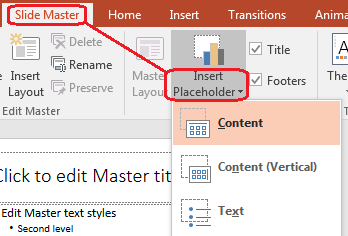
Aspose.Slides에서 새 자리 표시자를 추가하려면 마스터에 속한 레이아웃 슬라이드와 작업합니다:
import jpype
import asposeslides

if not jpype.isJVMStarted():
    jpype.startJVM()

from asposeslides.api import Presentation, SaveFormat, SlideLayoutType

presentation = Presentation("presentation.pptx")
try:
    master_slide = presentation.getMasters().get_Item(0)
    blank_layout_slide = master_slide.getLayoutSlides().getByType(SlideLayoutType.Blank)

    if blank_layout_slide is None:
        blank_layout_slide = master_slide.getLayoutSlides().add(SlideLayoutType.Blank, "Blank")

    blank_layout_slide.getPlaceholderManager().addTextPlaceholder(60, 120, 600, 80)

    presentation.getSlides().addEmptySlide(blank_layout_slide)
    presentation.save("presentation-with-placeholder.pptx", SaveFormat.Pptx)
finally:
    presentation.dispose()
이미 마스터 슬라이드에 존재하는 자리 표시자 도형의 서식도 지정할 수 있습니다. 다음 예제는 제목 자리 표시자를 찾아 선형 그라디언트 채우기를 적용합니다:
import jpype
import asposeslides

if not jpype.isJVMStarted():
    jpype.startJVM()

from asposeslides.api import AutoShape, FillType, GradientShape, PlaceholderType, Presentation, SaveFormat

Color = jpype.JClass("java.awt.Color")

presentation = Presentation("presentation.pptx")
try:
    master_slide = presentation.getMasters().get_Item(0)
    title_placeholder = None

    for shape in master_slide.getShapes():
        if isinstance(shape, AutoShape):
            if shape.getPlaceholder() is not None and shape.getPlaceholder().getType() == PlaceholderType.Title:
                title_placeholder = shape
                break

    if title_placeholder is not None:
        red_gradient_color = Color(255, 0, 0)
        purple_gradient_color = Color(128, 0, 128)

        title_placeholder.getFillFormat().setFillType(FillType.Gradient)
        title_placeholder.getFillFormat().getGradientFormat().setGradientShape(GradientShape.Linear)
        title_placeholder.getFillFormat().getGradientFormat().getGradientStops().add(jpype.JFloat(0.0), red_gradient_color)
        title_placeholder.getFillFormat().getGradientFormat().getGradientStops().add(jpype.JFloat(1.0), purple_gradient_color)

    presentation.save("presentation-title-style.pptx", SaveFormat.Pptx)
finally:
    presentation.dispose()
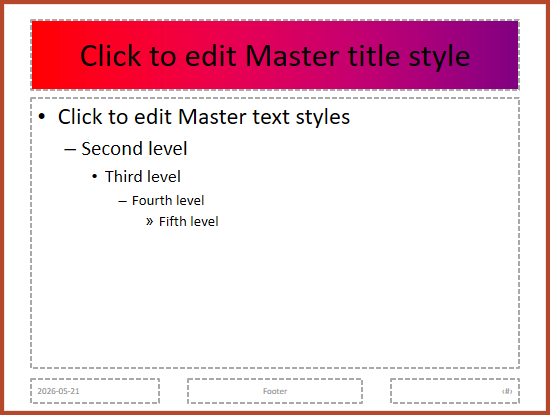
추가 자리 표시자 및 텍스트 서식 옵션은 Set Prompt Text in Placeholder와 Text Formatting을 확인하세요.
슬라이드 마스터 배경 변경
마스터 배경은 레이아웃 및 해당 배경을 재정의하지 않은 슬라이드에 상속됩니다. 다음 예제는 첫 번째 마스터 슬라이드에 단색 배경 색을 설정합니다:
import jpype
import asposeslides

if not jpype.isJVMStarted():
    jpype.startJVM()

from asposeslides.api import BackgroundType, FillType, Presentation, SaveFormat

Color = jpype.JClass("java.awt.Color")

presentation = Presentation("presentation.pptx")
try:
    master_slide = presentation.getMasters().get_Item(0)
    master_background_color = Color.GREEN

    master_slide.getBackground().setType(BackgroundType.OwnBackground)
    master_slide.getBackground().getFillFormat().setFillType(FillType.Solid)
    master_slide.getBackground().getFillFormat().getSolidFillColor().setColor(master_background_color)

    presentation.save("presentation-master-background.pptx", SaveFormat.Pptx)
finally:
    presentation.dispose()
관련 주제는 Presentation Background와 Presentation Theme를 참조하세요.
슬라이드 마스터를 다른 프레젠테이션에 복제
MasterSlideCollection.addClone를 사용하여 마스터 슬라이드를 다른 프레젠테이션에 복사합니다. 복제된 마스터는 대상 프레젠테이션의 레이아웃 및 슬라이드에서 사용할 수 있습니다.
import jpype
import asposeslides

if not jpype.isJVMStarted():
    jpype.startJVM()

from asposeslides.api import Presentation, SaveFormat

source_presentation = Presentation("source.pptx")
destination_presentation = Presentation("destination.pptx")
try:
    source_master_slide = source_presentation.getMasters().get_Item(0)
    cloned_master_slide = destination_presentation.getMasters().addClone(source_master_slide)

    destination_presentation.save("destination-with-master.pptx", SaveFormat.Pptx)
finally:
    source_presentation.dispose()
    destination_presentation.dispose()
마스터와 함께 일반 슬라이드를 복제해야 하는 경우 Clone Slides를 참조하세요.
다중 슬라이드 마스터 추가
프레젠테이션에는 여러 마스터 슬라이드를 포함할 수 있습니다. 이는 섹션마다 다른 브랜딩, 페이지 구조 또는 테마 설정이 필요할 때 유용합니다.
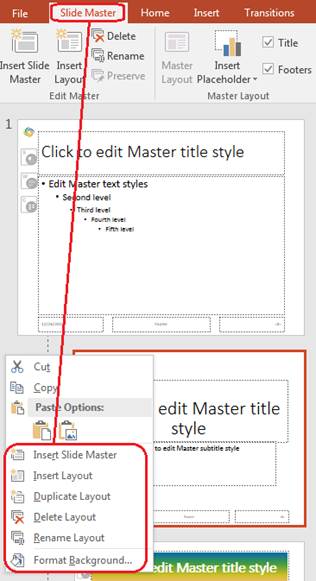
다음 예제는 기본 마스터를 복제하고 복제본에 다른 배경을 지정한 뒤, 해당 복제 마스터 아래에 레이아웃을 만들고 그 레이아웃을 기반으로 새 슬라이드를 추가합니다:
import jpype
import asposeslides

if not jpype.isJVMStarted():
    jpype.startJVM()

from asposeslides.api import BackgroundType, FillType, Presentation, SaveFormat, SlideLayoutType

Color = jpype.JClass("java.awt.Color")

presentation = Presentation("presentation.pptx")
try:
    default_master_slide = presentation.getMasters().get_Item(0)
    section_master_slide = presentation.getMasters().addClone(default_master_slide)
    section_master_background_color = Color.LIGHT_GRAY

    section_master_slide.getBackground().setType(BackgroundType.OwnBackground)
    section_master_slide.getBackground().getFillFormat().setFillType(FillType.Solid)
    section_master_slide.getBackground().getFillFormat().getSolidFillColor().setColor(section_master_background_color)

    source_blank_layout = default_master_slide.getLayoutSlides().getByType(SlideLayoutType.Blank)
    if source_blank_layout is None:
        source_blank_layout = default_master_slide.getLayoutSlides().get_Item(0)

    section_blank_layout = section_master_slide.getLayoutSlides().addClone(source_blank_layout)

    presentation.getSlides().addEmptySlide(section_blank_layout)
    presentation.save("presentation-with-multiple-masters.pptx", SaveFormat.Pptx)
finally:
    presentation.dispose()
슬라이드 마스터 비교
마스터 슬라이드는 BaseSlide에서 상속받은 equals 메서드로 비교할 수 있습니다. 비교는 구조와 정적 콘텐츠(도형, 텍스트, 서식, 애니메이션 및 기타 슬라이드 설정)를 확인합니다. 슬라이드 ID와 같은 고유 식별자 또는 현재 날짜와 같은 동적 자리 표시자 값은 비교하지 않습니다.
import jpype
import asposeslides

if not jpype.isJVMStarted():
    jpype.startJVM()

from asposeslides.api import Presentation

first_presentation = Presentation("first.pptx")
second_presentation = Presentation("second.pptx")
try:
    first_presentation_master_count = first_presentation.getMasters().size()
    second_presentation_master_count = second_presentation.getMasters().size()

    for first_master_index in range(first_presentation_master_count):
        for second_master_index in range(second_presentation_master_count):
            first_master_slide = first_presentation.getMasters().get_Item(first_master_index)
            second_master_slide = second_presentation.getMasters().get_Item(second_master_index)
            are_master_slides_equal = first_master_slide.equals(second_master_slide)

            if are_master_slides_equal:
                print(f"first.pptx master #{first_master_index} equals second.pptx master #{second_master_index}")
finally:
    first_presentation.dispose()
    second_presentation.dispose()
자세한 내용은 Compare Presentation Slides를 확인하세요.
슬라이드 마스터 보기를 기본 보기로 설정
ViewProperties의 setLastView 메서드를 사용하여 PowerPoint가 처음 열 때의 보기를 제어합니다. 다음 예제는 프레젠테이션을 슬라이드 마스터 보기로 엽니다:
import jpype
import asposeslides

if not jpype.isJVMStarted():
    jpype.startJVM()

from asposeslides.api import Presentation, SaveFormat, ViewType

presentation = Presentation("presentation.pptx")
try:
    presentation.getViewProperties().setLastView(ViewType.SlideMasterView)
    presentation.save("presentation-master-view.pptx", SaveFormat.Pptx)
finally:
    presentation.dispose()
추가 보기 설정은 Save Presentation을 참조하세요.
사용되지 않는 마스터 슬라이드 제거
프레젠테이션에 더 이상 일반 슬라이드에서 사용되지 않는 마스터 슬라이드가 포함될 수 있습니다. 사용되지 않는 마스터를 제거하면 파일 크기를 줄이고 템플릿 관리를 단순화할 수 있습니다.
Presentation.getMasters 컬렉션에서 removeUnused를 사용하여 사용되지 않는 마스터를 제거합니다:
import jpype
import asposeslides

if not jpype.isJVMStarted():
    jpype.startJVM()

from asposeslides.api import Presentation, SaveFormat

presentation = Presentation("presentation.pptx")
try:
    presentation.getMasters().removeUnused(True)
    presentation.save("presentation-clean.pptx", SaveFormat.Pptx)
finally:
    presentation.dispose()
또한 저코드 Compress.removeUnusedMasterSlides 메서드를 사용할 수 있습니다:
import jpype
import asposeslides

if not jpype.isJVMStarted():
    jpype.startJVM()

from asposeslides.api import Compress, Presentation, SaveFormat

presentation = Presentation("presentation.pptx")
try:
    Compress.removeUnusedMasterSlides(presentation)
    presentation.save("presentation-clean.pptx", SaveFormat.Pptx)
finally:
    presentation.dispose()
FAQ
슬라이드 마스터와 레이아웃 슬라이드의 차이점은 무엇인가요?
슬라이드 마스터는 테마, 배경, 공통 도형 및 텍스트 스타일과 같은 공유 디자인 설정을 정의합니다. 레이아웃 슬라이드는 마스터 슬라이드에 속하며 자리 표시자의 특정 배치를 정의합니다. 일반 슬라이드는 레이아웃 슬라이드를 사용하므로 레이아웃과 마스터 모두로부터 상속받습니다.
하나의 프레젠테이션에 여러 슬라이드 마스터를 포함할 수 있나요?
예. 프레젠테이션에 여러 슬라이드 마스터를 포함할 수 있습니다. 섹션마다 다른 시각 시스템이나 브랜딩이 필요할 때 여러 마스터를 사용하세요.
자리 표시자를 마스터 슬라이드에 추가해야 하나요, 레이아웃 슬라이드에 추가해야 하나요?
대부분의 경우 레이아웃 슬라이드에 자리 표시자를 추가합니다. 공유 시각 요소와 공유 서식은 마스터 슬라이드에 두고, 일반 슬라이드에서 사용할 내용 자리 표시자는 레이아웃에 배치합니다.
여전히 사용 중인 마스터 슬라이드를 삭제할 수 있나요?
아니요. 종속 슬라이드가 있는 마스터 슬라이드는 직접 안전하게 제거할 수 없습니다. 먼저 해당 슬라이드를 다른 마스터의 레이아웃으로 이동하거나 사용되지 않는 마스터만 제거하는 정리 방법을 사용하세요.