
จัดการสไลด์มาสเตอร์ของการนำเสนอใน Python ผ่าน Java
ภาพรวม
Slide master กำหนดการตั้งค่าการออกแบบที่ใช้ร่วมกันสำหรับกลุ่มสไลด์ สามารถมีรูปทรงโลโก้พื้นหลังสไตล์ข้อความ การตั้งค่าธีม และการตั้งค่าฝั่งล่างได้ ใน PowerPoint การแก้ไข slide master เป็นวิธีปกติเพื่อให้การนำเสนอมีความสอดคล้องโดยไม่ต้องทำรูปแบบซ้ำบนแต่ละสไลด์
Aspose.Slides for Python via Java รองรับโมเดลเดียวกัน การนำเสนอสามารถมี slide master หนึ่งชุดหรือหลายชุด และแต่ละ slide master สามารถมี layout slide หลายชุด สไลด์ปกติจะไม่อ้างอิง slide master โดยตรง แต่จะใช้ layout slide ซึ่ง layout slide นั้นเป็นของ slide master
ลำดับชั้นคือ
- Slide master – กำหนดการออกแบบและธีมที่ใช้ร่วมกัน
- Layout slide – กำหนดการจัดเรียง placeholder และรูปแบบระดับ layout
- Normal slide – มีเนื้อหาจริงของการนำเสนอและใช้ layout slide หนึ่งชุด
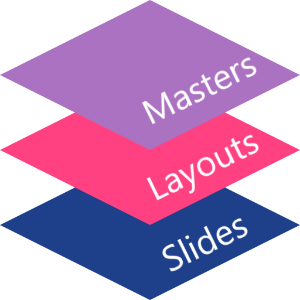
ใน Aspose.Slides slide master แทนด้วยคลาส MasterSlide ทั้งหมดที่อยู่ในการนำเสนอสามารถเข้าถึงได้ผ่านคอลเลกชัน Presentation.getMasters ซึ่งเป็นประเภท MasterSlideCollection.
การสืบทอด
เมื่อคุณสมบัติเช่นเดียวกันถูกกำหนดที่หลายระดับ ระดับที่เจาะจงมากกว่าจะชนะ ตัวอย่างเช่น หาก master slide และ layout slide ทั้งสองกำหนดพื้นหลัง สไลด์ที่อิงจาก layout นั้นจะใช้พื้นหลังของ layout สำหรับข้อมูลเพิ่มเติมเกี่ยวกับ layout slide ดู Apply or Change Slide Layouts.เข้าถึง Slide Masters
ใน PowerPoint คุณสามารถเปิดมุมมอง Slide Master ได้จาก View > Slide Master.
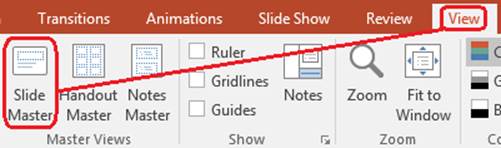
ใน Aspose.Slides ใช้คอลเลกชัน Presentation.getMasters เพื่อเข้าถึง master slide:
import jpype
import asposeslides

if not jpype.isJVMStarted():
    jpype.startJVM()

from asposeslides.api import Presentation

presentation = Presentation("presentation.pptx")
try:
    first_master_slide = presentation.getMasters().get_Item(0)
    master_slide_count = presentation.getMasters().size()
    first_master_layout_slide_count = first_master_slide.getLayoutSlides().size()

    print(f"Master slides: {master_slide_count}")
    print(f"Layouts in the first master: {first_master_layout_slide_count}")
finally:
    presentation.dispose()
คุณยังสามารถรับ master slide ที่ใช้โดยสไลด์ปกติผ่าน layout ของสไลด์นั้นได้เช่นกัน:
import jpype
import asposeslides

if not jpype.isJVMStarted():
    jpype.startJVM()

from asposeslides.api import Presentation

presentation = Presentation("presentation.pptx")
try:
    slide = presentation.getSlides().get_Item(0)
    layout_slide = slide.getLayoutSlide()
    master_slide = layout_slide.getMasterSlide()
    master_slide_name = master_slide.getName()

    print(master_slide_name)
finally:
    presentation.dispose()
สิ่งที่ Slide Master มีอยู่
master slide เป็นอ็อบเจกต์คล้ายสไลด์ มันสืบทอดจาก BaseSlide ดังนั้นจึงเปิดเผยคุณสมบัติของสไลด์หลายอย่างที่ใช้โดยสไลด์ปกติและ layout slide สมาชิกเฉพาะของ master ถูกระบุในหน้า API ของ MasterSlide
สมาชิก master slide ที่ใช้บ่อย ได้แก่
| สมาชิก | จุดประสงค์ |
|---|---|
| getBackground | ตั้งค่าพื้นหลังระดับ master |
| getShapes | เก็บรูปทรงที่วางบน master เช่น โลโก้ กรอบภาพ และข้อความที่ใช้ร่วมกัน |
| getLayoutSlides | เก็บ layout slide ที่เป็นของ master |
| getThemeManager | ให้เข้าถึง API ธีมของ master |
| getHeaderFooterManager | ควบคุมส่วนหัว ส่วนล่าง วันที่ และหมายเลขสไลด์สำหรับ master และ layout ลูก |
| getDependingSlides | คืนค่าสไลด์ปกติที่พึ่งพา master ผ่าน layout ของมัน |
เพิ่มรูปภาพลงใน Slide Master
เมื่อคุณเพิ่มรูปภาพลงใน master slide จะปรากฏบนสไลด์ที่ใช้ layout จาก master นั้น สิ่งนี้มีประโยชน์สำหรับโลโก้, ลายน้ำ, แถบตกแต่ง, และองค์ประกอบภาพที่ต้องทำซ้ำ
ตัวอย่างต่อไปนี้เพิ่มโลโก้ลงใน master slide แรก:
import jpype
import asposeslides

if not jpype.isJVMStarted():
    jpype.startJVM()

from asposeslides.api import Images, Presentation, SaveFormat, ShapeType

presentation = Presentation("presentation.pptx")
try:
    master_slide = presentation.getMasters().get_Item(0)
    logo = Images.fromFile("logo.png")
    try:
        logo_image = presentation.getImages().addImage(logo)
        master_slide.getShapes().addPictureFrame(ShapeType.Rectangle, 20, 20, 80, 80, logo_image)
    finally:
        logo.dispose()

    presentation.save("presentation-with-logo.pptx", SaveFormat.Pptx)
finally:
    presentation.dispose()
สำหรับข้อมูลเพิ่มเติมเกี่ยวกับกรอบภาพ ดู Picture Frame.
ควบคุมการแสดงผลกราฟิกของ Master
ใช้ BaseSlide.setShowMasterShapes เพื่อซ่อนกราฟิกที่สืบทอดจาก master เช่น โลโก้หรือรูปทรงตกแต่งโดยไม่ต้องลบออกจาก master ส่งค่า False ไปยัง Slide.setShowMasterShapes บนสไลด์ที่ต้องการซ่อนกราฟิกนั้น และให้ค่า True บนสไลด์ที่ต้องการแสดง
ตัวอย่างต่อไปนี้สร้างแถบตกแต่งสีน้ำเงินบน master และสไลด์สองสไลด์ที่ใช้ layout เปล่าเดียวกัน แถบจะมองเห็นบนสไลด์แรกและซ่อนบนสไลด์ที่สอง ไม่ต้องใช้การนำเข้าการนำเสนอหรือรูปภาพใด ๆ
import jpype
import asposeslides

if not jpype.isJVMStarted():
    jpype.startJVM()

from asposeslides.api import FillType, Presentation, SaveFormat, ShapeType, SlideLayoutType

Color = jpype.JClass("java.awt.Color")

presentation = Presentation()
try:
    master_slide = presentation.getMasters().get_Item(0)
    layout_slide = master_slide.getLayoutSlides().getByType(SlideLayoutType.Blank)
    layout_slide.setShowMasterShapes(True)

    slide_height = jpype.JFloat(presentation.getSlideSize().getSize().getHeight())
    band = master_slide.getShapes().addAutoShape(ShapeType.Rectangle, 0, 0, 60, slide_height)
    band_color = Color(70, 130, 180)
    band.getFillFormat().setFillType(FillType.Solid)
    band.getFillFormat().getSolidFillColor().setColor(band_color)
    band.getLineFormat().getFillFormat().setFillType(FillType.NoFill)

    visible_slide = presentation.getSlides().get_Item(0)
    visible_slide.setLayoutSlide(layout_slide)
    visible_slide.getShapes().clear()

    hidden_slide = presentation.getSlides().addEmptySlide(layout_slide)

    visible_slide.setShowMasterShapes(True)
    hidden_slide.setShowMasterShapes(False)

    presentation.save("master-graphics.pptx", SaveFormat.Pptx)
finally:
    presentation.dispose()
ตัวอย่างใช้ layout Blank ที่มาพร้อมกับการสร้างการนำเสนอใหม่และลบ placeholder ของสไลด์แรกออก
เลือกขอบเขตของการตั้งค่า
สไลด์ปกติใช้ master ผ่าน Slide.getLayoutSlide และ LayoutSlide.getMasterSlide การตั้งค่าคุณสมบัติบนสไลด์เดี่ยวส่งผลต่อสไลด์นั้นเท่านั้น การส่งค่า False ไปยัง LayoutSlide.setShowMasterShapes จะซ่อนกราฟิกของ master สำหรับสไลด์ที่ใช้ layout นั้น แม้การตั้งค่าของสไลด์เองจะเป็น True ก็ตาม หากต้องการซ่อนกราฟิกบนสไลด์เดียว ให้เปลี่ยนคุณสมบัติของสไลด์นั้นและคง layout ร่วมไว้ตามเดิม
การตั้งค่านี้ไม่รองรับเป็นการควบคุมการมองเห็นบน master slide เอง บน master, getShowMasterShapes จะคืนค่า False เสมอและการส่งค่า True ไปยัง setShowMasterShapes จะทำให้เกิดข้อยกเว้น โปรดลองใช้กับสไลด์ปกติหรือ layout แทน
แยกกราฟิกจากพื้นหลัง
| การดำเนินการ | ผลลัพธ์ |
|---|---|
| ซ่อนกราฟิกของ master | ควบคุมการมองเห็นรูปทรงที่สืบทอดจาก master โดยไม่ลบหรือเปลี่ยนแปลงรูปทรงของสไลด์เอง |
| เปลี่ยนการเติมสีพื้นหลังของสไลด์ | เปลี่ยนสี, ไล่ระดับสี หรือรูปภาพพื้นหลัง รูปร่างของ master ยังคงอยู่เหนือพื้นหลังนั้น ดู Presentation Background |
| ลบรูปทรงจาก master | ลบรูปทรงต้นฉบับที่ใช้ร่วมกัน ทำให้สไลด์ใด ๆ ที่อ้างอิง master นั้นไม่สามารถใช้รูปทรงนั้นได้อีก |
ทำงานกับ Placeholder
Placeholder มักถูกกำหนดบน layout slide master ให้สไตล์และธีมร่วมที่ layout สืบทอดมา ส่วนแต่ละ layout จะตัดสินใจว่า placeholder ใดพร้อมใช้งานและวางไว้ที่ไหน
ใน PowerPoint คำสั่ง placeholder จะอยู่ในมุมมอง Slide Master
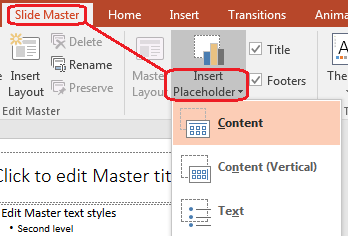
เพื่อเพิ่ม placeholder ใหม่ด้วย Aspose.Slides ทำงานกับ layout slide ที่เป็นของ master:
import jpype
import asposeslides

if not jpype.isJVMStarted():
    jpype.startJVM()

from asposeslides.api import Presentation, SaveFormat, SlideLayoutType

presentation = Presentation("presentation.pptx")
try:
    master_slide = presentation.getMasters().get_Item(0)
    blank_layout_slide = master_slide.getLayoutSlides().getByType(SlideLayoutType.Blank)

    if blank_layout_slide is None:
        blank_layout_slide = master_slide.getLayoutSlides().add(SlideLayoutType.Blank, "Blank")

    blank_layout_slide.getPlaceholderManager().addTextPlaceholder(60, 120, 600, 80)

    presentation.getSlides().addEmptySlide(blank_layout_slide)
    presentation.save("presentation-with-placeholder.pptx", SaveFormat.Pptx)
finally:
    presentation.dispose()
คุณยังสามารถจัดรูปแบบรูปทรง placeholder ที่มีอยู่บน master slide ได้ ตัวอย่างต่อไปค้นหา placeholder ของหัวเรื่องและใส่การเติมสีไลเนียร์ไล่ระดับ:
import jpype
import asposeslides

if not jpype.isJVMStarted():
    jpype.startJVM()

from asposeslides.api import AutoShape, FillType, GradientShape, PlaceholderType, Presentation, SaveFormat

Color = jpype.JClass("java.awt.Color")

presentation = Presentation("presentation.pptx")
try:
    master_slide = presentation.getMasters().get_Item(0)
    title_placeholder = None

    for shape in master_slide.getShapes():
        if isinstance(shape, AutoShape):
            if shape.getPlaceholder() is not None and shape.getPlaceholder().getType() == PlaceholderType.Title:
                title_placeholder = shape
                break

    if title_placeholder is not None:
        red_gradient_color = Color(255, 0, 0)
        purple_gradient_color = Color(128, 0, 128)

        title_placeholder.getFillFormat().setFillType(FillType.Gradient)
        title_placeholder.getFillFormat().getGradientFormat().setGradientShape(GradientShape.Linear)
        title_placeholder.getFillFormat().getGradientFormat().getGradientStops().add(jpype.JFloat(0.0), red_gradient_color)
        title_placeholder.getFillFormat().getGradientFormat().getGradientStops().add(jpype.JFloat(1.0), purple_gradient_color)

    presentation.save("presentation-title-style.pptx", SaveFormat.Pptx)
finally:
    presentation.dispose()
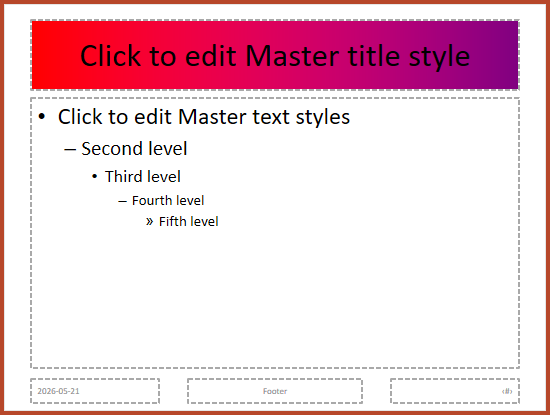
สำหรับตัวเลือกการจัดรูปแบบ placeholder และข้อความเพิ่มเติม ดู Set Prompt Text in Placeholder และ Text Formatting.
เปลี่ยนพื้นหลังของ Slide Master
พื้นหลังของ master จะสืบทอดไปยัง layout และสไลด์ที่ไม่ได้ทำการทับซ้อน ตัวอย่างต่อไปตั้งค่าสีพื้นหลังแบบทึบสำหรับ master slide แรก:
import jpype
import asposeslides

if not jpype.isJVMStarted():
    jpype.startJVM()

from asposeslides.api import BackgroundType, FillType, Presentation, SaveFormat

Color = jpype.JClass("java.awt.Color")

presentation = Presentation("presentation.pptx")
try:
    master_slide = presentation.getMasters().get_Item(0)
    master_background_color = Color.GREEN

    master_slide.getBackground().setType(BackgroundType.OwnBackground)
    master_slide.getBackground().getFillFormat().setFillType(FillType.Solid)
    master_slide.getBackground().getFillFormat().getSolidFillColor().setColor(master_background_color)

    presentation.save("presentation-master-background.pptx", SaveFormat.Pptx)
finally:
    presentation.dispose()
หัวข้อที่เกี่ยวข้อง ดู Presentation Background และ Presentation Theme.
คัดลอก Slide Master ไปยังการนำเสนออื่น
ใช้ MasterSlideCollection.addClone เพื่อคัดลอก master slide ไปยังการนำเสนออื่น master ที่คัดลอกแล้วสามารถใช้โดย layout และสไลด์ในเป้าหมายได้
import jpype
import asposeslides

if not jpype.isJVMStarted():
    jpype.startJVM()

from asposeslides.api import Presentation, SaveFormat

source_presentation = Presentation("source.pptx")
destination_presentation = Presentation("destination.pptx")
try:
    source_master_slide = source_presentation.getMasters().get_Item(0)
    cloned_master_slide = destination_presentation.getMasters().addClone(source_master_slide)

    destination_presentation.save("destination-with-master.pptx", SaveFormat.Pptx)
finally:
    source_presentation.dispose()
    destination_presentation.dispose()
หากต้องการคัดลอกสไลด์ปกติพร้อมกับ master ของมัน ดู Clone Slides.
เพิ่ม Slide Masters หลายตัว
การนำเสนอสามารถมี master slide หลายตัวได้ ซึ่งเป็นประโยชน์เมื่อส่วนต่าง ๆ ต้องการแบรนด์, โครงสร้างหน้า หรือการตั้งค่าธีมที่แตกต่างกัน
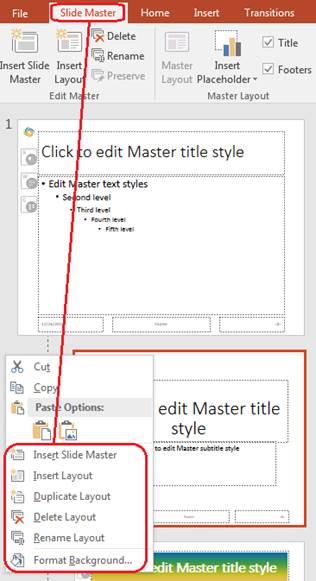
ตัวอย่างต่อไปคัดลอก master เริ่มต้น ให้คัดลอกมีพื้นหลังต่างกัน สร้าง layout ภายใต้ master ที่คัดลอกแล้ว และเพิ่มสไลด์ใหม่ที่อิงจาก layout นั้น:
import jpype
import asposeslides

if not jpype.isJVMStarted():
    jpype.startJVM()

from asposeslides.api import BackgroundType, FillType, Presentation, SaveFormat, SlideLayoutType

Color = jpype.JClass("java.awt.Color")

presentation = Presentation("presentation.pptx")
try:
    default_master_slide = presentation.getMasters().get_Item(0)
    section_master_slide = presentation.getMasters().addClone(default_master_slide)
    section_master_background_color = Color.LIGHT_GRAY

    section_master_slide.getBackground().setType(BackgroundType.OwnBackground)
    section_master_slide.getBackground().getFillFormat().setFillType(FillType.Solid)
    section_master_slide.getBackground().getFillFormat().getSolidFillColor().setColor(section_master_background_color)

    source_blank_layout = default_master_slide.getLayoutSlides().getByType(SlideLayoutType.Blank)
    if source_blank_layout is None:
        source_blank_layout = default_master_slide.getLayoutSlides().get_Item(0)

    section_blank_layout = section_master_slide.getLayoutSlides().addClone(source_blank_layout)

    presentation.getSlides().addEmptySlide(section_blank_layout)
    presentation.save("presentation-with-multiple-masters.pptx", SaveFormat.Pptx)
finally:
    presentation.dispose()
เปรียบเทียบ Slide Masters
master slide สามารถเปรียบเทียบด้วยเมธอด equals ที่สืบทอดจาก BaseSlide การเปรียบเทียบตรวจสอบโครงสร้างและเนื้อหาแบบคงที่ เช่น รูปร่าง, ข้อความ, การจัดรูปแบบ, การเคลื่อนไหวและการตั้งค่าอื่น ๆ ของสไลด์ ไม่ได้ตรวจสอบตัวระบุเฉพาะเช่น slide ID หรือค่าตัวแปร placeholder ที่เปลี่ยนแปลงเช่น วันที่ปัจจุบัน
import jpype
import asposeslides

if not jpype.isJVMStarted():
    jpype.startJVM()

from asposeslides.api import Presentation

first_presentation = Presentation("first.pptx")
second_presentation = Presentation("second.pptx")
try:
    first_presentation_master_count = first_presentation.getMasters().size()
    second_presentation_master_count = second_presentation.getMasters().size()

    for first_master_index in range(first_presentation_master_count):
        for second_master_index in range(second_presentation_master_count):
            first_master_slide = first_presentation.getMasters().get_Item(first_master_index)
            second_master_slide = second_presentation.getMasters().get_Item(second_master_index)
            are_master_slides_equal = first_master_slide.equals(second_master_slide)

            if are_master_slides_equal:
                print(f"first.pptx master #{first_master_index} equals second.pptx master #{second_master_index}")
finally:
    first_presentation.dispose()
    second_presentation.dispose()
ข้อมูลเพิ่มเติม ดู Compare Presentation Slides.
ตั้งค่า Slide Master View ให้เป็นมุมมองเริ่มต้น
ใช้เมธอด setLastView บน ViewProperties เพื่อควบคุมมุมมองที่ PowerPoint เปิดเป็นอันดับแรก ตัวอย่างต่อไปเปิดการนำเสนอในมุมมอง Slide Master
import jpype
import asposeslides

if not jpype.isJVMStarted():
    jpype.startJVM()

from asposeslides.api import Presentation, SaveFormat, ViewType

presentation = Presentation("presentation.pptx")
try:
    presentation.getViewProperties().setLastView(ViewType.SlideMasterView)
    presentation.save("presentation-master-view.pptx", SaveFormat.Pptx)
finally:
    presentation.dispose()
สำหรับการตั้งค่ามุมมองอื่น ๆ ดู Save Presentation.
ลบ Master Slides ที่ไม่ได้ใช้
บางครั้งการนำเสนออาจมี master slide ที่ไม่มีสไลด์ปกติใดอ้างอิง การลบ master ที่ไม่ได้ใช้ช่วยลดขนาดไฟล์และทำให้การดูแลเทมเพลตง่ายขึ้น
ใช้เมธอด removeUnused เพื่อลบ master ที่ไม่ได้ใช้จากคอลเลกชัน Presentation.getMasters:
import jpype
import asposeslides

if not jpype.isJVMStarted():
    jpype.startJVM()

from asposeslides.api import Presentation, SaveFormat

presentation = Presentation("presentation.pptx")
try:
    presentation.getMasters().removeUnused(True)
    presentation.save("presentation-clean.pptx", SaveFormat.Pptx)
finally:
    presentation.dispose()
คุณยังสามารถใช้เมธอด low‑code Compress.removeUnusedMasterSlides ได้เช่นกัน
import jpype
import asposeslides

if not jpype.isJVMStarted():
    jpype.startJVM()

from asposeslides.api import Compress, Presentation, SaveFormat

presentation = Presentation("presentation.pptx")
try:
    Compress.removeUnusedMasterSlides(presentation)
    presentation.save("presentation-clean.pptx", SaveFormat.Pptx)
finally:
    presentation.dispose()
คำถามที่พบบ่อย
ความแตกต่างระหว่าง slide master กับ layout slide คืออะไร?
Slide master กำหนดการตั้งค่าออกแบบที่ใช้ร่วมกัน เช่น ธีม, พื้นหลัง, รูปทรงทั่วไปและสไตล์ข้อความ Layout slide เป็นส่วนของ master และกำหนดการจัดเรียง placeholder เฉพาะ สไลด์ปกติใช้ layout slide จึงสืบทอดทั้งจาก layout และ master
การนำเสนอหนึ่งอาจมีหลาย slide master ได้หรือไม่?
ได้ การนำเสนอสามารถมีหลาย slide master ได้ ใช้หลาย master เมื่อส่วนต่าง ๆ ต้องการระบบภาพหรือแบรนด์ที่แตกต่างกัน
ควรเพิ่ม placeholder ไปที่ master slide หรือ layout slide?
ในส่วนใหญ่ให้เพิ่ม placeholder ไปที่ layout slide ใส่องค์ประกอบภาพและการจัดรูปแบบร่วมบน master slide แล้วใส่ placeholder ของเนื้อหาบน layout ที่สไลด์ปกติจะใช้
สามารถลบ master slide ที่ยังถูกใช้งานอยู่ได้หรือไม่?
ไม่ได้ หาก master slide มีสไลด์ที่พึ่งพาอยู่ ไม่สามารถลบได้โดยตรง ควรย้ายสไลด์เหล่านั้นไปยัง layout ของ master อื่น หรือใช้วิธีทำความสะอาด master ที่ไม่ได้ใช้เท่านั้น.