
프레젠테이션에서 Python을 사용한 글머리 기호 및 번호 매기기 목록 관리
개요
Aspose.Slides for Python via .NET를 사용하면 PowerPoint 및 OpenDocument 프레젠테이션에서 글머리 기호 및 번호 매기기 목록을 만들고 서식 지정할 수 있습니다. 목록 항목은 글머리 기호 설정이 해당 단락 형식을 통해 제어되는 단락입니다.
단락 수준 목록 설정에 액세스하려면 Paragraph.paragraph_format 속성을 사용합니다. 주요 진입점은 ParagraphFormat.bullet이며, 이는 BulletFormat 객체를 반환합니다. 이 객체를 사용하여 글머리 기호 유형, 기호, 그림, 색상, 크기, 번호 매기기 스타일 및 시작 번호를 설정할 수 있습니다.
이 문서에서는 다음을 보여줍니다.
- 사용자 정의 기호를 사용한 글머리 기호 목록 만들기
- 그림 글머리 기호 만들기
- 단락 깊이를 설정하여 다단계 목록 만들기
- 번호 매기기 목록 만들기
- 기존 프레젠테이션에서 목록 서식을 검사하고 변경하기
글머리 기호 목록 만들기
글머리 기호 목록을 만들려면 Paragraph 객체를 TextFrame에 추가하고 BulletFormat.type을 BulletType.SYMBOL으로 설정합니다. 그런 다음 BulletFormat.char, BulletFormat.color, BulletFormat.height을 설정하여 글머리 기호 모양을 제어할 수 있습니다.
다음 Python 코드에서는 슬라이드에 글머리 기호 목록을 만드는 방법을 보여줍니다:
import aspose.slides as slides
import aspose.pydrawing as draw

def create_paragraph(text):
    paragraph = slides.Paragraph()
    paragraph.paragraph_format.bullet.type = slides.BulletType.SYMBOL
    paragraph.paragraph_format.bullet.char = '*'
    paragraph.paragraph_format.indent = 15
    paragraph.paragraph_format.bullet.is_bullet_hard_color = slides.NullableBool.TRUE
    paragraph.paragraph_format.bullet.color.color = draw.Color.indian_red
    paragraph.paragraph_format.bullet.height = 100
    paragraph.text = text
    return paragraph


with slides.Presentation() as presentation:
    slide = presentation.slides[0]
    auto_shape = slide.shapes.add_auto_shape(slides.ShapeType.RECTANGLE, 20, 20, 200, 50)

    text_frame = auto_shape.text_frame
    text_frame.paragraphs.clear()

    paragraph1 = create_paragraph("The first paragraph")
    text_frame.paragraphs.add(paragraph1)

    paragraph2 = create_paragraph("The second paragraph")
    text_frame.paragraphs.add(paragraph2)

    presentation.save("symbol_bullets.pptx", slides.export.SaveFormat.PPTX)
결과:

번호 매기기 목록 만들기
항목 순서가 중요한 경우 번호 매기기 목록을 사용합니다. BulletFormat.type을 BulletType.NUMBERED으로 설정합니다. 또한 BulletFormat.numbered_bullet_style으로 번호 매기기 형식을 선택하거나 목록이 1이 아닌 값에서 시작해야 할 경우 BulletFormat.numbered_bullet_start_with을 설정할 수 있습니다.
다음 Python 코드는 슬라이드에 번호 매기기 목록을 만드는 방법을 보여줍니다:
import aspose.slides as slides

with slides.Presentation() as presentation:
    slide = presentation.slides[0]
    auto_shape = slide.shapes.add_auto_shape(slides.ShapeType.RECTANGLE, 20, 20, 90, 80)

    text_frame = auto_shape.text_frame
    text_frame.paragraphs.clear()

    paragraph1 = slides.Paragraph()
    paragraph1.paragraph_format.bullet.type = slides.BulletType.NUMBERED
    paragraph1.text = "Apple"
    text_frame.paragraphs.add(paragraph1)

    paragraph2 = slides.Paragraph()
    paragraph2.paragraph_format.bullet.type = slides.BulletType.NUMBERED
    paragraph2.text = "Orange"
    text_frame.paragraphs.add(paragraph2)

    paragraph3 = slides.Paragraph()
    paragraph3.paragraph_format.bullet.type = slides.BulletType.NUMBERED
    paragraph3.text = "Banana"
    text_frame.paragraphs.add(paragraph3)

    presentation.save("numbered_bullets.pptx", slides.export.SaveFormat.PPTX)
결과:
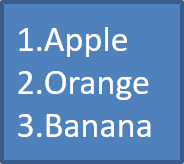
그림 글머리 기호 만들기
Aspose.Slides를 사용하면 일반 글머리 기호 기호를 이미지로 교체할 수 있습니다. 그림 글머리 기호는 작은 크기에서도 읽기 쉬운 간단한 이미지(아이콘 또는 배경이 투명한 작은 PNG 파일 등)와 가장 잘 어울립니다.
가능하면 일반 글머리 기호를 이미지로 교체할 경우 배경이 투명한 간단한 그래픽을 선택하는 것이 가장 좋습니다. 이러한 이미지는 사용자 정의 글머리 기호 기호로 잘 작동합니다.
이미지가 매우 작은 크기로 축소된다는 점을 기억하십시오. 따라서 목록에서 글머리 기호로 사용할 때도 선명하고 시각적으로 효과적인 이미지를 선택하는 것이 좋습니다.
그림 글머리 기호를 만들려면 Presentation.images에 이미지를 추가하고 반환된 이미지 객체를 BulletFormat.picture에 할당합니다. 이미지를 할당하기 전에 BulletFormat.type을 BulletType.PICTURE으로 설정합니다.
예를 들어 “image.png"가 있다고 가정하면:

다음 Python 코드는 슬라이드에 그림 글머리 기호를 만드는 방법을 보여줍니다:
import aspose.slides as slides

def create_paragraph(text, image):
    paragraph = slides.Paragraph()
    paragraph.paragraph_format.bullet.type = slides.BulletType.PICTURE
    paragraph.paragraph_format.bullet.picture.image = image
    paragraph.paragraph_format.indent = 15
    paragraph.paragraph_format.bullet.height = 100
    paragraph.text = text
    return paragraph


with slides.Presentation() as presentation:
    slide = presentation.slides[0]
    auto_shape = slide.shapes.add_auto_shape(slides.ShapeType.RECTANGLE, 20, 20, 200, 50)

    text_frame = auto_shape.text_frame
    text_frame.paragraphs.clear()

    with open("image.png", "rb") as image_stream:
        bullet_image = presentation.images.add_image(image_stream)

    paragraph1 = create_paragraph("The first paragraph", bullet_image)
    text_frame.paragraphs.add(paragraph1)

    paragraph2 = create_paragraph("The second paragraph", bullet_image)
    text_frame.paragraphs.add(paragraph2)

    presentation.save("picture_bullets.pptx", slides.export.SaveFormat.PPTX)
결과:

다단계 목록 만들기
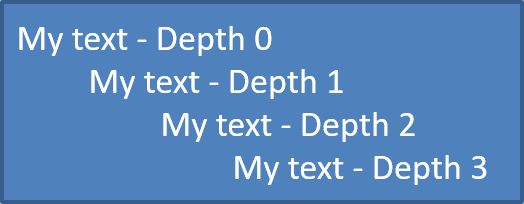
ParagraphFormat.depth를 사용하여 목록 항목을 서로 다른 수준에 배치합니다. 레벨 0은 최상위 수준이며, 레벨 1은 그 아래에 중첩됩니다.
다음 Python 코드는 다단계 글머리 기호 목록을 만드는 방법을 보여줍니다:
import aspose.slides as slides

with slides.Presentation() as presentation:
    slide = presentation.slides[0]
    auto_shape = slide.shapes.add_auto_shape(slides.ShapeType.RECTANGLE, 20, 20, 260, 110)

    text_frame = auto_shape.text_frame
    text_frame.paragraphs.clear()

    paragraph1 = slides.Paragraph()
    paragraph1.paragraph_format.depth = 0
    paragraph1.text = "My text - Depth 0"
    text_frame.paragraphs.add(paragraph1)

    paragraph2 = slides.Paragraph()
    paragraph2.paragraph_format.depth = 1
    paragraph2.text = "My text - Depth 1"
    text_frame.paragraphs.add(paragraph2)

    paragraph3 = slides.Paragraph()
    paragraph3.paragraph_format.depth = 2
    paragraph3.text = "My text - Depth 2"
    text_frame.paragraphs.add(paragraph3)

    paragraph4 = slides.Paragraph()
    paragraph4.paragraph_format.depth = 3
    paragraph4.text = "My text - Depth 3"
    text_frame.paragraphs.add(paragraph4)

    presentation.save("multilevel_bullets.pptx", slides.export.SaveFormat.PPTX)
결과:
기존 목록 변경
기존 프레젠테이션에서 목록 서식을 변경하려면 대상 단락에 액세스하고 해당 ParagraphFormat.bullet 설정을 업데이트합니다. 목록을 만들 때 사용한 동일한 속성을 사용하여 PPT, PPTX 또는 ODP 파일에서 로드한 목록을 검사하거나 수정할 수 있습니다.
다음 Python 코드는 텍스트 프레임의 첫 번째 단락을 번호 매기기 목록 스타일로 변경합니다:
import aspose.slides as slides

with slides.Presentation("input.pptx") as presentation:
    slide = presentation.slides[0]
    auto_shape = slide.shapes[0]
    paragraph = auto_shape.text_frame.paragraphs[0]

    paragraph.paragraph_format.bullet.type = slides.BulletType.NUMBERED
    paragraph.paragraph_format.bullet.numbered_bullet_style = slides.NumberedBulletStyle.BULLET_ROMAN_UC_PERIOD
    paragraph.paragraph_format.bullet.numbered_bullet_start_with = 1
    paragraph.paragraph_format.margin_left = 30
    paragraph.paragraph_format.indent = -20

    presentation.save("updated_list.pptx", slides.export.SaveFormat.PPTX)
FAQ
글머리 기호 및 번호 매기기 목록을 PDF 또는 이미지로 내보낼 수 있나요?
예. Aspose.Slides는 대상 형식이 해당 텍스트 레이아웃 및 글머리 기호 기능을 지원하는 경우 목록 서식을 보존합니다.
기존 프레젠테이션에서 목록을 편집할 수 있나요?
예. 프레젠테이션을 로드하고 대상 단락에 액세스한 다음 ParagraphFormat.bullet 설정을 검사하거나 업데이트한 뒤 프레젠테이션을 저장하면 됩니다.
목록에 비라틴 문자(Non-Latin 텍스트)를 포함할 수 있나요?
예. 목록 항목 텍스트는 유니코드 문자를 포함할 수 있으므로 다국어 프레젠테이션에서 목록을 만들 수 있습니다. 프레젠테이션에서 사용하는 글꼴이 필요한 문자를 지원하는지 확인하십시오.