
จัดการรายการหัวข้อสัญลักษณ์และลำดับเลขในงานนำเสนอด้วย Python
ภาพรวม
Aspose.Slides for Python via .NET ช่วยให้คุณสร้างและจัดรูปแบบรายการหัวข้อสัญลักษณ์และรายการลำดับเลขในงานนำเสนอ PowerPoint และ OpenDocument รายการหนึ่งคือย่อหน้าที่การตั้งค่าหัวข้อสัญลักษณ์ถูกควบคุมผ่านรูปแบบของย่อหน้า
ใช้คุณสมบัติ Paragraph.paragraph_format เพื่อเข้าถึงการตั้งค่ารายการระดับย่อหน้า จุดเริ่มต้นหลักคือ ParagraphFormat.bullet, ซึ่งคืนค่าออบเจกต์ BulletFormat ด้วยออบเจกต์นี้คุณสามารถตั้งค่าชนิดของหัวข้อสัญลักษณ์, สัญลักษณ์, รูปภาพ, สี, ขนาด, รูปแบบการจัดลำดับเลข, และหมายเลขเริ่มต้นได้
บทความนี้แสดงวิธีการ:
- สร้างรายการหัวข้อสัญลักษณ์ด้วยสัญลักษณ์กำหนดเอง
- สร้างหัวข้อสัญลักษณ์รูปภาพ
- สร้างรายการหลายระดับโดยกำหนดความลึกของย่อหน้า
- สร้างรายการลำดับเลข
- ตรวจสอบและเปลี่ยนรูปแบบรายการในงานนำเสนอที่มีอยู่
สร้างรายการหัวข้อสัญลักษณ์
เพื่อสร้างรายการหัวข้อสัญลักษณ์, เพิ่มออบเจกต์ Paragraph ไปยัง TextFrame และตั้งค่า BulletFormat.type เป็น BulletType.SYMBOL. จากนั้นคุณสามารถตั้งค่า BulletFormat.char, BulletFormat.color, และ BulletFormat.height เพื่อควบคุมลักษณะของหัวข้อสัญลักษณ์
โค้ด Python ต่อไปนี้สาธิตวิธีสร้างรายการหัวข้อสัญลักษณ์ในสไลด์:
import aspose.slides as slides
import aspose.pydrawing as draw

def create_paragraph(text):
    paragraph = slides.Paragraph()
    paragraph.paragraph_format.bullet.type = slides.BulletType.SYMBOL
    paragraph.paragraph_format.bullet.char = '*'
    paragraph.paragraph_format.indent = 15
    paragraph.paragraph_format.bullet.is_bullet_hard_color = slides.NullableBool.TRUE
    paragraph.paragraph_format.bullet.color.color = draw.Color.indian_red
    paragraph.paragraph_format.bullet.height = 100
    paragraph.text = text
    return paragraph


with slides.Presentation() as presentation:
    slide = presentation.slides[0]
    auto_shape = slide.shapes.add_auto_shape(slides.ShapeType.RECTANGLE, 20, 20, 200, 50)

    text_frame = auto_shape.text_frame
    text_frame.paragraphs.clear()

    paragraph1 = create_paragraph("The first paragraph")
    text_frame.paragraphs.add(paragraph1)

    paragraph2 = create_paragraph("The second paragraph")
    text_frame.paragraphs.add(paragraph2)

    presentation.save("symbol_bullets.pptx", slides.export.SaveFormat.PPTX)
ผลลัพธ์:

สร้างรายการลำดับเลข
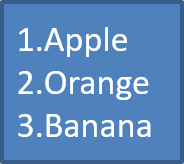
ใช้รายการลำดับเลขเมื่อลำดับของรายการมีความสำคัญ ตั้งค่า BulletFormat.type เป็น BulletType.NUMBERED. คุณยังสามารถเลือกรูปแบบการจัดลำดับด้วย BulletFormat.numbered_bullet_style หรือกำหนดค่าเริ่มต้นด้วย BulletFormat.numbered_bullet_start_with เมื่อรายการควรเริ่มจากค่าที่ไม่ใช่ 1
โค้ด Python ต่อไปนี้แสดงวิธีสร้างรายการลำดับเลขในสไลด์:
import aspose.slides as slides

with slides.Presentation() as presentation:
    slide = presentation.slides[0]
    auto_shape = slide.shapes.add_auto_shape(slides.ShapeType.RECTANGLE, 20, 20, 90, 80)

    text_frame = auto_shape.text_frame
    text_frame.paragraphs.clear()

    paragraph1 = slides.Paragraph()
    paragraph1.paragraph_format.bullet.type = slides.BulletType.NUMBERED
    paragraph1.text = "Apple"
    text_frame.paragraphs.add(paragraph1)

    paragraph2 = slides.Paragraph()
    paragraph2.paragraph_format.bullet.type = slides.BulletType.NUMBERED
    paragraph2.text = "Orange"
    text_frame.paragraphs.add(paragraph2)

    paragraph3 = slides.Paragraph()
    paragraph3.paragraph_format.bullet.type = slides.BulletType.NUMBERED
    paragraph3.text = "Banana"
    text_frame.paragraphs.add(paragraph3)

    presentation.save("numbered_bullets.pptx", slides.export.SaveFormat.PPTX)
ผลลัพธ์:
สร้างหัวข้อสัญลักษณ์รูปภาพ
Aspose.Slides อนุญาตให้คุณแทนที่สัญลักษณ์หัวข้อสัญลักษณ์ทั่วไปด้วยรูปภาพ หัวข้อสัญลักษณ์รูปภาพทำงานดีที่สุดกับภาพที่เรียบง่ายและยังคงอ่านได้เมื่อขนาดเล็ก เช่น ไอคอนหรือไฟล์ PNG โปร่งใสขนาดเล็ก
โดยแนวคิด, หากคุณวางแผนจะแทนที่สัญลักษณ์หัวข้อสัญลักษณ์ทั่วไปด้วยรูปภาพ ควรเลือกกราฟิกเรียบง่ายที่มีพื้นหลังโปร่งใส ภาพเช่นนี้ทำงานดีเป็นสัญลักษณ์หัวข้อสัญลักษณ์แบบกำหนดเอง
ควรจำไว้ว่าภาพจะถูกย่อขนาดลงเป็นขนาดเล็กมาก ด้วยเหตุนี้เราขอแนะนำให้เลือกภาพที่ยังคงชัดเจนและมีประสิทธิภาพเชิงภาพเมื่อใช้เป็นหัวข้อสัญลักษณ์ในรายการ
เพื่อสร้างหัวข้อสัญลักษณ์รูปภาพ, เพิ่มรูปภาพไปยัง Presentation.images และกำหนดออบเจกต์ภาพที่คืนค่ามาให้กับ BulletFormat.picture. ตั้งค่า BulletFormat.type เป็น BulletType.PICTURE ก่อนการกำหนดภาพ
สมมติว่าเรามีไฟล์ “image.png”:

โค้ด Python ต่อไปนี้แสดงวิธีสร้างหัวข้อสัญลักษณ์รูปภาพในสไลด์:
import aspose.slides as slides

def create_paragraph(text, image):
    paragraph = slides.Paragraph()
    paragraph.paragraph_format.bullet.type = slides.BulletType.PICTURE
    paragraph.paragraph_format.bullet.picture.image = image
    paragraph.paragraph_format.indent = 15
    paragraph.paragraph_format.bullet.height = 100
    paragraph.text = text
    return paragraph


with slides.Presentation() as presentation:
    slide = presentation.slides[0]
    auto_shape = slide.shapes.add_auto_shape(slides.ShapeType.RECTANGLE, 20, 20, 200, 50)

    text_frame = auto_shape.text_frame
    text_frame.paragraphs.clear()

    with open("image.png", "rb") as image_stream:
        bullet_image = presentation.images.add_image(image_stream)

    paragraph1 = create_paragraph("The first paragraph", bullet_image)
    text_frame.paragraphs.add(paragraph1)

    paragraph2 = create_paragraph("The second paragraph", bullet_image)
    text_frame.paragraphs.add(paragraph2)

    presentation.save("picture_bullets.pptx", slides.export.SaveFormat.PPTX)
ผลลัพธ์:

สร้างรายการหลายระดับ
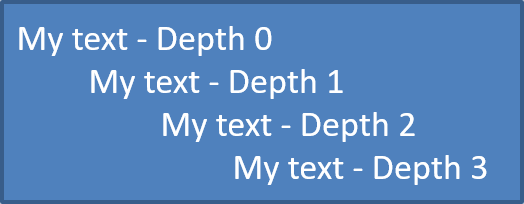
ใช้ ParagraphFormat.depth เพื่อวางรายการบนระดับต่าง ๆ ระดับ 0 คือระดับบนสุด ระดับ 1 คือระดับย่อยใต้ระดับนั้น และต่อไป
import aspose.slides as slides

with slides.Presentation() as presentation:
    slide = presentation.slides[0]
    auto_shape = slide.shapes.add_auto_shape(slides.ShapeType.RECTANGLE, 20, 20, 260, 110)

    text_frame = auto_shape.text_frame
    text_frame.paragraphs.clear()

    paragraph1 = slides.Paragraph()
    paragraph1.paragraph_format.depth = 0
    paragraph1.text = "My text - Depth 0"
    text_frame.paragraphs.add(paragraph1)

    paragraph2 = slides.Paragraph()
    paragraph2.paragraph_format.depth = 1
    paragraph2.text = "My text - Depth 1"
    text_frame.paragraphs.add(paragraph2)

    paragraph3 = slides.Paragraph()
    paragraph3.paragraph_format.depth = 2
    paragraph3.text = "My text - Depth 2"
    text_frame.paragraphs.add(paragraph3)

    paragraph4 = slides.Paragraph()
    paragraph4.paragraph_format.depth = 3
    paragraph4.text = "My text - Depth 3"
    text_frame.paragraphs.add(paragraph4)

    presentation.save("multilevel_bullets.pptx", slides.export.SaveFormat.PPTX)
ผลลัพธ์:
เปลี่ยนรายการที่มีอยู่
เพื่อเปลี่ยนรูปแบบรายการในงานนำเสนอที่มีอยู่, เข้าถึงย่อหน้าเป้าหมายและอัปเดตการตั้งค่า ParagraphFormat.bullet เดียวกันกับที่ใช้สร้างรายการสามารถใช้เพื่อตรวจสอบหรือแก้ไขรายการที่โหลดจากไฟล์ PPT, PPTX, หรือ ODP
import aspose.slides as slides

with slides.Presentation("input.pptx") as presentation:
    slide = presentation.slides[0]
    auto_shape = slide.shapes[0]
    paragraph = auto_shape.text_frame.paragraphs[0]

    paragraph.paragraph_format.bullet.type = slides.BulletType.NUMBERED
    paragraph.paragraph_format.bullet.numbered_bullet_style = slides.NumberedBulletStyle.BULLET_ROMAN_UC_PERIOD
    paragraph.paragraph_format.bullet.numbered_bullet_start_with = 1
    paragraph.paragraph_format.margin_left = 30
    paragraph.paragraph_format.indent = -20

    presentation.save("updated_list.pptx", slides.export.SaveFormat.PPTX)
คำถามที่พบบ่อย
สามารถส่งออกรายการหัวข้อสัญลักษณ์และรายการลำดับเลขเป็น PDF หรือรูปภาพได้หรือไม่?
ใช่. Aspose.Slides รักษารูปแบบรายการเมื่อรูปแบบเป้าหมายรองรับการจัดวางข้อความและคุณสมบัติหัวข้อสัญลักษณ์ที่สอดคล้องกัน
ฉันสามารถแก้ไขรายการในงานนำเสนอที่มีอยู่ได้หรือไม่?
ใช่. โหลดงานนำเสนอ, เข้าถึงย่อหน้าเป้าหมาย, ตรวจสอบหรืออัปเดตการตั้งค่า ParagraphFormat.bullet แล้วบันทึกงานนำเสนอ
รายการสามารถมีข้อความที่ไม่ใช่ละตินได้หรือไม่?
ใช่. ข้อความของรายการสามารถมีอักขระ Unicode ได้ ดังนั้นคุณสามารถสร้างรายการในงานนำเสนอหลายภาษา ตรวจสอบให้แน่ใจว่าแบบอักษรที่ใช้ในงานนำเสนอรองรับอักขระที่คุณต้องการ