
Định dạng văn bản trình chiếu trên Android
Tổng quan
Bài viết này mô tả cách định dạng văn bản trong các bản trình chiếu PowerPoint và OpenDocument bằng Aspose.Slides cho Android thông qua Java. Nội dung bao gồm màu nền, độ trong suốt, khoảng cách ký tự, thuộc tính phông chữ, xoay, khoảng cách đoạn, hành vi tự động điều chỉnh kích thước, neo văn bản, tab stops và cài đặt ngôn ngữ.
Trừ khi có ghi chú ngược lại, các ví dụ sử dụng sample.pptx. Hình dạng đầu tiên trên slide đầu tiên là một textbox, và đoạn văn đầu tiên chứa văn bản được hiển thị bên dưới. Cả chỉ số slide và hình dạng đều bắt đầu từ 0. Các ví dụ chọn phần in đậm sử dụng định dạng hiệu quả, bao gồm cả định dạng in đậm kế thừa:

Để tìm và làm nổi bật văn bản nguyên bản hoặc các khớp biểu thức chính quy, xem Tìm kiếm và thay thế văn bản.
Đặt màu nền cho văn bản
Sử dụng IParagraphFormat.getDefaultPortionFormat để đặt màu nền mặc định cho một đoạn, hoặc sử dụng IBasePortionFormat.getHighlightColor cho các phần văn bản riêng lẻ.
Ví dụ sau đặt nền sáng xám làm màu nền mặc định cho đoạn đầu tiên. Màu nền riêng lẻ trên các phần văn bản sẽ ưu tiên hơn mặc định này:
import com.aspose.slides.*;
import android.graphics.Color;

Presentation presentation = new Presentation("sample.pptx");
try {
    ISlide slide = presentation.getSlides().get_Item(0);

    IAutoShape autoShape = (IAutoShape)slide.getShapes().get_Item(0);
    IParagraph paragraph = autoShape.getTextFrame().getParagraphs().get_Item(0);

    // Đặt màu nền cho toàn bộ đoạn.
    paragraph.getParagraphFormat().getDefaultPortionFormat().getHighlightColor().setColor(Color.LTGRAY);

    presentation.save("gray_paragraph.pptx", SaveFormat.Pptx);
} finally {
    presentation.dispose();
}
Kết quả:

Đoạn mã dưới đây minh họa cách đặt màu nền cho các phần văn bản có phông chữ in đậm:
import com.aspose.slides.*;
import android.graphics.Color;

Presentation presentation = new Presentation("sample.pptx");
try {
    ISlide slide = presentation.getSlides().get_Item(0);

    IAutoShape autoShape = (IAutoShape)slide.getShapes().get_Item(0);
    IParagraph paragraph = autoShape.getTextFrame().getParagraphs().get_Item(0);

    for (IPortion portion : paragraph.getPortions()) {
        if (portion.getPortionFormat().getEffective().getFontBold()) {
            // Đặt màu nền cho phần văn bản.
            portion.getPortionFormat().getHighlightColor().setColor(Color.LTGRAY);
        }
    }

    presentation.save("gray_text_portions.pptx", SaveFormat.Pptx);
} finally {
    presentation.dispose();
}
Kết quả:

Canh chỉnh các đoạn văn bản
Sử dụng IParagraphFormat.setAlignment để đặt căn chỉnh đoạn trong một khung văn bản. Giá trị có thể là căn giữa, căn lề trái, căn lề phải, căn đều, v.v.
Ví dụ sau hiển thị cách căn đoạn ở giữa:
import com.aspose.slides.*;

Presentation presentation = new Presentation("sample.pptx");
try {
    ISlide slide = presentation.getSlides().get_Item(0);

    IAutoShape autoShape = (IAutoShape)slide.getShapes().get_Item(0);
    IParagraph paragraph = autoShape.getTextFrame().getParagraphs().get_Item(0);

    // Đặt căn chỉnh của đoạn thành trung tâm.
    paragraph.getParagraphFormat().setAlignment(TextAlignment.Center);

    presentation.save("aligned_paragraph.pptx", SaveFormat.Pptx);
} finally {
    presentation.dispose();
}
Kết quả:

Canh chỉnh phông chữ trong một dòng
Sử dụng IParagraphFormat.setFontAlignment để căn dọc các phần văn bản có kích thước phông khác nhau trong một dòng. Cài đặt này áp dụng cho toàn bộ đoạn và kiểm soát căn chỉnh trong mỗi dòng của đoạn.
Ví dụ tự chứa dưới đây tạo bốn textbox có nhãn trên một slide. Mỗi đoạn chứa cùng một văn bản với kích thước 18, 36 và 54 điểm, với căn chỉnh phông chữ khác nhau. Nó sử dụng Arial, tắt tự động điều chỉnh kích thước và ngắt dòng, và giữ khung văn bản đủ lớn cho một dòng.
import com.aspose.slides.*;
import android.graphics.Color;

Presentation presentation = new Presentation();
try {
    ISlide slide = presentation.getSlides().get_Item(0);

    int[] alignments = { FontAlignment.Baseline, FontAlignment.Top, FontAlignment.Center, FontAlignment.Bottom };
    String[] alignmentNames = { "Baseline", "Top", "Center", "Bottom" };
    float[] fontSizes = { 18f, 36f, 54f };

    for (int i = 0; i < alignments.length; i++) {
        IAutoShape shape = slide.getShapes().addAutoShape(ShapeType.Rectangle, 30, 20 + i * 130, 660, 120);
        shape.getFillFormat().setFillType(FillType.NoFill);
        shape.getLineFormat().getFillFormat().setFillType(FillType.NoFill);

        ITextFrame textFrame = shape.getTextFrame();
        textFrame.getTextFrameFormat().setAnchoringType(TextAnchorType.Top);
        textFrame.getTextFrameFormat().setAutofitType(TextAutofitType.None);
        textFrame.getTextFrameFormat().setWrapText(NullableBool.False);

        IParagraph label = textFrame.getParagraphs().get_Item(0);
        label.setText(alignmentNames[i]);
        label.getParagraphFormat().setAlignment(TextAlignment.Left);
        label.getParagraphFormat().getDefaultPortionFormat().setFontHeight(14);
        label.getParagraphFormat().getDefaultPortionFormat().setLatinFont(new FontData("Arial"));
        label.getParagraphFormat().getDefaultPortionFormat().getFillFormat().setFillType(FillType.Solid);
        label.getParagraphFormat().getDefaultPortionFormat().getFillFormat().getSolidFillColor().setColor(Color.GRAY);

        Paragraph paragraph = new Paragraph();
        paragraph.getParagraphFormat().setFontAlignment(alignments[i]);
        paragraph.getParagraphFormat().setAlignment(TextAlignment.Left);
        paragraph.getParagraphFormat().getDefaultPortionFormat().setLatinFont(new FontData("Arial"));
        paragraph.getParagraphFormat().getDefaultPortionFormat().getFillFormat().setFillType(FillType.Solid);
        paragraph.getParagraphFormat().getDefaultPortionFormat().getFillFormat().getSolidFillColor().setColor(Color.BLACK);

        for (float fontSize : fontSizes) {
            Portion portion = new Portion("Ag ");
            portion.getPortionFormat().setFontHeight(fontSize);
            paragraph.getPortions().add(portion);
        }

        textFrame.getParagraphs().add(paragraph);
    }

    presentation.save("font_alignment.pptx", SaveFormat.Pptx);
} finally {
    presentation.dispose();
}
Kết quả:
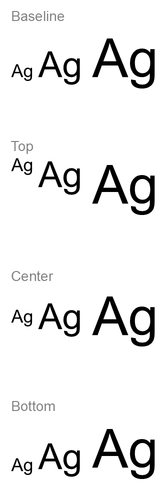
Căn chỉnh phông chữ dựa trên các chỉ số phông, do đó các cạnh hiển thị của các ký tự riêng lẻ không nhất thiết phải khít nhau hoàn toàn. Ví dụ bao gồm cả ký tự in hoa và một ký tự có phần thẳng đứng để giúp hiển thị sự khác biệt giữa căn baseline và căn dưới. Sự khả dụng và thay thế phông, các ký tự được dùng và sự chênh lệch kích thước phông ảnh hưởng đến kết quả. Kích thước khung, lề, khoảng cách dòng, ngắt dòng và tự động điều chỉnh kích thước cũng ảnh hưởng tới bố cục; hãy dùng cùng phông và cài đặt bố cục khi so sánh các chế độ.
Cài đặt này khác với IParagraphFormat.setAlignment, cái kiểm soát căn chỉnh ngang của đoạn, và ITextFrameFormat.setAnchoringType, cái định vị khối văn bản theo chiều dọc trong hình dạng. Định dạng chỉ số trên IBasePortionFormat.setEscapement dịch chuyển các phần riêng lẻ so với baseline thay vì đặt căn chỉnh phông cho các dòng của đoạn.
Đặt độ trong suốt cho văn bản
Độ trong suốt văn bản được điều khiển qua thành phần alpha của màu được gán cho IBasePortionFormat.getFillFormat. Trong các ví dụ dưới đây, alpha = 50 là giá trị kênh alpha ARGB trên thang 0–255, không phải là phần trăm độ trong suốt.
Ví dụ mã dưới đây cho thấy cách áp dụng độ trong suốt cho toàn bộ đoạn:
import com.aspose.slides.*;
import android.graphics.Color;

int alpha = 50;

Presentation presentation = new Presentation("sample.pptx");
try {
    ISlide slide = presentation.getSlides().get_Item(0);

    IAutoShape autoShape = (IAutoShape)slide.getShapes().get_Item(0);
    IParagraph paragraph = autoShape.getTextFrame().getParagraphs().get_Item(0);

    // Đặt màu nền của văn bản thành màu trong suốt.
    paragraph.getParagraphFormat().getDefaultPortionFormat().getFillFormat().setFillType(FillType.Solid);
    paragraph.getParagraphFormat().getDefaultPortionFormat().getFillFormat().getSolidFillColor().setColor(Color.argb(alpha, 0, 0, 0));

    presentation.save("transparent_paragraph.pptx", SaveFormat.Pptx);
} finally {
    presentation.dispose();
}
Kết quả:

Ví dụ mã sau áp dụng độ trong suốt cho các phần văn bản có phông chữ in đậm:
import com.aspose.slides.*;
import android.graphics.Color;

int alpha = 50;

Presentation presentation = new Presentation("sample.pptx");
try {
    ISlide slide = presentation.getSlides().get_Item(0);

    IAutoShape autoShape = (IAutoShape)slide.getShapes().get_Item(0);
    IParagraph paragraph = autoShape.getTextFrame().getParagraphs().get_Item(0);

    for (IPortion portion : paragraph.getPortions()) {
        if (portion.getPortionFormat().getEffective().getFontBold()) {
            // Đặt độ trong suốt của phần văn bản.
            portion.getPortionFormat().getFillFormat().setFillType(FillType.Solid);
            portion.getPortionFormat().getFillFormat().getSolidFillColor().setColor(Color.argb(alpha, 0, 0, 0));
        }
    }

    presentation.save("transparent_text_portions.pptx", SaveFormat.Pptx);
} finally {
    presentation.dispose();
}
Kết quả:

Đặt khoảng cách ký tự cho văn bản
Sử dụng IBasePortionFormat.setSpacing để mở rộng hoặc thu hẹp khoảng cách giữa các ký tự trong một textbox. Các ví dụ thêm 3 điểm khoảng cách; giá trị âm sẽ thu hẹp văn bản.
Java code sau mở rộng khoảng cách ký tự trong toàn bộ đoạn:
import com.aspose.slides.*;

Presentation presentation = new Presentation("sample.pptx");
try {
    ISlide slide = presentation.getSlides().get_Item(0);

    IAutoShape autoShape = (IAutoShape)slide.getShapes().get_Item(0);
    IParagraph paragraph = autoShape.getTextFrame().getParagraphs().get_Item(0);

    // Lưu ý: Sử dụng giá trị âm để nén khoảng cách ký tự.
    paragraph.getParagraphFormat().getDefaultPortionFormat().setSpacing(3); // Mở rộng khoảng cách ký tự.

    presentation.save("character_spacing_in_paragraph.pptx", SaveFormat.Pptx);
} finally {
    presentation.dispose();
}
Kết quả:

Ví dụ mã dưới đây mở rộng khoảng cách ký tự trong các phần văn bản có phông chữ in đậm:
import com.aspose.slides.*;

Presentation presentation = new Presentation("sample.pptx");
try {
    ISlide slide = presentation.getSlides().get_Item(0);

    IAutoShape autoShape = (IAutoShape)slide.getShapes().get_Item(0);
    IParagraph paragraph = autoShape.getTextFrame().getParagraphs().get_Item(0);

    for (IPortion portion : paragraph.getPortions()) {
        if (portion.getPortionFormat().getEffective().getFontBold()) {
            // Lưu ý: Sử dụng giá trị âm để nén khoảng cách ký tự.
            portion.getPortionFormat().setSpacing(3); // Mở rộng khoảng cách ký tự.
        }
    }

    presentation.save("character_spacing_in_text_portions.pptx", SaveFormat.Pptx);
} finally {
    presentation.dispose();
}
Kết quả:

Tắt kerning cho các phông chữ cụ thể
Trong một số trường hợp, văn bản do Aspose.Slides hiển thị có thể hơi chặt hơn so với cùng văn bản trong PowerPoint. Điều này có thể xảy ra vì PowerPoint có thể bỏ qua dữ liệu kerning cho một số phông, ngay cả khi phông chứa thông tin kerning hợp lệ và kerning được bật trong cài đặt PowerPoint.
Để làm cho đầu ra được render gần hơn với PowerPoint trong những trường hợp này, bạn có thể tắt kerning cho các phần văn bản sử dụng phông bị ảnh hưởng. Đặt IBasePortionFormat.setKerningMinimalSize thành giá trị lớn hơn kích thước phông thực tế. Ví dụ này yêu cầu “presentation.pptx” với một textbox là hình dạng đầu tiên trên slide đầu tiên. Nó kiểm tra tên phông hiệu quả, bao gồm cả phông kế thừa, và đặt ngưỡng 100 điểm cho các phần sử dụng Roboto. Điều này tắt kerning cho các phần phù hợp có kích thước phông dưới 100 điểm:
import com.aspose.slides.*;

Presentation presentation = new Presentation("presentation.pptx");
try {
    ISlide slide = presentation.getSlides().get_Item(0);

    IAutoShape autoShape = (IAutoShape)slide.getShapes().get_Item(0);
    String targetFont = "Roboto";

    for (IParagraph paragraph : autoShape.getTextFrame().getParagraphs()) {
        for (IPortion portion : paragraph.getPortions()) {
            IPortionFormatEffectiveData portionFormat = portion.getPortionFormat().getEffective();

            if ((portionFormat.getLatinFont() != null &&
                 portionFormat.getLatinFont().getFontName().equals(targetFont)) ||
                (portionFormat.getEastAsianFont() != null &&
                 portionFormat.getEastAsianFont().getFontName().equals(targetFont)) ||
                (portionFormat.getComplexScriptFont() != null &&
                 portionFormat.getComplexScriptFont().getFontName().equals(targetFont))) {
                portion.getPortionFormat().setKerningMinimalSize(100);
            }
        }
    }

    presentation.save("output.pptx", SaveFormat.Pptx);
} finally {
    presentation.dispose();
}
Đối với văn bản phù hợp dưới ngưỡng, cài đặt này ngăn kerning và có thể giúp căn chỉnh việc render của Aspose.Slides với kết quả hình ảnh của PowerPoint đối với các phông bị ảnh hưởng bởi hành vi đặc thù của PowerPoint này.
Quản lý thuộc tính phông chữ của văn bản
Thuộc tính phông chữ có thể được đặt ở mức đoạn thông qua IParagraphFormat.getDefaultPortionFormat hoặc trên các phần riêng lẻ thông qua IPortionFormat.
Ví dụ dưới đặt phông mặc định cho đoạn đầu tiên thành Times New Roman 12 điểm với định dạng in đậm, nghiêng và gạch dưới chấm. Định dạng riêng lẻ trên các phần sẽ ưu tiên hơn các mặc định này:
import com.aspose.slides.*;

Presentation presentation = new Presentation("sample.pptx");
try {
    ISlide slide = presentation.getSlides().get_Item(0);

    IAutoShape autoShape = (IAutoShape)slide.getShapes().get_Item(0);
    IParagraph paragraph = autoShape.getTextFrame().getParagraphs().get_Item(0);

    // Đặt thuộc tính phông cho đoạn.
    paragraph.getParagraphFormat().getDefaultPortionFormat().setFontHeight(12);
    paragraph.getParagraphFormat().getDefaultPortionFormat().setFontBold(NullableBool.True);
    paragraph.getParagraphFormat().getDefaultPortionFormat().setFontItalic(NullableBool.True);
    paragraph.getParagraphFormat().getDefaultPortionFormat().setFontUnderline(TextUnderlineType.Dotted);
    paragraph.getParagraphFormat().getDefaultPortionFormat().setLatinFont(new FontData("Times New Roman"));

    presentation.save("font_properties_for_paragraph.pptx", SaveFormat.Pptx);
} finally {
    presentation.dispose();
}
Kết quả:

Ví dụ sau áp dụng Times New Roman 13 điểm, định dạng nghiêng và gạch dưới chấm cho các phần có định dạng hiệu quả là in đậm:
import com.aspose.slides.*;

Presentation presentation = new Presentation("sample.pptx");
try {
    ISlide slide = presentation.getSlides().get_Item(0);

    IAutoShape autoShape = (IAutoShape)slide.getShapes().get_Item(0);
    IParagraph paragraph = autoShape.getTextFrame().getParagraphs().get_Item(0);

    for (IPortion portion : paragraph.getPortions()) {
        if (portion.getPortionFormat().getEffective().getFontBold()) {
            // Đặt thuộc tính phông cho phần văn bản.
            portion.getPortionFormat().setFontHeight(13);
            portion.getPortionFormat().setFontItalic(NullableBool.True);
            portion.getPortionFormat().setFontUnderline(TextUnderlineType.Dotted);
            portion.getPortionFormat().setLatinFont(new FontData("Times New Roman"));
        }
    }

    presentation.save("font_properties_for_text_portions.pptx", SaveFormat.Pptx);
} finally {
    presentation.dispose();
}
Kết quả:

Đặt xoay cho văn bản
Sử dụng ITextFrameFormat.setTextVerticalType để đặt hướng văn bản cố định trong một hình dạng.
Đoạn mã sau đặt hướng văn bản trong hình dạng thành TextVerticalType.Vertical270, khiến văn bản quay 90 độ ngược chiều kim đồng hồ:
import com.aspose.slides.*;

Presentation presentation = new Presentation("sample.pptx");
try {
    ISlide slide = presentation.getSlides().get_Item(0);

    IAutoShape autoShape = (IAutoShape)slide.getShapes().get_Item(0);
    autoShape.getTextFrame().getTextFrameFormat().setTextVerticalType(TextVerticalType.Vertical270);

    presentation.save("text_rotation.pptx", SaveFormat.Pptx);
} finally {
    presentation.dispose();
}
Kết quả:

Đặt xoay tùy chỉnh cho các khung văn bản
Sử dụng ITextFrameFormat.setRotationAngle để đặt góc xoay tùy chỉnh cho một ITextFrame.
Đoạn mã dưới xoay khung văn bản 3 độ theo chiều kim đồng hồ trong hình dạng:
import com.aspose.slides.*;

Presentation presentation = new Presentation("sample.pptx");
try {
    ISlide slide = presentation.getSlides().get_Item(0);

    IAutoShape autoShape = (IAutoShape)slide.getShapes().get_Item(0);
    autoShape.getTextFrame().getTextFrameFormat().setRotationAngle(3);

    presentation.save("custom_text_rotation.pptx", SaveFormat.Pptx);
} finally {
    presentation.dispose();
}
Kết quả:

Đặt khoảng cách dòng cho các đoạn
Aspose.Slides cung cấp IParagraphFormat.setSpaceAfter, IParagraphFormat.setSpaceBefore và IParagraphFormat.setSpaceWithin để kiểm soát khoảng cách đoạn. Các thuộc tính này được sử dụng như sau:
- Sử dụng giá trị dương để chỉ định khoảng cách dòng dưới dạng phần trăm chiều cao dòng.
- Sử dụng giá trị âm để chỉ định khoảng cách dòng bằng điểm.
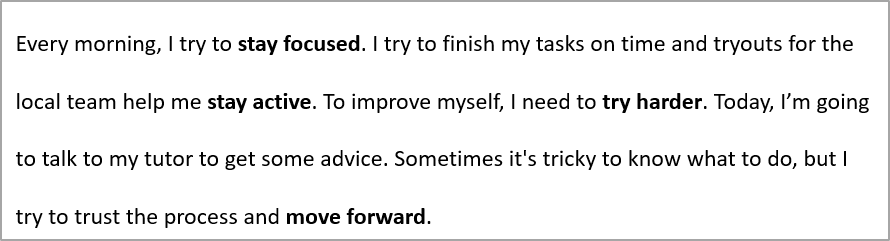
Ví dụ sau đặt khoảng cách trong đoạn đầu tiên thành 200 % chiều cao dòng (gấp đôi):
import com.aspose.slides.*;

Presentation presentation = new Presentation("sample.pptx");
try {
    ISlide slide = presentation.getSlides().get_Item(0);

    IAutoShape autoShape = (IAutoShape)slide.getShapes().get_Item(0);

    IParagraph paragraph = autoShape.getTextFrame().getParagraphs().get_Item(0);
    paragraph.getParagraphFormat().setSpaceWithin(200);

    presentation.save("line_spacing.pptx", SaveFormat.Pptx);
} finally {
    presentation.dispose();
}
Kết quả:
Kiểm soát ngắt dòng
Các quy tắc ngắt dòng của đoạn hữu ích trong các khối văn bản hẹp và các bài thuyết trình hỗn hợp tiếng Latinh và Đông Á. Các phương thức sau thuộc về IParagraphFormat, do đó áp dụng cho toàn đoạn:
- setLatinLineBreak kiểm soát quy tắc ngắt dòng cho tiếng Latinh. Trong văn bản hỗn hợp, việc thay đổi nó cũng có thể thay đổi vị trí ngắt của văn bản và dấu câu Đông Á liền kề.
- setEastAsianLineBreak kiểm soát quy tắc ngắt dòng cho Đông Á, bao gồm các hạn chế về ký tự ở đầu và cuối dòng.
Các quy tắc này không thay thế ITextFrameFormat.setWrapText, cái cho phép tự động ngắt dòng trong một khung văn bản. Chúng ảnh hưởng tới bố cục khi ngắt dòng xảy ra; chúng không chèn ký tự ngắt dòng. Một ký tự ngắt dòng rõ ràng sẽ buộc tạo dòng mới trong đoạn bất kể độ rộng sẵn có.
Ví dụ tự chứa dưới đây tạo một khối văn bản hẹp chứa tiếng Trung và tiếng Latinh. Nó đặt cả hai tùy chọn ngắt dòng một cách rõ ràng và lưu “line_breaking.pptx”. Để thử nghiệm từng quy tắc, thay đổi giá trị tương ứng trong khi giữ các cài đặt còn lại cố định. Ví dụ sử dụng Arial 24 điểm và SimSun với chiều rộng khung 160 điểm và lề khung văn bản ngang bằng 0. ITextFrameFormat.setAutofitType được gọi với TextAutofitType.None để kích thước văn bản và kích thước khung không thay đổi.
import com.aspose.slides.*;
import android.graphics.Color;

Presentation presentation = new Presentation();
try {
    ISlide slide = presentation.getSlides().get_Item(0);

    IAutoShape shape = slide.getShapes().addAutoShape(ShapeType.Rectangle, 50, 50, 160, 300);
    shape.getFillFormat().setFillType(FillType.NoFill);

    ITextFrame textFrame = shape.getTextFrame();
    textFrame.getTextFrameFormat().setWrapText(NullableBool.True);
    textFrame.getTextFrameFormat().setAutofitType(TextAutofitType.None);
    textFrame.getTextFrameFormat().setMarginLeft(0);
    textFrame.getTextFrameFormat().setMarginRight(0);

    IParagraph paragraph = textFrame.getParagraphs().get_Item(0);
    paragraph.setText("中文排版测试,PowerPoint 中文演示。");

    IParagraphFormat format = paragraph.getParagraphFormat();
    format.setAlignment(TextAlignment.Left);
    format.getDefaultPortionFormat().setFontHeight(24);
    FontData latinFont = new FontData("Arial");
    format.getDefaultPortionFormat().setLatinFont(latinFont);
    FontData eastAsianFont = new FontData("SimSun");
    format.getDefaultPortionFormat().setEastAsianFont(eastAsianFont);
    format.getDefaultPortionFormat().getFillFormat().setFillType(FillType.Solid);
    format.getDefaultPortionFormat().getFillFormat().getSolidFillColor().setColor(Color.BLACK);
    format.setLatinLineBreak(NullableBool.False);
    format.setEastAsianLineBreak(NullableBool.True);

    presentation.save("line_breaking.pptx", SaveFormat.Pptx);
} finally {
    presentation.dispose();
}
Kiểm soát dấu câu treo
IParagraphFormat.setHangingPunctuation cho phép các dấu câu đủ điều kiện vượt ra ngoài mép phải của dòng văn bản thay vì chiếm dòng tiếp theo. Nó áp dụng cho toàn đoạn và khác với thụt lề treo.
Ví dụ tự chứa dưới đây bật tính năng dấu câu treo trong một khung văn bản rộng 100 điểm và lưu “hanging_punctuation.pptx”. Với Arial 24 điểm và lề ngang bằng 0, dấu chấm cuối cùng vẫn ở sau “sentence” và vượt ra ngoài mép phải. Đặt thuộc tính thành NullableBool.False để so sánh: với cài đặt này, dấu chấm sẽ chiếm một dòng riêng. Ngắt dòng được bật và tự động điều chỉnh kích thước bị tắt để giữ độ rộng cố định.
import com.aspose.slides.*;
import android.graphics.Color;

Presentation presentation = new Presentation();
try {
    ISlide slide = presentation.getSlides().get_Item(0);

    IAutoShape shape = slide.getShapes().addAutoShape(ShapeType.Rectangle, 50, 50, 100, 200);
    shape.getFillFormat().setFillType(FillType.NoFill);

    ITextFrame textFrame = shape.getTextFrame();
    textFrame.getTextFrameFormat().setWrapText(NullableBool.True);
    textFrame.getTextFrameFormat().setAutofitType(TextAutofitType.None);
    textFrame.getTextFrameFormat().setMarginLeft(0);
    textFrame.getTextFrameFormat().setMarginRight(0);

    IParagraph paragraph = textFrame.getParagraphs().get_Item(0);
    paragraph.setText("Simple text, next sentence.");

    IParagraphFormat format = paragraph.getParagraphFormat();
    format.setAlignment(TextAlignment.Left);
    format.getDefaultPortionFormat().setFontHeight(24);
    FontData latinFont = new FontData("Arial");
    format.getDefaultPortionFormat().setLatinFont(latinFont);
    format.getDefaultPortionFormat().getFillFormat().setFillType(FillType.Solid);
    format.getDefaultPortionFormat().getFillFormat().getSolidFillColor().setColor(Color.BLACK);
    format.setHangingPunctuation(NullableBool.True);

    presentation.save("hanging_punctuation.pptx", SaveFormat.Pptx);
} finally {
    presentation.dispose();
}
Không phải mọi dấu câu đều có thể treo. Các điều kiện phông và bố cục được mô tả ở trên cũng áp dụng cho so sánh này: thay đổi phông, độ rộng khả dụng, lề hoặc cài đặt tự động điều chỉnh có thể làm mất sự khác biệt hiển thị.
Đặt kiểu tự động điều chỉnh cho khung văn bản
ITextFrameFormat.setAutofitType xác định cách văn bản xử lý khi vượt quá giới hạn của vùng chứa. Sử dụng để kiểm soát việc văn bản co lại, tràn ra ngoài hoặc thay đổi kích thước hình dạng tự động. Ví dụ sau cấu hình hình dạng để thay đổi kích thước phù hợp với văn bản và lưu kết quả thành “autofit_type.pptx”.
import com.aspose.slides.*;

Presentation presentation = new Presentation("sample.pptx");
try {
    ISlide slide = presentation.getSlides().get_Item(0);

    IAutoShape autoShape = (IAutoShape)slide.getShapes().get_Item(0);
    autoShape.getTextFrame().getTextFrameFormat().setAutofitType(TextAutofitType.Shape);

    presentation.save("autofit_type.pptx", SaveFormat.Pptx);
} finally {
    presentation.dispose();
}
Để đếm số dòng sau khi tự động ngắt và xem cách thay đổi độ rộng văn bản hoặc hình dạng ảnh hưởng tới kết quả, xem Count Rendered Lines. Số dòng chỉ cho biết mức độ ngắt, không phản ánh việc văn bản có tràn ra ngoài vùng chứa hay không.
Đặt neo cho khung văn bản
ITextFrameFormat.setAnchoringType xác định cách văn bản được định vị theo chiều dọc bên trong một hình dạng, ví dụ ở trên, giữa hoặc dưới. Ví dụ sau neo văn bản ở phía dưới của hình dạng đầu tiên và lưu kết quả thành “text_anchor.pptx”.
import com.aspose.slides.*;

Presentation presentation = new Presentation("sample.pptx");
try {
    ISlide slide = presentation.getSlides().get_Item(0);

    IAutoShape autoShape = (IAutoShape)slide.getShapes().get_Item(0);
    autoShape.getTextFrame().getTextFrameFormat().setAnchoringType(TextAnchorType.Bottom);

    presentation.save("text_anchor.pptx", SaveFormat.Pptx);
} finally {
    presentation.dispose();
}
Đặt tab cho văn bản
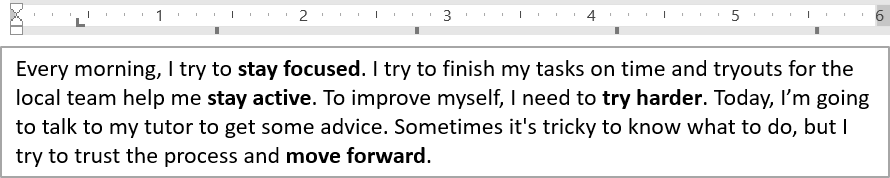
Sử dụng IParagraphFormat.setDefaultTabSize và IParagraphFormat.getTabs để cấu hình các vị trí tab trong một đoạn. Ví dụ sau đặt khoảng cách tab mặc định là 100 điểm và thêm một vị trí tab trái căn tại 30 điểm. Các cài đặt này ảnh hưởng tới văn bản có ký tự tab.
import com.aspose.slides.*;

Presentation presentation = new Presentation("sample.pptx");
try {
    ISlide slide = presentation.getSlides().get_Item(0);

    IAutoShape autoShape = (IAutoShape)slide.getShapes().get_Item(0);

    IParagraph paragraph = autoShape.getTextFrame().getParagraphs().get_Item(0);
    paragraph.getParagraphFormat().setDefaultTabSize(100);
    paragraph.getParagraphFormat().getTabs().add(30, TabAlignment.Left);

    presentation.save("paragraph_tabs.pptx", SaveFormat.Pptx);
} finally {
    presentation.dispose();
}
Kết quả:
Đặt ngôn ngữ kiểm tra chính tả
Aspose.Slides cung cấp IBasePortionFormat.setLanguageId, cho phép bạn đặt ngôn ngữ kiểm tra chính tả cho một phần văn bản. Ngôn ngữ này quyết định ngôn ngữ dùng cho kiểm tra lỗi chính tả và ngữ pháp trong PowerPoint.
Ví dụ sau yêu cầu “presentation.pptx” với một textbox là hình dạng đầu tiên trên slide đầu tiên và ít nhất một đoạn. Nó thay thế nội dung của đoạn đầu tiên bằng “1。”, đặt phông SimSun và gán ngôn ngữ kiểm tra chính tả Trung Quốc giản thể (zh-CN). Kết quả được lưu thành “proofing_language.pptx”:
import com.aspose.slides.*;

Presentation presentation = new Presentation("presentation.pptx");
try {
    ISlide slide = presentation.getSlides().get_Item(0);

    IAutoShape autoShape = (IAutoShape)slide.getShapes().get_Item(0);

    IParagraph paragraph = autoShape.getTextFrame().getParagraphs().get_Item(0);
    paragraph.getPortions().clear();

    FontData font = new FontData("SimSun");

    Portion textPortion = new Portion();
    textPortion.getPortionFormat().setComplexScriptFont(font);
    textPortion.getPortionFormat().setEastAsianFont(font);
    textPortion.getPortionFormat().setLatinFont(font);

    // Đặt Id của ngôn ngữ kiểm tra chính tả.
    textPortion.getPortionFormat().setLanguageId("zh-CN");

    textPortion.setText("1。");
    paragraph.getPortions().add(textPortion);

    presentation.save("proofing_language.pptx", SaveFormat.Pptx);
} finally {
    presentation.dispose();
}
Đặt ngôn ngữ mặc định
Sử dụng LoadOptions.setDefaultTextLanguage để định nghĩa ngôn ngữ mặc định cho văn bản được tạo khi tải hoặc tạo một bản trình chiếu. Ví dụ dưới tạo một bản trình chiếu với tiếng Anh Mỹ làm ngôn ngữ văn bản mặc định, thêm một textbox và in ra en-US cho phần văn bản đầu tiên.
import com.aspose.slides.*;

LoadOptions loadOptions = new LoadOptions();
loadOptions.setDefaultTextLanguage("en-US");

Presentation presentation = new Presentation(loadOptions);
try {
    ISlide slide = presentation.getSlides().get_Item(0);

    // Thêm một hình dạng hình chữ nhật mới có văn bản.
    IAutoShape shape = slide.getShapes().addAutoShape(ShapeType.Rectangle, 20, 20, 150, 50);
    shape.getTextFrame().setText("Sample text");

    // Kiểm tra ngôn ngữ của phần đầu tiên.
    IPortion portion = shape.getTextFrame().getParagraphs().get_Item(0).getPortions().get_Item(0);
    System.out.println(portion.getPortionFormat().getLanguageId());
} finally {
    presentation.dispose();
}
Đặt kiểu văn bản mặc định
Để áp dụng định dạng văn bản mặc định ở mức bản trình chiếu, sử dụng IPresentation.getDefaultTextStyle.
Ví dụ sau đặt phông chữ in đậm 14 điểm làm mặc định cho các đoạn cấp cao nhất trong một bản trình chiếu mới và lưu thành “default_text_style.pptx”. Văn bản có thể kế thừa các mặc định này trừ khi có định dạng cụ thể hơn ghi đè.
import com.aspose.slides.*;

Presentation presentation = new Presentation();
try {
    // Lấy định dạng đoạn cấp độ cao nhất.
    IParagraphFormat paragraphFormat = presentation.getDefaultTextStyle().getLevel(0);

    if (paragraphFormat != null) {
        paragraphFormat.getDefaultPortionFormat().setFontHeight(14);
        paragraphFormat.getDefaultPortionFormat().setFontBold(NullableBool.True);
    }

    presentation.save("default_text_style.pptx", SaveFormat.Pptx);
} finally {
    presentation.dispose();
}
Trích xuất văn bản với hiệu ứng All-Caps
Trong PowerPoint, áp dụng hiệu ứng All Caps khiến văn bản hiển thị bằng chữ in hoa trên slide ngay cả khi được gõ bằng chữ thường. Khi bạn lấy phần văn bản như vậy bằng Aspose.Slides, thư viện trả về văn bản đúng như đã nhập. Để khớp với văn bản hiển thị, kiểm tra TextCapType và chuyển chuỗi trả về thành chữ in hoa khi giá trị là All.
Ví dụ này yêu cầu “sample2.pptx” với một textbox là hình dạng đầu tiên trên slide đầu tiên. Phần đầu tiên của đoạn đầu tiên chứa “Hello, Aspose!” với hiệu ứng All Caps được áp dụng, như hình dưới.

Đoạn mã dưới đây cho thấy cách trích xuất văn bản với hiệu ứng All Caps được áp dụng:
import com.aspose.slides.*;

Presentation presentation = new Presentation("sample2.pptx");
try {
    ISlide slide = presentation.getSlides().get_Item(0);

    IAutoShape autoShape = (IAutoShape)slide.getShapes().get_Item(0);
    IPortion textPortion = autoShape.getTextFrame().getParagraphs().get_Item(0).getPortions().get_Item(0);

    System.out.println("Original text: " + textPortion.getText());

    IPortionFormatEffectiveData textFormat = textPortion.getPortionFormat().getEffective();
    if (textFormat.getTextCapType() == TextCapType.All) {
        String text = textPortion.getText().toUpperCase();
        System.out.println("All-Caps effect: " + text);
    }
} finally {
    presentation.dispose();
}
Kết quả:
Original text: Hello, Aspose!
All-Caps effect: HELLO, ASPOSE!
FAQ
Làm thế nào để sửa đổi văn bản trong bảng trên một slide?
Để sửa đổi văn bản trong bảng trên một slide, sử dụng ITable. Duyệt qua các ô và cập nhật mỗi ô thông qua ICell.getTextFrame và định dạng đoạn qua IParagraph.getParagraphFormat.
Làm thế nào để áp dụng màu gradient cho văn bản trên slide PowerPoint?
Để áp dụng màu gradient cho văn bản, sử dụng IBasePortionFormat.getFillFormat. Đặt IFillFormat.setFillType thành FillType.Gradient và cấu hình các điểm dừng gradient, hướng và độ trong suốt.