
Áp dụng hiệu ứng hình dạng trong bản trình chiếu bằng Python qua Java
Giới thiệu
Trong khi các hiệu ứng trong PowerPoint có thể được sử dụng để làm nổi bật một hình dạng, chúng khác với đổ màu hoặc đường viền. Bằng cách sử dụng các hiệu ứng PowerPoint, bạn có thể tạo ra các phản chiếu thuyết phục trên một hình dạng, lan tỏa ánh hào quang của hình dạng, v.v.
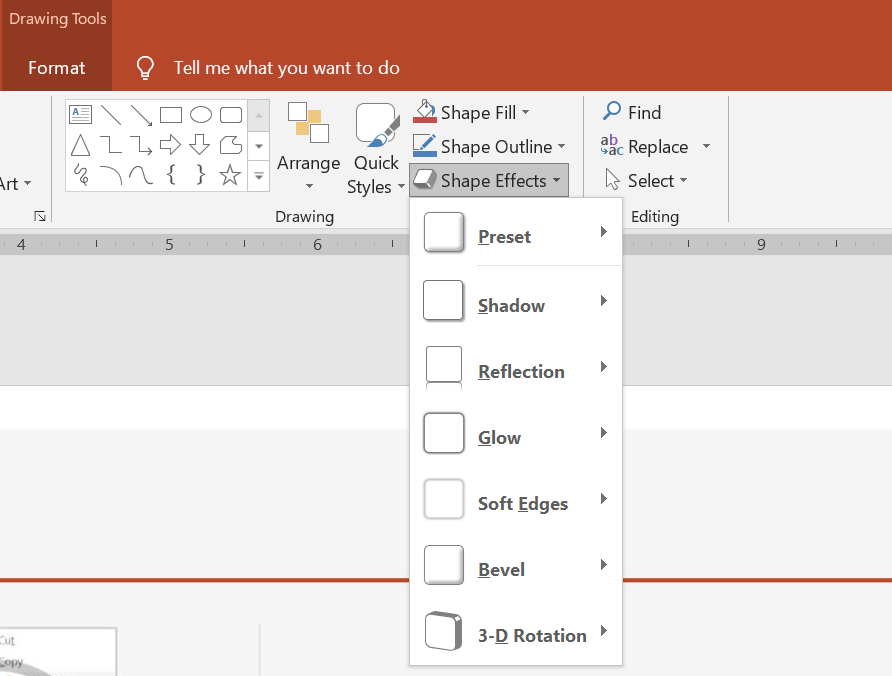
PowerPoint cung cấp sáu hiệu ứng có thể áp dụng cho các hình dạng. Bạn có thể áp dụng một hoặc nhiều hiệu ứng cho một hình dạng.
Một số kết hợp hiệu ứng trông đẹp hơn các kết hợp khác. Vì lý do này, PowerPoint cung cấp các tùy chọn dưới mục Preset. Các tùy chọn Preset là những kết hợp của hai hoặc nhiều hiệu ứng đã được biết là trông tốt. Theo cách này, khi chọn một preset, bạn sẽ không phải lãng phí thời gian thử nghiệm hoặc kết hợp các hiệu ứng khác nhau để tìm ra một sự kết hợp ưng ý.
Aspose.Slides cung cấp các thuộc tính và phương thức trong lớp EffectFormat cho phép bạn áp dụng các hiệu ứng giống nhau cho các hình dạng trong bản trình chiếu PowerPoint.
Áp dụng hiệu ứng bóng đổ
Aspose.Slides cho Python qua Java hỗ trợ bóng đổ ngoài và trong cho các hình dạng. Bạn có thể tùy chỉnh màu sắc, hướng, khoảng cách và bán kính làm mờ của chúng để phù hợp với thiết kế bản trình bày của bạn.
Áp dụng bóng đổ ngoài
Sử dụng bóng đổ ngoài để làm cho một thẻ hoặc bảng nổi bật so với nền slide. Bóng đổ mở rộng ra ngoài các cạnh của hình dạng, tạo ấn tượng rằng hình dạng được nâng lên trên slide. Điều chỉnh màu, hướng, khoảng cách và bán kính làm mờ để phù hợp với ánh sáng và kiểu dáng của mẫu của bạn.
Đoạn mã Python sau đây cho thấy cách áp dụng hiệu ứng bóng đổ ngoài cho một hình chữ nhật:
import jpype
import asposeslides

if not jpype.isJVMStarted():
    jpype.startJVM()

from asposeslides.api import Presentation, SaveFormat, ShapeType
from java.awt import Color

presentation = Presentation()
try:
    slide = presentation.getSlides().get_Item(0)

    shape = slide.getShapes().addAutoShape(ShapeType.RoundCornerRectangle, 20, 20, 200, 100)
    shape.getEffectFormat().enableOuterShadowEffect()
    shape.getEffectFormat().getOuterShadowEffect().getShadowColor().setColor(Color(169, 169, 169))
    shape.getEffectFormat().getOuterShadowEffect().setDistance(10)
    shape.getEffectFormat().getOuterShadowEffect().setDirection(45)

    presentation.save("shadow_effect.pptx", SaveFormat.Pptx)
finally:
    presentation.dispose()

Áp dụng bóng đổ trong
Khi tái tạo phong cách hình ảnh của mẫu, sử dụng bóng đổ trong để tạo cho thẻ hoặc bảng một vẻ ngoài chìm. Bóng đổ ngoài mở rộng ra bên ngoài hình dạng và khiến nó trông như được nâng lên, trong khi bóng đổ trong làm tối phần bên trong các cạnh của nó.
Gọi enableInnerShadowEffect, sau đó cấu hình bóng đổ được trả về bởi getInnerShadowEffect. Giá trị bán kính làm mờ lớn hơn sẽ tạo ra các cạnh mềm hơn.
Ví dụ Python này tạo một thẻ màu xanh nhạt với bóng đổ trong màu xám đậm và lưu nó dưới dạng tệp PPTX. Hướng bóng đổ là 225 độ, khoảng cách là 7 điểm, và bán kính làm mờ là 6 điểm:
import jpype
import asposeslides

if not jpype.isJVMStarted():
    jpype.startJVM()

from asposeslides.api import FillType, Presentation, SaveFormat, ShapeType
from java.awt import Color

presentation = Presentation()
try:
    slide = presentation.getSlides().get_Item(0)

    shape = slide.getShapes().addAutoShape(ShapeType.Rectangle, 20, 20, 200, 100)
    shape.getFillFormat().setFillType(FillType.Solid)
    shape.getFillFormat().getSolidFillColor().setColor(Color(173, 216, 230))
    shape.getLineFormat().getFillFormat().setFillType(FillType.NoFill)

    shape.getEffectFormat().enableInnerShadowEffect()
    shadow = shape.getEffectFormat().getInnerShadowEffect()
    shadow.getShadowColor().setColor(Color(105, 105, 105))
    shadow.setDirection(225)
    shadow.setDistance(7)
    shadow.setBlurRadius(6)

    presentation.save("inner_shadow_effect.pptx", SaveFormat.Pptx)
finally:
    presentation.dispose()

Để loại bỏ bóng đổ trong, gọi disableInnerShadowEffect trên định dạng hiệu ứng của hình dạng.
Áp dụng hiệu ứng phản chiếu
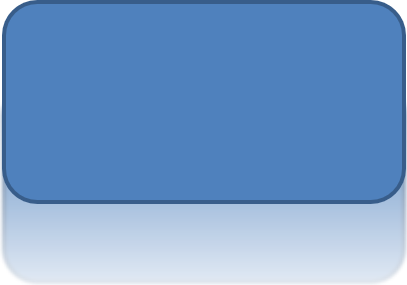
Để áp dụng hiệu ứng phản chiếu trong Aspose.Slides cho Python qua Java, bạn có thể thêm một phản chiếu giống như gương vào các hình dạng, điều chỉnh các thông số như khoảng cách, độ trong suốt và kích thước. Hiệu ứng này nâng cao thẩm mỹ của bản trình bày bằng cách mang lại cho các hình dạng một vẻ ngoài mịn màng và tinh tế hơn. Nó dễ dàng triển khai với mã đơn giản, cho phép áp dụng nhanh chóng trên nhiều yếu tố để có thiết kế đồng nhất.
Đoạn mã Python sau đây cho thấy cách áp dụng hiệu ứng phản chiếu cho một hình dạng:
import jpype
import asposeslides

if not jpype.isJVMStarted():
    jpype.startJVM()

from asposeslides.api import Presentation, RectangleAlignment, SaveFormat, ShapeType

presentation = Presentation()
try:
    slide = presentation.getSlides().get_Item(0)

    shape = slide.getShapes().addAutoShape(ShapeType.RoundCornerRectangle, 20, 20, 200, 100)
    shape.getEffectFormat().enableReflectionEffect()
    shape.getEffectFormat().getReflectionEffect().setRectangleAlign(RectangleAlignment.Bottom)
    shape.getEffectFormat().getReflectionEffect().setDirection(90)
    shape.getEffectFormat().getReflectionEffect().setDistance(40)
    shape.getEffectFormat().getReflectionEffect().setBlurRadius(2)

    presentation.save("reflection_effect.pptx", SaveFormat.Pptx)
finally:
    presentation.dispose()
Áp dụng hiệu ứng hào quang
Để áp dụng hiệu ứng hào quang cho một hình dạng trong Aspose.Slides cho Python qua Java, bạn có thể thêm một hào quang mềm mại, sáng rực quanh các hình dạng, điều chỉnh các thuộc tính như màu sắc và kích thước. Hiệu ứng này giúp làm cho các hình dạng nổi bật và thêm một yếu tố hình ảnh hấp dẫn, thu hút mắt vào bản trình bày của bạn. Nó dễ dàng triển khai với ít mã, nâng cao tổng thể giao diện các slide của bạn.
Đoạn mã Python sau đây cho thấy cách áp dụng hiệu ứng hào quang cho một hình dạng:
import jpype
import asposeslides

if not jpype.isJVMStarted():
    jpype.startJVM()

from asposeslides.api import Presentation, SaveFormat, ShapeType
from java.awt import Color

presentation = Presentation()
try:
    slide = presentation.getSlides().get_Item(0)

    shape = slide.getShapes().addAutoShape(ShapeType.RoundCornerRectangle, 20, 20, 200, 100)
    shape.getEffectFormat().enableGlowEffect()
    shape.getEffectFormat().getGlowEffect().getColor().setColor(Color.MAGENTA)
    shape.getEffectFormat().getGlowEffect().setRadius(15)

    presentation.save("glow_effect.pptx", SaveFormat.Pptx)
finally:
    presentation.dispose()

Áp dụng hiệu ứng cạnh mềm
Để áp dụng hiệu ứng cạnh mềm trong Aspose.Slides cho Python qua Java, bạn có thể tạo một chuyển tiếp mượt mà, mờ quanh các cạnh của một hình dạng. Hiệu ứng này mang lại vẻ ngoài tinh tế và nhẹ nhàng hơn, phù hợp cho các thiết kế cần một diện mạo dịu dàng, mềm mại. Bạn có thể dễ dàng điều chỉnh các tham số như bán kính để đạt được hiệu quả mong muốn trên nhiều hình dạng trong bản trình bày của mình.
Đoạn mã Python sau đây cho thấy cách áp dụng hiệu ứng cạnh mềm cho một hình dạng:
import jpype
import asposeslides

if not jpype.isJVMStarted():
    jpype.startJVM()

from asposeslides.api import Presentation, SaveFormat, ShapeType

presentation = Presentation()
try:
    slide = presentation.getSlides().get_Item(0)

    shape = slide.getShapes().addAutoShape(ShapeType.RoundCornerRectangle, 20, 20, 200, 150)
    shape.getEffectFormat().enableSoftEdgeEffect()
    shape.getEffectFormat().getSoftEdgeEffect().setRadius(8)

    presentation.save("soft_edges_effect.pptx", SaveFormat.Pptx)
finally:
    presentation.dispose()

Câu hỏi thường gặp
Tôi có thể áp dụng nhiều hiệu ứng cho cùng một hình dạng không?
Có, bạn có thể kết hợp các hiệu ứng khác nhau, chẳng hạn như bóng đổ, phản chiếu và hào quang, trên một hình dạng duy nhất để tạo ra một diện mạo năng động hơn.
Tôi có thể áp dụng hiệu ứng cho những hình dạng nào?
Bạn có thể áp dụng hiệu ứng cho nhiều loại hình dạng, bao gồm các hình tự động, biểu đồ, bảng, hình ảnh, đối tượng SmartArt, đối tượng OLE, và hơn nữa.
Tôi có thể áp dụng hiệu ứng cho các nhóm hình dạng không?
Có, bạn có thể áp dụng hiệu ứng cho các nhóm hình dạng. Hiệu ứng sẽ được áp dụng cho toàn bộ nhóm.