
Áp Dụng Hoạt Ảnh Hình trong Bản Trình Bày Sử Dụng Python qua Java
Tổng quan
Để làm việc với các hành vi riêng lẻ bên trong một hiệu ứng hoặc chỉnh sửa các đoạn đường chuyển động, xem Custom Animation.
Aspose.Slides for Python via Java biểu diễn hoạt ảnh slide dưới dạng các hiệu ứng trong một dòng thời gian slide. Một hiệu ứng có một hình mục tiêu, một loại và phụ loại hoạt ảnh, một trình kích hoạt, cài đặt thời gian, và các thuộc tính tùy chọn như âm thanh hoặc hành vi sau hoạt ảnh.
Dòng thời gian chứa hai loại chuỗi:
- Chuỗi chính phát khi slide tiến lên.
- Chuỗi tương tác bắt đầu khi hình kích hoạt của nó được nhấp.
Vì các hộp văn bản, hình ảnh, biểu đồ, bảng và các đối tượng slide khác kế thừa từ Shape, bạn sử dụng cùng một phương thức Sequence.addEffect cho hầu hết nội dung slide. Các hiệu ứng khả dụng được liệt kê trong lớp EffectType.
Thêm Hoạt Ảnh cho Hình
Để thêm một hoạt ảnh, lấy chuỗi chính của slide và gọi Sequence.addEffect với hình mục tiêu, loại hiệu ứng, phụ loại và trình kích hoạt. Đối với một hiệu ứng bắt đầu khi một hình khác được nhấp, tạo một chuỗi tương tác mà trình kích hoạt là hình khác đó.
Ví dụ sau tạo cả hai kiểu hoạt ảnh và lưu kết quả vào shape-animations.pptx.
import jpype
import asposeslides

if not jpype.isJVMStarted():
    jpype.startJVM()

from asposeslides.api import EffectSubtype, EffectTriggerType, EffectType, Presentation, SaveFormat, ShapeType

presentation = Presentation()
try:
    slide = presentation.getSlides().get_Item(0)

    target_shape = slide.getShapes().addAutoShape(ShapeType.RoundCornerRectangle, 120, 100, 320, 80)
    target_shape.addTextFrame("Click to animate this shape")

    main_sequence = slide.getTimeline().getMainSequence()
    entrance_effect = main_sequence.addEffect(target_shape, EffectType.Fade, EffectSubtype.None_, EffectTriggerType.OnClick)
    entrance_effect.getTiming().setDuration(1.5)

    trigger_shape = slide.getShapes().addAutoShape(ShapeType.Bevel, 20, 20, 100, 40)
    trigger_shape.addTextFrame("Move")

    interactive_sequence = slide.getTimeline().getInteractiveSequences().add(trigger_shape)
    interactive_sequence.addEffect(target_shape, EffectType.PathFootball, EffectSubtype.None_, EffectTriggerType.OnClick)

    presentation.save("shape-animations.pptx", SaveFormat.Pptx)
finally:
    presentation.dispose()
Trình kích hoạt kiểm soát khi nào một hiệu ứng bắt đầu:
- EffectTriggerType.OnClick chờ một cú nhấp trong chuỗi chính, hoặc một cú nhấp vào hình kích hoạt trong chuỗi tương tác.
- EffectTriggerType.WithPrevious bắt đầu cùng với hiệu ứng trước đó.
- EffectTriggerType.AfterPrevious bắt đầu khi hiệu ứng trước đó kết thúc.
Để hoạt ảnh một hình ảnh, biểu đồ hoặc loại hình khác, truyền đối tượng đó vào Sequence.addEffect thay vì target_shape. Đối với các tùy chọn nhóm riêng cho biểu đồ, xem Animated Charts.
Đọc Hoạt Ảnh cho Hình
Sử dụng Sequence.getEffectsByShape khi bạn biết hình mục tiêu. Để xem xét mọi hiệu ứng, liệt kê chuỗi chính và mọi chuỗi tương tác. Việc liệt kê tránh việc giả định một chuỗi chứa hiệu ứng ở chỉ mục 0.
Ví dụ sau tạo một hình với các hiệu ứng chuỗi chính và chuỗi tương tác, lấy các hiệu ứng mà nhắm tới hình, và sau đó liệt kê mọi chuỗi trên slide.
import jpype
import asposeslides

if not jpype.isJVMStarted():
    jpype.startJVM()

from asposeslides.api import EffectSubtype, EffectTriggerType, EffectType, Presentation, ShapeType

def print_sequence(label, sequence):
    print(f"  {label}: {sequence.getCount()} effect(s)")
    for effect in sequence:
        target_shape = effect.getTargetShape()
        target_name = "unknown" if target_shape is None else target_shape.getName()
        type_name = EffectType.getName(EffectType.class_, effect.getType())
        subtype_name = EffectSubtype.getName(EffectSubtype.class_, effect.getSubtype())
        trigger_name = EffectTriggerType.getName(EffectTriggerType.class_, effect.getTiming().getTriggerType())
        effect_description = f"{type_name} {subtype_name}; target: {target_name}; trigger: {trigger_name}"
        print(f"    {effect_description}")


presentation = Presentation()
try:
    slide = presentation.getSlides().get_Item(0)
    target_shape = slide.getShapes().addAutoShape(ShapeType.Rectangle, 120, 100, 320, 80)
    target_shape.addTextFrame("Animated shape")

    main_sequence = slide.getTimeline().getMainSequence()
    main_sequence.addEffect(target_shape, EffectType.Fade, EffectSubtype.None_, EffectTriggerType.OnClick)

    trigger_shape = slide.getShapes().addAutoShape(ShapeType.Bevel, 20, 20, 100, 40)
    trigger_shape.addTextFrame("Move")

    interactive_sequence = slide.getTimeline().getInteractiveSequences().add(trigger_shape)
    interactive_sequence.addEffect(target_shape, EffectType.PathFootball, EffectSubtype.None_, EffectTriggerType.OnClick)

    target_effects = main_sequence.getEffectsByShape(target_shape)
    print(f"The main sequence contains {len(target_effects)} effect(s) for {target_shape.getName()}.")
    print_sequence("Main sequence", main_sequence)

    for interactive_index, sequence in enumerate(slide.getTimeline().getInteractiveSequences(), start=1):
        trigger_shape = sequence.getTriggerShape()
        trigger_name = "unknown" if trigger_shape is None else trigger_shape.getName()
        sequence_label = f"Interactive sequence {interactive_index}, trigger: {trigger_name}"
        print_sequence(sequence_label, sequence)
finally:
    presentation.dispose()
Nếu bạn chỉ cần các hiệu ứng cho một hình, trước tiên xác định hình bằng tên, kiểu placeholder, hoặc thuộc tính ổn định khác; sau đó gọi Sequence.getEffectsByShape. Đừng giả định rằng ShapeCollection.get_Item ở chỉ mục 0 luôn là đối tượng mong muốn.
Làm việc với Hiệu Ứng Placeholder Kế Thừa
Một placeholder trên slide bình thường có thể kế thừa hành vi hoạt ảnh từ placeholder tương ứng trên slide bố cục và slide chủ. Shape.getBasePlaceholder trả về placeholder cha đó, hoặc None khi không có cha.
Trong bản trình bày ví dụ sau, phần chân trang có Random Bars trên slide bình thường, Split trên slide bố cục, và Fly In trên slide chủ.
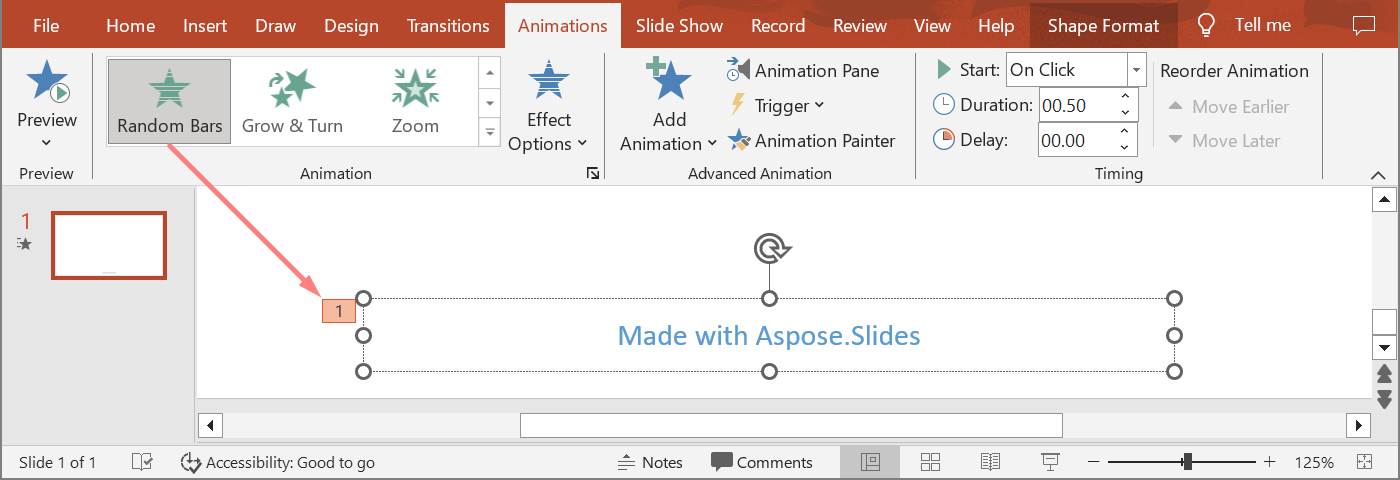
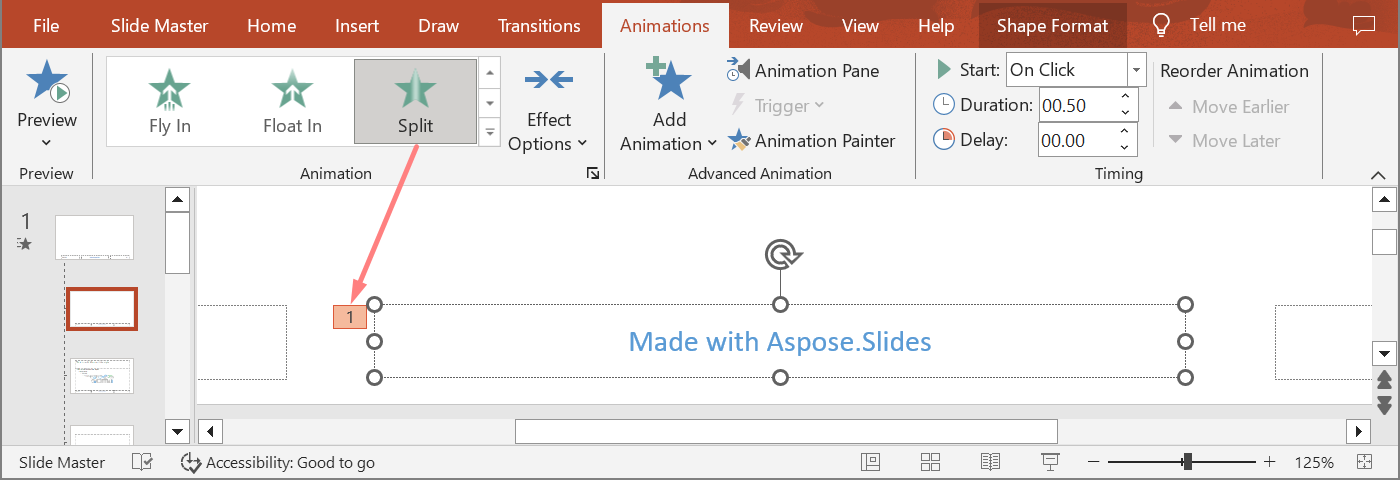
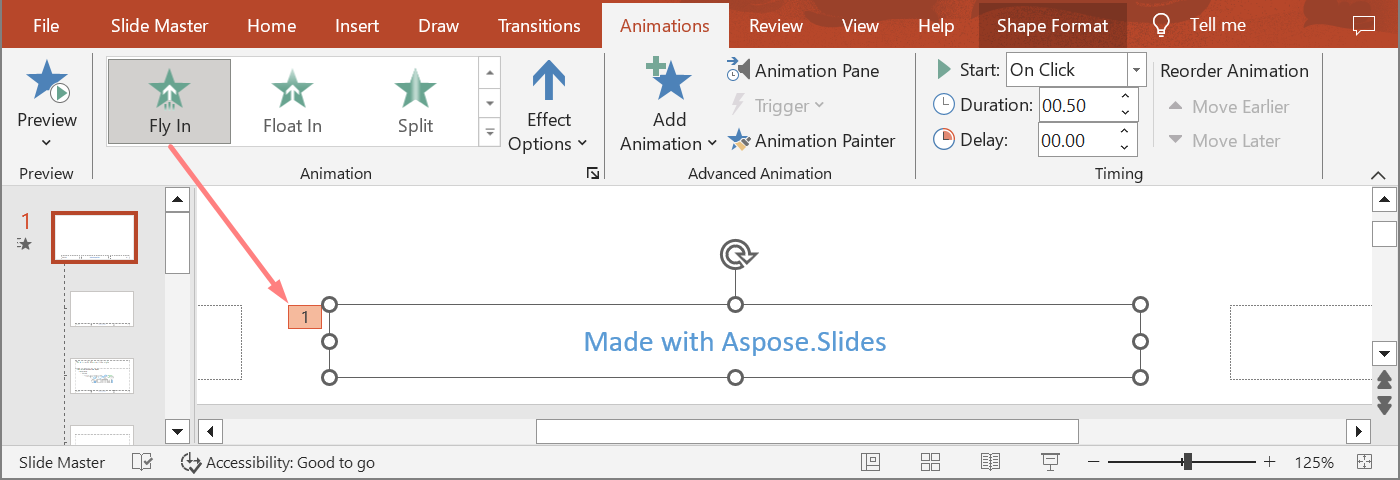
Ví dụ tiếp theo sử dụng một cấu trúc placeholder từ một bản trình bày mới. Nó thêm hiệu ứng vào một placeholder chủ, một placeholder bố cục, và placeholder tương ứng trên một slide bình thường. Mọi lần gọi Shape.getBasePlaceholder đều được kiểm tra trước khi hình trả về được sử dụng.
import jpype
import asposeslides

if not jpype.isJVMStarted():
    jpype.startJVM()

from asposeslides.api import EffectSubtype, EffectTriggerType, EffectType, Presentation, SaveFormat, SlideLayoutType

def find_placeholder_with_base(slide, expected_base=None):
    for shape in slide.getShapes():
        base_placeholder = shape.getBasePlaceholder()
        if base_placeholder is not None and (expected_base is None or base_placeholder == expected_base):
            return shape
    return None


def print_effects(source, effects):
    print(f"{source}: {len(effects)} effect(s)")
    for effect in effects:
        type_name = EffectType.getName(EffectType.class_, effect.getType())
        subtype_name = EffectSubtype.getName(EffectSubtype.class_, effect.getSubtype())
        print(f"  {type_name} {subtype_name}")


presentation = Presentation()
try:
    layout_slide = presentation.getLayoutSlides().getByType(SlideLayoutType.TitleAndObject)
    layout_placeholder = find_placeholder_with_base(layout_slide) if layout_slide is not None else None
    if layout_placeholder is None:
        print("The layout slide does not contain a placeholder linked to its master slide.")
    else:
        master_placeholder = layout_placeholder.getBasePlaceholder()
        layout_slide.getMasterSlide().getTimeline().getMainSequence().addEffect(master_placeholder, EffectType.Fly, EffectSubtype.Bottom, EffectTriggerType.OnClick)
        layout_slide.getTimeline().getMainSequence().addEffect(layout_placeholder, EffectType.Split, EffectSubtype.VerticalIn, EffectTriggerType.OnClick)

        slide = presentation.getSlides().addEmptySlide(layout_slide)
        slide_placeholder = find_placeholder_with_base(slide, layout_placeholder)
        if slide_placeholder is None:
            print("The slide does not contain a placeholder linked to its layout slide.")
        else:
            slide.getTimeline().getMainSequence().addEffect(slide_placeholder, EffectType.RandomBars, EffectSubtype.Horizontal, EffectTriggerType.OnClick)
            slide_effects = slide.getTimeline().getMainSequence().getEffectsByShape(slide_placeholder)
            print_effects("Normal slide", slide_effects)

            base_layout_placeholder = slide_placeholder.getBasePlaceholder()
            if base_layout_placeholder is not None:
                layout_effects = layout_slide.getTimeline().getMainSequence().getEffectsByShape(base_layout_placeholder)
                print_effects("Layout slide", layout_effects)

                base_master_placeholder = base_layout_placeholder.getBasePlaceholder()
                if base_master_placeholder is not None:
                    master_effects = layout_slide.getMasterSlide().getTimeline().getMainSequence().getEffectsByShape(base_master_placeholder)
                    print_effects("Master slide", master_effects)

            presentation.save("placeholder-animations.pptx", SaveFormat.Pptx)
finally:
    presentation.dispose()
Thay Đổi Thời Gian Hoạt Ảnh
Hộp thoại Timing của PowerPoint ánh xạ tới các thuộc tính của Timing.
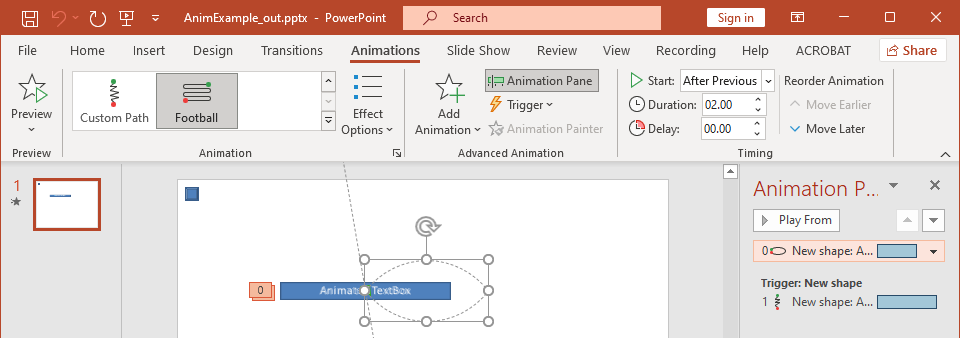
- Start ánh xạ tới Timing.getTriggerType.
- Duration ánh xạ tới Timing.getDuration, tính bằng giây.
- Delay ánh xạ tới Timing.getTriggerDelayTime, tính bằng giây.
- Repeat ánh xạ tới Timing.getRepeatCount, Timing.getRepeatUntilNextClick, hoặc Timing.getRepeatUntilEndSlide.
- Rewind when done playing ánh xạ tới Timing.getRewind.
Ví dụ độc lập này thêm một hiệu ứng, thay đổi thời gian của nó thông qua đối tượng trả về bởi Sequence.addEffect, và lưu kết quả. Giữ tham chiếu Effect trả về tránh một chỉ mục bộ sưu tập không cần thiết.
import jpype
import asposeslides

if not jpype.isJVMStarted():
    jpype.startJVM()

from asposeslides.api import EffectSubtype, EffectTriggerType, EffectType, Presentation, SaveFormat, ShapeType

presentation = Presentation()
try:
    slide = presentation.getSlides().get_Item(0)
    shape = slide.getShapes().addAutoShape(ShapeType.Rectangle, 120, 100, 320, 80)
    shape.addTextFrame("Timed animation")

    effect = slide.getTimeline().getMainSequence().addEffect(shape, EffectType.Fade, EffectSubtype.None_, EffectTriggerType.OnClick)
    effect.getTiming().setTriggerType(EffectTriggerType.OnClick)
    effect.getTiming().setDuration(2.0)
    effect.getTiming().setTriggerDelayTime(0.5)
    effect.getTiming().setRepeatUntilNextClick(False)
    effect.getTiming().setRepeatUntilEndSlide(False)
    effect.getTiming().setRepeatCount(2.0)
    effect.getTiming().setRewind(True)

    presentation.save("shape-animation-timing.pptx", SaveFormat.Pptx)
finally:
    presentation.dispose()
Chỉ dùng một chế độ lặp một cách cố ý. Kết hợp số lần lặp với cờ “until” có thể tạo ra kết quả gây nhầm lẫn trên các trình xem khác nhau. Khi thay đổi chế độ lặp, hãy đặt Timing.setRepeatUntilNextClick và Timing.setRepeatUntilEndSlide trước Timing.setRepeatCount, vì việc đặt bất kỳ cờ nào cũng sẽ thay đổi chế độ lặp hiện tại.
Thêm và Trích Xuất Âm Thanh Hoạt Ảnh
Một hiệu ứng hoạt ảnh có thể tham chiếu âm thanh được nhúng qua Effect.getSound. Effect.setStopPreviousSound chỉ định một hiệu ứng dừng âm thanh đã được bắt đầu bởi hiệu ứng trước.
Thêm Âm Thanh vào Hiệu Ứng
Ví dụ sau yêu cầu một tệp âm thanh cục bộ có tên animation-sound.wav. Nó tạo hai hiệu ứng, nhúng tệp đó làm âm thanh cho hiệu ứng đầu tiên, và cấu hình hiệu ứng thứ hai để dừng âm thanh. Nó sử dụng các đối tượng trả về bởi Sequence.addEffect, vì vậy không cần chỉ mục chuỗi.
import jpype
import asposeslides

if not jpype.isJVMStarted():
    jpype.startJVM()

from asposeslides.api import EffectSubtype, EffectTriggerType, EffectType, Presentation, SaveFormat, ShapeType
from pathlib import Path

presentation = Presentation()
try:
    slide = presentation.getSlides().get_Item(0)
    first_shape = slide.getShapes().addAutoShape(ShapeType.Rectangle, 80, 100, 240, 80)
    second_shape = slide.getShapes().addAutoShape(ShapeType.Rectangle, 400, 100, 240, 80)
    first_shape.addTextFrame("Starts sound")
    second_shape.addTextFrame("Stops sound")

    sequence = slide.getTimeline().getMainSequence()
    first_effect = sequence.addEffect(first_shape, EffectType.Fade, EffectSubtype.None_, EffectTriggerType.OnClick)
    second_effect = sequence.addEffect(second_shape, EffectType.Fade, EffectSubtype.None_, EffectTriggerType.OnClick)

    audio_data = Path("animation-sound.wav").read_bytes()
    effect_sound = presentation.getAudios().addAudio(jpype.JArray(jpype.JByte)(audio_data))
    first_effect.setSound(effect_sound)
    second_effect.setStopPreviousSound(True)

    presentation.save("shape-animation-sound.pptx", SaveFormat.Pptx)
finally:
    presentation.dispose()
Trích Xuất Âm Thanh Nhúng của Hiệu Ứng
Ví dụ sau yêu cầu một bản trình bày cục bộ có tên presentation-with-animation-sounds.pptx. Nó quét cả chuỗi chính và chuỗi tương tác và ghi mọi âm thanh hiệu ứng nhúng vào thư mục extracted-animation-sounds. Phần mở rộng được chọn từ loại MIME âm thanh được cung cấp bởi Audio.getContentType.
import jpype
import asposeslides

if not jpype.isJVMStarted():
    jpype.startJVM()

from asposeslides.api import Presentation
from pathlib import Path

def get_audio_extension(content_type):
    normalized_type = "" if content_type is None else str(content_type).lower()
    if normalized_type == "audio/mpeg":
        return ".mp3"
    if normalized_type == "audio/mp4":
        return ".m4a"
    if normalized_type == "audio/ogg":
        return ".ogg"
    if normalized_type in ("audio/wav", "audio/x-wav"):
        return ".wav"
    return ".bin"


def save_sounds(sequence, output_directory, sound_index):
    for effect in sequence:
        sound = effect.getSound()
        if sound is None:
            continue
        extension = get_audio_extension(sound.getContentType())
        output_path = output_directory / f"effect-sound-{sound_index}{extension}"
        audio_data = bytes(sound.getBinaryData())
        output_path.write_bytes(audio_data)
        sound_index += 1
    return sound_index


input_path = Path("presentation-with-animation-sounds.pptx")
output_directory = Path("extracted-animation-sounds")
output_directory.mkdir(parents=True, exist_ok=True)

presentation = Presentation(str(input_path))
try:
    sound_index = 1
    for slide in presentation.getSlides():
        sound_index = save_sounds(slide.getTimeline().getMainSequence(), output_directory, sound_index)
        for sequence in slide.getTimeline().getInteractiveSequences():
            sound_index = save_sounds(sequence, output_directory, sound_index)
    print(f"Extracted {sound_index - 1} sound file(s) to {output_directory.resolve()}.")
finally:
    presentation.dispose()
Đối với các đối tượng âm thanh lớn, sử dụng Audio.getStream và sao chép luồng vào tệp thay vì tải toàn bộ đối tượng vào mảng byte.
Đặt Hành Vi Sau Hoạt Ảnh
Tùy chọn After animation kiểm soát những gì xảy ra với một hình sau khi hiệu ứng của nó kết thúc.
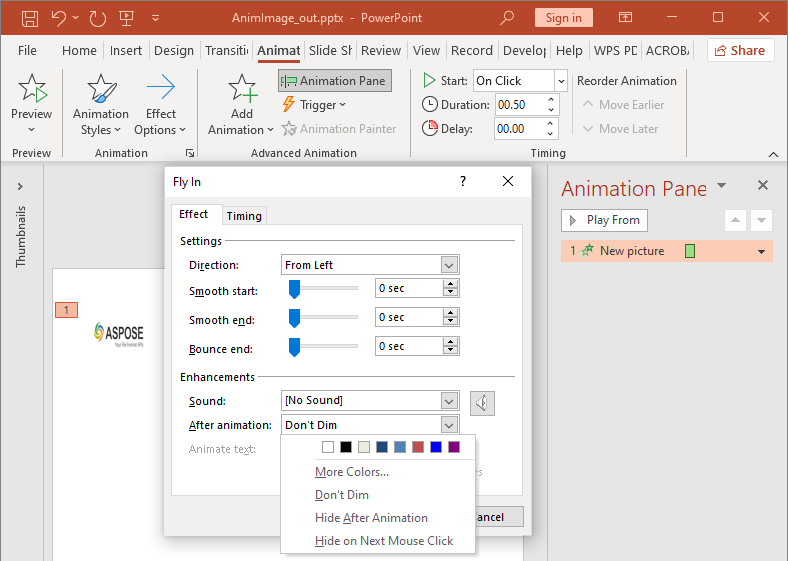
Lớp AfterAnimationType hỗ trợ giữ hình không thay đổi, thay đổi màu của nó, ẩn nó sau hoạt ảnh, hoặc ẩn nó khi nhấp tiếp theo. Khi loại là AfterAnimationType.Color, cũng đặt Effect.getAfterAnimationColor.
Ví dụ độc lập này tạo một hiệu ứng, đặt hành vi sau hoạt ảnh của nó thông qua đối tượng hiệu ứng trả về, và lưu kết quả.
import jpype
import asposeslides

if not jpype.isJVMStarted():
    jpype.startJVM()

from asposeslides.api import AfterAnimationType, EffectSubtype, EffectTriggerType, EffectType, Presentation, SaveFormat, ShapeType
from java.awt import Color

presentation = Presentation()
try:
    slide = presentation.getSlides().get_Item(0)
    shape = slide.getShapes().addAutoShape(ShapeType.Rectangle, 120, 100, 320, 80)
    shape.addTextFrame("Dim after animation")

    effect = slide.getTimeline().getMainSequence().addEffect(shape, EffectType.Fade, EffectSubtype.None_, EffectTriggerType.OnClick)
    effect.setAfterAnimationType(AfterAnimationType.Color)
    effect.getAfterAnimationColor().setColor(Color.LIGHT_GRAY)

    presentation.save("shape-animation-after-effect.pptx", SaveFormat.Pptx)
finally:
    presentation.dispose()
Thay đổi loại khỏi AfterAnimationType.Color sẽ xóa cài đặt màu sau hoạt ảnh.
Hoạt Ảnh Văn Bản
Hoạt ảnh văn bản có hai điều khiển liên quan:
- TextAnimation.getBuildType kiểm soát liệu các đoạn văn xuất hiện cùng nhau hay theo mức độ đoạn.
- Effect.getAnimateTextType kiểm soát liệu văn bản xuất hiện toàn bộ, theo từ hoặc theo ký tự. Effect.getDelayBetweenTextParts đặt độ trễ giữa các từ hoặc ký tự. Giá trị dương là phần trăm của thời lượng hiệu ứng; giá trị âm là độ trễ tính bằng giây.
Ví dụ độc lập sau hoạt ảnh các từ trong một hộp văn bản. BuildType.AsOneObject vô hiệu hoá việc xây dựng đoạn theo đoạn để cài đặt từ áp dụng cho toàn bộ khung văn bản.
import jpype
import asposeslides

if not jpype.isJVMStarted():
    jpype.startJVM()

from asposeslides.api import AnimateTextType, BuildType, EffectSubtype, EffectTriggerType, EffectType, Presentation, SaveFormat, ShapeType

presentation = Presentation()
try:
    slide = presentation.getSlides().get_Item(0)
    text_box = slide.getShapes().addAutoShape(ShapeType.Rectangle, 80, 80, 560, 100)
    text_box.addTextFrame("Aspose.Slides animates this sentence word by word.")

    effect = slide.getTimeline().getMainSequence().addEffect(text_box, EffectType.Fade, EffectSubtype.None_, EffectTriggerType.OnClick)
    effect.getTextAnimation().setBuildType(BuildType.AsOneObject)
    effect.setAnimateTextType(AnimateTextType.ByWord)
    effect.setDelayBetweenTextParts(20.0)

    presentation.save("animated-text.pptx", SaveFormat.Pptx)
finally:
    presentation.dispose()
Để xây dựng một hộp văn bản theo đoạn, đặt BuildType.ByLevelParagraphs1 (hoặc mức độ đoạn khác). Để nhắm tới một đoạn riêng lẻ với hiệu ứng riêng, sử dụng phương thức overload của Sequence.addEffect chấp nhận một Paragraph. Xem Animated Text để biết các ví dụ mức độ đoạn.
Ghi Xuất và Ghi Chú Tính Tương Thích
- Lưu dưới dạng PPT hoặc PPTX bảo tồn mô hình hoạt ảnh, nhưng việc phát cuối cùng được kiểm soát bởi trình xem bản trình bày.
- PDF và hình ảnh tĩnh không phát hoạt ảnh. Sử dụng HTML5 export, GIF động, hoặc video conversion khi đầu ra phải hiển thị chuyển động.
- Đối với HTML5, bật Html5Options.setAnimateShapes và, khi cần, Html5Options.setAnimateTransitions.
- Kết xuất video hỗ trợ nhiều hiệu ứng vào, nhấn mạnh, ra và đường chuyển động phổ biến, nhưng không phải mọi hiệu ứng PowerPoint đều được hỗ trợ. Kiểm tra supported animations and effects hiện tại và thử nghiệm các bản trình bày quan trọng với phiên bản Aspose.Slides mục tiêu.
- Các hiệu ứng tùy chỉnh nâng cao và hiệu ứng nhập từ các định dạng bản trình bày khác có thể được bảo tồn trong tệp nhưng hiển thị khác nhau trong PowerPoint, HTML5 hoặc video. Xác thực kết quả xuất thay vì chỉ dựa vào tên hiệu ứng.
Câu Hỏi Thường Gặp
Tại sao một hoạt ảnh xuất hiện trong PowerPoint nhưng không trong PDF?
PDF là định dạng tĩnh, vì vậy hoạt ảnh và chuyển đổi slide không được phát. Xuất sang HTML5, GIF động, hoặc video khi cần bảo tồn chuyển động.
Tại sao một hiệu ứng phát khác nhau trong video?
Xuất video kết xuất hoạt ảnh thay vì lưu lại hành vi gốc của PowerPoint. Một số hiệu ứng nâng cao không được hỗ trợ hoặc chỉ được ước tính. Xem bảng các hiệu ứng được hỗ trợ và thử nghiệm bản trình bày thực tế trước khi sử dụng trong sản xuất.
Việc di chuyển một hình lên hoặc xuống có thay đổi thứ tự hoạt ảnh của nó không?
Không. Z-order của hình chỉ kiểm soát chồng lấp, trong khi thứ tự chuỗi và trình kích hoạt kiểm soát việc phát hoạt ảnh. Thay đổi dòng thời gian nếu bạn cần một thứ tự phát khác.