
Quản lý Nền Bản Trình Chiếu trong Python
Giới thiệu
Màu nền đồng nhất, gradient và hình ảnh thường được sử dụng làm nền cho các slide. Bạn có thể đặt nền cho một slide bình thường (một slide duy nhất) hoặc một slide master (áp dụng cho nhiều slide cùng lúc).
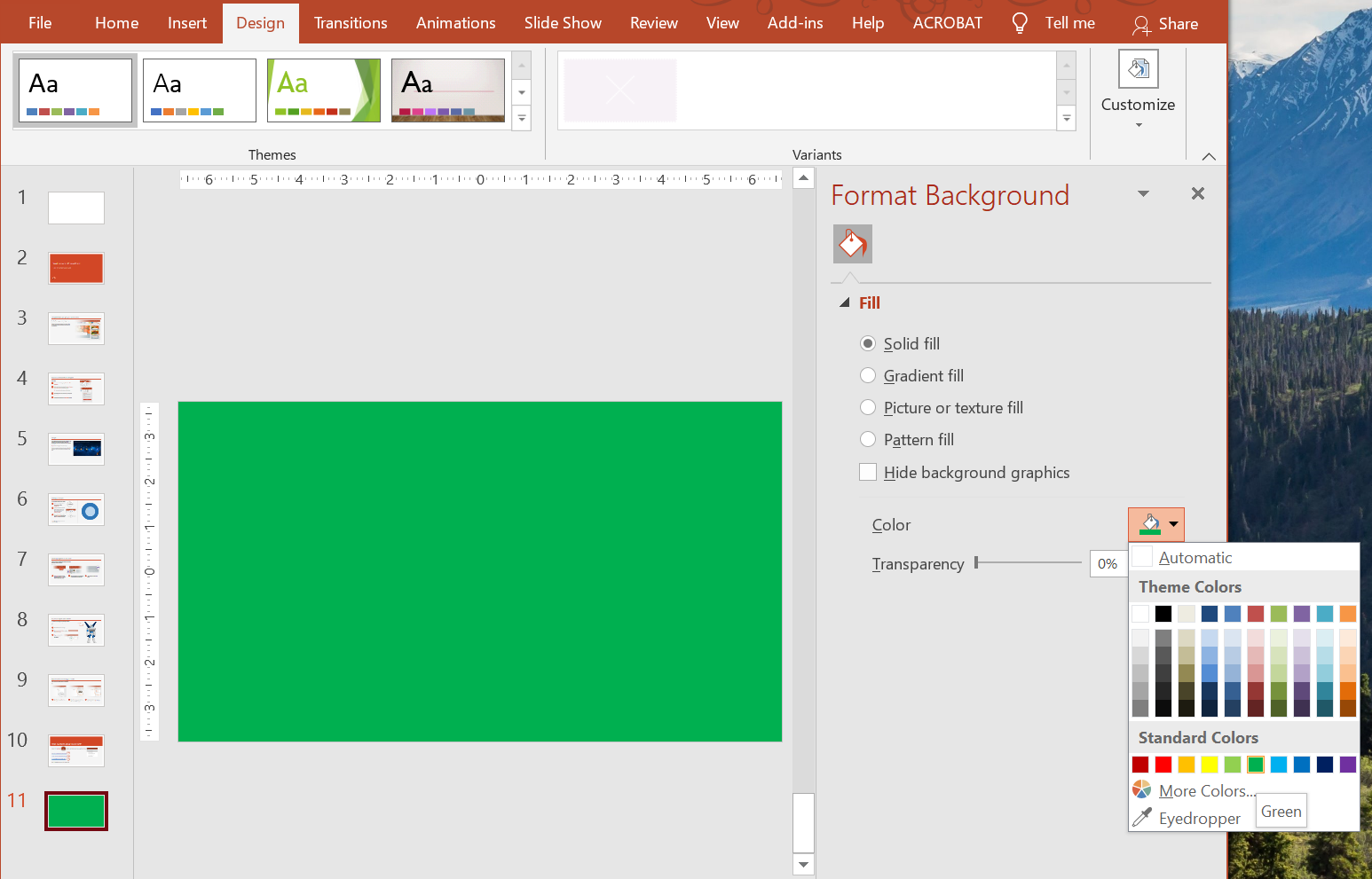
Đặt nền màu đồng nhất cho slide bình thường
Aspose.Slides cho phép bạn thiết lập một màu đồng nhất làm nền cho một slide cụ thể trong bài thuyết trình—ngay cả khi bài thuyết trình sử dụng master slide. Thay đổi này chỉ áp dụng cho slide đã chọn.
- Tạo một thể hiện của lớp Presentation .
- Đặt BackgroundType của slide thành
OWN_BACKGROUND. - Đặt FillType của nền slide thành
SOLID. - Sử dụng thuộc tính
solid_fill_colortrên FillFormat để chỉ định màu nền đồng nhất. - Lưu bản trình bày đã sửa đổi.
Ví dụ Python sau đây cho thấy cách đặt màu xanh lam đồng nhất làm nền cho một slide bình thường:
import aspose.pydrawing as draw
import aspose.slides as slides

# Tạo một thể hiện của lớp Presentation.
with slides.Presentation() as presentation:
    slide = presentation.slides[0]

    # Đặt màu nền của slide thành màu xanh.
    slide.background.type = slides.BackgroundType.OWN_BACKGROUND
    slide.background.fill_format.fill_type = slides.FillType.SOLID
    slide.background.fill_format.solid_fill_color.color = draw.Color.blue

    # Lưu bản trình chiếu vào đĩa.
    presentation.save("SolidColorBackground.pptx", slides.export.SaveFormat.PPTX)
Đặt nền màu đồng nhất cho slide master
Aspose.Slides cho phép bạn thiết lập một màu đồng nhất làm nền cho slide master trong bài thuyết trình. Slide master hoạt động như một mẫu kiểm soát định dạng cho tất cả các slide, vì vậy khi bạn chọn một màu đồng nhất cho nền slide master, nó sẽ áp dụng cho mọi slide.
- Tạo một thể hiện của lớp Presentation .
- Đặt BackgroundType của slide master (qua
masters) thànhOWN_BACKGROUND. - Đặt FillType của nền slide master thành
SOLID. - Sử dụng thuộc tính
solid_fill_colortrên FillFormat để chỉ định màu nền đồng nhất. - Lưu bản trình bày đã sửa đổi.
Ví dụ Python sau đây cho thấy cách đặt màu đồng nhất (xanh rừng) làm nền cho một slide master:
import aspose.pydrawing as draw
import aspose.slides as slides

# Tạo một thể hiện của lớp Presentation.
with slides.Presentation() as presentation:
    master_slide = presentation.masters[0]

    # Đặt màu nền cho slide Master thành màu Xanh Rừng.
    master_slide.background.type = slides.BackgroundType.OWN_BACKGROUND
    master_slide.background.fill_format.fill_type = slides.FillType.SOLID
    master_slide.background.fill_format.solid_fill_color.color = draw.Color.forest_green

    # Lưu bản trình chiếu vào đĩa.
    presentation.save("MasterSlideBackground.pptx", slides.export.SaveFormat.PPTX)
Đặt nền Gradient cho slide
Gradient là hiệu ứng đồ họa tạo ra bằng cách thay đổi màu dần dần. Khi được sử dụng làm nền slide, gradient có thể khiến bản thuyết trình trông nghệ thuật và chuyên nghiệp hơn. Aspose.Slides cho phép bạn thiết lập màu gradient làm nền cho các slide.
- Tạo một thể hiện của lớp Presentation .
- Đặt BackgroundType của slide thành
OWN_BACKGROUND. - Đặt FillType của nền slide thành
GRADIENT. - Sử dụng thuộc tính
gradient_formattrên FillFormat để cấu hình các thiết lập gradient mong muốn. - Lưu bản trình bày đã sửa đổi.
Ví dụ Python sau đây cho thấy cách đặt màu gradient làm nền cho một slide:
import aspose.slides as slides

# Tạo một thể hiện của lớp Presentation.
with slides.Presentation() as presentation:
    slide = presentation.slides[0]

    # Áp dụng hiệu ứng gradient cho nền.
    slide.background.type = slides.BackgroundType.OWN_BACKGROUND
    slide.background.fill_format.fill_type = slides.FillType.GRADIENT
    slide.background.fill_format.gradient_format.tile_flip = slides.TileFlip.FLIP_BOTH

    # Lưu bản trình chiếu vào đĩa.
    presentation.save("GradientBackground.pptx", slides.export.SaveFormat.PPTX)
Đặt hình ảnh làm nền cho slide
Ngoài các loại nền đồng nhất và gradient, Aspose.Slides cho phép bạn sử dụng hình ảnh làm nền cho slide.
- Tạo một thể hiện của lớp Presentation .
- Đặt BackgroundType của slide thành
OWN_BACKGROUND. - Đặt FillType của nền slide thành
PICTURE. - Tải hình ảnh bạn muốn dùng làm nền slide.
- Thêm hình ảnh vào bộ sưu tập hình ảnh của bản trình bày.
- Sử dụng thuộc tính
picture_fill_formattrên FillFormat để gán hình ảnh làm nền. - Lưu bản trình bày đã sửa đổi.
Ví dụ Python sau đây cho thấy cách đặt một hình ảnh làm nền cho một slide:
import aspose.slides as slides

# Tạo một thể hiện của lớp Presentation.
with slides.Presentation() as presentation:
    slide = presentation.slides[0]

    # Đặt các thuộc tính hình nền.
    slide.background.type = slides.BackgroundType.OWN_BACKGROUND
    slide.background.fill_format.fill_type = slides.FillType.PICTURE
    slide.background.fill_format.picture_fill_format.picture_fill_mode = slides.PictureFillMode.STRETCH

    # Tải hình ảnh.
    with slides.Images.from_file("Tulips.jpg") as image:
        # Thêm hình ảnh vào bộ sưu tập hình ảnh của bản trình chiếu.
        pp_image = presentation.images.add_image(image)

    slide.background.fill_format.picture_fill_format.picture.image = pp_image

    # Lưu bản trình chiếu vào đĩa.
    presentation.save("ImageAsBackground.pptx", slides.export.SaveFormat.PPTX)
Ví dụ mã sau đây cho thấy cách đặt kiểu nền fill thành hình ảnh lặp và chỉnh sửa các thuộc tính lặp:
import aspose.slides as slides

with slides.Presentation() as presentation:

    first_slide = presentation.slides[0]

    background = first_slide.background

    background.type = slides.BackgroundType.OWN_BACKGROUND
    background.fill_format.fill_type = slides.FillType.PICTURE

    with slides.Images.from_file("image.png") as new_image:
        pp_image = presentation.images.add_image(new_image)

    # Đặt hình ảnh được sử dụng cho việc tô nền.
    back_picture_fill_format = background.fill_format.picture_fill_format
    back_picture_fill_format.picture.image = pp_image

    # Đặt chế độ tô hình ảnh thành Lát và điều chỉnh các thuộc tính lát.
    back_picture_fill_format.picture_fill_mode = slides.PictureFillMode.TILE
    back_picture_fill_format.tile_offset_x = 15.0
    back_picture_fill_format.tile_offset_y = 15.0
    back_picture_fill_format.tile_scale_x = 46.0
    back_picture_fill_format.tile_scale_y = 87.0
    back_picture_fill_format.tile_alignment = slides.RectangleAlignment.CENTER
    back_picture_fill_format.tile_flip = slides.TileFlip.FLIP_Y

    presentation.save("TileBackground.pptx", slides.export.SaveFormat.PPTX)
Thay đổi độ trong suốt của hình nền
Bạn có thể muốn điều chỉnh độ trong suốt của hình nền slide để làm nổi bật nội dung của slide. Đoạn mã Python dưới đây cho thấy cách thay đổi độ trong suốt cho hình nền slide:
transparency_value = 30  # Ví dụ.

# Lấy bộ sưu tập các thao tác biến đổi hình ảnh.
image_transform = slide.background.fill_format.picture_fill_format.picture.image_transform

transparency_operation = None

# Tìm hiệu ứng trong suốt cố định phần trăm hiện có.
for operation in image_transform:
    if type(operation) is slides.AlphaModulateFixed:
        transparency_operation = operation
        break

# Đặt giá trị trong suốt mới.
if transparency_operation is None:
    image_transform.add_alpha_modulate_fixed_effect(100 - transparency_value)
else:
    transparency_operation.amount = 100 - transparency_value
Lấy giá trị nền slide
Aspose.Slides cung cấp lớp IBackgroundEffectiveData để truy xuất các giá trị nền thực tế của một slide. Lớp này cung cấp FillFormat và EffectFormat thực tế.
Bằng cách sử dụng thuộc tính background của lớp BaseSlide, bạn có thể lấy nền thực tế của một slide.
Ví dụ Python sau đây cho thấy cách lấy giá trị nền thực tế của một slide:
import aspose.slides as slides

# Tạo một thể hiện của lớp Presentation.
with slides.Presentation("Sample.pptx") as presentation:
    slide = presentation.slides[0]

    # Lấy nền thực tế, tính đến master, layout và theme.
    effective_background = slide.background.get_effective()

    if effective_background.fill_format.fill_type == slides.FillType.SOLID:
        color = effective_background.fill_format.solid_fill_color
        print(f"Fill color: Color [A={color.a}, R={color.r}, G={color.g}, B={color.b}]")
    else:
        print("Fill type:", str(effective_background.fill_format.fill_type))
Câu hỏi thường gặp
Tôi có thể đặt lại nền tùy chỉnh và khôi phục lại nền của theme/layout không?
Có. Loại bỏ fill tùy chỉnh của slide, và nền sẽ được kế thừa lại từ slide layout/master tương ứng (tức là theme background).
Điều gì sẽ xảy ra với nền nếu tôi thay đổi theme của bài thuyết trình sau này?
Nếu một slide có fill riêng, nó sẽ không thay đổi. Nếu nền được kế thừa từ layout/master, nó sẽ được cập nhật để phù hợp với new theme.