
在 Java 中向 PowerPoint 演示文稿添加数学公式
概述
PowerPoint 将公式存储为 Office Math Markup Language(OMML)。使用 Aspose.Slides for Java,您可以以编程方式创建相同类型的数学内容:分数、根式、函数、极限、N 元运算符、矩阵、数组以及格式化的数学块。
在 PowerPoint 中,用户通常通过 插入 > 公式 添加公式:
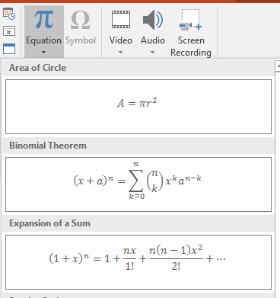
结果是在幻灯片上可编辑的数学文本:

Aspose.Slides 通过三个主要对象构建该数学文本:
- 使用 addMathShape 创建的数学形状,是包含公式的形状。
- MathPortion 在形状的文本框中存储数学内容。
- MathParagraph 包含一个或多个 MathBlock 对象。
下面的大多数示例使用 MathematicalText 和来自 IMathElement 的流式方法,以保持代码简短易读。
有关 MathML 导出场景,请参阅 在 Java 中从演示文稿导出数学公式。
创建公式
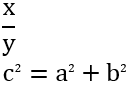
此示例创建一个数学形状并添加勾股定理:
Presentation presentation = new Presentation();
try {
    ISlide slide = presentation.getSlides().get_Item(0);

    IAutoShape mathShape = slide.getShapes().addMathShape(20, 20, 700, 120);
    IMathParagraph mathParagraph = ((MathPortion) mathShape.getTextFrame().getParagraphs()
            .get_Item(0).getPortions().get_Item(0)).getMathParagraph();

    IMathBlock equation = new MathematicalText("c")
            .setSuperscript("2")
            .join("=")
            .join(new MathematicalText("a").setSuperscript("2"))
            .join("+")
            .join(new MathematicalText("b").setSuperscript("2"));

    mathParagraph.add(equation);

    presentation.save("pythagorean-theorem.pptx", SaveFormat.Pptx);
} finally {
    presentation.dispose();
}
addMathShape 创建一个已经包含数学段落的形状。访问第一个 MathPortion,获取其 MathParagraph,并向其添加数学块或数学元素。
添加分数
使用 divide 创建分数。您可以使用 MathFractionTypes 选择分数样式。

Presentation presentation = new Presentation();
try {
    ISlide slide = presentation.getSlides().get_Item(0);

    IAutoShape mathShape = slide.getShapes().addMathShape(20, 20, 700, 100);
    IMathParagraph mathParagraph = ((MathPortion) mathShape.getTextFrame().getParagraphs()
            .get_Item(0).getPortions().get_Item(0)).getMathParagraph();

    IMathFraction fraction = new MathematicalText("1")
            .divide("x", MathFractionTypes.Skewed);

    mathParagraph.add(new MathBlock(fraction));

    presentation.save("fraction.pptx", SaveFormat.Pptx);
} finally {
    presentation.dispose();
}
对于堆叠分数,使用 MathFractionTypes.Bar:
IMathFraction stackedFraction = new MathematicalText("x + 1").divide("y - 1", MathFractionTypes.Bar);
添加根式
使用 radical 创建平方根、立方根或其他根式。当前元素成为底数,参数成为指数。

Presentation presentation = new Presentation();
try {
    ISlide slide = presentation.getSlides().get_Item(0);

    IAutoShape mathShape = slide.getShapes().addMathShape(20, 20, 700, 100);
    IMathParagraph mathParagraph = ((MathPortion) mathShape.getTextFrame().getParagraphs()
            .get_Item(0).getPortions().get_Item(0)).getMathParagraph();

    IMathRadical radical = new MathematicalText("x")
            .radical("n");

    mathParagraph.add(new MathBlock(radical));

    presentation.save("radical.pptx", SaveFormat.Pptx);
} finally {
    presentation.dispose();
}
添加函数和极限
对 sin(x)、log(x) 或自定义函数名等函数使用 asArgumentOfFunction 或 function。对于极限,将 lim 放入 MathLimit 或使用 setLowerLimit。

Presentation presentation = new Presentation();
try {
    ISlide slide = presentation.getSlides().get_Item(0);

    IAutoShape mathShape = slide.getShapes().addMathShape(20, 20, 700, 100);
    IMathParagraph mathParagraph = ((MathPortion) mathShape.getTextFrame().getParagraphs()
            .get_Item(0).getPortions().get_Item(0)).getMathParagraph();

    IMathFunction limit = new MathematicalText("lim")
            .setLowerLimit("x\u2192\u221E")
            .function("x");

    mathParagraph.add(new MathBlock(limit));

    presentation.save("functions-and-limits.pptx", SaveFormat.Pptx);
} finally {
    presentation.dispose();
}
对于自定义函数名,将函数名设为当前元素:
IMathFunction customFunction = new MathematicalText("f").function("x + 1");
添加 N 元运算符和积分
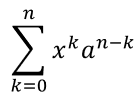
对求和、并集、交集和其他大型运算符使用 nary。对积分使用 integral。两种方法都允许设置上下限。
Presentation presentation = new Presentation();
try {
    ISlide slide = presentation.getSlides().get_Item(0);

    IAutoShape mathShape = slide.getShapes().addMathShape(20, 20, 700, 120);
    IMathParagraph mathParagraph = ((MathPortion) mathShape.getTextFrame().getParagraphs()
            .get_Item(0).getPortions().get_Item(0)).getMathParagraph();

    IMathBlock summationBase = new MathematicalText("x")
            .setSuperscript("k")
            .join(new MathematicalText("a").setSuperscript("n-k"));

    IMathNaryOperator summation = summationBase.nary(MathNaryOperatorTypes.Summation, "k=0", "n");

    mathParagraph.add(new MathBlock(summation));

    presentation.save("nary-operators.pptx", SaveFormat.Pptx);
} finally {
    presentation.dispose();
}
N 元运算符用于可选上下限的大型运算符。像 +、-、= 这样的简单运算符通常以 MathematicalText 形式添加并拼接到表达式中。
对于积分,使用 integral:
IMathBlock integralBase = new MathematicalText("x").join(new MathematicalText("dx").toBox());
IMathNaryOperator integral = integralBase.integral(MathIntegralTypes.Simple, "0", "1");
添加矩阵
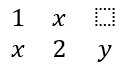
使用 MathMatrix 来定义行和列。矩阵默认不包含括号,因此在需要括号、方括号或大括号时,请自行包裹矩阵。
Presentation presentation = new Presentation();
try {
    ISlide slide = presentation.getSlides().get_Item(0);

    IAutoShape mathShape = slide.getShapes().addMathShape(20, 20, 700, 120);
    IMathParagraph mathParagraph = ((MathPortion) mathShape.getTextFrame().getParagraphs()
            .get_Item(0).getPortions().get_Item(0)).getMathParagraph();

    MathMatrix matrix = new MathMatrix(2, 3);
    matrix.set_Item(0, 0, new MathematicalText("1"));
    matrix.set_Item(0, 1, new MathematicalText("x"));
    matrix.set_Item(1, 0, new MathematicalText("x"));
    matrix.set_Item(1, 1, new MathematicalText("2"));
    matrix.set_Item(1, 2, new MathematicalText("y"));

    mathParagraph.add(new MathBlock(matrix));

    presentation.save("matrix.pptx", SaveFormat.Pptx);
} finally {
    presentation.dispose();
}
添加公式数组
当需要对齐的公式或垂直堆叠的表达式时,使用 toMathArray。

Presentation presentation = new Presentation();
try {
    ISlide slide = presentation.getSlides().get_Item(0);

    IAutoShape mathShape = slide.getShapes().addMathShape(20, 20, 700, 140);
    IMathParagraph mathParagraph = ((MathPortion) mathShape.getTextFrame().getParagraphs()
            .get_Item(0).getPortions().get_Item(0)).getMathParagraph();

    IMathArray equationArray = new MathematicalText("x")
            .join("y")
            .toMathArray();

    mathParagraph.add(new MathBlock(equationArray));

    presentation.save("equation-array.pptx", SaveFormat.Pptx);
} finally {
    presentation.dispose();
}
添加三角函数
当参数是当前元素且函数名称已知时,使用 asArgumentOfFunction。

Presentation presentation = new Presentation();
try {
    ISlide slide = presentation.getSlides().get_Item(0);

    IAutoShape mathShape = slide.getShapes().addMathShape(20, 20, 700, 100);
    IMathParagraph mathParagraph = ((MathPortion) mathShape.getTextFrame().getParagraphs()
            .get_Item(0).getPortions().get_Item(0)).getMathParagraph();

    IMathFunction cosine = new MathematicalText("2x")
            .asArgumentOfFunction(MathFunctionsOfOneArgument.Cos);

    mathParagraph.add(new MathBlock(cosine));

    presentation.save("trigonometric-function.pptx", SaveFormat.Pptx);
} finally {
    presentation.dispose();
}
添加下标和上标
使用下标和上标帮助方法来表示索引和幂。当索引需要出现在基数的左侧时,使用 setSubSuperscriptOnTheLeft。

Presentation presentation = new Presentation();
try {
    ISlide slide = presentation.getSlides().get_Item(0);

    IAutoShape mathShape = slide.getShapes().addMathShape(20, 20, 700, 100);
    IMathParagraph mathParagraph = ((MathPortion) mathShape.getTextFrame().getParagraphs()
            .get_Item(0).getPortions().get_Item(0)).getMathParagraph();

    IMathLeftSubSuperscriptElement scripts = new MathematicalText("Y")
            .setSubSuperscriptOnTheLeft("1", "n");

    mathParagraph.add(new MathBlock(scripts));

    presentation.save("subscript-superscript.pptx", SaveFormat.Pptx);
} finally {
    presentation.dispose();
}
添加分隔符
使用 enclose 将表达式放入分隔符中。对于包含多个元素的分隔符表达式,还可以设置分隔字符。

Presentation presentation = new Presentation();
try {
    ISlide slide = presentation.getSlides().get_Item(0);

    IAutoShape mathShape = slide.getShapes().addMathShape(20, 20, 700, 100);
    IMathParagraph mathParagraph = ((MathPortion) mathShape.getTextFrame().getParagraphs()
            .get_Item(0).getPortions().get_Item(0)).getMathParagraph();

    IMathDelimiter delimiter = new MathematicalText("x")
            .join("y")
            .join("z")
            .enclose('<', '>');
    delimiter.setSeparatorCharacter('|');

    mathParagraph.add(new MathBlock(delimiter));

    presentation.save("delimiters.pptx", SaveFormat.Pptx);
} finally {
    presentation.dispose();
}
添加边框盒
当需要对公式本身加框时,使用 toBorderBox。
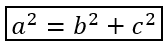
Presentation presentation = new Presentation();
try {
    ISlide slide = presentation.getSlides().get_Item(0);

    IAutoShape mathShape = slide.getShapes().addMathShape(20, 20, 700, 100);
    IMathParagraph mathParagraph = ((MathPortion) mathShape.getTextFrame().getParagraphs()
            .get_Item(0).getPortions().get_Item(0)).getMathParagraph();

    IMathBorderBox boxedEquation = new MathematicalText("a")
            .setSuperscript("2")
            .join("=")
            .join(new MathematicalText("b").setSuperscript("2"))
            .join("+")
            .join(new MathematicalText("c").setSuperscript("2"))
            .toBorderBox();

    mathParagraph.add(new MathBlock(boxedEquation));

    presentation.save("border-box.pptx", SaveFormat.Pptx);
} finally {
    presentation.dispose();
}
分组项
使用 group 在表达式上方或下方放置分组字符。添加极限以标记分组项。

Presentation presentation = new Presentation();
try {
    ISlide slide = presentation.getSlides().get_Item(0);

    IAutoShape mathShape = slide.getShapes().addMathShape(20, 20, 700, 120);
    IMathParagraph mathParagraph = ((MathPortion) mathShape.getTextFrame().getParagraphs()
            .get_Item(0).getPortions().get_Item(0)).getMathParagraph();

    IMathLimit grouped = new MathematicalText("x + y")
            .group('\u23DF', MathTopBotPositions.Bottom, MathTopBotPositions.Top)
            .setLowerLimit("any text");

    mathParagraph.add(new MathBlock(grouped));

    presentation.save("grouped-terms.pptx", SaveFormat.Pptx);
} finally {
    presentation.dispose();
}
格式化数学元素
仅在有助于阐明公式时使用格式化帮助方法。例如,overbar 在数学元素上方添加横线。

Presentation presentation = new Presentation();
try {
    ISlide slide = presentation.getSlides().get_Item(0);

    IAutoShape mathShape = slide.getShapes().addMathShape(20, 20, 700, 100);
    IMathParagraph mathParagraph = ((MathPortion) mathShape.getTextFrame().getParagraphs()
            .get_Item(0).getPortions().get_Item(0)).getMathParagraph();

    IMathBar overbar = new MathematicalText("ABC").overbar();

    mathParagraph.add(new MathBlock(overbar));

    presentation.save("overbar.pptx", SaveFormat.Pptx);
} finally {
    presentation.dispose();
}
快速参考
| 任务 | 主要 API |
|---|---|
| 创建数学文本 | MathematicalText |
| 组合元素 | IMathElement.join |
| 创建分数 | IMathElement.divide |
| 添加上标或下标 | setSuperscript, setSubscript |
| 添加函数 | function, asArgumentOfFunction |
| 添加根式 | IMathElement.radical |
| 添加极限 | setLowerLimit, setUpperLimit |
| 添加左侧脚本 | setSubSuperscriptOnTheLeft |
| 添加求和和积分 | nary, integral |
| 添加矩阵 | MathMatrix |
| 添加公式数组 | toMathArray |
| 添加分隔符 | enclose |
| 添加横线和边框 | overbar, toBorderBox |
| 分组项 | group |
常见问题
我可以编辑现有的 PowerPoint 公式吗?
可以。打开演示文稿,找到包含 MathPortion 的形状,获取其 MathParagraph,并在该段落中更新数学块。
公式会保存为可编辑的 PowerPoint 数学吗?
可以。保存为 PPTX 时,Aspose.Slides 会将公式写入为可编辑的 Office 数学内容。
我可以将公式导出为 LaTeX 吗?
可以。通过其 IMathPortion 获取公式的 IMathParagraph,然后调用 IMathParagraph.toLatex 直接导出。完整示例请参阅 在 Java 中从演示文稿导出数学公式。