
Crear y aplicar efectos WordArt en PHP
Visión general
Los efectos de WordArt le permiten dar estilo al texto con rellenos, contornos, sombras, reflejos, resplandor, transformaciones y formato 3D. Este artículo explica cómo crear y personalizar estos efectos en presentaciones de PowerPoint usando Aspose.Slides para PHP a través de Java, sin necesidad de Microsoft Office instalado.
Crear una plantilla de WordArt simple y aplicarla al texto
Los ejemplos siguientes crean un estilo de WordArt sencillo estableciendo el texto, la fuente, el relleno de patrón y el contorno.
Cada ejemplo crea una nueva presentación y añade un rectángulo a su primera diapositiva; no se requiere archivo de entrada. El primer ejemplo establece el texto en “Aspose.Slides”. La posición y dimensiones de la forma se miden en puntos:
use aspose\slides\Presentation;
use aspose\slides\ShapeType;

$presentation = new Presentation();
try {
    $slide = $presentation->getSlides()->get_Item(0);

    $autoShape = $slide->getShapes()->addAutoShape(ShapeType::Rectangle, 20, 20, 400, 200);
    $textFrame = $autoShape->getTextFrame();

    $portion = $textFrame->getParagraphs()->get_Item(0)->getPortions()->get_Item(0);
    $portion->setText("Aspose.Slides");
} finally {
    $presentation->dispose();
}
Establezca la fuente en Arial Black a 36 puntos para que el formato sea más visible:
use aspose\slides\FontData;
use aspose\slides\Presentation;
use aspose\slides\ShapeType;

$presentation = new Presentation();
try {
    $slide = $presentation->getSlides()->get_Item(0);

    $autoShape = $slide->getShapes()->addAutoShape(ShapeType::Rectangle, 20, 20, 400, 200);

    $portion = $autoShape->getTextFrame()->getParagraphs()->get_Item(0)->getPortions()->get_Item(0);
    $portion->setText("Aspose.Slides");
    $font = new FontData("Arial Black");
    $portion->getPortionFormat()->setLatinFont($font);
    $portion->getPortionFormat()->setFontHeight(36);
} finally {
    $presentation->dispose();
}
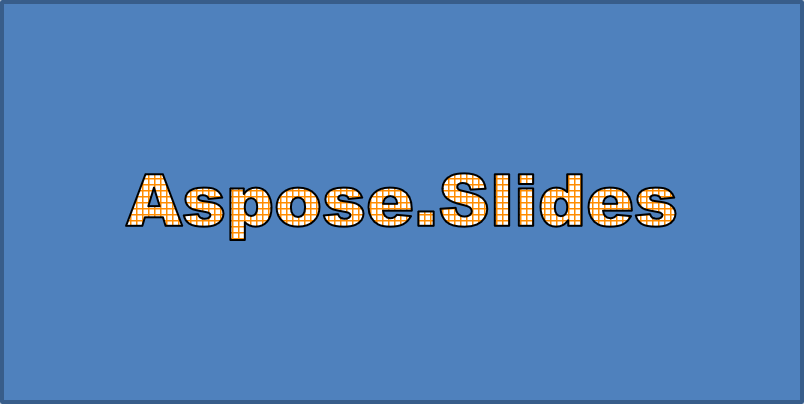
Aplique un patrón SmallGrid con un primer plano naranja oscuro y un fondo blanco, y luego añada un contorno de texto negro con un grosor de 1 punto:
use aspose\slides\FillType;
use aspose\slides\FontData;
use aspose\slides\PatternStyle;
use aspose\slides\Presentation;
use aspose\slides\ShapeType;

$presentation = new Presentation();
try {
    $slide = $presentation->getSlides()->get_Item(0);

    $autoShape = $slide->getShapes()->addAutoShape(ShapeType::Rectangle, 20, 20, 400, 200);

    $portion = $autoShape->getTextFrame()->getParagraphs()->get_Item(0)->getPortions()->get_Item(0);
    $portion->setText("Aspose.Slides");
    $font = new FontData("Arial Black");
    $portion->getPortionFormat()->setLatinFont($font);
    $portion->getPortionFormat()->setFontHeight(36);

    $portion->getPortionFormat()->getFillFormat()->setFillType(FillType::Pattern);
    $darkOrange = new Java("java.awt.Color", 255, 140, 0);
    $portion->getPortionFormat()->getFillFormat()->getPatternFormat()->getForeColor()->setColor($darkOrange);
    $portion->getPortionFormat()->getFillFormat()->getPatternFormat()->getBackColor()->setColor(java("java.awt.Color")->WHITE);
    $portion->getPortionFormat()->getFillFormat()->getPatternFormat()->setPatternStyle(PatternStyle::SmallGrid);

    $portion->getPortionFormat()->getLineFormat()->setWidth(1);
    $portion->getPortionFormat()->getLineFormat()->getFillFormat()->setFillType(FillType::Solid);
    $portion->getPortionFormat()->getLineFormat()->getFillFormat()->getSolidFillColor()->setColor(java("java.awt.Color")->BLACK);
} finally {
    $presentation->dispose();
}
El texto resultante:
Aplicar otros efectos de WordArt
Los ejemplos siguientes demuestran cómo aplicar sombras, reflejos, resplandor, transformaciones y efectos 3D al texto.
Aplicar efectos de sombra externa
Una sombra externa añade profundidad colocando una sombra detrás del texto. Puede personalizar su color, dirección, distancia, radio de difuminado, escala y sesgo.
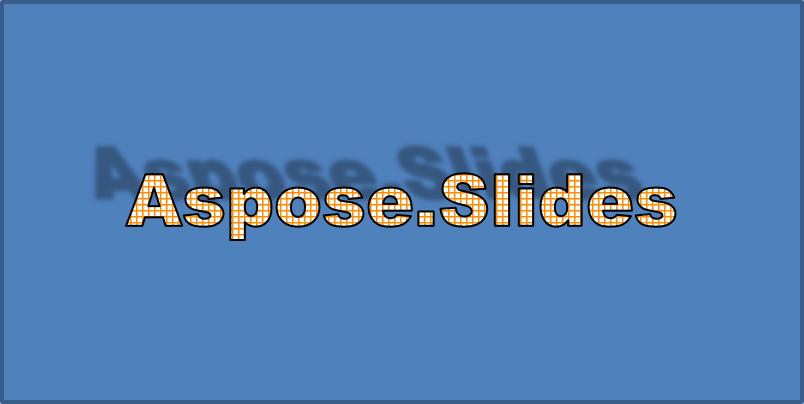
Este ejemplo llama a enableOuterShadowEffect y establece una sombra negra con un radio de difuminado de 4 puntos, una dirección de 230 grados y una distancia de 30 puntos. Los valores de escala de 100 conservan el tamaño de la sombra, mientras que el sesgo horizontal la inclina 20 grados. La transformación alfa establece su opacidad al 32 %:
use aspose\slides\ColorTransformOperation;
use aspose\slides\FontData;
use aspose\slides\Presentation;
use aspose\slides\ShapeType;

$presentation = new Presentation();
try {
    $slide = $presentation->getSlides()->get_Item(0);

    $autoShape = $slide->getShapes()->addAutoShape(ShapeType::Rectangle, 20, 20, 400, 200);

    $portion = $autoShape->getTextFrame()->getParagraphs()->get_Item(0)->getPortions()->get_Item(0);
    $portion->setText("Aspose.Slides");
    $font = new FontData("Arial Black");
    $portion->getPortionFormat()->setLatinFont($font);
    $portion->getPortionFormat()->setFontHeight(36);

    $portion->getPortionFormat()->getEffectFormat()->enableOuterShadowEffect();
    $portion->getPortionFormat()->getEffectFormat()->getOuterShadowEffect()->getShadowColor()->setColor(java("java.awt.Color")->BLACK);
    $portion->getPortionFormat()->getEffectFormat()->getOuterShadowEffect()->setScaleHorizontal(100);
    $portion->getPortionFormat()->getEffectFormat()->getOuterShadowEffect()->setScaleVertical(100);
    $portion->getPortionFormat()->getEffectFormat()->getOuterShadowEffect()->setBlurRadius(4);
    $portion->getPortionFormat()->getEffectFormat()->getOuterShadowEffect()->setDirection(230);
    $portion->getPortionFormat()->getEffectFormat()->getOuterShadowEffect()->setDistance(30);
    $portion->getPortionFormat()->getEffectFormat()->getOuterShadowEffect()->setSkewHorizontal(20);
    $portion->getPortionFormat()->getEffectFormat()->getOuterShadowEffect()->setSkewVertical(0);
    $portion->getPortionFormat()->getEffectFormat()->getOuterShadowEffect()->getShadowColor()->getColorTransform()->add(ColorTransformOperation::SetAlpha, 0.32);
} finally {
    $presentation->dispose();
}
El texto resultante:
Note
- Cuando se usan sombras externas y predefinidas juntas, solo se aplica la sombra externa.
- Si se usan sombras externas e internas simultáneamente, el efecto resultante depende de la versión de PowerPoint. Por ejemplo, en PowerPoint 2013 el efecto se duplica, mientras que en PowerPoint 2007 solo se aplica la sombra externa.
Aplicar efectos de reflejo
Un reflejo crea una copia espejo del texto. Ajuste su posición, escala, difuminado y opacidad para controlar su apariencia.
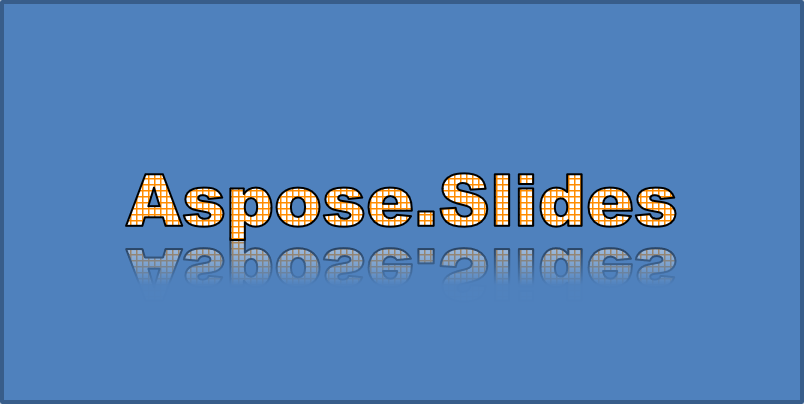
Este ejemplo llama a enableReflectionEffect e invierte el reflejo verticalmente con una escala de -100 %. Utiliza un radio de difuminado de 0,5 puntos y una distancia de 4,72 puntos. La opacidad disminuye del 60 % al 0,9 % entre las posiciones 0 % y 60 % a lo largo del reflejo:
use aspose\slides\FontData;
use aspose\slides\Presentation;
use aspose\slides\RectangleAlignment;
use aspose\slides\ShapeType;

$presentation = new Presentation();
try {
    $slide = $presentation->getSlides()->get_Item(0);

    $autoShape = $slide->getShapes()->addAutoShape(ShapeType::Rectangle, 20, 20, 400, 200);

    $portion = $autoShape->getTextFrame()->getParagraphs()->get_Item(0)->getPortions()->get_Item(0);
    $portion->setText("Aspose.Slides");
    $font = new FontData("Arial Black");
    $portion->getPortionFormat()->setLatinFont($font);
    $portion->getPortionFormat()->setFontHeight(36);

    $portion->getPortionFormat()->getEffectFormat()->enableReflectionEffect();
    $portion->getPortionFormat()->getEffectFormat()->getReflectionEffect()->setBlurRadius(0.5);
    $portion->getPortionFormat()->getEffectFormat()->getReflectionEffect()->setDistance(4.72);
    $portion->getPortionFormat()->getEffectFormat()->getReflectionEffect()->setStartPosAlpha(0);
    $portion->getPortionFormat()->getEffectFormat()->getReflectionEffect()->setEndPosAlpha(60);
    $portion->getPortionFormat()->getEffectFormat()->getReflectionEffect()->setDirection(90);
    $portion->getPortionFormat()->getEffectFormat()->getReflectionEffect()->setScaleHorizontal(100);
    $portion->getPortionFormat()->getEffectFormat()->getReflectionEffect()->setScaleVertical(-100);
    $portion->getPortionFormat()->getEffectFormat()->getReflectionEffect()->setStartReflectionOpacity(60);
    $portion->getPortionFormat()->getEffectFormat()->getReflectionEffect()->setEndReflectionOpacity(0.9);
    $portion->getPortionFormat()->getEffectFormat()->getReflectionEffect()->setRectangleAlign(RectangleAlignment::BottomLeft);
} finally {
    $presentation->dispose();
}
El texto resultante:
Aplicar efectos de resplandor
Un resplandor añade un contorno coloreado suave alrededor del texto. Ajuste su color, opacidad y radio para controlar el efecto.
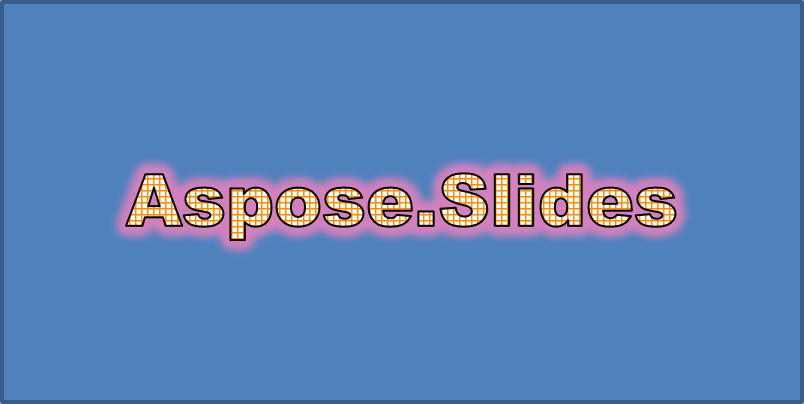
Este ejemplo llama a enableGlowEffect y aplica un resplandor rojo con un 54 % de opacidad y un radio de 7 puntos:
use aspose\slides\ColorTransformOperation;
use aspose\slides\FontData;
use aspose\slides\Presentation;
use aspose\slides\ShapeType;

$presentation = new Presentation();
try {
    $slide = $presentation->getSlides()->get_Item(0);

    $autoShape = $slide->getShapes()->addAutoShape(ShapeType::Rectangle, 20, 20, 400, 200);

    $portion = $autoShape->getTextFrame()->getParagraphs()->get_Item(0)->getPortions()->get_Item(0);
    $portion->setText("Aspose.Slides");
    $font = new FontData("Arial Black");
    $portion->getPortionFormat()->setLatinFont($font);
    $portion->getPortionFormat()->setFontHeight(36);

    $portion->getPortionFormat()->getEffectFormat()->enableGlowEffect();
    $portion->getPortionFormat()->getEffectFormat()->getGlowEffect()->getColor()->setColor(java("java.awt.Color")->RED);
    $portion->getPortionFormat()->getEffectFormat()->getGlowEffect()->getColor()->getColorTransform()->add(ColorTransformOperation::SetAlpha, 0.54);
    $portion->getPortionFormat()->getEffectFormat()->getGlowEffect()->setRadius(7);
} finally {
    $presentation->dispose();
}
El texto resultante:
Aplicar transformaciones de WordArt
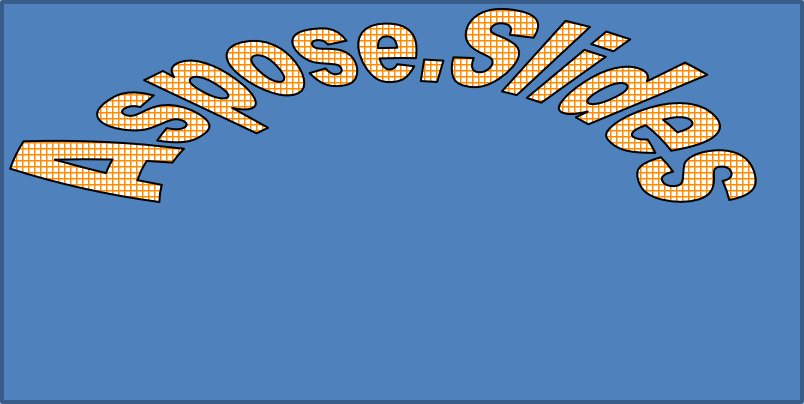
Las transformaciones de WordArt doblan, estiran o deforman un bloque de texto.
Establezca setTransform a ArchUpPour para curvar todo el marco de texto hacia arriba:
use aspose\slides\Presentation;
use aspose\slides\ShapeType;
use aspose\slides\TextShapeType;

$presentation = new Presentation();
try {
    $slide = $presentation->getSlides()->get_Item(0);

    $autoShape = $slide->getShapes()->addAutoShape(ShapeType::Rectangle, 20, 20, 400, 200);

    $textFrame = $autoShape->getTextFrame();
    $textFrame->setText("Aspose.Slides");
    $textFrame->getTextFrameFormat()->setTransform(TextShapeType::ArchUpPour);
} finally {
    $presentation->dispose();
}
El texto resultante:
Note
Aspose.Slides para PHP a través de Java ofrece un conjunto de tipos de transformación predefinidos.Aplicar efectos 3D a formas y texto
Puede aplicar efectos 3D a una forma o a su texto. Los biseles, extrusiones, iluminación y configuraciones de cámara controlan la apariencia resultante.
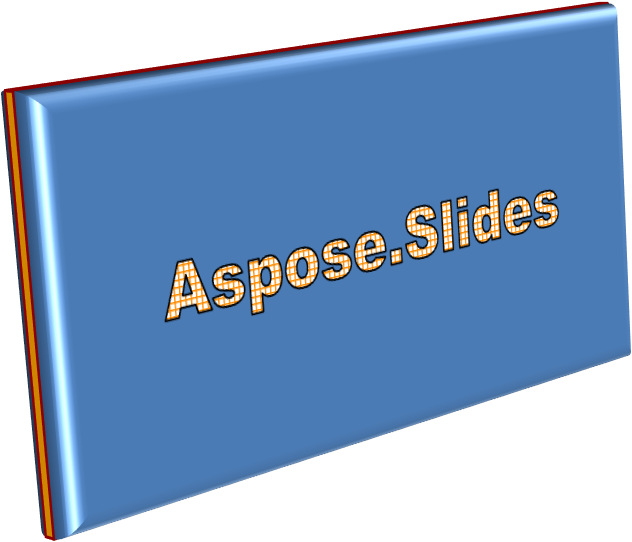
El siguiente ejemplo usa ThreeDFormat para añadir biseles circulares, extrusión naranja y un contorno rojo oscuro al rectángulo. Las dimensiones del bisel, la altura de la extrusión, el ancho del contorno y la profundidad se miden en puntos. Un material plástico, iluminación equilibrada girada 40 grados alrededor del eje Z y una cámara en perspectiva definen su aspecto:
use aspose\slides\BevelPresetType;
use aspose\slides\CameraPresetType;
use aspose\slides\LightRigPresetType;
use aspose\slides\LightingDirection;
use aspose\slides\MaterialPresetType;
use aspose\slides\Presentation;
use aspose\slides\ShapeType;

$presentation = new Presentation();
try {
    $slide = $presentation->getSlides()->get_Item(0);

    $autoShape = $slide->getShapes()->addAutoShape(ShapeType::Rectangle, 20, 20, 400, 200);
    $autoShape->getTextFrame()->setText("Aspose.Slides");

    $autoShape->getThreeDFormat()->getBevelBottom()->setBevelType(BevelPresetType::Circle);
    $autoShape->getThreeDFormat()->getBevelBottom()->setHeight(10.5);
    $autoShape->getThreeDFormat()->getBevelBottom()->setWidth(10.5);

    $autoShape->getThreeDFormat()->getBevelTop()->setBevelType(BevelPresetType::Circle);
    $autoShape->getThreeDFormat()->getBevelTop()->setHeight(12.5);
    $autoShape->getThreeDFormat()->getBevelTop()->setWidth(11);

    $orange = new Java("java.awt.Color", 255, 165, 0);
    $autoShape->getThreeDFormat()->getExtrusionColor()->setColor($orange);
    $autoShape->getThreeDFormat()->setExtrusionHeight(6);

    $darkRed = new Java("java.awt.Color", 139, 0, 0);
    $autoShape->getThreeDFormat()->getContourColor()->setColor($darkRed);
    $autoShape->getThreeDFormat()->setContourWidth(1.5);

    $autoShape->getThreeDFormat()->setDepth(3);

    $autoShape->getThreeDFormat()->setMaterial(MaterialPresetType::Plastic);

    $autoShape->getThreeDFormat()->getLightRig()->setDirection(LightingDirection::Top);
    $autoShape->getThreeDFormat()->getLightRig()->setLightType(LightRigPresetType::Balanced);
    $autoShape->getThreeDFormat()->getLightRig()->setRotation(0, 0, 40);

    $autoShape->getThreeDFormat()->getCamera()->setCameraType(CameraPresetType::PerspectiveContrastingRightFacing);
} finally {
    $presentation->dispose();
}
La forma resultante:
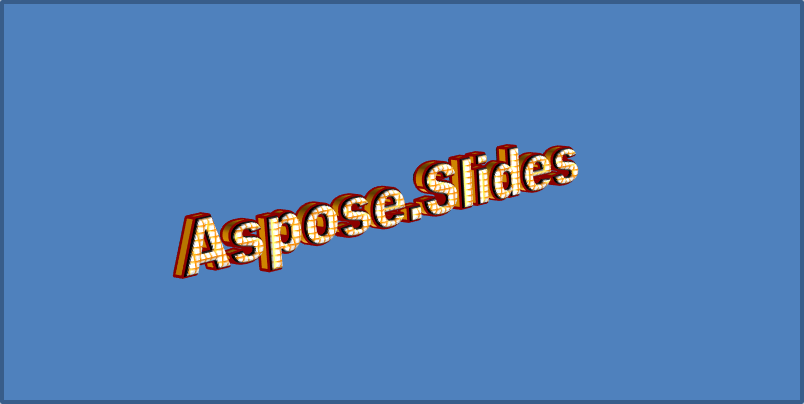
Este ejemplo aplica un formato 3D similar al texto mediante TextFrameFormat::getThreeDFormat. Biseles más pequeños modelan los bordes de las letras, mientras que la extrusión y la iluminación aportan profundidad al texto:
use aspose\slides\BevelPresetType;
use aspose\slides\CameraPresetType;
use aspose\slides\LightRigPresetType;
use aspose\slides\LightingDirection;
use aspose\slides\MaterialPresetType;
use aspose\slides\Presentation;
use aspose\slides\ShapeType;

$presentation = new Presentation();
try {
    $slide = $presentation->getSlides()->get_Item(0);

    $autoShape = $slide->getShapes()->addAutoShape(ShapeType::Rectangle, 20, 20, 400, 200);
    $textFrame = $autoShape->getTextFrame();
    $textFrame->setText("Aspose.Slides");

    $textFrame->getTextFrameFormat()->getThreeDFormat()->getBevelBottom()->setBevelType(BevelPresetType::Circle);
    $textFrame->getTextFrameFormat()->getThreeDFormat()->getBevelBottom()->setHeight(3.5);
    $textFrame->getTextFrameFormat()->getThreeDFormat()->getBevelBottom()->setWidth(3.5);

    $textFrame->getTextFrameFormat()->getThreeDFormat()->getBevelTop()->setBevelType(BevelPresetType::Circle);
    $textFrame->getTextFrameFormat()->getThreeDFormat()->getBevelTop()->setHeight(4);
    $textFrame->getTextFrameFormat()->getThreeDFormat()->getBevelTop()->setWidth(4);

    $orange = new Java("java.awt.Color", 255, 165, 0);
    $textFrame->getTextFrameFormat()->getThreeDFormat()->getExtrusionColor()->setColor($orange);
    $textFrame->getTextFrameFormat()->getThreeDFormat()->setExtrusionHeight(6);

    $darkRed = new Java("java.awt.Color", 139, 0, 0);
    $textFrame->getTextFrameFormat()->getThreeDFormat()->getContourColor()->setColor($darkRed);
    $textFrame->getTextFrameFormat()->getThreeDFormat()->setContourWidth(1.5);

    $textFrame->getTextFrameFormat()->getThreeDFormat()->setDepth(3);

    $textFrame->getTextFrameFormat()->getThreeDFormat()->setMaterial(MaterialPresetType::Plastic);

    $textFrame->getTextFrameFormat()->getThreeDFormat()->getLightRig()->setDirection(LightingDirection::Top);
    $textFrame->getTextFrameFormat()->getThreeDFormat()->getLightRig()->setLightType(LightRigPresetType::Balanced);
    $textFrame->getTextFrameFormat()->getThreeDFormat()->getLightRig()->setRotation(0, 0, 40);

    $textFrame->getTextFrameFormat()->getThreeDFormat()->getCamera()->setCameraType(CameraPresetType::PerspectiveContrastingRightFacing);
} finally {
    $presentation->dispose();
}
El texto resultante:
Note
La aplicación de efectos 3D al texto o a sus formas —y la interacción entre estos efectos— está regida por normas específicas. Considere una escena que incluya tanto el texto como la forma que lo contiene. Un efecto 3D incluye la representación 3D del objeto y la escena en la que se coloca.
- Si se define una escena tanto para la forma como para el texto, la escena de la forma tiene prioridad y se ignora la del texto.
- Si la forma no tiene su propia escena pero sí una representación 3D, se utiliza la escena del texto.
- Si la forma no tiene ningún efecto 3D, se trata como plana y el efecto 3D se aplica solo al texto.
Estos comportamientos se relacionan con los métodos ThreeDFormat::getLightRig y ThreeDFormat::getCamera.
Para más ejemplos de formato 3D, consulte Create 3D Effects in Presentations Using PHP.
Preguntas frecuentes
¿Puedo usar efectos de WordArt con diferentes fuentes o escrituras (p.ej., árabe, chino)?
Sí, Aspose.Slides para PHP a través de Java admite Unicode y funciona con todas las fuentes y escrituras principales. Los efectos de WordArt como sombra, relleno y contorno se pueden aplicar independientemente del idioma, aunque la disponibilidad de la fuente y el renderizado pueden depender de las fuentes del sistema.
¿Puedo aplicar efectos de WordArt a elementos del patrón de diapositivas?
Sí, puede aplicar efectos de WordArt a formas en diapositivas maestras, incluidos los marcadores de posición de título, pies de página o texto de fondo. Los cambios realizados en el diseño maestro se reflejarán en todas las diapositivas asociadas.
¿Los efectos de WordArt afectan al tamaño del archivo de la presentación?
Un poco. Los efectos de WordArt como sombras, resplandores y rellenos degradados pueden aumentar ligeramente el tamaño del archivo debido a los metadatos de formato añadidos, pero la diferencia suele ser insignificante.
¿Puedo previsualizar el resultado de los efectos de WordArt sin guardar la presentación?
Sí, puede renderizar diapositivas que contengan WordArt a imágenes (p.ej., PNG, JPEG) usando Slide::getImage, o renderizar formas individuales con Shape::getImage. Esto le permite previsualizar el resultado en memoria o en pantalla antes de guardar o exportar la presentación completa.