
प्रेजेंटेशन्स में JavaScript के द्वारा बुलेटेड और क्रमांकित सूचियों का प्रबंधन
अवलोकन
Aspose.Slides for Node.js via Java आपको PowerPoint और OpenDocument प्रस्तुतियों में बुलेटेड और क्रमांकित सूचियाँ बनाने और स्वरूपित करने की सुविधा देता है। एक सूची आइटम वह पैराग्राफ होता है जिसका बुलेट सेटिंग पैराग्राफ फ़ॉर्मेट के माध्यम से नियंत्रित होती है।
उपयोग करें Paragraph क्लास को पैराग्राफ-स्तर की सूची सेटिंग्स तक पहुँचने के लिए। मुख्य प्रवेश बिंदु है Paragraph.getParagraphFormat().getBullet(), जो एक BulletFormat ऑब्जेक्ट लौटाता है। इस ऑब्जेक्ट के साथ, आप बुलेट प्रकार, प्रतीक, चित्र, रंग, आकार, क्रमांक शैली, और प्रारंभिक संख्या निर्धारित कर सकते हैं।
यह लेख दिखाता है कि कैसे:
- कस्टम प्रतीक के साथ बुलेटेड सूची बनाना
- चित्र बुलेट बनाना
- पैराग्राफ गहराई निर्धारित करके मल्टी-लेवल सूची बनाना
- क्रमांकित सूची बनाना
- मौजूदा प्रस्तुतियों में सूची स्वरूपण की जाँच और परिवर्तन करना
- पैराग्राफ टेक्स्ट के साथ वास्तविक सूची संकेतकों और संख्याओं को पढ़ना
बुलेटेड सूची बनाएं
बुलेटेड सूची बनाने के लिए, एक TextFrame में Paragraph ऑब्जेक्ट जोड़ें और BulletFormat.setType को BulletType.Symbol पर सेट करें। फिर आप BulletFormat.setChar, BulletFormat.getColor, और BulletFormat.setHeight सेट करके बुलेट की उपस्थिति नियंत्रित कर सकते हैं।
निम्न JavaScript कोड एक स्लाइड में बुलेटेड सूची बनाने का प्रदर्शन करता है:
var aspose = aspose || {};
aspose.slides = require("aspose.slides.via.java");
const java = require("java");

function createParagraph(text, bulletColor) {
    const paragraph = new aspose.slides.Paragraph();
    const paragraphFormat = paragraph.getParagraphFormat();
    const bulletFormat = paragraphFormat.getBullet();

    bulletFormat.setType(java.newByte(aspose.slides.BulletType.Symbol));
    bulletFormat.setChar(java.newChar("*"));
    paragraphFormat.setIndent(15);
    bulletFormat.setBulletHardColor(java.newByte(aspose.slides.NullableBool.True));
    bulletFormat.getColor().setColor(bulletColor);
    bulletFormat.setHeight(100);
    paragraph.setText(text);

    return paragraph;
}

const presentation = new aspose.slides.Presentation();
try {
    const slide = presentation.getSlides().get_Item(0);

    const autoShape = slide.getShapes().addAutoShape(aspose.slides.ShapeType.Rectangle, 20, 20, 200, 50);

    const textFrame = autoShape.getTextFrame();
    textFrame.getParagraphs().clear();

    const bulletColor = java.newInstanceSync("java.awt.Color", 205, 92, 92);

    const paragraph1 = createParagraph("The first paragraph", bulletColor);
    textFrame.getParagraphs().add(paragraph1);

    const paragraph2 = createParagraph("The second paragraph", bulletColor);
    textFrame.getParagraphs().add(paragraph2);

    presentation.save("symbol_bullets.pptx", aspose.slides.SaveFormat.Pptx);
} finally {
    presentation.dispose();
}
परिणाम:

क्रमांकित सूची बनाएं
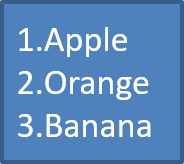
जब आइटमों का क्रम महत्वपूर्ण हो तो क्रमांकित सूचियों का उपयोग करें। BulletFormat.setType को BulletType.Numbered पर सेट करें। आप BulletFormat.setNumberedBulletStyle के साथ क्रमांक स्वरूप चुन सकते हैं या BulletFormat.setNumberedBulletStartWith सेट करके सूची को 1 के अलावा किसी अन्य मान से शुरू कर सकते हैं।
निम्न JavaScript कोड एक स्लाइड में क्रमांकित सूची बनाने का उदाहरण दिखाता है:
var aspose = aspose || {};
aspose.slides = require("aspose.slides.via.java");
const java = require("java");

const presentation = new aspose.slides.Presentation();
try {
    const slide = presentation.getSlides().get_Item(0);

    const autoShape = slide.getShapes().addAutoShape(aspose.slides.ShapeType.Rectangle, 20, 20, 90, 80);

    const textFrame = autoShape.getTextFrame();
    textFrame.getParagraphs().clear();

    const paragraph1 = new aspose.slides.Paragraph();
    paragraph1.getParagraphFormat().getBullet().setType(java.newByte(aspose.slides.BulletType.Numbered));
    paragraph1.setText("Apple");
    textFrame.getParagraphs().add(paragraph1);

    const paragraph2 = new aspose.slides.Paragraph();
    paragraph2.getParagraphFormat().getBullet().setType(java.newByte(aspose.slides.BulletType.Numbered));
    paragraph2.setText("Orange");
    textFrame.getParagraphs().add(paragraph2);

    const paragraph3 = new aspose.slides.Paragraph();
    paragraph3.getParagraphFormat().getBullet().setType(java.newByte(aspose.slides.BulletType.Numbered));
    paragraph3.setText("Banana");
    textFrame.getParagraphs().add(paragraph3);

    presentation.save("numbered_bullets.pptx", aspose.slides.SaveFormat.Pptx);
} finally {
    presentation.dispose();
}
परिणाम:
चित्र बुलेट बनाएं
Aspose.Slides आपको सामान्य बुलेट प्रतीक को छवि से बदलने की अनुमति देता है। चित्र बुलेट छोटे आकार में भी पढ़ने योग्य सरल छवियों, जैसे आइकन या छोटे पारदर्शी PNG फ़ाइलों, के साथ सबसे अच्छा काम करते हैं।
Note
आदर्श रूप में, यदि आप सामान्य बुलेट प्रतीक को छवि से बदलने की योजना बनाते हैं, तो पारदर्शी पृष्ठभूमि वाले सरल ग्राफिक का चयन करना बेहतर है। ऐसी छवियां कस्टम बुलेट प्रतीकों के रूप में अच्छी तरह काम करती हैं।ध्यान रखें कि छवि को बहुत छोटे आकार में स्केल किया जाएगा। इसलिए हम दृढ़ता से सलाह देते हैं कि ऐसी छवि चुनें जो सूची में बुलेट के रूप में उपयोग होने पर भी स्पष्ट और दृश्य रूप से प्रभावी बनी रहे।
चित्र बुलेट बनाने के लिए, एक छवि को Presentation में Presentation.getImages().addImage के साथ जोड़ें और लौटाए गए PPImage ऑब्जेक्ट को BulletFormat.getPicture().setImage को असाइन करें। छवि असाइन करने से पहले BulletFormat.setType को BulletType.Picture पर सेट करें।
मान लीजिए हमारे पास एक “image.png” है:

निम्न JavaScript कोड स्लाइड में चित्र बुलेट बनाने का प्रदर्शन करता है:
var aspose = aspose || {};
aspose.slides = require("aspose.slides.via.java");
const java = require("java");

function createParagraph(text, image) {
    const paragraph = new aspose.slides.Paragraph();
    const paragraphFormat = paragraph.getParagraphFormat();
    const bulletFormat = paragraphFormat.getBullet();

    bulletFormat.setType(java.newByte(aspose.slides.BulletType.Picture));
    bulletFormat.getPicture().setImage(image);
    paragraphFormat.setIndent(15);
    bulletFormat.setHeight(100);
    paragraph.setText(text);

    return paragraph;
}

const presentation = new aspose.slides.Presentation();
let image = null;
try {
    const slide = presentation.getSlides().get_Item(0);

    const autoShape = slide.getShapes().addAutoShape(aspose.slides.ShapeType.Rectangle, 20, 20, 200, 50);

    const textFrame = autoShape.getTextFrame();
    textFrame.getParagraphs().clear();

    image = aspose.slides.Images.fromFile("image.png");
    const bulletImage = presentation.getImages().addImage(image);

    const paragraph1 = createParagraph("The first paragraph", bulletImage);
    textFrame.getParagraphs().add(paragraph1);

    const paragraph2 = createParagraph("The second paragraph", bulletImage);
    textFrame.getParagraphs().add(paragraph2);

    presentation.save("picture_bullets.pptx", aspose.slides.SaveFormat.Pptx);
} finally {
    if (image !== null) {
        image.dispose();
    }
    presentation.dispose();
}
परिणाम:

बहु-स्तरीय सूची बनाएं
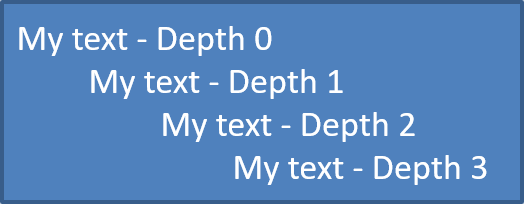
ParagraphFormat.setDepth का उपयोग करके सूची आइटमों को विभिन्न स्तरों पर रखें। स्तर 0 शीर्ष स्तर है, स्तर 1 उसके नीचे नेस्टेड है, आदि।
निम्न JavaScript कोड बहु-स्तरीय बुलेटेड सूची बनाने का उदाहरण दिखाता है:
var aspose = aspose || {};
aspose.slides = require("aspose.slides.via.java");
const java = require("java");

const presentation = new aspose.slides.Presentation();
try {
    const slide = presentation.getSlides().get_Item(0);

    const autoShape = slide.getShapes().addAutoShape(aspose.slides.ShapeType.Rectangle, 20, 20, 260, 110);

    const textFrame = autoShape.getTextFrame();
    textFrame.getParagraphs().clear();

    const paragraph1 = new aspose.slides.Paragraph();
    paragraph1.getParagraphFormat().setDepth(java.newShort(0));
    paragraph1.setText("My text - Depth 0");
    textFrame.getParagraphs().add(paragraph1);

    const paragraph2 = new aspose.slides.Paragraph();
    paragraph2.getParagraphFormat().setDepth(java.newShort(1));
    paragraph2.setText("My text - Depth 1");
    textFrame.getParagraphs().add(paragraph2);

    const paragraph3 = new aspose.slides.Paragraph();
    paragraph3.getParagraphFormat().setDepth(java.newShort(2));
    paragraph3.setText("My text - Depth 2");
    textFrame.getParagraphs().add(paragraph3);

    const paragraph4 = new aspose.slides.Paragraph();
    paragraph4.getParagraphFormat().setDepth(java.newShort(3));
    paragraph4.setText("My text - Depth 3");
    textFrame.getParagraphs().add(paragraph4);

    presentation.save("multilevel_bullets.pptx", aspose.slides.SaveFormat.Pptx);
} finally {
    presentation.dispose();
}
परिणाम:
मौजूदा सूची बदलें
मौजूदा प्रस्तुति में सूची स्वरूपण बदलने के लिए, लक्ष्य पैराग्राफ तक पहुँचें और उसकी ParagraphFormat.getBullet सेटिंग्स को अपडेट करें। सूचियों को बनाने में उपयोग किए गए वही गुण PPT, PPTX, या ODP फ़ाइल से लोड की गई सूचियों की जाँच या संशोधन के लिए भी उपयोग किए जा सकते हैं।
var aspose = aspose || {};
aspose.slides = require("aspose.slides.via.java");
const java = require("java");

const presentation = new aspose.slides.Presentation("input.pptx");
try {
    const slide = presentation.getSlides().get_Item(0);

    const autoShape = slide.getShapes().get_Item(0);

    const paragraph = autoShape.getTextFrame().getParagraphs().get_Item(0);

    const paragraphFormat = paragraph.getParagraphFormat();
    const bulletFormat = paragraphFormat.getBullet();

    bulletFormat.setType(java.newByte(aspose.slides.BulletType.Numbered));
    bulletFormat.setNumberedBulletStyle(java.newByte(aspose.slides.NumberedBulletStyle.BulletRomanUCPeriod));
    bulletFormat.setNumberedBulletStartWith(java.newShort(1));
    paragraphFormat.setMarginLeft(30);
    paragraphFormat.setIndent(-20);

    presentation.save("updated_list.pptx", aspose.slides.SaveFormat.Pptx);
} finally {
    presentation.dispose();
}
वास्तविक बुलेट मान पढ़ें
प्रेजेंटेशन सामग्री निकालते समय, सूची संकेतकों को पैराग्राफ टेक्स्ट के साथ रखें। प्रभावी बुलेट फ़ॉर्मेट प्राप्त करने के लिए ParagraphFormat.getEffective को कॉल करें और IParagraphFormatEffectiveData.getBullet तक पहुँचें। getActualBulletValue पढ़ने से पहले उसके getType को जाँचें।
क्रमांकित सूचियों के लिए, इन तीन मानों में अंतर करें:
- getNumberedBulletStyle फ़ॉर्मेट निर्धारित करता है, जैसे अंकित संख्या के बाद बिंदु या छोटे अक्षर के बाद बिंदु।
- getNumberedBulletStartWith संख्या पैराग्राफ समूह की प्रारंभिक संख्या निर्दिष्ट करता है।
- getActualBulletValue किसी विशेष पैराग्राफ के लिए फ़ॉर्मेटेड मार्कर लौटाता है। उदाहरण के लिए, 5 से शुरू होने वाली सूची का दूसरा आइटम
6.लौटाता है।
प्रत्येक पैराग्राफ के साथ getDepth को बनाए रखें ताकि उसकी नेस्टिंग स्तर बनी रहे। वास्तविक मार्कर पूरी पदानुक्रम को एन्कोड नहीं करता: एक नेस्टेड आइटम c. लौट सकता है न कि 6.c. जैसा संयुक्त लेबल।
निम्न आत्म-निहित उदाहरण सूचियों को बनाता है, उन्हें प्रस्तुति में सहेजता है, और प्रस्तुति को पुनः लोड करके प्रत्येक पैराग्राफ का टेक्स्ट, गहराई, बुलेट प्रकार, और वास्तविक मान रिपोर्ट करता है। छोटा नीला चित्र मार्कर इनलाइन SVG से बनाया गया है।
var aspose = aspose || {};
aspose.slides = require("aspose.slides.via.java");
const java = require("java");
const black = java.newInstanceSync("java.awt.Color", 0, 0, 0);

const presentation = new aspose.slides.Presentation();
try {
    presentation.getSlideSize().setSize(720, 440, aspose.slides.SlideSizeScaleType.DoNotScale);
    const slide = presentation.getSlides().get_Item(0);

    const shape = slide.getShapes().addAutoShape(aspose.slides.ShapeType.Rectangle, 30, 20, 660, 400);
    shape.getFillFormat().setFillType(java.newByte(aspose.slides.FillType.NoFill));
    shape.getLineFormat().getFillFormat().setFillType(java.newByte(aspose.slides.FillType.NoFill));

    const textFrame = shape.getTextFrame();
    textFrame.getParagraphs().clear();

    // बिना बाहरी छवि फ़ाइल के चित्र मार्कर बनाएं.
    const svg = new aspose.slides.SvgImage("<svg xmlns='http://www.w3.org/2000/svg' width='16' height='16'><rect width='16' height='16' rx='4' fill='#0078D4'/></svg>");
    const bulletImage = presentation.getImages().addImage(svg);

    function addParagraph(text, depth, type, start, style) {
        const paragraph = new aspose.slides.Paragraph();
        paragraph.setText(text);

        const format = paragraph.getParagraphFormat();
        format.setDepth(java.newShort(depth));
        format.setMarginLeft(30 + depth * 40);
        format.setIndent(-28);
        format.setSpaceAfter(8);
        format.getDefaultPortionFormat().setFontHeight(22);
        format.getDefaultPortionFormat().getFillFormat().setFillType(java.newByte(aspose.slides.FillType.Solid));
        format.getDefaultPortionFormat().getFillFormat().getSolidFillColor().setColor(black);
        format.getBullet().setType(java.newByte(type));
        format.getBullet().setBulletHardColor(java.newByte(aspose.slides.NullableBool.True));
        format.getBullet().getColor().setColor(black);
        if (type === aspose.slides.BulletType.Numbered) {
            format.getBullet().setNumberedBulletStyle(java.newByte(style));
            format.getBullet().setNumberedBulletStartWith(java.newShort(start));
        } else if (type === aspose.slides.BulletType.Symbol) {
            format.getBullet().setChar(java.newChar(0x2022));
        } else if (type === aspose.slides.BulletType.Picture) {
            format.getBullet().getPicture().setImage(bulletImage);
        }

        textFrame.getParagraphs().add(paragraph);
    }

    addParagraph("First item", 0, aspose.slides.BulletType.Numbered, 5, aspose.slides.NumberedBulletStyle.BulletArabicPeriod);
    addParagraph("Second item", 0, aspose.slides.BulletType.Numbered, 5, aspose.slides.NumberedBulletStyle.BulletArabicPeriod);
    addParagraph("Nested item", 1, aspose.slides.BulletType.Numbered, 3, aspose.slides.NumberedBulletStyle.BulletAlphaLCPeriod);
    addParagraph("Next nested item", 1, aspose.slides.BulletType.Numbered, 3, aspose.slides.NumberedBulletStyle.BulletAlphaLCPeriod);
    addParagraph("Deep item", 2, aspose.slides.BulletType.Numbered, 4, aspose.slides.NumberedBulletStyle.BulletRomanLCPeriod);
    addParagraph("Back to top level", 0, aspose.slides.BulletType.Numbered, 5, aspose.slides.NumberedBulletStyle.BulletArabicPeriod);
    addParagraph("Symbol marker", 0, aspose.slides.BulletType.Symbol, 1, aspose.slides.NumberedBulletStyle.BulletArabicPeriod);
    addParagraph("No bullet", 0, aspose.slides.BulletType.None, 1, aspose.slides.NumberedBulletStyle.BulletArabicPeriod);
    addParagraph("Picture marker", 0, aspose.slides.BulletType.Picture, 1, aspose.slides.NumberedBulletStyle.BulletArabicPeriod);
    presentation.save("actual_bullet_values.pptx", aspose.slides.SaveFormat.Pptx);
} finally {
    presentation.dispose();
}

const loadedPresentation = new aspose.slides.Presentation("actual_bullet_values.pptx");
try {
    const loadedShape = loadedPresentation.getSlides().get_Item(0).getShapes().get_Item(0);
    console.log("Text | Depth | Type | Actual value");
    const paragraphs = loadedShape.getTextFrame().getParagraphs();
    for (let i = 0; i < paragraphs.getCount(); i++) {
        const paragraph = paragraphs.get_Item(i);
        const bullet = paragraph.getParagraphFormat().getEffective().getBullet();
        let marker;
        switch (bullet.getType()) {
            case aspose.slides.BulletType.Numbered:
            case aspose.slides.BulletType.Symbol:
                marker = bullet.getActualBulletValue();
                break;
            case aspose.slides.BulletType.None:
                marker = bullet.getActualBulletValue() + " (no bullet)";
                break;
            case aspose.slides.BulletType.Picture:
                marker = bullet.getActualBulletValue() + " (image required)";
                break;
            default:
                marker = "unsupported bullet type";
                break;
        }
        const typeName = Object.keys(aspose.slides.BulletType).find(name => aspose.slides.BulletType[name] === bullet.getType());
        console.log(paragraph.getText() + " | " + paragraph.getParagraphFormat().getDepth() + " | " + typeName + " | " + marker);
    }
} finally {
    loadedPresentation.dispose();
}
स्रोत सूचियां नीचे दिखायी गई हैं।
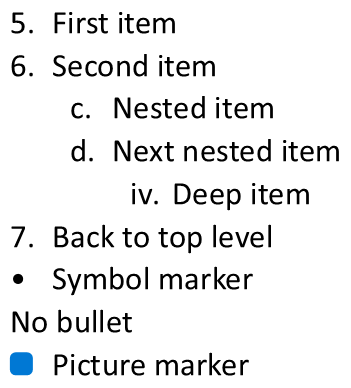
रिपोर्ट PowerPoint में दिखाए गए मार्करों से मेल खाती है:
Text | Depth | Type | Actual value
First item | 0 | Numbered | 5.
Second item | 0 | Numbered | 6.
Nested item | 1 | Numbered | c.
Next nested item | 1 | Numbered | d.
Deep item | 2 | Numbered | iv.
Back to top level | 0 | Numbered | 7.
Symbol marker | 0 | Symbol | •
No bullet | 0 | None | null (no bullet)
Picture marker | 0 | Picture | null (image required)
BulletType.None और BulletType.Picture के लिए, getActualBulletValue null लौटाता है, खाली स्ट्रिंग नहीं। इन प्रकारों को अलग-अलग संभालें: पहला कोई मार्कर नहीं रखता, जबकि दूसरा बुलेट छवि को अलग से निकालने की आवश्यकता रखता है। केवल टेक्स्ट मार्कर निकालकर एक चित्र बुलेट पुन: उत्पन्न नहीं किया जा सकता।
FAQ
क्या बुलेटेड और क्रमांकित सूचियों को PDF या चित्रों में निर्यात किया जा सकता है?
हाँ। Aspose.Slides सूची स्वरूपण को संरक्षित रखता है जब लक्ष्य प्रारूप संबंधित टेक्स्ट लेआउट और बुलेट सुविधाओं का समर्थन करता है।
क्या मैं मौजूदा प्रस्तुतियों में सूचियों को संपादित कर सकता हूँ?
हाँ। प्रस्तुति लोड करें, लक्ष्य पैराग्राफ तक पहुँचें, उसकी ParagraphFormat.getBullet सेटिंग्स की जाँच या अद्यतन करें, और प्रस्तुति को सहेजें।
क्या सूचियों में गैर-लैटिन टेक्स्ट हो सकता है?
हाँ। सूची आइटम का टेक्स्ट Unicode अक्षर रख सकता है, इसलिए आप बहु-भाषी प्रस्तुतियों में सूचियां बना सकते हैं। सुनिश्चित करें कि प्रस्तुति में उपयोग किए गए फ़ॉन्ट आवश्यक अक्षरों को समर्थन देते हों।