
จัดการรายการแบบมีจุดและลำดับเลขในงานนำเสนอโดยใช้ JavaScript
ภาพรวม
Aspose.Slides for Node.js via Java ช่วยให้คุณสร้างและจัดรูปแบบรายการแบบมีจุดและรายการลำดับเลขในงานนำเสนอ PowerPoint และ OpenDocument รายการหนึ่งเป็นย่อหน้าที่การตั้งค่าจุดถูกควบคุมผ่านรูปแบบย่อหน้า
ใช้คลาส Paragraph เพื่อเข้าถึงการตั้งค่ารายการระดับย่อหน้า จุดเริ่มต้นหลักคือ Paragraph.getParagraphFormat().getBullet() ซึ่งคืนค่าออบเจ็กต์ BulletFormat ด้วยออบเจ็กต์นี้คุณสามารถตั้งค่าชนิดของจุด สัญลักษณ์ รูปภาพ สี ขนาด รูปแบบการนับลำดับ และเลขเริ่มต้นได้
บทความนี้แสดงวิธี:
- สร้างรายการแบบมีจุดด้วยสัญลักษณ์แบบกำหนดเอง
- สร้างจุดภาพ
- สร้างรายการหลายระดับโดยตั้งค่าความลึกของย่อหน้า
- สร้างรายการลำดับเลข
- ตรวจสอบและเปลี่ยนรูปแบบรายการในงานนำเสนอที่มีอยู่
สร้างรายการแบบมีจุด
เพื่อสร้างรายการแบบมีจุด ให้เพิ่มออบเจ็กต์ Paragraph ไปยัง TextFrame แล้วตั้งค่า BulletFormat.setType เป็น BulletType.Symbol จากนั้นคุณสามารถตั้งค่า BulletFormat.setChar BulletFormat.getColor และ BulletFormat.setHeight เพื่อควบคุมลักษณะของจุดได้
โค้ด JavaScript ด้านล่างแสดงวิธีสร้างรายการแบบมีจุดในสไลด์:
function createParagraph(text, bulletColor) {
    const paragraph = new aspose.slides.Paragraph();
    const paragraphFormat = paragraph.getParagraphFormat();
    const bulletFormat = paragraphFormat.getBullet();

    bulletFormat.setType(java.newByte(aspose.slides.BulletType.Symbol));
    bulletFormat.setChar(java.newChar("*"));
    paragraphFormat.setIndent(15);
    bulletFormat.setBulletHardColor(java.newByte(aspose.slides.NullableBool.True));
    bulletFormat.getColor().setColor(bulletColor);
    bulletFormat.setHeight(100);
    paragraph.setText(text);

    return paragraph;
}

const presentation = new aspose.slides.Presentation();
try {
    const slide = presentation.getSlides().get_Item(0);
    const autoShape = slide.getShapes().addAutoShape(aspose.slides.ShapeType.Rectangle, 20, 20, 200, 50);

    const textFrame = autoShape.getTextFrame();
    textFrame.getParagraphs().clear();

    const bulletColor = java.newInstanceSync("java.awt.Color", 205, 92, 92);

    const paragraph1 = createParagraph("The first paragraph", bulletColor);
    textFrame.getParagraphs().add(paragraph1);

    const paragraph2 = createParagraph("The second paragraph", bulletColor);
    textFrame.getParagraphs().add(paragraph2);

    presentation.save("symbol_bullets.pptx", aspose.slides.SaveFormat.Pptx);
} finally {
    presentation.dispose();
}
ผลลัพธ์:

สร้างรายการลำดับเลข
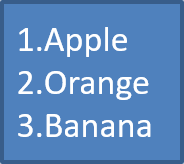
ใช้รายการลำดับเลขเมื่อลำดับของรายการมีความสำคัญ ตั้งค่า BulletFormat.setType เป็น BulletType.Numbered คุณยังสามารถเลือกรูปแบบการนับลำดับด้วย BulletFormat.setNumberedBulletStyle หรือกำหนดค่าเริ่มต้นด้วย BulletFormat.setNumberedBulletStartWith หากรายการควรเริ่มจากค่าที่ไม่ใช่ 1
โค้ด JavaScript ด้านล่างแสดงวิธีสร้างรายการลำดับเลขในสไลด์:
const presentation = new aspose.slides.Presentation();
try {
    const slide = presentation.getSlides().get_Item(0);
    const autoShape = slide.getShapes().addAutoShape(aspose.slides.ShapeType.Rectangle, 20, 20, 90, 80);

    const textFrame = autoShape.getTextFrame();
    textFrame.getParagraphs().clear();

    const paragraph1 = new aspose.slides.Paragraph();
    paragraph1.getParagraphFormat().getBullet().setType(java.newByte(aspose.slides.BulletType.Numbered));
    paragraph1.setText("Apple");
    textFrame.getParagraphs().add(paragraph1);

    const paragraph2 = new aspose.slides.Paragraph();
    paragraph2.getParagraphFormat().getBullet().setType(java.newByte(aspose.slides.BulletType.Numbered));
    paragraph2.setText("Orange");
    textFrame.getParagraphs().add(paragraph2);

    const paragraph3 = new aspose.slides.Paragraph();
    paragraph3.getParagraphFormat().getBullet().setType(java.newByte(aspose.slides.BulletType.Numbered));
    paragraph3.setText("Banana");
    textFrame.getParagraphs().add(paragraph3);

    presentation.save("numbered_bullets.pptx", aspose.slides.SaveFormat.Pptx);
} finally {
    presentation.dispose();
}
ผลลัพธ์:
สร้างจุดภาพ
Aspose.Slides อนุญาตให้คุณเปลี่ยนสัญลักษณ์จุดธรรมดาเป็นภาพ จุดภาพทำงานได้ดีที่สุดกับภาพที่เรียบง่ายและยังคงอ่านได้เมื่อขนาดเล็ก เช่น ไอคอนหรือไฟล์ PNG ที่โปร่งใส
โดยทั่วแล้ว หากคุณตั้งใจจะแทนที่สัญลักษณ์จุดธรรมดาด้วยภาพ ควรเลือกกราฟิกที่เรียบง่ายพร้อมพื้นหลังโปร่งใส ภาพเช่นนี้ทำงานได้ดีเป็นสัญลักษณ์จุดแบบกำหนดเอง
ควรคำนึงว่าภาพจะถูกย่อขนาดลงเป็นขนาดเล็กมาก ด้วยเหตุนี้เราขอแนะนำให้เลือกภาพที่ยังคงคมชัดและมีประสิทธิภาพต่อการมองเห็นเมื่อใช้เป็นจุดในรายการ
เพื่อสร้างจุดภาพ ให้เพิ่มภาพไปยัง Presentation ด้วย Presentation.getImages().addImage แล้วกำหนดออบเจ็กต์ PPImage ที่ได้คืนให้กับ BulletFormat.getPicture().setImage ตั้งค่า BulletFormat.setType เป็น BulletType.Picture ก่อนกำหนดภาพ
สมมติว่าเรามีไฟล์ “image.png”:

โค้ด JavaScript ด้านล่างแสดงวิธีสร้างจุดภาพในสไลด์:
function createParagraph(text, image) {
    const paragraph = new aspose.slides.Paragraph();
    const paragraphFormat = paragraph.getParagraphFormat();
    const bulletFormat = paragraphFormat.getBullet();

    bulletFormat.setType(java.newByte(aspose.slides.BulletType.Picture));
    bulletFormat.getPicture().setImage(image);
    paragraphFormat.setIndent(15);
    bulletFormat.setHeight(100);
    paragraph.setText(text);

    return paragraph;
}

const presentation = new aspose.slides.Presentation();
let image = null;
try {
    const slide = presentation.getSlides().get_Item(0);
    const autoShape = slide.getShapes().addAutoShape(aspose.slides.ShapeType.Rectangle, 20, 20, 200, 50);

    const textFrame = autoShape.getTextFrame();
    textFrame.getParagraphs().clear();

    image = aspose.slides.Images.fromFile("image.png");
    const bulletImage = presentation.getImages().addImage(image);

    const paragraph1 = createParagraph("The first paragraph", bulletImage);
    textFrame.getParagraphs().add(paragraph1);

    const paragraph2 = createParagraph("The second paragraph", bulletImage);
    textFrame.getParagraphs().add(paragraph2);

    presentation.save("picture_bullets.pptx", aspose.slides.SaveFormat.Pptx);
} finally {
    if (image !== null) {
        image.dispose();
    }
    presentation.dispose();
}
ผลลัพธ์:

สร้างรายการหลายระดับ
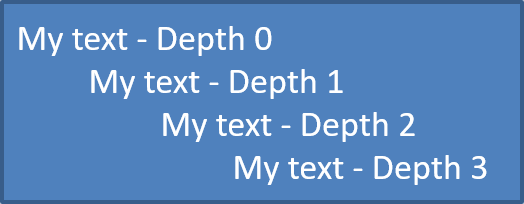
ใช้ ParagraphFormat.setDepth เพื่อวางรายการในระดับต่าง ๆ ระดับ 0 คือระดับบนสุด ระดับ 1 อยู่ซ้อนใต้มัน เป็นต้น
โค้ด JavaScript ด้านล่างแสดงวิธีสร้างรายการแบบมีจุดหลายระดับ:
const presentation = new aspose.slides.Presentation();
try {
    const slide = presentation.getSlides().get_Item(0);
    const autoShape = slide.getShapes().addAutoShape(aspose.slides.ShapeType.Rectangle, 20, 20, 260, 110);

    const textFrame = autoShape.getTextFrame();
    textFrame.getParagraphs().clear();

    const paragraph1 = new aspose.slides.Paragraph();
    paragraph1.getParagraphFormat().setDepth(java.newShort(0));
    paragraph1.setText("My text - Depth 0");
    textFrame.getParagraphs().add(paragraph1);

    const paragraph2 = new aspose.slides.Paragraph();
    paragraph2.getParagraphFormat().setDepth(java.newShort(1));
    paragraph2.setText("My text - Depth 1");
    textFrame.getParagraphs().add(paragraph2);

    const paragraph3 = new aspose.slides.Paragraph();
    paragraph3.getParagraphFormat().setDepth(java.newShort(2));
    paragraph3.setText("My text - Depth 2");
    textFrame.getParagraphs().add(paragraph3);

    const paragraph4 = new aspose.slides.Paragraph();
    paragraph4.getParagraphFormat().setDepth(java.newShort(3));
    paragraph4.setText("My text - Depth 3");
    textFrame.getParagraphs().add(paragraph4);

    presentation.save("multilevel_bullets.pptx", aspose.slides.SaveFormat.Pptx);
} finally {
    presentation.dispose();
}
ผลลัพธ์:
เปลี่ยนรายการที่มีอยู่
เพื่อเปลี่ยนรูปแบบรายการในงานนำเสนอที่มีอยู่ ให้เข้าถึงย่อหน้าที่ต้องการและอัปเดตการตั้งค่า ParagraphFormat.getBullet คุณสามารถใช้คุณสมบัติเช่นเดียวกับที่ใช้สร้างรายการเพื่อตรวจสอบหรือแก้ไขรายการที่โหลดจากไฟล์ PPT, PPTX หรือ ODP
const presentation = new aspose.slides.Presentation("input.pptx");
try {
    const slide = presentation.getSlides().get_Item(0);
    const autoShape = slide.getShapes().get_Item(0);
    const paragraph = autoShape.getTextFrame().getParagraphs().get_Item(0);

    const paragraphFormat = paragraph.getParagraphFormat();
    const bulletFormat = paragraphFormat.getBullet();

    bulletFormat.setType(java.newByte(aspose.slides.BulletType.Numbered));
    bulletFormat.setNumberedBulletStyle(java.newByte(aspose.slides.NumberedBulletStyle.BulletRomanUCPeriod));
    bulletFormat.setNumberedBulletStartWith(java.newShort(1));
    paragraphFormat.setMarginLeft(30);
    paragraphFormat.setIndent(-20);

    presentation.save("updated_list.pptx", aspose.slides.SaveFormat.Pptx);
} finally {
    presentation.dispose();
}
คำถามที่พบบ่อย
สามารถส่งออกรายการแบบมีจุดและลำดับเลขเป็น PDF หรือรูปภาพได้หรือไม่?
ใช่ Aspose.Slides รักษารูปแบบรายการเมื่อรูปแบบเป้าหมายรองรับการจัดวางข้อความและคุณลักษณะจุดที่สอดคล้องกัน
ฉันสามารถแก้ไขรายการในงานนำเสนอที่มีอยู่ได้หรือไม่?
ใช่ โหลดงานนำเสนอ, เข้าถึงย่อหน้าที่ต้องการ, ตรวจสอบหรืออัปเดตการตั้งค่า ParagraphFormat.getBullet แล้วบันทึกงานนำเสนอ
รายการสามารถมีข้อความที่ไม่ใช่ละตินได้หรือไม่?
ใช่ ข้อความของรายการสามารถมีอักขระ Unicode ได้ ดังนั้นคุณสามารถสร้างรายการในงานนำเสนอหลายภาษาต่างๆ ได้ ตรวจสอบให้แน่ใจว่าแบบอักษรที่ใช้ในงานนำเสนอรองรับอักขระที่ต้องการ