
使用 JavaScript 管理簡報中的項目符號與編號清單
概觀
Aspose.Slides for Node.js via Java 讓您在 PowerPoint 和 OpenDocument 簡報中建立與格式化項目符號與編號清單。清單項目是其段落設定受段落格式控制的段落。
使用 Paragraph 類別可存取段落層級的清單設定。主要入口為 Paragraph.getParagraphFormat().getBullet(),它會傳回一個 BulletFormat 物件。透過此物件,您可以設定項目符號類型、符號、圖片、顏色、大小、編號樣式與起始編號。
本篇說明如何:
- 建立自訂符號的項目符號清單
- 建立圖片項目符號
- 透過設定段落深度建立多層次清單
- 建立編號清單
- 檢視與變更現有簡報中的清單格式
建立項目符號清單
若要建立項目符號清單,請將 Paragraph 物件加入 TextFrame,並將 BulletFormat.setType 設為 BulletType.Symbol。之後即可使用 BulletFormat.setChar、BulletFormat.getColor 與 BulletFormat.setHeight 來控制項目符號外觀。
以下 JavaScript 程式碼示範了如何在投影片中建立項目符號清單:
function createParagraph(text, bulletColor) {
    const paragraph = new aspose.slides.Paragraph();
    const paragraphFormat = paragraph.getParagraphFormat();
    const bulletFormat = paragraphFormat.getBullet();

    bulletFormat.setType(java.newByte(aspose.slides.BulletType.Symbol));
    bulletFormat.setChar(java.newChar("*"));
    paragraphFormat.setIndent(15);
    bulletFormat.setBulletHardColor(java.newByte(aspose.slides.NullableBool.True));
    bulletFormat.getColor().setColor(bulletColor);
    bulletFormat.setHeight(100);
    paragraph.setText(text);

    return paragraph;
}

const presentation = new aspose.slides.Presentation();
try {
    const slide = presentation.getSlides().get_Item(0);
    const autoShape = slide.getShapes().addAutoShape(aspose.slides.ShapeType.Rectangle, 20, 20, 200, 50);

    const textFrame = autoShape.getTextFrame();
    textFrame.getParagraphs().clear();

    const bulletColor = java.newInstanceSync("java.awt.Color", 205, 92, 92);

    const paragraph1 = createParagraph("The first paragraph", bulletColor);
    textFrame.getParagraphs().add(paragraph1);

    const paragraph2 = createParagraph("The second paragraph", bulletColor);
    textFrame.getParagraphs().add(paragraph2);

    presentation.save("symbol_bullets.pptx", aspose.slides.SaveFormat.Pptx);
} finally {
    presentation.dispose();
}
結果:

建立編號清單
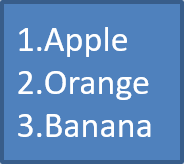
當項目順序重要時,使用編號清單。將 BulletFormat.setType 設為 BulletType.Numbered。您也可以使用 BulletFormat.setNumberedBulletStyle 來選擇編號格式,或在清單需從非 1 的值開始時使用 BulletFormat.setNumberedBulletStartWith。
以下 JavaScript 程式碼示範了如何在投影片中建立編號清單:
const presentation = new aspose.slides.Presentation();
try {
    const slide = presentation.getSlides().get_Item(0);
    const autoShape = slide.getShapes().addAutoShape(aspose.slides.ShapeType.Rectangle, 20, 20, 90, 80);

    const textFrame = autoShape.getTextFrame();
    textFrame.getParagraphs().clear();

    const paragraph1 = new aspose.slides.Paragraph();
    paragraph1.getParagraphFormat().getBullet().setType(java.newByte(aspose.slides.BulletType.Numbered));
    paragraph1.setText("Apple");
    textFrame.getParagraphs().add(paragraph1);

    const paragraph2 = new aspose.slides.Paragraph();
    paragraph2.getParagraphFormat().getBullet().setType(java.newByte(aspose.slides.BulletType.Numbered));
    paragraph2.setText("Orange");
    textFrame.getParagraphs().add(paragraph2);

    const paragraph3 = new aspose.slides.Paragraph();
    paragraph3.getParagraphFormat().getBullet().setType(java.newByte(aspose.slides.BulletType.Numbered));
    paragraph3.setText("Banana");
    textFrame.getParagraphs().add(paragraph3);

    presentation.save("numbered_bullets.pptx", aspose.slides.SaveFormat.Pptx);
} finally {
    presentation.dispose();
}
結果:
建立圖片項目符號
Aspose.Slides 允許您以影像取代一般的項目符號。圖片項目符號最適合使用在小尺寸仍能保持可讀性的簡單圖案,例如圖示或小型透明 PNG 檔。
理想情況下,如果您打算以影像取代一般的項目符號,最好選擇具有透明背景的簡易圖形。此類圖像非常適合作為自訂的項目符號。
請記得圖片會被縮小至極小尺寸。因此,我們強烈建議選擇在作為清單項目符號時仍能保持清晰且具視覺效果的圖像。
要建立圖片項目符號,先使用 Presentation.getImages().addImage 將影像加入 Presentation,並將回傳的 PPImage 物件指派給 BulletFormat.getPicture().setImage。在指定影像前,先將 BulletFormat.setType 設為 BulletType.Picture。
假設我們有一個 “image.png”:

以下 JavaScript 程式碼示範了如何在投影片中建立圖片項目符號:
function createParagraph(text, image) {
    const paragraph = new aspose.slides.Paragraph();
    const paragraphFormat = paragraph.getParagraphFormat();
    const bulletFormat = paragraphFormat.getBullet();

    bulletFormat.setType(java.newByte(aspose.slides.BulletType.Picture));
    bulletFormat.getPicture().setImage(image);
    paragraphFormat.setIndent(15);
    bulletFormat.setHeight(100);
    paragraph.setText(text);

    return paragraph;
}

const presentation = new aspose.slides.Presentation();
let image = null;
try {
    const slide = presentation.getSlides().get_Item(0);
    const autoShape = slide.getShapes().addAutoShape(aspose.slides.ShapeType.Rectangle, 20, 20, 200, 50);

    const textFrame = autoShape.getTextFrame();
    textFrame.getParagraphs().clear();

    image = aspose.slides.Images.fromFile("image.png");
    const bulletImage = presentation.getImages().addImage(image);

    const paragraph1 = createParagraph("The first paragraph", bulletImage);
    textFrame.getParagraphs().add(paragraph1);

    const paragraph2 = createParagraph("The second paragraph", bulletImage);
    textFrame.getParagraphs().add(paragraph2);

    presentation.save("picture_bullets.pptx", aspose.slides.SaveFormat.Pptx);
} finally {
    if (image !== null) {
        image.dispose();
    }
    presentation.dispose();
}
結果:

建立多層次清單
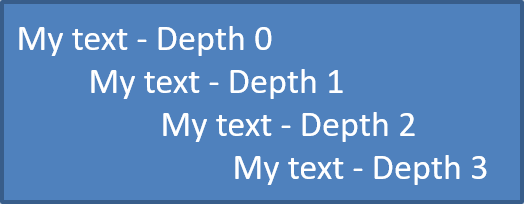
使用 ParagraphFormat.setDepth 可將清單項目放置於不同層級。層級 0 為最上層,層級 1 為其下的子層,依此類推。
以下 JavaScript 程式碼示範了如何建立多層次項目符號清單:
const presentation = new aspose.slides.Presentation();
try {
    const slide = presentation.getSlides().get_Item(0);
    const autoShape = slide.getShapes().addAutoShape(aspose.slides.ShapeType.Rectangle, 20, 20, 260, 110);

    const textFrame = autoShape.getTextFrame();
    textFrame.getParagraphs().clear();

    const paragraph1 = new aspose.slides.Paragraph();
    paragraph1.getParagraphFormat().setDepth(java.newShort(0));
    paragraph1.setText("My text - Depth 0");
    textFrame.getParagraphs().add(paragraph1);

    const paragraph2 = new aspose.slides.Paragraph();
    paragraph2.getParagraphFormat().setDepth(java.newShort(1));
    paragraph2.setText("My text - Depth 1");
    textFrame.getParagraphs().add(paragraph2);

    const paragraph3 = new aspose.slides.Paragraph();
    paragraph3.getParagraphFormat().setDepth(java.newShort(2));
    paragraph3.setText("My text - Depth 2");
    textFrame.getParagraphs().add(paragraph3);

    const paragraph4 = new aspose.slides.Paragraph();
    paragraph4.getParagraphFormat().setDepth(java.newShort(3));
    paragraph4.setText("My text - Depth 3");
    textFrame.getParagraphs().add(paragraph4);

    presentation.save("multilevel_bullets.pptx", aspose.slides.SaveFormat.Pptx);
} finally {
    presentation.dispose();
}
結果:
變更既有清單
若要變更既有簡報中的清單格式,存取目標段落並更新其 ParagraphFormat.getBullet 設定。建立清單時使用的相同屬性,也可用於檢視或修改從 PPT、PPTX 或 ODP 檔案載入的清單。
以下 JavaScript 程式碼將文字框中的第一個段落改為使用編號清單樣式:
const presentation = new aspose.slides.Presentation("input.pptx");
try {
    const slide = presentation.getSlides().get_Item(0);
    const autoShape = slide.getShapes().get_Item(0);
    const paragraph = autoShape.getTextFrame().getParagraphs().get_Item(0);

    const paragraphFormat = paragraph.getParagraphFormat();
    const bulletFormat = paragraphFormat.getBullet();

    bulletFormat.setType(java.newByte(aspose.slides.BulletType.Numbered));
    bulletFormat.setNumberedBulletStyle(java.newByte(aspose.slides.NumberedBulletStyle.BulletRomanUCPeriod));
    bulletFormat.setNumberedBulletStartWith(java.newShort(1));
    paragraphFormat.setMarginLeft(30);
    paragraphFormat.setIndent(-20);

    presentation.save("updated_list.pptx", aspose.slides.SaveFormat.Pptx);
} finally {
    presentation.dispose();
}
常見問題
項目符號與編號清單能匯出為 PDF 或影像嗎?
可以。Aspose.Slides 會保留清單格式,前提是目標格式支援對應的文字排版與項目符號功能。
我可以編輯既有簡報中的清單嗎?
可以。載入簡報、存取目標段落、檢視或更新其 ParagraphFormat.getBullet 設定,然後儲存簡報。
清單可以包含非拉丁文字嗎?
可以。清單項目文字支援 Unicode 字元,您可以在多語言簡報中建立清單。請確保簡報使用的字型支援您所需的字元。