
Správa odrážkových a číslovaných seznamů v prezentacích pomocí JavaScriptu
Přehled
Aspose.Slides for Node.js via Java vám umožňuje vytvářet a formátovat odrážkové a číslované seznamy v prezentacích PowerPoint a OpenDocument. Položka seznamu je odstavec, jehož nastavení odrážky je řízeno prostřednictvím formátu odstavce.
Použijte třídu Paragraph k přístupu k nastavením seznamu na úrovni odstavce. Hlavní vstupní bod je Paragraph.getParagraphFormat().getBullet(), který vrací objekt BulletFormat. S tímto objektem můžete nastavit typ odrážky, symbol, obrázek, barvu, velikost, styl číslování a počáteční číslo.
Tento článek ukazuje, jak:
- vytvořit odrážkový seznam s vlastním symbolem
- vytvořit obrázkovou odrážku
- vytvořit vícestupňový seznam nastavením hloubky odstavce
- vytvořit číslovaný seznam
- prozkoumat a změnit formátování seznamu v existující prezentaci
- přečíst skutečné značky seznamu a čísla vedle textu odstavce
Vytvoření odrážkového seznamu
Pro vytvoření odrážkového seznamu přidejte objekty Paragraph do TextFrame a nastavte BulletFormat.setType na BulletType.Symbol. Poté můžete nastavit BulletFormat.setChar, BulletFormat.getColor a BulletFormat.setHeight pro řízení vzhledu odrážky.
Následující kód JavaScript ukazuje, jak vytvořit odrážkový seznam na snímku:
var aspose = aspose || {};
aspose.slides = require("aspose.slides.via.java");
const java = require("java");

function createParagraph(text, bulletColor) {
    const paragraph = new aspose.slides.Paragraph();
    const paragraphFormat = paragraph.getParagraphFormat();
    const bulletFormat = paragraphFormat.getBullet();

    bulletFormat.setType(java.newByte(aspose.slides.BulletType.Symbol));
    bulletFormat.setChar(java.newChar("*"));
    paragraphFormat.setIndent(15);
    bulletFormat.setBulletHardColor(java.newByte(aspose.slides.NullableBool.True));
    bulletFormat.getColor().setColor(bulletColor);
    bulletFormat.setHeight(100);
    paragraph.setText(text);

    return paragraph;
}

const presentation = new aspose.slides.Presentation();
try {
    const slide = presentation.getSlides().get_Item(0);

    const autoShape = slide.getShapes().addAutoShape(aspose.slides.ShapeType.Rectangle, 20, 20, 200, 50);

    const textFrame = autoShape.getTextFrame();
    textFrame.getParagraphs().clear();

    const bulletColor = java.newInstanceSync("java.awt.Color", 205, 92, 92);

    const paragraph1 = createParagraph("The first paragraph", bulletColor);
    textFrame.getParagraphs().add(paragraph1);

    const paragraph2 = createParagraph("The second paragraph", bulletColor);
    textFrame.getParagraphs().add(paragraph2);

    presentation.save("symbol_bullets.pptx", aspose.slides.SaveFormat.Pptx);
} finally {
    presentation.dispose();
}
Výsledek:

Vytvoření číslovaného seznamu
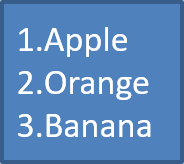
Používejte číslované seznamy, když je důležité pořadí položek. Nastavte BulletFormat.setType na BulletType.Numbered. Můžete také zvolit formát číslování pomocí BulletFormat.setNumberedBulletStyle nebo nastavit BulletFormat.setNumberedBulletStartWith, pokud má seznam začínat hodnotou jinou než 1.
Následující kód JavaScript ukazuje, jak vytvořit číslovaný seznam na snímku:
var aspose = aspose || {};
aspose.slides = require("aspose.slides.via.java");
const java = require("java");

const presentation = new aspose.slides.Presentation();
try {
    const slide = presentation.getSlides().get_Item(0);

    const autoShape = slide.getShapes().addAutoShape(aspose.slides.ShapeType.Rectangle, 20, 20, 90, 80);

    const textFrame = autoShape.getTextFrame();
    textFrame.getParagraphs().clear();

    const paragraph1 = new aspose.slides.Paragraph();
    paragraph1.getParagraphFormat().getBullet().setType(java.newByte(aspose.slides.BulletType.Numbered));
    paragraph1.setText("Apple");
    textFrame.getParagraphs().add(paragraph1);

    const paragraph2 = new aspose.slides.Paragraph();
    paragraph2.getParagraphFormat().getBullet().setType(java.newByte(aspose.slides.BulletType.Numbered));
    paragraph2.setText("Orange");
    textFrame.getParagraphs().add(paragraph2);

    const paragraph3 = new aspose.slides.Paragraph();
    paragraph3.getParagraphFormat().getBullet().setType(java.newByte(aspose.slides.BulletType.Numbered));
    paragraph3.setText("Banana");
    textFrame.getParagraphs().add(paragraph3);

    presentation.save("numbered_bullets.pptx", aspose.slides.SaveFormat.Pptx);
} finally {
    presentation.dispose();
}
Výsledek:
Vytvoření obrázkové odrážky
Aspose.Slides vám umožňuje nahradit běžný symbol odrážky obrázkem. Obrázkové odrážky fungují nejlépe s jednoduchými obrázky, které jsou čitelné v malé velikosti, například ikony nebo malé průhledné PNG soubory.
Note
Ideálně, pokud plánujete nahradit běžný symbol odrážky obrázkem, je nejlepší zvolit jednoduchou grafiku s průhledným pozadím. Takové obrázky fungují dobře jako vlastní symboly odrážek.
Mějte na paměti, že obrázek bude zmenšen na velmi malou velikost. Z tohoto důvodu důrazně doporučujeme vybrat obrázek, který zůstane jasný a vizuálně účinný, když je použit jako odrážka v seznamu.
Pro vytvoření obrázkové odrážky přidejte obrázek do Presentation pomocí Presentation.getImages().addImage a přiřaďte vrácený objekt PPImage k BulletFormat.getPicture().setImage. Před přiřazením obrázku nastavte BulletFormat.setType na BulletType.Picture.
Předpokládejme, že máme soubor “image.png”:

Následující kód JavaScript ukazuje, jak vytvořit obrázkové odrážky na snímku:
var aspose = aspose || {};
aspose.slides = require("aspose.slides.via.java");
const java = require("java");

function createParagraph(text, image) {
    const paragraph = new aspose.slides.Paragraph();
    const paragraphFormat = paragraph.getParagraphFormat();
    const bulletFormat = paragraphFormat.getBullet();

    bulletFormat.setType(java.newByte(aspose.slides.BulletType.Picture));
    bulletFormat.getPicture().setImage(image);
    paragraphFormat.setIndent(15);
    bulletFormat.setHeight(100);
    paragraph.setText(text);

    return paragraph;
}

const presentation = new aspose.slides.Presentation();
let image = null;
try {
    const slide = presentation.getSlides().get_Item(0);

    const autoShape = slide.getShapes().addAutoShape(aspose.slides.ShapeType.Rectangle, 20, 20, 200, 50);

    const textFrame = autoShape.getTextFrame();
    textFrame.getParagraphs().clear();

    image = aspose.slides.Images.fromFile("image.png");
    const bulletImage = presentation.getImages().addImage(image);

    const paragraph1 = createParagraph("The first paragraph", bulletImage);
    textFrame.getParagraphs().add(paragraph1);

    const paragraph2 = createParagraph("The second paragraph", bulletImage);
    textFrame.getParagraphs().add(paragraph2);

    presentation.save("picture_bullets.pptx", aspose.slides.SaveFormat.Pptx);
} finally {
    if (image !== null) {
        image.dispose();
    }
    presentation.dispose();
}
Výsledek:

Vytvoření víceúrovňového seznamu
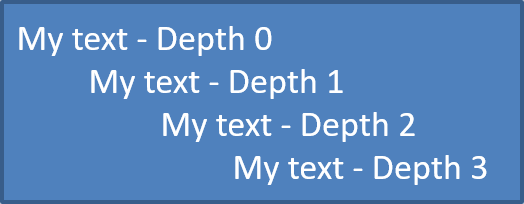
Použijte ParagraphFormat.setDepth k umístění položek seznamu na různé úrovně. Úroveň 0 je nejvyšší úroveň, úroveň 1 je pod ní vnořená a tak dále.
Následující kód JavaScript ukazuje, jak vytvořit víceúrovňový odrážkový seznam:
var aspose = aspose || {};
aspose.slides = require("aspose.slides.via.java");
const java = require("java");

const presentation = new aspose.slides.Presentation();
try {
    const slide = presentation.getSlides().get_Item(0);

    const autoShape = slide.getShapes().addAutoShape(aspose.slides.ShapeType.Rectangle, 20, 20, 260, 110);

    const textFrame = autoShape.getTextFrame();
    textFrame.getParagraphs().clear();

    const paragraph1 = new aspose.slides.Paragraph();
    paragraph1.getParagraphFormat().setDepth(java.newShort(0));
    paragraph1.setText("My text - Depth 0");
    textFrame.getParagraphs().add(paragraph1);

    const paragraph2 = new aspose.slides.Paragraph();
    paragraph2.getParagraphFormat().setDepth(java.newShort(1));
    paragraph2.setText("My text - Depth 1");
    textFrame.getParagraphs().add(paragraph2);

    const paragraph3 = new aspose.slides.Paragraph();
    paragraph3.getParagraphFormat().setDepth(java.newShort(2));
    paragraph3.setText("My text - Depth 2");
    textFrame.getParagraphs().add(paragraph3);

    const paragraph4 = new aspose.slides.Paragraph();
    paragraph4.getParagraphFormat().setDepth(java.newShort(3));
    paragraph4.setText("My text - Depth 3");
    textFrame.getParagraphs().add(paragraph4);

    presentation.save("multilevel_bullets.pptx", aspose.slides.SaveFormat.Pptx);
} finally {
    presentation.dispose();
}
Výsledek:
Změna existujícího seznamu
Chcete‑li změnit formátování seznamu v existující prezentaci, přistupte k cílovému odstavci a aktualizujte jeho nastavení ParagraphFormat.getBullet. Stejné vlastnosti použité k vytvoření seznamů lze použít k prohlédnutí nebo úpravě seznamů načtených ze souboru PPT, PPTX nebo ODP.
Následující kód JavaScript mění první odstavec v textovém rámci tak, aby používal styl číslovaného seznamu:
var aspose = aspose || {};
aspose.slides = require("aspose.slides.via.java");
const java = require("java");

const presentation = new aspose.slides.Presentation("input.pptx");
try {
    const slide = presentation.getSlides().get_Item(0);

    const autoShape = slide.getShapes().get_Item(0);

    const paragraph = autoShape.getTextFrame().getParagraphs().get_Item(0);

    const paragraphFormat = paragraph.getParagraphFormat();
    const bulletFormat = paragraphFormat.getBullet();

    bulletFormat.setType(java.newByte(aspose.slides.BulletType.Numbered));
    bulletFormat.setNumberedBulletStyle(java.newByte(aspose.slides.NumberedBulletStyle.BulletRomanUCPeriod));
    bulletFormat.setNumberedBulletStartWith(java.newShort(1));
    paragraphFormat.setMarginLeft(30);
    paragraphFormat.setIndent(-20);

    presentation.save("updated_list.pptx", aspose.slides.SaveFormat.Pptx);
} finally {
    presentation.dispose();
}
Čtení skutečných hodnot odrážek
Při extrahování obsahu prezentace uchovávejte značky seznamu vedle textu odstavce. Zavolejte ParagraphFormat.getEffective a přistupte k IParagraphFormatEffectiveData.getBullet , abyste získali efektivní formát odrážky. Zkontrolujte jeho getType před čtením getActualBulletValue.
U číslovaných seznamů rozlišujte tyto tři hodnoty:
- getNumberedBulletStyle určuje formát, například arabské číslice následované tečkou nebo malá písmena následovaná tečkou.
- getNumberedBulletStartWith určuje počáteční číslo pro skupinu číslovaných odstavců.
- getActualBulletValue vrací formátovanou značku pro konkrétní odstavec. Například druhá položka v seznamu začínajícím na 5 vrátí
6..
Uchovávejte getDepth u každého odstavce, aby se zachovala úroveň vnoření. Skutečná značka nezakóduje celou hierarchii: vnořená položka může vrátit c. místo kombinovaného štítku jako 6.c..
Následující samostatný příklad vytváří seznamy, ukládá je do prezentace a znovu načítá prezentaci, aby nahlásil text, hloubku, typ odrážky a skutečnou hodnotu každého odstavce. Malý modrý obrázkový marker je vytvořen z vloženého SVG.
var aspose = aspose || {};
aspose.slides = require("aspose.slides.via.java");
const java = require("java");
const black = java.newInstanceSync("java.awt.Color", 0, 0, 0);

const presentation = new aspose.slides.Presentation();
try {
    presentation.getSlideSize().setSize(720, 440, aspose.slides.SlideSizeScaleType.DoNotScale);
    const slide = presentation.getSlides().get_Item(0);

    const shape = slide.getShapes().addAutoShape(aspose.slides.ShapeType.Rectangle, 30, 20, 660, 400);
    shape.getFillFormat().setFillType(java.newByte(aspose.slides.FillType.NoFill));
    shape.getLineFormat().getFillFormat().setFillType(java.newByte(aspose.slides.FillType.NoFill));

    const textFrame = shape.getTextFrame();
    textFrame.getParagraphs().clear();

    // Vytvořte obrázkový marker bez externího souboru obrázku.
    const svg = new aspose.slides.SvgImage("<svg xmlns='http://www.w3.org/2000/svg' width='16' height='16'><rect width='16' height='16' rx='4' fill='#0078D4'/></svg>");
    const bulletImage = presentation.getImages().addImage(svg);

    function addParagraph(text, depth, type, start, style) {
        const paragraph = new aspose.slides.Paragraph();
        paragraph.setText(text);

        const format = paragraph.getParagraphFormat();
        format.setDepth(java.newShort(depth));
        format.setMarginLeft(30 + depth * 40);
        format.setIndent(-28);
        format.setSpaceAfter(8);
        format.getDefaultPortionFormat().setFontHeight(22);
        format.getDefaultPortionFormat().getFillFormat().setFillType(java.newByte(aspose.slides.FillType.Solid));
        format.getDefaultPortionFormat().getFillFormat().getSolidFillColor().setColor(black);
        format.getBullet().setType(java.newByte(type));
        format.getBullet().setBulletHardColor(java.newByte(aspose.slides.NullableBool.True));
        format.getBullet().getColor().setColor(black);
        if (type === aspose.slides.BulletType.Numbered) {
            format.getBullet().setNumberedBulletStyle(java.newByte(style));
            format.getBullet().setNumberedBulletStartWith(java.newShort(start));
        } else if (type === aspose.slides.BulletType.Symbol) {
            format.getBullet().setChar(java.newChar(0x2022));
        } else if (type === aspose.slides.BulletType.Picture) {
            format.getBullet().getPicture().setImage(bulletImage);
        }

        textFrame.getParagraphs().add(paragraph);
    }

    addParagraph("First item", 0, aspose.slides.BulletType.Numbered, 5, aspose.slides.NumberedBulletStyle.BulletArabicPeriod);
    addParagraph("Second item", 0, aspose.slides.BulletType.Numbered, 5, aspose.slides.NumberedBulletStyle.BulletArabicPeriod);
    addParagraph("Nested item", 1, aspose.slides.BulletType.Numbered, 3, aspose.slides.NumberedBulletStyle.BulletAlphaLCPeriod);
    addParagraph("Next nested item", 1, aspose.slides.BulletType.Numbered, 3, aspose.slides.NumberedBulletStyle.BulletAlphaLCPeriod);
    addParagraph("Deep item", 2, aspose.slides.BulletType.Numbered, 4, aspose.slides.NumberedBulletStyle.BulletRomanLCPeriod);
    addParagraph("Back to top level", 0, aspose.slides.BulletType.Numbered, 5, aspose.slides.NumberedBulletStyle.BulletArabicPeriod);
    addParagraph("Symbol marker", 0, aspose.slides.BulletType.Symbol, 1, aspose.slides.NumberedBulletStyle.BulletArabicPeriod);
    addParagraph("No bullet", 0, aspose.slides.BulletType.None, 1, aspose.slides.NumberedBulletStyle.BulletArabicPeriod);
    addParagraph("Picture marker", 0, aspose.slides.BulletType.Picture, 1, aspose.slides.NumberedBulletStyle.BulletArabicPeriod);
    presentation.save("actual_bullet_values.pptx", aspose.slides.SaveFormat.Pptx);
} finally {
    presentation.dispose();
}

const loadedPresentation = new aspose.slides.Presentation("actual_bullet_values.pptx");
try {
    const loadedShape = loadedPresentation.getSlides().get_Item(0).getShapes().get_Item(0);
    console.log("Text | Depth | Type | Actual value");
    const paragraphs = loadedShape.getTextFrame().getParagraphs();
    for (let i = 0; i < paragraphs.getCount(); i++) {
        const paragraph = paragraphs.get_Item(i);
        const bullet = paragraph.getParagraphFormat().getEffective().getBullet();
        let marker;
        switch (bullet.getType()) {
            case aspose.slides.BulletType.Numbered:
            case aspose.slides.BulletType.Symbol:
                marker = bullet.getActualBulletValue();
                break;
            case aspose.slides.BulletType.None:
                marker = bullet.getActualBulletValue() + " (no bullet)";
                break;
            case aspose.slides.BulletType.Picture:
                marker = bullet.getActualBulletValue() + " (image required)";
                break;
            default:
                marker = "unsupported bullet type";
                break;
        }
        const typeName = Object.keys(aspose.slides.BulletType).find(name => aspose.slides.BulletType[name] === bullet.getType());
        console.log(paragraph.getText() + " | " + paragraph.getParagraphFormat().getDepth() + " | " + typeName + " | " + marker);
    }
} finally {
    loadedPresentation.dispose();
}
Zdrojové seznamy jsou zobrazeny níže.
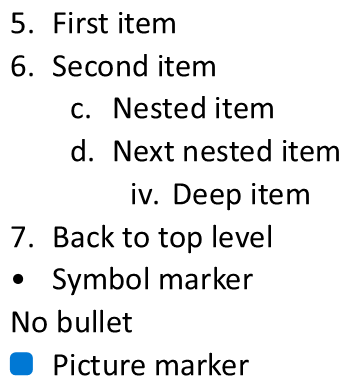
Zpráva odpovídá značkám zobrazeným v PowerPointu:
Text | Depth | Type | Actual value
First item | 0 | Numbered | 5.
Second item | 0 | Numbered | 6.
Nested item | 1 | Numbered | c.
Next nested item | 1 | Numbered | d.
Deep item | 2 | Numbered | iv.
Back to top level | 0 | Numbered | 7.
Symbol marker | 0 | Symbol | •
No bullet | 0 | None | null (no bullet)
Picture marker | 0 | Picture | null (image required)
Pro BulletType.None a BulletType.Picture vrací getActualBulletValue null, nikoli prázdný řetězec. Tyto typy ošetřujte odděleně: první nemá žádnou značku, zatímco druhý vyžaduje samostatné získání obrázku odrážky. Obrázkovou odrážku nelze reprodukovat pouze extrahováním textové značky.
Často kladené otázky
Lze odrážkové a číslované seznamy exportovat do PDF nebo obrázků?
Ano. Aspose.Slides zachovává formátování seznamu, pokud cílový formát podporuje odpovídající rozvržení textu a funkce odrážek.
Mohu upravovat seznamy v existujících prezentacích?
Ano. Načtěte prezentaci, přistupte k cílovému odstavci, prohlédněte nebo aktualizujte jeho nastavení ParagraphFormat.getBullet a uložte prezentaci.
Mohou seznamy obsahovat ne‑latinský text?
Ano. Text položky seznamu může obsahovat Unicode znaky, takže můžete vytvářet seznamy ve vícejazyčných prezentacích. Ujistěte se, že písma použitá v prezentaci podporují potřebné znaky.