
PHP में प्रस्तुतियों को HTML5 में परिवर्तित करें
अवलोकन
यह लेख बताता है कि Aspose.Slides for PHP via Java का उपयोग करके PowerPoint प्रस्तुतियों को HTML5 में कैसे परिवर्तित किया जाता है। यह बुनियादी निर्यात, आकार एनिमेशन तथा स्लाइड ट्रांज़िशन के नियंत्रण, और टिप्पणी लेआउट को कवर करता है। यह मानक HTML निर्यात के SVG‑आधारित आउटपुट की तुलना HTML5 आउटपुट से भी करता है।
PowerPoint को HTML5 में निर्यात करें
निम्न उदाहरण कार्यशील निर्देशिका से एक प्रस्तुति लोड करता है और उसे HTML5 प्रारूप में सहेजता है। यह डिफ़ॉल्ट निर्यात सेटिंग्स का उपयोग करता है; अगला उदाहरण स्पष्ट रूप से एनिमेशन प्लेबैक को नियंत्रित करने का तरीका दिखाता है। इनपुट पथ को अपनी प्रस्तुति के पथ से बदलें।
use aspose\slides\Presentation;
use aspose\slides\SaveFormat;

$presentation = new Presentation("pres.pptx");
try {
    $presentation->save("pres.html", SaveFormat::Html5);
} finally {
    $presentation->dispose();
}
Note
HTML दस्तावेज़ के अलावा, निर्यात स्लाइड स्टाइलिंग, एनिमेशन, प्रभाव और नेविगेशन के लिए सहायक CSS और JavaScript फ़ाइलें भी लिखता है। इन फ़ाइलों को HTML दस्तावेज़ के साथ रखें जब आप आउटपुट को स्थानांतरित या प्रकाशित करें। उत्पन्न पृष्ठ सार्वजनिक CDN से jQuery और Anime.js भी लोड करता है; इनके बिना स्लाइड नेविगेशन और एनिमेशन नहीं चलेंगे।शेप एनिमेशन या स्लाइड ट्रांज़िशन को चलाए बिना निर्यात करने के लिए, false को setAnimateShapes और setAnimateTransitions में Html5Options में पास करें। ये सेटिंग्स स्वतंत्र हैं, इसलिए आप एक को सक्षम कर सकते हैं और दूसरे को अक्षम। उदाहरण उत्पन्न पृष्ठ में दोनों प्रकार की एनिमेशन को अक्षम करके प्रस्तुति को निर्यात करता है।
use aspose\slides\Html5Options;
use aspose\slides\Presentation;
use aspose\slides\SaveFormat;

$html5Options = new Html5Options();
$html5Options->setAnimateShapes(false);
$html5Options->setAnimateTransitions(false);

$presentation = new Presentation("pres.pptx");
try {
    $presentation->save("pres5.html", SaveFormat::Html5, $html5Options);
} finally {
    $presentation->dispose();
}
PowerPoint को HTML में निर्यात करें
मानक HTML निर्यात एक अलग रेंडरिंग दृष्टिकोण का उपयोग करता है: स्लाइड सामग्री को HTML पृष्ठ के भीतर SVG द्वारा दर्शाया जाता है। निम्न उदाहरण इस रेंडरिंग दृष्टिकोण का उपयोग करके एक प्रस्तुति को HTML दस्तावेज़ में परिवर्तित करता है।
use aspose\slides\Presentation;
use aspose\slides\SaveFormat;

$presentation = new Presentation("pres.pptx");
try {
    $presentation->save("pres.html", SaveFormat::Html);
} finally {
    $presentation->dispose();
}
नीचे दिया गया सरल मार्कअप उत्पन्न पृष्ठ की संरचना को दर्शाता है। SVG तत्व में रेंडर की गई स्लाइड सामग्री होती है; प्लेसहोल्डर टेक्स्ट उस सामग्री को दर्शाता है और वास्तविक निर्यात आउटपुट नहीं है।
<body>
<div class="slide" name="slide" id="slideslideIface1">
     <svg version="1.1">
         <g> THE SLIDE CONTENT GOES HERE </g>
     </svg>
</div>
</body>
Warning
SVG‑आधारित निर्यात PowerPoint आकारों को व्यक्तिगत HTML तत्वों के रूप में नहीं दिखाता। जब आपको इस लेख में दिखाए गए आकार‑एनिमेशन और स्लाइड‑ट्रांज़िशन विकल्पों की आवश्यकता हो तो HTML5 निर्यात का उपयोग करें।PowerPoint को HTML5 स्लाइड व्यू में निर्यात करें
HTML5 निर्यात एक पृष्ठ बनाता है जिसे ब्राउज़र में प्रस्तुति स्लाइड्स को देखना और नेविगेट करना संभव बनाता है। यह उदाहरण दोनों setAnimateShapes और setAnimateTransitions को सक्षम करता है ताकि निर्यातित स्लाइड व्यू स्रोत प्रस्तुति के प्रभावों को चला सके।
ऐसी प्रस्तुति का उपयोग करें जिसमें पहले से ही आकार एनिमेशन और स्लाइड ट्रांज़िशन हों ताकि इन सेटिंग्स का प्रभाव देखा जा सके। इन्हें सक्षम करने से उन स्लाइडों में नया प्रभाव नहीं जुड़ता जिनमें कोई प्रभाव नहीं है। निर्यात के बाद, उत्पन्न HTML5 दस्तावेज़ को ब्राउज़र में खोलें और उसकी सहायक फ़ाइलों को उपलब्ध रखें।
use aspose\slides\Html5Options;
use aspose\slides\Presentation;
use aspose\slides\SaveFormat;

$html5Options = new Html5Options();
$html5Options->setAnimateShapes(true);
$html5Options->setAnimateTransitions(true);

$presentation = new Presentation("pres.pptx");
try {
    $presentation->save("HTML5-slide-view.html", SaveFormat::Html5, $html5Options);
} finally {
    $presentation->dispose();
}
टिप्पणियों के साथ एक प्रस्तुति को HTML5 दस्तावेज़ में परिवर्तित करें
आप मौजूदा स्लाइड टिप्पणियों को HTML5 आउटपुट में शामिल कर सकते हैं ताकि पाठक स्लाइड सामग्री के साथ फीडबैक देख सकें। इस अनुभाग का उदाहरण मानता है कि स्रोत प्रस्तुति में टिप्पणियाँ हैं, जैसा कि नीचे दिखाया गया है। यह टिप्पणी निर्यात करता है; नई टिप्पणी नहीं बनाता।
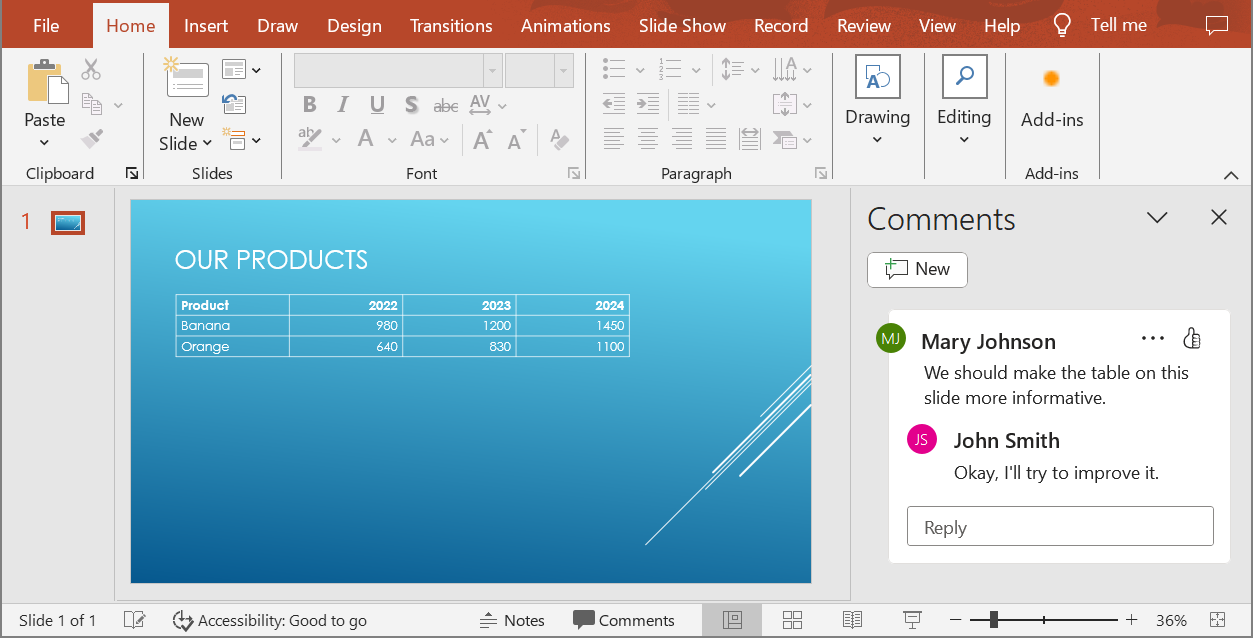
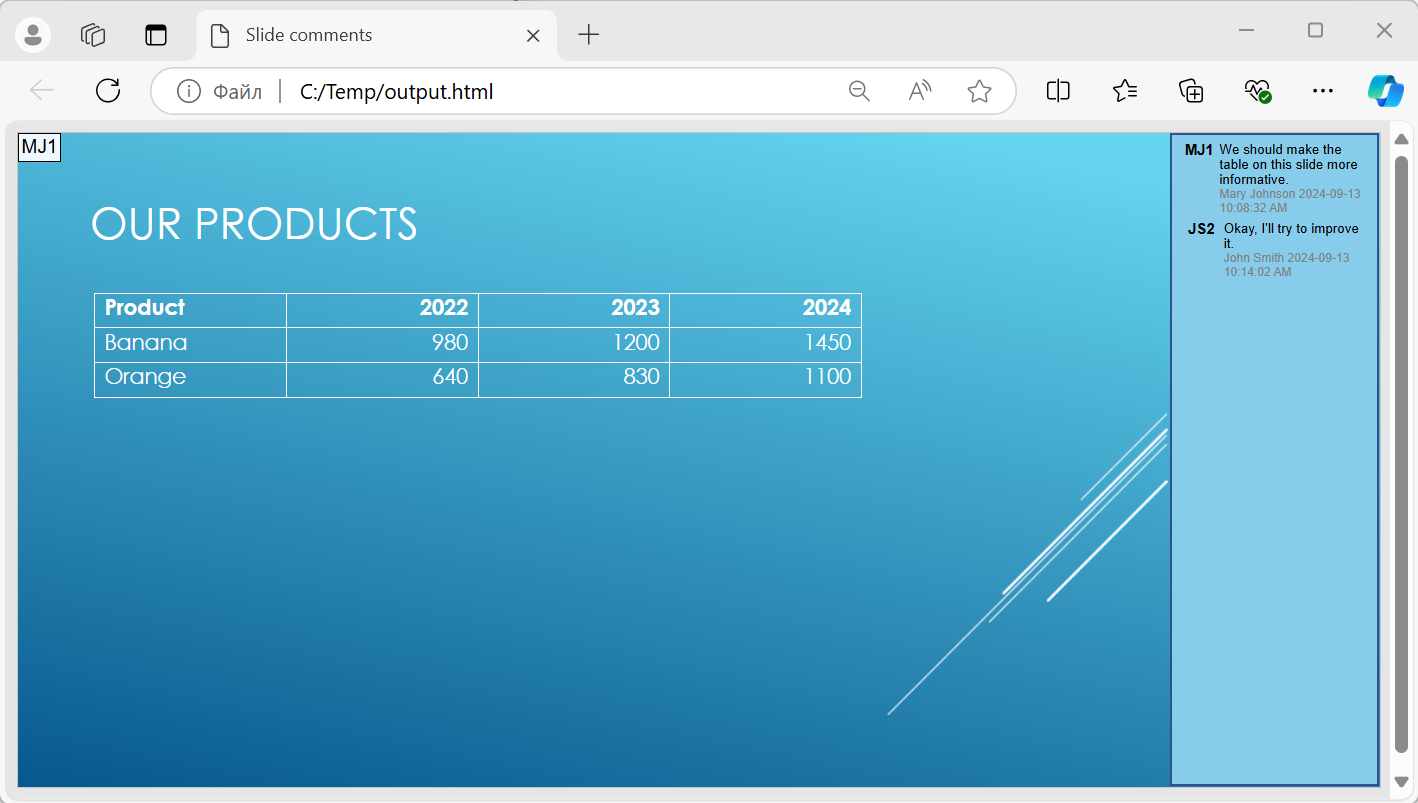
एक NotesCommentsLayoutingOptions ऑब्जेक्ट को setSlidesLayoutOptions मेथड के साथ Html5Options में पास करें। प्रत्येक स्लाइड के दाईं ओर टिप्पणियों को रखने के लिए setCommentsPosition का उपयोग करके Right को CommentsPositions गणना से चुनें।
निम्न उदाहरण इस टिप्पणी लेआउट के साथ प्रस्तुति को HTML5 में निर्यात करता है। टिप्पणियों के बिना प्रस्तुति में प्रदर्शित करने के लिये कोई टिप्पणी पाठ नहीं होगा।
use aspose\slides\CommentsPositions;
use aspose\slides\Html5Options;
use aspose\slides\NotesCommentsLayoutingOptions;
use aspose\slides\Presentation;
use aspose\slides\SaveFormat;

$layoutOptions = new NotesCommentsLayoutingOptions();
$layoutOptions->setCommentsPosition(CommentsPositions::Right);

$html5Options = new Html5Options();
$html5Options->setSlidesLayoutOptions($layoutOptions);

$presentation = new Presentation("sample.pptx");
try {
    $presentation->save("output.html", SaveFormat::Html5, $html5Options);
} finally {
    $presentation->dispose();
}
निर्यात के दौरान जावास्क्रिप्ट हाइपरलिंक्स को बाहर करें
मान लीजिए hyperlinks.pptx में javascript:alert('Hello') लक्ष्य वाला लिंक्ड टेक्स्ट और एक सामान्य https://example.com/ लिंक है। निर्यात के दौरान जावास्क्रिप्ट हाइपरलिंक्स को बाहर करने के लिए, SaveOptions::setSkipJavaScriptLinks को true पास करें। डिफ़ॉल्ट false है, इसलिए इन लिंक को फ़िल्टर नहीं किया जाता जब तक आप विकल्प को सक्षम नहीं करते।
निम्न उदाहरण कार्यशील निर्देशिका से प्रस्तुति लोड करता है और उसे Html5Options के साथ निर्यात करता है:
use aspose\slides\Html5Options;
use aspose\slides\Presentation;
use aspose\slides\SaveFormat;

$html5Options = new Html5Options();
$html5Options->setSkipJavaScriptLinks(true);

$presentation = new Presentation("hyperlinks.pptx");
try {
    $presentation->save("filtered-html5.html", SaveFormat::Html5, $html5Options);
} finally {
    $presentation->dispose();
}
निर्यातित फ़ाइल जावास्क्रिप्ट हाइपरलिंक को छोड़ देती है जबकि उसकी टेक्स्ट और सामान्य HTTPS लिंक को बनाए रखती है। स्रोत प्रस्तुति अपरिवर्तित रहती है।
यह विकल्प जावास्क्रिप्ट हाइपरलिंक्स को फ़िल्टर करता है; यह सभी स्क्रिप्ट या अन्य सक्रिय सामग्री को नहीं हटाता, न ही CSP अनुपालन की गारंटी देता है। उदाहरण के लिए, HTML5 आउटपुट में अभी भी स्लाइड नेविगेशन और एनिमेशन के लिए स्क्रिप्ट्स शामिल होते हैं।
अक्सर पूछे जाने वाले प्रश्न
क्या मैं नियंत्रित कर सकता हूँ कि ऑब्जेक्ट एनिमेशन और स्लाइड ट्रांज़िशन HTML5 में चलेंगे या नहीं?
हाँ, HTML5 निर्यात अलग‑अलग विकल्प प्रदान करता है जिससे आप shape animations और slide transitions को सक्षम या अक्षम कर सकते हैं।
क्या टिप्पणियों का समर्थन है, और उन्हें स्लाइड के सापेक्ष कहाँ रखा जा सकता है?
हाँ, मौजूदा टिप्पणियों को HTML5 आउटपुट में शामिल किया जा सकता है और उन्हें (उदाहरण के लिए, स्लाइड के दाईं ओर) layout settings के माध्यम से नोट्स और टिप्पणियों के लिए स्थित किया जा सकता है।
क्या मैं सुरक्षा या CSP कारणों से जावास्क्रिप्ट को कॉल करने वाले लिंक को छोड़ सकता हूँ?
हाँ, setSkipJavaScriptLinks सेटिंग आपको सहेजते समय जावास्क्रिप्ट कॉल वाले हाइपरलिंक्स को छोड़ने की अनुमति देती है। डिफ़ॉल्ट false है। इस सेटिंग के बारे में अधिक जानकारी के लिए Exclude JavaScript Hyperlinks During Export देखें, जहाँ HTML5 निर्यात उदाहरण और फ़िल्टर का दायरा बताया गया है। यह सेटिंग HTML5 व्यूअर द्वारा नेविगेशन और एनिमेशनों के लिए उपयोग किए गए जावास्क्रिप्ट को नहीं हटाती।