
在 PHP 中將簡報轉換為 HTML5
概述
本文說明如何使用 Aspose.Slides for PHP via Java 將 PowerPoint 簡報轉換為 HTML5。它涵蓋基本匯出、形狀動畫和投影片轉場的控制,以及註解佈局。它還比較了 HTML5 輸出與標準 HTML 匯出的基於 SVG 的輸出。
將 PowerPoint 匯出為 HTML5
以下範例從工作目錄載入簡報,並以 HTML5 格式儲存。它使用預設的匯出設定;下一個範例示範如何明確控制動畫播放。請將輸入路徑替換為您的簡報路徑。
use aspose\slides\Presentation;
use aspose\slides\SaveFormat;

$presentation = new Presentation("pres.pptx");
try {
    $presentation->save("pres.html", SaveFormat::Html5);
} finally {
    $presentation->dispose();
}
Note
Besides the HTML document, the export writes supporting CSS and JavaScript files for slide styling, animations, effects, and navigation. Keep these files with the HTML document when moving or publishing the output. The generated page also loads jQuery and Anime.js from public CDNs; without them, slide navigation and animations do not run.若要匯出時不播放形狀動畫或投影片轉場,請在 Html5Options 中分別對 setAnimateShapes 與 setAnimateTransitions 傳入 false。這兩個設定互不影響,您可以開啟其中一項而關閉另一項。以下範例在產生的頁面中同時停用兩種動畫。
use aspose\slides\Html5Options;
use aspose\slides\Presentation;
use aspose\slides\SaveFormat;

$html5Options = new Html5Options();
$html5Options->setAnimateShapes(false);
$html5Options->setAnimateTransitions(false);

$presentation = new Presentation("pres.pptx");
try {
    $presentation->save("pres5.html", SaveFormat::Html5, $html5Options);
} finally {
    $presentation->dispose();
}
將 PowerPoint 匯出為 HTML
標準 HTML 匯出使用不同的渲染方式:投影片內容以 SVG 形式嵌入 HTML 頁面。以下範例使用此渲染方式將簡報轉換為 HTML 文件。
use aspose\slides\Presentation;
use aspose\slides\SaveFormat;

$presentation = new Presentation("pres.pptx");
try {
    $presentation->save("pres.html", SaveFormat::Html);
} finally {
    $presentation->dispose();
}
下面的簡化標記說明了產生頁面的結構。SVG 元素包含已渲染的投影片內容;佔位文字僅代表該內容,並非實際匯出輸出。
<body>
<div class="slide" name="slide" id="slideslideIface1">
     <svg version="1.1">
         <g> THE SLIDE CONTENT GOES HERE </g>
     </svg>
</div>
</body>
Warning
The SVG-based export does not expose PowerPoint shapes as individual HTML elements. Use HTML5 export when you need the shape-animation and slide-transition options demonstrated in this article.將 PowerPoint 匯出為 HTML5 投影片檢視
HTML5 匯出會產生可於瀏覽器中檢視與導覽簡報投影片的頁面。此範例同時啟用 setAnimateShapes 與 setAnimateTransitions,讓匯出的投影片檢視能播放來源簡報中的效果。
請使用已包含形狀動畫與投影片轉場的簡報以觀察此設定的效果。啟用這些設定不會為沒有任何效果的投影片新增效果。匯出後,將產生的 HTML5 文件與其支援檔案一起於瀏覽器開啟。
use aspose\slides\Html5Options;
use aspose\slides\Presentation;
use aspose\slides\SaveFormat;

$html5Options = new Html5Options();
$html5Options->setAnimateShapes(true);
$html5Options->setAnimateTransitions(true);

$presentation = new Presentation("pres.pptx");
try {
    $presentation->save("HTML5-slide-view.html", SaveFormat::Html5, $html5Options);
} finally {
    $presentation->dispose();
}
將簡報轉換為含有註解的 HTML5 文件
您可以在 HTML5 輸出中包含現有的投影片註解,讓讀者能在投影片內容旁看到回饋。下列範例假設來源簡報已包含註解,如下圖所示。它會匯出這些註解,不會建立新註解。
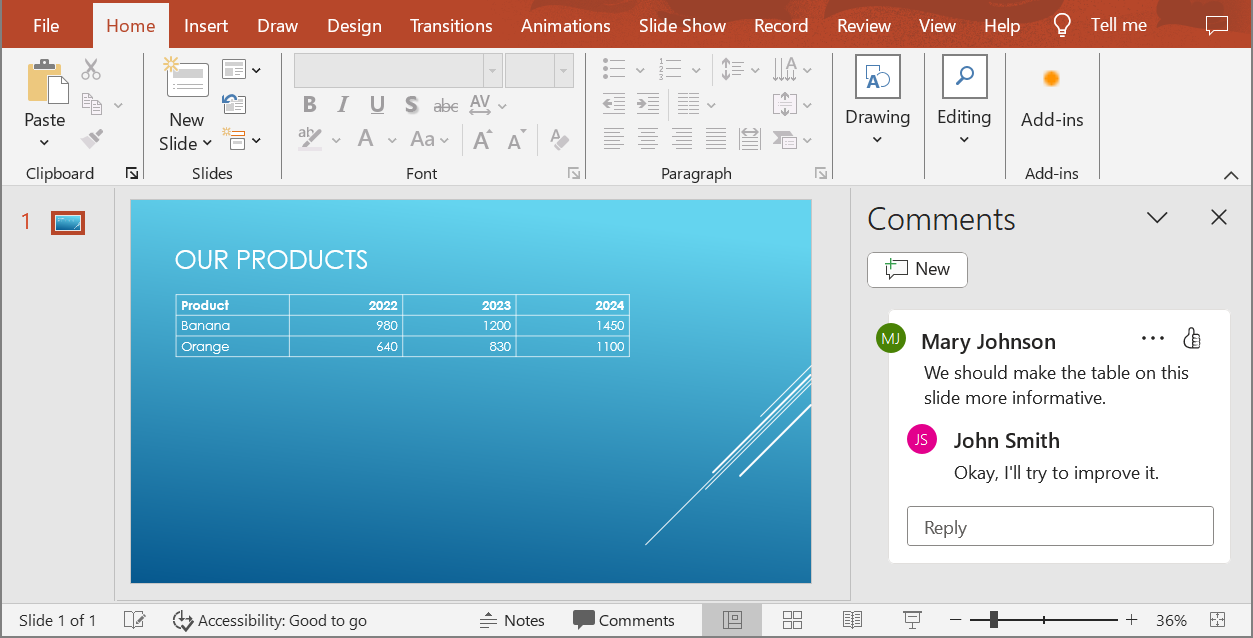
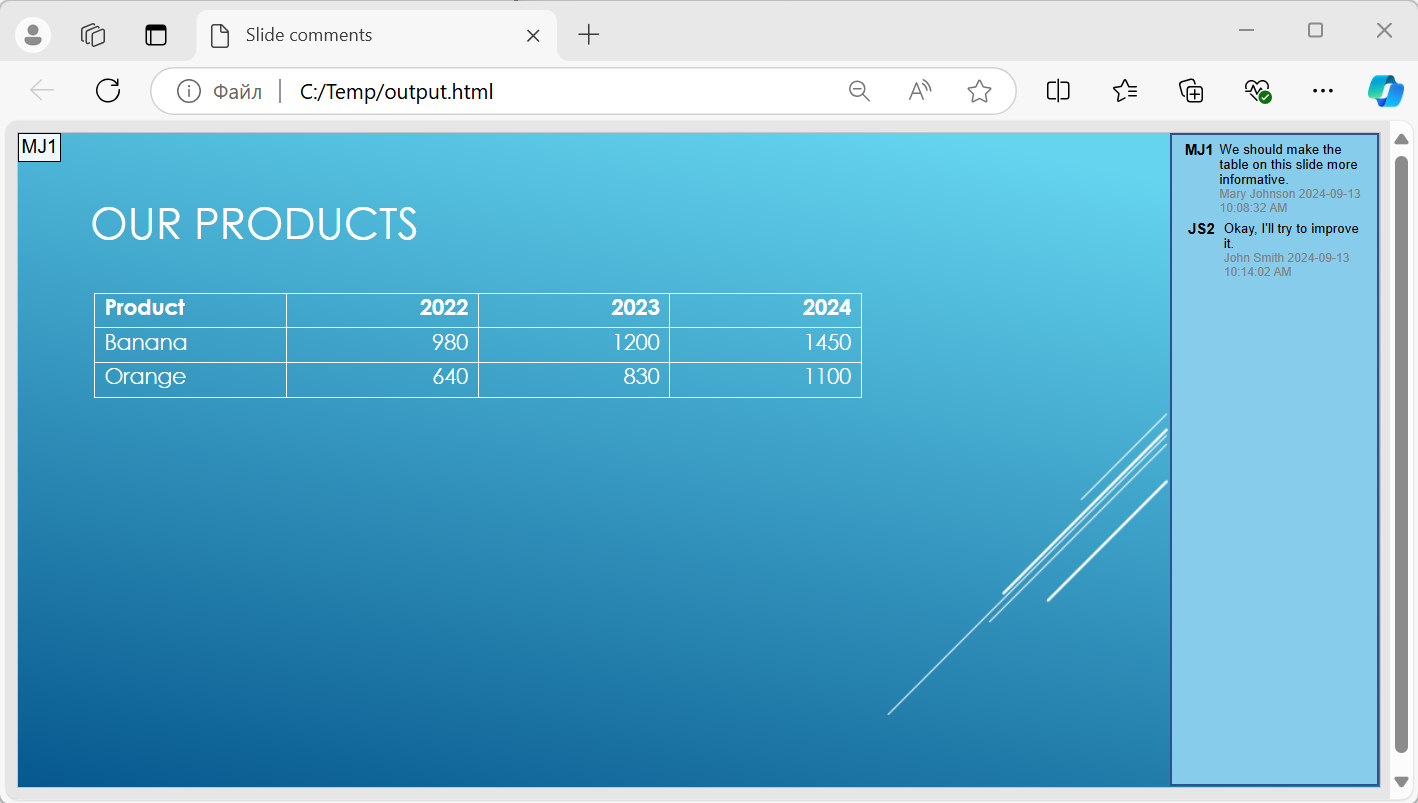
將 NotesCommentsLayoutingOptions 物件傳遞給 Html5Options 的 setSlidesLayoutOptions 方法。使用 setCommentsPosition 從 CommentsPositions 列舉中選取 Right,即可將註解置於每張投影片的右側。
以下範例將簡報以此註解佈局匯出為 HTML5。若簡報未包含註解,則不會顯示任何註解文字。
use aspose\slides\CommentsPositions;
use aspose\slides\Html5Options;
use aspose\slides\NotesCommentsLayoutingOptions;
use aspose\slides\Presentation;
use aspose\slides\SaveFormat;

$layoutOptions = new NotesCommentsLayoutingOptions();
$layoutOptions->setCommentsPosition(CommentsPositions::Right);

$html5Options = new Html5Options();
$html5Options->setSlidesLayoutOptions($layoutOptions);

$presentation = new Presentation("sample.pptx");
try {
    $presentation->save("output.html", SaveFormat::Html5, $html5Options);
} finally {
    $presentation->dispose();
}
下圖顯示匯出的 HTML5 文件,註解顯示在投影片旁邊。
匯出時排除 JavaScript 超連結
假設 hyperlinks.pptx 包含帶有 javascript:alert('Hello') 目標的連結文字以及普通的 https://example.com/ 連結。若要在匯出時排除 JavaScript 超連結,請對 SaveOptions::setSkipJavaScriptLinks 傳入 true。預設為 false,因此除非啟用此選項,否則不會過濾這類連結。
以下範例從工作目錄載入簡報,並使用 Html5Options 進行匯出:
use aspose\slides\Html5Options;
use aspose\slides\Presentation;
use aspose\slides\SaveFormat;

$html5Options = new Html5Options();
$html5Options->setSkipJavaScriptLinks(true);

$presentation = new Presentation("hyperlinks.pptx");
try {
    $presentation->save("filtered-html5.html", SaveFormat::Html5, $html5Options);
} finally {
    $presentation->dispose();
}
匯出的檔案會省略 JavaScript 超連結,同時保留其文字與普通的 HTTPS 連結。來源簡報保持不變。
此選項僅過濾 JavaScript 超連結;它不會移除所有腳本或其他動態內容,也不保證符合 CSP。舉例來說,HTML5 輸出仍會包含用於投影片導覽與動畫的腳本。
常見問答
我能控制在 HTML5 中物件動畫與投影片轉場是否播放嗎?
可以,HTML5 匯出提供獨立的選項,可啟用或停用 shape animations 與 slide transitions。
是否支援註解,且可以將它們放置在投影片的哪個位置?
支援。現有的註解可透過 layout settings(例如將其置於投影片右側)加入 HTML5 輸出。
我能因安全或 CSP 考量而跳過包含 JavaScript 的連結嗎?
可以,使用 setSkipJavaScriptLinks 設定即可在儲存時跳過帶有 JavaScript 呼叫的超連結,預設為 false。參考 Exclude JavaScript Hyperlinks During Export 取得 HTML5 匯出範例與過濾範圍的說明。此設定不會移除 HTML5 觀賞器用於導覽與動畫的 JavaScript。