
การเพิ่มสมการคณิตศาสตร์ในงานนำเสนอ PowerPoint ด้วย Java
ภาพรวม
PowerPoint จัดเก็บสมการเป็น Office Math Markup Language (OMML). ด้วย Aspose.Slides for Java คุณสามารถสร้างเนื้อหาทางคณิตศาสตร์ประเภทเดียวกันด้วยโปรแกรม: เศษส่วน, ราก, ฟังก์ชัน, ขีดจำกัด, ตัวดำเนินการ N-ary, เมทริกซ์, อาเรย์, และบล็อกคณิตศาสตร์ที่มีรูปแบบ
ใน PowerPoint ผู้ใช้ทั่วไปจะเพิ่มสมการจาก Insert > Equation:
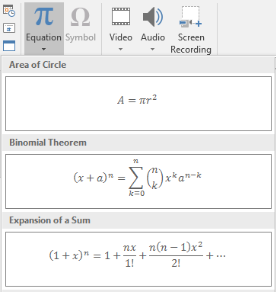
ผลลัพธ์คือข้อความคณิตศาสตร์ที่สามารถแก้ไขได้บนสไลด์:

Aspose.Slides สร้างข้อความคณิตศาสตร์นั้นผ่านสามอ็อบเจ็กต์หลัก:
- รูปร่างคณิตศาสตร์ ที่สร้างด้วย addMathShape, คือรูปร่างที่บรรจุสมการ.
- MathPortion เก็บเนื้อหาคณิตศาสตร์ภายในกรอบข้อความของรูปร่าง.
- MathParagraph มีอ็อบเจ็กต์ MathBlock หนึ่งหรือหลายตัว.
ส่วนใหญ่ของตัวอย่างด้านล่างใช้ MathematicalText และเมธอด fluent จาก IMathElement เพื่อให้โค้ดสั้นและอ่านง่าย.
สำหรับกรณีการส่งออก MathML ดูที่ Export Math Equations from Presentations in Java.
สร้างสมการ
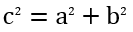
ตัวอย่างนี้สร้างรูปร่างคณิตศาสตร์และเพิ่มทฤษฎีพีทากอรัส:
Presentation presentation = new Presentation();
try {
    ISlide slide = presentation.getSlides().get_Item(0);

    IAutoShape mathShape = slide.getShapes().addMathShape(20, 20, 700, 120);
    IMathParagraph mathParagraph = ((MathPortion) mathShape.getTextFrame().getParagraphs()
            .get_Item(0).getPortions().get_Item(0)).getMathParagraph();

    IMathBlock equation = new MathematicalText("c")
            .setSuperscript("2")
            .join("=")
            .join(new MathematicalText("a").setSuperscript("2"))
            .join("+")
            .join(new MathematicalText("b").setSuperscript("2"));

    mathParagraph.add(equation);

    presentation.save("pythagorean-theorem.pptx", SaveFormat.Pptx);
} finally {
    presentation.dispose();
}
addMathShape สร้างรูปร่างที่มีย่อหน้าคณิตศาสตร์อยู่แล้ว เข้าถึง MathPortion ตัวแรก, รับ MathParagraph ของมัน, และเพิ่มบล็อกคณิตศาสตร์หรือองค์ประกอบคณิตศาสตร์ลงไป
เพิ่มเศษส่วน
ใช้ divide เพื่อสร้างเศษส่วน คุณสามารถเลือกสไตล์ของเศษส่วนด้วย MathFractionTypes.

Presentation presentation = new Presentation();
try {
    ISlide slide = presentation.getSlides().get_Item(0);

    IAutoShape mathShape = slide.getShapes().addMathShape(20, 20, 700, 100);
    IMathParagraph mathParagraph = ((MathPortion) mathShape.getTextFrame().getParagraphs()
            .get_Item(0).getPortions().get_Item(0)).getMathParagraph();

    IMathFraction fraction = new MathematicalText("1")
            .divide("x", MathFractionTypes.Skewed);

    mathParagraph.add(new MathBlock(fraction));

    presentation.save("fraction.pptx", SaveFormat.Pptx);
} finally {
    presentation.dispose();
}
สำหรับเศษส่วนแบบซ้อนกัน ใช้ MathFractionTypes.Bar:
IMathFraction stackedFraction = new MathematicalText("x + 1").divide("y - 1", MathFractionTypes.Bar);
เพิ่มราก
ใช้ radical เพื่อสร้างรากที่สอง, รากที่สาม หรือรากอื่น ๆ ส่วนประกอบปัจจุบันจะเป็นฐานและอาร์กิวเมนท์จะเป็นดีกรี

Presentation presentation = new Presentation();
try {
    ISlide slide = presentation.getSlides().get_Item(0);

    IAutoShape mathShape = slide.getShapes().addMathShape(20, 20, 700, 100);
    IMathParagraph mathParagraph = ((MathPortion) mathShape.getTextFrame().getParagraphs()
            .get_Item(0).getPortions().get_Item(0)).getMathParagraph();

    IMathRadical radical = new MathematicalText("x")
            .radical("n");

    mathParagraph.add(new MathBlock(radical));

    presentation.save("radical.pptx", SaveFormat.Pptx);
} finally {
    presentation.dispose();
}
เพิ่มฟังก์ชันและขีดจำกัด
ใช้ asArgumentOfFunction หรือ function สำหรับฟังก์ชันเช่น sin(x), log(x), หรือชื่อฟังก์ชันที่กำหนดเอง สำหรับขีดจำกัด ให้ใส่ lim ใน MathLimit หรือใช้ setLowerLimit.

Presentation presentation = new Presentation();
try {
    ISlide slide = presentation.getSlides().get_Item(0);

    IAutoShape mathShape = slide.getShapes().addMathShape(20, 20, 700, 100);
    IMathParagraph mathParagraph = ((MathPortion) mathShape.getTextFrame().getParagraphs()
            .get_Item(0).getPortions().get_Item(0)).getMathParagraph();

    IMathFunction limit = new MathematicalText("lim")
            .setLowerLimit("x\u2192\u221E")
            .function("x");

    mathParagraph.add(new MathBlock(limit));

    presentation.save("functions-and-limits.pptx", SaveFormat.Pptx);
} finally {
    presentation.dispose();
}
สำหรับชื่อฟังก์ชันที่กำหนดเอง ให้ทำให้ชื่อฟังก์ชันเป็นส่วนประกอบปัจจุบัน:
IMathFunction customFunction = new MathematicalText("f").function("x + 1");
เพิ่มตัวดำเนินการ N-ary และอินทิกรัล
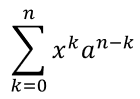
ใช้ nary สำหรับผลรวม, ยูเนียน, อินเตอร์เซคชัน และตัวดำเนินการใหญ่ประเภทอื่น ใช้ integral สำหรับอินทิกรัล ทั้งสองวิธีทำให้คุณตั้งค่าขีดจำกัดล่างและบนได้
Presentation presentation = new Presentation();
try {
    ISlide slide = presentation.getSlides().get_Item(0);

    IAutoShape mathShape = slide.getShapes().addMathShape(20, 20, 700, 120);
    IMathParagraph mathParagraph = ((MathPortion) mathShape.getTextFrame().getParagraphs()
            .get_Item(0).getPortions().get_Item(0)).getMathParagraph();

    IMathBlock summationBase = new MathematicalText("x")
            .setSuperscript("k")
            .join(new MathematicalText("a").setSuperscript("n-k"));

    IMathNaryOperator summation = summationBase.nary(MathNaryOperatorTypes.Summation, "k=0", "n");

    mathParagraph.add(new MathBlock(summation));

    presentation.save("nary-operators.pptx", SaveFormat.Pptx);
} finally {
    presentation.dispose();
}
ตัวดำเนินการ N-ary คือสำหรับตัวดำเนินการขนาดใหญ่ที่มีขีดจำกัดแบบเลือกได้ ตัวดำเนินการง่าย ๆ เช่น +, -, และ = มักถูกเพิ่มเป็น MathematicalText แล้วรวมเป็นนิพจน์
สำหรับอินทิกรัล ใช้ integral:
IMathBlock integralBase = new MathematicalText("x").join(new MathematicalText("dx").toBox());
IMathNaryOperator integral = integralBase.integral(MathIntegralTypes.Simple, "0", "1");
เพิ่มเมทริกซ์
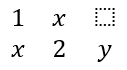
ใช้ MathMatrix สำหรับแถวและคอลัมน์ เมทริกซ์ไม่ได้ใส่วงเล็บโดยค่าเริ่มต้น ดังนั้นให้ล้อมเมทริกซ์ด้วยวงเล็บ, กันเหลี่ยมหรือวงโค้งเมื่อจำเป็น
Presentation presentation = new Presentation();
try {
    ISlide slide = presentation.getSlides().get_Item(0);

    IAutoShape mathShape = slide.getShapes().addMathShape(20, 20, 700, 120);
    IMathParagraph mathParagraph = ((MathPortion) mathShape.getTextFrame().getParagraphs()
            .get_Item(0).getPortions().get_Item(0)).getMathParagraph();

    MathMatrix matrix = new MathMatrix(2, 3);
    matrix.set_Item(0, 0, new MathematicalText("1"));
    matrix.set_Item(0, 1, new MathematicalText("x"));
    matrix.set_Item(1, 0, new MathematicalText("x"));
    matrix.set_Item(1, 1, new MathematicalText("2"));
    matrix.set_Item(1, 2, new MathematicalText("y"));

    mathParagraph.add(new MathBlock(matrix));

    presentation.save("matrix.pptx", SaveFormat.Pptx);
} finally {
    presentation.dispose();
}
เพิ่มอาเรย์สมการ
ใช้ toMathArray เมื่อคุณต้องการสมการที่จัดแนวกันหรือสแต็กแนวตั้งของนิพจน์

Presentation presentation = new Presentation();
try {
    ISlide slide = presentation.getSlides().get_Item(0);

    IAutoShape mathShape = slide.getShapes().addMathShape(20, 20, 700, 140);
    IMathParagraph mathParagraph = ((MathPortion) mathShape.getTextFrame().getParagraphs()
            .get_Item(0).getPortions().get_Item(0)).getMathParagraph();

    IMathArray equationArray = new MathematicalText("x")
            .join("y")
            .toMathArray();

    mathParagraph.add(new MathBlock(equationArray));

    presentation.save("equation-array.pptx", SaveFormat.Pptx);
} finally {
    presentation.dispose();
}
เพิ่มฟังก์ชันตรีโกณมิติ
ใช้ asArgumentOfFunction เมื่ออาร์กิวเมนท์เป็นส่วนประกอบปัจจุบันและชื่อฟังก์ชันทราบแล้ว

Presentation presentation = new Presentation();
try {
    ISlide slide = presentation.getSlides().get_Item(0);

    IAutoShape mathShape = slide.getShapes().addMathShape(20, 20, 700, 100);
    IMathParagraph mathParagraph = ((MathPortion) mathShape.getTextFrame().getParagraphs()
            .get_Item(0).getPortions().get_Item(0)).getMathParagraph();

    IMathFunction cosine = new MathematicalText("2x")
            .asArgumentOfFunction(MathFunctionsOfOneArgument.Cos);

    mathParagraph.add(new MathBlock(cosine));

    presentation.save("trigonometric-function.pptx", SaveFormat.Pptx);
} finally {
    presentation.dispose();
}
เพิ่มดัชนีล่างและดัชนีบน
ใช้ตัวช่วยดัชนีล่างและดัชนีบนสำหรับดัชนีและกำลัง เมื่อดัชนีต้องอยู่ด้านซ้ายของฐาน ให้ใช้ setSubSuperscriptOnTheLeft

Presentation presentation = new Presentation();
try {
    ISlide slide = presentation.getSlides().get_Item(0);

    IAutoShape mathShape = slide.getShapes().addMathShape(20, 20, 700, 100);
    IMathParagraph mathParagraph = ((MathPortion) mathShape.getTextFrame().getParagraphs()
            .get_Item(0).getPortions().get_Item(0)).getMathParagraph();

    IMathLeftSubSuperscriptElement scripts = new MathematicalText("Y")
            .setSubSuperscriptOnTheLeft("1", "n");

    mathParagraph.add(new MathBlock(scripts));

    presentation.save("subscript-superscript.pptx", SaveFormat.Pptx);
} finally {
    presentation.dispose();
}
เพิ่มตัวคั่น
ใช้ enclose เพื่อใส่นิพจน์ภายในตัวคั่น คุณยังสามารถตั้งค่าตัวอักษรคั่นสำหรับนิพจน์ที่มีหลายส่วนได้

Presentation presentation = new Presentation();
try {
    ISlide slide = presentation.getSlides().get_Item(0);

    IAutoShape mathShape = slide.getShapes().addMathShape(20, 20, 700, 100);
    IMathParagraph mathParagraph = ((MathPortion) mathShape.getTextFrame().getParagraphs()
            .get_Item(0).getPortions().get_Item(0)).getMathParagraph();

    IMathDelimiter delimiter = new MathematicalText("x")
            .join("y")
            .join("z")
            .enclose('<', '>');
    delimiter.setSeparatorCharacter('|');

    mathParagraph.add(new MathBlock(delimiter));

    presentation.save("delimiters.pptx", SaveFormat.Pptx);
} finally {
    presentation.dispose();
}
เพิ่มกล่องขอบ
ใช้ toBorderBox เมื่อสมการเองควรถูกล้อมกรอบ
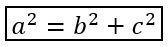
Presentation presentation = new Presentation();
try {
    ISlide slide = presentation.getSlides().get_Item(0);

    IAutoShape mathShape = slide.getShapes().addMathShape(20, 20, 700, 100);
    IMathParagraph mathParagraph = ((MathPortion) mathShape.getTextFrame().getParagraphs()
            .get_Item(0).getPortions().get_Item(0)).getMathParagraph();

    IMathBorderBox boxedEquation = new MathematicalText("a")
            .setSuperscript("2")
            .join("=")
            .join(new MathematicalText("b").setSuperscript("2"))
            .join("+")
            .join(new MathematicalText("c").setSuperscript("2"))
            .toBorderBox();

    mathParagraph.add(new MathBlock(boxedEquation));

    presentation.save("border-box.pptx", SaveFormat.Pptx);
} finally {
    presentation.dispose();
}
จัดกลุ่มเทอม
ใช้ group เพื่อวางอักขระการจัดกลุ่มเหนือหรือต่ำกว่านิพจน์ เพิ่มขีดจำกัดเพื่อกำกับเทอมที่จัดกลุ่ม

Presentation presentation = new Presentation();
try {
    ISlide slide = presentation.getSlides().get_Item(0);

    IAutoShape mathShape = slide.getShapes().addMathShape(20, 20, 700, 120);
    IMathParagraph mathParagraph = ((MathPortion) mathShape.getTextFrame().getParagraphs()
            .get_Item(0).getPortions().get_Item(0)).getMathParagraph();

    IMathLimit grouped = new MathematicalText("x + y")
            .group('\u23DF', MathTopBotPositions.Bottom, MathTopBotPositions.Top)
            .setLowerLimit("any text");

    mathParagraph.add(new MathBlock(grouped));

    presentation.save("grouped-terms.pptx", SaveFormat.Pptx);
} finally {
    presentation.dispose();
}
จัดรูปแบบองค์ประกอบคณิตศาสตร์
ใช้ตัวช่วยการจัดรูปแบบเฉพาะที่จำเป็นเพื่อทำให้สูตรชัดเจน ตัวอย่างเช่น overbar จะวางบาร์เหนือองค์ประกอบคณิตศาสตร์

Presentation presentation = new Presentation();
try {
    ISlide slide = presentation.getSlides().get_Item(0);

    IAutoShape mathShape = slide.getShapes().addMathShape(20, 20, 700, 100);
    IMathParagraph mathParagraph = ((MathPortion) mathShape.getTextFrame().getParagraphs()
            .get_Item(0).getPortions().get_Item(0)).getMathParagraph();

    IMathBar overbar = new MathematicalText("ABC").overbar();

    mathParagraph.add(new MathBlock(overbar));

    presentation.save("overbar.pptx", SaveFormat.Pptx);
} finally {
    presentation.dispose();
}
อ้างอิงอย่างรวดเร็ว
| งาน | API หลัก |
|---|---|
| สร้างข้อความคณิตศาสตร์ | MathematicalText |
| รวมองค์ประกอบ | IMathElement.join |
| สร้างเศษส่วน | IMathElement.divide |
| เพิ่มดัชนีบนหรือดัชนีล่าง | setSuperscript, setSubscript |
| เพิ่มฟังก์ชัน | function, asArgumentOfFunction |
| เพิ่มราก | IMathElement.radical |
| เพิ่มขีดจำกัด | setLowerLimit, setUpperLimit |
| เพิ่มสคริปต์ด้านซ้าย | setSubSuperscriptOnTheLeft |
| เพิ่มผลรวมและอินทิกรัล | nary, integral |
| เพิ่มเมทริกซ์ | MathMatrix |
| เพิ่มอาเรย์สมการ | toMathArray |
| เพิ่มตัวคั่น | enclose |
| เพิ่มเส้นบนและขอบ | overbar, toBorderBox |
| จัดกลุ่มเทอม | group |
คำถามที่พบบ่อย
ฉันสามารถแก้ไขสมการ PowerPoint ที่มีอยู่ได้หรือไม่?
ใช่. เปิดงานนำเสนอ, ค้นหารูปร่างที่มี MathPortion, รับ MathParagraph ของมัน, และอัปเดตบล็อกคณิตศาสตร์ในย่อหน้านั้น.
สมการถูกบันทึกเป็นคณิตศาสตร์ PowerPoint ที่แก้ไขได้หรือไม่?
ใช่. เมื่อบันทึกเป็น PPTX, Aspose.Slides จะเขียนสมการเป็นเนื้อหา Office Math ที่สามารถแก้ไขได้.
ฉันสามารถส่งออกสมการเป็น LaTeX ได้หรือไม่?
ใช่. รับ IMathParagraph ของสมการจาก IMathPortion, แล้วเรียก IMathParagraph.toLatex เพื่อส่งออกโดยตรง สำหรับตัวอย่างครบถ้วน ดูที่ Export Math Equations from Presentations in Java.