
Java を使用したプレゼンテーションでのシェイプ効果の適用
はじめに
PowerPoint の効果はシェイプを際立たせるために使用できますが、fills やアウトラインとは異なります。PowerPoint の効果を使用すると、シェイプにリアルな反射を作成したり、シェイプの輝きを広げたりすることができます。
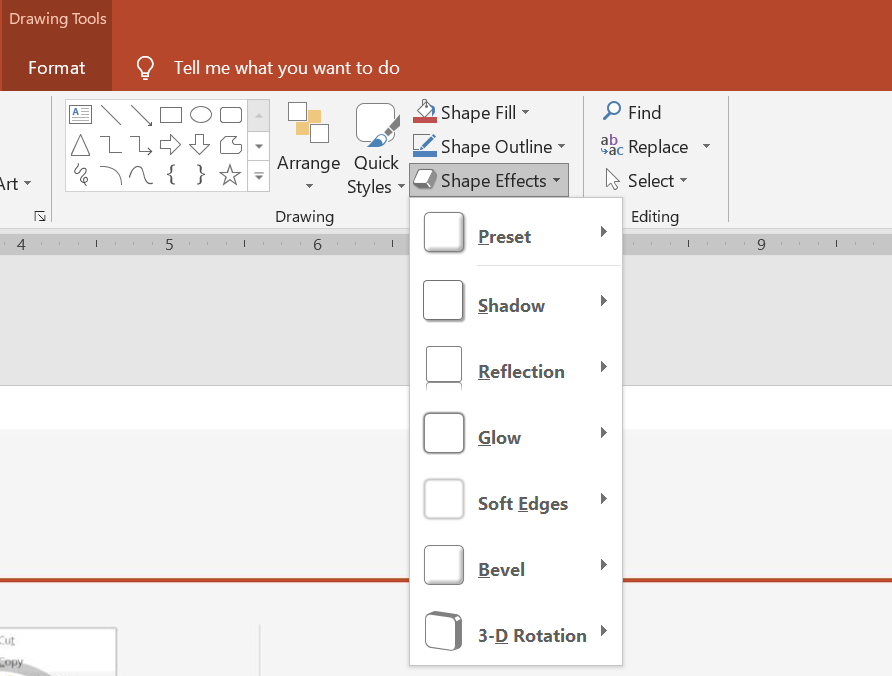
PowerPoint にはシェイプに適用できる 6 つの効果が用意されています。シェイプに 1 つまたは複数の効果を適用できます。
効果の組み合わせによっては、他のものより見栄えが良いものがあります。そのため、PowerPoint では Preset のオプションが提供されています。Preset オプションは、見栄えが良いと知られている 2 つ以上の効果の組み合わせです。これにより、プリセットを選択するだけで、さまざまな効果を試したり組み合わせたりして最適な組み合わせを探す時間を無駄にしなくて済みます。
Aspose.Slides は、PowerPoint プレゼンテーションのシェイプに同じ効果を適用できるように、EffectFormat クラスのプロパティとメソッドを提供します。
影効果の適用
Aspose.Slides for Java はシェイプの外側および内側の影をサポートしています。色、方向、距離、ぼかし半径をカスタマイズして、プレゼンテーションのデザインに合わせることができます。
外側の影の適用
外側の影を使用すると、カードやパネルがスライドの背景に対して際立ちます。影はシェイプのエッジを超えて広がり、シェイプがスライド上に持ち上がっているように見えます。影の色、方向、距離、ぼかし半径を調整して、テンプレートの照明やスタイリングに合わせます。
この Java コードは、矩形に outer shadow effect を適用する方法を示しています:
import com.aspose.slides.*;
import java.awt.Color;

Presentation presentation = new Presentation();
try {
    ISlide slide = presentation.getSlides().get_Item(0);

    IShape shape = slide.getShapes().addAutoShape(ShapeType.RoundCornerRectangle, 20, 20, 200, 100);
    shape.getEffectFormat().enableOuterShadowEffect();
    shape.getEffectFormat().getOuterShadowEffect().getShadowColor().setColor(new Color(169, 169, 169));
    shape.getEffectFormat().getOuterShadowEffect().setDistance(10);
    shape.getEffectFormat().getOuterShadowEffect().setDirection(45);

    presentation.save("shadow_effect.pptx", SaveFormat.Pptx);
} finally {
    presentation.dispose();
}

内側の影の適用
テンプレートのビジュアルスタイルを再現する際には、内側の影を使用してカードやパネルにへこみ感を与えます。外側の影はシェイプの外側に広がり持ち上がったように見せ、内側の影はエッジの内部を陰影付けします。
enableInnerShadowEffect を呼び出し、次に getInnerShadowEffect が返す影を設定します。ぼかし半径の値を大きくすると、エッジがより柔らかくなります。
この Java の例は、薄い青色のカードに濃い灰色の内側の影を付け、PPTX ファイルとして保存します。影の方向は 225 度、距離は 7 ポイント、ぼかし半径は 6 ポイントです:
import com.aspose.slides.*;
import java.awt.Color;

Presentation presentation = new Presentation();
try {
    ISlide slide = presentation.getSlides().get_Item(0);

    IAutoShape shape = slide.getShapes().addAutoShape(ShapeType.Rectangle, 20, 20, 200, 100);
    shape.getFillFormat().setFillType(FillType.Solid);
    shape.getFillFormat().getSolidFillColor().setColor(new Color(173, 216, 230));
    shape.getLineFormat().getFillFormat().setFillType(FillType.NoFill);

    shape.getEffectFormat().enableInnerShadowEffect();
    IInnerShadow shadow = shape.getEffectFormat().getInnerShadowEffect();
    shadow.getShadowColor().setColor(new Color(105, 105, 105));
    shadow.setDirection(225);
    shadow.setDistance(7);
    shadow.setBlurRadius(6);

    presentation.save("inner_shadow_effect.pptx", SaveFormat.Pptx);
} finally {
    presentation.dispose();
}

内側の影を削除するには、シェイプの EffectFormat で disableInnerShadowEffect を呼び出します。
反射効果の適用
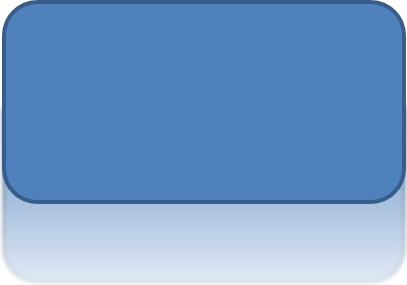
Aspose.Slides for Java で反射効果を適用するには、シェイプに鏡のような反射を追加し、距離、透明度、サイズなどのパラメータを調整します。この効果は、シェイプに洗練された外観を与え、プレゼンテーションの美しさを高めます。シンプルなコードで簡単に実装でき、複数の要素に対して一貫したデザインを迅速に適用できます。
この Java コードは、シェイプに reflection effect を適用する方法を示しています:
import com.aspose.slides.*;

Presentation presentation = new Presentation();
try {
    ISlide slide = presentation.getSlides().get_Item(0);

    IShape shape = slide.getShapes().addAutoShape(ShapeType.RoundCornerRectangle, 20, 20, 200, 100);
    shape.getEffectFormat().enableReflectionEffect();
    shape.getEffectFormat().getReflectionEffect().setRectangleAlign(RectangleAlignment.Bottom);
    shape.getEffectFormat().getReflectionEffect().setDirection(90);
    shape.getEffectFormat().getReflectionEffect().setDistance(40);
    shape.getEffectFormat().getReflectionEffect().setBlurRadius(2);

    presentation.save("reflection_effect.pptx", SaveFormat.Pptx);
} finally {
    presentation.dispose();
}
光彩効果の適用
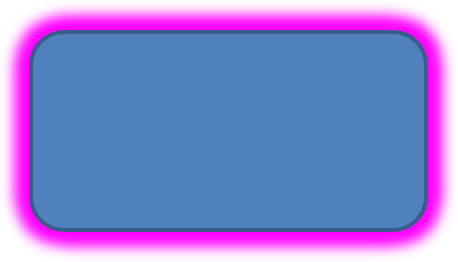
Aspose.Slides for Java でシェイプに光彩効果を適用するには、シェイプの周囲に柔らかく光るオーラを追加し、色やサイズなどのプロパティを調整します。この効果はシェイプを際立たせ、プレゼンテーションに目を引くビジュアル要素を加えます。最小限のコードで簡単に実装でき、スライド全体の外観を向上させます。
この Java コードは、シェイプに glow effect を適用する方法を示しています:
import com.aspose.slides.*;
import java.awt.Color;

Presentation presentation = new Presentation();
try {
    ISlide slide = presentation.getSlides().get_Item(0);

    IShape shape = slide.getShapes().addAutoShape(ShapeType.RoundCornerRectangle, 20, 20, 200, 100);
    shape.getEffectFormat().enableGlowEffect();
    shape.getEffectFormat().getGlowEffect().getColor().setColor(Color.MAGENTA);
    shape.getEffectFormat().getGlowEffect().setRadius(15);

    presentation.save("glow_effect.pptx", SaveFormat.Pptx);
} finally {
    presentation.dispose();
}
ソフトエッジ効果の適用
Aspose.Slides for Java でソフトエッジ効果を適用すると、シェイプのエッジ周辺に滑らかでぼやけた移行を作成できます。この効果は、より控えめで洗練された外観を提供し、柔らかい印象が必要なデザインに最適です。半径などのパラメータを簡単に調整して、プレゼンテーション内のさまざまなシェイプに望みの効果を実現できます。
この Java コードは、シェイプに soft edges effect を適用する方法を示しています:
import com.aspose.slides.*;

Presentation presentation = new Presentation();
try {
    ISlide slide = presentation.getSlides().get_Item(0);

    IShape shape = slide.getShapes().addAutoShape(ShapeType.RoundCornerRectangle, 20, 20, 200, 150);
    shape.getEffectFormat().enableSoftEdgeEffect();
    shape.getEffectFormat().getSoftEdgeEffect().setRadius(8);

    presentation.save("soft_edges_effect.pptx", SaveFormat.Pptx);
} finally {
    presentation.dispose();
}

FAQ
同じシェイプに複数の効果を適用できますか?
はい、影、反射、光彩など、さまざまな効果を組み合わせて単一のシェイプに適用し、より動的な外観を作り出すことができます。
どのようなシェイプに効果を適用できますか?
オートシェイプ、チャート、テーブル、画像、SmartArt オブジェクト、OLE オブジェクトなど、さまざまなシェイプに効果を適用できます。
グループ化されたシェイプに効果を適用できますか?
はい、グループ化されたシェイプ全体に効果を適用できます。効果はグループ全体に適用されます。