
Java를 사용하여 프레젠테이션에 도형 효과 적용
소개
PowerPoint에서 효과는 도형을 돋보이게 할 수 있지만, 채우기이나 윤곽선과는 다릅니다. PowerPoint 효과를 사용하면 도형에 사실적인 반사 효과를 만들거나, 도형의 빛남을 퍼뜨리는 등 다양한 연출을 할 수 있습니다.
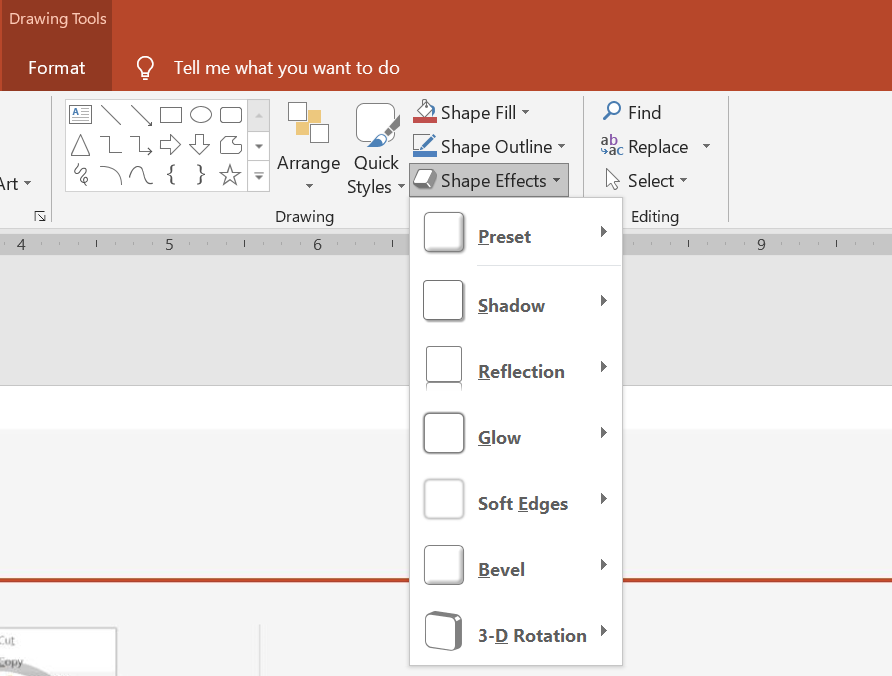
PowerPoint는 도형에 적용할 수 있는 6가지 효과를 제공합니다. 하나 이상의 효과를 도형에 적용할 수 있습니다.
일부 효과 조합은 다른 조합보다 더 보기 좋습니다. 이러한 이유로 PowerPoint는 Preset 아래에 옵션을 제공합니다. Preset 옵션은 보기 좋은 두 개 이상의 효과 조합으로 구성됩니다. 이렇게 사전 설정을 선택하면 다양한 효과를 테스트하거나 조합하여 적절한 조합을 찾는 데 시간을 낭비하지 않아도 됩니다.
Aspose.Slides는 EffectFormat 클래스 아래에 속성 및 메서드를 제공하여 PowerPoint 프레젠테이션의 도형에 동일한 효과를 적용할 수 있습니다.
그림자 효과 적용
Aspose.Slides for Java는 도형에 외부 그림자와 내부 그림자를 지원합니다. 색상, 방향, 거리 및 흐림 반경을 사용자 정의하여 프레젠테이션 디자인에 맞출 수 있습니다.
외부 그림자 적용
외부 그림자를 사용하면 카드나 패널이 슬라이드 배경에 대해 돋보이게 할 수 있습니다. 그림자는 도형 가장자리 바깥으로 확장되어 도형이 슬라이드 위에 떠 있는 것처럼 보이게 합니다. 색상, 방향, 거리 및 흐림 반경을 템플릿의 조명과 스타일에 맞게 조정하세요.
This Java code shows how to apply the 외부 그림자 효과 to a rectangle:
import com.aspose.slides.*;
import java.awt.Color;

Presentation presentation = new Presentation();
try {
    ISlide slide = presentation.getSlides().get_Item(0);

    IShape shape = slide.getShapes().addAutoShape(ShapeType.RoundCornerRectangle, 20, 20, 200, 100);
    shape.getEffectFormat().enableOuterShadowEffect();
    shape.getEffectFormat().getOuterShadowEffect().getShadowColor().setColor(new Color(169, 169, 169));
    shape.getEffectFormat().getOuterShadowEffect().setDistance(10);
    shape.getEffectFormat().getOuterShadowEffect().setDirection(45);

    presentation.save("shadow_effect.pptx", SaveFormat.Pptx);
} finally {
    presentation.dispose();
}

내부 그림자 적용
템플릿의 시각적 스타일을 재현할 때는 내부 그림자를 사용하여 카드나 패널에 움푹 들어간 모습을 줄 수 있습니다. 외부 그림자는 도형 외부에 적용되어 떠 있는 것처럼 보이게 하는 반면, 내부 그림자는 가장자리 안쪽을 그림자로 처리합니다.
Call enableInnerShadowEffect, then configure the shadow returned by getInnerShadowEffect. Larger blur radius values produce softer edges.
이 Java 예제는 밝은 파란색 카드를 어두운 회색 내부 그림자와 함께 생성하고 PPTX 파일로 저장합니다. 그림자 방향은 225도, 거리 7포인트, 흐림 반경은 6포인트입니다:
import com.aspose.slides.*;
import java.awt.Color;

Presentation presentation = new Presentation();
try {
    ISlide slide = presentation.getSlides().get_Item(0);

    IAutoShape shape = slide.getShapes().addAutoShape(ShapeType.Rectangle, 20, 20, 200, 100);
    shape.getFillFormat().setFillType(FillType.Solid);
    shape.getFillFormat().getSolidFillColor().setColor(new Color(173, 216, 230));
    shape.getLineFormat().getFillFormat().setFillType(FillType.NoFill);

    shape.getEffectFormat().enableInnerShadowEffect();
    IInnerShadow shadow = shape.getEffectFormat().getInnerShadowEffect();
    shadow.getShadowColor().setColor(new Color(105, 105, 105));
    shadow.setDirection(225);
    shadow.setDistance(7);
    shadow.setBlurRadius(6);

    presentation.save("inner_shadow_effect.pptx", SaveFormat.Pptx);
} finally {
    presentation.dispose();
}

내부 그림자를 제거하려면 도형의 효과 형식에서 disableInnerShadowEffect을 호출합니다.
반사 효과 적용
Aspose.Slides for Java에서 반사 효과를 적용하려면 도형에 거울과 같은 반사를 추가하고 거리, 투명도, 크기와 같은 매개변수를 조정할 수 있습니다. 이 효과는 도형에 더 세련되고 정교한 외관을 부여하여 프레젠테이션의 미학을 향상시킵니다. 간단한 코드로 쉽게 구현할 수 있어 여러 요소에 일관된 디자인을 빠르게 적용할 수 있습니다.
This Java code shows how to apply the 반사 효과 to a shape:
import com.aspose.slides.*;

Presentation presentation = new Presentation();
try {
    ISlide slide = presentation.getSlides().get_Item(0);

    IShape shape = slide.getShapes().addAutoShape(ShapeType.RoundCornerRectangle, 20, 20, 200, 100);
    shape.getEffectFormat().enableReflectionEffect();
    shape.getEffectFormat().getReflectionEffect().setRectangleAlign(RectangleAlignment.Bottom);
    shape.getEffectFormat().getReflectionEffect().setDirection(90);
    shape.getEffectFormat().getReflectionEffect().setDistance(40);
    shape.getEffectFormat().getReflectionEffect().setBlurRadius(2);

    presentation.save("reflection_effect.pptx", SaveFormat.Pptx);
} finally {
    presentation.dispose();
}

빛남 효과 적용
Aspose.Slides for Java에서 도형에 빛남 효과를 적용하려면 부드럽고 빛나는 오라를 추가하고 색상 및 크기와 같은 속성을 조정할 수 있습니다. 이 효과는 도형을 돋보이게 하고 프레젠테이션에 매력적이고 눈에 띄는 시각 요소를 추가합니다. 최소한의 코드로 쉽게 구현할 수 있어 슬라이드 전체의 외관을 향상시킵니다.
This Java code shows how to apply the 빛남 효과 to a shape:
import com.aspose.slides.*;
import java.awt.Color;

Presentation presentation = new Presentation();
try {
    ISlide slide = presentation.getSlides().get_Item(0);

    IShape shape = slide.getShapes().addAutoShape(ShapeType.RoundCornerRectangle, 20, 20, 200, 100);
    shape.getEffectFormat().enableGlowEffect();
    shape.getEffectFormat().getGlowEffect().getColor().setColor(Color.MAGENTA);
    shape.getEffectFormat().getGlowEffect().setRadius(15);

    presentation.save("glow_effect.pptx", SaveFormat.Pptx);
} finally {
    presentation.dispose();
}

부드러운 가장자리 효과 적용
Aspose.Slides for Java에서 부드러운 가장자리 효과를 적용하면 도형 가장자리 주변에 부드럽고 흐릿한 전환을 만들 수 있습니다. 이 효과는 보다 미묘하고 정교한 외관을 제공하여 부드러운 느낌이 필요한 디자인에 적합합니다. 반경과 같은 매개변수를 쉽게 조정하여 프레젠테이션의 다양한 도형에 원하는 효과를 구현할 수 있습니다.
This Java code shows how to apply the 부드러운 가장자리 효과 to a shape:
import com.aspose.slides.*;

Presentation presentation = new Presentation();
try {
    ISlide slide = presentation.getSlides().get_Item(0);

    IShape shape = slide.getShapes().addAutoShape(ShapeType.RoundCornerRectangle, 20, 20, 200, 150);
    shape.getEffectFormat().enableSoftEdgeEffect();
    shape.getEffectFormat().getSoftEdgeEffect().setRadius(8);

    presentation.save("soft_edges_effect.pptx", SaveFormat.Pptx);
} finally {
    presentation.dispose();
}

FAQ
같은 도형에 여러 효과를 적용할 수 있나요?
예, 그림자, 반사, 빛남 등 다양한 효과를 하나의 도형에 결합하여 보다 역동적인 외관을 만들 수 있습니다.
어떤 도형에 효과를 적용할 수 있나요?
자동 도형, 차트, 표, 그림, SmartArt 개체, OLE 개체 등 다양한 도형에 효과를 적용할 수 있습니다.
그룹화된 도형에 효과를 적용할 수 있나요?
예, 그룹화된 도형에도 효과를 적용할 수 있습니다. 효과는 전체 그룹에 적용됩니다.