
C++를 사용한 프레젠테이션의 파이 차트 맞춤화
개요
이 문서에서는 Aspose.Slides에서 파이 차트를 사용하는 방법을 설명합니다. 파이 오브 파이 및 바 오브 파이 차트에 대한 보조 플롯 옵션을 구성하는 방법과 표준 파이 차트에 대한 슬라이스 색상 자동 할당을 활성화하는 방법을 보여줍니다.
예제에서는 슬라이드에 차트를 추가하고, 시리즈 및 레이블 설정을 조정하며, 기본 차트 데이터를 사용자 지정 카테고리와 값으로 교체하고, 업데이트된 프레젠테이션을 저장하는 등 차트 사용자 지정 작업에 중점을 둡니다.
파이 오브 파이 및 바 오브 파이 차트에 대한 보조 플롯 옵션
Aspose.Slides for C++는 파이 오브 파이 및 바 오브 파이 차트에 대한 보조 플롯 옵션을 지원합니다. 이러한 옵션은 보조 플롯의 크기와 두 플롯 간 데이터 포인트가 분할되는 방식을 제어합니다.
다음 예제는 새로운 프레젠테이션에 파이 오브 파이 차트를 만들고 데이터 포인트 값을 레이블로 표시합니다. set_SecondPieSize 메서드는 보조 플롯 크기를 메인 플롯의 149%로 설정합니다. set_PieSplitBy는 백분율 기반 분할을 선택하고, set_PieSplitPosition은 임계값을 53%로 설정합니다.
#include <system/shared_ptr.h>
#include <DOM/Presentation.h>
#include <DOM/ISlide.h>
#include <DOM/IShapeCollection.h>
#include <DOM/Chart/ChartType.h>
#include <DOM/IChart.h>
#include <DOM/Chart/IChartData.h>
#include <DOM/Chart/IChartSeriesCollection.h>
#include <DOM/Chart/IChartSeries.h>
#include <DOM/Chart/IDataLabelCollection.h>
#include <DOM/Chart/IDataLabelFormat.h>
#include <DOM/Chart/IChartSeriesGroup.h>
#include <Export/SaveFormat.h>
#include <DOM/Chart/PieSplitType.h>

using namespace Aspose::Slides;
using namespace Aspose::Slides::Charts;
using namespace Aspose::Slides::Export;

auto presentation = System::MakeObject<Presentation>();
auto slide = presentation->get_Slide(0);

auto chart = slide->get_Shapes()->AddChart(ChartType::PieOfPie, 50, 50, 500, 400);
auto series = chart->get_ChartData()->get_Series()->idx_get(0);

// Display values and configure the secondary plot.
series->get_Labels()->get_DefaultDataLabelFormat()->set_ShowValue(true);
auto seriesGroup = series->get_ParentSeriesGroup();
seriesGroup->set_SecondPieSize(149);
seriesGroup->set_PieSplitBy(PieSplitType::ByPercentage);
seriesGroup->set_PieSplitPosition(53);

presentation->Save(u"pie_of_pie.pptx", SaveFormat::Pptx);
보조 플롯에 대한 카테고리 선택
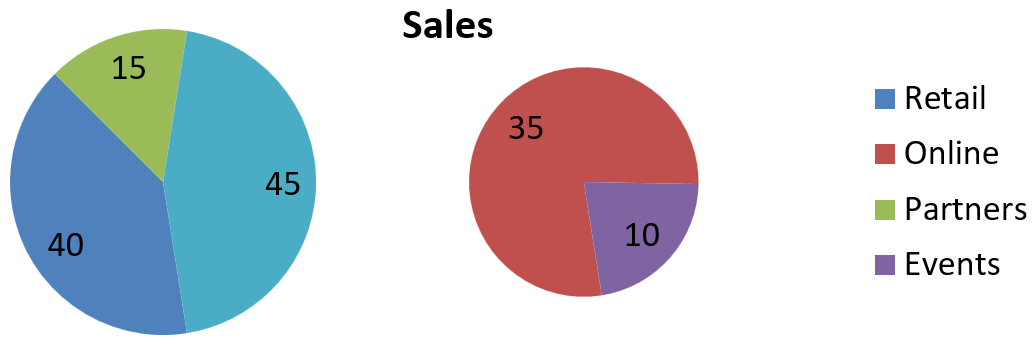
특정 카테고리를 백분율 값에 상관없이 보조 플롯에 그룹화하고 싶을 때 사용자 지정 분할을 사용합니다. 예를 들어, 판매 보고서에서 온라인과 이벤트를 함께 표시하여 총 판매량의 35%와 10%를 차지하지만 두 채널을 비교할 수 있도록 할 수 있습니다.
다음과 같이 set_PieSplitBy에 PieSplitType::Custom을 전달하고 get_PieSplitCustomPoints를 통해 포인트를 선택합니다. 컬렉션의 Add 메서드는 시리즈에서 0부터 시작하는 인덱스를 받습니다. 이 예제에서는 인덱스 1이 온라인을 선택하고, 인덱스 3이 이벤트를 선택합니다. Partners도 잠시 추가된 후 Remove를 사용해 제외됩니다.
#include <system/shared_ptr.h>
#include <DOM/Presentation.h>
#include <DOM/ISlide.h>
#include <DOM/IShapeCollection.h>
#include <DOM/Chart/ChartType.h>
#include <DOM/IChart.h>
#include <DOM/Chart/IChartData.h>
#include <DOM/Chart/IChartSeriesCollection.h>
#include <DOM/Chart/IChartSeries.h>
#include <DOM/Chart/IDataLabelCollection.h>
#include <DOM/Chart/IDataLabelFormat.h>
#include <DOM/Chart/IChartSeriesGroup.h>
#include <Export/SaveFormat.h>
#include <DOM/Chart/PieSplitType.h>
#include <vector>
#include <system/object_ext.h>
#include <DOM/Chart/IChartDataWorkbook.h>
#include <DOM/Chart/IChartDataCell.h>
#include <DOM/Chart/IChartCategoryCollection.h>
#include <DOM/Chart/IChartDataPointCollection.h>
#include <DOM/Chart/IChartDataPoint.h>
#include <DOM/Chart/IPieSplitCustomPointCollection.h>

using namespace Aspose::Slides;
using namespace Aspose::Slides::Charts;
using namespace Aspose::Slides::Export;

auto presentation = System::MakeObject<Presentation>();
auto slide = presentation->get_Slide(0);

auto chart = slide->get_Shapes()->AddChart(ChartType::PieOfPie, 50, 50, 600, 200);

// 채널별 판매 데이터로 기본 데이터를 교체합니다.
auto workbook = chart->get_ChartData()->get_ChartDataWorkbook();
chart->get_ChartData()->get_Series()->Clear();
chart->get_ChartData()->get_Categories()->Clear();
auto categoryNames = std::vector<System::String>{ u"Retail", u"Online", u"Partners", u"Events" };
auto values = std::vector<int>{ 40, 35, 15, 10 };
auto seriesNameCell = workbook->GetCell(0, 0, 1, System::ObjectExt::Box(System::String(u"Sales")));
auto series = chart->get_ChartData()->get_Series()->Add(seriesNameCell, chart->get_Type());

for (auto i = 0; i < static_cast<int>(categoryNames.size()); i++)
{
    auto categoryCell = workbook->GetCell(0, i + 1, 0, System::ObjectExt::Box(categoryNames[i]));
    chart->get_ChartData()->get_Categories()->Add(categoryCell);

    auto valueCell = workbook->GetCell(0, i + 1, 1, System::ObjectExt::Box(values[i]));
    series->get_DataPoints()->AddDataPointForPieSeries(valueCell);
}

series->get_Labels()->get_DefaultDataLabelFormat()->set_ShowValue(true);
auto seriesGroup = series->get_ParentSeriesGroup();
seriesGroup->set_PieSplitBy(PieSplitType::Custom);
seriesGroup->set_IsColorVaried(true);

// 시리즈에서 0 기반 인덱스를 사용하여 온라인과 이벤트를 선택합니다.
seriesGroup->get_PieSplitCustomPoints()->Add(1);
seriesGroup->get_PieSplitCustomPoints()->Add(3);

// 파트너스를 선택에서 제외하지만 원본 데이터를 삭제하지는 않습니다.
seriesGroup->get_PieSplitCustomPoints()->Add(2);
seriesGroup->get_PieSplitCustomPoints()->Remove(2);

presentation->Save(u"pie_of_pie_custom.pptx", SaveFormat::Pptx);
보조 플롯에서는 온라인(35)과 이벤트(10)가 별개의 슬라이스로 표시됩니다. 기본 플롯에서는 이들이 45값의 하나의 결합 슬라이스로 표시되며, 소매(40)와 파트너스(15)와 함께 나타납니다. 사용자 지정 선택에서 Partners를 제거해도 기본 플롯에는 그대로 남으며, 차트 원본 데이터에서 카테고리나 값을 제거하지는 않습니다.
다음 이미지는 PowerPoint에서 저장된 프레젠테이션을 보여줍니다:
파이 차트 슬라이스 색상 자동 설정
Aspose.Slides for C++는 파이 차트 슬라이스에 서로 다른 색상을 자동으로 할당할 수 있습니다. 다음 예제는 중앙에 제목이 있는 파이 차트를 만들고 기본 데이터를 3개의 분기별 카테고리와 해당 값으로 교체합니다. set_ShowValue 메서드는 20, 50, 30 값을 레이블로 표시하며, set_IsColorVaried은 각 슬라이스마다 별도의 색상을 활성화합니다.
#include <system/shared_ptr.h>
#include <DOM/Presentation.h>
#include <DOM/ISlide.h>
#include <DOM/IShapeCollection.h>
#include <DOM/Chart/ChartType.h>
#include <DOM/IChart.h>
#include <DOM/Chart/IChartData.h>
#include <DOM/Chart/IChartSeriesCollection.h>
#include <DOM/Chart/IChartSeries.h>
#include <DOM/Chart/IDataLabelCollection.h>
#include <DOM/Chart/IDataLabelFormat.h>
#include <DOM/Chart/IChartSeriesGroup.h>
#include <Export/SaveFormat.h>
#include <vector>
#include <system/object_ext.h>
#include <DOM/Chart/IChartDataWorkbook.h>
#include <DOM/Chart/IChartDataCell.h>
#include <DOM/Chart/IChartCategoryCollection.h>
#include <DOM/Chart/IChartDataPointCollection.h>
#include <DOM/Chart/IChartDataPoint.h>
#include <DOM/Chart/IChartTitle.h>
#include <DOM/ITextFrame.h>
#include <DOM/ITextFrameFormat.h>
#include <DOM/NullableBool.h>

using namespace Aspose::Slides;
using namespace Aspose::Slides::Charts;
using namespace Aspose::Slides::Export;

auto presentation = System::MakeObject<Presentation>();
auto slide = presentation->get_Slide(0);

auto chart = slide->get_Shapes()->AddChart(ChartType::Pie, 100, 100, 400, 400);

// 중앙 정렬된 차트 제목을 추가합니다.
chart->get_ChartTitle()->AddTextFrameForOverriding(u"Sample Title");
chart->get_ChartTitle()->get_TextFrameForOverriding()->get_TextFrameFormat()->set_CenterText(NullableBool::True);
chart->get_ChartTitle()->set_Height(20);
chart->set_HasTitle(true);

// 첫 번째 워크시트를 사용하여 기본 데이터를 교체합니다.
auto workbook = chart->get_ChartData()->get_ChartDataWorkbook();
auto worksheetIndex = 0;
chart->get_ChartData()->get_Series()->Clear();
chart->get_ChartData()->get_Categories()->Clear();
auto categoryNames = std::vector<System::String>{ u"First Qtr", u"2nd Qtr", u"3rd Qtr" };
auto values = std::vector<int>{ 20, 50, 30 };
auto seriesNameCell = workbook->GetCell(worksheetIndex, 0, 1, System::ObjectExt::Box(System::String(u"Series 1")));
auto series = chart->get_ChartData()->get_Series()->Add(seriesNameCell, chart->get_Type());

for (auto i = 0; i < static_cast<int>(categoryNames.size()); i++)
{
    auto categoryCell = workbook->GetCell(worksheetIndex, i + 1, 0, System::ObjectExt::Box(categoryNames[i]));
    chart->get_ChartData()->get_Categories()->Add(categoryCell);

    auto valueCell = workbook->GetCell(worksheetIndex, i + 1, 1, System::ObjectExt::Box(values[i]));
    series->get_DataPoints()->AddDataPointForPieSeries(valueCell);
}

// 값을 표시하고 슬라이스에 서로 다른 색상을 지정합니다.
series->get_Labels()->get_DefaultDataLabelFormat()->set_ShowValue(true);
series->get_ParentSeriesGroup()->set_IsColorVaried(true);

presentation->Save(u"pie.pptx", SaveFormat::Pptx);
자주 묻는 질문
파이 오브 파이 및 바 오브 파이 변형이 지원되나요?
네, 라이브러리는 파이 차트에 대한 보조 플롯을 지원합니다, 파이 오브 파이 및 바 오브 파이 유형을 포함합니다.
차트만 이미지(PNG 등)로 내보낼 수 있나요?
네, 프레젠테이션 전체를 내보내지 않고 차트 자체를 이미지(예: PNG)로 차트 자체를 이미지로 내보내기 할 수 있습니다.