
ปรับแต่งแผนภูมิวงกลมในงานนำเสนอโดยใช้ C++
ภาพรวม
บทความนี้อธิบายวิธีการทำงานกับแผนภูมิวงกลมใน Aspose.Slides แสดงวิธีการกำหนดค่าตัวเลือกพล็อตรองสำหรับแผนภูมิ Pie of Pie และ Bar of Pie และวิธีเปิดใช้การจัดสีส่วนของแผนภูมิวงกลมแบบอัตโนมัติสำหรับแผนภูมิวงกลมมาตรฐาน
ตัวอย่างมุ่งเน้นที่งานปรับแต่งแผนภูมิเช่น การเพิ่มแผนภูมิลงในสไลด์ การปรับชุดข้อมูลและการตั้งค่าป้ายกำกับ การแทนที่ข้อมูลแผนภูมิปริยายด้วยหมวดหมู่และค่าแบบกำหนดเอง และการบันทึกงานนำเสนอที่อัปเดต
ตัวเลือกพล็อตรองสำหรับแผนภูมิ Pie of Pie และ Bar of Pie
Aspose.Slides สำหรับ C++ รองรับตัวเลือกพล็อตรองสำหรับแผนภูมิ Pie of Pie และ Bar of Pie ตัวเลือกเหล่านี้ควบคุมขนาดของพล็อตรองและวิธีการแบ่งจุดข้อมูลระหว่างพล็อตสองชุด
ตัวอย่างต่อไปนี้สร้างแผนภูมิ Pie of Pie ในงานนำเสนอใหม่และแสดงค่าจุดข้อมูลเป็นป้ายกำกับ วิธี set_SecondPieSize ตั้งค่าขนาดพล็อตรองเป็น 149% ของพล็อตหลัก วิธี set_PieSplitBy เลือกการแบ่งตามเปอร์เซ็นต์ และวิธี set_PieSplitPosition ตั้งค่าขีดจำกัดเป็น 53%
#include <system/shared_ptr.h>
#include <DOM/Presentation.h>
#include <DOM/ISlide.h>
#include <DOM/IShapeCollection.h>
#include <DOM/Chart/ChartType.h>
#include <DOM/IChart.h>
#include <DOM/Chart/IChartData.h>
#include <DOM/Chart/IChartSeriesCollection.h>
#include <DOM/Chart/IChartSeries.h>
#include <DOM/Chart/IDataLabelCollection.h>
#include <DOM/Chart/IDataLabelFormat.h>
#include <DOM/Chart/IChartSeriesGroup.h>
#include <Export/SaveFormat.h>
#include <DOM/Chart/PieSplitType.h>

using namespace Aspose::Slides;
using namespace Aspose::Slides::Charts;
using namespace Aspose::Slides::Export;

auto presentation = System::MakeObject<Presentation>();
auto slide = presentation->get_Slide(0);

auto chart = slide->get_Shapes()->AddChart(ChartType::PieOfPie, 50, 50, 500, 400);
auto series = chart->get_ChartData()->get_Series()->idx_get(0);

// Display values and configure the secondary plot.
series->get_Labels()->get_DefaultDataLabelFormat()->set_ShowValue(true);
auto seriesGroup = series->get_ParentSeriesGroup();
seriesGroup->set_SecondPieSize(149);
seriesGroup->set_PieSplitBy(PieSplitType::ByPercentage);
seriesGroup->set_PieSplitPosition(53);

presentation->Save(u"pie_of_pie.pptx", SaveFormat::Pptx);
เลือกหมวดหมู่สำหรับพล็อตรอง
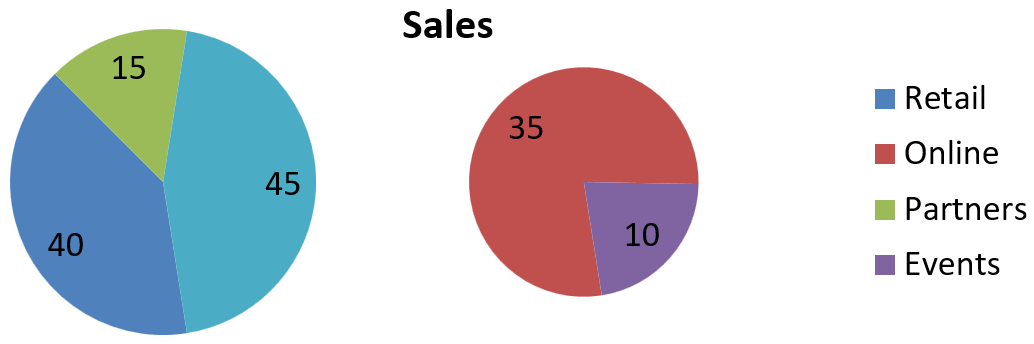
ใช้การแบ่งแบบกำหนดเองเมื่อคุณต้องการจัดกลุ่มหมวดหมู่เฉพาะในพล็อตรองโดยไม่คำนึงถึงค่าเปอร์เซ็นต์ของมัน ตัวอย่างเช่น รายงานการขายอาจแสดง Online และ Events ร่วมกันเพื่อให้ผู้อ่านเปรียบเทียบสองช่องทางนี้ แม้ว่ามันจะเป็น 35% และ 10% ของยอดขายรวม
เรียกใช้ set_PieSplitBy พร้อมกับ PieSplitType::Custom และเลือกจุดผ่าน get_PieSplitCustomPoints. วิธี Add ของคอลเล็กชันรับดัชนีเริ่มจากศูนย์ในชุดข้อมูล ในตัวอย่างนี้ ดัชนี 1 เลือก Online และดัชนี 3 เลือก Events พาร์ทเนอร์ถูกเพิ่มชั่วคราวแล้วลบออกด้วย Remove
#include <system/shared_ptr.h>
#include <DOM/Presentation.h>
#include <DOM/ISlide.h>
#include <DOM/IShapeCollection.h>
#include <DOM/Chart/ChartType.h>
#include <DOM/IChart.h>
#include <DOM/Chart/IChartData.h>
#include <DOM/Chart/IChartSeriesCollection.h>
#include <DOM/Chart/IChartSeries.h>
#include <DOM/Chart/IDataLabelCollection.h>
#include <DOM/Chart/IDataLabelFormat.h>
#include <DOM/Chart/IChartSeriesGroup.h>
#include <Export/SaveFormat.h>
#include <DOM/Chart/PieSplitType.h>
#include <vector>
#include <system/object_ext.h>
#include <DOM/Chart/IChartDataWorkbook.h>
#include <DOM/Chart/IChartDataCell.h>
#include <DOM/Chart/IChartCategoryCollection.h>
#include <DOM/Chart/IChartDataPointCollection.h>
#include <DOM/Chart/IChartDataPoint.h>
#include <DOM/Chart/IPieSplitCustomPointCollection.h>

using namespace Aspose::Slides;
using namespace Aspose::Slides::Charts;
using namespace Aspose::Slides::Export;

auto presentation = System::MakeObject<Presentation>();
auto slide = presentation->get_Slide(0);

auto chart = slide->get_Shapes()->AddChart(ChartType::PieOfPie, 50, 50, 600, 200);

// แทนที่ข้อมูลปริยายด้วยยอดขายตามช่องทาง.
auto workbook = chart->get_ChartData()->get_ChartDataWorkbook();
chart->get_ChartData()->get_Series()->Clear();
chart->get_ChartData()->get_Categories()->Clear();
auto categoryNames = std::vector<System::String>{ u"Retail", u"Online", u"Partners", u"Events" };
auto values = std::vector<int>{ 40, 35, 15, 10 };
auto seriesNameCell = workbook->GetCell(0, 0, 1, System::ObjectExt::Box(System::String(u"Sales")));
auto series = chart->get_ChartData()->get_Series()->Add(seriesNameCell, chart->get_Type());

for (auto i = 0; i < static_cast<int>(categoryNames.size()); i++)
{
    auto categoryCell = workbook->GetCell(0, i + 1, 0, System::ObjectExt::Box(categoryNames[i]));
    chart->get_ChartData()->get_Categories()->Add(categoryCell);

    auto valueCell = workbook->GetCell(0, i + 1, 1, System::ObjectExt::Box(values[i]));
    series->get_DataPoints()->AddDataPointForPieSeries(valueCell);
}

series->get_Labels()->get_DefaultDataLabelFormat()->set_ShowValue(true);
auto seriesGroup = series->get_ParentSeriesGroup();
seriesGroup->set_PieSplitBy(PieSplitType::Custom);
seriesGroup->set_IsColorVaried(true);

// เลือก Online และ Events ตามดัชนีเริ่มจากศูนย์ในชุดข้อมูล.
seriesGroup->get_PieSplitCustomPoints()->Add(1);
seriesGroup->get_PieSplitCustomPoints()->Add(3);

// ยกเว้น Partners จากการเลือกโดยไม่ลบข้อมูลต้นทางของมัน.
seriesGroup->get_PieSplitCustomPoints()->Add(2);
seriesGroup->get_PieSplitCustomPoints()->Remove(2);

presentation->Save(u"pie_of_pie_custom.pptx", SaveFormat::Pptx);
Online (35) และ Events (10) แสดงเป็นส่วนแยกในพล็อตรอง ในพล็อตหลัก พวกมันจะแสดงเป็นส่วนรวมหนึ่งค่าที่ 45 พร้อมกับ Retail (40) และ Partners (15) การลบ Partners จากการเลือกแบบกำหนดเองทำให้มันยังคงอยู่ในพล็อตหลัก; ไม่ได้ลบหมวดหมู่หรือค่าของมันออกจากข้อมูลต้นทางของแผนภูมิ
ตั้งค่าสีส่วนของแผนภูมิวงกลมอัตโนมัติ
Aspose.Slides สำหรับ C++ สามารถกำหนดสีต่างๆ ให้กับส่วนของแผนภูมิวงกลมโดยอัตโนมัติ ตัวอย่างต่อไปนี้สร้างแผนภูมวงกลมพร้อมหัวเรื่องอยู่กึ่งกลางและแทนที่ข้อมูลปริยายด้วยสามหมวดไตรมาสพร้อมค่าของพวกมัน วิธี set_ShowValue จะแสดงค่าตัวเลข 20, 50, และ 30 เป็นป้ายกำกับ ในขณะที่ set_IsColorVaried เปิดใช้สีที่แตกต่างสำหรับแต่ละส่วน
#include <system/shared_ptr.h>
#include <DOM/Presentation.h>
#include <DOM/ISlide.h>
#include <DOM/IShapeCollection.h>
#include <DOM/Chart/ChartType.h>
#include <DOM/IChart.h>
#include <DOM/Chart/IChartData.h>
#include <DOM/Chart/IChartSeriesCollection.h>
#include <DOM/Chart/IChartSeries.h>
#include <DOM/Chart/IDataLabelCollection.h>
#include <DOM/Chart/IDataLabelFormat.h>
#include <DOM/Chart/IChartSeriesGroup.h>
#include <Export/SaveFormat.h>
#include <vector>
#include <system/object_ext.h>
#include <DOM/Chart/IChartDataWorkbook.h>
#include <DOM/Chart/IChartDataCell.h>
#include <DOM/Chart/IChartCategoryCollection.h>
#include <DOM/Chart/IChartDataPointCollection.h>
#include <DOM/Chart/IChartDataPoint.h>
#include <DOM/Chart/IChartTitle.h>
#include <DOM/ITextFrame.h>
#include <DOM/ITextFrameFormat.h>
#include <DOM/NullableBool.h>

using namespace Aspose::Slides;
using namespace Aspose::Slides::Charts;
using namespace Aspose::Slides::Export;

auto presentation = System::MakeObject<Presentation>();
auto slide = presentation->get_Slide(0);

auto chart = slide->get_Shapes()->AddChart(ChartType::Pie, 100, 100, 400, 400);

// เพิ่มหัวเรื่องแผนภูมิที่จัดกึ่งกลาง.
chart->get_ChartTitle()->AddTextFrameForOverriding(u"Sample Title");
chart->get_ChartTitle()->get_TextFrameForOverriding()->get_TextFrameFormat()->set_CenterText(NullableBool::True);
chart->get_ChartTitle()->set_Height(20);
chart->set_HasTitle(true);

// แทนที่ข้อมูลปริยายโดยใช้แผ่นงานแรก.
auto workbook = chart->get_ChartData()->get_ChartDataWorkbook();
auto worksheetIndex = 0;
chart->get_ChartData()->get_Series()->Clear();
chart->get_ChartData()->get_Categories()->Clear();
auto categoryNames = std::vector<System::String>{ u"First Qtr", u"2nd Qtr", u"3rd Qtr" };
auto values = std::vector<int>{ 20, 50, 30 };
auto seriesNameCell = workbook->GetCell(worksheetIndex, 0, 1, System::ObjectExt::Box(System::String(u"Series 1")));
auto series = chart->get_ChartData()->get_Series()->Add(seriesNameCell, chart->get_Type());

for (auto i = 0; i < static_cast<int>(categoryNames.size()); i++)
{
    auto categoryCell = workbook->GetCell(worksheetIndex, i + 1, 0, System::ObjectExt::Box(categoryNames[i]));
    chart->get_ChartData()->get_Categories()->Add(categoryCell);

    auto valueCell = workbook->GetCell(worksheetIndex, i + 1, 1, System::ObjectExt::Box(values[i]));
    series->get_DataPoints()->AddDataPointForPieSeries(valueCell);
}

// แสดงค่และกำหนดสีที่แตกต่างให้กับส่วนของแผนภูมิ.
series->get_Labels()->get_DefaultDataLabelFormat()->set_ShowValue(true);
series->get_ParentSeriesGroup()->set_IsColorVaried(true);

presentation->Save(u"pie.pptx", SaveFormat::Pptx);
คำถามที่พบบ่อย
รองรับรูปแบบ Pie of Pie และ Bar of Pie หรือไม่?
ใช่, ไลบรารี รองรับ พล็อตรองสำหรับแผนภูมิวงกลม รวมถึงประเภท Pie of Pie และ Bar of Pie ด้วย
ฉันสามารถส่งออกแผนภูมิเฉพาะเป็นภาพ (เช่น PNG) ได้หรือไม่?
ได้, คุณสามารถ ส่งออกแผนภูมิเป็นภาพ (เช่น PNG) โดยไม่ต้องส่งออกรายการนำเสนอทั้งหมด