
Convert PowerPoint Presentations to HTML in Python via Java
Overview
Aspose.Slides for Python via Java can save PowerPoint presentations as HTML without Microsoft PowerPoint. The basic conversion is a single Presentation load and a save call with SaveFormat. Use HtmlOptions when you need to control the exported layout, fonts, images, notes, comments, SVG output, or linked resources.
This guide focuses on practical HTML export scenarios:
- Export a whole presentation or selected slides.
- Generate fixed-layout, responsive, or SVG-based HTML.
- Include speaker notes and comments.
- Control image quality and cropped image data.
- Embed fonts or save font files separately.
- Choose how external resources and media files are written and referenced.
By default, HTML export produces a self-contained HTML document where most resources are embedded. This is convenient for sharing one file, but it can increase output size. For web publishing, consider external resources, lower image DPI, and only embedding fonts that are not reliably available in the target environment.
Convert a Presentation to HTML
To export a presentation to HTML, load it with Presentation and save it with SaveFormat.Html.
import jpype
import asposeslides

if not jpype.isJVMStarted():
    jpype.startJVM()

from asposeslides.api import Presentation, SaveFormat

presentation = Presentation("presentation.pptx")
try:
    presentation.save("presentation.html", SaveFormat.Html)
finally:
    presentation.dispose()
Each example loads presentation.pptx from the current working directory. Install Aspose.Slides for Python via Java and a compatible Java runtime before running it. The JVM is started once per Python process.
This example writes one HTML file. The presentation object is disposed of in the finally block, which releases file handles and rendering resources after export.
Configure HTML Export
HtmlOptions is the main configuration class for HTML export. Common settings include:
- setSlidesLayoutOptions: adds notes, comments, handouts, or other layout information.
- setHtmlFormatter: changes the HTML document structure or delegates formatting to a controller.
- setSlideImageFormat: changes how slides are represented, for example as SVG.
- setPicturesCompression: controls image DPI and output size.
- setDeletePicturesCroppedAreas: keeps or removes cropped image data.
- setSvgResponsiveLayout: makes exported SVG content adapt to its container.
- setShowHiddenSlides: includes hidden slides when required.
The following sections show the most common options separately so you can combine only the ones your workflow needs.
Convert Selected Slides to HTML
The Presentation.save overload that accepts slide numbers uses 1-based slide positions. The loop below saves every slide to a separate HTML file.
import jpype
import asposeslides

if not jpype.isJVMStarted():
    jpype.startJVM()

from asposeslides.api import Presentation, SaveFormat

presentation = Presentation("presentation.pptx")
try:
    slide_count = presentation.getSlides().size()
    for slide_index in range(slide_count):
        slide_number = slide_index + 1
        slide_numbers = jpype.JArray(jpype.JInt)([slide_number])
        html_file_name = f"slide-{slide_number}.html"
        presentation.save(html_file_name, slide_numbers, SaveFormat.Html)
finally:
    presentation.dispose()
Use this pattern when a website or application needs one HTML page per slide. If each slide should have the same layout, create one HtmlOptions instance and pass it to each Presentation.save call.
Create Responsive HTML
ResponsiveHtmlController provides responsive HTML output through HtmlFormatter. Use it when the exported page should adapt better to browser width.
import jpype
import asposeslides

if not jpype.isJVMStarted():
    jpype.startJVM()

from asposeslides.api import HtmlFormatter, HtmlOptions, Presentation, ResponsiveHtmlController, SaveFormat

presentation = Presentation("presentation.pptx")
try:
    controller = ResponsiveHtmlController()
    formatter = HtmlFormatter.createCustomFormatter(controller)

    html_options = HtmlOptions()
    html_options.setHtmlFormatter(formatter)

    presentation.save("presentation-responsive.html", SaveFormat.Html, html_options)
finally:
    presentation.dispose()
For SVG-based responsive layout, call HtmlOptions.setSvgResponsiveLayout with True. This is useful when the slide content is exported as scalable SVG markup.
import jpype
import asposeslides

if not jpype.isJVMStarted():
    jpype.startJVM()

from asposeslides.api import HtmlOptions, Presentation, SaveFormat

presentation = Presentation("presentation.pptx")
try:
    html_options = HtmlOptions()
    html_options.setSvgResponsiveLayout(True)

    presentation.save("presentation-svg-responsive.html", SaveFormat.Html, html_options)
finally:
    presentation.dispose()
Include Speaker Notes and Comments
Use NotesCommentsLayoutingOptions through HtmlOptions.setSlidesLayoutOptions to include speaker notes or comments. Notes and comments are hidden by default unless you choose their positions.
Suppose the source presentation contains speaker notes:
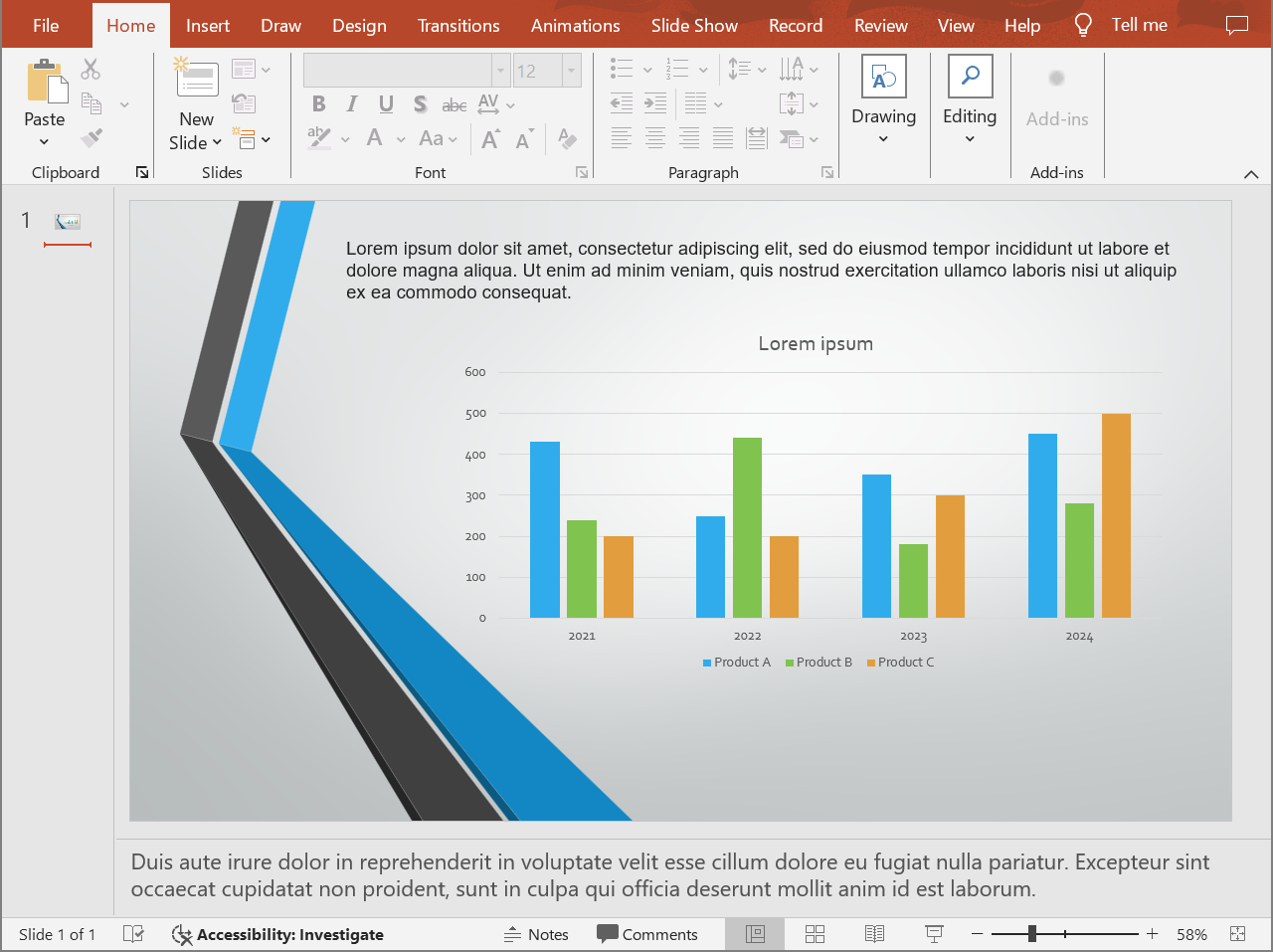
The following code exports the slide content with speaker notes below the slide.
import jpype
import asposeslides

if not jpype.isJVMStarted():
    jpype.startJVM()

from asposeslides.api import HtmlOptions, NotesCommentsLayoutingOptions, NotesPositions, Presentation, SaveFormat

presentation = Presentation("presentation.pptx")
try:
    layout_options = NotesCommentsLayoutingOptions()
    layout_options.setNotesPosition(NotesPositions.BottomFull)

    html_options = HtmlOptions()
    html_options.setSlidesLayoutOptions(layout_options)

    presentation.save("presentation-with-notes.html", SaveFormat.Html, html_options)
finally:
    presentation.dispose()
The exported HTML includes the notes area:
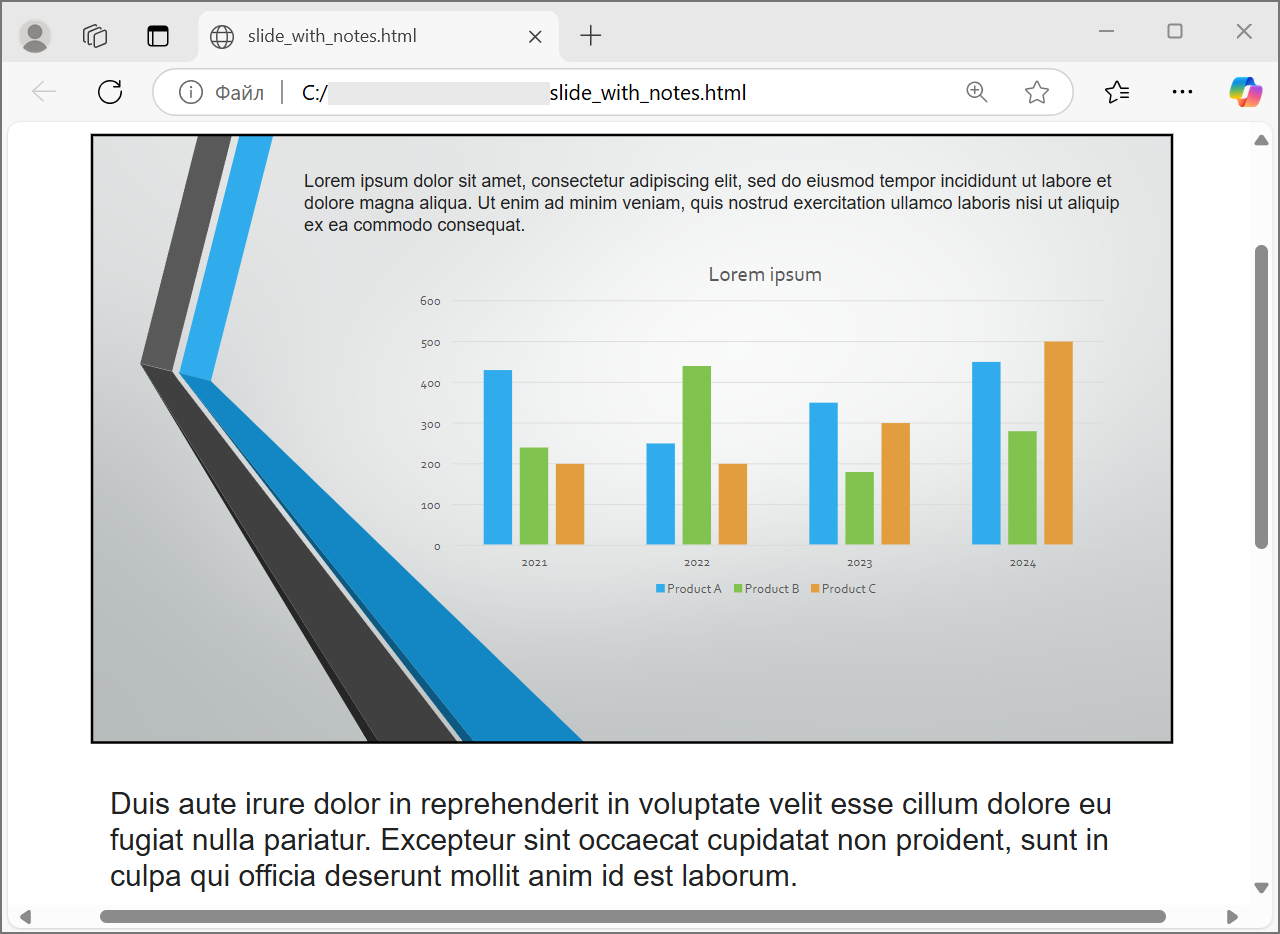
To export comments, call NotesCommentsLayoutingOptions.setCommentsPosition, for example with CommentsPositions.Right or CommentsPositions.Bottom. If you need only comments, omit NotesCommentsLayoutingOptions.setNotesPosition. If you need both notes and comments, call both methods.
Control Image Quality and Cropped Areas
HTML export can compress slide images to reduce output size. Pass a value to HtmlOptions.setPicturesCompression from PicturesCompression when you need higher image quality.
import jpype
import asposeslides

if not jpype.isJVMStarted():
    jpype.startJVM()

from asposeslides.api import HtmlOptions, PicturesCompression, Presentation, SaveFormat

presentation = Presentation("presentation.pptx")
try:
    html_options = HtmlOptions()
    html_options.setPicturesCompression(PicturesCompression.Dpi150)

    presentation.save("presentation-dpi-150.html", SaveFormat.Html, html_options)
finally:
    presentation.dispose()
By default, cropped areas of images may be removed from the exported output. Keep cropped data only when users must be able to recover or inspect those hidden image parts. Keeping it can increase the HTML size.
import jpype
import asposeslides

if not jpype.isJVMStarted():
    jpype.startJVM()

from asposeslides.api import HtmlOptions, Presentation, SaveFormat

presentation = Presentation("presentation.pptx")
try:
    html_options = HtmlOptions()
    html_options.setDeletePicturesCroppedAreas(False)

    presentation.save("presentation-with-cropped-areas.html", SaveFormat.Html, html_options)
finally:
    presentation.dispose()
Add CSS
For simple styling, pass a CSS string to HtmlFormatter.createDocumentFormatter. This changes the surrounding HTML document while Aspose.Slides continues to render the slide content.
import jpype
import asposeslides

if not jpype.isJVMStarted():
    jpype.startJVM()

from asposeslides.api import HtmlFormatter, HtmlOptions, Presentation, SaveFormat

presentation = Presentation("presentation.pptx")
try:
    css_rules = "body { margin: 0; background: #f7f7f7; } .slide { margin: 24px auto; }"
    formatter = HtmlFormatter.createDocumentFormatter(css_rules, True)

    html_options = HtmlOptions()
    html_options.setHtmlFormatter(formatter)

    presentation.save("presentation-styled.html", SaveFormat.Html, html_options)
finally:
    presentation.dispose()
For a custom document header, a linked CSS file, or custom markup around slides and shapes, use a custom formatting controller through a JPype interface proxy and pass it to HtmlFormatter with HtmlFormatter.createCustomFormatter.
Embed Fonts
If the target environment may not have the presentation fonts installed, embed fonts in the HTML with EmbedAllFontsHtmlController. Embedding improves visual fidelity but increases output size.
import jpype
import asposeslides

if not jpype.isJVMStarted():
    jpype.startJVM()

from asposeslides.api import EmbedAllFontsHtmlController, HtmlFormatter, HtmlOptions, Presentation, SaveFormat

presentation = Presentation("presentation.pptx")
try:
    font_names_to_exclude = jpype.JArray(jpype.JString)(["Arial"])
    font_controller = EmbedAllFontsHtmlController(font_names_to_exclude)
    formatter = HtmlFormatter.createCustomFormatter(font_controller)

    html_options = HtmlOptions()
    html_options.setHtmlFormatter(formatter)

    presentation.save("presentation-embedded-fonts.html", SaveFormat.Html, html_options)
finally:
    presentation.dispose()
Exclude fonts only when you are confident that the target browsers or systems already provide them. For brand fonts or less common fonts, embedding is usually safer.
Save Resources Externally
Self-contained HTML is easy to move around, but embedded Base64 resources can make the file large. If your application needs external image files, implement a resource-linking controller through a JPype interface proxy and pass it to the HtmlOptions constructor.
When you externalize resources, choose two paths deliberately:
- The file system output path, where your application writes generated images, fonts, audio, or video.
- The URL path, which is what the browser uses from the HTML document to load those files.
Export Media Files
VideoPlayerHtmlController exports video and audio files and writes HTML that can play them in a browser. Its constructor takes:
path: the directory where generated media files will be written.fileName: the HTML file name being generated.baseUri: the absolute URI prefix used in the HTML links to media files.
The following example exports media already embedded in presentation.pptx. The generated HTML references media files by file name only, relative to the HTML document, so path must be the directory that also receives the HTML file. baseUri has to be an absolute URI: for local preview, build a file:/// URI from the output directory; for a deployed application, use the absolute URL of the published directory.
import jpype
import asposeslides

if not jpype.isJVMStarted():
    jpype.startJVM()

from asposeslides.api import HtmlFormatter, HtmlOptions, Presentation, SVGOptions, SaveFormat, SlideImageFormat, VideoPlayerHtmlController

from pathlib import Path

output_directory = Path("html-output").resolve()
output_directory.mkdir(parents=True, exist_ok=True)
html_file_name = "presentation.html"
media_base_uri = output_directory.as_uri() + "/"

presentation = Presentation("presentation.pptx")
try:
    controller = VideoPlayerHtmlController(str(output_directory), html_file_name, media_base_uri)
    formatter = HtmlFormatter.createCustomFormatter(controller)
    svg_options = SVGOptions(controller)
    slide_image_format = SlideImageFormat.svg(svg_options)

    html_options = HtmlOptions(controller)
    html_options.setHtmlFormatter(formatter)
    html_options.setSlideImageFormat(slide_image_format)

    html_file_path = output_directory / html_file_name
    presentation.save(str(html_file_path), SaveFormat.Html, html_options)
finally:
    presentation.dispose()
Use output directories that are unique per export job, especially in server applications. Shared output paths can cause files from different conversions to overwrite each other.
Performance and Resource Management
HTML conversion is a rendering operation, so processing time and memory use depend on slide count, image resolution, fonts, effects, charts, and embedded media. Higher image DPI values passed to HtmlOptions.setPicturesCompression, embedded fonts, SVG output, and retained cropped image areas can improve fidelity but usually increase output size.
For batch conversion:
- Dispose of every Presentation instance promptly.
- Use separate output directories for separate jobs.
- Avoid embedding common fonts unless fidelity requires it.
- Lower image DPI when the HTML is for preview or thumbnails.
- Keep the source presentation, generated HTML, and external resources together until deployment paths are final.
FAQ
Are hyperlinks preserved in HTML output?
Yes. Presentation hyperlinks are exported to HTML and remain clickable when the target URL is valid.
Can I convert presentations to HTML in parallel?
Yes, but do not share one Presentation instance across threads. Process different files with separate presentation instances, separate streams, and separate output directories. See the multithreading guidance for details.
Is a presentation object thread-safe?
No. A single Presentation instance should be loaded, modified, saved, and disposed of on one thread. For parallel work, create an independent instance per thread or process.
Why is the generated HTML file large?
The default export can embed resources directly in the HTML. Embedded fonts, high-DPI images, media, SVG content, and retained cropped image areas also increase size. Use external resources, exclude common fonts from embedding, and pass a lower DPI value to HtmlOptions.setPicturesCompression when smaller output is more important than maximum fidelity.
Why can font-size values in HTML differ from PowerPoint values?
The exported page can use SVG coordinate systems and scaling transforms. A raw CSS or SVG font-size value alone does not describe the final displayed size. Compare the rendered slide at the intended zoom level, and check font availability if the text looks different.
How should I choose baseUri for media export?
Choose baseUri from the browser’s point of view and pass it as an absolute URI. For local preview, you can derive it from the output directory with output_directory.as_uri() + "/". For deployment, use the absolute URL of the published directory. The file system path and browser baseUri do not have to be the same string, but they must describe the same location, and that location has to be the directory holding the generated HTML file because media links are written relative to it.
Can I include hidden slides?
Yes. Call HtmlOptions.setShowHiddenSlides with True when hidden slides must be exported.