
Convert PowerPoint Presentations to TIFF with Notes in Python
Introduction
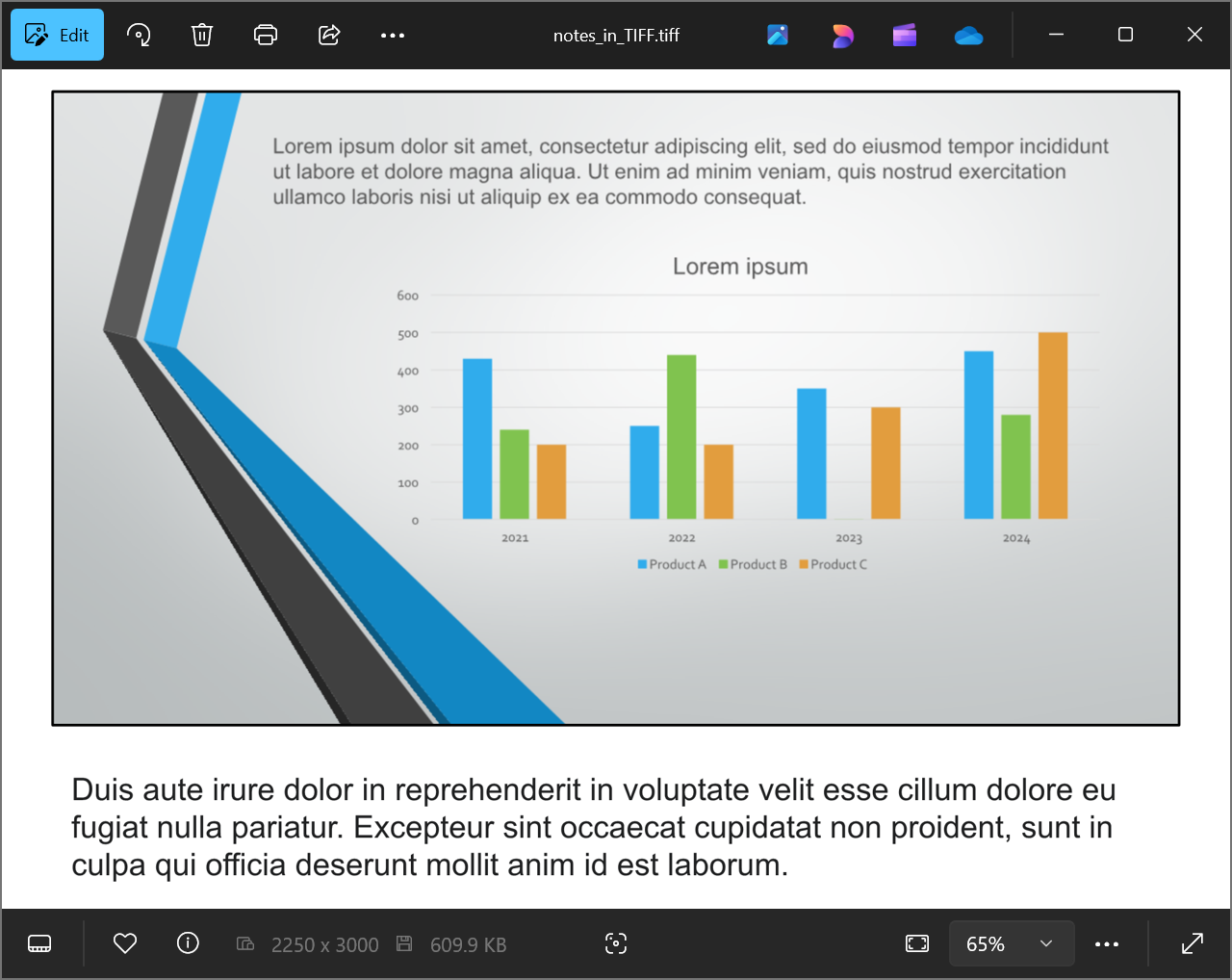
Aspose.Slides for Python via Java provides a simple solution for converting PowerPoint and OpenDocument presentations (PPT, PPTX, and ODP) with notes to the TIFF format. This format is widely used for high-quality image storage, printing, and document archiving. Use the save method of the Presentation class to export slides and their speaker notes to a single multipage TIFF file.
Convert a Presentation to TIFF with Notes
Saving a PowerPoint or OpenDocument presentation to TIFF with notes using Aspose.Slides for Python via Java involves the following steps:
- Instantiate the Presentation class: Load a PowerPoint or OpenDocument file.
- Configure the output layout options: Use the NotesCommentsLayoutingOptions class to specify how notes and comments should be displayed.
- Save the presentation to TIFF: Pass the configured options to the save method.
Let’s say we have a “speaker_notes.pptx” file with the following slide:
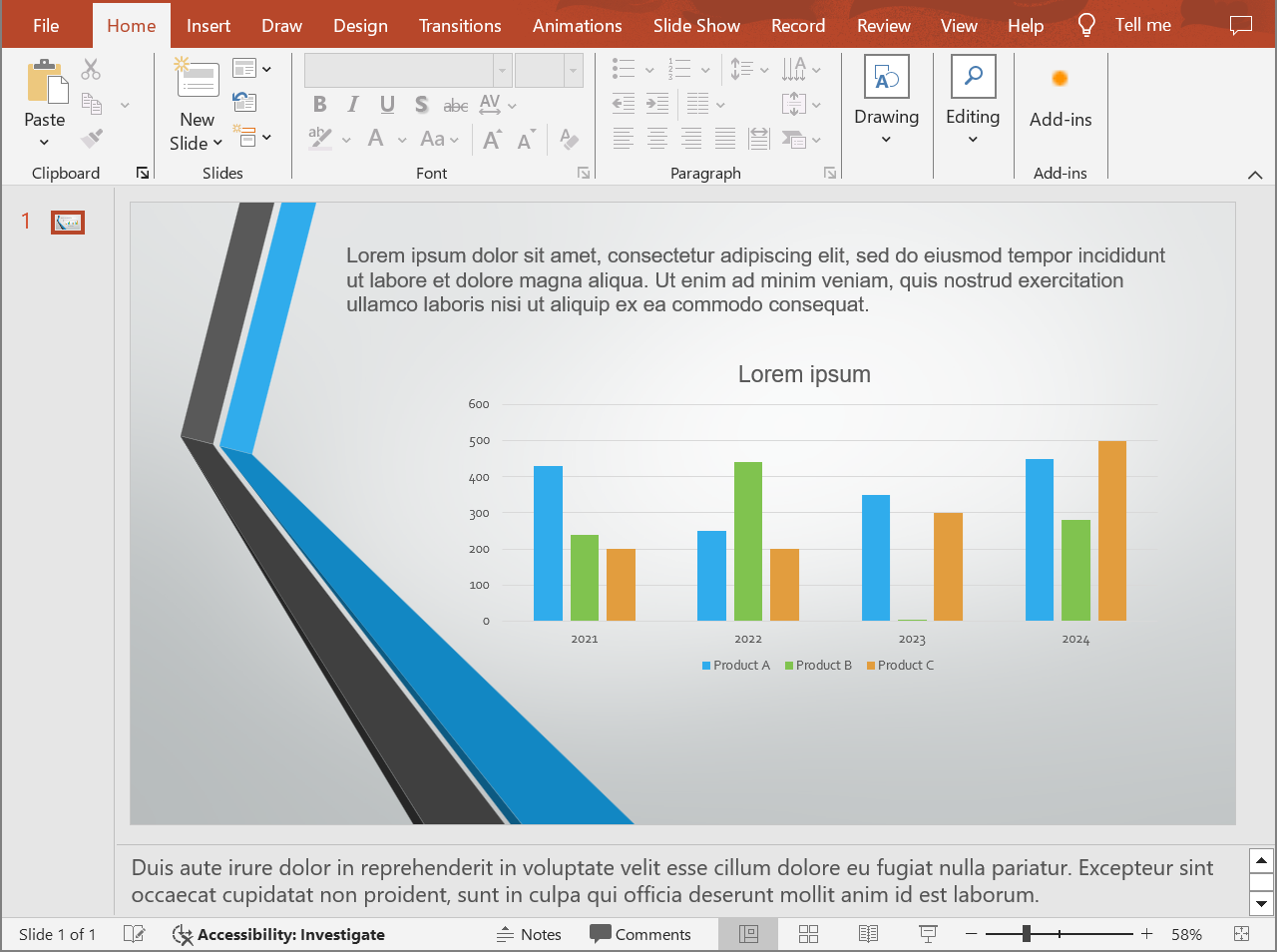
The code snippet below demonstrates how to convert the presentation to a TIFF image in Notes Slide view using the setSlidesLayoutOptions method.
import jpype
import asposeslides

if not jpype.isJVMStarted():
    jpype.startJVM()

from asposeslides.api import NotesCommentsLayoutingOptions, NotesPositions, Presentation, SaveFormat, TiffOptions

presentation = Presentation("speaker_notes.pptx")
try:
    # Display the complete speaker notes below each slide.
    notes_options = NotesCommentsLayoutingOptions()
    notes_options.setNotesPosition(NotesPositions.BottomFull)

    # Configure TIFF resolution and the notes layout.
    tiff_options = TiffOptions()
    tiff_options.setDpiX(300)
    tiff_options.setDpiY(300)
    tiff_options.setSlidesLayoutOptions(notes_options)

    # Save the presentation to TIFF with speaker notes.
    presentation.save("TIFF_with_notes.tiff", SaveFormat.Tiff, tiff_options)
finally:
    presentation.dispose()
The result:
Tip
Check out Aspose Free PowerPoint to Poster Converter.FAQ
Can I control the position of the notes area in the resulting TIFF?
Yes. Configure setNotesPosition with NotesPositions.BottomTruncated to fit notes on one page, possibly truncating them, or NotesPositions.BottomFull to display all notes using additional pages when needed. To export slides without notes, omit the notes layout configuration as shown in Convert PowerPoint to TIFF.
How can I reduce the size of a TIFF file with notes without losing image quality?
Use lossless LZW compression through setCompressionType. Reducing resolution or color depth can further decrease file size, but may affect image quality and note readability. See TIFF export settings for more options.
Does the font in the notes affect the result if the original fonts are missing from the system?
Yes. Missing fonts trigger font substitution, which can change text metrics and appearance. Supply the required fonts to preserve the intended typefaces.