
Manage Presentation Zoom in Python via Java
Introduction
Zooms in PowerPoint allow you to jump to and from specific slides, sections, and portions of a presentation. When you are presenting, this ability to navigate quickly across content might prove very useful.
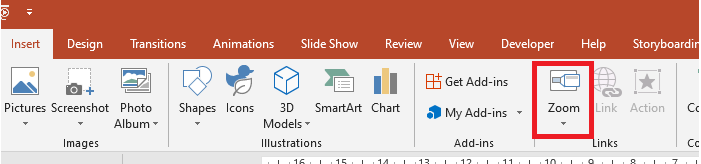
- To summarize an entire presentation on a single slide, use a Summary Zoom.
- To show selected slides only, use a Slide Zoom.
- To show a single section only, use a Section Zoom.
Slide Zoom
A slide zoom can make your presentation more dynamic, allowing you to navigate freely between slides in any order you choose without interrupting the flow of your presentation. Slide zooms are great for short presentations without many sections, but you can still use them in different presentation scenarios.
Slide zooms help you drill into multiple pieces of information while you feel like you are on a single canvas.
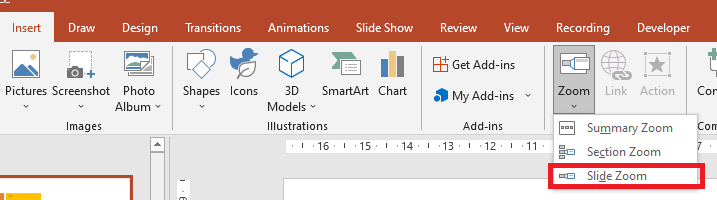
For slide zoom objects, Aspose.Slides provides the ZoomImageType enumeration, the ZoomFrame class, and some methods in the ShapeCollection class.
Create Zoom Frames
You can add a zoom frame on a slide this way:
- Create an instance of the Presentation class.
- Create new slides to which you intend to link the zoom frames.
- Add identifying text and background to the created slides.
- Add zoom frames (containing the references to the created slides) to the first slide.
- Write the modified presentation as a PPTX file.
This Python code shows you how to create a zoom frame on a slide:
import jpype
import asposeslides

if not jpype.isJVMStarted():
    jpype.startJVM()

from asposeslides.api import BackgroundType, FillType, Presentation, SaveFormat, ShapeType
from java.awt import Color

presentation = Presentation()
try:
    # Adds new slides to the presentation
    second_slide = presentation.getSlides().addEmptySlide(presentation.getSlides().get_Item(0).getLayoutSlide())
    third_slide = presentation.getSlides().addEmptySlide(presentation.getSlides().get_Item(0).getLayoutSlide())

    #  Creates a background for the second slide
    second_slide.getBackground().setType(BackgroundType.OwnBackground)
    second_slide.getBackground().getFillFormat().setFillType(FillType.Solid)
    second_slide.getBackground().getFillFormat().getSolidFillColor().setColor(Color.cyan)

    #  Creates a text box for the second slide
    auto_shape = second_slide.getShapes().addAutoShape(ShapeType.Rectangle, 100, 200, 500, 200)
    auto_shape.getTextFrame().setText("Second Slide")

    #  Creates a background for the third slide
    third_slide.getBackground().setType(BackgroundType.OwnBackground)
    third_slide.getBackground().getFillFormat().setFillType(FillType.Solid)
    third_slide.getBackground().getFillFormat().getSolidFillColor().setColor(Color.darkGray)

    #  Create a text box for the third slide
    auto_shape = third_slide.getShapes().addAutoShape(ShapeType.Rectangle, 100, 200, 500, 200)
    auto_shape.getTextFrame().setText("Third Slide")

    # Adds ZoomFrame objects
    presentation.getSlides().get_Item(0).getShapes().addZoomFrame(20, 20, 250, 200, second_slide)
    presentation.getSlides().get_Item(0).getShapes().addZoomFrame(200, 250, 250, 200, third_slide)

    #  Saves the presentation
    presentation.save("presentation.pptx", SaveFormat.Pptx)
finally:
    presentation.dispose()
Create Zoom Frames with Custom Images
With Aspose.Slides for Python via Java, you can create a zoom frame with a different slide preview image this way:
- Create an instance of the Presentation class.
- Create a new slide to which you intend to link the zoom frame.
- Add identifying text and background to the slide.
- Create an PPImage object by adding an image to the images collection associated with the Presentation object that will be used to fill the frame.
- Add zoom frames (containing the reference to the created slide) to the first slide.
- Write the modified presentation as a PPTX file.
This Python code shows you how to create a zoom frame with a different image:
import jpype
import asposeslides

if not jpype.isJVMStarted():
    jpype.startJVM()

from asposeslides.api import BackgroundType, FillType, Images, Presentation, SaveFormat, ShapeType
from java.awt import Color

presentation = Presentation()
try:
    # Adds a new slide to the presentation
    slide = presentation.getSlides().addEmptySlide(presentation.getSlides().get_Item(0).getLayoutSlide())

    #  Creates a background for the second slide
    slide.getBackground().setType(BackgroundType.OwnBackground)
    slide.getBackground().getFillFormat().setFillType(FillType.Solid)
    slide.getBackground().getFillFormat().getSolidFillColor().setColor(Color.cyan)

    #  Creates a text box for the second slide
    auto_shape = slide.getShapes().addAutoShape(ShapeType.Rectangle, 100, 200, 500, 200)
    auto_shape.getTextFrame().setText("Second Slide")

    #  Creates a new image for the zoom object
    image = Images.fromFile("image.png")
    try:
        picture = presentation.getImages().addImage(image)
    finally:
        image.dispose()

    # Adds the ZoomFrame object
    presentation.getSlides().get_Item(0).getShapes().addZoomFrame(20, 20, 300, 200, slide, picture)

    #  Saves the presentation
    presentation.save("presentation.pptx", SaveFormat.Pptx)
finally:
    presentation.dispose()
Format Zoom Frames
In the previous sections, we showed you how to create simple zoom frames. To create more complicated zoom frames, you have to alter a simple frame’s formatting. There are several formatting options you can apply to a zoom frame.
You can control a zoom frame’s formatting on a slide this way:
- Create an instance of the Presentation class.
- Create new slides to which you intend to link the zoom frames.
- Add identifying text and background to the created slides.
- Add zoom frames (containing the references to the created slides) to the first slide.
- Create an PPImage object by adding an image to the images collection associated with the Presentation object that will be used to fill the frame.
- Set a custom image for the first zoom frame object.
- Change the line format for the second zoom frame object.
- Remove the background from an image of the second zoom frame object.
- Write the modified presentation as a PPTX file.
This Python code shows you how to change a zoom frame’s formatting on a slide:
import jpype
import asposeslides

if not jpype.isJVMStarted():
    jpype.startJVM()

from asposeslides.api import BackgroundType, FillType, Images, LineDashStyle, Presentation, SaveFormat, ShapeType
from java.awt import Color

presentation = Presentation()
try:
    # Adds new slides to the presentation
    second_slide = presentation.getSlides().addEmptySlide(presentation.getSlides().get_Item(0).getLayoutSlide())
    third_slide = presentation.getSlides().addEmptySlide(presentation.getSlides().get_Item(0).getLayoutSlide())

    #  Creates a background for the second slide
    second_slide.getBackground().setType(BackgroundType.OwnBackground)
    second_slide.getBackground().getFillFormat().setFillType(FillType.Solid)
    second_slide.getBackground().getFillFormat().getSolidFillColor().setColor(Color.cyan)

    #  Creates a text box for the second slide
    auto_shape = second_slide.getShapes().addAutoShape(ShapeType.Rectangle, 100, 200, 500, 200)
    auto_shape.getTextFrame().setText("Second Slide")

    #  Creates a background for the third slide
    third_slide.getBackground().setType(BackgroundType.OwnBackground)
    third_slide.getBackground().getFillFormat().setFillType(FillType.Solid)
    third_slide.getBackground().getFillFormat().getSolidFillColor().setColor(Color.darkGray)

    #  Creates a text box for the third slide
    auto_shape = third_slide.getShapes().addAutoShape(ShapeType.Rectangle, 100, 200, 500, 200)
    auto_shape.getTextFrame().setText("Third Slide")

    # Adds ZoomFrame objects
    first_zoom_frame = presentation.getSlides().get_Item(0).getShapes().addZoomFrame(20, 20, 250, 200, second_slide)
    second_zoom_frame = presentation.getSlides().get_Item(0).getShapes().addZoomFrame(200, 250, 250, 200, third_slide)

    #  Creates a new image for the zoom object
    image = Images.fromFile("image.png")
    try:
        picture = presentation.getImages().addImage(image)
    finally:
        image.dispose()

    #  Sets custom image for first_zoom_frame object
    first_zoom_frame.setZoomImage(picture)

    #  Sets a zoom frame format for the second_zoom_frame object
    second_zoom_frame.getLineFormat().setWidth(5)
    second_zoom_frame.getLineFormat().getFillFormat().setFillType(FillType.Solid)
    second_zoom_frame.getLineFormat().getFillFormat().getSolidFillColor().setColor(Color.pink)
    second_zoom_frame.getLineFormat().setDashStyle(LineDashStyle.DashDot)

    #  Setting for Do not show background for second_zoom_frame object
    second_zoom_frame.setShowBackground(False)

    #  Saves the presentation
    presentation.save("presentation.pptx", SaveFormat.Pptx)
finally:
    presentation.dispose()
Section Zoom
A section zoom is a link to a section in your presentation. You can use section zooms to go back to sections you want to really emphasize. Or you can use them to highlight how certain pieces of your presentation connect.
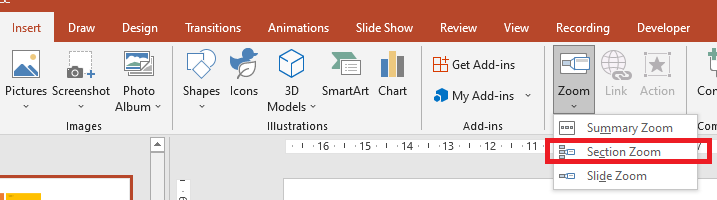
For section zoom objects, Aspose.Slides provides the SectionZoomFrame class and some methods in the ShapeCollection class.
Create Section Zoom Frames
You can add a section zoom frame to a slide this way:
- Create an instance of the Presentation class.
- Create a new slide.
- Add a distinctive background to the created slide.
- Create a new section to which you intend to link the zoom frame.
- Add a section zoom frame (containing references to the created section) to the first slide.
- Write the modified presentation as a PPTX file.
This Python code shows you how to create a zoom frame on a slide:
import jpype
import asposeslides

if not jpype.isJVMStarted():
    jpype.startJVM()

from asposeslides.api import BackgroundType, FillType, Presentation, SaveFormat
from java.awt import Color

presentation = Presentation()
try:
    # Adds a new slide to the presentation
    slide = presentation.getSlides().addEmptySlide(presentation.getSlides().get_Item(0).getLayoutSlide())
    slide.getBackground().getFillFormat().setFillType(FillType.Solid)
    slide.getBackground().getFillFormat().getSolidFillColor().setColor(Color.yellow)
    slide.getBackground().setType(BackgroundType.OwnBackground)

    #  Adds a new Section to the presentation
    presentation.getSections().addSection("Section 1", slide)

    #  Adds a SectionZoomFrame object
    section_zoom_frame = presentation.getSlides().get_Item(0).getShapes().addSectionZoomFrame(20, 20, 300, 200, presentation.getSections().get_Item(1))

    #  Saves the presentation
    presentation.save("presentation.pptx", SaveFormat.Pptx)
finally:
    presentation.dispose()
Create Section Zoom Frames with Custom Images
Using Aspose.Slides for Python via Java, you can create a section zoom frame with a different slide preview image this way:
- Create an instance of the Presentation class.
- Create a new slide.
- Add a distinctive background to the created slide.
- Create a new section to which you intend to link the zoom frame.
- Create an PPImage object by adding an image to the images collection associated with the Presentation object that will be used to fill the frame.
- Add a section zoom frame (containing a reference to the created section) to the first slide.
- Write the modified presentation as a PPTX file.
This Python code shows you how to create a zoom frame with a different image:
import jpype
import asposeslides

if not jpype.isJVMStarted():
    jpype.startJVM()

from asposeslides.api import BackgroundType, FillType, Images, Presentation, SaveFormat
from java.awt import Color

presentation = Presentation()
try:
    # Adds new slide to the presentation
    slide = presentation.getSlides().addEmptySlide(presentation.getSlides().get_Item(0).getLayoutSlide())
    slide.getBackground().getFillFormat().setFillType(FillType.Solid)
    slide.getBackground().getFillFormat().getSolidFillColor().setColor(Color.yellow)
    slide.getBackground().setType(BackgroundType.OwnBackground)

    #  Adds a new Section to the presentation
    presentation.getSections().addSection("Section 1", slide)

    #  Creates a new image for the zoom object
    image = Images.fromFile("image.png")
    try:
        picture = presentation.getImages().addImage(image)
    finally:
        image.dispose()

    #  Adds SectionZoomFrame object
    section_zoom_frame = presentation.getSlides().get_Item(0).getShapes().addSectionZoomFrame(20, 20, 300, 200, presentation.getSections().get_Item(1), picture)

    #  Saves the presentation
    presentation.save("presentation.pptx", SaveFormat.Pptx)
finally:
    presentation.dispose()
Format Section Zoom Frames
To create more complicated section zoom frames, you have to alter a simple frame’s formatting. There are several formatting options you can apply to a section zoom frame.
You can control a section zoom frame’s formatting on a slide this way:
- Create an instance of the Presentation class.
- Create a new slide.
- Add a distinctive background to the created slide.
- Create a new section to which you intend to link the zoom frame.
- Add a section zoom frame (containing references to the created section) to the first slide.
- Change the size and position for the created section zoom object.
- Create an PPImage object by adding an image to the images collection associated with the Presentation object that will be used to fill the frame.
- Set a custom image for the created section zoom frame object.
- Set the return to the original slide from the linked section ability.
- Remove the background from an image of the section zoom frame object.
- Change the line format for the section zoom frame object.
- Change the transition duration.
- Write the modified presentation as a PPTX file.
This Python code shows you how to change a section zoom frame’s formatting:
import jpype
import asposeslides

if not jpype.isJVMStarted():
    jpype.startJVM()

from asposeslides.api import BackgroundType, FillType, Images, LineDashStyle, Presentation, SaveFormat
from java.awt import Color

presentation = Presentation()
try:
    # Adds a new slide to the presentation
    slide = presentation.getSlides().addEmptySlide(presentation.getSlides().get_Item(0).getLayoutSlide())
    slide.getBackground().getFillFormat().setFillType(FillType.Solid)
    slide.getBackground().getFillFormat().getSolidFillColor().setColor(Color.yellow)
    slide.getBackground().setType(BackgroundType.OwnBackground)

    #  Adds a new Section to the presentation
    presentation.getSections().addSection("Section 1", slide)

    #  Add SectionZoomFrame object
    section_zoom_frame = presentation.getSlides().get_Item(0).getShapes().addSectionZoomFrame(20, 20, 300, 200, presentation.getSections().get_Item(1))

    #  Formatting for SectionZoomFrame
    section_zoom_frame.setX(100)
    section_zoom_frame.setY(300)
    section_zoom_frame.setWidth(100)
    section_zoom_frame.setHeight(75)

    image = Images.fromFile("image.png")
    try:
        picture = presentation.getImages().addImage(image)
    finally:
        image.dispose()
    section_zoom_frame.setZoomImage(picture)

    section_zoom_frame.setReturnToParent(True)
    section_zoom_frame.setShowBackground(False)

    section_zoom_frame.getLineFormat().getFillFormat().setFillType(FillType.Solid)
    section_zoom_frame.getLineFormat().getFillFormat().getSolidFillColor().setColor(Color.gray)
    section_zoom_frame.getLineFormat().setDashStyle(LineDashStyle.DashDot)
    section_zoom_frame.getLineFormat().setWidth(2.5)

    section_zoom_frame.setTransitionDuration(1.5)

    #  Saves the presentation
    presentation.save("presentation.pptx", SaveFormat.Pptx)
finally:
    presentation.dispose()
Summary Zoom
A summary zoom is like a landing page where all the pieces of your presentation are displayed at once. When you’re presenting, you can use the zoom to go from one place in your presentation to another in any order you like. You can get creative, skip ahead, or revisit pieces of your slide show without interrupting the flow of your presentation.
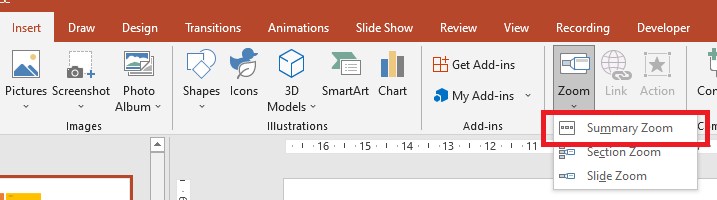
For summary zoom objects, Aspose.Slides provides the SummaryZoomFrame, SummaryZoomSection, and SummaryZoomSectionCollection classes and some methods in the ShapeCollection class.
Create a Summary Zoom
You can add a summary zoom frame to a slide this way:
- Create an instance of the Presentation class.
- Create new slides with a distinctive background and new sections for the created slides.
- Add the summary zoom frame to the first slide.
- Write the modified presentation as a PPTX file.
This Python code shows you how to create a summary zoom frame on a slide:
import jpype
import asposeslides

if not jpype.isJVMStarted():
    jpype.startJVM()

from asposeslides.api import BackgroundType, FillType, Presentation, SaveFormat
from java.awt import Color

presentation = Presentation()
try:
    # Adds a new slide to the presentation
    slide = presentation.getSlides().addEmptySlide(presentation.getSlides().get_Item(0).getLayoutSlide())
    slide.getBackground().getFillFormat().setFillType(FillType.Solid)
    slide.getBackground().getFillFormat().getSolidFillColor().setColor(Color.gray)
    slide.getBackground().setType(BackgroundType.OwnBackground)

    #  Adds a new section to the presentation
    presentation.getSections().addSection("Section 1", slide)

    # Adds a new slide to the presentation
    slide = presentation.getSlides().addEmptySlide(presentation.getSlides().get_Item(0).getLayoutSlide())
    slide.getBackground().getFillFormat().setFillType(FillType.Solid)
    slide.getBackground().getFillFormat().getSolidFillColor().setColor(Color.cyan)
    slide.getBackground().setType(BackgroundType.OwnBackground)

    #  Adds a new section to the presentation
    presentation.getSections().addSection("Section 2", slide)

    # Adds a new slide to the presentation
    slide = presentation.getSlides().addEmptySlide(presentation.getSlides().get_Item(0).getLayoutSlide())
    slide.getBackground().getFillFormat().setFillType(FillType.Solid)
    slide.getBackground().getFillFormat().getSolidFillColor().setColor(Color.magenta)
    slide.getBackground().setType(BackgroundType.OwnBackground)

    #  Adds a new section to the presentation
    presentation.getSections().addSection("Section 3", slide)

    # Adds a new slide to the presentation
    slide = presentation.getSlides().addEmptySlide(presentation.getSlides().get_Item(0).getLayoutSlide())
    slide.getBackground().getFillFormat().setFillType(FillType.Solid)
    slide.getBackground().getFillFormat().getSolidFillColor().setColor(Color.green)
    slide.getBackground().setType(BackgroundType.OwnBackground)

    #  Adds a new section to the presentation
    presentation.getSections().addSection("Section 4", slide)

    #  Adds a SummaryZoomFrame object
    summary_zoom_frame = presentation.getSlides().get_Item(0).getShapes().addSummaryZoomFrame(150, 50, 300, 200)

    #  Saves the presentation
    presentation.save("presentation.pptx", SaveFormat.Pptx)
finally:
    presentation.dispose()
Add and Remove a Summary Zoom Section
All sections in a summary zoom frame are represented by SummaryZoomSection objects, which are stored in the SummaryZoomSectionCollection object. You can add or remove a summary zoom section object through the SummaryZoomSectionCollection class this way:
- Create an instance of the Presentation class.
- Create new slides with a distinctive background and new sections for the created slides.
- Add a summary zoom frame into the first slide.
- Add a new slide and section to the presentation.
- Add the created section to the summary zoom frame.
- Remove the first section from the summary zoom frame.
- Write the modified presentation as a PPTX file.
This Python code shows you how to add and remove sections in a summary zoom frame:
import jpype
import asposeslides

if not jpype.isJVMStarted():
    jpype.startJVM()

from asposeslides.api import BackgroundType, FillType, Presentation, SaveFormat
from java.awt import Color

presentation = Presentation()
try:
    # Adds a new slide to the presentation
    slide = presentation.getSlides().addEmptySlide(presentation.getSlides().get_Item(0).getLayoutSlide())
    slide.getBackground().getFillFormat().setFillType(FillType.Solid)
    slide.getBackground().getFillFormat().getSolidFillColor().setColor(Color.gray)
    slide.getBackground().setType(BackgroundType.OwnBackground)

    #  Adds a new section to the presentation
    presentation.getSections().addSection("Section 1", slide)

    # Adds a new slide to the presentation
    slide = presentation.getSlides().addEmptySlide(presentation.getSlides().get_Item(0).getLayoutSlide())
    slide.getBackground().getFillFormat().setFillType(FillType.Solid)
    slide.getBackground().getFillFormat().getSolidFillColor().setColor(Color.cyan)
    slide.getBackground().setType(BackgroundType.OwnBackground)

    #  Adds a new section to the presentation
    presentation.getSections().addSection("Section 2", slide)

    #  Adds SummaryZoomFrame object
    summary_zoom_frame = presentation.getSlides().get_Item(0).getShapes().addSummaryZoomFrame(150, 50, 300, 200)

    # Adds a new slide to the presentation
    slide = presentation.getSlides().addEmptySlide(presentation.getSlides().get_Item(0).getLayoutSlide())
    slide.getBackground().getFillFormat().setFillType(FillType.Solid)
    slide.getBackground().getFillFormat().getSolidFillColor().setColor(Color.magenta)
    slide.getBackground().setType(BackgroundType.OwnBackground)

    #  Adds a new section to the presentation
    third_section = presentation.getSections().addSection("Section 3", slide)

    #  Adds a section to the Summary Zoom
    summary_zoom_frame.getSummaryZoomCollection().addSummaryZoomSection(third_section)

    #  Removes section from the Summary Zoom
    summary_zoom_frame.getSummaryZoomCollection().removeSummaryZoomSection(presentation.getSections().get_Item(1))

    #  Saves the presentation
    presentation.save("presentation.pptx", SaveFormat.Pptx)
finally:
    presentation.dispose()
Format Summary Zoom Sections
To create more complicated summary zoom section objects, you have to alter a simple frame’s formatting. There are several formatting options you can apply to a summary zoom section object.
You can control the formatting for a summary zoom section object in a summary zoom frame this way:
- Create an instance of the Presentation class.
- Create new slides with a distinctive background and new sections for the created slides.
- Add a summary zoom frame to the first slide.
- Get the first summary zoom section object from the SummaryZoomSectionCollection.
- Create an PPImage object by adding an image to the images collection associated with the Presentation object that will be used to fill the frame.
- Set a custom image for the summary zoom section object.
- Set the return to the original slide from the linked section ability.
- Change the line format for the summary zoom section object.
- Change the transition duration.
- Write the modified presentation as a PPTX file.
This Python code shows you how to change the formatting for a summary zoom section object:
import jpype
import asposeslides

if not jpype.isJVMStarted():
    jpype.startJVM()

from asposeslides.api import BackgroundType, FillType, Images, LineDashStyle, Presentation, SaveFormat
from java.awt import Color

presentation = Presentation()
try:
    # Adds a new slide to the presentation
    slide = presentation.getSlides().addEmptySlide(presentation.getSlides().get_Item(0).getLayoutSlide())
    slide.getBackground().getFillFormat().setFillType(FillType.Solid)
    slide.getBackground().getFillFormat().getSolidFillColor().setColor(Color.gray)
    slide.getBackground().setType(BackgroundType.OwnBackground)

    #  Adds a new section to the presentation
    presentation.getSections().addSection("Section 1", slide)

    # Adds a new slide to the presentation
    slide = presentation.getSlides().addEmptySlide(presentation.getSlides().get_Item(0).getLayoutSlide())
    slide.getBackground().getFillFormat().setFillType(FillType.Solid)
    slide.getBackground().getFillFormat().getSolidFillColor().setColor(Color.cyan)
    slide.getBackground().setType(BackgroundType.OwnBackground)

    #  Adds a new section to the presentation
    presentation.getSections().addSection("Section 2", slide)

    #  Adds a SummaryZoomFrame object
    summary_zoom_frame = presentation.getSlides().get_Item(0).getShapes().addSummaryZoomFrame(150, 50, 300, 200)

    #  Gets the first SummaryZoomSection object
    summary_section = summary_zoom_frame.getSummaryZoomCollection().get_Item(0)

    #  Formatting for SummaryZoomSection object
    image = Images.fromFile("image.png")
    try:
        picture = presentation.getImages().addImage(image)
    finally:
        image.dispose()
    summary_section.setZoomImage(picture)

    summary_section.setReturnToParent(False)

    summary_section.getLineFormat().getFillFormat().setFillType(FillType.Solid)
    summary_section.getLineFormat().getFillFormat().getSolidFillColor().setColor(Color.black)
    summary_section.getLineFormat().setDashStyle(LineDashStyle.DashDot)
    summary_section.getLineFormat().setWidth(1.5)

    summary_section.setTransitionDuration(1.5)

    #  Saves the presentation
    presentation.save("presentation.pptx", SaveFormat.Pptx)
finally:
    presentation.dispose()
FAQ
Can I control returning to the ‘parent’ slide after showing the target?
Yes. The ZoomFrame or SectionZoomFrame supports returning to the originating slide through setReturnToParent, which sends viewers back after they visit the target content when enabled.
Can I adjust the ‘speed’ or duration of the Zoom transition?
Yes. Zoom supports setting a transition duration with setTransitionDuration so you can control how long the jump animation takes.
Are there limits on how many Zoom objects a presentation can contain?
There is no hard API limit documented. Practical limits depend on overall presentation complexity and the viewer’s performance. You can add many Zoom frames, but consider file size and rendering time.