
管理 Python via Java 的演示文稿缩放
简介
PowerPoint 中的缩放功能允许您在演示文稿的特定幻灯片、章节和部分之间跳转。在演示时,这种快速导航内容的能力可能非常有用。
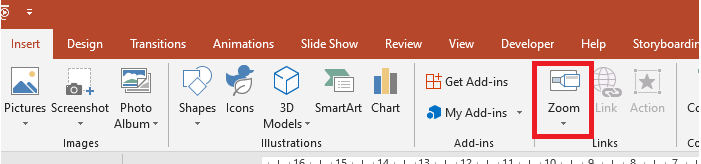
- 要在单个幻灯片上概括整个演示文稿,请使用 Summary Zoom。
- 要仅显示选定的幻灯片,请使用 Slide Zoom。
- 要仅显示单个章节,请使用 Section Zoom。
幻灯片缩放
幻灯片缩放可以让您的演示更具活力,允许您自由地以任意顺序在幻灯片之间切换,而不会打断演示的流程。幻灯片缩放非常适合章节不多的短篇演示,但您仍然可以在不同的演示场景中使用它们。
幻灯片缩放帮助您深入多个信息点,同时让您感觉置于同一画布上。
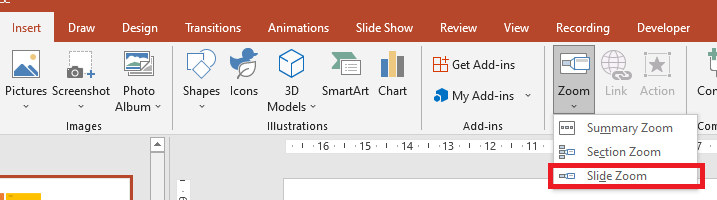
对于幻灯片缩放对象,Aspose.Slides 提供了 ZoomImageType 枚举、ZoomFrame 类以及 ShapeCollection 类中的一些方法。
创建缩放帧
您可以通过以下方式在幻灯片上添加缩放帧:
- 创建 Presentation 类的实例。
- 创建您打算链接缩放帧的新幻灯片。
- 为创建的幻灯片添加标识文本和背景。
- 将缩放帧(包含对已创建幻灯片的引用)添加到第一张幻灯片。
- 将修改后的演示文稿写入为 PPTX 文件。
下面的 Python 代码演示了如何在幻灯片上创建缩放帧:
import jpype
import asposeslides

if not jpype.isJVMStarted():
    jpype.startJVM()

from asposeslides.api import BackgroundType, FillType, Presentation, SaveFormat, ShapeType
from java.awt import Color

presentation = Presentation()
try:
    # 向演示文稿添加新幻灯片
    second_slide = presentation.getSlides().addEmptySlide(presentation.getSlides().get_Item(0).getLayoutSlide())
    third_slide = presentation.getSlides().addEmptySlide(presentation.getSlides().get_Item(0).getLayoutSlide())

    #  为第二张幻灯片创建背景
    second_slide.getBackground().setType(BackgroundType.OwnBackground)
    second_slide.getBackground().getFillFormat().setFillType(FillType.Solid)
    second_slide.getBackground().getFillFormat().getSolidFillColor().setColor(Color.cyan)

    #  为第二张幻灯片创建文本框
    auto_shape = second_slide.getShapes().addAutoShape(ShapeType.Rectangle, 100, 200, 500, 200)
    auto_shape.getTextFrame().setText("Second Slide")

    #  为第三张幻灯片创建背景
    third_slide.getBackground().setType(BackgroundType.OwnBackground)
    third_slide.getBackground().getFillFormat().setFillType(FillType.Solid)
    third_slide.getBackground().getFillFormat().getSolidFillColor().setColor(Color.darkGray)

    #  为第三张幻灯片创建文本框
    auto_shape = third_slide.getShapes().addAutoShape(ShapeType.Rectangle, 100, 200, 500, 200)
    auto_shape.getTextFrame().setText("Third Slide")

    # 添加 ZoomFrame 对象
    presentation.getSlides().get_Item(0).getShapes().addZoomFrame(20, 20, 250, 200, second_slide)
    presentation.getSlides().get_Item(0).getShapes().addZoomFrame(200, 250, 250, 200, third_slide)

    #  保存演示文稿
    presentation.save("presentation.pptx", SaveFormat.Pptx)
finally:
    presentation.dispose()
使用自定义图片创建缩放帧
使用 Aspose.Slides for Python via Java,您可以通过以下方式使用不同的幻灯片预览图像创建缩放帧:
- 创建 Presentation 类的实例。
- 创建您打算链接缩放帧的新幻灯片。
- 为该幻灯片添加标识文本和背景。
- 通过向与 Presentation 对象关联的图像集合中添加图像,创建一个 PPImage 对象,用于填充框架。
- 将缩放帧(包含对已创建幻灯片的引用)添加到第一张幻灯片。
- 将修改后的演示文稿写入为 PPTX 文件。
下面的 Python 代码演示了如何使用不同的图像创建缩放帧:
import jpype
import asposeslides

if not jpype.isJVMStarted():
    jpype.startJVM()

from asposeslides.api import BackgroundType, FillType, Images, Presentation, SaveFormat, ShapeType
from java.awt import Color

presentation = Presentation()
try:
    # 向演示文稿添加新幻灯片
    slide = presentation.getSlides().addEmptySlide(presentation.getSlides().get_Item(0).getLayoutSlide())

    #  为第二张幻灯片创建背景
    slide.getBackground().setType(BackgroundType.OwnBackground)
    slide.getBackground().getFillFormat().setFillType(FillType.Solid)
    slide.getBackground().getFillFormat().getSolidFillColor().setColor(Color.cyan)

    #  为第二张幻灯片创建文本框
    auto_shape = slide.getShapes().addAutoShape(ShapeType.Rectangle, 100, 200, 500, 200)
    auto_shape.getTextFrame().setText("Second Slide")

    #  为缩放对象创建新图像
    image = Images.fromFile("image.png")
    try:
        picture = presentation.getImages().addImage(image)
    finally:
        image.dispose()

    # 添加 ZoomFrame 对象
    presentation.getSlides().get_Item(0).getShapes().addZoomFrame(20, 20, 300, 200, slide, picture)

    #  保存演示文稿
    presentation.save("presentation.pptx", SaveFormat.Pptx)
finally:
    presentation.dispose()
格式化缩放帧
在前面的章节中,我们展示了如何创建简单的缩放帧。若要创建更复杂的缩放帧,您需要修改简单帧的格式。您可以对缩放帧应用多种格式化选项。
您可以通过以下方式在幻灯片上控制缩放帧的格式:
- 创建 Presentation 类的实例。
- 创建您打算链接缩放帧的新幻灯片。
- 为创建的幻灯片添加标识文本和背景。
- 将缩放帧(包含对已创建幻灯片的引用)添加到第一张幻灯片。
- 通过向与 Presentation 对象关联的图像集合中添加图像,创建一个 PPImage 对象,用于填充框架。
- 为第一个缩放帧对象设置自定义图像。
- 更改第二个缩放帧对象的线条格式。
- 移除第二个缩放帧对象图像的背景。
- 将修改后的演示文稿写入为 PPTX 文件。
下面的 Python 代码演示了如何在幻灯片上更改缩放帧的格式:
import jpype
import asposeslides

if not jpype.isJVMStarted():
    jpype.startJVM()

from asposeslides.api import BackgroundType, FillType, Images, LineDashStyle, Presentation, SaveFormat, ShapeType
from java.awt import Color

presentation = Presentation()
try:
    # 向演示文稿添加新幻灯片
    second_slide = presentation.getSlides().addEmptySlide(presentation.getSlides().get_Item(0).getLayoutSlide())
    third_slide = presentation.getSlides().addEmptySlide(presentation.getSlides().get_Item(0).getLayoutSlide())

    #  为第二张幻灯片创建背景
    second_slide.getBackground().setType(BackgroundType.OwnBackground)
    second_slide.getBackground().getFillFormat().setFillType(FillType.Solid)
    second_slide.getBackground().getFillFormat().getSolidFillColor().setColor(Color.cyan)

    #  为第二张幻灯片创建文本框
    auto_shape = second_slide.getShapes().addAutoShape(ShapeType.Rectangle, 100, 200, 500, 200)
    auto_shape.getTextFrame().setText("Second Slide")

    #  为第三张幻灯片创建背景
    third_slide.getBackground().setType(BackgroundType.OwnBackground)
    third_slide.getBackground().getFillFormat().setFillType(FillType.Solid)
    third_slide.getBackground().getFillFormat().getSolidFillColor().setColor(Color.darkGray)

    #  为第三张幻灯片创建文本框
    auto_shape = third_slide.getShapes().addAutoShape(ShapeType.Rectangle, 100, 200, 500, 200)
    auto_shape.getTextFrame().setText("Third Slide")

    # 添加 ZoomFrame 对象
    first_zoom_frame = presentation.getSlides().get_Item(0).getShapes().addZoomFrame(20, 20, 250, 200, second_slide)
    second_zoom_frame = presentation.getSlides().get_Item(0).getShapes().addZoomFrame(200, 250, 250, 200, third_slide)

    #  为缩放对象创建新图像
    image = Images.fromFile("image.png")
    try:
        picture = presentation.getImages().addImage(image)
    finally:
        image.dispose()

    #  为 first_zoom_frame 对象设置自定义图像
    first_zoom_frame.setZoomImage(picture)

    #  为 second_zoom_frame 对象设置缩放帧格式
    second_zoom_frame.getLineFormat().setWidth(5)
    second_zoom_frame.getLineFormat().getFillFormat().setFillType(FillType.Solid)
    second_zoom_frame.getLineFormat().getFillFormat().getSolidFillColor().setColor(Color.pink)
    second_zoom_frame.getLineFormat().setDashStyle(LineDashStyle.DashDot)

    #  为 second_zoom_frame 对象设置不显示背景
    second_zoom_frame.setShowBackground(False)

    #  保存演示文稿
    presentation.save("presentation.pptx", SaveFormat.Pptx)
finally:
    presentation.dispose()
章节缩放
章节缩放是指向您演示文稿中某个章节的链接。您可以使用章节缩放返回您想要特别强调的章节,或用来突出展示演示文稿中各部分之间的关联。
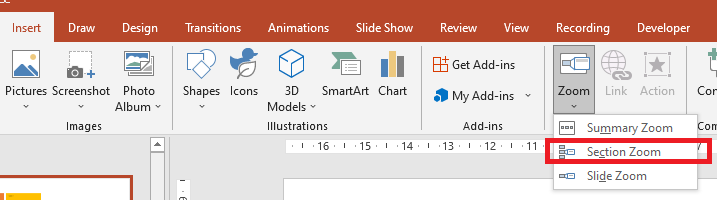
对于章节缩放对象,Aspose.Slides 提供了 SectionZoomFrame 类以及 ShapeCollection 类中的一些方法。
创建章节缩放帧
您可以通过以下方式在幻灯片上添加章节缩放帧:
- 创建 Presentation 类的实例。
- 创建一张新幻灯片。
- 为创建的幻灯片添加独特的背景。
- 创建您打算链接缩放帧的新章节。
- 将章节缩放帧(包含对已创建章节的引用)添加到第一张幻灯片。
- 将修改后的演示文稿写入为 PPTX 文件。
下面的 Python 代码演示了如何在幻灯片上创建章节缩放帧:
import jpype
import asposeslides

if not jpype.isJVMStarted():
    jpype.startJVM()

from asposeslides.api import BackgroundType, FillType, Presentation, SaveFormat
from java.awt import Color

presentation = Presentation()
try:
    # 向演示文稿添加新幻灯片
    slide = presentation.getSlides().addEmptySlide(presentation.getSlides().get_Item(0).getLayoutSlide())
    slide.getBackground().getFillFormat().setFillType(FillType.Solid)
    slide.getBackground().getFillFormat().getSolidFillColor().setColor(Color.yellow)
    slide.getBackground().setType(BackgroundType.OwnBackground)

    #  向演示文稿添加新章节
    presentation.getSections().addSection("Section 1", slide)

    #  添加 SectionZoomFrame 对象
    section_zoom_frame = presentation.getSlides().get_Item(0).getShapes().addSectionZoomFrame(20, 20, 300, 200, presentation.getSections().get_Item(1))

    #  保存演示文稿
    presentation.save("presentation.pptx", SaveFormat.Pptx)
finally:
    presentation.dispose()
使用自定义图片创建章节缩放帧
使用 Aspose.Slides for Python via Java,您可以通过以下方式使用不同的幻灯片预览图像创建章节缩放帧:
- 创建 Presentation 类的实例。
- 创建一张新幻灯片。
- 为创建的幻灯片添加独特的背景。
- 创建您打算链接缩放帧的新章节。
- 通过向与 Presentation 对象关联的图像集合中添加图像,创建一个 PPImage 对象,用于填充框架。
- 将章节缩放帧(包含对已创建章节的引用)添加到第一张幻灯片。
- 将修改后的演示文稿写入为 PPTX 文件。
下面的 Python 代码演示了如何使用不同的图像创建章节缩放帧:
import jpype
import asposeslides

if not jpype.isJVMStarted():
    jpype.startJVM()

from asposeslides.api import BackgroundType, FillType, Images, Presentation, SaveFormat
from java.awt import Color

presentation = Presentation()
try:
    # 向演示文稿添加新幻灯片
    slide = presentation.getSlides().addEmptySlide(presentation.getSlides().get_Item(0).getLayoutSlide())
    slide.getBackground().getFillFormat().setFillType(FillType.Solid)
    slide.getBackground().getFillFormat().getSolidFillColor().setColor(Color.yellow)
    slide.getBackground().setType(BackgroundType.OwnBackground)

    #  向演示文稿添加新章节
    presentation.getSections().addSection("Section 1", slide)

    #  为缩放对象创建新图像
    image = Images.fromFile("image.png")
    try:
        picture = presentation.getImages().addImage(image)
    finally:
        image.dispose()

    #  添加 SectionZoomFrame 对象
    section_zoom_frame = presentation.getSlides().get_Item(0).getShapes().addSectionZoomFrame(20, 20, 300, 200, presentation.getSections().get_Item(1), picture)

    #  保存演示文稿
    presentation.save("presentation.pptx", SaveFormat.Pptx)
finally:
    presentation.dispose()
格式化章节缩放帧
要创建更复杂的章节缩放帧,您需要修改简单帧的格式。您可以对章节缩放帧应用多种格式化选项。
您可以通过以下方式在幻灯片上控制章节缩放帧的格式:
- 创建 Presentation 类的实例。
- 创建一张新幻灯片。
- 为创建的幻灯片添加独特的背景。
- 创建您打算链接缩放帧的新章节。
- 将章节缩放帧(包含对已创建章节的引用)添加到第一张幻灯片。
- 更改创建的章节缩放对象的大小和位置。
- 通过向与 Presentation 对象关联的图像集合中添加图像,创建一个 PPImage 对象,用于填充框架。
- 为创建的章节缩放帧对象设置自定义图像。
- 设置从链接的章节返回原始幻灯片的功能。
- 移除章节缩放帧对象图像的背景。
- 更改章节缩放帧对象的线条格式。
- 更改过渡持续时间。
- 将修改后的演示文稿写入为 PPTX 文件。
下面的 Python 代码演示了如何更改章节缩放帧的格式:
import jpype
import asposeslides

if not jpype.isJVMStarted():
    jpype.startJVM()

from asposeslides.api import BackgroundType, FillType, Images, LineDashStyle, Presentation, SaveFormat
from java.awt import Color

presentation = Presentation()
try:
    # 向演示文稿添加新幻灯片
    slide = presentation.getSlides().addEmptySlide(presentation.getSlides().get_Item(0).getLayoutSlide())
    slide.getBackground().getFillFormat().setFillType(FillType.Solid)
    slide.getBackground().getFillFormat().getSolidFillColor().setColor(Color.yellow)
    slide.getBackground().setType(BackgroundType.OwnBackground)

    #  向演示文稿添加新章节
    presentation.getSections().addSection("Section 1", slide)

    #  添加 SectionZoomFrame 对象
    section_zoom_frame = presentation.getSlides().get_Item(0).getShapes().addSectionZoomFrame(20, 20, 300, 200, presentation.getSections().get_Item(1))

    #  为 SectionZoomFrame 设置格式
    section_zoom_frame.setX(100)
    section_zoom_frame.setY(300)
    section_zoom_frame.setWidth(100)
    section_zoom_frame.setHeight(75)

    image = Images.fromFile("image.png")
    try:
        picture = presentation.getImages().addImage(image)
    finally:
        image.dispose()
    section_zoom_frame.setZoomImage(picture)

    section_zoom_frame.setReturnToParent(True)
    section_zoom_frame.setShowBackground(False)

    section_zoom_frame.getLineFormat().getFillFormat().setFillType(FillType.Solid)
    section_zoom_frame.getLineFormat().getFillFormat().getSolidFillColor().setColor(Color.gray)
    section_zoom_frame.getLineFormat().setDashStyle(LineDashStyle.DashDot)
    section_zoom_frame.getLineFormat().setWidth(2.5)

    section_zoom_frame.setTransitionDuration(1.5)

    #  保存演示文稿
    presentation.save("presentation.pptx", SaveFormat.Pptx)
finally:
    presentation.dispose()
摘要缩放
摘要缩放类似于一个登录页,展示了演示文稿的所有部分。演示时,您可以使用缩放从演示的任意位置跳转到另一位置,顺序任意。您可以创意地前进、跳过或重新访问幻灯片的各部分,而不会中断演示的流畅性。
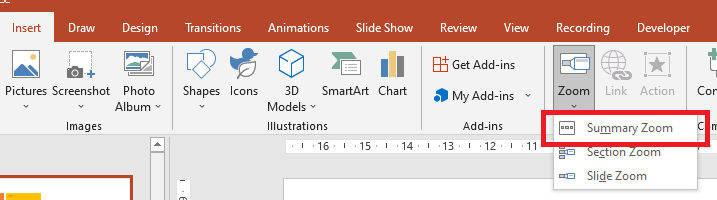
对于摘要缩放对象,Aspose.Slides 提供了 SummaryZoomFrame、SummaryZoomSection、SummaryZoomSectionCollection 类,以及 ShapeCollection 类中的一些方法。
创建摘要缩放
您可以通过以下方式在幻灯片上添加摘要缩放帧:
- 创建 Presentation 类的实例。
- 为创建的幻灯片创建具有独特背景和新章节的新幻灯片。
- 将摘要缩放帧添加到第一张幻灯片。
- 将修改后的演示文稿写入为 PPTX 文件。
下面的 Python 代码演示了如何在幻灯片上创建摘要缩放帧:
import jpype
import asposeslides

if not jpype.isJVMStarted():
    jpype.startJVM()

from asposeslides.api import BackgroundType, FillType, Presentation, SaveFormat
from java.awt import Color

presentation = Presentation()
try:
    # 向演示文稿添加新幻灯片
    slide = presentation.getSlides().addEmptySlide(presentation.getSlides().get_Item(0).getLayoutSlide())
    slide.getBackground().getFillFormat().setFillType(FillType.Solid)
    slide.getBackground().getFillFormat().getSolidFillColor().setColor(Color.gray)
    slide.getBackground().setType(BackgroundType.OwnBackground)

    #  向演示文稿添加新章节
    presentation.getSections().addSection("Section 1", slide)

    # 向演示文稿添加新幻灯片
    slide = presentation.getSlides().addEmptySlide(presentation.getSlides().get_Item(0).getLayoutSlide())
    slide.getBackground().getFillFormat().setFillType(FillType.Solid)
    slide.getBackground().getFillFormat().getSolidFillColor().setColor(Color.cyan)
    slide.getBackground().setType(BackgroundType.OwnBackground)

    #  向演示文稿添加新章节
    presentation.getSections().addSection("Section 2", slide)

    # 向演示文稿添加新幻灯片
    slide = presentation.getSlides().addEmptySlide(presentation.getSlides().get_Item(0).getLayoutSlide())
    slide.getBackground().getFillFormat().setFillType(FillType.Solid)
    slide.getBackground().getFillFormat().getSolidFillColor().setColor(Color.magenta)
    slide.getBackground().setType(BackgroundType.OwnBackground)

    #  向演示文稿添加新章节
    presentation.getSections().addSection("Section 3", slide)

    # 向演示文稿添加新幻灯片
    slide = presentation.getSlides().addEmptySlide(presentation.getSlides().get_Item(0).getLayoutSlide())
    slide.getBackground().getFillFormat().setFillType(FillType.Solid)
    slide.getBackground().getFillFormat().getSolidFillColor().setColor(Color.green)
    slide.getBackground().setType(BackgroundType.OwnBackground)

    #  向演示文稿添加新章节
    presentation.getSections().addSection("Section 4", slide)

    #  添加 SummaryZoomFrame 对象
    summary_zoom_frame = presentation.getSlides().get_Item(0).getShapes().addSummaryZoomFrame(150, 50, 300, 200)

    #  保存演示文稿
    presentation.save("presentation.pptx", SaveFormat.Pptx)
finally:
    presentation.dispose()
添加和移除摘要缩放章节
所有摘要缩放帧中的章节都由 SummaryZoomSection 对象表示,这些对象存储在 SummaryZoomSectionCollection 中。您可以通过以下方式使用 SummaryZoomSectionCollection 类添加或移除摘要缩放章节对象:
- 创建 Presentation 类的实例。
- 为创建的幻灯片创建具有独特背景和新章节的新幻灯片。
- 将摘要缩放帧添加到第一张幻灯片。
- 向演示文稿添加一张新幻灯片和一个新章节。
- 将创建的章节添加到摘要缩放帧中。
- 移除摘要缩放帧中的第一章节。
- 将修改后的演示文稿写入为 PPTX 文件。
下面的 Python 代码演示了如何在摘要缩放帧中添加和移除章节:
import jpype
import asposeslides

if not jpype.isJVMStarted():
    jpype.startJVM()

from asposeslides.api import BackgroundType, FillType, Presentation, SaveFormat
from java.awt import Color

presentation = Presentation()
try:
    # Adds a new slide to the presentation
    slide = presentation.getSlides().addEmptySlide(presentation.getSlides().get_Item(0).getLayoutSlide())
    slide.getBackground().getFillFormat().setFillType(FillType.Solid)
    slide.getBackground().getFillFormat().getSolidFillColor().setColor(Color.gray)
    slide.getBackground().setType(BackgroundType.OwnBackground)

    #  Adds a new section to the presentation
    presentation.getSections().addSection("Section 1", slide)

    # Adds a new slide to the presentation
    slide = presentation.getSlides().addEmptySlide(presentation.getSlides().get_Item(0).getLayoutSlide())
    slide.getBackground().getFillFormat().setFillType(FillType.Solid)
    slide.getBackground().getFillFormat().getSolidFillColor().setColor(Color.cyan)
    slide.getBackground().setType(BackgroundType.OwnBackground)

    #  Adds a new section to the presentation
    presentation.getSections().addSection("Section 2", slide)

    #  Adds SummaryZoomFrame object
    summary_zoom_frame = presentation.getSlides().get_Item(0).getShapes().addSummaryZoomFrame(150, 50, 300, 200)

    # Adds a new slide to the presentation
    slide = presentation.getSlides().addEmptySlide(presentation.getSlides().get_Item(0).getLayoutSlide())
    slide.getBackground().getFillFormat().setFillType(FillType.Solid)
    slide.getBackground().getFillFormat().getSolidFillColor().setColor(Color.magenta)
    slide.getBackground().setType(BackgroundType.OwnBackground)

    #  Adds a new section to the presentation
    third_section = presentation.getSections().addSection("Section 3", slide)

    #  Adds a section to the Summary Zoom
    summary_zoom_frame.getSummaryZoomCollection().addSummaryZoomSection(third_section)

    #  Removes section from the Summary Zoom
    summary_zoom_frame.getSummaryZoomCollection().removeSummaryZoomSection(presentation.getSections().get_Item(1))

    #  Saves the presentation
    presentation.save("presentation.pptx", SaveFormat.Pptx)
finally:
    presentation.dispose()
格式化摘要缩放章节
要创建更复杂的摘要缩放章节对象,您需要修改简单帧的格式。您可以对摘要缩放章节对象应用多种格式化选项。
您可以通过以下方式控制摘要缩放帧中摘要缩放章节对象的格式:
- 创建 Presentation 类的实例。
- 为创建的幻灯片创建具有独特背景和新章节的新幻灯片。
- 将摘要缩放帧添加到第一张幻灯片。
- 从 SummaryZoomSectionCollection 中获取第一个摘要缩放章节对象。
- 通过向与 Presentation 对象关联的图像集合中添加图像,创建一个 PPImage 对象,用于填充框架。
- 为摘要缩放章节对象设置自定义图像。
- 设置从链接的章节返回原始幻灯片的功能。
- 更改摘要缩放章节对象的线条格式。
- 更改过渡持续时间。
- 将修改后的演示文稿写入为 PPTX 文件。
下面的 Python 代码演示了如何更改摘要缩放章节对象的格式:
import jpype
import asposeslides

if not jpype.isJVMStarted():
    jpype.startJVM()

from asposeslides.api import BackgroundType, FillType, Images, LineDashStyle, Presentation, SaveFormat
from java.awt import Color

presentation = Presentation()
try:
    # 添加新幻灯片到演示文稿
    slide = presentation.getSlides().addEmptySlide(presentation.getSlides().get_Item(0).getLayoutSlide())
    slide.getBackground().getFillFormat().setFillType(FillType.Solid)
    slide.getBackground().getFillFormat().getSolidFillColor().setColor(Color.gray)
    slide.getBackground().setType(BackgroundType.OwnBackground)

    #  添加新章节到演示文稿
    presentation.getSections().addSection("Section 1", slide)

    # 添加新幻灯片到演示文稿
    slide = presentation.getSlides().addEmptySlide(presentation.getSlides().get_Item(0).getLayoutSlide())
    slide.getBackground().getFillFormat().setFillType(FillType.Solid)
    slide.getBackground().getFillFormat().getSolidFillColor().setColor(Color.cyan)
    slide.getBackground().setType(BackgroundType.OwnBackground)

    #  添加新章节到演示文稿
    presentation.getSections().addSection("Section 2", slide)

    #  添加 SummaryZoomFrame 对象
    summary_zoom_frame = presentation.getSlides().get_Item(0).getShapes().addSummaryZoomFrame(150, 50, 300, 200)

    #  获取第一个 SummaryZoomSection 对象
    summary_section = summary_zoom_frame.getSummaryZoomCollection().get_Item(0)

    #  为 SummaryZoomSection 对象设置格式
    image = Images.fromFile("image.png")
    try:
        picture = presentation.getImages().addImage(image)
    finally:
        image.dispose()
    summary_section.setZoomImage(picture)

    summary_section.setReturnToParent(False)

    summary_section.getLineFormat().getFillFormat().setFillType(FillType.Solid)
    summary_section.getLineFormat().getFillFormat().getSolidFillColor().setColor(Color.black)
    summary_section.getLineFormat().setDashStyle(LineDashStyle.DashDot)
    summary_section.getLineFormat().setWidth(1.5)

    summary_section.setTransitionDuration(1.5)

    #  保存演示文稿
    presentation.save("presentation.pptx", SaveFormat.Pptx)
finally:
    presentation.dispose()
常见问题
我可以控制在显示目标后返回到“父”幻灯片吗?
可以。通过 ZoomFrame 或 SectionZoomFrame 的 setReturnToParent 方法,支持返回到原始幻灯片;启用后,观看者在访问目标内容后会返回。
我可以调整缩放过渡的“速度”或持续时间吗?
可以。缩放支持使用 setTransitionDuration 设置过渡持续时间,您可以控制跳转动画的时长。
演示文稿中可以包含的缩放对象数量有限制吗?
文档中没有硬性的 API 限制。实际限制取决于演示文稿的整体复杂度和观看者的性能。您可以添加大量缩放帧,但需考虑文件大小和渲染时间。