
เพิ่มประสิทธิภาพการจัดการรูปภาพในงานนำเสนอด้วย C++
บทนำ
Aspose.Slides สำหรับ C++ มีหลายวิธีในการทำงานกับรูปภาพและแต่ละวิธีมีจุดประสงค์ที่แตกต่างกัน คุณสามารถเก็บรูปภาพไว้ในงานนำเสนอ แสดงในกรอบรูป ใช้เป็นพื้นหลังสไลด์ เชื่อมโยงไปยังรูปภาพภายนอก แทนที่ทรัพยากรรูปภาพที่ใช้ร่วมกัน หรือแปลงเนื้อหา SVG เป็นรูปร่างที่แก้ไขได้
บทความนี้มุ่งเน้นที่ทรัพยากรรูปภาพและวิธีการใช้งานในงานนำเสนอทั้งหมด สำหรับการครอป, ความโปร่งใส, เอฟเฟกต์, การยืดและการจัดรูปแบบอื่น ๆ ที่ใช้กับกรอบรูปเดี่ยว ดูที่ Picture Frame
ทำความเข้าใจแบบจำลองรูปภาพ
แนวคิด API ด้านล่างนี้เกี่ยวข้องกันอย่างใกล้ชิดแต่ไม่สามารถใช้แทนกันได้:
- คอลเลกชันรูปภาพของงานนำเสนอ(presentation image collection) เก็บทรัพยากรรูปภาพที่ใช้โดยงานนำเสนอ ใช้ IImageCollection::AddImage เพื่อเพิ่มข้อมูลรูปภาพและรับทรัพยากร IPPImage
- กรอบรูป(picture frame) คือรูปทรงที่แสดงรูปภาพบนสไลด์, เลย์เอาต์ หรือมาสเตอร์ ใช้ IShapeCollection::AddPictureFrame เพื่อวางทรัพยากรรูปภาพบนสไลด์
- พื้นหลังสไลด์ใช้รูปภาพเป็นส่วนหนึ่งของการเติมสไลด์แทนที่จะเป็นรูปทรง ดังนั้นจึงไม่ทำงานเหมือนกรอบรูป
- IPPImage::ReplaceImage แทนที่ทรัพยากรรูปภาพ หากหลายองค์ประกอบในงานนำใช้ทรัพยากรนั้น พวกมันทั้งหมดจะใช้รูปภาพที่แทนที่
- การแปลง SVG เป็นรูปทรงจะสร้างรูปทรงสไลด์ที่แก้ไขได้ หลังการแปลง เนื้อหาไม่ถูกจัดการเป็นทรัพยากรรูปภาพเดียวอีกต่อไป
ขั้นตอนทำงานทั่วไปจึงเป็น: เพิ่มข้อมูลรูปภาพลงในคอลเลกชันรูปภาพ รับ IPPImage แล้วใช้ทรัพยากรนั้นในหนึ่งหรือหลายกรอบรูปหรือการเติม
เพิ่มรูปภาพฝังไว้ในงานนำเสนอ
เพื่อติดตั้งรูปภาพในเครื่องอ่านไฟล์ เพิ่มข้อมูลของไฟล์ลงในคอลเลกชันรูปภาพและสร้างกรอบรูปที่ใช้ทรัพยากร IPPImage ที่ได้กลับมา
#include <DOM/IImageCollection.h>
#include <DOM/IShapeCollection.h>
#include <DOM/ISlide.h>
#include <DOM/Presentation.h>
#include <DOM/ShapeType.h>
#include <Export/SaveFormat.h>
#include <system/io/file.h>

using namespace Aspose::Slides;
using namespace Aspose::Slides::Export;
using namespace System;
using namespace System::IO;

auto presentation = MakeObject<Presentation>();

auto imageData = File::ReadAllBytes(u"photo.png");
auto image = presentation->get_Images()->AddImage(imageData);

auto slide = presentation->get_Slide(0);
slide->get_Shapes()->AddPictureFrame(ShapeType::Rectangle, 20.0f, 20.0f, 320.0f, 180.0f, image);

presentation->Save(u"presentation.pptx", SaveFormat::Pptx);
presentation->Dispose();
รูปภาพที่เพิ่มด้วยวิธีนี้จะฝังอยู่ในงานนำเสนอ ดังนั้นไฟล์ผลลัพธ์จะไม่ขึ้นกับการมีอยู่ของไฟล์รูปภาพต้นฉบับ
เพิ่มรูปภาพจากเว็บ
เมื่อรูปภาพพร้อมใช้งานผ่าน HTTP หรือ HTTPS ให้ดาวน์โหลดไบต์ของมัน เพิ่มลงในคอลเลกชันรูปภาพของงานนำเสนอ และใช้ทรัพยากรรูปภาพที่ได้กลับมาในลักษณะเดียวกับรูปภาพในเครื่อง
#include <DOM/IImageCollection.h>
#include <DOM/IShapeCollection.h>
#include <DOM/ISlide.h>
#include <DOM/Presentation.h>
#include <DOM/ShapeType.h>
#include <Export/SaveFormat.h>
#include <net/web_client.h>
#include <system/uri.h>

using namespace Aspose::Slides;
using namespace Aspose::Slides::Export;
using namespace System;
using namespace System::Net;

auto imageUri = MakeObject<Uri>(u"https://example.com/image.png");
auto webClient = MakeObject<WebClient>();
auto imageData = webClient->DownloadData(imageUri);

auto presentation = MakeObject<Presentation>();

auto image = presentation->get_Images()->AddImage(imageData);
auto slide = presentation->get_Slide(0);
slide->get_Shapes()->AddPictureFrame(ShapeType::Rectangle, 20.0f, 20.0f, 320.0f, 180.0f, image);

presentation->Save(u"presentation-from-web.pptx", SaveFormat::Pptx);
presentation->Dispose();
ตรวจสอบ URL ระยะไกล, ขนาดการตอบกลับ, และประเภทเนื้อหาเมื่อแหล่งที่มานั้นไม่น่าเชื่อถือ ในแอปพลิเคชันที่ใช้ไคลเอนต์ HTTP ตัวอื่นอยู่แล้ว คุณสามารถดาวน์โหลดรูปภาพด้วยไคลเอนต์นั้นแล้วส่งไบต์หรือสตรีมที่ได้ไปยัง IImageCollection::AddImage
ใช้รูปภาพซ้ำในหลายสไลด์
หากต้องการใช้รูปเดียวกันหลายครั้ง ให้เพิ่มรูปนั้นในงานนำเสนอเพียงครั้งเดียวและใช้ IPPImage ที่ได้รับเมื่อสร้างกรอบรูปเพิ่มเติม วิธีนี้จะหลีกเลี่ยงการโหลดข้อมูลแหล่งที่มาซ้ำ ๆ และทำให้ความสัมพันธ์ระหว่างทรัพยากรรูปภาพที่แชร์กับการใช้ของมันชัดเจน
สำหรับกราฟิกที่ควรปรากฏอัตโนมัติบนหลายสไลด์ เช่น โลโก้บริษัท ควรพิจารณาวางกรอบรูปบน slide master หรือเลย์เอาต์แทนการเพิ่มรูปทรงที่เทียบเท่าในทุกสไลด์
ใช้รูปภาพเป็นพื้นหลังสไลด์
รูปภาพพื้นหลังจะถูกกำหนดให้กับการเติมสไลด์; มันไม่ได้ถูกเพิ่มเป็นรูปทรงกรอบรูป วิธีนี้มีประโยชน์เมื่อรูปควรครอบพื้นหลังสไลด์และไม่ควรถูกจัดการเป็นวัตถุปกติของสไลด์
#include <DOM/BackgroundType.h>
#include <DOM/FillType.h>
#include <DOM/IBackground.h>
#include <DOM/IFillFormat.h>
#include <DOM/IImageCollection.h>
#include <DOM/IPictureFillFormat.h>
#include <DOM/ISlide.h>
#include <DOM/ISlidesPicture.h>
#include <DOM/PictureFillMode.h>
#include <DOM/Presentation.h>
#include <Export/SaveFormat.h>
#include <system/io/file.h>

using namespace Aspose::Slides;
using namespace Aspose::Slides::Export;
using namespace System;
using namespace System::IO;

auto presentation = MakeObject<Presentation>();
auto slide = presentation->get_Slide(0);

auto imageData = File::ReadAllBytes(u"background.jpg");
auto image = presentation->get_Images()->AddImage(imageData);

slide->get_Background()->set_Type(BackgroundType::OwnBackground);
slide->get_Background()->get_FillFormat()->set_FillType(FillType::Picture);
slide->get_Background()->get_FillFormat()->get_PictureFillFormat()->set_PictureFillMode(PictureFillMode::Stretch);
slide->get_Background()->get_FillFormat()->get_PictureFillFormat()->get_Picture()->set_Image(image);

presentation->Save(u"background-image.pptx", SaveFormat::Pptx);
presentation->Dispose();
สำหรับตัวเลือกพื้นหลังเพิ่มเติม รวมถึงพื้นหลังของมาสเตอร์และเลย์เอาต์ ดูที่ Presentation Background
รูปภาพฝังและรูปภาพเชื่อมโยง
รูปภาพฝังและรูปภาพเชื่อมโยงมีการประนีประนอมด้านการพกพาและขนาดไฟล์ที่แตกต่างกัน:
- รูปภาพฝัง: ข้อมูลรูปภาพถูกเก็บไว้ภายในงานนำเสนอ งานนำเสนอจึงเป็นไฟล์เดียวที่ครบถ้วน แต่ขนาดไฟล์จะรวมข้อมูลรูปภาพ
- รูปภาพเชื่อมโยง: งานนำจัดเก็บเส้นทางหรือ URL ไปยังรูปภาพภายนอก ซึ่งอาจลดขนาดไฟล์งานนำเสนอได้ แต่ต้องให้ทรัพยากรภายนอกยังคงเข้าถึงได้เมื่อเปิดหรือแสดงผลงานนำเสนอ
รูปภาพเชื่อมโยงสามารถสร้างได้โดยตั้งค่าฟิลด์เส้นทางหรือ URL ภายนอกผ่าน ISlidesPicture::set_LinkPathLong แทนการฝังข้อมูลรูปภาพ
#include <DOM/IPictureFillFormat.h>
#include <DOM/IPictureFrame.h>
#include <DOM/IShapeCollection.h>
#include <DOM/ISlide.h>
#include <DOM/ISlidesPicture.h>
#include <DOM/Presentation.h>
#include <DOM/ShapeType.h>
#include <Export/SaveFormat.h>

using namespace Aspose::Slides;
using namespace Aspose::Slides::Export;
using namespace System;

auto presentation = MakeObject<Presentation>();

auto slide = presentation->get_Slide(0);
auto pictureFrame = slide->get_Shapes()->AddPictureFrame(ShapeType::Rectangle, 20.0f, 20.0f, 320.0f, 180.0f, nullptr);
pictureFrame->get_PictureFormat()->get_Picture()->set_LinkPathLong(u"https://example.com/image.png");

presentation->Save(u"linked-image.pptx", SaveFormat::Pptx);
presentation->Dispose();
ใช้รูปภาพเชื่อมโยงเฉพาะเมื่อสภาพแวดล้อมการติดตั้งสามารถเข้าถึงทรัพยากรภายนอกได้อย่างมั่นคง สำหรับงานนำเสนอที่ต้องทำงานแบบออฟไลน์หรือย้ายระหว่างระบบ รูปภาพฝังมักจะปลอดภัยกว่า
ทำงานกับรูปภาพ SVG
SVG เป็นรูปแบบเวกเตอร์ จึงเหมาะสำหรับไอคอน, แผนภาพ, และกราฟิกอื่น ๆ ที่ควรขยายได้โดยไม่สูญเสียรายละเอียดเหมือนภาพราสเตอร์ Aspose.Slides รองรับ SVG ทั้งเป็นทรัพยากรรูปภาพและเป็นแหล่งสำหรับสร้างรูปทรงสไลด์ที่แก้ไขได้
เพิ่ม SVG เป็นรูปภาพ
สร้างอ็อบเจกต์ SvgImage เพิ่มลงในคอลเลกชันรูปภาพ และวางทรัพยากรรูปภาพที่ได้ลงในกรอบรูป
#include <DOM/IImageCollection.h>
#include <DOM/IShapeCollection.h>
#include <DOM/ISlide.h>
#include <DOM/Presentation.h>
#include <DOM/ShapeType.h>
#include <DOM/SvgImage.h>
#include <Export/SaveFormat.h>
#include <system/io/file.h>

using namespace Aspose::Slides;
using namespace Aspose::Slides::Export;
using namespace System;
using namespace System::IO;

auto svgContent = File::ReadAllText(u"icon.svg");
auto svgImage = MakeObject<SvgImage>(svgContent);

auto presentation = MakeObject<Presentation>();

auto image = presentation->get_Images()->AddImage(svgImage);
auto slide = presentation->get_Slide(0);
slide->get_Shapes()->AddPictureFrame(ShapeType::Rectangle, 20.0f, 20.0f, 200.0f, 200.0f, image);

presentation->Save(u"svg-image.pptx", SaveFormat::Pptx);
presentation->Dispose();
ไฟล์ SVG ที่มีทรัพยากรภายนอก
SVG สามารถอ้างอิงรูปภาพภายนอก, สไตล์ชีต, หรือฟอนต์ สำหรับกรณีเหล่านี้ SvgImage มีคอนสตรัคเตอร์ที่รับ IExternalResourceResolver และ URI base ตัวแก้ไขสามารถแมป URI relativo ไปยัง URI absolute ที่อนุญาตและคืนสตรีมสำหรับทรัพยากรที่ร้องขอ
ตัวแก้ไขทำให้ทรัพยากรภายนอกสามารถเข้าถึงได้ขณะ Aspose.Slides ประมวลผล SVG แต่ไม่ทำการเขียน SVG ใหม่ให้เป็นเอกสารที่อยู่ในตัวเอง หาก SVG ต้องคงพกพาได้ ให้ฝังทรัพยากรที่จำเป็นไว้ใน SVG เอง ตัวอย่างเช่นใช้ URI data: สำหรับรูปภาพที่เชื่อมโยง
เมื่อไฟล์ SVG มาจากแหล่งที่ไม่น่าเชื่อถือ ควรจำกัดสกีม, ตำแหน่งไฟล์, และโฮสต์ที่ตัวแก้ไขสามารถเข้าถึงได้ ตัวแก้ไขเครือข่ายควรมีการตั้งเวลา timeout, ขีดจำกัดขนาดการตอบกลับ, และการตรวจสอบความถูกต้องของเนื้อหา
แปลง SVG เป็นรูปทรงที่แก้ไขได้
Aspose.Slides สามารถแปลง SVG ไปเป็นกลุ่มรูปทรงสไลด์ที่แก้ไขได้ คล้ายกับคำสั่งใน PowerPoint
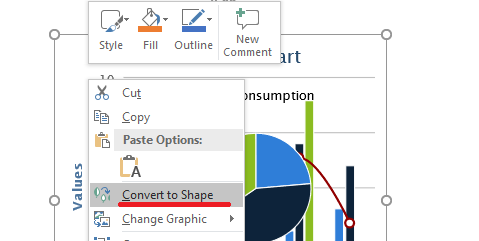
ใช้เมธอด IShapeCollection::AddGroupShape ที่รับ ISvgImage เพื่อทำการแปลง
#include <DOM/IShapeCollection.h>
#include <DOM/ISlide.h>
#include <DOM/ISlideSize.h>
#include <DOM/Presentation.h>
#include <DOM/SvgImage.h>
#include <Export/SaveFormat.h>
#include <system/io/file.h>

using namespace Aspose::Slides;
using namespace Aspose::Slides::Export;
using namespace System;
using namespace System::IO;

auto svgContent = File::ReadAllText(u"diagram.svg");
auto svgImage = MakeObject<SvgImage>(svgContent);

auto presentation = MakeObject<Presentation>();

auto slideSize = presentation->get_SlideSize()->get_Size();
auto slide = presentation->get_Slide(0);
slide->get_Shapes()->AddGroupShape(svgImage, 0.0f, 0.0f, slideSize.get_Width(), slideSize.get_Height());

presentation->Save(u"editable-svg-shapes.pptx", SaveFormat::Pptx);
presentation->Dispose();
ใช้การแปลง SVG‑to‑shapes เมื่อองค์ประกอบเวกเตอร์แต่ละตัวต้องการการแก้ไขเป็นรูปทรง PowerPoint หาก SVG เพียงต้องการแสดงผล การเก็บเป็นรูปภาพก็ง่ายกว่าและหลีกเลี่ยงการสร้างรูปทรงหลายอัน
แทนที่ทรัพยากรรูปภาพที่มีอยู่
ใช้ IPPImage::ReplaceImage เมื่อคุณต้องการแทนที่ทรัพยากรรูปภาพที่มีอยู่ วิธีนี้มีประโยชน์เป็นพิเศษสำหรับกราฟิกที่ใช้ร่วมกัน เช่น โลโก้
#include <DOM/IPPImage.h>
#include <DOM/Presentation.h>
#include <Export/SaveFormat.h>
#include <system/io/file.h>

using namespace Aspose::Slides;
using namespace Aspose::Slides::Export;
using namespace System;
using namespace System::IO;

auto presentation = MakeObject<Presentation>(u"input.pptx");

auto imageToReplace = presentation->get_Image(0);
auto imageData = File::ReadAllBytes(u"new-logo.png");
imageToReplace->ReplaceImage(imageData);

presentation->Save(u"output.pptx", SaveFormat::Pptx);
presentation->Dispose();
หากกรอบรูป, พื้นหลัง, มาสเตอร์ หรือเลย์เอาต์หลายรายการใช้ทรัพยากรรูปเดียวกัน การแทนที่ทรัพยากรนั้นจะอัปเดตการใช้ทั้งหมด หากต้องการให้กรอบรูปเดียวเปลี่ยนแปลง ให้กำหนดรูปภาพอื่นให้กับกรอบรูปนั้นแทนการแทนที่ทรัพยากรที่แชร์
IPPImage::ReplaceImage ยังมีโอเวอร์โหลดที่รับ IImage หรือ IPPImage อื่น ๆ อีกด้วย
คำแนะนำการจัดการรูปภาพอย่างเป็นจริง
ควบคุมขนาดงานนำเสนอ
รูปภาพราสเตอร์ขนาดใหญ่ทำให้ไฟล์งานนำเสนอใหญ่เกินความจำเป็น ใช้รูปภาพต้นฉบับที่มีมิติที่เหมาะสมกับขนาดการแสดงที่ต้องการ, ใช้ทรัพยากรรูปภาพที่แชร์ซ้ำได้เมื่อเป็นไปได้, และหลีกเลี่ยงการฝังสำเนาเต็มความละเอียดของกราฟิกเดียวกันหลายครั้ง
สำหรับรูปภาพราสเตอร์ที่ได้วางไว้ในกรอบรูปแล้ว สามารถใช้ IPictureFillFormat::CompressImage เพื่อลดข้อมูลรูปภาพตามความละเอียดและการตั้งค่าการครอปที่เลือก วิธีนี้เป็นการประมวลผลกรอบรูป ไม่ใช่การจัดการคอลเลกชันรูปภาพ ดังนั้นดูที่ Picture Frame สำหรับการจัดรูปแบบที่เกี่ยวข้อง
เลือกใช้ระหว่างเนื้อหาฝังและเชื่อมโยง
การฝังทำให้งานนำเสนอพกพาได้ง่าย เนื่องจากข้อมูลรูปภาพทั้งหมดอยู่ในไฟล์เดียว การเชื่อมโยงสามารถลดขนาดไฟล์ได้ แต่เพิ่มการพึ่งพาภายนอก ใช้ลิงก์เฉพาะเมื่อการพึ่งพานั้นยอมรับได้และเสถียร
ใช้แบรนด์ที่แชร์ซ้ำ
สำหรับโลโก้, วอเตอร์มาร์ค, หรือกราฟิกตกแต่งที่ใช้บ่อย ใช้ทรัพยากรรูปภาพเดียวและนำกลับมาใช้ซ้ำ หากกราฟิกเป็นส่วนของการออกแบบงานนำเสนอมากกว่าข้อมูลสไลด์ ให้วางไว้บนมาสเตอร์หรือเลย์เอาต์เพื่อให้สไลด์ที่สืบทอดได้รับโดยอัตโนมัติ
ทำให้ทรัพยากร SVG พกพาได้
SVG ที่เป็นไฟล์รวมไว้ในตัวเองง่ายต่อการย้ายและแสดงผลสม่ำเสมอกว่า SVG ที่ต้องพึ่งพาไฟล์หรือทรัพยากรเครือข่ายภายนอก เมื่อทำได้ ให้ฝังทรัพยากรที่จำเป็นก่อนนำเข้า SVG แปลง SVG เป็นรูปทรงเฉพาะเมื่อต้องแก้ไของค์ประกอบเวกเตอร์แต่ละส่วน
ใช้ Aspose.Slides Image API
สำหรับเวิร์กโฟลว์ภาพใน C++ ใช้ API ของ Aspose.Slides ได้แก่ IImage และ Images เมื่อจำเป็นต้องมีอ็อบเจกต์รูปภาพ และใช้ IImageCollection::AddImage เมื่อต้องลงทะเบียนข้อมูลรูปภาพเป็นทรัพยากรของงานนำเสนอ คอลเลกชันยังรองรับอาร์เรย์ไบต์และสตรีม ซึ่งเป็นประโยชน์เมื่อข้อมูลรูปภาพมาจากไฟล์, ไคลเอนต์เครือข่าย, ฐานข้อมูล หรือไลบรารีอื่น ๆ
การสร้างเนื้อหา EMF จากสเปรดชีตหรือผลิตภัณฑ์อื่นเป็นเวิร์กโฟลว์การบูรณาการแยกต่างหากและอยู่นอกขอบเขตของบทความนี้ หากไฟล์ WMF หรือ EMF มีเพียงการแทรกลงในงานนำเสนอ ให้ส่งข้อมูลไปยังโอเวอร์โหลด IImageCollection::AddImage ที่เหมาะสมโดยไม่ต้องเพิ่มการพึ่งพาผลิตภัณฑ์ที่สองในกระบวนการจัดการภาพ
คำถามที่พบบ่อย
ความแตกต่างระหว่างคอลเลกชันรูปภาพและกรอบรูปคืออะไร?
คอลเลกชันรูปภาพเก็บทรัพยากรรูปภาพที่ใช้ซ้ำได้ ส่วนกรอบรูปคือรูปทรงสไลด์ที่แสดงหนึ่งในทรัพยากรเหล่านั้นและให้การจัดรูปแบบเฉพาะรูปภาพเช่นการครอปและเอฟเฟกต์
วิธีที่ดีที่สุดในการแทนที่โลโก้เดียวกันทุกที่คืออะไร?
ถ้าโลโก้ถูกแชร์เป็นทรัพยากรรูปภาพเดียว ใช้ IPPImage::ReplaceImage เพื่อแทนที่ทรัพยากรนั้น สำหรับการสร้างแบรนด์ทั่วทั้งงานนำเสนอ การวางโลโก้บนมาสเตอร์หรือเลย์เอาต์ก็ช่วยลดการซ้ำซ้อนของเนื้อหาในสไลด์ได้เช่นกัน
ทำไมรูปภาพเชื่อมโยงถึงหายไปบนคอมพิวเตอร์เครื่องอื่น?
รูปภาพที่เชื่อมโยงพึ่งพาไฟล์หรือ URL ภายนอก หากทรัพยากรนั้นไม่สามารถเข้าถึงจากคอมพิวเตอร์เครื่องอื่น รูปภาพเชื่อมโยงนั้นจะไม่ปรากฏ ให้ฝังรูปภาพเมื่อจำเป็นต้องทำให้งานนำเสนอเป็นไฟล์เดียว
สามารถแก้ไข SVG ที่แทรกเป็นรูปทรง PowerPoint ได้หรือไม่?
ได้ ใช้ IShapeCollection::AddGroupShape เพื่อแปลง SVG; กลุ่มที่ได้จะประกอบด้วยรูปทรงสไลด์ที่แก้ไขได้แทนที่เป็นรูปภาพ SVG เดียว
ทำอย่างไรให้งานนำเสนอที่มีรูปภาพจำนวนมากมีขนาดเล็กลง?
ใช้ทรัพยากรรูปภาพที่แชร์ซ้ำ, หลีกเลี่ยงแหล่งรูปภาพราสเตอร์ที่ใหญ่เกินความจำเป็น, บีบอัดรูปภาพราสเตอร์ที่เหมาะสมเมื่อจำเป็น, เก็บแบรนด์ที่ซ้ำบนมาสเตอร์หรือเลย์เอาต์, และใช้รูปภาพเชื่อมโยงเฉพาะเมื่อการพึ่งพาภายนอกยอมรับได้