
เพิ่มสมการคณิตศาสตร์ไปยังงานนำเสนอ PowerPoint ใน C++
ภาพรวม
PowerPoint เก็บสมการเป็น Office Math Markup Language (OMML) ด้วย Aspose.Slides for C++ คุณสามารถสร้างเนื้อหาคณิตศาสตร์ประเภทเดียวกันโดยอัตโนมัติได้ เช่น เศษส่วน รากฟังก์ชัน ขอบเขต ตัวดำเนินการ N-ary เมทริกซ์ อาเรย์ และบล็อกคณิตศาสตร์ที่จัดรูปแบบ
ใน PowerPoint ผู้ใช้มักเพิ่มสมการจาก Insert > Equation:
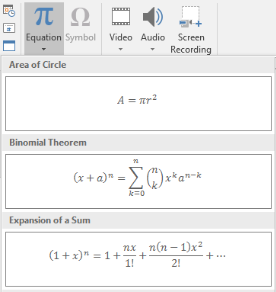
ผลลัพธ์คือข้อความคณิตศาสตร์ที่แก้ไขได้บนสไลด์:

Aspose.Slides สร้างข้อความคณิตศาสตร์นั้นผ่านวัตถุหลักสามประเภท:
- รูปคณิตศาสตร์ที่สร้างด้วย AddMathShape คือรูปร่างที่บรรจุสมการ
- MathPortion เก็บเนื้อหาคณิตศาสตร์ภายในกรอบข้อความของรูป
- MathParagraph มีหนึ่งหรือหลายอ็อบเจ็กต์ MathBlock
ตัวอย่างส่วนใหญ่ด้านล่างใช้ MathematicalText และวิธี fluent จาก IMathElement เพื่อทำให้โค้ดสั้นและอ่านง่าย
สำหรับกรณีการส่งออก MathML ดูที่ Export Math Equations from Presentations in C++
สร้างสมการ
ตัวอย่างนี้สร้างรูปคณิตศาสตร์และเพิ่มทฤษฎีบทพายทาโกรัส:
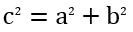
auto presentation = System::MakeObject<Presentation>();
auto slide = presentation->get_Slide(0);

auto mathShape = slide->get_Shapes()->AddMathShape(20.0f, 20.0f, 700.0f, 120.0f);
auto mathPortion = System::ExplicitCast<MathPortion>(mathShape->get_TextFrame()->get_Paragraph(0)->get_Portion(0));
auto mathParagraph = mathPortion->get_MathParagraph();

auto equation = System::MakeObject<MathematicalText>(u"c")
        - >SetSuperscript(u"2")
        - >Join(u"=")
        - >Join(System::MakeObject<MathematicalText>(u"a")->SetSuperscript(u"2"))
        - >Join(u"+")
        - >Join(System::MakeObject<MathematicalText>(u"b")->SetSuperscript(u"2"));

mathParagraph->Add(equation);

presentation->Save(u"pythagorean-theorem.pptx", SaveFormat::Pptx);
presentation->Dispose();
AddMathShape สร้างรูปร่างที่มี MathParagraph อยู่แล้ว เข้าถึง MathPortion ตัวแรก ดึง MathParagraph ของมัน แล้วเพิ่ม MathBlock หรือ MathElement ลงไป
เพิ่มเศษส่วน
ใช้ Divide เพื่อสร้างเศษส่วน คุณสามารถเลือกสไตล์ของเศษส่วนด้วย MathFractionTypes

auto presentation = System::MakeObject<Presentation>();
auto slide = presentation->get_Slide(0);

auto mathShape = slide->get_Shapes()->AddMathShape(20.0f, 20.0f, 700.0f, 100.0f);
auto mathPortion = System::ExplicitCast<MathPortion>(mathShape->get_TextFrame()->get_Paragraph(0)->get_Portion(0));
auto mathParagraph = mathPortion->get_MathParagraph();

auto fraction = System::MakeObject<MathematicalText>(u"1")
        - >Divide(u"x", MathFractionTypes::Skewed);

mathParagraph->Add(System::MakeObject<MathBlock>(fraction));

presentation->Save(u"fraction.pptx", SaveFormat::Pptx);
presentation->Dispose();
สำหรับเศษส่วนแบบซ้อนให้ใช้ MathFractionTypes::Bar:
auto stackedFraction = System::MakeObject<MathematicalText>(u"x + 1")->Divide(u"y - 1", MathFractionTypes::Bar);
เพิ่มรากจำนวน
ใช้ Radical เพื่อสร้างรากกำลังสอง รากกำลังสาม หรือรากอื่น ๆ ตอนนี้อิลิเมนต์ที่กำลังทำอยู่จะเป็นฐานและอากิวเมนต์จะเป็นดีกรี

auto presentation = System::MakeObject<Presentation>();
auto slide = presentation->get_Slide(0);

auto mathShape = slide->get_Shapes()->AddMathShape(20.0f, 20.0f, 700.0f, 100.0f);
auto mathPortion = System::ExplicitCast<MathPortion>(mathShape->get_TextFrame()->get_Paragraph(0)->get_Portion(0));
auto mathParagraph = mathPortion->get_MathParagraph();

auto radical = System::MakeObject<MathematicalText>(u"x")
        - >Radical(u"n");

mathParagraph->Add(System::MakeObject<MathBlock>(radical));

presentation->Save(u"radical.pptx", SaveFormat::Pptx);
presentation->Dispose();
เพิ่มฟังก์ชันและลิมิต
ใช้ AsArgumentOfFunction หรือ Function สำหรับฟังก์ชันเช่น sin(x), log(x) หรือชื่อฟังก์ชันที่กำหนดเอง สำหรับลิมิตใส่ lim ใน MathLimit หรือใช้ SetLowerLimit

auto presentation = System::MakeObject<Presentation>();
auto slide = presentation->get_Slide(0);

auto mathShape = slide->get_Shapes()->AddMathShape(20.0f, 20.0f, 700.0f, 100.0f);
auto mathPortion = System::ExplicitCast<MathPortion>(mathShape->get_TextFrame()->get_Paragraph(0)->get_Portion(0));
auto mathParagraph = mathPortion->get_MathParagraph();

auto limit = System::MakeObject<MathematicalText>(u"lim")
        - >SetLowerLimit(u"x→∞")
        - >Function(u"x");

mathParagraph->Add(System::MakeObject<MathBlock>(limit));

presentation->Save(u"functions-and-limits.pptx", SaveFormat::Pptx);
presentation->Dispose();
สำหรับชื่อฟังก์ชันที่กำหนดเอง ให้ทำให้ชื่อฟังก์ชันเป็นอิลิเมนต์ปัจจุบัน:
auto customFunction = System::MakeObject<MathematicalText>(u"f")->Function(u"x + 1");
เพิ่มตัวดำเนินการ N-ary และอินทิกรัล
ใช้ Nary สำหรับการบวกลบรวม, ยูเนียน, อินเทอร์เซคชัน และตัวดำเนินการขนาดใหญ่อื่น ๆ ใช้ Integral สำหรับอินทิกรัล ทั้งสองวิธีให้คุณตั้งค่าลิมิตบนและล่าง
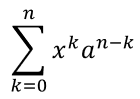
auto presentation = System::MakeObject<Presentation>();
auto slide = presentation->get_Slide(0);

auto mathShape = slide->get_Shapes()->AddMathShape(20.0f, 20.0f, 700.0f, 120.0f);
auto mathPortion = System::ExplicitCast<MathPortion>(mathShape->get_TextFrame()->get_Paragraph(0)->get_Portion(0));
auto mathParagraph = mathPortion->get_MathParagraph();

auto summationBase = System::MakeObject<MathematicalText>(u"x")
        - >SetSuperscript(u"k")
        - >Join(System::MakeObject<MathematicalText>(u"a")->SetSuperscript(u"n-k"));

auto summation = summationBase->Nary(MathNaryOperatorTypes::Summation, u"k=0", u"n");

mathParagraph->Add(System::MakeObject<MathBlock>(summation));

presentation->Save(u"nary-operators.pptx", SaveFormat::Pptx);
presentation->Dispose();
ตัวดำเนินการ N-ary ใช้สำหรับตัวดำเนินการขนาดใหญ่ที่มีลิมิตเป็นตัวเลือก ส่วนตัวดำเนินการง่ายเช่น +, -, = ปกติจะเพิ่มเป็น MathematicalText แล้วต่อเข้ากับนิพจน์
สำหรับอินทิกรัล ให้ใช้ Integral:
auto integralBase = System::MakeObject<MathematicalText>(u"x")->Join(System::MakeObject<MathematicalText>(u"dx")->ToBox());
auto integral = integralBase->Integral(MathIntegralTypes::Simple, u"0", u"1");
เพิ่มเมทริกซ์
ใช้ MathMatrix สำหรับแถวและคอลัมน์ เมทริกซ์โดยค่าเริ่มต้นไม่มีวงเล็บ จึงต้องใส่วงเล็บ ปีกกา หรือสี่เหลี่ยมเมื่อจำเป็น
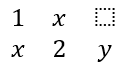
auto presentation = System::MakeObject<Presentation>();
auto slide = presentation->get_Slide(0);

auto mathShape = slide->get_Shapes()->AddMathShape(20.0f, 20.0f, 700.0f, 120.0f);
auto mathPortion = System::ExplicitCast<MathPortion>(mathShape->get_TextFrame()->get_Paragraph(0)->get_Portion(0));
auto mathParagraph = mathPortion->get_MathParagraph();

auto matrix = System::MakeObject<MathMatrix>(2, 3);
matrix->idx_set(0, 0, System::MakeObject<MathematicalText>(u"1"));
matrix->idx_set(0, 1, System::MakeObject<MathematicalText>(u"x"));
matrix->idx_set(1, 0, System::MakeObject<MathematicalText>(u"x"));
matrix->idx_set(1, 1, System::MakeObject<MathematicalText>(u"2"));
matrix->idx_set(1, 2, System::MakeObject<MathematicalText>(u"y"));

mathParagraph->Add(System::MakeObject<MathBlock>(matrix));

presentation->Save(u"matrix.pptx", SaveFormat::Pptx);
presentation->Dispose();
เพิ่มอาเรย์สมการ
ใช้ ToMathArray เมื่อคุณต้องการจัดสมการให้ตรงแนวหรือสแต็กแนวตั้งของนิพจน์

auto presentation = System::MakeObject<Presentation>();
auto slide = presentation->get_Slide(0);

auto mathShape = slide->get_Shapes()->AddMathShape(20.0f, 20.0f, 700.0f, 140.0f);
auto mathPortion = System::ExplicitCast<MathPortion>(mathShape->get_TextFrame()->get_Paragraph(0)->get_Portion(0));
auto mathParagraph = mathPortion->get_MathParagraph();

auto equationArray = System::MakeObject<MathematicalText>(u"x")
        - >Join(u"y")
        - >ToMathArray();

mathParagraph->Add(System::MakeObject<MathBlock>(equationArray));

presentation->Save(u"equation-array.pptx", SaveFormat::Pptx);
presentation->Dispose();
เพิ่มฟังก์ชันตรีโกณมิติ
ใช้ AsArgumentOfFunction เมื่ออากิวเมนต์เป็นอิลิเมนต์ปัจจุบันและรู้ชื่อฟังก์ชัน

auto presentation = System::MakeObject<Presentation>();
auto slide = presentation->get_Slide(0);

auto mathShape = slide->get_Shapes()->AddMathShape(20.0f, 20.0f, 700.0f, 100.0f);
auto mathPortion = System::ExplicitCast<MathPortion>(mathShape->get_TextFrame()->get_Paragraph(0)->get_Portion(0));
auto mathParagraph = mathPortion->get_MathParagraph();

auto cosine = System::MakeObject<MathematicalText>(u"2x")
        - >AsArgumentOfFunction(MathFunctionsOfOneArgument::Cos);

mathParagraph->Add(System::MakeObject<MathBlock>(cosine));

presentation->Save(u"trigonometric-function.pptx", SaveFormat::Pptx);
presentation->Dispose();
เพิ่มตัวห้อยและตัวแสดงระดับ
ใช้ตัวช่วยสำหรับตัวห้อยและตัวแสดงระดับสำหรับดัชนีและกำลัง เมื่อดัชนีต้องปรากฏทางซ้ายของฐาน ให้ใช้ SetSubSuperscriptOnTheLeft

auto presentation = System::MakeObject<Presentation>();
auto slide = presentation->get_Slide(0);

auto mathShape = slide->get_Shapes()->AddMathShape(20.0f, 20.0f, 700.0f, 100.0f);
auto mathPortion = System::ExplicitCast<MathPortion>(mathShape->get_TextFrame()->get_Paragraph(0)->get_Portion(0));
auto mathParagraph = mathPortion->get_MathParagraph();

auto scripts = System::MakeObject<MathematicalText>(u"Y")
        - >SetSubSuperscriptOnTheLeft(u"1", u"n");

mathParagraph->Add(System::MakeObject<MathBlock>(scripts));

presentation->Save(u"subscript-superscript.pptx", SaveFormat::Pptx);
presentation->Dispose();
เพิ่มเครื่องหมายขอบเขต
ใช้ Enclose เพื่อนำนิพจน์ใส่ในเครื่องหมายขอบเขต คุณยังสามารถตั้งอักขระคั่นสำหรับการแสดงหลายอิลิเมนต์ในเครื่องหมายขอบเขตได้

auto presentation = System::MakeObject<Presentation>();
auto slide = presentation->get_Slide(0);

auto mathShape = slide->get_Shapes()->AddMathShape(20.0f, 20.0f, 700.0f, 100.0f);
auto mathPortion = System::ExplicitCast<MathPortion>(mathShape->get_TextFrame()->get_Paragraph(0)->get_Portion(0));
auto mathParagraph = mathPortion->get_MathParagraph();

auto delimiter = System::MakeObject<MathematicalText>(u"x")
        - >Join(u"y")
        - >Join(u"z")
        - >Enclose(u'<', u'>', u'|');

mathParagraph->Add(System::MakeObject<MathBlock>(delimiter));

presentation->Save(u"delimiters.pptx", SaveFormat::Pptx);
presentation->Dispose();
เพิ่มกล่องขอบ
ใช้ ToBorderBox เมื่อสมการต้องการกรอบ
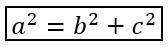
auto presentation = System::MakeObject<Presentation>();
auto slide = presentation->get_Slide(0);

auto mathShape = slide->get_Shapes()->AddMathShape(20.0f, 20.0f, 700.0f, 100.0f);
auto mathPortion = System::ExplicitCast<MathPortion>(mathShape->get_TextFrame()->get_Paragraph(0)->get_Portion(0));
auto mathParagraph = mathPortion->get_MathParagraph();

auto boxedEquation = System::MakeObject<MathematicalText>(u"a")
        - >SetSuperscript(u"2")
        - >Join(u"=")
        - >Join(System::MakeObject<MathematicalText>(u"b")->SetSuperscript(u"2"))
        - >Join(u"+")
        - >Join(System::MakeObject<MathematicalText>(u"c")->SetSuperscript(u"2"))
        - >ToBorderBox();

mathParagraph->Add(System::MakeObject<MathBlock>(boxedEquation));

presentation->Save(u"border-box.pptx", SaveFormat::Pptx);
presentation->Dispose();
จัดกลุ่มเทอม
ใช้ Group เพื่อวางอักขระจัดกลุ่มเหนือหรือใต้นิพจน์ เพิ่มลิมิตเพื่อระบุเทอมที่จัดกลุ่ม

auto presentation = System::MakeObject<Presentation>();
auto slide = presentation->get_Slide(0);

auto mathShape = slide->get_Shapes()->AddMathShape(20.0f, 20.0f, 700.0f, 120.0f);
auto mathPortion = System::ExplicitCast<MathPortion>(mathShape->get_TextFrame()->get_Paragraph(0)->get_Portion(0));
auto mathParagraph = mathPortion->get_MathParagraph();

auto grouped = System::MakeObject<MathematicalText>(u"x + y")
        - >Group(u'\u23DF', MathTopBotPositions::Bottom, MathTopBotPositions::Top)
        - >SetLowerLimit(u"any text");

mathParagraph->Add(System::MakeObject<MathBlock>(grouped));

presentation->Save(u"grouped-terms.pptx", SaveFormat::Pptx);
presentation->Dispose();
จัดรูปแบบอิลิเมนต์คณิตศาสตร์
ใช้ตัวช่วยการจัดรูปแบบเฉพาะเมื่อต้องการทำให้สูตรชัดเจน ยกตัวอย่าง Overbar จะใส่เส้นขีดเหนืออิลิเมนต์คณิตศาสตร์

auto presentation = System::MakeObject<Presentation>();
auto slide = presentation->get_Slide(0);

auto mathShape = slide->get_Shapes()->AddMathShape(20.0f, 20.0f, 700.0f, 100.0f);
auto mathPortion = System::ExplicitCast<MathPortion>(mathShape->get_TextFrame()->get_Paragraph(0)->get_Portion(0));
auto mathParagraph = mathPortion->get_MathParagraph();

auto overbar = System::MakeObject<MathematicalText>(u"ABC")->Overbar();

mathParagraph->Add(System::MakeObject<MathBlock>(overbar));

presentation->Save(u"overbar.pptx", SaveFormat::Pptx);
presentation->Dispose();
อ้างอิงด่วน
| งาน | API หลัก |
|---|---|
| สร้างข้อความคณิตศาสตร์ | MathematicalText |
| รวมอิลิเมนต์ | IMathElement.Join |
| สร้างเศษส่วน | IMathElement.Divide |
| เพิ่มตัวห้อยหรือยกกำลัง | SetSuperscript, SetSubscript |
| เพิ่มฟังก์ชัน | Function, AsArgumentOfFunction |
| เพิ่มราก | IMathElement.Radical |
| เพิ่มลิมิต | SetLowerLimit, SetUpperLimit |
| เพิ่มสคริปต์ด้านซ้าย | SetSubSuperscriptOnTheLeft |
| เพิ่มผลบวกลบและอินทิกรัล | Nary, Integral |
| เพิ่มเมทริกซ์ | MathMatrix |
| เพิ่มอาเรย์สมการ | ToMathArray |
| เพิ่มเครื่องหมายขอบเขต | Enclose |
| เพิ่มเส้นและกรอบ | Overbar, ToBorderBox |
| จัดกลุ่มเทอม | Group |
FAQ
ฉันสามารถแก้ไขสมการ PowerPoint ที่มีอยู่ได้หรือไม่?
ได้ เปิดงานนำเสนอ ค้นหารูปร่างที่มี MathPortion ดึง MathParagraph ของมัน แล้วอัปเดต MathBlock ในย่อยนั้น
สมการถูกบันทึกเป็นคณิตศาสตร์ของ PowerPoint ที่แก้ไขได้หรือไม่?
ใช่ เมื่อบันทึกเป็น PPTX Aspose.Slides จะเขียนสมการเป็นเนื้อหา Office Math ที่แก้ไขได้
ฉันสามารถส่งออกสมการไปเป็น LaTeX ได้หรือไม่?
ได้ ดึง IMathParagraph ของสมการจาก IMathPortion แล้วเรียก IMathParagraph::ToLatex เพื่อส่งออกโดยตรง ตัวอย่างเต็มดูที่ Export Math Equations from Presentations in C++