
Quản lý danh sách có dấu đầu dòng và đánh số trong bản trình bày bằng PHP
Tổng quan
Aspose.Slides cho PHP thông qua Java cho phép bạn tạo và định dạng danh sách có dấu đầu dòng và danh sách đánh số trong các bản trình bày PowerPoint và OpenDocument. Một mục danh sách là một đoạn mà cài đặt dấu đầu dòng được kiểm soát thông qua định dạng đoạn của nó.
Sử dụng phương thức Paragraph::getParagraphFormat để truy cập cài đặt danh sách ở mức đoạn. Điểm vào chính là ParagraphFormat::getBullet trả về một đối tượng BulletFormat . Với đối tượng này, bạn có thể đặt loại dấu đầu dòng, ký hiệu, hình ảnh, màu sắc, kích thước, kiểu đánh số và số bắt đầu.
Bài viết này hướng dẫn cách:
- tạo danh sách có dấu đầu dòng với ký hiệu tùy chỉnh
- tạo dấu đầu dòng hình ảnh
- tạo danh sách đa cấp bằng cách đặt độ sâu của đoạn
- tạo danh sách đánh số
- kiểm tra và thay đổi định dạng danh sách trong một bản trình bày hiện có
- đọc các dấu và số danh sách thực tế bên cạnh nội dung đoạn
Tạo danh sách có dấu đầu dòng
Để tạo danh sách có dấu đầu dòng, thêm các đối tượng Paragraph vào một TextFrame và đặt BulletFormat::setType thành BulletType::Symbol. Sau đó bạn có thể đặt BulletFormat::setChar, BulletFormat::getColor và BulletFormat::setHeight để kiểm soát giao diện dấu đầu dòng.
Đoạn mã PHP sau minh họa cách tạo danh sách có dấu đầu dòng trong một slide:
use aspose\slides\BulletType;
use aspose\slides\NullableBool;
use aspose\slides\Paragraph;
use aspose\slides\Presentation;
use aspose\slides\SaveFormat;
use aspose\slides\ShapeType;

function createParagraph($paragraphText)
{
    $paragraph = new Paragraph();
    $paragraph->getParagraphFormat()->getBullet()->setType(BulletType::Symbol);
    $paragraph->getParagraphFormat()->getBullet()->setChar("*");
    $paragraph->getParagraphFormat()->setIndent(15);
    $paragraph->getParagraphFormat()->getBullet()->setBulletHardColor(NullableBool::True);
    $bulletColor = new Java("java.awt.Color", 205, 92, 92);
    $paragraph->getParagraphFormat()->getBullet()->getColor()->setColor($bulletColor);
    $paragraph->getParagraphFormat()->getBullet()->setHeight(100);
    $paragraph->setText($paragraphText);
    return $paragraph;
}

$presentation = new Presentation();
try {
    $slide = $presentation->getSlides()->get_Item(0);

    $autoShape = $slide->getShapes()->addAutoShape(ShapeType::Rectangle, 20, 20, 200, 50);

    $textFrame = $autoShape->getTextFrame();
    $textFrame->getParagraphs()->clear();

    $paragraph1 = createParagraph("The first paragraph");
    $textFrame->getParagraphs()->add($paragraph1);

    $paragraph2 = createParagraph("The second paragraph");
    $textFrame->getParagraphs()->add($paragraph2);

    $presentation->save("symbol_bullets.pptx", SaveFormat::Pptx);
} finally {
    $presentation->dispose();
}
Kết quả:

Tạo danh sách đánh số
Sử dụng danh sách đánh số khi thứ tự các mục quan trọng. Đặt BulletFormat::setType thành BulletType::Numbered. Bạn cũng có thể chọn định dạng đánh số bằng BulletFormat::setNumberedBulletStyle hoặc đặt BulletFormat::setNumberedBulletStartWith khi danh sách cần bắt đầu từ một giá trị khác 1.
Đoạn mã PHP sau cho thấy cách tạo danh sách đánh số trong một slide:
use aspose\slides\BulletType;
use aspose\slides\Paragraph;
use aspose\slides\Presentation;
use aspose\slides\SaveFormat;
use aspose\slides\ShapeType;

$presentation = new Presentation();
try {
    $slide = $presentation->getSlides()->get_Item(0);

    $autoShape = $slide->getShapes()->addAutoShape(ShapeType::Rectangle, 20, 20, 90, 80);

    $textFrame = $autoShape->getTextFrame();
    $textFrame->getParagraphs()->clear();

    $paragraph1 = new Paragraph();
    $paragraph1->getParagraphFormat()->getBullet()->setType(BulletType::Numbered);
    $paragraph1->setText("Apple");
    $textFrame->getParagraphs()->add($paragraph1);

    $paragraph2 = new Paragraph();
    $paragraph2->getParagraphFormat()->getBullet()->setType(BulletType::Numbered);
    $paragraph2->setText("Orange");
    $textFrame->getParagraphs()->add($paragraph2);

    $paragraph3 = new Paragraph();
    $paragraph3->getParagraphFormat()->getBullet()->setType(BulletType::Numbered);
    $paragraph3->setText("Banana");
    $textFrame->getParagraphs()->add($paragraph3);

    $presentation->save("numbered_bullets.pptx", SaveFormat::Pptx);
} finally {
    $presentation->dispose();
}
Kết quả:

Tạo dấu đầu dòng hình ảnh
Aspose.Slides cho phép bạn thay thế ký hiệu dấu đầu dòng thông thường bằng một hình ảnh. Dấu đầu dòng hình ảnh hoạt động tốt nhất với các hình ảnh đơn giản vẫn có thể đọc được ở kích thước nhỏ, chẳng hạn như biểu tượng hoặc tệp PNG trong suốt nhỏ.
Note
Lý tưởng nhất, nếu bạn định thay thế ký hiệu dấu đầu dòng thông thường bằng hình ảnh, hãy chọn một đồ họa đơn giản với nền trong suốt. Các hình ảnh như vậy hoạt động tốt như ký hiệu dấu đầu dòng tùy chỉnh.
Hãy nhớ rằng hình ảnh sẽ được thu nhỏ xuống kích thước rất nhỏ. Vì lý do này, chúng tôi khuyến nghị mạnh mẽ lựa chọn một hình ảnh vẫn rõ ràng và hiệu quả về mặt thị giác khi được dùng làm dấu đầu dòng trong danh sách.
Để tạo dấu đầu dòng hình ảnh, thêm một hình ảnh vào Presentation::getImages và gán đối tượng PPImage trả về cho BulletFormat::getPicture. Đặt BulletFormat::setType thành BulletType::Picture trước khi gán hình ảnh.
Giả sử chúng ta có một “image.png”:

Đoạn mã PHP sau cho thấy cách tạo dấu đầu dòng hình ảnh trong một slide:
use aspose\slides\BulletType;
use aspose\slides\Images;
use aspose\slides\Paragraph;
use aspose\slides\Presentation;
use aspose\slides\SaveFormat;
use aspose\slides\ShapeType;

function createParagraph($paragraphText, $bulletImage)
{
    $paragraph = new Paragraph();
    $paragraph->getParagraphFormat()->getBullet()->setType(BulletType::Picture);
    $paragraph->getParagraphFormat()->getBullet()->getPicture()->setImage($bulletImage);
    $paragraph->getParagraphFormat()->setIndent(15);
    $paragraph->getParagraphFormat()->getBullet()->setHeight(100);
    $paragraph->setText($paragraphText);
    return $paragraph;
}

$presentation = new Presentation();
try {
    $slide = $presentation->getSlides()->get_Item(0);

    $autoShape = $slide->getShapes()->addAutoShape(ShapeType::Rectangle, 20, 20, 200, 50);

    $textFrame = $autoShape->getTextFrame();
    $textFrame->getParagraphs()->clear();

    $image = Images::fromFile("image.png");
    $bulletImage = $presentation->getImages()->addImage($image);

    $paragraph1 = createParagraph("The first paragraph", $bulletImage);
    $textFrame->getParagraphs()->add($paragraph1);

    $paragraph2 = createParagraph("The second paragraph", $bulletImage);
    $textFrame->getParagraphs()->add($paragraph2);

    $presentation->save("picture_bullets.pptx", SaveFormat::Pptx);
} finally {
    $presentation->dispose();
}
Kết quả:

Tạo danh sách đa cấp
Sử dụng ParagraphFormat::setDepth để đặt các mục danh sách ở các cấp độ khác nhau. Cấp độ 0 là cấp độ trên cùng, cấp độ 1 là cấp độ lồng bên dưới nó, và tiếp tục như vậy.
Đoạn mã PHP sau cho thấy cách tạo danh sách có dấu đầu dòng đa cấp:
use aspose\slides\Paragraph;
use aspose\slides\Presentation;
use aspose\slides\SaveFormat;
use aspose\slides\ShapeType;

$presentation = new Presentation();
try {
    $slide = $presentation->getSlides()->get_Item(0);

    $autoShape = $slide->getShapes()->addAutoShape(ShapeType::Rectangle, 20, 20, 260, 110);

    $textFrame = $autoShape->getTextFrame();
    $textFrame->getParagraphs()->clear();

    $paragraph1 = new Paragraph();
    $paragraph1->getParagraphFormat()->setDepth(0);
    $paragraph1->setText("My text - Depth 0");
    $textFrame->getParagraphs()->add($paragraph1);

    $paragraph2 = new Paragraph();
    $paragraph2->getParagraphFormat()->setDepth(1);
    $paragraph2->setText("My text - Depth 1");
    $textFrame->getParagraphs()->add($paragraph2);

    $paragraph3 = new Paragraph();
    $paragraph3->getParagraphFormat()->setDepth(2);
    $paragraph3->setText("My text - Depth 2");
    $textFrame->getParagraphs()->add($paragraph3);

    $paragraph4 = new Paragraph();
    $paragraph4->getParagraphFormat()->setDepth(3);
    $paragraph4->setText("My text - Depth 3");
    $textFrame->getParagraphs()->add($paragraph4);

    $presentation->save("multilevel_bullets.pptx", SaveFormat::Pptx);
} finally {
    $presentation->dispose();
}
Kết quả:

Thay đổi danh sách hiện có
Để thay đổi định dạng danh sách trong một bản trình bày hiện có, truy cập đoạn mục tiêu và cập nhật các cài đặt ParagraphFormat::getBullet của nó. Các thuộc tính đã dùng để tạo danh sách có thể được dùng để kiểm tra hoặc sửa đổi danh sách được tải từ tệp PPT, PPTX hoặc ODP.
Đoạn mã PHP sau thay đổi đoạn đầu tiên trong một khung văn bản để sử dụng kiểu danh sách đánh số:
use aspose\slides\BulletType;
use aspose\slides\NumberedBulletStyle;
use aspose\slides\Presentation;
use aspose\slides\SaveFormat;

$presentation = new Presentation("input.pptx");
try {
    $slide = $presentation->getSlides()->get_Item(0);

    $autoShape = $slide->getShapes()->get_Item(0);

    $paragraph = $autoShape->getTextFrame()->getParagraphs()->get_Item(0);
    $paragraph->getParagraphFormat()->getBullet()->setType(BulletType::Numbered);
    $paragraph->getParagraphFormat()->getBullet()->setNumberedBulletStyle(NumberedBulletStyle::BulletRomanUCPeriod);
    $paragraph->getParagraphFormat()->getBullet()->setNumberedBulletStartWith(1);
    $paragraph->getParagraphFormat()->setMarginLeft(30);
    $paragraph->getParagraphFormat()->setIndent(-20);

    $presentation->save("updated_list.pptx", SaveFormat::Pptx);
} finally {
    $presentation->dispose();
}
Đọc giá trị dấu đầu dòng thực tế
Khi trích xuất nội dung bản trình bày, giữ các dấu danh sách bên cạnh nội dung đoạn. Gọi ParagraphFormat::getEffective và truy cập ParagraphFormatEffectiveData::getBullet để lấy định dạng dấu đầu dòng thực tế. Kiểm tra getType trước khi đọc getActualBulletValue.
Đối với danh sách đánh số, phân biệt ba giá trị sau:
- getNumberedBulletStyle xác định định dạng, chẳng hạn như số Ả Rập theo sau dấu chấm hoặc chữ cái thường theo sau dấu chấm.
- getNumberedBulletStartWith chỉ định số bắt đầu cho một nhóm các đoạn đánh số.
- getActualBulletValue trả về dấu đã định dạng cho một đoạn cụ thể. Ví dụ, mục thứ hai trong danh sách bắt đầu từ 5 sẽ trả về
6..
Giữ getDepth cho mỗi đoạn để duy trì mức lồng vào của nó. Dấu thực tế không mã hoá toàn bộ phân cấp: một mục lồng có thể trả về c. thay vì nhãn kết hợp như 6.c..
Ví dụ tự chứa dưới đây tạo các danh sách, lưu chúng vào một bản trình bày và tải lại bản trình bày để báo cáo văn bản, độ sâu, loại dấu và giá trị thực tế của mỗi đoạn. Dấu hình ảnh xanh nhỏ được tạo từ SVG nội tuyến.
use aspose\slides\BulletType;
use aspose\slides\FillType;
use aspose\slides\NullableBool;
use aspose\slides\NumberedBulletStyle;
use aspose\slides\Paragraph;
use aspose\slides\Presentation;
use aspose\slides\SaveFormat;
use aspose\slides\ShapeType;
use aspose\slides\SlideSizeScaleType;
use aspose\slides\SvgImage;

$presentation = new Presentation();
try {
    $presentation->getSlideSize()->setSize(720, 440, SlideSizeScaleType::DoNotScale);
    $slide = $presentation->getSlides()->get_Item(0);

    $shape = $slide->getShapes()->addAutoShape(ShapeType::Rectangle, 30, 20, 660, 400);
    $shape->getFillFormat()->setFillType(FillType::NoFill);
    $shape->getLineFormat()->getFillFormat()->setFillType(FillType::NoFill);

    $textFrame = $shape->getTextFrame();
    $textFrame->getParagraphs()->clear();

    // Tạo một dấu đánh dấu hình ảnh mà không cần tệp ảnh bên ngoài.
    $svg = new SvgImage("<svg xmlns='http://www.w3.org/2000/svg' width='16' height='16'><rect width='16' height='16' rx='4' fill='#0078D4'/></svg>");
    $bulletImage = $presentation->getImages()->addImage($svg);

    $black = new Java("java.awt.Color", 0, 0, 0);
    $addParagraph = function ($text, $depth, $type, $start, $style) use ($textFrame, $bulletImage, $black) {
        $paragraph = new Paragraph();
        $paragraph->setText($text);

        $format = $paragraph->getParagraphFormat();
        $format->setDepth($depth);
        $format->setMarginLeft(30 + $depth * 40);
        $format->setIndent(-28);
        $format->setSpaceAfter(8);
        $format->getDefaultPortionFormat()->setFontHeight(22);
        $format->getDefaultPortionFormat()->getFillFormat()->setFillType(FillType::Solid);
        $format->getDefaultPortionFormat()->getFillFormat()->getSolidFillColor()->setColor($black);
        $format->getBullet()->setType($type);
        $format->getBullet()->setBulletHardColor(NullableBool::True);
        $format->getBullet()->getColor()->setColor($black);
        if ($type == BulletType::Numbered) {
            $format->getBullet()->setNumberedBulletStyle($style);
            $format->getBullet()->setNumberedBulletStartWith($start);
        } else if ($type == BulletType::Symbol) {
            $format->getBullet()->setChar("\u{2022}");
        } else if ($type == BulletType::Picture) {
            $format->getBullet()->getPicture()->setImage($bulletImage);
        }

        $textFrame->getParagraphs()->add($paragraph);
    };

    $addParagraph("First item", 0, BulletType::Numbered, 5, NumberedBulletStyle::BulletArabicPeriod);
    $addParagraph("Second item", 0, BulletType::Numbered, 5, NumberedBulletStyle::BulletArabicPeriod);
    $addParagraph("Nested item", 1, BulletType::Numbered, 3, NumberedBulletStyle::BulletAlphaLCPeriod);
    $addParagraph("Next nested item", 1, BulletType::Numbered, 3, NumberedBulletStyle::BulletAlphaLCPeriod);
    $addParagraph("Deep item", 2, BulletType::Numbered, 4, NumberedBulletStyle::BulletRomanLCPeriod);
    $addParagraph("Back to top level", 0, BulletType::Numbered, 5, NumberedBulletStyle::BulletArabicPeriod);
    $addParagraph("Symbol marker", 0, BulletType::Symbol, 1, NumberedBulletStyle::BulletArabicPeriod);
    $addParagraph("No bullet", 0, BulletType::None, 1, NumberedBulletStyle::BulletArabicPeriod);
    $addParagraph("Picture marker", 0, BulletType::Picture, 1, NumberedBulletStyle::BulletArabicPeriod);
    $presentation->save("actual_bullet_values.pptx", SaveFormat::Pptx);
} finally {
    $presentation->dispose();
}

$loadedPresentation = new Presentation("actual_bullet_values.pptx");
try {
    $loadedShape = $loadedPresentation->getSlides()->get_Item(0)->getShapes()->get_Item(0);
    echo "Text | Depth | Type | Actual value\n";
    $paragraphs = $loadedShape->getTextFrame()->getParagraphs();
    for ($i = 0; $i < java_values($paragraphs->getCount()); $i++) {
        $paragraph = $paragraphs->get_Item($i);
        $bullet = $paragraph->getParagraphFormat()->getEffective()->getBullet();
        switch (java_values($bullet->getType())) {
            case BulletType::Numbered:
            case BulletType::Symbol:
                $marker = $bullet->getActualBulletValue();
                break;
            case BulletType::None:
                $marker = "null (no bullet)";
                break;
            case BulletType::Picture:
                $marker = "null (image required)";
                break;
            default:
                $marker = "unsupported bullet type";
                break;
        }
        $typeNames = [BulletType::Numbered => "Numbered", BulletType::Symbol => "Symbol", BulletType::None => "None", BulletType::Picture => "Picture"];
        $typeName = $typeNames[java_values($bullet->getType())] ?? "Unknown";
        echo $paragraph->getText() . " | " . $paragraph->getParagraphFormat()->getDepth() . " | " . $typeName . " | " . $marker . "\n";
    }
} finally {
    $loadedPresentation->dispose();
}
Các danh sách nguồn được hiển thị bên dưới.
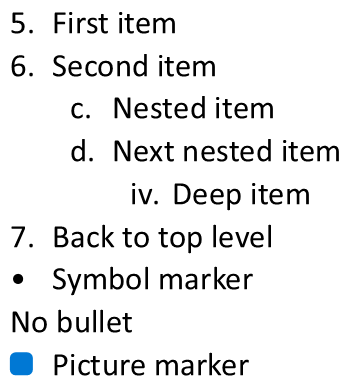
Báo cáo khớp với các dấu hiển thị trong PowerPoint:
Text | Depth | Type | Actual value
First item | 0 | Numbered | 5.
Second item | 0 | Numbered | 6.
Nested item | 1 | Numbered | c.
Next nested item | 1 | Numbered | d.
Deep item | 2 | Numbered | iv.
Back to top level | 0 | Numbered | 7.
Symbol marker | 0 | Symbol | •
No bullet | 0 | None | null (no bullet)
Picture marker | 0 | Picture | null (image required)
Đối với BulletType::None and BulletType::Picture, getActualBulletValue trả về null, không phải chuỗi rỗng. Xử lý riêng các loại này: loại đầu tiên không có dấu, trong khi loại thứ hai yêu cầu trích xuất hình ảnh dấu đầu dòng riêng biệt. Dấu đầu dòng hình ảnh không thể tái tạo chỉ bằng việc trích xuất dấu văn bản.
Câu hỏi thường gặp
Có thể xuất danh sách có dấu đầu dòng và đánh số sang PDF hoặc hình ảnh không?
Có. Aspose.Slides giữ nguyên định dạng danh sách khi định dạng mục tiêu hỗ trợ bố cục văn bản và các tính năng dấu đầu dòng tương ứng.
Tôi có thể chỉnh sửa danh sách trong các bản trình bày hiện có không?
Có. Tải bản trình bày, truy cập đoạn mục tiêu, kiểm tra hoặc cập nhật các cài đặt ParagraphFormat::getBullet của nó và lưu lại bản trình bày.
Danh sách có thể chứa văn bản không phải Latin không?
Có. Văn bản mục danh sách có thể chứa ký tự Unicode, vì vậy bạn có thể tạo danh sách trong các bản trình bày đa ngôn ngữ. Đảm bảo phông chữ được sử dụng trong bản trình bày hỗ trợ các ký tự bạn cần.