
在 PHP 中格式化 PowerPoint 圖形
簡介
在 PowerPoint 中,您可以在投影片上加入圖形。由於圖形由線條組成,您可以透過修改或套用效果於其輪廓來格式化它們。此外,您還可以透過指定設定來控制圖形內部的填色,從而格式化圖形。
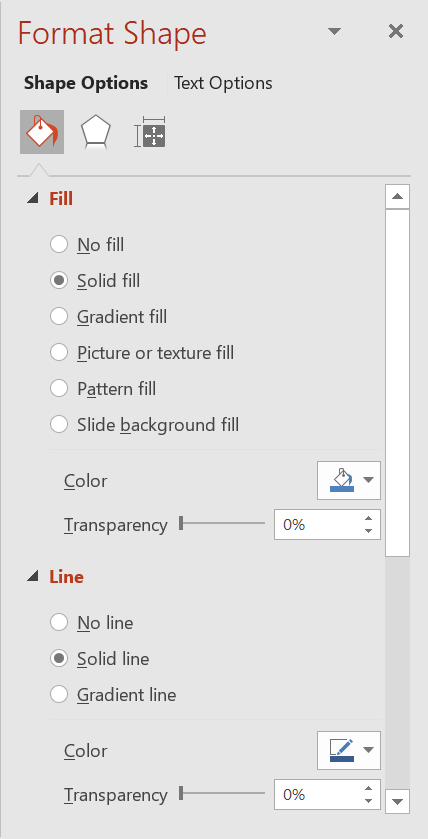
Aspose.Slides for PHP via Java 提供類別與方法,讓您能使用 PowerPoint 中相同的選項來格式化圖形。
格式線條
使用 Aspose.Slides,您可以為圖形指定自訂線條樣式。以下步驟說明此程序:
- 建立 Presentation 類別的實例。
- 依索引取得投影片參考。
- 為投影片新增一個 AutoShape。
- 設定圖形的線條樣式。
- 設定線條寬度。
- 設定線條的虛線樣式。
- 設定圖形的線條顏色。
- 將修改後的簡報另存為 PPTX 檔案。
以下 PHP 程式碼示範如何格式化矩形 AutoShape:
// 實例化代表簡報檔案的 Presentation 類別。
$presentation = new Presentation();
try {
    // 取得第一張投影片。
    $slide = $presentation->getSlides()->get_Item(0);

    // 加入長方形類型的自動圖形。
    $shape = $slide->getShapes()->addAutoShape(ShapeType::Rectangle, 50, 150, 150, 75);

    // 設定長方形圖形的填色。
    $shape->getFillFormat()->setFillType(FillType::NoFill);

    // 套用格式至長方形的線條。
    $shape->getLineFormat()->setStyle(LineStyle::ThickThin);
    $shape->getLineFormat()->setWidth(7);
    $shape->getLineFormat()->setDashStyle(LineDashStyle::Dash);

    // 設定長方形線條的顏色。
    $shape->getLineFormat()->getFillFormat()->setFillType(FillType::Solid);
    $shape->getLineFormat()->getFillFormat()->getSolidFillColor()->setColor(java("java.awt.Color")->BLUE);

    // 將 PPTX 檔案儲存至磁碟。
    $presentation->save("formatted_lines.pptx", SaveFormat::Pptx);
} finally {
    $presentation->dispose();
}
結果:
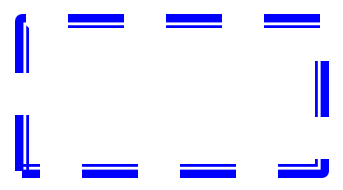
套用草圖效果於圖形線條
草圖效果會讓圖形線條看起來像手繪。使用 Shape.getLineFormat 取得線條設定,使用 LineFormat.getSketchFormat 取得草圖設定,並使用 SketchFormat.setSketchType 從 LineSketchType 列舉中選取值。
以下 PHP 程式碼示範如何套用 LineSketchType.Curved 效果,讀取明確指派的值,並使用 LineSketchType.None 移除效果:
$presentation = new Presentation();
try {
    $slide = $presentation->getSlides()->get_Item(0);
    $shape = $slide->getShapes()->addAutoShape(ShapeType::Rectangle, 50, 50, 200, 100);

    // 取得圖形的線條格式及其草圖格式。
    $sketchFormat = $shape->getLineFormat()->getSketchFormat();

    // 套用草圖效果。
    $sketchFormat->setSketchType(LineSketchType::Curved);

    // 讀取直接指派給圖形的草圖效果。
    $explicitSketchType = $sketchFormat->getSketchType();
    echo "Explicit sketch type: " . $explicitSketchType . PHP_EOL;

    // 移除草圖效果。
    $sketchFormat->setSketchType(LineSketchType::None);
} finally {
    $presentation->dispose();
}
由 SketchFormat.getSketchType 回傳的值代表直接指派給圖形的設定。如果線條格式可以從佈景主題、母片或版面投影片繼承,請使用 LineFormat.getEffective,取得回傳物件的 getSketchFormat 方法,並讀取其 getSketchType 值。有效值反映在繼承解析後實際套用的格式:
$presentation = new Presentation("presentation.pptx");
try {
    $shape = $presentation->getSlides()->get_Item(0)->getShapes()->get_Item(0);
    $lineFormat = $shape->getLineFormat();

    $explicitSketchType = $lineFormat->getSketchFormat()->getSketchType();
    $effectiveLineFormat = $lineFormat->getEffective();
    $effectiveSketchType = $effectiveLineFormat->getSketchFormat()->getSketchType();

    echo "Explicit sketch type: " . $explicitSketchType . PHP_EOL;
    echo "Effective sketch type: " . $effectiveSketchType . PHP_EOL;
} finally {
    $presentation->dispose();
}
格式接合樣式
以下是三種接合類型選項:
- Round
- Miter
- Bevel
預設情況下,PowerPoint 在以角度連接兩條線(例如圖形的角落)時使用 Round 設定。然而,若您在繪製具有銳角的圖形,可能會偏好 Miter 選項。
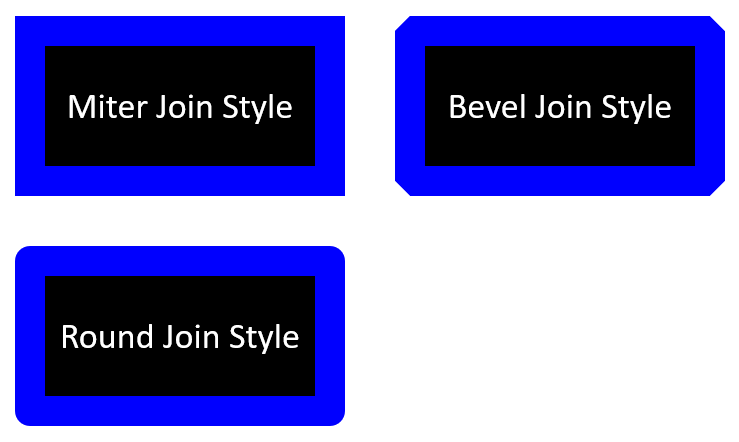
以下 PHP 程式碼示範如上圖所示的三個矩形分別使用 Miter、Bevel 與 Round 接合類型設定建立的方式:
// 實例化代表簡報檔案的 Presentation 類別。
$presentation = new Presentation();
try {
    // 取得第一張投影片。
    $slide = $presentation->getSlides()->get_Item(0);

    // 新增三個長方形類型的自動圖形。
    $shape1 = $slide->getShapes()->addAutoShape(ShapeType::Rectangle, 20, 20, 150, 75);
    $shape2 = $slide->getShapes()->addAutoShape(ShapeType::Rectangle, 210, 20, 150, 75);
    $shape3 = $slide->getShapes()->addAutoShape(ShapeType::Rectangle, 20, 135, 150, 75);

    // 為每個長方形圖形設定填色。
    $shape1->getFillFormat()->setFillType(FillType::Solid);
    $shape1->getFillFormat()->getSolidFillColor()->setColor(java("java.awt.Color")->BLACK);
    $shape2->getFillFormat()->setFillType(FillType::Solid);
    $shape2->getFillFormat()->getSolidFillColor()->setColor(java("java.awt.Color")->BLACK);
    $shape3->getFillFormat()->setFillType(FillType::Solid);
    $shape3->getFillFormat()->getSolidFillColor()->setColor(java("java.awt.Color")->BLACK);

    // 設定線條寬度。
    $shape1->getLineFormat()->setWidth(15);
    $shape2->getLineFormat()->setWidth(15);
    $shape3->getLineFormat()->setWidth(15);

    // 設定每個長方形線條的顏色。
    $shape1->getLineFormat()->getFillFormat()->setFillType(FillType::Solid);
    $shape1->getLineFormat()->getFillFormat()->getSolidFillColor()->setColor(java("java.awt.Color")->BLUE);
    $shape2->getLineFormat()->getFillFormat()->setFillType(FillType::Solid);
    $shape2->getLineFormat()->getFillFormat()->getSolidFillColor()->setColor(java("java.awt.Color")->BLUE);
    $shape3->getLineFormat()->getFillFormat()->setFillType(FillType::Solid);
    $shape3->getLineFormat()->getFillFormat()->getSolidFillColor()->setColor(java("java.awt.Color")->BLUE);

    // 設定接合樣式。
    $shape1->getLineFormat()->setJoinStyle(LineJoinStyle::Miter);
    $shape2->getLineFormat()->setJoinStyle(LineJoinStyle::Bevel);
    $shape3->getLineFormat()->setJoinStyle(LineJoinStyle::Round);

    // 為每個長方形加入文字。
    $shape1->getTextFrame()->setText("Miter Join Style");
    $shape2->getTextFrame()->setText("Bevel Join Style");
    $shape3->getTextFrame()->setText("Round Join Style");

    // 將 PPTX 檔案儲存至磁碟。
    $presentation->save("join_styles.pptx", SaveFormat::Pptx);
} finally {
    $presentation->dispose();
}
漸層填色
在 PowerPoint 中,漸層填色是一種格式化選項,讓您能對圖形套用連續的顏色混合。例如,您可以以兩種或多種顏色逐漸淡入的方式填充圖形。
以下說明如何使用 Aspose.Slides 套用漸層填色:
- 建立 Presentation 類別的實例。
- 依索引取得投影片參考。
- 為投影片新增一個 AutoShape。
- 將圖形的FillType 設為
Gradient。 - 使用 GradientFormat 類別所公開的漸層停止集合的
add方法,加入您偏好的兩個顏色並定義位置。 - 將修改後的簡報另存為 PPTX 檔案。
以下 PHP 程式碼示範如何對橢圓形套用漸層填色效果:
// 實例化代表簡報檔案的 Presentation 類別。
$presentation = new Presentation();
try {
    // 取得第一張投影片。
    $slide = $presentation->getSlides()->get_Item(0);

    // 新增橢圓形類型的自動圖形。
    $shape = $slide->getShapes()->addAutoShape(ShapeType::Ellipse, 50, 50, 150, 75);

    // 為橢圓形套用漸層格式。
    $shape->getFillFormat()->setFillType(FillType::Gradient);
    $shape->getFillFormat()->getGradientFormat()->setGradientShape(GradientShape::Linear);

    // 設定漸層的方向。
    $shape->getFillFormat()->getGradientFormat()->setGradientDirection(GradientDirection::FromCorner2);

    // 新增兩個漸層停止點。
    $shape->getFillFormat()->getGradientFormat()->getGradientStops()->addPresetColor(1.0, PresetColor::Purple);
    $shape->getFillFormat()->getGradientFormat()->getGradientStops()->addPresetColor(0, PresetColor::Red);

    // 將 PPTX 檔案儲存至磁碟。
    $presentation->save("gradient_fill.pptx", SaveFormat::Pptx);
} finally {
    $presentation->dispose();
}
結果:
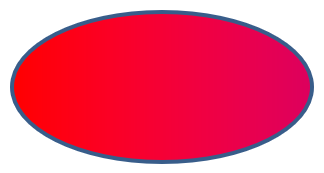
如果在匯出圖像時漸層呈現與 PowerPoint 中不同,請參考Choose a Gradient Rendering Style。您可以在不更改簡報中儲存的漸層填色的情況下選擇渲染樣式。
圖樣填色
在 PowerPoint 中,圖樣填色是一種格式化選項,讓您能對圖形套用兩色設計(例如點、條紋、交叉陰影或格子)。您可以為圖樣的前景與背景自訂顏色。
Aspose.Slides 提供超過 45 種預定義圖樣樣式,您可以套用於圖形以提升簡報的視覺效果。即使選擇了預定義圖樣,仍可指定其使用的精確顏色。
以下說明如何使用 Aspose.Slides 套用圖樣填色:
- 建立 Presentation 類別的實例。
- 依索引取得投影片參考。
- 為投影片新增一個 AutoShape。
- 將圖形的FillType 設為
Pattern。 - 從預定義選項中選取圖樣樣式。
- 設定圖樣的背景顏色。
- 設定圖樣的前景顏色。
- 將修改後的簡報另存為 PPTX 檔案。
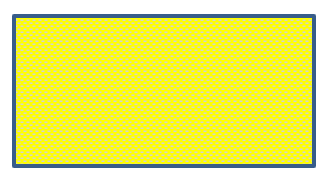
以下 PHP 程式碼示範如何對矩形套用圖樣填色:
// 實例化代表簡報檔案的 Presentation 類別。
$presentation = new Presentation();
try {
    // 取得第一張投影片。
    $slide = $presentation->getSlides()->get_Item(0);

    // 新增長方形類型的自動圖形。
    $shape = $slide->getShapes()->addAutoShape(ShapeType::Rectangle, 50, 50, 150, 75);

    // 設定填充類型為圖樣。
    $shape->getFillFormat()->setFillType(FillType::Pattern);

    // 設定圖樣樣式。
    $shape->getFillFormat()->getPatternFormat()->setPatternStyle(PatternStyle::Trellis);

    // 設定圖樣的背景色與前景色。
    $shape->getFillFormat()->getPatternFormat()->getBackColor()->setColor(java("java.awt.Color")->LIGHT_GRAY);
    $shape->getFillFormat()->getPatternFormat()->getForeColor()->setColor(java("java.awt.Color")->YELLOW);

    // 將 PPTX 檔案儲存至磁碟。
    $presentation->save("pattern_fill.pptx", SaveFormat::Pptx);
} finally {
    $presentation->dispose();
}
結果:
圖片填色
在 PowerPoint 中,圖片填色是一種格式化選項,讓您能在圖形內插入影像,實質上將影像作為圖形的背景。
以下說明如何使用 Aspose.Slides 套用圖片填色:
- 建立 Presentation 類別的實例。
- 依索引取得投影片參考。
- 為投影片新增一個 AutoShape。
- 將圖形的FillType 設為
Picture。 - 將圖片填色模式設為
Tile(或其他偏好的模式)。 - 從您要使用的影像建立一個 PPImage 物件。
- 將影像傳遞給
SlidesPicture.setImage方法。 - 將修改後的簡報另存為 PPTX 檔案。
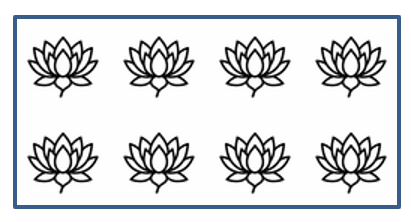
以下為「lotus.png」檔案的示例圖片:

以下 PHP 程式碼示範如何以圖片填滿圖形:
// 實例化代表簡報檔案的 Presentation 類別。
$presentation = new Presentation();
try {
    // 取得第一張投影片。
    $slide = $presentation->getSlides()->get_Item(0);

    // 新增長方形類型的自動圖形。
    $shape = $slide->getShapes()->addAutoShape(ShapeType::Rectangle, 50, 50, 255, 130);

    // 設定填充類型為圖片。
    $shape->getFillFormat()->setFillType(FillType::Picture);

    // 設定圖片填充模式。
    $shape->getFillFormat()->getPictureFillFormat()->setPictureFillMode(PictureFillMode::Tile);

    // 載入影像並將其加入簡報資源。
    $image = Images::fromFile("lotus.png");
    $picture = $presentation->getImages()->addImage($image);
    $image->dispose();

    // 設定圖片。
    $shape->getFillFormat()->getPictureFillFormat()->getPicture()->setImage($picture);

    // 將 PPTX 檔案儲存至磁碟。
    $presentation->save("picture_fill.pptx", SaveFormat::Pptx);
} finally {
    $presentation->dispose();
}
結果:
將圖片平鋪作為紋理
如果您想將平鋪圖片作為紋理並自訂平鋪行為,可使用 PictureFillFormat 類別的以下方法:
- setPictureFillMode:設定圖片填色模式—
Tile或Stretch。 - setTileAlignment:指定平鋪在圖形內的對齊方式。
- setTileFlip:控制平鋪是否水平、垂直或同時翻轉。
- setTileOffsetX:設定平鋪相對於圖形原點的水平偏移(點)。
- setTileOffsetY:設定平鋪相對於圖形原點的垂直偏移(點)。
- setTileScaleX:以百分比定義平鋪的水平縮放。
- setTileScaleY:以百分比定義平鋪的垂直縮放。
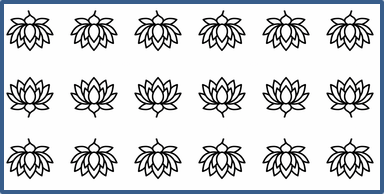
以下程式碼範例示範如何加入一個平鋪圖片填色的矩形圖形並設定平鋪選項:
// 實例化代表簡報檔案的 Presentation 類別。
$presentation = new Presentation();
try {
    // 取得第一張投影片。
    $firstSlide = $presentation->getSlides()->get_Item(0);

    // 新增長方形自動圖形。
    $shape = $firstSlide->getShapes()->addAutoShape(ShapeType::Rectangle, 50, 50, 190, 95);

    // 設定圖形的填充類型為圖片。
    $shape->getFillFormat()->setFillType(FillType::Picture);

    // 載入影像並將其加入簡報資源。
    $sourceImage = Images::fromFile("lotus.png");
    $presentationImage = $presentation->getImages()->addImage($sourceImage);
    $sourceImage->dispose();

    // 指定影像給圖形。
    $pictureFillFormat = $shape->getFillFormat()->getPictureFillFormat();
    $pictureFillFormat->getPicture()->setImage($presentationImage);

    // 設定圖片填充模式與平鋪屬性。
    $pictureFillFormat->setPictureFillMode(PictureFillMode::Tile);
    $pictureFillFormat->setTileOffsetX(-32);
    $pictureFillFormat->setTileOffsetY(-32);
    $pictureFillFormat->setTileScaleX(50);
    $pictureFillFormat->setTileScaleY(50);
    $pictureFillFormat->setTileAlignment(RectangleAlignment::BottomRight);
    $pictureFillFormat->setTileFlip(TileFlip::FlipBoth);

    // 將 PPTX 檔案儲存至磁碟。
    $presentation->save("tile.pptx", SaveFormat::Pptx);
} finally {
    $presentation->dispose();
}
結果:
純色填色
在 PowerPoint 中,純色填色是一種格式化選項,會以單一均勻的顏色填滿圖形。此背景色不包含任何漸層、紋理或圖樣。
使用 Aspose.Slides 為圖形套用純色填色,步驟如下:
- 建立 Presentation 類別的實例。
- 依索引取得投影片參考。
- 為投影片新增一個 AutoShape。
- 將圖形的FillType 設為
Solid。 - 為圖形指派您偏好的填色顏色。
- 將修改後的簡報另存為 PPTX 檔案。
以下 PHP 程式碼示範如何對投影片中的矩形套用純色填色:
// 實例化代表簡報檔案的 Presentation 類別。
$presentation = new Presentation();
try {
    // 取得第一張投影片。
    $slide = $presentation->getSlides()->get_Item(0);

    // 新增長方形類型的自動圖形。
    $shape = $slide->getShapes()->addAutoShape(ShapeType::Rectangle, 50, 50, 150, 75);

    // 設定填充類型為純色。
    $shape->getFillFormat()->setFillType(FillType::Solid);

    // 設定填充顏色。
    $shape->getFillFormat()->getSolidFillColor()->setColor(java("java.awt.Color")->YELLOW);

    // 將 PPTX 檔案儲存至磁碟。
    $presentation->save("solid_color_fill.pptx", SaveFormat::Pptx);
} finally {
    $presentation->dispose();
}
結果:

設定透明度
在 PowerPoint 中,對圖形套用純色、漸層、圖片或紋理填色時,您也可以設定透明度,以控制填色的透明程度。較高的透明度值會使圖形更透明,讓背景或下層物件部分可見。
Aspose.Slides 允許您透過調整用於填色的顏色的 alpha 值來設定透明度。操作方式如下:
- 建立 Presentation 類別的實例。
- 依索引取得投影片參考。
- 為投影片新增一個 AutoShape。
- 將FillType 設為
Solid。 - 使用
Color定義具有透明度的顏色(alpha元件控制透明度)。 - 儲存簡報。
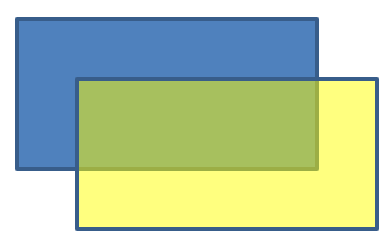
以下 PHP 程式碼示範如何對矩形套用透明填色:
// 實例化代表簡報檔案的 Presentation 類別。
$presentation = new Presentation();
try {
    // 取得第一張投影片。
    $slide = $presentation->getSlides()->get_Item(0);

    // 新增純色長方形自動圖形。
    $solidShape = $slide->getShapes()->addAutoShape(ShapeType::Rectangle, 50, 50, 150, 75);

    // 在純色圖形上方新增透明長方形自動圖形。
    $transparentShape = $slide->getShapes()->addAutoShape(ShapeType::Rectangle, 80, 80, 150, 75);
    $transparentShape->getFillFormat()->setFillType(FillType::Solid);
    $transparentShape->getFillFormat()->getSolidFillColor()->setColor(new java("java.awt.Color", 255, 255, 0, 204));

    // 將 PPTX 檔案儲存至磁碟。
    $presentation->save("shape_transparency.pptx", SaveFormat::Pptx);
} finally {
    $presentation->dispose();
}
結果:
旋轉圖形
Aspose.Slides 讓您能在 PowerPoint 簡報中旋轉圖形。這在需要特定對齊或設計需求時相當實用。
要在投影片上旋轉圖形,請依以下步驟操作:
- 建立 Presentation 類別的實例。
- 依索引取得投影片參考。
- 為投影片新增一個 AutoShape。
- 將圖形的旋轉屬性設定為所需角度。
- 儲存簡報。
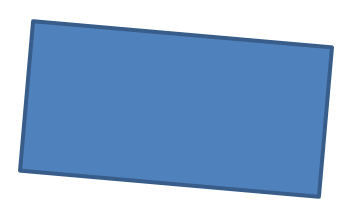
以下 PHP 程式碼示範如何將圖形旋轉 5 度:
// 實例化代表簡報檔案的 Presentation 類別。
$presentation = new Presentation();
try {
    // 取得第一張投影片。
    $slide = $presentation->getSlides()->get_Item(0);

    // 新增長方形類型的自動圖形。
    $shape = $slide->getShapes()->addAutoShape(ShapeType::Rectangle, 50, 50, 150, 75);

    // 將圖形旋轉 5 度。
    $shape->setRotation(5);

    // 將 PPTX 檔案儲存至磁碟。
    $presentation->save("shape_rotation.pptx", SaveFormat::Pptx);
} finally {
    $presentation->dispose();
}
結果:
新增 3D 倒角效果
Aspose.Slides 允許您透過設定其 ThreeDFormat 屬性,為圖形套用 3D 倒角效果。
要為圖形加入 3D 倒角效果,請依以下步驟操作:
- 實例化 Presentation 類別。
- 依索引取得投影片參考。
- 為投影片新增一個 AutoShape。
- 設定圖形的 ThreeDFormat 以定義倒角設定。
- 儲存簡報。
以下 PHP 程式碼顯示如何對圖形套用 3D 倒角效果:
// 實例化代表簡報檔案的 Presentation 類別。
$presentation = new Presentation();
try {
    $slide = $presentation->getSlides()->get_Item(0);

    // 在投影片上新增圖形。
    $shape = $slide->getShapes()->addAutoShape(ShapeType::Ellipse, 50, 50, 100, 100);
    $shape->getFillFormat()->setFillType(FillType::Solid);
    $shape->getFillFormat()->getSolidFillColor()->setColor(java("java.awt.Color")->GREEN);
    $shape->getLineFormat()->getFillFormat()->setFillType(FillType::Solid);
    $shape->getLineFormat()->getFillFormat()->getSolidFillColor()->setColor(java("java.awt.Color")->ORANGE);
    $shape->getLineFormat()->setWidth(2.0);

    // 設定圖形的 ThreeDFormat 屬性。
    $shape->getThreeDFormat()->setDepth(4);
    $shape->getThreeDFormat()->getBevelTop()->setBevelType(BevelPresetType::Circle);
    $shape->getThreeDFormat()->getBevelTop()->setHeight(6);
    $shape->getThreeDFormat()->getBevelTop()->setWidth(6);
    $shape->getThreeDFormat()->getCamera()->setCameraType(CameraPresetType::OrthographicFront);
    $shape->getThreeDFormat()->getLightRig()->setLightType(LightRigPresetType::ThreePt);
    $shape->getThreeDFormat()->getLightRig()->setDirection(LightingDirection::Top);

    // 将簡報儲存為 PPTX 檔案。
    $presentation->save("3D_bevel_effect.pptx", SaveFormat::Pptx);
} finally {
    $presentation->dispose();
}
結果:

新增 3D 旋轉效果
Aspose.Slides 允許您透過設定其 ThreeDFormat 屬性,為圖形套用 3D 旋轉效果。
要對圖形套用 3D 旋轉:
- 建立 Presentation 類別的實例。
- 依索引取得投影片參考。
- 為投影片新增一個 AutoShape。
- 使用 setCameraType 與 setLightType 定義 3D 旋轉。
- 儲存簡報。
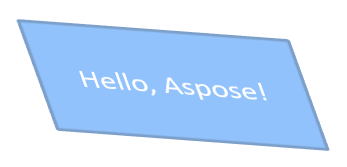
以下 PHP 程式碼示範如何對圖形套用 3D 旋轉效果:
// 建立 Presentation 類別的實例。
$presentation = new Presentation();
try {
    $slide = $presentation->getSlides()->get_Item(0);

    $autoShape = $slide->getShapes()->addAutoShape(ShapeType::Rectangle, 50, 50, 150, 75);
    $autoShape->getTextFrame()->setText("Hello, Aspose!");

    $autoShape->getThreeDFormat()->setDepth(6);
    $autoShape->getThreeDFormat()->getCamera()->setRotation(40, 35, 20);
    $autoShape->getThreeDFormat()->getCamera()->setCameraType(CameraPresetType::IsometricLeftUp);
    $autoShape->getThreeDFormat()->getLightRig()->setLightType(LightRigPresetType::Balanced);

    // 將簡報儲存為 PPTX 檔案。
    $presentation->save("3D_rotation_effect.pptx", SaveFormat::Pptx);
} finally {
    $presentation->dispose();
}
結果:
控制圖形的黑白渲染
Shape::setBlackWhiteMode 方法指定在以黑白模式檢視或處理簡報時,單一圖形的呈現方式。它本身不會啟用黑白顯示,也不會在正常彩色模式下變更圖形的填色、線條或其他格式。
請使用 BlackWhiteMode 類別中的值選取所需行為。例如,Automatic 讓渲染程式自行決定轉換方式,Gray 與 LightGray 使用灰階顏色,BlackWhite 只使用黑與白,Black、White 強制單一顏色,Color 保留正常彩色,Hidden 在黑白模式下隱藏圖形,NotDefined 表示未指派圖形層級的模式。
以下 PHP 程式碼建立一個彩色圖形,並在黑白顯示模式下使其呈現為灰色:
use aspose\slides\BlackWhiteMode;
use aspose\slides\FillType;
use aspose\slides\Presentation;
use aspose\slides\SaveFormat;
use aspose\slides\ShapeType;

$presentation = new Presentation();
try {
    $slide = $presentation->getSlides()->get_Item(0);

    $shape = $slide->getShapes()->addAutoShape(ShapeType::Rectangle, 50, 50, 200, 100);
    $shape->getFillFormat()->setFillType(FillType::Solid);
    $orange = new Java("java.awt.Color", 255, 165, 0);
    $shape->getFillFormat()->getSolidFillColor()->setColor($orange);

    // 在彩色模式下保持橙色填色,但在黑白模式下以灰階顏色渲染圖形。
    $shape->setBlackWhiteMode(BlackWhiteMode::Gray);

    $presentation->save("shape_black_white_mode.pptx", SaveFormat::Pptx);
} finally {
    $presentation->dispose();
}
在正常彩色模式下,矩形仍保留橙色填色。在黑白顯示工作流程中,因其模式設定為 Gray,因此會以灰階呈現。這讓您在保留完整彩色投影片的同時,針對列印、預覽或其他遵循黑白顯示設定的工作流程定義不同的外觀。
重設格式
以下 Java 程式碼示範如何重設投影片的格式,並將所有帶有佔位符的圖形在 LayoutSlide 上的位置、大小與格式恢復為預設設定:
$presentation = new Presentation("sample.pptx");
try {
    for ($i = 0; $i < java_values($presentation->getSlides()->size()); $i++) {
        $slide = $presentation->getSlides()->get_Item($i);
        // 重設投影片上具有版面佔位符的每個圖形。
        $slide->reset();
    }
    $presentation->save("reset_formatting.pptx", SaveFormat::Pptx);
} finally {
    $presentation->dispose();
}
FAQ
形狀格式化會影響最終簡報檔案大小嗎?
影響極小。嵌入的影像與媒體佔用大部分檔案空間,而形狀的參數如顏色、效果與漸層僅以中繼資料儲存,幾乎不會增加額外大小。
如何偵測投影片中具有相同格式的圖形,以便將它們分組?
比較每個圖形的關鍵格式屬性——填色、線條與效果設定。若所有對應值相符,即可視為相同樣式,並在邏輯上將這些圖形分組,這可簡化後續的樣式管理。
我可以將一組自訂圖形樣式儲存為獨立檔案,以便在其他簡報中重複使用嗎?
可以。將帶有所需樣式的範本圖形存於模板投影片或 .POTX 模板檔案中。建立新簡報時,開啟該模板,複製所需的已樣式化圖形,並在需要的地方重新套用其格式。