
在 Python 中管理簡報圖形
概覽
Aspose.Slides for Python via .NET 將投影片上的圖形表示為有序的 ShapeCollection。集合同時是您尋找和修改圖形的場所,也是它們堆疊順序的來源:索引 0 為最背面的圖形,而最後的索引則為最前面的圖形。
本篇文章遵循此模型。它首先說明如何可靠地識別圖形並修改預設的圖形調整點,然後示範如何複製、移除、隱藏與重新排序圖形。最後的章節涵蓋版面層級的格式設定、SVG 匯出、對齊與翻轉設定。每個範例都是獨立的,您可以僅使用工作流程所需的操作。
識別與尋找圖形
在處理已知檔案時,集合索引很方便,但它們不是穩定的識別子。新增、移除或重新排序圖形都會改變其索引。請依照簡報的編寫與維護方式選擇識別子:
- Shape.name 於開發人員控制的模板中很有用,且在 PowerPoint 的「選取窗格」中易於檢查。名稱可以編輯且不保證唯一,若程式碼依賴名稱,請建立命名慣例。
- Shape.alternative_text 在可訪問性說明或作者自訂標籤已辨識圖形時有用。它對使用者可見,可能會本地化或為可訪問性重新撰寫,且不保證唯一。請勿將有意義的可訪問性文字默默用作資料庫金鑰。
- Shape.office_interop_shape_id 為唯讀識別子,在投影片內唯一,對應 PowerPoint interop 使用的圖形 ID。於整合 PowerPoint 或需要在圖形生命週期內擁有明確參照時使用。被複製或重新建立的圖形是不同的圖形,會取得自己的 ID。
相關的 Shape.unique_id 屬性具有簡報範圍,但僅供外掛使用,且可能被重新指派。不要將它視為永久的外部鍵。若長期身份辨識很重要,請將映射保留在應用程式資料中,並驗證預期的圖形仍然存在。
以下範例以完全相等的方式使用 name 搜尋,並回報投影片範圍的 interop ID。當模板未包含預期的圖形時,程式會回報該結果而非繼續使用錯誤的物件。
import aspose.slides as slides

with slides.Presentation("input.pptx") as presentation:
    slide = presentation.slides[0]

    target_shape = None
    for shape in slide.shapes:
        if shape.name == "RevenueChart":
            target_shape = shape
            break

    if target_shape is None:
        print("The shape 'RevenueChart' was not found on slide 1.")
    else:
        print("Found {}; interop ID: {}".format(target_shape.name, target_shape.office_interop_shape_id))
當操作針對特定圖形類型時,請先檢查類型再使用該類型的成員。此範例僅在命名的物件為 AutoShape 時才更新文字與替代文字。
import aspose.slides as slides

with slides.Presentation("input.pptx") as presentation:
    slide = presentation.slides[0]

    candidate = None
    for shape in slide.shapes:
        if shape.name == "StatusLabel":
            candidate = shape
            break

    if isinstance(candidate, slides.AutoShape):
        candidate.text_frame.text = "Approved"
        candidate.alternative_text = "Approval status: approved"
        presentation.save("identified-shape.pptx", slides.export.SaveFormat.PPTX)
    else:
        print("'StatusLabel' is missing or is not an AutoShape.")
識別與修改預設圖形調整
預設幾何圖形可以暴露調整點,以控制角落大小、箭頭比例或弧度等特徵。請透過唯讀的 GeometryShape.adjustments 集合存取它們。集合本身由圖形提供,但每個 AdjustValue 含有可變更的值。
不要只依賴固定的集合索引。遍歷調整項目並檢查唯讀的 AdjustValue.type 屬性,其 ShapeAdjustmentType 值說明此調整控制什麼。唯讀的 AdjustValue.name 屬性提供額外辨識資訊,特別在同一預設包含多個相同語意類型的調整時很有用。
使用符合調整意義的值屬性:
| 調整類型 | 用途 | 要變更的值 |
|---|---|---|
CORNER_SIZE |
圓角的大小 | raw_value |
ARROW_TAIL_THICKNESS |
箭頭尾部的粗細 | raw_value |
ARROWHEAD_LENGTH |
箭頭頭部的長度 | raw_value |
ARROWHEAD_WIDTH |
箭頭頭部的寬度 | raw_value |
START_ANGLE |
扇形或弧形的起始角度 | angle_value |
END_ANGLE |
扇形或弧形的結束角度 | angle_value |
type 與 name 無法指派。raw_value 是預設幾何單位的可讀寫整數,而 angle_value 是度數的可讀寫角度。調整的數量、順序、意義與有效範圍取決於預設的 GeometryShape.shape_type。對於一個預設有效的值,對於另一個預設可能無效或產生不同效果。
當 type 為 ShapeAdjustmentType.CUSTOM 時,API 無法辨識標準語意。檢查 name、預設類型與現有值,除非已知預期意義與範圍,否則保持調整不變。即使是已辨識的類型,在選擇值前也要確認同一類型是否出現多次。Connector 文章示範了連接器彎曲調整的情況。
以下完整範例建立三個預設圖形的預設與修改版本。它遍歷每個調整,回報其 name 與 type,透過 raw_value 變更與大小相關的值,透過 angle_value 變更角度,並保存結果。左欄保留預設幾何,右欄顯示調整後的圓角矩形、四向箭頭與扇形。
import aspose.slides as slides

with slides.Presentation() as presentation:
    slide = presentation.slides[0]

    # 為預設與已調整的圖形欄位添加標題。
    default_column_label = slide.shapes.add_auto_shape(slides.ShapeType.RECTANGLE, 40, 20, 250, 30)
    default_column_label.text_frame.text = "Default preset geometry"
    adjusted_column_label = slide.shapes.add_auto_shape(slides.ShapeType.RECTANGLE, 390, 20, 250, 30)
    adjusted_column_label.text_frame.text = "Modified adjustment values"

    slide.shapes.add_auto_shape(slides.ShapeType.ROUND_CORNER_RECTANGLE, 80, 70, 160, 70)
    modified_rounded_rectangle = slide.shapes.add_auto_shape(slides.ShapeType.ROUND_CORNER_RECTANGLE, 430, 70, 160, 70)
    modified_rounded_rectangle.name = "ModifiedRoundedRectangle"

    slide.shapes.add_auto_shape(slides.ShapeType.QUAD_ARROW, 80, 180, 160, 110)
    modified_arrow = slide.shapes.add_auto_shape(slides.ShapeType.QUAD_ARROW, 430, 180, 160, 110)
    modified_arrow.name = "ModifiedQuadArrow"

    slide.shapes.add_auto_shape(slides.ShapeType.PIE, 95, 330, 130, 130)
    modified_pie = slide.shapes.add_auto_shape(slides.ShapeType.PIE, 445, 330, 130, 130)
    modified_pie.name = "ModifiedPie"

    shapes_to_adjust = [modified_rounded_rectangle, modified_arrow, modified_pie]

    for shape in shapes_to_adjust:
        for adjustment in shape.adjustments:
            print("{} / {}: {}".format(shape.name, adjustment.name, adjustment.type.name))

            if adjustment.type == slides.ShapeAdjustmentType.CORNER_SIZE:
                adjustment.raw_value = 5000
            elif adjustment.type == slides.ShapeAdjustmentType.ARROW_TAIL_THICKNESS:
                adjustment.raw_value = 25000
            elif adjustment.type == slides.ShapeAdjustmentType.ARROWHEAD_LENGTH:
                adjustment.raw_value = 30000
            elif adjustment.type == slides.ShapeAdjustmentType.ARROWHEAD_WIDTH:
                adjustment.raw_value = 40000
            elif adjustment.type == slides.ShapeAdjustmentType.START_ANGLE:
                adjustment.angle_value = 30
            elif adjustment.type == slides.ShapeAdjustmentType.END_ANGLE:
                adjustment.angle_value = 300
            elif adjustment.type == slides.ShapeAdjustmentType.CUSTOM:
                print("Custom adjustment '{}' was not changed.".format(adjustment.name))

    presentation.save("preset-shape-adjustments.pptx", slides.export.SaveFormat.PPTX)
在變更值之前檢查語意類型,使程式碼意圖清晰,並避免假設特定集合索引在不同預設圖形間具有相同意義。
修改圖形集合
新增、複製、移除與重新排序的方法會立即作用於集合。如果操作改變了圖形的數量或順序,請勿再依賴先前捕獲的索引。
複製圖形
ShapeCollection.add_clone 會建立獨立的副本並將其附加至目標集合的末端。ShapeCollection.insert_clone 也會建立副本,但會放置於指定的 Z 軸索引。接受座標的重載會在不變更大小的情況下移動副本;帶寬高的重載則可同時調整大小。
以下範例建立目的投影片,將標記矩形以 add_clone 複製到前方,並以 insert_clone 在背後插入第二個副本。對任一副本的變更都不會影響來源圖形。
import aspose.slides as slides

with slides.Presentation() as presentation:
    source_slide = presentation.slides[0]
    source_shape = source_slide.shapes.add_auto_shape(slides.ShapeType.RECTANGLE, 40, 40, 180, 60)
    source_shape.name = "SourceLabel"
    source_shape.text_frame.text = "Source"

    blank_layout = presentation.masters[0].layout_slides.get_by_type(slides.SlideLayoutType.BLANK)
    destination_slide = presentation.slides.add_empty_slide(blank_layout)

    front_clone_shape = destination_slide.shapes.add_clone(source_shape, 80, 80)
    front_clone_shape.name = "FrontClone"
    if isinstance(front_clone_shape, slides.AutoShape):
        front_clone_shape.text_frame.text = "Front clone"
    else:
        print("The front clone is not an AutoShape; its text was not changed.")

    back_clone_shape = destination_slide.shapes.insert_clone(0, source_shape, 80, 180)
    back_clone_shape.name = "BackClone"
    if isinstance(back_clone_shape, slides.AutoShape):
        back_clone_shape.text_frame.text = "Back clone"
    else:
        print("The back clone is not an AutoShape; its text was not changed.")

    presentation.save("cloned-shapes.pptx", slides.export.SaveFormat.PPTX)
複製會複製圖形的內容與格式,包括其名稱與替代文字。若這些值必須唯一,請為副本指派新的邏輯識別子。複雜圖形使用的資源由簡報處理,但副本仍是集合中新項目,具有新的圖形身份。
移除圖形
ShapeCollection.remove 會從其集合中刪除特定圖形物件。於索引迭代期間移除多個匹配項目時,請從結尾往前遍歷,以確保每個剩餘索引仍有效。
此範例移除所有具有指定名稱的圖形。它讀取 slide.shapes[index],而非固定的集合項目,且未不必要地強制轉型。
import aspose.slides as slides

with slides.Presentation() as presentation:
    slide = presentation.slides[0]

    keep_shape = slide.shapes.add_auto_shape(slides.ShapeType.RECTANGLE, 40, 40, 140, 60)
    keep_shape.name = "Keep"

    first_temporary_shape = slide.shapes.add_auto_shape(slides.ShapeType.ELLIPSE, 220, 40, 80, 80)
    first_temporary_shape.name = "Temporary"

    second_temporary_shape = slide.shapes.add_auto_shape(slides.ShapeType.TRIANGLE, 340, 40, 100, 80)
    second_temporary_shape.name = "Temporary"

    for index in range(len(slide.shapes) - 1, -1, -1):
        shape = slide.shapes[index]
        if shape.name == "Temporary":
            slide.shapes.remove(shape)

    presentation.save("removed-shapes.pptx", slides.export.SaveFormat.PPTX)
移除後,圖形計數與之後圖形的索引皆會變更。對未受影響的圖形的引用比儲存的索引更可靠。也請考慮連接器、動畫與其他可能參照被移除物件的簡報功能;移除可見圖形可能會改變投影片外觀之外的更多內容。
隱藏圖形
將 Shape.hidden 設為 True 會保留圖形於集合中,但阻止其在普通投影片放映中出現。其索引、格式與內容仍可被程式碼存取,因而適合用於日後可能恢復的可選元素。
import aspose.slides as slides

with slides.Presentation() as presentation:
    slide = presentation.slides[0]

    visible_shape = slide.shapes.add_auto_shape(slides.ShapeType.RECTANGLE, 40, 40, 160, 60)
    visible_shape.name = "VisibleLabel"

    optional_shape = slide.shapes.add_auto_shape(slides.ShapeType.MOON, 240, 40, 100, 100)
    optional_shape.name = "OptionalDecoration"

    for shape in slide.shapes:
        if shape.name == "OptionalDecoration":
            shape.hidden = True

    presentation.save("hidden-shape.pptx", slides.export.SaveFormat.PPTX)
隱藏並非刪除或安全措施。使用者或程式碼仍可發現並取消隱藏,它仍是簡報檔的一部份。
變更 Z 軸順序
重疊的圖形會依集合順序繪製。ShapeCollection.reorder 會將既有圖形移動至目標索引,而不會複製。索引 0 為最背,len(slide.shapes) - 1 為最前。
import aspose.pydrawing as draw
import aspose.slides as slides

with slides.Presentation() as presentation:
    slide = presentation.slides[0]

    blue_rectangle = slide.shapes.add_auto_shape(slides.ShapeType.RECTANGLE, 100, 100, 220, 120)
    blue_rectangle.name = "BlueRectangle"
    blue_rectangle.fill_format.fill_type = slides.FillType.SOLID
    blue_rectangle.fill_format.solid_fill_color.color = draw.Color.steel_blue

    orange_ellipse = slide.shapes.add_auto_shape(slides.ShapeType.ELLIPSE, 180, 140, 220, 120)
    orange_ellipse.name = "OrangeEllipse"
    orange_ellipse.fill_format.fill_type = slides.FillType.SOLID
    orange_ellipse.fill_format.solid_fill_color.color = draw.Color.orange

    slide.shapes.reorder(len(slide.shapes) - 1, blue_rectangle)
    presentation.save("reordered-shapes.pptx", slides.export.SaveFormat.PPTX)
矩形最先建立,最初位於橢圓之後。將其移至最終索引即會置於前方。於新增或複製所有相關圖形後才最終確定 Z 軸順序,因為這些操作會附加或插入新集合項目,可能改變原先的堆疊。
檢查版面投影片上的圖形
普通投影片、版面投影片與母片投影片各自擁有獨立的圖形集合。版面集合中的圖形並非與普通投影片上相同位置的圖形同一個物件。當您需要了解或變更版面提供的格式時,請檢查版面圖形。
以下範例讀取每個版面圖形的 Shape.fill_format 與 Shape.line_format,且不假設每個圖形都是 AutoShape。
import aspose.slides as slides

with slides.Presentation("input.pptx") as presentation:
    for layout_slide in presentation.layout_slides:
        for shape in layout_slide.shapes:
            fill_type = shape.fill_format.fill_type
            line_width = shape.line_format.width
            print("{} / {}: fill={}, line width={}".format(layout_slide.name, shape.name, fill_type, line_width))
編輯版面可能會影響使用該版面的多張投影片。變更版面圖形之前,先確定普通投影片是繼承該物件還是有本機覆寫,並測試所有使用該版面的投影片。
將圖形匯出為 SVG
Shape.write_as_svg 會將單一圖形的渲染內容寫入串流。結果僅包含該圖形,而不包括整張投影片的背景或相鄰圖形。
import aspose.slides as slides

with slides.Presentation("input.pptx") as presentation:
    slide = presentation.slides[0]

    if len(slide.shapes) == 0:
        print("Slide 1 does not contain a shape to export.")
    else:
        shape = slide.shapes[0]
        with open("shape.svg", "wb") as svg_stream:
            shape.write_as_svg(svg_stream)
在渲染期間保持簡報開啟。輸出受圖形格式以及字型、影像等資源影響。若需要整個組合,請匯出投影片而非單一圖形。呼叫端負責擁有串流並在完成後關閉。
對齊圖形
SlideUtil.align_shapes 的多載可對齊全部圖形或選取的集合索引。ShapesAlignmentType 指定對齊的邊緣、中心線或分布模式。將 align_to_slide 設為 True 以使用投影片邊緣;設為 False 則相對於彼此對齊選取的圖形。
此範例將三個圖形對齊至投影片的上緣。它會在對齊前立即解析當前索引。
import aspose.slides as slides

with slides.Presentation() as presentation:
    slide = presentation.slides[0]

    first_shape = slide.shapes.add_auto_shape(slides.ShapeType.RECTANGLE, 60, 80, 120, 50)
    second_shape = slide.shapes.add_auto_shape(slides.ShapeType.ELLIPSE, 240, 160, 120, 50)
    third_shape = slide.shapes.add_auto_shape(slides.ShapeType.TRIANGLE, 420, 240, 120, 50)
    first_shape.name = "FirstAlignedShape"
    second_shape.name = "SecondAlignedShape"
    third_shape.name = "ThirdAlignedShape"

    shape_indexes = [
        slide.shapes.index_of(first_shape),
        slide.shapes.index_of(second_shape),
        slide.shapes.index_of(third_shape)
    ]

    slides.util.SlideUtil.align_shapes(slides.ShapesAlignmentType.ALIGN_TOP, True, slide, shape_indexes)
    presentation.save("aligned-shapes.pptx", slides.export.SaveFormat.PPTX)
對齊會改變位置,而非 Z 軸順序。相對對齊通常需要至少兩個圖形,而水平或垂直分布則需要足夠的圖形以定義間距。若在呼叫方法前修改了集合,請重新計算索引。
翻轉圖形
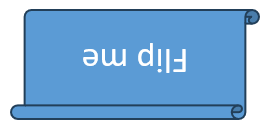
ShapeFrame 類別儲存位置、大小、水平與垂直翻轉設定以及旋轉。其 flip_h 與 flip_v 值使用 NullableBool:TRUE 代表啟用翻轉,FALSE 代表停用,而 NOT_DEFINED 則保留未指定或預設狀態。
以下輸入簡報包含一個未翻轉的圖形。
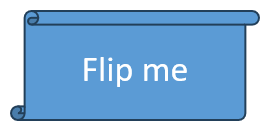
此範例保留其他所有框架值,僅取代兩個翻轉設定。這很重要,因為指派新的 Shape.frame 會取代完整的框架。
import aspose.slides as slides

with slides.Presentation("sample.pptx") as presentation:
    shape = presentation.slides[0].shapes[0]
    frame = shape.frame

    print("Horizontal flip before change:", frame.flip_h)
    print("Vertical flip before change:", frame.flip_v)

    shape.frame = slides.ShapeFrame(
        frame.x, frame.y, frame.width, frame.height,
        slides.NullableBool.TRUE, slides.NullableBool.TRUE, frame.rotation)

    presentation.save("flipped-shape.pptx", slides.export.SaveFormat.PPTX)
儲存的圖形在水平與垂直方向皆為鏡像,同時保持其位置、大小與旋轉。
常見問題
我可以使用集合索引作為圖形識別子嗎?
僅在集合在使用索引前不會變更的短暫處理情境下可行。對於已編寫的模板,建議使用已驗證的 name 或 alternative_text 慣例,或在投影片範圍的 interop 工作中使用 office_interop_shape_id。
隱藏圖形會將其從 Z 軸順序移除嗎?
不會。隱藏的圖形仍保留於集合中,索引不變。它仍可被搜尋、重新排序、編輯,或再次顯示。
為什麼複製的圖形會出現在另一個圖形的前面?
add_clone 會將副本附加至集合的末端,即 Z 軸的最前端。若要選擇初始索引,可使用 insert_clone,或在全部圖形加入後使用 reorder。
我可以使用固定索引識別預設圖形調整嗎?
僅在已驗證確切預設與集合佈局後方可。建議遍歷 GeometryShape.adjustments 並檢查 AdjustValue.type;若同一語意類型出現多次,請使用 AdjustValue.name 作為額外資訊。