
在 Android 上格式化 PowerPoint 形状
简介
在 PowerPoint 中,您可以向幻灯片添加形状。由于形状由线条组成,您可以通过修改或应用效果来格式化它们的轮廓。此外,您还可以通过指定控制内部填充方式的设置来格式化形状。
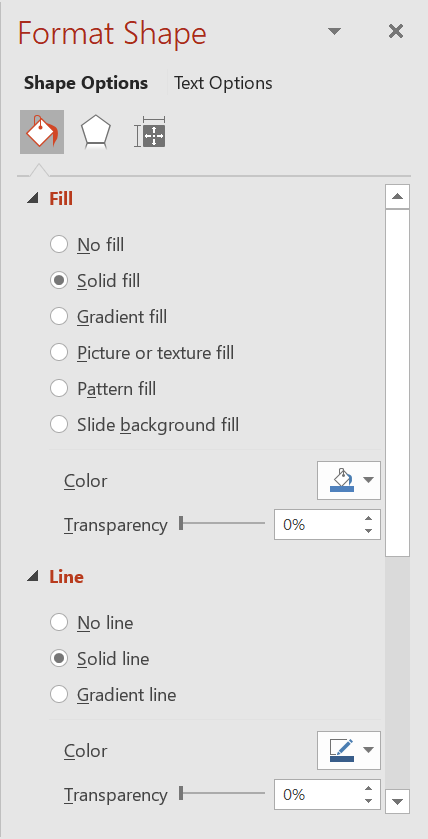
Aspose.Slides for Android via Java 提供了接口和方法,允许您使用 PowerPoint 中相同的选项来格式化形状。
格式线条
使用 Aspose.Slides,您可以为形状指定自定义线条样式。下面的步骤概述了该过程:
- 创建一个 Presentation 类的实例。
- 通过索引获取幻灯片的引用。
- 向幻灯片添加一个 IAutoShape。
- 设置形状的 线条样式。
- 设置线宽。
- 设置线条的 虚线样式。
- 设置形状的线条颜色。
- 将修改后的演示文稿保存为 PPTX 文件。
以下代码演示如何格式化矩形 AutoShape:
import com.aspose.slides.*;
import java.awt.Color;

// 实例化表示演示文稿文件的 Presentation 类。
Presentation presentation = new Presentation();
try {
    // 获取第一张幻灯片。
    ISlide slide = presentation.getSlides().get_Item(0);

    // 添加一个矩形类型的自动形状。
    IAutoShape shape = slide.getShapes().addAutoShape(ShapeType.Rectangle, 50, 150, 150, 75);

    // 移除矩形形状的填充,使仅显示其线条。
    shape.getFillFormat().setFillType(FillType.NoFill);

    // 对矩形的线条应用格式。
    shape.getLineFormat().setStyle(LineStyle.ThickThin);
    shape.getLineFormat().setWidth(7);
    shape.getLineFormat().setDashStyle(LineDashStyle.Dash);

    // 设置矩形线条的颜色。
    shape.getLineFormat().getFillFormat().setFillType(FillType.Solid);
    shape.getLineFormat().getFillFormat().getSolidFillColor().setColor(Color.BLUE);

    // 将 PPTX 文件保存到磁盘。
    presentation.save("formatted_lines.pptx", SaveFormat.Pptx);
} finally {
    presentation.dispose();
}
结果:

对形状线条应用草图效果
草图效果使形状线条看起来像手绘。使用 IShape.getLineFormat 访问线条设置,使用 ILineFormat.getSketchFormat 访问草图设置,并使用 ISketchFormat.setSketchType 从 LineSketchType 枚举中选择值。
以下 Java 代码示例演示如何使用 LineSketchType.Curved 效果、读取显式分配的值,并使用 LineSketchType.None 移除该效果:
import com.aspose.slides.*;

Presentation presentation = new Presentation();
try {
    ISlide slide = presentation.getSlides().get_Item(0);
    IAutoShape shape = slide.getShapes().addAutoShape(ShapeType.Rectangle, 50, 50, 200, 100);

    // 访问形状的线条格式及其草图格式。
    ISketchFormat sketchFormat = shape.getLineFormat().getSketchFormat();

    // 应用草图效果。
    sketchFormat.setSketchType(LineSketchType.Curved);

    // 读取直接分配给形状的草图效果。
    int explicitSketchType = sketchFormat.getSketchType();
    System.out.println("Explicit sketch type: " + explicitSketchType);

    // 移除草图效果。
    sketchFormat.setSketchType(LineSketchType.None);
} finally {
    presentation.dispose();
}
ISketchFormat.getSketchType 返回的值表示直接分配给形状的设置。如果线条格式可以从主题、母版幻灯片或版式幻灯片继承,请使用 ILineFormat.getEffective,访问 ILineFormatEffectiveData.getSketchFormat,并读取 ISketchFormatEffectiveData.getSketchType。有效值反映在解析继承后实际应用的格式:
import com.aspose.slides.*;

Presentation presentation = new Presentation("presentation.pptx");
try {
    IShape shape = presentation.getSlides().get_Item(0).getShapes().get_Item(0);
    ILineFormat lineFormat = shape.getLineFormat();

    int explicitSketchType = lineFormat.getSketchFormat().getSketchType();
    ILineFormatEffectiveData effectiveLineFormat = lineFormat.getEffective();
    int effectiveSketchType = effectiveLineFormat.getSketchFormat().getSketchType();

    System.out.println("Explicit sketch type: " + explicitSketchType);
    System.out.println("Effective sketch type: " + effectiveSketchType);
} finally {
    presentation.dispose();
}
格式连接样式
以下是三种连接类型选项:
- 圆角
- 斜接
- 斜面
默认情况下,当 PowerPoint 在角度处(例如形状的拐角)连接两条线时,使用 Round 设置。然而,如果您绘制的是具有锐角的形状,可能更倾向于 Miter 选项。
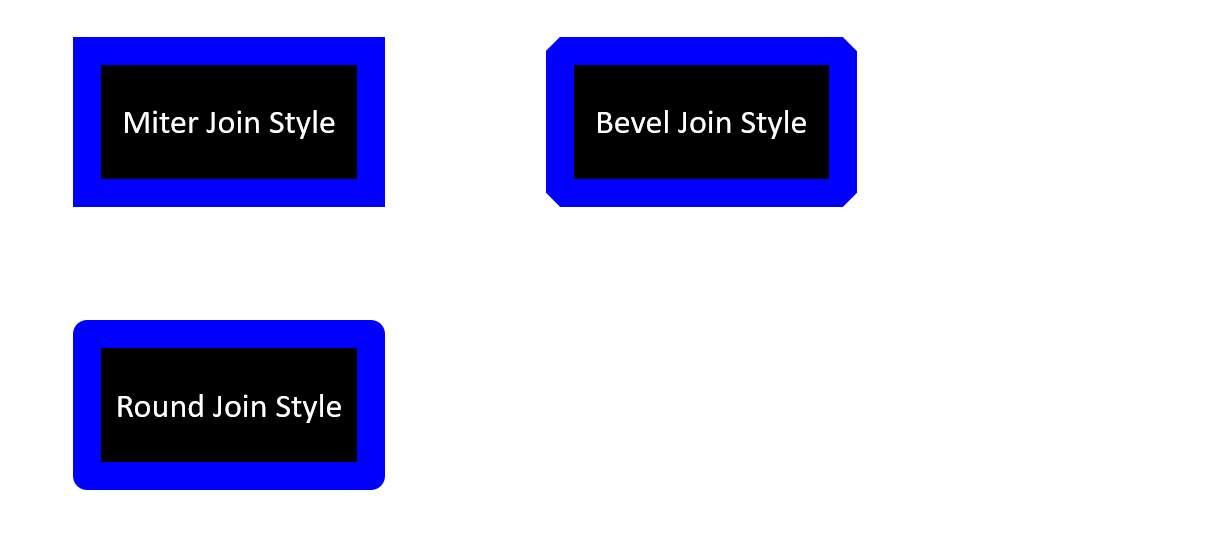
以下 Java 代码演示了如上图所示的三个矩形分别使用 Miter、Bevel 和 Round 连接类型创建的过程:
import com.aspose.slides.*;
import java.awt.Color;

// 实例化表示演示文稿文件的 Presentation 类。
Presentation presentation = new Presentation();
try {
    // 获取第一张幻灯片。
    ISlide slide = presentation.getSlides().get_Item(0);

    // 添加三个矩形类型的自动形状。
    IAutoShape shape1 = slide.getShapes().addAutoShape(ShapeType.Rectangle, 20, 20, 150, 75);
    IAutoShape shape2 = slide.getShapes().addAutoShape(ShapeType.Rectangle, 210, 20, 150, 75);
    IAutoShape shape3 = slide.getShapes().addAutoShape(ShapeType.Rectangle, 20, 135, 150, 75);

    // 为每个矩形形状设置填充颜色。
    shape1.getFillFormat().setFillType(FillType.Solid);
    shape1.getFillFormat().getSolidFillColor().setColor(Color.BLACK);
    shape2.getFillFormat().setFillType(FillType.Solid);
    shape2.getFillFormat().getSolidFillColor().setColor(Color.BLACK);
    shape3.getFillFormat().setFillType(FillType.Solid);
    shape3.getFillFormat().getSolidFillColor().setColor(Color.BLACK);

    // 设置线宽。
    shape1.getLineFormat().setWidth(15);
    shape2.getLineFormat().setWidth(15);
    shape3.getLineFormat().setWidth(15);

    // 为每个矩形的线条设置颜色。
    shape1.getLineFormat().getFillFormat().setFillType(FillType.Solid);
    shape1.getLineFormat().getFillFormat().getSolidFillColor().setColor(Color.BLUE);
    shape2.getLineFormat().getFillFormat().setFillType(FillType.Solid);
    shape2.getLineFormat().getFillFormat().getSolidFillColor().setColor(Color.BLUE);
    shape3.getLineFormat().getFillFormat().setFillType(FillType.Solid);
    shape3.getLineFormat().getFillFormat().getSolidFillColor().setColor(Color.BLUE);

    // 设置连接样式。
    shape1.getLineFormat().setJoinStyle(LineJoinStyle.Miter);
    shape2.getLineFormat().setJoinStyle(LineJoinStyle.Bevel);
    shape3.getLineFormat().setJoinStyle(LineJoinStyle.Round);

    // 为每个矩形添加文本。
    shape1.getTextFrame().setText("Miter Join Style");
    shape2.getTextFrame().setText("Bevel Join Style");
    shape3.getTextFrame().setText("Round Join Style");

    // 将 PPTX 文件保存到磁盘。
    presentation.save("join_styles.pptx", SaveFormat.Pptx);
} finally {
    presentation.dispose();
}
渐变填充
在 PowerPoint 中,渐变填充是一种格式化选项,允许您对形状应用连续的颜色混合。例如,您可以以一种颜色逐渐淡入另一种颜色的方式应用两种或多种颜色。
下面演示如何使用 Aspose.Slides 对形状应用渐变填充:
- 创建一个 Presentation 类的实例。
- 通过索引获取幻灯片的引用。
- 向幻灯片添加一个 IAutoShape。
- 将形状的 FillType 设置为
Gradient。 - 使用 IGradientFormat 接口公开的渐变停止集合的
add方法,按定义的位置添加您偏好的两种颜色。 - 将修改后的演示文稿保存为 PPTX 文件。
以下 Java 代码演示如何对椭圆应用渐变填充效果:
import com.aspose.slides.*;

// 实例化表示演示文稿文件的 Presentation 类。
Presentation presentation = new Presentation();
try {
    // 获取第一张幻灯片。
    ISlide slide = presentation.getSlides().get_Item(0);

    // 添加一个椭圆类型的自动形状。
    IAutoShape shape = slide.getShapes().addAutoShape(ShapeType.Ellipse, 50, 50, 150, 75);

    // 对椭圆应用渐变格式。
    shape.getFillFormat().setFillType(FillType.Gradient);
    shape.getFillFormat().getGradientFormat().setGradientShape(GradientShape.Linear);

    // 设置渐变的方向。
    shape.getFillFormat().getGradientFormat().setGradientDirection(GradientDirection.FromCorner2);

    // 添加两个渐变停止点。
    shape.getFillFormat().getGradientFormat().getGradientStops().addPresetColor((float)1.0, PresetColor.Purple);
    shape.getFillFormat().getGradientFormat().getGradientStops().addPresetColor((float)0, PresetColor.Red);

    // 将 PPTX 文件保存到磁盘。
    presentation.save("gradient_fill.pptx", SaveFormat.Pptx);
} finally {
    presentation.dispose();
}
结果:

如果导出图像中的渐变与 PowerPoint 中显示的不同,请参阅 Choose a Gradient Rendering Style。您可以在不更改演示文稿中存储的渐变填充的情况下选择渲染样式。
图案填充
在 PowerPoint 中,图案填充是一种格式化选项,允许您对形状应用两色设计(如点、条纹、交叉线或格子)。您可以为图案的前景色和背景色选择自定义颜色。
Aspose.Slides 提供了超过 45 种预定义的图案样式,您可以将其应用于形状,以提升演示文稿的视觉效果。即使选择了预定义图案,仍然可以指定其使用的精确颜色。
下面演示如何使用 Aspose.Slides 对形状应用图案填充:
- 创建一个 Presentation 类的实例。
- 通过索引获取幻灯片的引用。
- 向幻灯片添加一个 IAutoShape。
- 将形状的 FillType 设置为
Pattern。 - 从预定义选项中选择图案样式。
- 设置图案的 Background Color。
- 设置图案的 Foreground Color。
- 将修改后的演示文稿保存为 PPTX 文件。
以下 Java 代码演示如何对矩形应用图案填充:
import com.aspose.slides.*;
import java.awt.Color;

// 实例化表示演示文稿文件的 Presentation 类。
Presentation presentation = new Presentation();
try {
    // 获取第一张幻灯片。
    ISlide slide = presentation.getSlides().get_Item(0);

    // 添加一个矩形类型的自动形状。
    IAutoShape shape = slide.getShapes().addAutoShape(ShapeType.Rectangle, 50, 50, 150, 75);

    // 将填充类型设置为 Pattern。
    shape.getFillFormat().setFillType(FillType.Pattern);

    // 设置图案样式。
    shape.getFillFormat().getPatternFormat().setPatternStyle(PatternStyle.Trellis);

    // 设置图案的背景色和前景色。
    shape.getFillFormat().getPatternFormat().getBackColor().setColor(Color.LIGHT_GRAY);
    shape.getFillFormat().getPatternFormat().getForeColor().setColor(Color.YELLOW);

    // 将 PPTX 文件保存到磁盘。
    presentation.save("pattern_fill.pptx", SaveFormat.Pptx);
} finally {
    presentation.dispose();
}
结果:

图片填充
在 PowerPoint 中,图片填充是一种格式化选项,允许您将图像插入形状内部——实际上使用该图像作为形状的背景。
下面演示如何使用 Aspose.Slides 对形状应用图片填充:
- 创建一个 Presentation 类的实例。
- 通过索引获取幻灯片的引用。
- 向幻灯片添加一个 IAutoShape。
- 将形状的 FillType 设置为
Picture。 - 将图片填充模式设置为
Tile(或其他首选模式)。 - 从要使用的图像创建一个 IPPImage 对象。
- 将图像传递给
ISlidesPicture.setImage方法。 - 将修改后的演示文稿保存为 PPTX 文件。
假设我们有一个名为 “lotus.png” 的文件,其图片如下:

以下 Java 代码演示如何使用该图片填充形状:
import com.aspose.slides.*;

// 实例化表示演示文稿文件的 Presentation 类。
Presentation presentation = new Presentation();
try {
    // 获取第一张幻灯片。
    ISlide slide = presentation.getSlides().get_Item(0);

    // 添加一个矩形类型的自动形状。
    IAutoShape shape = slide.getShapes().addAutoShape(ShapeType.Rectangle, 50, 50, 255, 130);

    // 将填充类型设置为 Picture。
    shape.getFillFormat().setFillType(FillType.Picture);

    // 设置图片填充模式。
    shape.getFillFormat().getPictureFillFormat().setPictureFillMode(PictureFillMode.Tile);

    // 加载图像并将其添加到演示文稿资源中。
    IImage image = Images.fromFile("lotus.png");
    IPPImage picture = presentation.getImages().addImage(image);
    image.dispose();

    // 设置图片。
    shape.getFillFormat().getPictureFillFormat().getPicture().setImage(picture);

    // 将 PPTX 文件保存到磁盘。
    presentation.save("picture_fill.pptx", SaveFormat.Pptx);
} finally {
    presentation.dispose();
}
结果:

将图片平铺为纹理
如果希望将平铺图片设为纹理并自定义平铺行为,可以使用 IPictureFillFormat 接口和 PictureFillFormat 类的以下方法:
- setPictureFillMode:设置图片填充模式——
Tile或Stretch。 - setTileAlignment:指定平铺在形状内部的对齐方式。
- setTileFlip:控制平铺是水平翻转、垂直翻转还是两者皆翻转。
- setTileOffsetX:设置平铺相对于形状原点的水平偏移(以点为单位)。
- setTileOffsetY:设置平铺相对于形状原点的垂直偏移(以点为单位)。
- setTileScaleX:以百分比定义平铺的水平比例。
- setTileScaleY:以百分比定义平铺的垂直比例。
以下代码示例展示如何添加一个带平铺图片填充的矩形形状并配置平铺选项:
import com.aspose.slides.*;

// 实例化表示演示文稿文件的 Presentation 类。
Presentation presentation = new Presentation();
try {
    // 获取第一张幻灯片。
    ISlide firstSlide = presentation.getSlides().get_Item(0);

    // 添加一个矩形自动形状。
    IAutoShape shape = firstSlide.getShapes().addAutoShape(ShapeType.Rectangle, 50, 50, 190, 95);

    // 将形状的填充类型设置为 Picture。
    shape.getFillFormat().setFillType(FillType.Picture);

    // 加载图像并将其添加到演示文稿资源中。
    IImage sourceImage = Images.fromFile("lotus.png");
    IPPImage presentationImage = presentation.getImages().addImage(sourceImage);
    sourceImage.dispose();

    // 将图像分配给形状。
    IPictureFillFormat pictureFillFormat = shape.getFillFormat().getPictureFillFormat();
    pictureFillFormat.getPicture().setImage(presentationImage);

    // 配置图片填充模式和瓦片属性。
    pictureFillFormat.setPictureFillMode(PictureFillMode.Tile);
    pictureFillFormat.setTileOffsetX(-32);
    pictureFillFormat.setTileOffsetY(-32);
    pictureFillFormat.setTileScaleX(50);
    pictureFillFormat.setTileScaleY(50);
    pictureFillFormat.setTileAlignment(RectangleAlignment.BottomRight);
    pictureFillFormat.setTileFlip(TileFlip.FlipBoth);

    // 将 PPTX 文件保存到磁盘。
    presentation.save("tile.pptx", SaveFormat.Pptx);
} finally {
    presentation.dispose();
}
结果:

纯色填充
在 PowerPoint 中,纯色填充是一种格式化选项,用单一、均匀的颜色填充形状。这种纯色背景不包含任何渐变、纹理或图案。
使用 Aspose.Slides 对形状应用纯色填充,步骤如下:
- 创建一个 Presentation 类的实例。
- 通过索引获取幻灯片的引用。
- 向幻灯片添加一个 IAutoShape。
- 将形状的 FillType 设置为
Solid。 - 为形状分配您偏好的填充颜色。
- 将修改后的演示文稿保存为 PPTX 文件。
以下 Java 代码演示如何在 PowerPoint 幻灯片中的矩形上应用纯色填充:
import com.aspose.slides.*;
import java.awt.Color;

// 实例化表示演示文稿文件的 Presentation 类。
Presentation presentation = new Presentation();
try {
    // 获取第一张幻灯片。
    ISlide slide = presentation.getSlides().get_Item(0);

    // 添加一个矩形类型的自动形状。
    IAutoShape shape = slide.getShapes().addAutoShape(ShapeType.Rectangle, 50, 50, 150, 75);

    // 将填充类型设置为 Solid。
    shape.getFillFormat().setFillType(FillType.Solid);

    // 设置填充颜色。
    shape.getFillFormat().getSolidFillColor().setColor(Color.YELLOW);

    // 将 PPTX 文件保存到磁盘。
    presentation.save("solid_color_fill.pptx", SaveFormat.Pptx);
} finally {
    presentation.dispose();
}
结果:

设置透明度
在 PowerPoint 中,对形状应用纯色、渐变、图片或纹理填充时,您还可以设置透明度级别以控制填充的不透明度。更高的透明度值会使形状更透,从而部分显示背景或下层对象。
Aspose.Slides 通过调整用于填充的颜色的 alpha 值来设置透明度。操作步骤如下:
- 创建一个 Presentation 类的实例。
- 通过索引获取幻灯片的引用。
- 向幻灯片添加一个 IAutoShape。
- 将 FillType 设置为
Solid。 - 使用
Color定义带有透明度的颜色(alpha分量控制透明度)。 - 保存演示文稿。
以下 Java 代码演示如何为矩形应用透明填充颜色:
import com.aspose.slides.*;
import java.awt.Color;

// 实例化表示演示文稿文件的 Presentation 类。
Presentation presentation = new Presentation();
try {
    // 获取第一张幻灯片。
    ISlide slide = presentation.getSlides().get_Item(0);

    // 添加一个实心矩形自动形状。
    IAutoShape solidShape = slide.getShapes().addAutoShape(ShapeType.Rectangle, 50, 50, 150, 75);

    // 在实心形状上添加一个透明矩形自动形状。
    IAutoShape transparentShape = slide.getShapes().addAutoShape(ShapeType.Rectangle, 80, 80, 150, 75);
    transparentShape.getFillFormat().setFillType(FillType.Solid);
    transparentShape.getFillFormat().getSolidFillColor().setColor(new Color(255, 255, 0, 204));

    // 将 PPTX 文件保存到磁盘。
    presentation.save("shape_transparency.pptx", SaveFormat.Pptx);
} finally {
    presentation.dispose();
}
结果:

旋转形状
Aspose.Slides 允许您在 PowerPoint 演示文稿中旋转形状。这在需要特定对齐或设计需求的视觉元素定位时非常有用。
要在幻灯片上旋转形状,请按以下步骤操作:
- 创建一个 Presentation 类的实例。
- 通过索引获取幻灯片的引用。
- 向幻灯片添加一个 IAutoShape。
- 将形状的 rotation 属性设置为所需的角度。
- 保存演示文稿。
以下 Java 代码演示如何将形状旋转 5 度:
import com.aspose.slides.*;

// 实例化表示演示文稿文件的 Presentation 类。
Presentation presentation = new Presentation();
try {
    // 获取第一张幻灯片。
    ISlide slide = presentation.getSlides().get_Item(0);

    // 添加一个矩形类型的自动形状。
    IAutoShape shape = slide.getShapes().addAutoShape(ShapeType.Rectangle, 50, 50, 150, 75);

    // 将形状旋转 5 度。
    shape.setRotation(5);

    // 将 PPTX 文件保存到磁盘。
    presentation.save("shape_rotation.pptx", SaveFormat.Pptx);
} finally {
    presentation.dispose();
}
结果:

添加 3D 倾斜效果
Aspose.Slides 通过配置其 ThreeDFormat 属性,允许您对形状应用 3D 倾斜效果。
要为形状添加 3D 倾斜效果,请按以下步骤操作:
- 实例化一个 Presentation 类。
- 通过索引获取幻灯片的引用。
- 向幻灯片添加一个 IAutoShape。
- 配置形状的 ThreeDFormat 以定义倾斜设置。
- 保存演示文稿。
以下 Java 代码展示如何对形状应用 3D 倾斜效果:
import com.aspose.slides.*;
import java.awt.Color;

// 创建 Presentation 类的实例。
Presentation presentation = new Presentation();
try {
    ISlide slide = presentation.getSlides().get_Item(0);

    // 向幻灯片添加形状。
    IAutoShape shape = slide.getShapes().addAutoShape(ShapeType.Ellipse, 50, 50, 100, 100);
    shape.getFillFormat().setFillType(FillType.Solid);
    shape.getFillFormat().getSolidFillColor().setColor(Color.GREEN);
    shape.getLineFormat().getFillFormat().setFillType(FillType.Solid);
    shape.getLineFormat().getFillFormat().getSolidFillColor().setColor(Color.ORANGE);
    shape.getLineFormat().setWidth(2.0);

    // 设置形状的 ThreeDFormat 属性。
    shape.getThreeDFormat().setDepth(4);
    shape.getThreeDFormat().getBevelTop().setBevelType(BevelPresetType.Circle);
    shape.getThreeDFormat().getBevelTop().setHeight(6);
    shape.getThreeDFormat().getBevelTop().setWidth(6);
    shape.getThreeDFormat().getCamera().setCameraType(CameraPresetType.OrthographicFront);
    shape.getThreeDFormat().getLightRig().setLightType(LightRigPresetType.ThreePt);
    shape.getThreeDFormat().getLightRig().setDirection(LightingDirection.Top);

    // 将演示文稿保存为 PPTX 文件。
    presentation.save("3D_bevel_effect.pptx", SaveFormat.Pptx);
} finally {
    presentation.dispose();
}
结果:

添加 3D 旋转效果
Aspose.Slides 通过配置其 ThreeDFormat 属性,允许您对形状应用 3D 旋转效果。
要对形状应用 3D 旋转:
- 创建一个 Presentation 类的实例。
- 通过索引获取幻灯片的引用。
- 向幻灯片添加一个 IAutoShape。
- 使用 setCameraType 和 setLightType 定义 3D 旋转。
- 保存演示文稿。
以下 Java 代码演示如何对形状应用 3D 旋转效果:
import com.aspose.slides.*;

// 创建 Presentation 类的实例。
Presentation presentation = new Presentation();
try {
    ISlide slide = presentation.getSlides().get_Item(0);

    IAutoShape autoShape = slide.getShapes().addAutoShape(ShapeType.Rectangle, 50, 50, 150, 75);
    autoShape.getTextFrame().setText("Hello, Aspose!");

    autoShape.getThreeDFormat().setDepth(6);
    autoShape.getThreeDFormat().getCamera().setRotation(40, 35, 20);
    autoShape.getThreeDFormat().getCamera().setCameraType(CameraPresetType.IsometricLeftUp);
    autoShape.getThreeDFormat().getLightRig().setLightType(LightRigPresetType.Balanced);

    // 将演示文稿保存为 PPTX 文件。
    presentation.save("3D_rotation_effect.pptx", SaveFormat.Pptx);
} finally {
    presentation.dispose();
}
结果:

控制形状的黑白渲染
IShape.setBlackWhiteMode 方法指定在以黑白模式查看或处理演示文稿时,单个形状的渲染方式。它本身并不启用黑白显示,也不会在普通彩色模式下更改形状的填充、线条或其他格式。
使用 BlackWhiteMode 类中的值选择所需行为。例如,Automatic 让渲染程序自行选择转换方式,Gray 和 LightGray 使用灰度,BlackWhite 仅使用黑白,Black 和 White 强制单色,Color 保持正常彩色,Hidden 在黑白模式下隐藏形状,NotDefined 表示未分配形状级别的模式。
以下 Java 代码创建一个彩色形状,并在黑白显示模式下使其呈现为灰色:
import com.aspose.slides.*;
import android.graphics.Color;

Presentation presentation = new Presentation();
try {
    ISlide slide = presentation.getSlides().get_Item(0);

    IAutoShape shape = slide.getShapes().addAutoShape(ShapeType.Rectangle, 50, 50, 200, 100);
    shape.getFillFormat().setFillType(FillType.Solid);
    shape.getFillFormat().getSolidFillColor().setColor(Color.rgb(255, 165, 0));

    // 保持橙色填充在彩色模式下,但在黑白模式下将形状渲染为灰度。
    shape.setBlackWhiteMode(BlackWhiteMode.Gray);

    presentation.save("shape_black_white_mode.pptx", SaveFormat.Pptx);
} finally {
    presentation.dispose();
}
在普通彩色模式下,矩形保持橙色填充。在黑白显示工作流中,由于其模式设置为 Gray,因此采用灰度显示。这使您能够在保留全彩幻灯片的同时,为打印、预览或其他遵循黑白显示设置的工作流定义不同的外观。
重置格式
以下 Java 代码展示如何重置幻灯片的格式,并将 LayoutSlide 上所有带占位符的形状的位置、大小和格式恢复为默认设置:
import com.aspose.slides.*;

Presentation presentation = new Presentation("sample.pptx");
try {
    for (ISlide slide : presentation.getSlides()) {
        // 重置该幻灯片上具有布局占位符的每个形状。
        slide.reset();
    }
    presentation.save("reset_formatting.pptx", SaveFormat.Pptx);
} finally {
    presentation.dispose();
}
常见问题
形状格式化会影响最终演示文件大小吗?
影响极小。嵌入的图像和媒体占据文件的大部分空间,而形状的颜色、效果和渐变等参数作为元数据存储,几乎不增加额外大小。
如何检测幻灯片上具有相同格式的形状,以便对它们进行分组?
比较每个形状的关键格式属性——填充、线条和效果设置。如果所有对应值均匹配,则视为相同样式,并在逻辑上将这些形状分组,这有助于后续的样式管理。
我可以将一套自定义形状样式保存为单独的文件,以便在其他演示文稿中重复使用吗?
可以。将带有所需样式的示例形状存储在模板幻灯片或 .POTX 模板文件中。创建新演示文稿时,打开模板,克隆所需的样式形状,然后在需要的地方重新应用其格式。